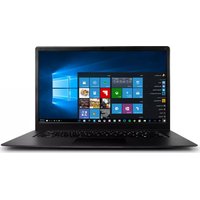
HAIER S3-75008G240GWUS - Laptop

S3-75008G240GWUS - Laptop HAIER - Free user manual and instructions

Find the device manual for free S3-75008G240GWUS HAIER in PDF.

📄 36 pages English EN Download 💬 AI Question 10 questions ⚙️ Specs
Notice HAIER S3-75008G240GWUS - page 1
Pick your language and provide your email: we'll send you a specifically translated version.
Product Type Laptop
Brand Haier
Model S3-75008G240GWUS
Processor Intel Core i5-7200U (2.5 GHz up to 3.1 GHz)
RAM 8 GB DDR4
Storage 240 GB SSD
Display Size 15.6 inches
Display Resolution 1366 x 768 pixels
Graphics Intel HD Graphics 620
Operating System Windows 10 Home
Wi-Fi 802.11 b/g/n/ac
Bluetooth Bluetooth 4.2
USB Ports 2 x USB 3.0, 1 x USB 2.0
HDMI 1 x HDMI 1.4
Battery 3-cell Li-ion, 36 Wh
Weight 1.8 kg (approx)
Dimensions (W x D x H) 375 x 250 x 22 mm
Power Adapter 45W AC adapter
Webcam HD 720p webcam

Frequently Asked Questions - S3-75008G240GWUS HAIER

How do I perform a factory reset on my Haier S3-75008G240GWUS laptop?
To factory reset, go to Settings > Update & Security > Recovery > Reset this PC. Choose 'Remove everything' for a full reset. Ensure you back up your data first.
How can I improve battery life on my laptop?
Reduce screen brightness, close unused apps, disable Wi-Fi/Bluetooth when not in use, and use 'Battery Saver' mode in Windows 10.
How do I connect to a Wi-Fi network?
Click the Wi-Fi icon in the taskbar, select your network, enter the password, and click Connect. Make sure the Wi-Fi switch is turned on.
What should I do if my laptop runs slowly?
Check for viruses, disable startup programs (Task Manager > Startup), uninstall unused software, and consider adding more RAM or upgrading to an SSD.
How do I update drivers on my Haier laptop?
Go to Device Manager, right-click a device, and select 'Update driver'. Alternatively, download the latest drivers from the official Haier support website.
How to clean the laptop screen and keyboard?
Turn off the laptop. Use a soft microfiber cloth slightly dampened with water or a screen cleaner. Avoid harsh chemicals. For keyboard, use compressed air to remove debris.
Can I upgrade the RAM on my Haier S3-75008G240GWUS?
Yes, this model typically has one SODIMM slot. You can replace the existing 8GB module with a higher capacity one, up to 16GB (check compatibility).
Why is my laptop overheating?
Ensure vents are not blocked, use a cooling pad, clean internal fans from dust, and check for high CPU usage in Task Manager. Avoid using the laptop on soft surfaces.
How do I enable Bluetooth on my laptop?
Go to Settings > Devices > Bluetooth & other devices, and toggle Bluetooth on. Also ensure the Bluetooth driver is installed and enabled in Device Manager.
What is the warranty period for my Haier laptop?
Haier laptops typically come with a 1-year limited warranty. Check your purchase documents for specific terms. Extended warranties may be available.

User questions about S3-75008G240GWUS HAIER

0 question about this device. Answer the ones you know or ask your own.

Ask a new question about this device

The email remains private: it is only used to notify you if someone responds to your question.

No questions yet. Be the first to ask one.

Download the instructions for your Laptop in PDF format for free! Find your manual S3-75008G240GWUS - HAIER and take your electronic device back in hand. On this page are published all the documents necessary for the use of your device. S3-75008G240GWUS by HAIER.

USER MANUAL S3-75008G240GWUS HAIER

目录

目录

1. 笔记本电脑简介

总体概览 6

用户注意事项....6

安全须知 6

搬运注意事项 8

使用前的准备....9

2.电脑各部分导览

顶部和前侧组件 12

右侧组件 14

左侧组件 15

3. 开始使用

供电系统 18

使用交流电源....18

使用电池供电....19

电池保养 19

启动笔记本电脑 20

电源选项....20

检查电池电量....21

为电池组充电....21

电源管理模式....22

电源管理器实用程序....23

特殊键盘功能....27

彩色热键 27

Microsoft Windows 按键 28

目录(续)

4. 使用笔记本电脑

指针设备 30

使用触摸板 30

触摸板用法图解 31

多点触控手势用法 32

触摸板保养 32

闪存卡读卡器....33

无线局域网连接 34

笔记页

1. 笔记本电脑简介

关于本用户手册

安全须知

搬运注意事项

使用前的准备

Diagram showing cable installation steps with labeled components: plug, socket, and cable connection

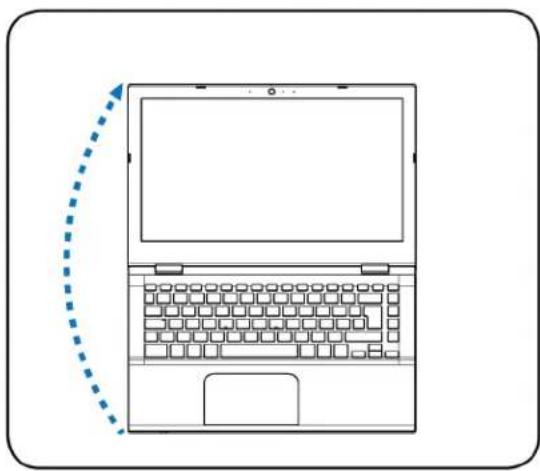
2. 打开显示屏

Line drawing of a laptop with a dashed arrow indicating left-side motion (no text or symbols)

3. 开启笔记本电脑电源

Diagram showing a hand pointing to a laptop keyboard with a blue 'G' label indicating the keyboard's left side.

Laptop interior diagram with numbered component labels pointing to key areas

1 麦克风(内置)左侧组件

1 闪存卡读卡器 MMC.SD

1 DCIN 直流电源输入

Fire Options Control Panel: Create or customize a present plan Create or customize a present plan A present plan to be collected in hardware and system settings (display brightness, drag, etc.) that generates your computer and power. On the next panel, it is also a physical design. Plan shown on bat…

① 可在此处清除耗电量日志。

特殊键盘功能

彩色热键

Line drawing of a laptop keyboard with no text or symbols on the screen or keyboard visible

graph TD A["光标移动"] --> B["单击"] B --> C["右击"]

Simple line drawing of a hand holding a blue wavy line on a white surface (no text or symbols)

HAIER S3-75008G240GWUS - 彩色热键 - 4

触摸板用法图解

单击功能

Simple line drawing of a hand holding a square object with a small circular mark at the bottom (no text or symbols)

按左侧按钮,然后松开。

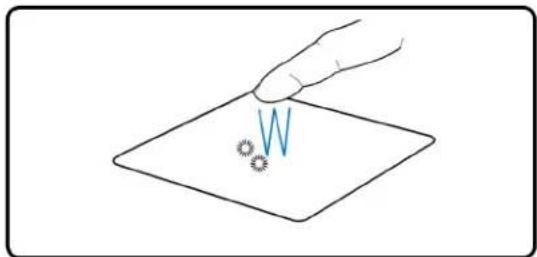
Hand holding a diamond-shaped object with a small circular mark and a V-shaped symbol at the center (no text or labels)

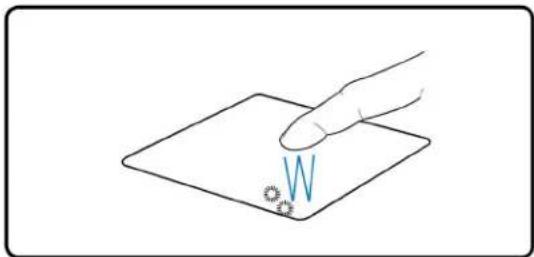
快速轻击触摸板。

双击功能

Hand pointing at a small blue letter 'W' on a flat surface, no text or symbols present

按左侧按钮两次,然后松开。

Diagram showing a hand placing a letter 'W' on a plane with a small circular symbol, likely illustrating a concept such as magnetic field or motion.

快速轻击触摸板两次。

拖拽单击功能

Illustration of a hand holding a square object with a small blue line on top, no text or symbols present

按住左侧按钮,同时在触摸板上滑动手指。

M

按右侧按钮,然后松开。

HAIER S3-75008G240GWUS - 拖拽单击功能 - 3

多点触控手势用法

两指滚动

两指缩放

T07AW Enter the network security key Share network with my contacts Next Cancel TP-LINK_AB16D8 STOP Network settings Wi-Fi Airplane mode 9:30 AM 6/12/2015

请左击边栏中的网络

请右击边栏中的网络

Manual assistant
Powered by Anthropic
Waiting for your message
Product information

Brand : HAIER

Model : S3-75008G240GWUS

Category : Laptop