
Lyra RD2850 - Mp3 player RCA - Free user manual and instructions
Find the device manual for free Lyra RD2850 RCA in PDF.


| Product Type | Portable MP3 Player |
| Brand | RCA |
| Model | Lyra RD2850 |
| Dimensions (approx.) | 3.5 x 2.5 x 0.6 inches (89 x 63 x 15 mm) |
| Weight (approx.) | 2.4 oz (68 g) without batteries |
| Power Source | 1 x AA battery (not included) |
| Battery Life (approx.) | Up to 10 hours of playback |
| Display | Monochrome LCD, 128x64 pixels |
| Storage Capacity | 256 MB internal flash memory (varies by region) |
| Expandable Storage | SD/MMC card slot (up to 1 GB) |
| Supported Audio Formats | MP3, WMA, WAV |
| Connectivity | USB 1.1, headphone jack (3.5 mm) |
| Controls | Directional pad, play/pause, volume, menu |
| Equalizer Presets | Normal, Rock, Pop, Jazz, Classic, Bass Boost |
| Playback Modes | Normal, Repeat One, Repeat All, Shuffle, Intro |
| FM Tuner | Yes, with preset memory (20 stations) |
| Voice Recording | Built-in microphone, WAV format |
| Operating System Compatibility | Windows 98/Me/2000/XP, Mac OS 9.x/X |
| Package Contents | Lyra RD2850, earphones, USB cable, CD-ROM with drivers & software, user manual |
| Cleaning Instructions | Wipe with a soft, dry cloth. Do not use liquids or solvents. |
| Safety Warnings | Avoid exposure to extreme temperatures, moisture, and drop. Dispose of battery properly. |
Frequently Asked Questions - Lyra RD2850 RCA
User questions about Lyra RD2850 RCA
0 question about this device. Answer the ones you know or ask your own.
Ask a new question about this device
Download the instructions for your Mp3 player in PDF format for free! Find your manual Lyra RD2850 - RCA and take your electronic device back in hand. On this page are published all the documents necessary for the use of your device. Lyra RD2850 by RCA.
USER MANUAL Lyra RD2850 RCA
This device complies with Part 15 of the FCC Rules. Operation is subject to the following two conditions: (1) This device may not cause harmful interference, and (2) this device must accept any interference received, including interference that may cause undesired operation.
In accordance with FCC requirements, changes or modifications not expressly approved by Thomson Inc. could void the user's authority to operate this product. This device generates and uses radio frequency (RF) energy, and if not installed and used properly, this equipment may cause interference to radio and television reception.
If this equipment does cause interference to radio or television reception (which you can determine by unplugging the unit), try to correct the interference by one or more of the following measures:
- Re-orient the receiving antenna (that is, the antenna for the radio or television that is "receiving" the interference).
- Move the unit away from the equipment that is receiving interference.
- Plug the unit into a different wall outlet so that the unit and the equipment receiving interference are on different branch circuits.
If these measures do not eliminate the interference, please consult your dealer or an experienced radio/television technician for additional suggestions. Also, the Federal Communications Commission has prepared a helpful booklet, "How To Identify and Resolve Radio TV Interference Problems." This booklet is available from the U.S. Government Printing Office, Washington, DC 20402. Please specify stock number 004-000-00345-4 when ordering copies. This product complies with DHHS Rules 21 CFR Subchapter J. Applicable at the date of manufacture.
This Class B digital apparatus complies with Canadian ICES-003.
SHOCK HAZARDO NOT EXPOSE THIS PRODUCT TO RAIN OR MOISTURE.
The descriptions and characteristics given in this document are given as a general indication and not as a guarantee. In order to provide the highest quality product possible, we reserve the right to make any improvement or modification without prior notice. The English version serves as the final reference on all products and operational details should any discrepancies arise in other languages.
Safety Information

RCA
RD2010
Equipment tested for
compliance as a
complete unit

RCA
RD2011
Equipment tested for
compliance as a
complete unit

RCA
RD2012
Equipment tested for
compliance as a
complete unit

RCA
RD2015
Equipment tested for
compliance as a
complete unit
Product Registration
Please fill out the product registration card and return it immediately. Returning th
card allows us to contact you if needed.
For Your Records
Keep your sales receipt for proof of purchase to obtain warranty parts and service.
In the event that service should be required, you may need both the model number and the serial number. In the space below, record
the serial number. In the space below, the date and place of purchase, and the
serial number:
Date of Purchase
Place of Purchase
Serial No.
Technical Specification
Product: Digital Audio Player
Brand: RCA
Model: RD2010 / RD2011 / RD2012 / RD2015
Electrical Consumption
1 x AA Battery
IMPORTER
This product should be serviced only by those specially trained in appropriate servicing techniques. For instructions on how to obtain service, refer to the warranty included in this Guide.
End User License Agreement
EN
IMPORTANT-READ CAREFULLY: This End User License Agreement ("Agreement") is a legal agreement between you and Thomson Inc. ("Thomson") for the RCA Lyra Audio Device application/driver software program and associated documentation, if any ("Program").
ACKNOWLEDGMENT
BY INSTALLING THE SOFTWARE OR CLICKING ON THE ACCEPTANCE BUTTON OF THE SOFTWARE, COPYING OR OTHERWISE USING THE PROGRAM, YOU ACKNOWLEDGE AND AGREE THAT YOU HAVE READ THIS AGREEMENT, UNDERSTAND IT, AND AGREE TO BE BOUND BY ITS TERMS AND CONDITIONS. IF YOU DO NOT AGREE TO THE TERMS OF THIS LICENSE AGREEMENT, CLICK ON THE REJECTION BUTTON AND/OR DO NOT INSTALL THE SOFTWARE AND/OR DO NOT USE THE PROGRAM.
LICENSE
a) You are granted the license (i) to use the Program on a single workstation and (ii) to make one (1) copy of the Program into any machine-readable form for backup of the Program, provided the copy contains all of the original Program's proprietary notices.
b) You may transfer the Program and license, only as part of the Lyra Audio Device, to another party if the other party agrees to accept the terms and conditions of this Agreement. If you transfer the Program, you must at the same time either transfer all copies to the same party or destroy any copies not transferred.
End User License Agreement
LICENSE RESTRICTIONS
a) Except for the licenses expressly granted to you in this Agreement, no other licenses are implied.
b) You may not (i) modify, translate, reverse engineer, decompile, disassemble (except to the extent that this restriction is expressly prohibited by law) or create derivative works based upon the Program or (ii) copy the Program, except as expressly permitted herein. You agree that you shall only use the Program in a manner that complies with all applicable laws in the jurisdictions in which you use the Program, including, but not limited to, applicable restrictions concerning copyright and other intellectual property rights.
c) The Program may contain pre-release code that does not perform at the level of a final code release. In this case, the Program may not operate properly. Updated versions of the Program can be downloaded from www.rca.com.
d) Thomson is not obligated to provide support services for the Program.
e) The Program is provided with "RESTRICTED RIGHTS". Use, duplication, or disclosure by the U.S. Government is subject to restrictions as set forth in subparagraph (c)(1)(ii) of DFARS 252.227-7013, or FAR 52.227-19, or in FAR 52.227-14 Alt. III, as applicable.
TERM AND TERMINATION
a) The license is effective on the date you accept this Agreement, and remains in effect until terminated by either party.
b) You may terminate this license without any notice or delay, by destroying or permanently erasing the Program and all copies thereof.
c) If you use, copy, modify, or transfer the Program, or any copy, in whole or part, except as expressly provided for in this license, your license is automatically terminated.
d) When the license is terminated, you must destroy or permanently erase the Program and all copies thereof.
EN
End User License Agreement
EN
WARRANTY DISCLAIMER
THE PROGRAM IS PROVIDED "AS IS" WITHOUT WARRANTY OF ANY KIND, EITHER EXPRESSED OR IMPLIED, INCLUDING, BUT NOT LIMITED TO THE IMPLIED WARRANTIES OF MERCHANTABILITY, FITNESS FOR A PARTICULAR PURPOSE, TITLE OR NON-INFRINGEMENT. THE ENTIRE RISK AS TO THE QUALITY AND PERFORMANCE OF THE PROGRAM IS WITH YOU. SHOULD THE PROGRAM PROVE DEFECTIVE, YOU (AND NOT THOMSON, ITS SUPPLIERS, ITS AFFILIATES OR ITS DEALERS) ASSUME THE ENTIRE COST FOR ALL NECESSARY REPAIR OR CORRECTION.
This exclusion of warranty may not be allowed under some applicable laws. As a result, the above exclusion may not apply to you, and you may have other rights depending on the law that applies to you.
OWNERSHIP RIGHTS
All title and intellectual property rights in and to the Program and any copies thereof are owned by Thomson or its suppliers. All title and intellectual property rights in and to the content which may be accessed through use of the Program is the property of the respective content owner and may be protected by applicable copyright or other intellectual property laws and treaties. This license grants you no rights to use such content.
End User License Agreement
LIMITATION OF LIABILITY
a) TO THE MAXIMUM EXTENT PERMITTED BY APPLICABLE LAW, IN NO EVENT SHALL THOMSON, ITS AFFILIATES, OR ITS DEALERS BE LIABLE FOR ANY SPECIAL, INCIDENTAL, INDIRECT OR CONSEQUENTIAL DAMAGES WHATSOEVER (INCLUDING, WITHOUT LIMITATION, DAMAGES FOR LOSS OF PROFITS, BUSINESS INTERRUPTION, CORRUPTION OF FILES, LOSS OF BUSINESS INFORMATION OR ANY OTHER PECUNIARY LOSS) REGARDLESS OF CAUSE OR FORM OF ACTION, INCLUDING CONTRACT, TORT OR NEGLIGENCE, ARISING OUT OF THE USE OF OR INABILITY TO USE THE PROGRAM, EVEN IF THOMSON HAS BEEN ADVISED OF THE POSSIBILITY OF SUCH DAMAGES.
BECAUSE SOME STATES AND JURISDICTIONS DO NOT ALLOW THE EXCLUSION OR LIMITATION OF LIABILITY OF CONSEQUENTIAL OR INCIDENTAL DAMAGES, THE ABOVE LIMITATION MAY NOT APPLY TO YOU.
b) YOU ASSUME RESPONSIBILITY FOR THE SELECTION OF THE APPROPRIATE PROGRAM TO ACHIEVE YOUR INTENDED RESULTS, AND FOR THE INSTALLATION, USE, AND RESULTS OBTAINED.
WINDOWS MEDIA
This version of the Lyra Audio Device Player ("Lyra Player") contains software licensed from Microsoft that enables you to play Windows Media Audio (WMA) files ("WMA Software"). The WMA Software is licensed to you for use with the RCA/THOMSON Portable Audio Device digital music player under the following conditions. By installing and using this version of the Lyra Player, you are agreeing to these conditions. IF YOU DO NOT AGREE TO THE CONDITIONS OF THIS END USER LICENSE AGREEMENT, DO NOT INSTALL OR USE THIS VERSION OF THE Lyra Player.
End User License Agreement
EN
The WMA Software is protected by copyright and other intellectual property laws. This protection also extends to documentation for the WMA Software, whether in written or electronic form.
GRANT OF LICENSE. The WMA Software is only licensed to you as follows: You may use this version of the Lyra Player containing the WMA Software only with the Portable Audio Device player.
You may not reverse engineer, decompile, or disassemble the WMA Software, except and only to the extent that such activity is expressly permitted by applicable law in spite of this limitation.
You may transfer your right to use this version of the Lyra Player only as part of a sale or transfer of your Portable Audio Device player, on the condition that the recipient agrees to the conditions in this End User License Agreement. If the version of the Lyra Player that you are transferring is an upgrade, you must also transfer all prior versions of the Lyra Player that you have which include the WMA Software.
MICROSOFT IS NOT PROVIDING ANY WARRANTY OF ANY KIND TO YOU FOR THE WMA SOFTWARE, AND MICROSOFT MAKES NO REPRESENTATION CONCERNING THE OPERABILITY OF THE WMA SOFTWARE.
The WMA Software is of U.S. origin. Any export of this version of the Lyra Player must comply with all applicable international and national laws, including the U.S. Export Administration Regulations, that apply to the WMA Software incorporated in the Lyra Player.
End User License Agreement
THIRD PARTY SOFTWARE
ANY THIRD PARTY SOFTWARE THAT MAY BE PROVIDED WITH THE PROGRAM IS INCLUDED FOR USE AT YOUR OPTION. IF YOU CHOOSE TO USE SUCH THIRD PARTY SOFTWARE, THEN SUCH USE SHALL BE GOVERNED BY SUCH THIRD PARTY'S LICENSE AGREEMENT, AN ELECTRONIC COPY OF WHICH WILL BE INSTALLED IN THE APPROPRIATE FOLDER ON YOUR COMPUTER UPON INSTALLATION OF THE SOFTWARE. THOMSON IS NOT RESPONSIBLE FOR ANY THIRD PARTY'S SOFTWARE AND SHALL HAVE NO LIABILITY FOR YOUR USE OF THIRD PARTY SOFTWARE.
GOVERNING LAW
This Agreement is governed by the laws of the State of Indiana, U.S.A. without regard to its conflict of laws.
GENERAL TERMS
This Agreement can only be modified by a written agreement signed by you and Thomson, and changes from the terms and conditions of this Agreement made in any other manner will be of no effect. If any portion of this Agreement shall be held invalid, illegal, or unenforceable, the validity, legality, and enforceability of the remainder of the Agreement shall not in any way be affected or impaired thereby. This Agreement is the complete and exclusive statement of the agreement between you and Thomson, which supersedes all proposals or prior agreements, oral or written, and all other communications between you and Thomson, relating to the subject matter of this Agreement.
EN
Table of Contents
EN
FCC Information
Safety Information
End User License Agreement
Table of Contents .....1
Before You Begin ....3
Unpacking Your Unit ....3
What's so special about this mp3 player? ....3
Computer System Requirements 3
Precautions for the unit .....4
Caution 4
Caution While Driving .....4
Important Battery Information ....5
Please Respect the Environment! ..5
Headset Safety 5
Inserting battery into the player . . .6
Inserting a SD card/MultiMedia Card (Optional) .....6
Using Headphones .....7
How to Use Your Clip Phones (The e.clipz)....7
Connecting the Lyra Player to your
Computer 8
General Controls .....9
Front View 9
Top View....10
Back View 10
Display Overview....11
Menu Navigation .....12
Top Menu 12
Music Sub-menu .....13
Radio Sub-menu .....13
Menu Navigation .....13
Digital Music Operation ....14
Selecting Music Mode .....14
Music Playback Operation .....14
Play / Pause ....14
Skipping Tracks....15
Scan Tracks ....15
Stop Playback ....15
Adjusting the Volume .....15
Additional Music Features .....16
My Selections .....16
Adding Songs to My Selections16
Removing Songs from My
Selections....16
View My Selections .....16
Clear My Selections .....16
View Music Sub-Menu .....17
Repeat 17
Shuffle .....17
DSP 18
Table of Contents
Radio ....19
Selecting Radio Mode .....19
Tuning to a Station .....19
Preset Station 19
Saving Preset 19
Selecting Preset .....20
Clearing Preset .....20
Suppressing Stereo Signal .....21
Record FM Radio 21
Selecting Recording Duration .21
Selecting Recording Quality ...21
View FM Recording .....22
Delete FM Recording .....22
System Settings .....23
Settings....23
Memory Usage .....23
Version 24
More Information .....24
Check for Updates .....24
Frequently Asked Questions .....24
Troubleshooting Tips .....25
U.S. Warranty .....27
Canadian Warranty .....29
Before You Begin
EN
Dear RCA Customer,
Thank you for purchasing the RCA Lyra™ Digital Music Player. This product is compatible with most secure music downloads from WMA-compliant services that support DRM.
Unpacking Your Unit
When you unpack your new player, be sure you have removed all the accessories and information papers. The items below should have been packed in the box with your player.
• L yra player
• Music Management CD
- USB c a b l e
- Clip Phones
- Carry case
• A r m b a n d
• Car cassette adapter (For RD2011 only)

Warning:
The armband is designed for carrying the player on upper arm only. DO NOT wear the armband on other parts of the body such as the neck to avoid choking hazard or breathing difficulty.
What's so special about this mp3 player?
This player is meant to play mp3 and Windows Media™ audio files encoded on a memory card or recorded in the built-in flash memory.
To do so, you need the use of a Windows computer with USB port, connection cable (included) and a music management software (MusicMatch Jukebox).
Computer System Requirements
- Pentium III 500MHz or higher recommended Macintosh iMac G3 or highe
- Windows ®98SE, Me, 2000, or XP Mac OS X Version 10.1.5 or higher
- Internet Explorer 4.0 or higher
- Internet access
- 100MB free hard disk space for the software
• 64MB RAM (128 MB recommended) - CD-ROM drive capable of digital audio extraction
• USB port (2.0 recommended) - Sound card
Before You Begin

Warning:
Use of this product is for your personal use only. Unauthorized recording or duplication of copyrighted material may infringe upon the rights of third parties and may be contrary to copyright laws.

Note
Make sure the tracks are encoded in mp3 or Windows Media formats and supported bitrates. Bitrates supported by the player: mp3 - 32 to 320kbps wma - 48 to 160kbps
Precautions for the Unit
- Do not use the unit immediately after transportation from a cold place to a warm place; condensation problem may result.
-
Avoid shock to the unit especially during recording. Recorded data may be damaged.
-
Do not store the unit near fire, places with high temperature or in direct sunlight.
- Do not operate or store unit in places with frequent static electricity or electrical noise (e.g. speaker, TV set).
- Clean the unit with a soft cloth or a damp chamois leather. Never use solvents.
- The unit must only be opened by qualified personnel.
Caution
- Keep product out of direct sunlight. Exposure to direct sunlight or extreme heat (such as inside a parked car) may cause damage or malfunction.
- Do not expose to rain or moisture.
Caution While Driving
Use of headphones while operating an automobile or moving vehicle is not recommended and is unlawful in some states and areas. Be careful and attentive on the road. Stop operation of the unit if you find it disruptive or distracting while driving.
Before You Begin
EN
Important Battery Information
- When storing the unit, be sure to remove the batteries because they may leak and damage the unit.
- Batteries may leak electrolyte if inserted incorrectly, if disposed of in fire, or if an attempt is made to charge a battery not intended to be recharged.
- Never mix new batteries with old ones. Do not mix battery types.
- Discard leaky batteries immediately. Leaking batteries may cause skin burns or other personal injury.
- Do not charge batteries which are not intended to be recharged.
- Dispose of batteries, according to federal, state and local regulations.
Please Respect the Environment!

Before throwing any batteries away, consult your distributor who may be able to take them back for specific recycling.
Headset Safety
Have a Blast- Just Not in Your Eardrums Make sure you turn down the volume on the unit before you put on headphones. Increase the volume to the desired level only after headphone are in place.
- Do not play your headset at a high volume. Hearing experts warn against extended high-volume play.
- If you experience a ringing in your ears, reduce volume or discontinue use.
- You should use extreme caution or temporarily discontinue use in potentially hazardous situations. Even if your headset is an open-air type designed to let you hear outside sounds, don't turn up the volume so high that you are unable to hear what is around you.
Before You Begin
Insert battery into the player
- To insert batteries, press the PUSH OPEN button next to the battery door to release the lock and lift the door.
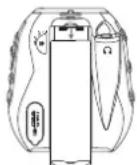
- Insert a "AA"(UM3) battery with polarities corresponding to the indications on the compartment. (Refer to "Before You Begin" for important battery information.)
- Close the door to the battery compartment.

Note
Refer to the power level indicator on display for battery level. Replace with new batteries when the indicator is empty. Refer to "Display Overview" on page 11.
Inserting a SD card / MultiMediaCard (Optional)
The player has built-in flash memory. To extend the playtime, you can use the optional Memory Card slot.
- Insert a Memory Card into the card slot on the top of the player when it is off as illustrated in the diagram below.
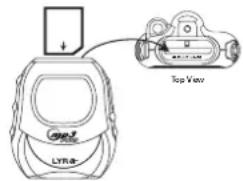
- To remove the card, pull the Memory Card out when the unit is off.

Note
Do not remove the Memory Card during playback or when the power is on. This may stop the unit from playing immediately or damage the memory on the memory card or the player.
Before You Begin
EN
Using Headphones
Insert phone plug into the headphones jack ( 🔍 ) on the back of player for listening.
Have a Blast- Just Not in Your Eardrums. Make sure you turn down the volume on the unit before you put on headphones. Increase the volume to the desired level only after headphones are in place.
How to Use Your Clip Phones (The e.clipz)
The right ear clip phone is labeled R while the left ear clip phone is labeled L.
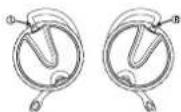
- Pull the ear hook away from the ear pad slightly. You will hear a click sound.
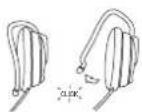
- Slide the ear hook behind the ear with the ear pad on the front of the ear. Rotate the clip phone so the ear pad fits closely with the ear.
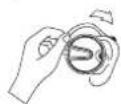
- Lock the clip phone in place by pushing down on the top of the ear hook until it locks.
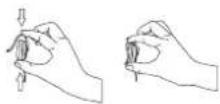
- For best sound quality, make sure the earpad fits closely with your ear.
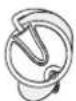

CAUTION
DO NOT INSERT EAR HOOK INTO YOUR EAR.
Before You Begin
Connecting the Lyra Player to your Computer
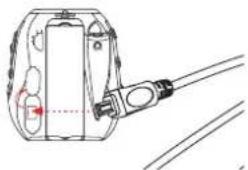
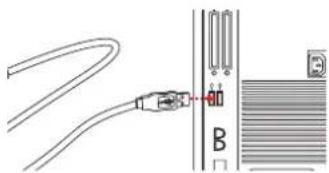
- Lift the rubber cover that is covering the USB socket on the back of the player.
- Insert the smaller end of the USB cable into the socket on the unit tightly.

Note
Refer to the "USB Driver Installation; MusicMatch Jukebox™ Software" instruction manual for procedures in setting up USB drivers and transferring files to the player.
natural_image
Technical line drawing of a mechanical component with a red circular feature and dashed alignment lines (no text or symbols)- Insert the larger end of the USB cable to the USB socket on the back of the computer.

Note
You must profile your contents on your PC after file transfer in order for the new files to appear in the Navigation Menus. Refer to the "USB Driver Installation: MusicMatch Jukebox™ Software" instruction manual for profiling details.
natural_image
Pure electrical circuit lines without any symbolsEN
General Controls
EN
Front View
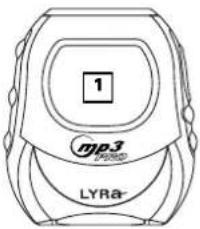
- Display - Shows user interface.
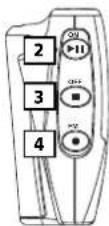
Left Side
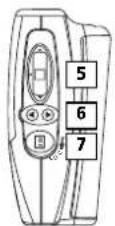
Right Side
2. ON/PLAY/PAUSE (▶) - Turns the unit on. Press and hold to toggle between music and radio modes.
In music mode - Starts and pauses music playback.
In radio mode - Selects between preset tuning and manual tuning.
3. OFF/STOP ( ■ ) - Turns the unit off.
Press and hold in any mode to turn off
the unit.
In music mode - Stops music playback.
In radio recording mode - Stops
recording.
4. FM REC ( ●) - Starts and pauses FM radio recording in radio mode.
5. UP ( ▶) - Scrolls up when navigating through the menu and moves the cursor up.
In radio and music playback mode - Increases the volume.
DOWN (▼) - Scrolls down when navigating through the menu and moves the cursor down.
In radio and music playback mode - Decreases the volume.
SELECT - Enters the selected menu level. During menu navigation in music mode - Tags an unselected item to be included into the My Selections playlist. Removes a selected item from the My Selections playlist. In radio mode - Selects the current radio station as a preset station.

Note
Push the SELECT button in to activate the select feature.
General Controls
- LEFT ( ◀ - In navigation mode - Returns to the previous menu level. In music mode - Skips to the previous song or the beginning of the current song. Press and hold to scan backwards. In radio mode - Scans down radio frequency.
RIGHT (▶) - Enters the selected menu. In music mode - Skips to the next song. Press and hold to scan forward. In radio mode - Scans up radio frequency.
- MENU (☐) / LOCK (○) - Accesses the menu. Press and hold to lock and unlock the unit.
Top View
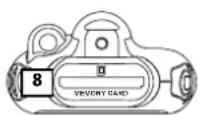
- Memory Card (☐) - Slot for inserting the memory card. The player supports SD and MultiMediaCard memory cards.
Back View
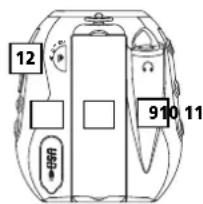
- Headphones Jack ( 🔒) - Insert the clip phones plug here.
- USB port (USB) - Attach the small end of the mini-USB cable here.
- Battery Compartment - Insert battery here.
- PUSH OPEN - Push to release the lock on the battery door.
General Controls
EN
Display Overview
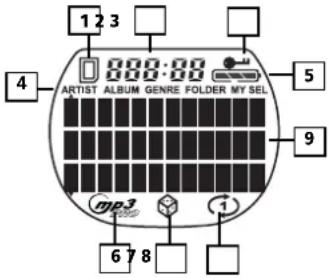
- The memory card icon is displayed when memory card is detected.
- The song elapse time is displayed during music playback.
- The lock icon is displayed when the key lock function is activated.
-
These icons indicate the current sorting method.
-
The battery indicator shows the battery level.
-
Battery is full
- Battery is empty
When the battery is almost empty, the icon blinks.
- The mp3 PRO is displayed when the song is in mp3 PRO format.
- The shuffle icon is displayed when random playback is selected.
- The repeat icon is displayed when the repeat feature is activated.
① - indicates repeat one song
- indicates repeat all songs in the current view.
- In music mode, this section shows song information.
In radio mode, station information is displayed.
Menu Navigation
The information in this section presumes you've successfully transferred files to your Lyra Digital Audio Player, and you're ready to play some music (refer to the Software Instruction Manual).
Top Menu
Top Menu is the main menu. The navigation scheme is the same no matter how many menus you access. The main menu consists of the following items:
| → Artists → Albums → Titles → |
| → Genres → Folders → My Sel → |
| → Radio Recs → |
Artists - The first level lists the artist folders, the second level lists the Albums for each artist and the third level lists the songs from each artist's albums.
Albums - Items are sorted into folders according to the albums.
Titles - Items are sorted according to the song title.
Genres - Items are sorted into folders according to their genres.
Folders - Items in mp3 and WMA format are listed.
My Sel (My Selections playlist) - Items selected into the My Selections playlist are listed in the order in which they were added.
Radio Recs (Radio Recordings) - Radio recordings are listed in the order they were recorded.

Note
You must profile your contents on your PC after file transfer in order for the new files to appear in the Navigation Menus. Refer to the "USB Driver Installation; MusicMatch Jukebox" Software instruction manual for profiling details.
Menu Navigation
EN
Music Sub-menu
| Go to Radio | |
| Repeat | Off |
| Shuffle | Off |
| DSP | Flat |
| Clear MySel | |
| Delete File | |
| Settings | |
| Mem Usage | |
| Version | |

Note
"Delete File" is only displayed in FM recordings and in the Radio Recs menu where FM recordings are listed.
Radio Sub-menu
| Go to MusicClr PresetMode Stereo |
| Rec Dur MaxRec Qua HiSettings |
| Mem UsageVersion |

Note
"Clr Preset" is only displayed in preset mode.
Menu Navigation
- To Scroll up and down the menu and move the cursor to items on screen, press the UP ( ▲ ) or DOWN ( ▼ ) arrow button.
- To enter and view the submenu, press the RIGHT (▶) arrow button or the SELECT button.
- To go back to the previous menu level, press the LEFT (◀) arrow button.
- To return to the top menu at any given time, press the MENU (☐) / LOCK (☐) button.
- Press and hold the ON/PLAY/PAUSE (▶) button to toggle between music and radio mode.
Digital Music Operation
EN

Note
You must profile your contents on your PC after file transfer in order for the new files to appear in the Navigation Menus. Refer to the "USB Driver Installation; MusicMatch Jukebox™ Software" instruction manual for profiling details.

Tip
You can also press and hold ON/PLAY/PAUSE (▶) to toggle between music and radio mode.
Selecting Music Mode
- If the unit is in radio mode, press the MENU (☐) / LOCK (○) button to view sub-menu.
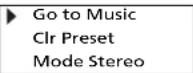
- Use the UP (▲) or DOWN (▼) arrow to move the cursor to Go to Music for music mode and press RIGHT (▶) or the scroll button to select.
Music Playback Operation
Use the navigation buttons to select the item to play.
Play / Pause
- Once the item that you want to play is selected, press ON/PLAY/PAUSE (▶) to begin playback. This item can be an artist, an album, a playlist, or a song.
- Press again to pause playback. The unit will automatically power off after remaining in pause mode for more than the Power Save interval (length of this Power Save interval can be modified in the Settings menu).
- Press ON/PLAY/PAUSE (▶II) again to resume playback.
Digital Music Operation
EN
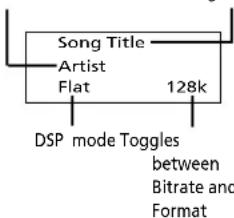
Display (when music is playing)
Toggles between Artist, Album and Genre Title of the song
Skipping Tracks
- T o skip to the next track, press and release the RIGHT (▶) button.
- T o go to the previous track, press and release the LEFT (◀) button.
Scan Tracks
- T o scan backwards in the track that is playing, press and hold the LEFT (◀) button.
- T o scan forwards in the track that is playing, press and hold the RIGHT (▶) button.
Stop Playback
To stop playback, press the OFF/STOP (■) button. The display returns to the previous menu level.
Adjusting the Volume
- T o turn up the volume, press the UP (▲) button. The volume level shows briefly to indicate the increase in volume level.
- T o turn down the volume, press the DOWN (▼) button. The volume level shows briefly to show the decrease in volume level.
Digital Music Operation
Additional Music Features
My Selections (My Sel)
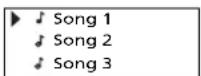
- The song is not included in the My Selections playlist.
- The song is included in My Selections.

Tip
A icon shows in front of items that can be added into the My Selections playlist.
Adding Songs to My Selections
-
In navigation mode, use the UP (▲), DOWN (▼), LEFT (◀) and RIGHT (▶) navigation buttons to move the cursor to the song to be added to My Selections.
-
Press SELECT to tag it (only in navigation mode).
Removing Songs from My Selections
- In navigation mode, use the UP (▲), DOWN (▼), LEFT (◀) and RIGHT (▶) navigation buttons to move the cursor to select the song to be removed from My Selections.
- Press SELECT to remove it (only in navigation mode).
View My Selections
- From the main menu, use the UP (▲) and DOWN (▼) arrow buttons to move the cursor to My Sel.
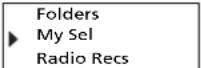
- Press SELECT to enter and view items in My Sel.
Clear My Selections
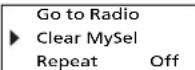
- In the My Sel folder, press the MENU (☐) / LOCK (○) button to view music sub-menu.
- Use the UP (▲) and DOWN (▼) buttons to move the cursor to Clear MySel and press SELECT.
EN
Digital Music Operation
EN
View Music Sub-menu
Press MENU (☐) / LOCK (○) button to view the music sub-menu at any time in music mode.
Repeat
- In music mode, press MENU (目) / LOCK (○) to view the music sub-menu.
- Use the UP (▲) and DOWN (▼) arrow buttons until the cursor is at Repeat.
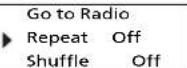
- Press SELECT to toggle among repeat options. Repeat Off (default) - Repeat is off. Repeat One 📋 - Repeats the current song. Repeat All 📍 - Repeats all the songs in the current view.
Shuffle
- From music sub-menu, use the UP ( ▶ and DOWN ( ▼ ) arrow buttons until the cursor is at Shuffle.
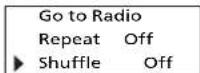
- Press SELECT to select between Shuffle Off (default) - Shuffle is off. Shuffle On 🔒 - Plays songs in the current view randomly.

Tip
Shuffle On / Repeat One - A song is selected randomly from the current view and is played repeatedly. Shuffle On / Repeat All - Songs in the current view are played in random order repeatedly.
Digital Music Operation

Note
If Shuffle and Repeat settings are changed when a song is playing, new settings will start when the current song is finished playing.
DSP
- From the music sub-menu, use the UP (▲) and DOWN (▼) arrow buttons until the cursor is at DSP.
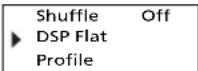
- Press SELECT to select among Flat (default), Bass, Pop, Rock and Jazz.
Radio
EN
Selecting Radio Mode
- In music mode, press the MENU (☐) / LOCK (○) button to view music sub-menu.
| Go to Radio | |
| Repeat | Off |
| Shuffle | Off |
- Select Go to Radio for Radio mode.
| FM 98.5MHz | |
| Manual | St |

Tip
Press and hold ON/PLAY/PAUSE (▶) to toggle between music and radio mode.
Radio Modes:
Manual Mode - Tuning to stations manually.
Preset Mode - Selecting stations saved in preset memory.
Press the ON/PLAY/PAUSE (▶Ⅲ) button to select between Preset mode and Manual mode.
Tuning to a Station
- Press the LEFT (◀) arrow button to tune down radio frequency.
- Press the RIGHT (▶) arrow button to tune up radio frequency.

Tip
Press and hold the LEFT (◀) or RIGHT (▶) arrow button to automatically search for the next station in the respective direction.
Preset Station
Saving Preset
- Tune to the station to be saved as a preset station.
- Press SELECT.
| Save to |
| P 1234567890 |
| Empty |
Radio
- Press the LEFT (◀) or RIGHT (▶)
arrow button to select a preset number.
The current preset location blinks.
- Press SELECT to confirm your selection.
FM 98.5MHz
P 1
Preset
St
Selecting Preset Station
If the unit is in Manual mode, press the ON/PLAY/PAUSE (▶II) button to select Preset mode.
In preset mode, press LEFT (◀) to select the previous preset station and press RIGHT (▶) to select the next preset station.
Clearing Preset
-
In radio mode, press MENU (☐) / LOCK (○) to view radio sub-menu.
-
Use the UP (▲) and DOWN (▼) arrow button to select CIr Preset (Clear Preset).
Go to Music ▶ Clr Preset Mode Stereo

Note
"Preset" must be displayed on the screen so that "Clr Preset" is displayed in the Radio sub-menu.
- Press the RIGHT( ) arrow or SELECT button.
Clear P 1234567890 98.5MHz
-
Press the RIGHT (▶) or LEFT (◀) arrow buttons to select the preset location to clear.
-
Press SELECT to confirm.
Radio
EN
Suppressing Stereo Signal
If FM stereo reception is weak, select mono sound to reduce the noise.
-
From the radio submenu, use the UP (▲) and DOWN (▼) arrow button to move the cursor to Mode.
-
Press SELECT or the RIGHT (▶) button to select between Stereo and Mono sound.
Record FM Radio
Tune to the Station to be recorded.
- Press FM REC (●) to start recording.
- Press FM REC (●) to pause recording. Press again to resume
- Press OFF/STOP ( ■ ) to stop recording.
Selecting Recording Duration
- From the radio sub-menu, use the UP (▼) and DOWN (▲) arrow buttons to move the cursor to Rec Dur (Recording Duration).
- Press the RIGHT( ) arrow button or the SELECT button to select among Max, 120m, 90m, 60m and 30m.
Clr Preset
Mode Stereo
Rec Dur Max
Selecting Recording Quality
- From the radio sub-menu, press the UP (▲) or DOWN (▼) arrow button to move the cursor to Rec Qua (Recording Quality).
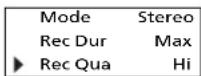
- Press the RIGHT() arrow button or the SELECT button to select among Std (Standard : 32k), Hi (High : 96k (default)) and Max (Maximum : 128k).
Radio
View FM Recording
- In music mode, press the MENU (☐) / LOCK (○) button to view the Music sub-menu.
- Use the UP (▲) or DOWN (▼) arrow button to move the cursor to Radio Recs (Radio Recordings).
| ArtistsAlbumsTitles |
| GenresFoldersMy Sel |
| ► Radio Recs |
- Press the RIGHT() arrow button or 2. SELECT to enter the Radio Recs menu. The first recording is listed first.
| ▶ FM102.5 [001] |
| ▶ FM 90.3 [001] |

Note
Radio recordings are saved in mp3 file format. They can be treated in the same way as other mp3 music files.
Delete FM Recording
- Press the MENU (☐) / LOCK (○) button when the cursor is at the radio recording to be deleted to view the music menu.
- Use the UP (▲) or DOWN (▼) arrow button to move the cursor to Delete File.
- Press SELECT to delete.
System Settings
EN
Settings
- In any mode, press MENU (☐) / LOCK (○) to view music and radio sub-menu.
- Use the UP (▲) or DOWN (▼) arrow button to move the cursor to Settings.
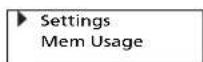
- Press the RIGHT() arrow button or SELECT to enter the Settings menu.
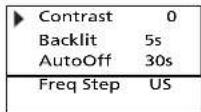
- Use the UP ( ▶ or DOWN ( ▼) arrow button to move the cursor to the setting you want to change.
- Press RIGHT() arrow button to select among options for each setting. Contrast: -5, -4, -3, -2, -1, 0, 1, 2, 3, 4, 5 Backlit: 5s, 10s, 30s AutoOff: 15s, 30s, 1m Freq Step: US, EU
Memory Usage
Memory Usage (Mem Usage) shows the amount of free space on the internal and external memory.
- Press MENU (☐) / LOCK (☐) to view music and radio sub-menu.
- Use the UP (▲) or DOWN (▼) arrow button to move the cursor to Mem Usage (Memory Usage).
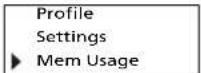
- Press the RIGHT( ) arrow button or SELECT to view memory usage information.
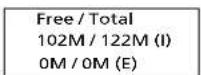
I = Internal memory E = External memory
System Settings
Version
- Press MENU (目) / LOCK (○) to view music and radio sub-menu.
- Use the UP (▲) or DOWN (▼) arrow button to move the cursor to Version.
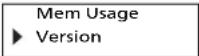
- Press the RIGHT( ) arrow button or SELECT to view firmware version.
EN
Version 1.9
More Information
Check for Updates
Visit http://www.rca.com/digitalaudiodownloads for the latest news and firmware upgrades for our Lyra Digital Audio Player. You must update your system after new downloads have been made in order for the new applications to be executed.
Frequently Asked Questions
You can get FAQ information at www.rca.com/digitalaudiofaq.
More Information
EN
Troubleshooting Tips
The player does not turn on when PLAY button pressed.
- Batteries may be inserted incorrectly.
- Batteries may be empty.
Skipping tracks or bad sound quality?
- Repeat, random or program function may be activated.
- There may be strong magnetic fields (e.g. too close to TV) near the unit.
- Low Battery level. Replace with new ones.
Cannot perform playback?
- LOCK function may be activated.
- There may be no mp3 tracks in the card or internal memory.
• Memory Card may be damaged.
Cannot play tracks on the player?
- Track encoded bit rate may not be between 32 to 192 kbps for mp3 or between 64kbps to 128kbps for Windows Media Audio.

Note
For better result, we recommend a constant encoded bit rate from 32 to 320kbps for mp3 and 48kbps to 128kbps for Windows Media Audio. Nevertheless, your unit may play tracks encoded in variable bit rate (VBR).
USB display does not appear when connected to computer.
- Check connection between your unit and the computer. (Refer to the "USB Driver Installation; MusicMatch Jukebox™ Software" instruction manual)
- Check if the USB drivers are properly installed (Refer to the "USB Driver Installation; MusicMatch Jukebox™ Software" instruction manual)
More Information
The player does not respond to key operations?
- Turn the player off by removing the batteries. Reinsert the batteries properly and turn the player on again to resume normal operations.

Warning:
Formatting the device will erase all stored contents. Backup all the valuable files before doing so.

Note
Under some rare circumstances, your unit might report less memory than is available for storing music files. If this happens, format the device to recover all the memory.
EN
U.S. Warranty
EN
What your warranty covers:
• Defects in materials or workmanship.
For how long after your purchase:
• One year from date of purchase.
The warranty period for rental units begins with the first rental or 45 days from date of shipment to the rental firm, whichever comes first.
What we will do:
- Provide you with a new, or at our option, a refurbished unit. The exchange unit is under warranty for the remainder of the original product's warranty period.
- Proof of purchase in the form of a bill of sale or receipted invoice which is evidence that the product is within the warranty period must be presented to obtain warranty service. For rental firms, proof of first rental is also required.
How to make a warranty claim:
- Properly pack your unit. Include any cables, etc., which were originally provided with the product. We recommend using the original carton and packing materials.
- Include evidence of purchase date such as the bill of sale. Also print your name and address and a description of the defect. Send via standard UPS or its equivalent to:
Thomson Inc.
Product Exchange Center
11721 B Alameda Avenue
- Insure your shipment for of loss or damage. Thomson accepts no liability in case of damage or loss en route to Thomson.
- Pay any charges billed to you by the Exchange Center for service not covered by the warranty.
- A new or refurbished unit will be shipped to you freight prepaid.
What your warranty does not cover:
- Customer instruction. (Your Owner's Manual provides information regarding operating Instructions and user controls. For additional information, ask your dealer.)
• Installation and set-up service adjustments. - Batteries.
• Damage from misuse or neglect. - Products which have been modified or incorporated into other products.
- Products purchased or serviced outside the USA.
- Acts of nature, such as but not limited to lightning damage.
U.S. Warranty
Product Registration:
- Please complete and mail the Product registration Card packed with your unit. It will make it easier to contact you should it ever be necessary. The return of the card is not required for warranty coverage.
Limitation of Warranty:
- THE WARRANTY STATED ABOVE IS THE ONLY WARRANTY APPLICABLE TO THIS PRODUCT. ALL OTHER WARRANTIES, EXPRESS OR IMPLIED (INCLUDING ALL IMPLIED WARRANTIES OF MERCHANTABILITY OR FITNESS FOR A PARTICULAR PURPOSE) ARE HEREBY DISCLAIMED. NO VERBAL OR WRITTEN INFORMATION GIVEN BY THOMSON INC., ITS AGENTS OR EMPLOYEES SHALL CREATE A GUARANTY OR IN ANY WAY INCREASE THE SCOPE OF THIS WARRANTY. - REPAIR OR REPLACEMENT AS PROVIDED UNDER THIS WARRANTY IS THE EXCLUSIVE REMEDY OF THE CONSUMER. THOMSON INC. SHALL NOT BE LIABLE FOR INCIDENTAL OR CONSEQUENTIAL DAMAGES RESULTING FROM THE USE OF THIS PRODUCT OR ARISING OUT OF ANY BREACH OF ANY EXPRESS OR IMPLIED WARRANTY ON THIS PRODUCT. THIS DISCLAIMER OF WARRANTIES AND LIMITED WARRANTY ARE GOVERNED BY THE LAWS OF THE STATE OF INDIANA. EXCEPT TO THE EXTENT PROHIBITED BY APPLICABLE LAW, ANY IMPLIED WARRANTY OF MERCHANTABILITY OR FITNESS FOR A PARTICULAR PURPOSE ON THIS PRODUCT IS LIMITED TO THE APPLICABLE WARRANTY PERIOD SET FORTH ABOVE.
How state law relates to this warranty:
- Some states do not allow the exclusion nor limitation of incidental or consequential damages, or limitations on how long an implied warranty lasts, so the above limitations or exclusions may not apply to you. - This warranty gives you specific legal rights, and you also may have other rights that vary from state to state.
If you purchased your product outside the USA:
- This warranty does not apply. Contact your dealer for warranty information.
Canadian Warranty
EN
Thomson multimedia Ltd. warrants to the purchaser or gift recipient that if any manufacturing defect becomes apparent in this product within 1 year from the original date of purchase, it will be replaced free of charge, including return transportation.
This warranty does not include damage to the product resulting from accidents, misuse or leaking batteries.
Should your product not perform properly during the warranty period, either:
- Return it to the selling dealer with proof of purchase for replacement,
OR
- Remove the batteries (where applicable), and pack product complete with accessories in the original carton (or equivalent).
— Mail prepaid (with proof of purchase) and insured to:
Thomson multimedia Ltd.
6200 Edwards Blvd.,
Mississauga, Ontario L5T 2V7
Canada
The provisions of this written warranty are in addition to and not a modification of or subtraction from the statutory warranties and other rights and remedies contained in any applicable legislation, and to the extent that any such provisions purport to disclaim, exclude or limit any such statutory warranties and other rights and remedies, such provisions shall be deemed to be amended to the extent necessary to comply therewith.
If you are unable to find a qualified servicer for out of warranty service, you may write to:
Thomson Inc.
P.O. Box 0944
Indianapolis, Indiana, U.S.A., 46206-0944
Attach your sales receipt to this booklet for future reference. This information is required if service is needed during the warranty period.
PURCHASE DATE
NAME OF STORE
- Safety Information
- Product Registration
- For Your Records
- Technical Specification
- Electrical Consumption
- End User License Agreement
- EN
- ACKNOWLEDGMENT
- LICENSE
- LICENSE RESTRICTIONS
- TERM AND TERMINATION
- WARRANTY DISCLAIMER
- OWNERSHIP RIGHTS
- LIMITATION OF LIABILITY
- WINDOWS MEDIA
- THIRD PARTY SOFTWARE
- GOVERNING LAW
- GENERAL TERMS
- Table of Contents
- FCC Information
- Table of Contents .....1
- Before You Begin ....3
- General Controls .....9
- Menu Navigation .....12
- Digital Music Operation ....14
- Radio ....19
- System Settings .....23
- More Information .....24
- U.S. Warranty .....27
- Before You Begin
- Unpacking Your Unit
- Warning:
- What's so special about this mp3 player?
- Computer System Requirements
- Note
- Precautions for the Unit
- Caution
- Caution While Driving
- Important Battery Information
- Please Respect the Environment!
- Headset Safety
- Insert battery into the player
- Inserting a SD card / MultiMediaCard (Optional)
- Using Headphones
- How to Use Your Clip Phones (The e.clipz)
- Connecting the Lyra Player to your Computer
- General Controls
- Top View
- Back View
- Menu Navigation
- Top Menu
- Music Sub-menu
- Radio Sub-menu
- Digital Music Operation
- Tip
- Selecting Music Mode
- Music Playback Operation
- Play / Pause
- Display (when music is playing)
- Skipping Tracks
- Scan Tracks
- Stop Playback
- Adjusting the Volume
- Additional Music Features
- My Selections (My Sel)
- Adding Songs to My Selections
- Removing Songs from My Selections
- View My Selections
- Clear My Selections
- View Music Sub-menu
- Repeat
- Shuffle
- DSP
- Radio
- Selecting Radio Mode
- Radio Modes:
- Tuning to a Station
- Preset Station
- Saving Preset
- Selecting Preset Station
- Clearing Preset
- Suppressing Stereo Signal
- Record FM Radio
- Selecting Recording Duration
- Selecting Recording Quality
- View FM Recording
- Delete FM Recording
- System Settings
- Settings
- Memory Usage
- Version
- More Information
- Check for Updates
- Frequently Asked Questions
- Troubleshooting Tips
- The player does not turn on when PLAY button pressed.
- Skipping tracks or bad sound quality?
- Cannot perform playback?
- Cannot play tracks on the player?
- USB display does not appear when connected to computer.
- The player does not respond to key operations?
- U.S. Warranty
- What your warranty covers:
- For how long after your purchase:
- What we will do:
- How to make a warranty claim:
- Thomson Inc.
- Product Exchange Center
- B Alameda Avenue
- What your warranty does not cover:
- Product Registration:
- Limitation of Warranty:
- How state law relates to this warranty:
- If you purchased your product outside the USA:
- Canadian Warranty
- Thomson multimedia Ltd.
- Edwards Blvd.,
- Mississauga, Ontario L5T 2V7
- Canada
Brand : RCA
Model : Lyra RD2850
Category : Mp3 player