
FIP10P - Telephone FlyingVoice - Free user manual and instructions
Find the device manual for free FIP10P FlyingVoice in PDF.


| Product Type | VoIP Phone |
| Brand | FlyingVoice |
| Model | FIP10P |
| Dimensions (approx.) | 200 x 180 x 80 mm |
| Weight (approx.) | 0.8 kg |
| Power Supply | 5V DC via external adapter |
| Network Interface | 1 x RJ45 10/100 Mbps |
| VoIP Protocols | SIP (RFC 3261) |
| Supported Codecs | G.711, G.729, G.722, etc. |
| Number of SIP Lines | Up to 4 |
| TR069 Support | Yes |
| Management | Web interface, TR069 remote |
| Firmware Upgrade | via TR069 or web upload |
| Display | LCD screen (likely 2-line) |
| Keypad | Numeric with function keys |
| Speakerphone | Yes, hands-free |
| Headset Jack | RJ9 or 3.5mm (assumed) |
| Maintenance & Cleaning | Wipe with soft dry cloth; avoid liquids |
| Safety | Keep away from water and heat sources |
| Spare Parts | Power adapter, handset cord |
| Repairability | Limited; contact service center |
Frequently Asked Questions - FIP10P FlyingVoice
User questions about FIP10P FlyingVoice
0 question about this device. Answer the ones you know or ask your own.
Ask a new question about this device
Download the instructions for your Telephone in PDF format for free! Find your manual FIP10P - FlyingVoice and take your electronic device back in hand. On this page are published all the documents necessary for the use of your device. FIP10P by FlyingVoice.
USER MANUAL FIP10P FlyingVoice
This document describes how to configure and use TR069 functions. By using TR069 features Friendly server platform to achieve access to IP telephony configuration parameters, set the parameters and firmware upgrades and other operations.
Tr069 function is used for ordinary users from the network side in the network gateways, routers and other equipment for remote centralized management. The main equipment includes two types of logic: the user device and ACS. In the home network environment, you need to configure and manage the device from the network side, and carrier services are generally directly related equipment. And all the user-related device configuration, diagnostics, upgrades etc. by a unified management server ACS to complete.
2 Device Configuration instructions
- Login the DUT device configuration interface, there is TR069 option under the Administration menu item, then click to enter.
TR069 User Manual
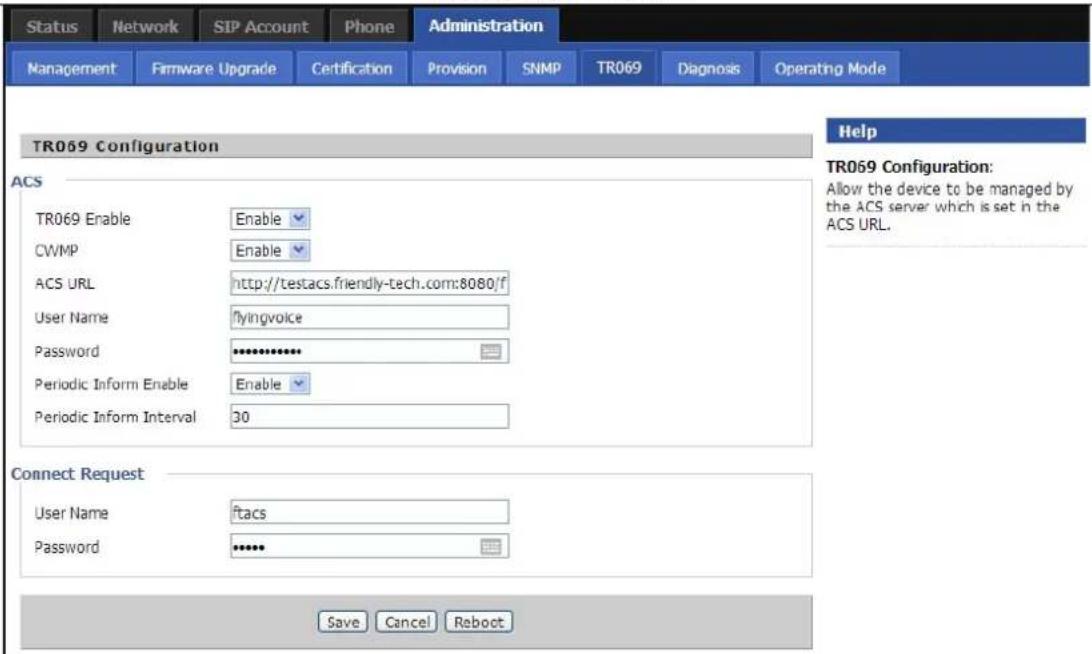
Relevant parameters as follows:
ACS parameters are as follows:
| Parameter Name Description | |
| TR069 Enable | enabled TR069 |
| CWMP | enabled TR069 (Old equipment parameters, The new version does not have this parameter) |
| ACS URL | URL TR069 server (Parameters provided by the server)http://testacs.friendly-tech.com:8080/ftacs-basic/ACS |
| User Name | TR069 user name for server connections (Parameters provided by the server)Our test account: flyingvoice |
| Password | Password for TR069 server connections (Parameters provided by the server)Our test password: flyingvoice |
TR069 User Manual
| Periodic Inform Enable | Enable device regularly informed server mechanism (Maintain synchronization parameters) |
| Periodic Inform Interval | Interval for device periodically sends information to the server |
Connect Request parameters are as follows:
| Parameter Name Description | |
| Password | Password for TR069 server is connected to the device (Local Settings)eg:ftacs |
| User Name | the user name of TR069 server which connected to the device (Local Settings)eg:ftacs |
- After filling confirmation, Reboot the device.
3 Friendly Server Operation
3.1 Login Friendly Server
Enter the friendly server URL in the browser:
http://testui.friendly-tech.com/CPEAdmin/
Account and password are provided by the server:
Account: flyingvoice password: flying11
Enter TR069 server interface, As shown in Figure:

3.2 Link Device
- You can click on the Search menu. Then select the Serial Number, and fill in the equipment S/N, then click Search.

- Click on the Device Info menu item, and you can see basic information about the test equipment. As shown in Figure: (Button on the bottom of the device can perform basic operations, such as reboot.)

Device Info
Manufacturer: FLYINGVOICE
Manufacturer OUI: 0021F2
Model name: IP542N
Description: IP542N
Serial number: 1236658454555
Hardware version: V1.1
Firmware version: V3.10
Uptime (seconds): 120

Online
Recheck Status
Remote URL: http://222.130.136.100
Registration date: 1/26/2015 11:33:01 AM
Last connection: 1/27/2015 11:51:44 AM
List of methods: List
Network map: Show

Quick Fix
Select case | Select case

Go
- If the device is properly connected server, offline will be online. That is a successful connection:

flowchart
graph LR
    A["Offline Recheck Status"] --> B["Online Recheck Status"]
If there is no change or simply can not find the device in the list, check to see if the device WEB page filled in correctly, or the device software is a complete program TR069.
3.3 Get Device Info
Click on the Advanced View menu button, you can do some node. As shown in Figure:
| Parameter name | Parameter value | Notification | Access list | Polling |
| AuthPassword | ***** | Off | ACS only | ☐ |
| AuthUserName | 555 | Off | ACS only | ☐ |
| UKI | Off | ACS only | ☐ |

1. Get AuthUserName of line1
Click on the top menu options and parameter values can be obtained depending on the options in the form. For example, if you want to get AuthUserName of line1, VOIP need to select the menu, and click Options VoiceProfile.1 next sip, you can get the value in the right AuthUserName.

3.4 Set Device Info
1. Set ProxyServer
The lower end of the button "Edit" can set new values for writable nodes. After clicking edit, fill in the new value directly in the box Parameter value field after the node name. For example, if set ProxyServer of Line1, the current value is followed:
| Parameter name | Parameter value |
| Organization | |
| OutboundProxy | |
| OutboundProxyPort | 5060 |
| ProxyServer | 192.168.10.1 |
| ProxyServerPort | 5060 |
| ProxyServerTransport | UDP |
| RegisterExpires | 3600 |
| RegistrarServer | 192.168.10.1 |
Then click edit, and fill in the new ProxyServer.
| OutboundProxyPort | 5060 |
| ProxyServer | 192.168.10.141 |
| ProxyServerPort | 5060 |
Click to send update after modification.
| Parameter name | Parameter value |
| Organization | |
| OutboundProxy | |
| OutboundProxyPort | 5060 |
| ProxyServer | 192.168.10.141 |
| ProxyServerPort | 5060 |
| ProxyServerTransport | UDP |
| RegisterExpires | 3600 |
| RegistrarServer | 192.168.10.1 |
3.5 Firmware Upgrade
Because friendly platform is not open to upload firmware or configure file permissions, and therefore can not perform the firmware upgrade operation, the equipment used below FreeAcs tr069 operations perform the upgrade operation.
1 Equipment connection configure

If the connection is successful, you will see the following pages.

2 Upload new firmware
Choose File & Script enter the appropriate documentation, select the corresponding firmware, click the upload file upload new firmware.

Uploaded firmware information will appear at the bottom.
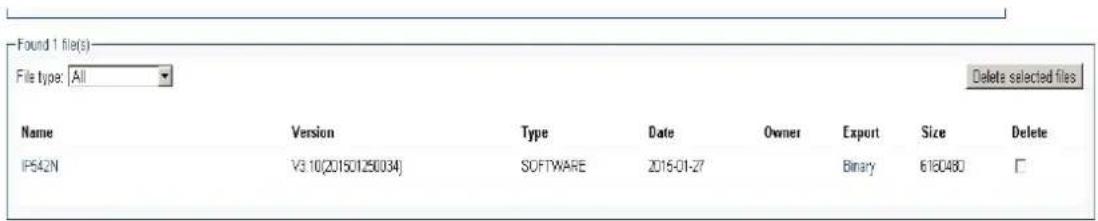
3 Firmware Upgrade
Easy Provision option to select the corresponding firmware version, and then click upgrade to upgrade.

4 Login web inspection equipment
If the upgrade is successful, you can check the firmware version number EasyProvision.
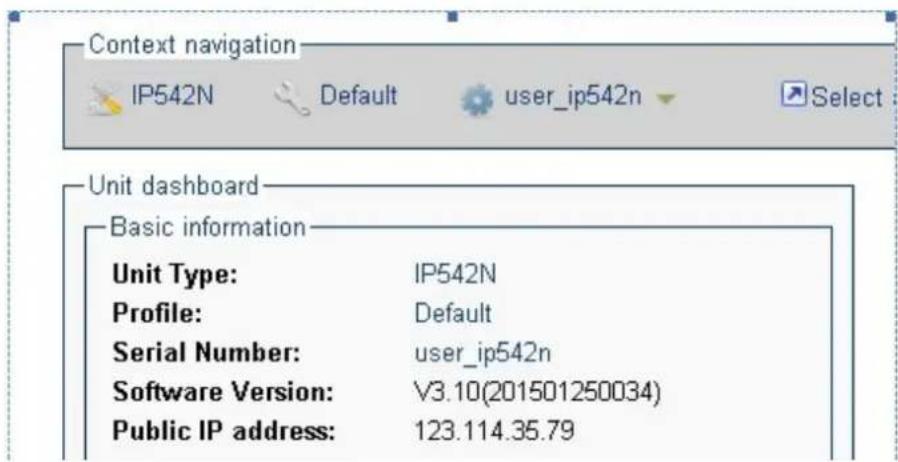
Here you can see the firmware has been updated to the required firmware version.
3.6 Tr069 tree node
All of our node as follow:
{"InternetGatewayDevice", }, {"DeviceSummary", }, {"LANDeviceNumberOfEntries", }, {"WANDeviceNumberOfEntries", }, {"DeviceInfo", }, {"Manufacturer", }, {"ManufacturerOUI", }, {"ModelName", }, {"Description", }, {"ProductClass", },
{"SerialNumber", },
{"HardwareVersion", },
{"SoftwareVersion", },
{"SpecVersion", },
{"ProvisioningCode", },
{"UpTime", },
{"DeviceLog", },
{"ManagementServer", }, {"URL", }, {"Username", }, {"Password", }, {"PeriodicInformEnable", }, {"PeriodicInformInterval", }, {"PeriodicInformTime", }, {"ParameterKey", }, {"ConnectionRequestURL", }, {"ConnectionRequestUsername", }, {"ConnectionRequestPassword", }, {"UpgradesManaged", }, {"UDPConnectionRequestAddress", },
{"UDPConnectionRequestAddressNotificationLimit", },
{"STUNEnable", },
{"STUNServerAddress", },
{"STUNServerPort", },
{"STUNUsername", },
{"STUNPassword", },
{"STUNMaximumKeepAlivePeriod", },
{"STUNMinimumKeepAlivePeriod", },
{"NATDetected", },
{"UPnP", {,
{"Device", {,
{"UPnPIGD", {,
{"".},
{"".},
{"IPPingDiagnostics", {
{"DiagnosticsState", {
{"Interface", {
{"Host", },
{"NumberOfRepetitions", },
{"Timeout", },
{"DataBlockSize", },
{"DSCP", },
{"SuccessCount", },
{"FailureCount", },
{"AverageResponseTime", },
{"MinimumResponseTime", },
{"MaximumResponseTime", },
{"DownloadDiagnostics", }, {"DiagnosticsState", }, {"Interface", }, {"DownloadURL", }, {"DSCP", }, {"EthernetPriority", }, {"ROMTime", }, {"BOMTime", }, {"EOMTime", },
{"TestBytesReceived", },
// {"TotalBytesReceived", },
{"TCPOpenRequestTime", },
{"TCPOpenResponseTime", },
{"", },
{"UploadDiagnostics", }, {"DiagnosticsState", }, {"Interface", }, {"UploadURL", }, {"DSCP", }, {"EthernetPriority", }, {"TestFileLength", }, {"ROMTime", }, {"BOMTime", }, {"EOMTime", }, // {"TotalBytesSent", }, {"TCPOpenRequestTime", }, {"TCPOpenResponseTime", },
["ExternalIPAddress", ],
{"DNSEnabled",},
["DNSOverrideAllowed", ].
{"DNSServers",}.
["MACAddress", ],
["TransportType", ].
{"PPPoEACName",},
{"PPPoEServiceName",},
["ConnectionTrigger", ],
["RouteProtocolRx", },
["PortMappingNumberOfEntries", ],
{"PortMapping",},
{"1"},
{"PortMappingEnabled"},
{"PortMappingLeaseDuration",},
{"RemoteHost",},
{"ExternalPort"},
{"InternalPort"},
{"FaxPassThrough",},
{"ModemPassThrough",},
{"ToneGeneration",},
{"RingGeneration"},
{"NumberingPlan",}.
{"ButtonMap"},
{"VoicePortTests",},
{"SIP", }, {"Role", }, {"Extensions", }, {"Transports", }, {"URISchemes", }, {"EventSubscription", }, {"ResponseMap", }, {"", }, {"Codecs", }, {"1", }, {"EntryID", }, {"Codec", }, {"BitRate", }, {"PacketizationPeriod", }, {"SilenceSuppression", }, {"", }, {"", }, "ceProfile", }, {"1", }, {"Enable", }, {"Reset", },
{"NumberOfLines",},
{"Name",},
{"SignalingProtocol",},
{"MaxSessions",},
{"DTMFMethod",},
{"DTMFMethodG711",},
{"SIP",},
{"ProxyServer",},
{"ProxyServerPort",},
{"ProxyServerTransport",},
{"RegistrarServer",},
{"RegistrarServerPort",},
{"RegistrarServerTransport",},
{"UserAgentDomain",},
{"UserAgentPort",},
{"UserAgentTransport",},
{"OutboundProxy",},
{"OutboundProxyPort",},
{"Organization",},
{"RegistrationPeriod",},
{"RegisterExpires",},
{"UseCodecPriorityInSDPResponse",},
{"ReceiveSilenceSuppression",}.
{"TransmitPacketizationPeriod",},
{"List",},
{"1",},
{"EntryID",},
{"Codec",},
{"BitRate",},
["PacketizationPeriod", ],
{"SilenceSuppression",},
{"Enable"},
{"Priority"},
{"", },
{"", },
{"", },
["Session", ],
{"1",},
{"SessionStartTime",},
{"SessionDuration"},
{"FarEndIPAddress",},
{"FarEndUDPPort",},
{"LocalUDPPort",},
{""},
{"", },
{"Stats"},
{"ResetStatistics",}.
{"PacketsSent",},
{"PacketsReceived",}.
{"BytesSent",},
{"BytesReceived",},
{"PacketsLost",},
{"Overruns",},
{"Underruns",},
{"IncomingCallsReceived",},
{"IncomingCallsAnswered", }.
{"IncomingCallsConnected",},
{"IncomingCallsFailed"},
{"OutgoingCallsAttempted"},
{"OutgoingCallsAnswered",},
{"OutgoingCallsConnected",},
{"OutgoingCallsFailed"},
{"CallsDropped",},
{"TotalCallTime",},
{"", },
{"", },
{“”,},
{"", },
{"", },
{"", },
{"", },
{“”,},
{"", },;
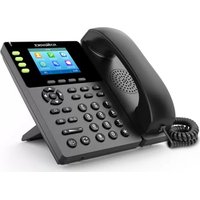
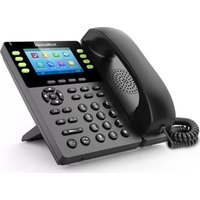


Brand : FlyingVoice
Model : FIP10P
Category : Telephone