
MMC-ANDTV - Receiver Laser - Free user manual and instructions
Find the device manual for free MMC-ANDTV Laser in PDF.


| Product Type | Digital TV Receiver |
| Brand | Laser |
| Model | MMC-ANDTV |
| Dimensions (W x D x H) | Approx. 20 x 15 x 4 cm |
| Weight | 0.4 kg |
| Power Supply | DC 5V, 1A via USB adapter |
| Power Consumption | 5 W (max) |
| Video Output | HDMI 1.4, Composite AV |
| Audio Output | HDMI, Digital Optical |
| Input Interface | Antenna (F-type), USB 2.0 |
| Supported Video Formats | MPEG-2, MPEG-4, H.264, H.265 |
| Supported Audio Formats | MP3, AAC, AC3 |
| Max Resolution | 1080p Full HD |
| Channel Storage | 2000 channels |
| Electronic Program Guide (EPG) | Yes, 7-day EPG |
| Time Shift / Record | Yes, with USB storage |
| Parental Control | Yes, channel and program lock |
| Language Support | Multiple (English, Arabic, etc.) |
| Remote Control | IR remote included |
| Package Contents | Receiver, remote, power adapter, AV cable, manual |
| Cleaning | Wipe with dry cloth; do not use liquids |
| Safety | Place in ventilated area; avoid moisture |
| Repairability | Contact qualified service center; no user-serviceable parts |
Frequently Asked Questions - MMC-ANDTV Laser
User questions about MMC-ANDTV Laser
0 question about this device. Answer the ones you know or ask your own.
Ask a new question about this device
Download the instructions for your Receiver in PDF format for free! Find your manual MMC-ANDTV - Laser and take your electronic device back in hand. On this page are published all the documents necessary for the use of your device. MMC-ANDTV by Laser.
USER MANUAL MMC-ANDTV Laser
- Keep the device right-side up and avoid placing heavy objects on top of the product.
- Use the power adapter provided.
- Do not use damaged power cables or plugs.
- Do not disassemble or modify the device by yourself to avoid any shock or damage.
- Keep the device away from any heat source to avoid damage. The device should be kept in a dry, well-ventilated area away from any dust that may cause fire or electric shock.
- Promptly shut down and unplug the device if smoke or any foul smell is emitted
- Unplug the device when not in use for long periods of time.
PACKAGE CONTENTS
natural_image
Empty rounded square frame with no text or symbolsMini Smart Android TV Box
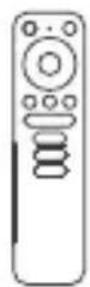
Voice Search Remote

natural_image
Simple line drawing of a U-shaped plug with a plug connector (no text or symbols)USB Power Adapter

natural_image
Pure diagram of two USB connectors without any text or symbolsMicro HDMI Cable

2 x AAA Batteries

natural_image
Simple black circle outline on white background (no text or symbols)Magnet
MINI BOX PANELS

Bluetooth/Reset Button
VOICE SEARCH REMOTE
1 - Power On/Off
2 - Google Assistant
3 - Up/Down/Left/Right Direction Keys
4 - Enter/Confirm
5 - Back
6 - Home
7 - Menu
8 - Volume
9 - YouTube, Netflix, Google Play Shortcut Buttons

CONNECTION GUIDE

TV Power Adapter
Note: The Laser Mini Smart Android TV Box also supports Wi-Fi. To connect, go to Settings => Network.
STEP 1 - Connect the Laser Mini Smart Android TV Box to your television via the HDMI Cable.
STEP 2 -Connect the Laser Mini Smart Android TV Box to the power using power adapter provided. You can then power on your device and begin.
Note: Before turning on your device, please switch the signal output of the TV to the correct source.
SETTING UP YOUR DEVICE
You may turn on your device after properly connecting all hardware.
To be able to use Google Assistant on your remote, you must first pair your Bluetooth Remote to your Mini Smart Android TV Box. Follow the pairing instructions on screen.

Step 1: Language
Select your preferred language on the Welcome Page.

Step 2: Set up with Android device
Choose whether to set up your TV with an Android device or skip this step.
Step 3: Wi-Fi
Connect to your Wi-Fi Network.
Step 4: Google Account
Sign in with your Google Account.
Step 5: Terms of Service & Privacy Policy
Read and accept the Terms of Services & Privacy Policy.
Step 6: Location Settings
Choose whether to allow Google to use your location to improve the experience.
Step 7: Diagnostic Report Settings
Select whether to allow your Mini Smart Android TV Box to send automatic diagnostic and usage data to Google.
Step 8: Name your Mini Smart Android TV Box
Select from the options provided or enter a custom name to easily identify your device when pairing to other devices.
Step 9: Get Started with Apps
Select apps you would like installed.
Step 10: Welcome to Android TV
A walkthrough of the features of your device.
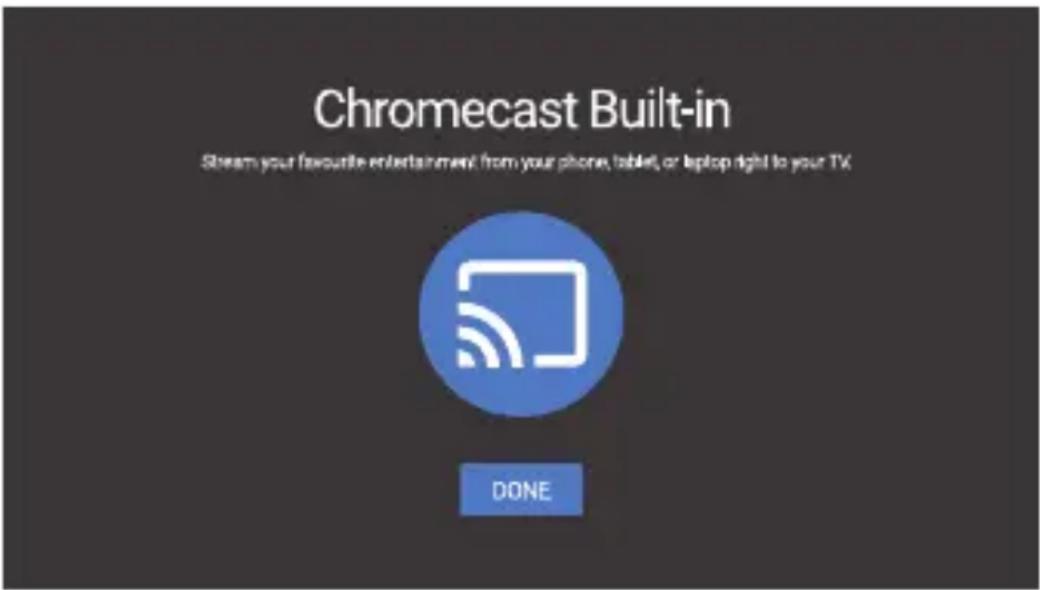
Click on “DONE” after the walkthrough to start using your device. You are now ready to begin.
Select Settings to check the device information, add/remove accounts, and make changes to the system settings.
Wi-Fi Settings
Under Network Settings, select and enable Wi-Fi in order to connect to the network.
Once the device scans and lists nearby Wi-Fi networks, select the appropriate network name, input the password if required, and select Connect.
Language Settings
Under Settings > Preferences select Language to change the language previously set.
Bluetooth Pairing
- Select Settings in the menu launcher.
- From the Remote & Accessories menu, click “Add Accessory” then select the device to be connected.

Unpairing a Bluetooth Device
- Select Settings in the menu launcher.
- From the Remote & Accessories menu, click “Unpair”, then select the Bluetooth device you want to unpair.
Adding Accounts
For new Google users, sign up for a new Google account using the TV for easier login and payment security. Add an account or switch accounts under Accounts in the Settings menu.

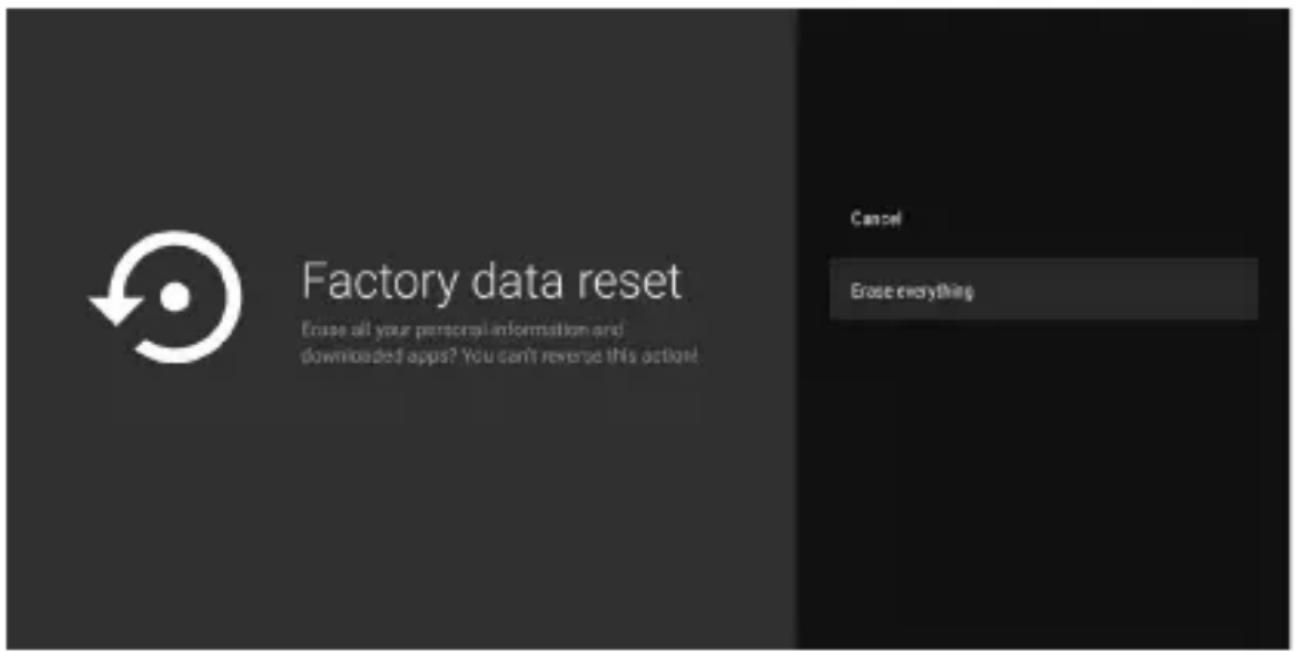
Under Settings, select Storage & Reset.
- Click Factory data reset to erase everything.
• Once this option has been selected, all manually installed apps and user data information will be deleted.
About
You can check information about your device by clicking on About in the Settings menu. This panel will show you the model of your device, version, firmware version, and more. You can also update your system by clicking on System Update from this menu.

DOWNLOADING APPS
All compatible apps are available for download on Google Play.

To Access Google Play:
- Scroll down to the Apps row on your Mini Smart Android TV Box Home Page.
- Select the Add Icon (+), then choose the Google Play Store from the list of options. Once the Google Play Store app is added to your Android Home Page, you can then open the store to download more apps.
USE YOUR SMARTPHONE AS A REMOTE
Did you know that you can use your smartphone as a touchpad to easily navigate your screen, instead of using the remote's directional buttons? You can even use your smartphone to type in that long movie title you want to search! How?
(1) Simply download the “Android TV Remote” app from Playstore or the App Store on your respective Android or Apple device (Make sure your phone and the box are connected on the same Wi-Fi network).
(2) Search and connect to your Mini Smart Android TV Box then input the code displayed on the TV into the device. You may now use your phone as a voice search remote.
Directional Pad Keyboard Touchpad

natural_image
User interface control panel with circular buttons and navigation icons (no text or symbols)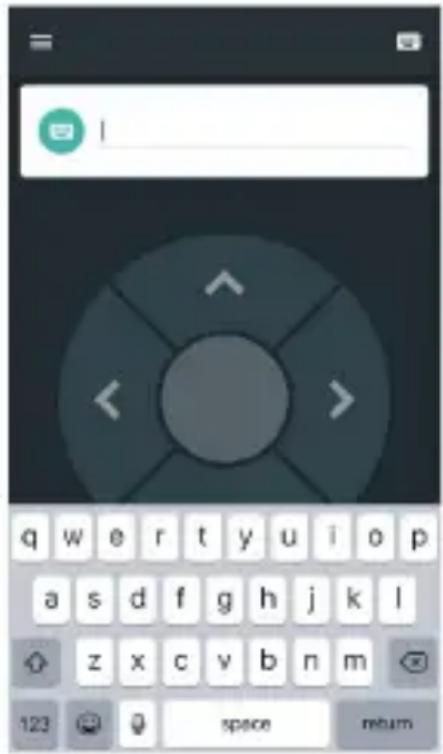

natural_image
Mobile app interface with a blue circular notification badge and navigation buttons (no readable text or symbols)GOOGLE CAST

Cast from a Mobile Device
Certain apps allow you to cast to your TV. To cast, simply follow the following steps:
- Open a Google cast compatible app on your mobile device
- Navigate to the screen you wish to cast
- Tap on the Cast icon and then select your Mini Smart Android TV Box
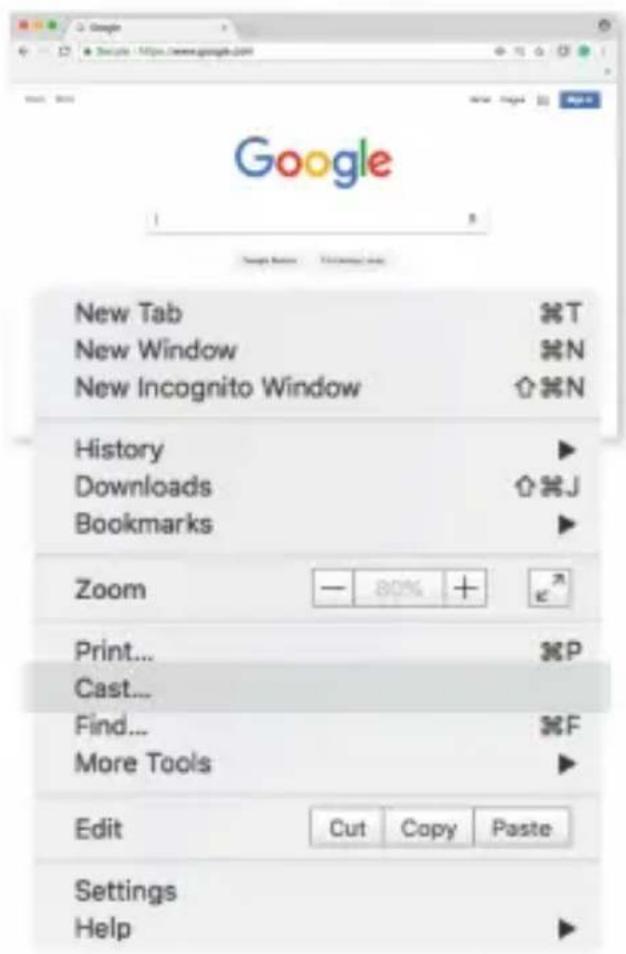
Cast from Google Chrome
This device has Google Chromecast built-in. To cast from Google Chrome, click the Settings icon :: located on the top right corner of the browser, then click “Cast”.
GOOGLE ASSISTANT
Say it to Play it
Ask it to play your favorite show, video, or music. Or find the latest blockbuster to enjoy.
Movies & TV shows
Play Stranger Things on Netflix.
Video clips: Play cat videos.
Apps: Open YouTube.
Search: Search for sitcoms.
Info: Tell me about Game of Thrones.
Control
Playback: Pause. Stop. Resume.
Volume: Louder. Softer.
Power: Turn off.
Play music, news, or podcasts
Music: Play music by Sia (learn how to choose your music service provider).
News: Play the news. What's the latest news from BBC?
Ask Google
Sports: How did the Patriots do? When is the next Warriors game?
Calculations: What's 20% of 80?
Dictionary: What does “lucid” means
Find answers: How far away is the moon? How do you remove stains in a rug?
Unit conversions: How many teaspoons in a cup?

natural_image
Line drawing of a remote control with scroll and button symbols (no text or labels)To get started, press the Google Assistant button on your remote.
Speak into the microphone of your Voice Search remote.
Learn more about the Google Assistant on assistant.google.com or say "What can you do?"
NOTE:
To be able to use Google Assistant on your remote, you must first pair your Bluetooth Remote to your TV Box.
SIMPLE TROUBLESHOOTING
| Issue: | No display after power on |
| Possible Reason: | The power cord is not properly connected |
| Solution: | Make sure the device is connected to power |
| Issue: | No sound |
| Possible Reason: | The device volume is too low |
| Solution: | Try increasing the volume of the unit |
| Issue: | Failed to connect to network |
| Possible Reason: | Wi-Fi is turned off the signal is too weak |
| Solution: | Restart the Wi-Fi or adjust the position of the device closer to the router |
| Issue: | Remote Control Failure |
| Possible Reason: | Remote control is broken or the batteries are low in power |
| Solution: | Replace batteries or send the device to the local maintenance service station for checking |
| Issue: | No Pictures on screen |
| Possible Reason: | HDMI cable is not connected |
| Solution: | Make sure that HDMI/AV is selected as your TV input |
Issue: Voice search on remote is not working
Possible Reason: Remote is not paired to the TV Box
Solution: See the Pairing Bluetooth Devices section in this guide
Issue: No Audio
Possible Reason: Audio Settings not configured correctly for your TV
Solution: Go to Settings > Surround > Surround Sound and choose PCM
For more helpful guides visit us at

LASER
www.youtube.com/LasercoAu
DISCLAIMER
Google, YouTube, Android TV, Chromecast and other related marks and logos are trademarks of Google LLC, HDMI is a trademark of HDMI Licensing, LLC, Used with permission. Netflix is a trademark of Netflix, Inc. Netflix Streaming Membership Required. Dolby Audio is a trademark of Dolby Laboratories Licensing Corporation. Laser is not affiliated with any of the above-listed entities.
WARRANTY
Our goods come with guarantees that cannot be excluded under the Australian Consumer Law. You are entitled to a replacement or refund for a major failure and compensation for any other reasonably foreseeable loss or damage. You are also entitled to have the goods repaired or replaced if the goods fail to be of acceptable quality and the failure does not amount to a major failure.
- PACKAGE CONTENTS
- MINI BOX PANELS
- VOICE SEARCH REMOTE
- CONNECTION GUIDE
- SETTING UP YOUR DEVICE
- Step 1: Language
- Step 2: Set up with Android device
- Step 3: Wi-Fi
- Step 4: Google Account
- Step 5: Terms of Service & Privacy Policy
- Step 6: Location Settings
- Step 7: Diagnostic Report Settings
- Step 8: Name your Mini Smart Android TV Box
- Step 9: Get Started with Apps
- Step 10: Welcome to Android TV
- Wi-Fi Settings
- Language Settings
- Bluetooth Pairing
- Unpairing a Bluetooth Device
- Adding Accounts
- About
- DOWNLOADING APPS
- To Access Google Play:
- USE YOUR SMARTPHONE AS A REMOTE
- GOOGLE CAST
- Cast from a Mobile Device
- Cast from Google Chrome
- GOOGLE ASSISTANT
- Say it to Play it
- Movies & TV shows
- Control
- Play music, news, or podcasts
- Ask Google
- NOTE:
- SIMPLE TROUBLESHOOTING
- Issue: Voice search on remote is not working
- Issue: No Audio
- DISCLAIMER
- WARRANTY
Brand : Laser
Model : MMC-ANDTV
Category : Receiver