RocketStor 6361A - Computer accessory Highpoint - Free user manual and instructions
Find the device manual for free RocketStor 6361A Highpoint in PDF.


| Product Type | External Storage Enclosure |
| Model | RocketStor 6361A |
| Brand | HighPoint |
| Supported Drive Form Factor | 2.5" and 3.5" SATA HDD/SSD |
| Number of Bays | 6 |
| Host Interface | Thunderbolt 3 (USB-C compatible) |
| Data Transfer Speed | Up to 40 Gbps (Thunderbolt 3) |
| RAID Support | Hardware RAID 0, 1, 5, 6, 10, and JBOD |
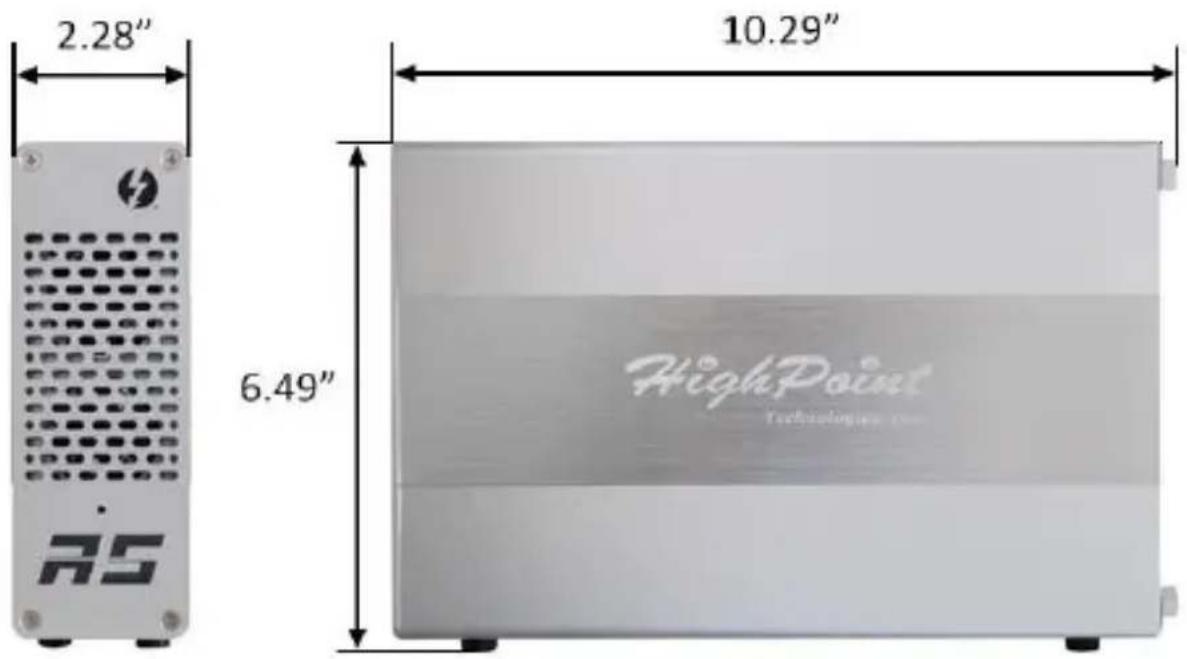
| Dimensions (LxWxH) | 250 x 150 x 85 mm |
| Weight | 1.5 kg (approx.) |
| Power Supply | External AC adapter, 100-240V input, 12V/3A output |
| Cooling | Built-in fan with smart speed control |
| LED Indicators | Power, activity, drive status |
| Hot-Swap Support | Yes, with key-lock mechanism |
| Enclosure Material | Aluminum alloy with steel frame |
| Operating System Support | Windows, macOS, Linux |
| Maintenance | Tool-less drive installation; fan filter cleaning recommended |
| Safety Features | Over-current, over-voltage, and short-circuit protection |
| Spare Parts / Repairability | Replacement power adapter and fan available |
| Included Accessories | Thunderbolt 3 cable, power adapter, drive keys, manual |
Frequently Asked Questions - RocketStor 6361A Highpoint
User questions about RocketStor 6361A Highpoint
0 question about this device. Answer the ones you know or ask your own.
Ask a new question about this device
Download the instructions for your Computer accessory in PDF format for free! Find your manual RocketStor 6361A - Highpoint and take your electronic device back in hand. On this page are published all the documents necessary for the use of your device. RocketStor 6361A by Highpoint.
USER MANUAL RocketStor 6361A Highpoint
natural_image
Exterior view of two white HighPoint technology devices with ventilation grilles and branding (no readable text beyond branding)Quick Installation Guide
V1.00
Table of Contents
- HighPoint RocketStor 6361A .... 3
- System Requirements .... 4
- What's in the box......4
- RocketStor 6361A Hardware .... 4
- Setup Procedures......5
5.1 Open the RocketStor 6361A chassis....5
5.2 Gently install the PCIe card and secure with the supplied screws....6
5.3 Close the RocketStor 6361A chassis....6
5.4 Connecting the RocketStor 6361A....7
5.5 Verify the installation –Mac OS X 8 - Support information ...... 9
1. HighPoint RocketStor 6361A
The RocketStor 6361A allows you to easily add any PCIe x4, x8 or x16 card to your Thunderbolt™ capable computing platform, such as media capture, Ethernet, Fibre Channel, or external Storage/RAID controller cards. The ultra slim, lightweight design is ideal for Mac Pro workstations and MacBook portables.
Key features:
• Rugged, Ultra-Slim, Aluminum Enclosure
- Dual Thunderbolt™ 2 Ports
• Supports one full height x1, x4, x8 or x16 PCIe card
• Dual Ultra-Quiet, High-Efficiency Cooling Fans
• External 50W Power Supply
- Easy Plug and Play design
• Daisy-chain up to six Thunderbolt™ devices
2. System Requirements
A. Apple Mac System with Thunderbolt™ support
B. Mac OS X 10.8.6 or later
3. What's in the box
- RocketStor 6361A enclosure
- Quick Installation Guide
- Power Adapter
- Thunderbolt™ Cable
- Screws for PCIe card mounting
4. RocketStor 6361A Hardware
Dimension:
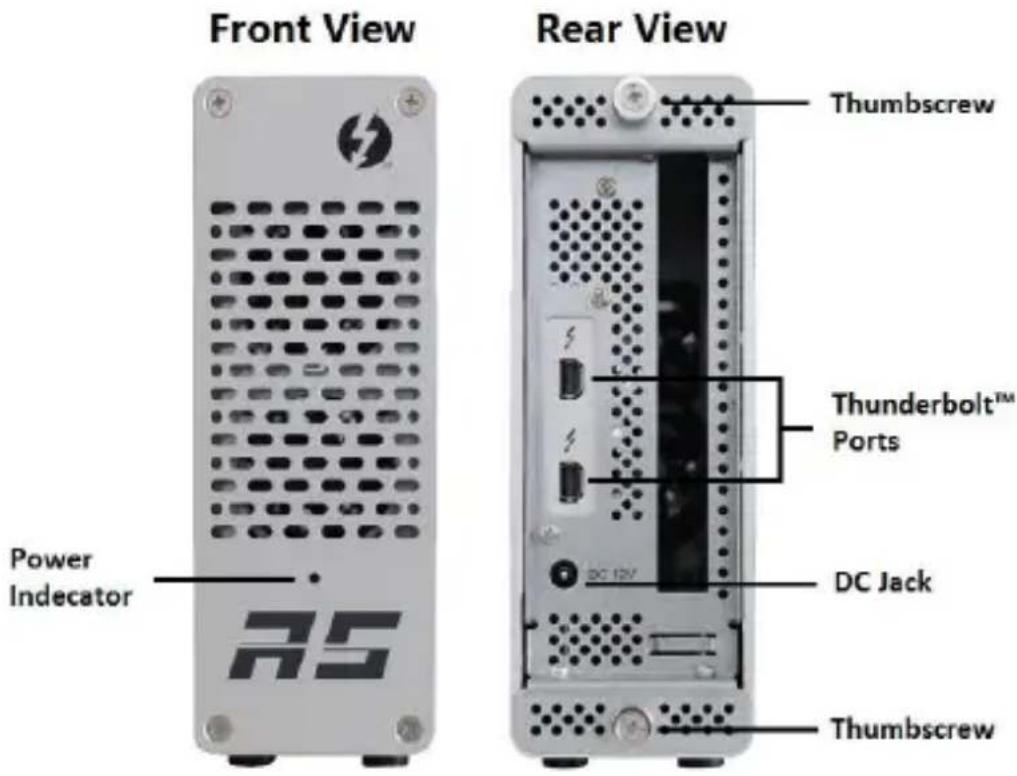
Hardware overview:
5. Setup Procedures
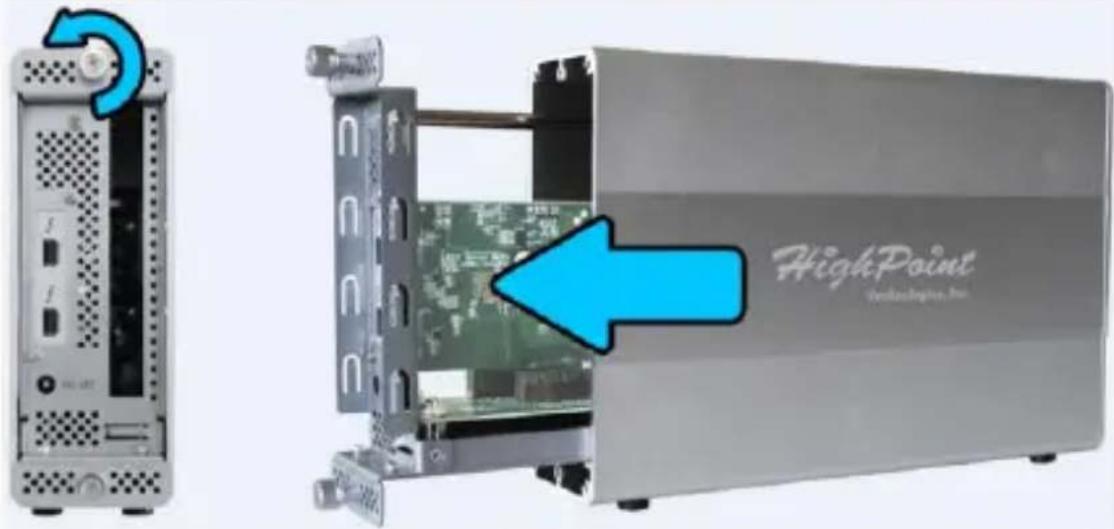
5.1 Open the RocketStor 6361A chassis
Release the two Thumbscrews and remove the cover.
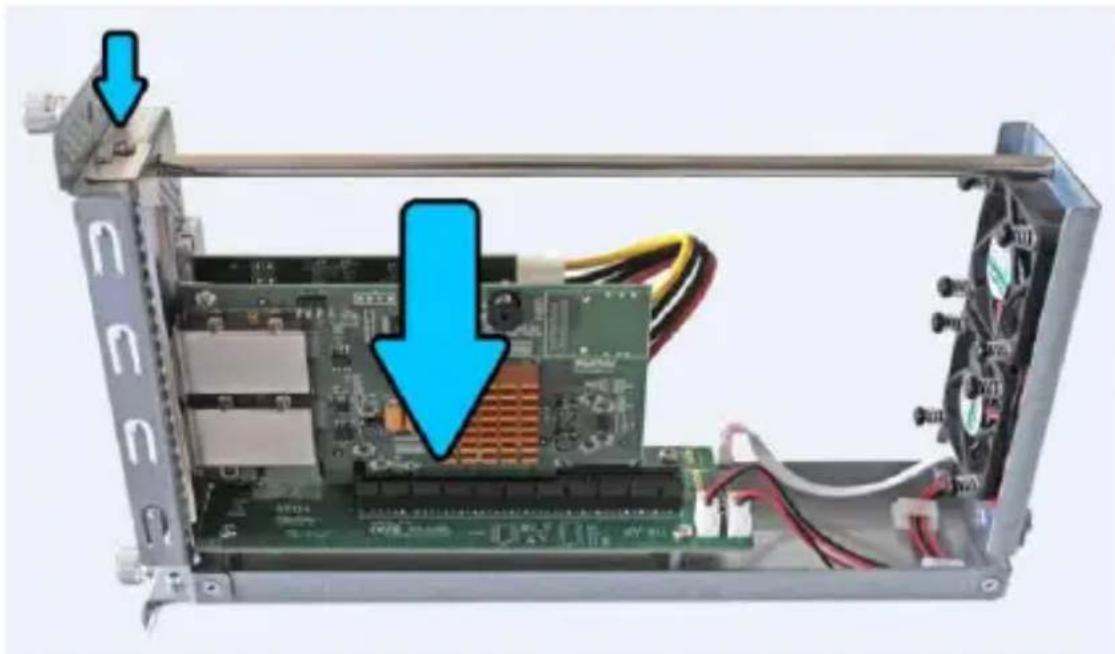
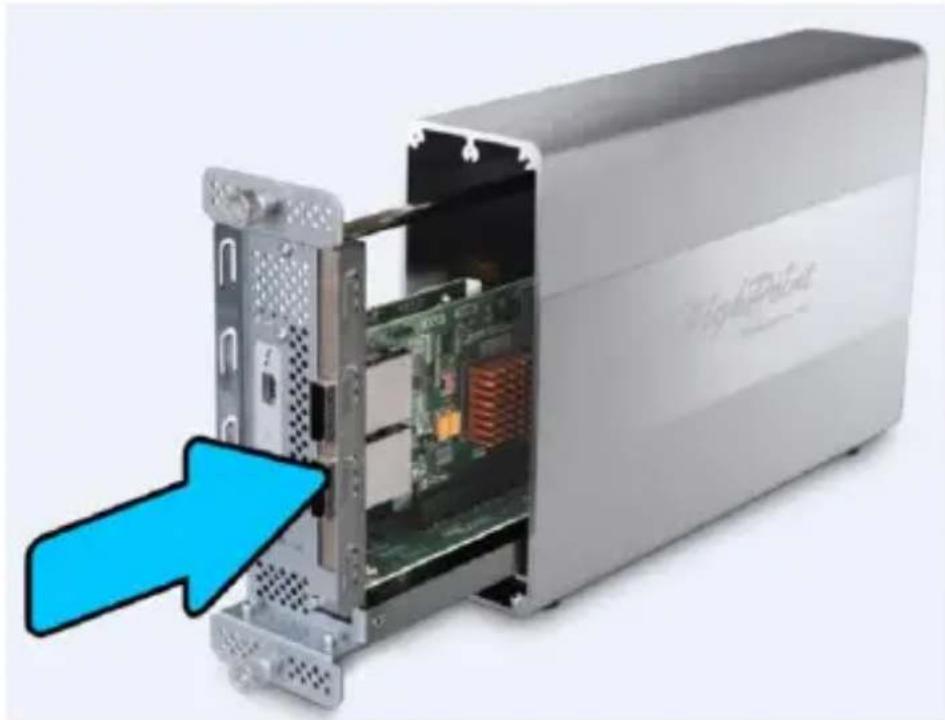
5.2 Gently install the PCIe card and secure with the supplied screws.
natural_image
Internal view of an electronic device showing a circuit board with a highlighted component and blue arrows indicating direction (no text or symbols present)5.3 Close the RocketStor 6361A chassis
natural_image
Interior view of a high-precision computer drive showing internal components and a blue arrow pointing to the component (no text or symbols visible)5.4 Connecting the RocketStor 6361A
Steps:
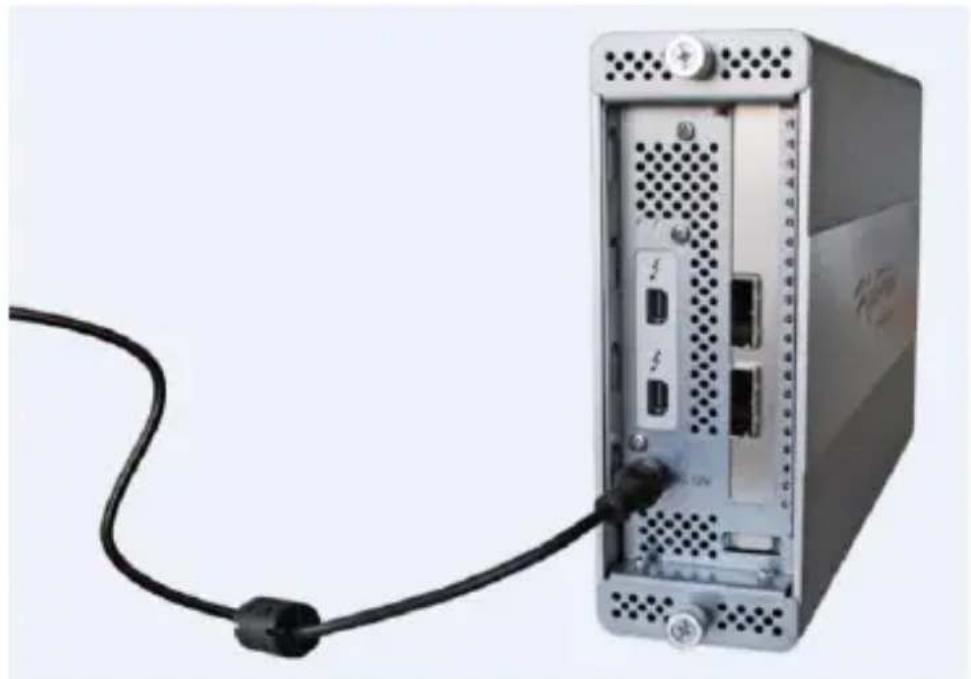
1) Connect the power adapter to the RocketStor 6361A.
natural_image
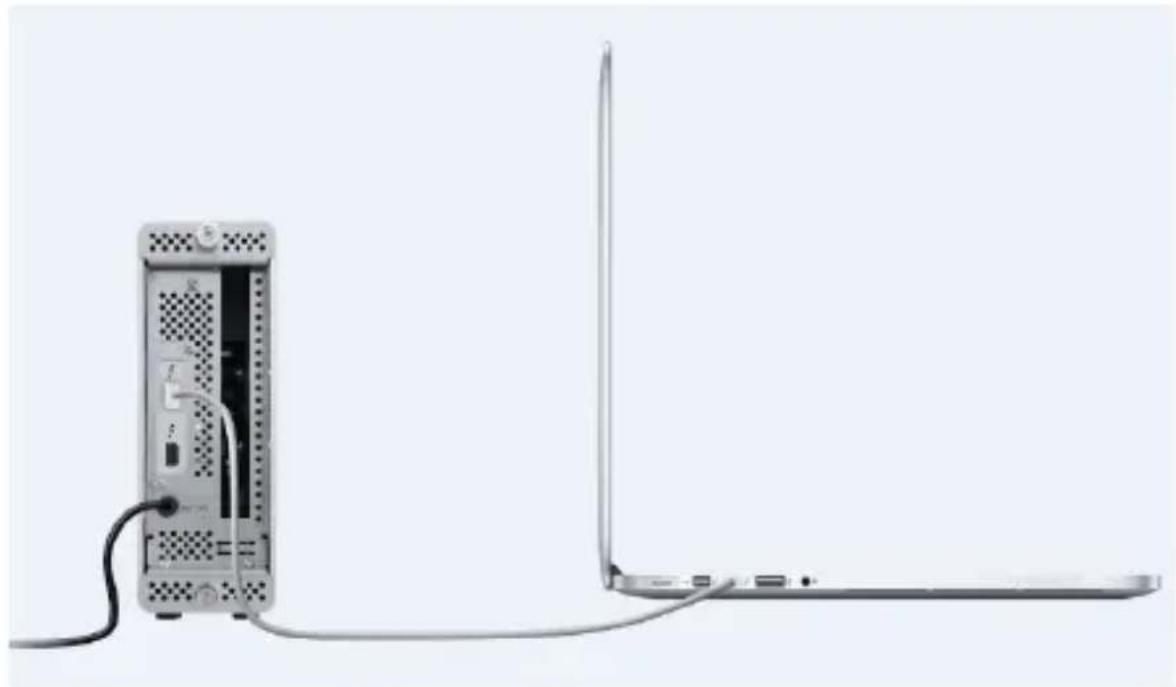
Exterior view of a server rack with a black cable inserted, showing ports and ventilation slots (no text or symbols visible)2) Connect the RocketStor 6361A to the host system using a Thunderbolt™ cable.
natural_image
Diagram showing a server rack connected to a laptop via cable, with no visible text or symbols.5.5 Verify the installation –Mac OS X
Power on computer and check the Thunderbolt device detection. OS X includes driver support for the RocketStor 6361A and will automatically recognize the device after booting up.
To verify the RS6361A driver status;
Click the Apple icon on top left of the screen, and select About This Mac, and then select More Info. Next, select System Report, and click Thunderbolt on left side of the System Information pane. The RocketStor 6361A device should be list under Thunderbolt Bus:
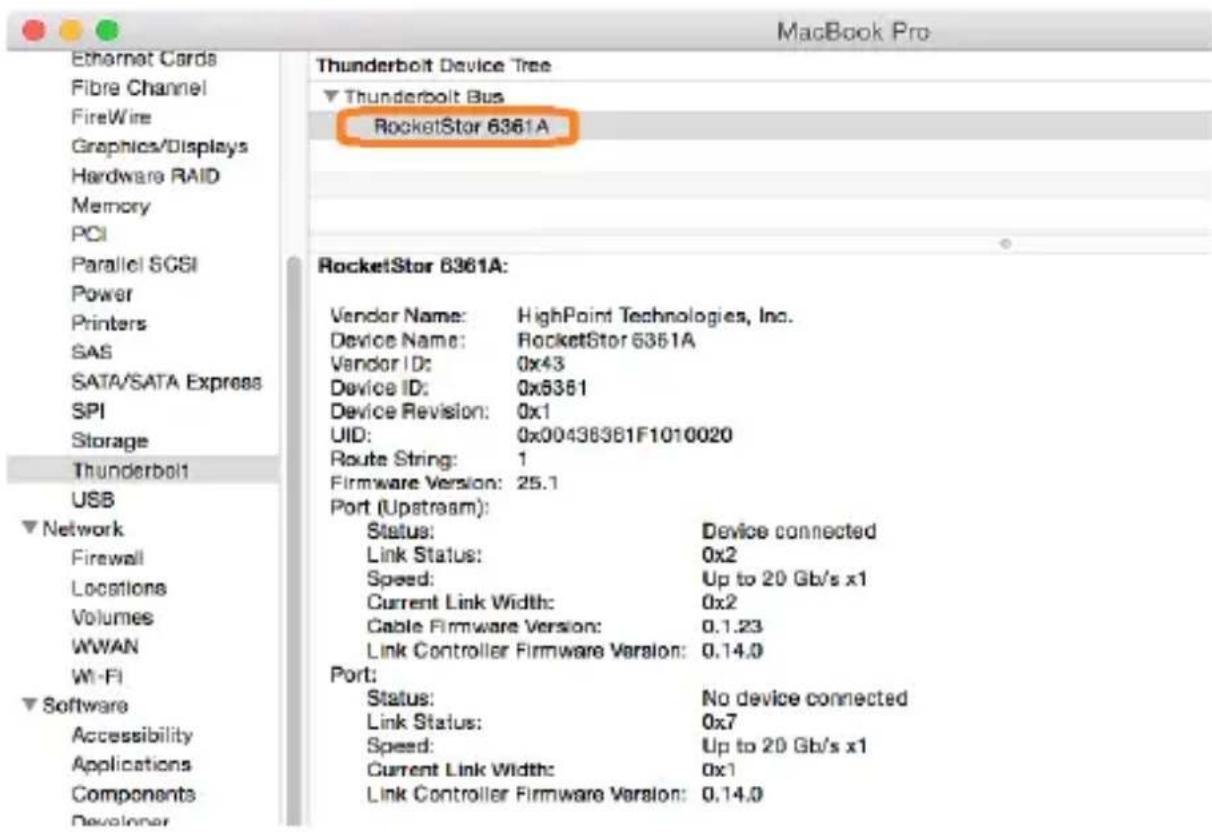
Click PCI cards on left side to verify if the PCIe card is detected. Please install driver for the PCI card driver if needed. Check with the manufacture's support page to download the latest Thunderbolt aware driver for the installed PCIe card.
Note:
The RocketStor 6361A design is compliant with Thunderbolt™ power management – it does not require a built-in power switch. The RocketStor 6361A will automatically power on when connected to the host system using a Thunderbolt™ cable. Check the Power Indicator LED to make sure the unit is powered on. Please double check the power adapter and Thunderbolt™ cable connections if the RocketStor 6361A is not detected by your system.
6. Support information
If you encounter any problems while utilizing the HighPoint RocketStor 6361A, or have any questions about this or any other HighPoint Technologies, Inc. product, feel free to contact our Customer Support Department.
Web Support: http://www.highpoint-tech.com/websupport/
Thunderbolt Support:
Phone: (408)240-6108
Skype: HighPoint.Thunderbolt
Sept. 5, 2014
© Copyright 2014 HighPoint Technologies, Inc. All right reserved.
- Table of Contents
- HighPoint RocketStor 6361A
- Key features:
- System Requirements
- What's in the box
- RocketStor 6361A Hardware
- Setup Procedures
- Open the RocketStor 6361A chassis
- Gently install the PCIe card and secure with the supplied screws.
- Close the RocketStor 6361A chassis
- Connecting the RocketStor 6361A
- Steps:
- Verify the installation –Mac OS X
- Note:
- Support information
Brand : Highpoint
Model : RocketStor 6361A
Category : Computer accessory