DRX-7.1 - Audio Receiver Integra - Free user manual and instructions
Find the device manual for free DRX-7.1 Integra in PDF.


| Product Type | Audio/Video Receiver |
| Brand | Integra |
| Model | DRX-7.1 |
| Channels | 7.1 |
| Dimensions (W x H x D) | 435 x 198 x 468 mm |
| Weight | 20.0 kg |
| Power Consumption | 800 W (Standby: <0.1 W) |
| Power Output (8 ohms, 20 Hz-20 kHz, 0.08% THD) | 120 W per channel |
| Audio Decoding | Dolby Atmos, DTS:X, Dolby TrueHD, DTS-HD Master Audio |
| Video Features | 4K/60 Hz, HDR10, Dolby Vision, HLG, BT.2020 |
| HDMI Inputs/Outputs | 7 inputs / 2 outputs (1 with eARC) |
| Wireless Connectivity | Wi-Fi 5 (802.11ac), Bluetooth 4.2 |
| Multi-Zone Capability | Zone 2 and Zone 3 pre-outs |
| Supported File Formats | FLAC, WAV, AIFF, ALAC, DSD, MP3, AAC |
| Maintenance & Cleaning | Wipe with a soft, dry cloth. Do not use solvents. |
| Safety | Do not expose to rain or moisture. Keep ventilation slots clear. |
| Spare Parts & Repairability | Contact authorized Integra service center for parts and repairs. |
| General Information | High-end 7.1 channel receiver designed for immersive home theater. |
Frequently Asked Questions - DRX-7.1 Integra
User questions about DRX-7.1 Integra
0 question about this device. Answer the ones you know or ask your own.
Ask a new question about this device
Download the instructions for your Audio Receiver in PDF format for free! Find your manual DRX-7.1 - Integra and take your electronic device back in hand. On this page are published all the documents necessary for the use of your device. DRX-7.1 by Integra.
USER MANUAL DRX-7.1 Integra
What's in the box....2
Part Names 3
Part Names ....3
Install 7
Installation procedure....7
Step1: Speaker Layout 8
Step2: Connect the Speakers....14
Step3: Connect the TV & AV Components....16
Initial Setup 25
Initial Setup with Auto Start-up Wizard....25
Playback 27
AV Component Playback....27
Network Functions....28
USB Storage Device....29
Listening to the AM/FM Radio....30
Multi-zone....32
Listening Mode 34
The Basic Manual includes information needed when starting up and
also instructions for frequently used operations. The Advanced Manual
has more detailed information and advanced settings.
Integra
Before Start
Part Names
Install
Initial Setup
Playback
Advanced Manual

Troubleshooting | Supplementary Information, etc.
What's in the box
1
natural_image
Line drawing of a portable electronic device with control panel and buttons (no text or symbols)2
3
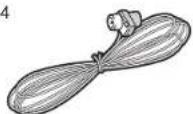
4
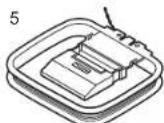
5
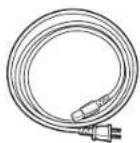
6
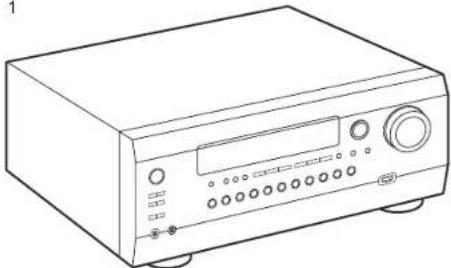
- Main unit (1)
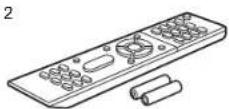
- Remote controller (RC-913R) (1), Batteries (AAA/R03) (2)
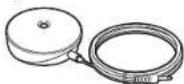
- Speaker setup microphone (1) • Used during Initial Setup.
- Indoor FM antenna (1)
- AM loop antenna (1)
- Power cord (1)
• Basic Manual (This manual) - Connect speakers with 4 to 16 impedance.
- The power cord must be connected only after all other cable connections are completed.
• We will not accept responsibility for damage arising from the connection of equipment manufactured by other companies. - Functionality may be introduced by firmware updates and service providers may cease services, meaning that some network services and content may become unavailable in the future. Furthermore, available services may vary depending on your area of residence.
- Details on the firmware update will be posted on our website, etc.
- Specifications and appearance are subject to change without prior notice.
Before Start
Part Names
Install
Initial Setup
Playback
Advanced Manual

Troubleshooting | Supplementary Information, etc.
(*)You can find details in the Advanced Manual.
Part Names
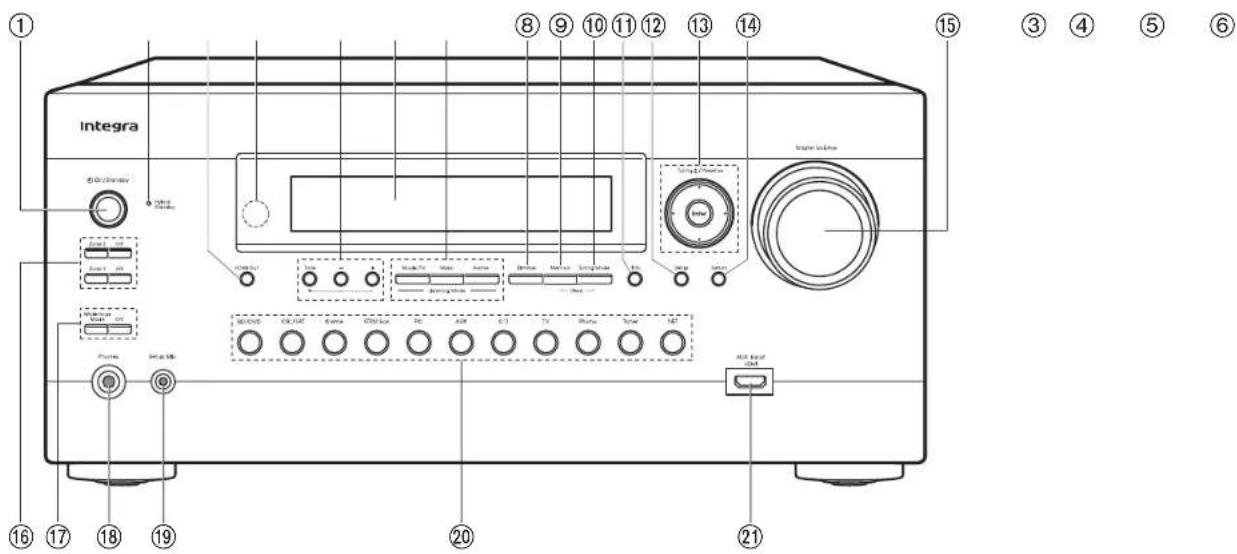
Front Panel
-
⏻ On/Standby button
-
Hybrid Standby indicator: Lights if the unit enters standby mode when the features are enabled that continue to work when this unit is in standby, such as HDMI Standby Through and Network Standby.
- HDMI Out button: Allows you to select the HDMI OUT jack to output video signals from "MAIN", "SUB", and "MAIN+SUB".
- Remote control sensor: Receives signals from the remote controller.
- The signal range of the remote controller is within about 16'/5 m, at an angle of 20° on the perpendicular axis and 30° to either side.
- You can adjust the sound quality of the all channels except the subwoofer. Press Tone to
select the desired setting from "Bass" and "Treble", and adjust with + and -.
- Display (P4)
- Listening Mode button: Press the Listening Mode button (above) repeatedly to select a category from "Movie/TV", "Music", "Game", then turn the Listening Mode dial (below) to change the mode (P34). (*)
- Dimmer button: You can adjust the brightness of the display in three steps. It cannot be turned off completely.
- Memory button: Used to register AM/FM radio stations (P31).
- Tuning Mode button: Switches the tuning mode (P30).
- Info button: Switches the information on the display (P34).

Before Start
Part Names
Install
Initial Setup
Playback
Advanced Manual

Troubleshooting | Supplementary Information, etc.
(*)You can find details in the Advanced Manual.
- Setup button: You can show advanced setting items on the TV and display to provide you with an even better experience. (*)
- Cursor buttons (▲ / ▼ / ◀ / ▶) and Enter button: Select the item with the cursors and press Enter to confirm. Use them to tune to stations when using Tuner.
- Return button: Returns the display to the previous state.
- Master Volume
- Zone 2/Zone 3 button: Controls the multi-zone function. (P32) Off button: Switches the multi-zone function off.
- Whole House Mode button: Enables the WHOLE HOUSE MODE function to play the same source in all the multi-zone connected rooms. (P33) Off button: Switches the WHOLE HOUSE MODE function off.
- Phones jack: Headphones with a standard plug (∅1/4"/6.3 mm) are connected.
- Setup Mic jack: The supplied speaker setup microphone is connected.
20.Input selector buttons: Switches the input to be played.
21.AUX Input HDMI jack: Connect a video camera, etc., using a HDMI cable.
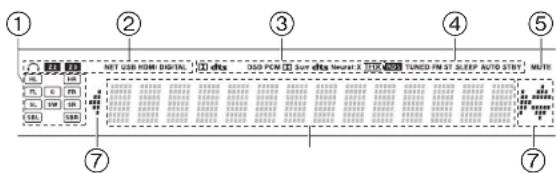
Display
- Speaker/Channel display: Displays the output channel that corresponds to the selected listening mode.
- Lights in the following conditions.
○: When headphones are connected.
Z2/Z3: When ZONE 2/ZONE 3 is on.
NET: When "NET" is selected with the input selector and the unit is connected to the network. It will flash if the connection to the network is not correct.
USB: When "NET" is selected with the input selector and the unit is connected by USB and the USB device is selected. Flashes if the USB is not properly connected. HDMI: When HDMI signals are input and the HDMI input is selected.
DIGITAL: When digital signals are input and the digital input is selected.
- Lights according to the type of input digital audio signals and the listening mode.
- Lights in the following conditions.
RDS (Australian models): Receiving RDS broadcasting.
TUNED: Receiving AM/FM radio.
FM ST: Receiving FM stereo.
SLEEP: When the sleep timer is set. (*)
AUTO STBY: Auto Standby is on. (*)
- Flashes when muting is on.
- Displays various information of the input signals. Characters that cannot be displayed on this unit are replaced with asterisks (*).
- When playing back software which has been encoded in Dolby Digital, Dolby Digital Plus, Dolby TrueHD and Dolby Atmos, sometimes you may see a brief message which will read "DialogNorm: X dB" (X being a numeric value). For example, if you see the following message: "DialogNorm:+4dB", to keep the overall output level at THX calibrated loudness, just turn down the volume control by 4dB.
- This may light when performing operations with the "NET" input selector.
Before Start
Part Names
Install
Initial Setup
Playback
Advanced Manual

Troubleshooting | Supplementary Information, etc.
(*)You can find details in the Advanced Manual.
③ ④
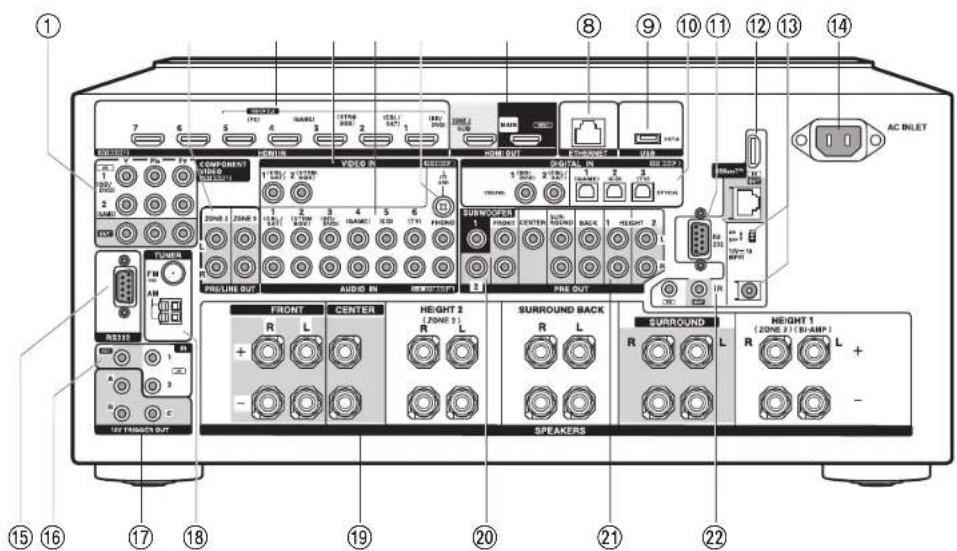
Rear Panel
- COMPONENT VIDEO IN/OUT jacks: Transfer the video signals of an AV component with a component video cable. (Compatible only with 480i or 576i resolution.)
- ZONE 2/ZONE 3 PRE/LINE OUT jacks: Output audio signals with an analog audio cable to a pre-main amplifier or power amplifier in a separate room (ZONE 2/ZONE 3).
- HDMI IN jacks: Transmit video signals and audio signals with a HDMI cable connected to an AV component.
- VIDEO IN jacks: Input the AV component video signals with an analog video cable.
- AUDIO IN jacks: Input TV or AV component audio signals with an analog audio cable.
- GND terminal: The ground wire of the turntable is connected.
- HDMI OUT jacks: Transmit video signals and audio signals with a HDMI cable connected
to a monitor such as a TV or projector.
- ETHERNET port: Connect to the network with an Ethernet cable.
- USB port: A USB storage device is connected so that music files stored in it can be played. You can also supply power (maximum 5 V/1 A) to USB devices with a USB cable.
- DIGITAL IN OPTICAL/COAXIAL jacks: Input the digital audio signals from TV or AV components with a digital optical cable or digital coaxial cable.
- RS232 port: Used for connection with the HDBaseT Receiver. Refer to the Instruction Manual included with the HDBaseT Receiver for usage instructions.
12.HDBaseT™ IN/OUT jack: Input signals are output via the Ethernet cable. As they are covered with a seal when shipped, remove it when you use the ports. Do not use the ports to connect the ETHERNET port of network device.

Before Start
Part Names
Install
Initial Setup
Playback
Advanced Manual

Troubleshooting | Supplementary Information, etc.
(*)You can find details in the Advanced Manual.
13.12V 1A INPUT jack / ON/OFF switch: Used for connection with the HDBaseT Receiver. Refer to the Instruction Manual included with the HDBaseT Receiver for usage instructions.
14. AC INLET: The supplied power cord is connected.
15.RS232 port: For connection to the home control system. (*)
16. IR IN/OUT port: Allows you to connect a multiroom remote control kit. (*)
17.12V TRIGGER OUT A/B/C jacks: Allows you to connect a device with 12V trigger input jack to enable link operation between the device and the unit. (*)
18. TUNER AM/FM 75Ω terminal: The supplied antennas are connected.
19. SPEAKERS terminals: Use a speaker cable to connect multichannel speakers for the main room and speakers for a separate room (ZONE 2/ZONE 3). (North American models are compatible with banana plugs.)
20. SUBWOOFER PRE OUT jacks: Connect a powered subwoofer with a subwoofer cable. Up to two powered subwoofers can be connected. You can set the volume levels of the 2 powered subwoofers to different levels.
21. PRE OUT jacks: Connect a power amplifier. (*)
22. IR IN/OUT jacks: Used for connection with the HDBaseT Receiver. Refer to the Instruction Manual included with the HDBaseT Receiver for usage instructions.
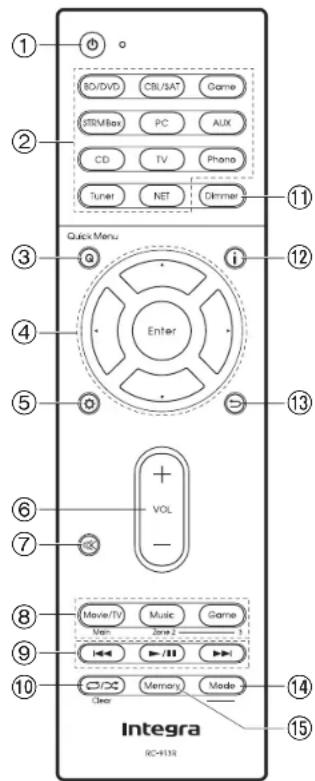
Remote Controller
- ⏻ On/Standby button
- Input selector buttons: Switches the input to be played.
-
Q (Quick Menu) button: Settings such as "Tone" and "Level" can be made quickly during play on the TV screen. "Other" has settings to switch HDMI output (P16). (*)
-
Cursor buttons and Enter button: Select the item with the cursors and press Enter to confirm your selection. When the folder or file lists are not shown on one screen on the TV, press ◀ / ▶ to change the screen.
-
Button: You can show advanced setting items on the TV and display to provide you with an even better experience. (*)
-
Volume buttons
-
button: Temporarily mutes audio. Press again to cancel muting.
-
Listening Mode buttons: Allows you to select the listening mode (P34). (*) Main/Zone 2/Zone 3 buttons: Controls the multi-zone function (P32).
-
Play buttons: Used for play operations when playing Music Server or USB.
-
📄/ ✗ button: You can start repeat/random play of the Music Server or USB. Each time you press the button, the mode switches from 1(2)track repeat), to ☐ (folder repeat), to ☐(random). Clear button: Deletes all characters you have entered when entering text on the TV screen.
-
Dimmer button: You can adjust the brightness of the display in three steps. It cannot be turned off completely.
-
i button: Switches the information on the display and is used to operate RDS (P31).
-
↩ button: Returns the display to the previous state.
-
Mode button: Switches tuning to an AM/FM station between automatic tuning and manual tuning (P30), and also used to control the multi-zone feature (P32).
-
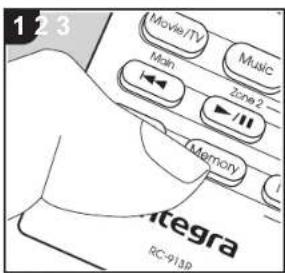
Memory button: Used to register AM/FM radio stations.
Tips
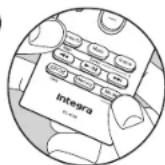
When the remote controller isn't working: The remote controller may have switched to the mode for controlling ZONE 2 or ZONE 3. While holding down Mode, press Main for 3 seconds or more until the remote indicator flashes once to switch it to the mode to control the main room.
Before Start
Part Names
Install
Initial Setup
Playback
Advanced Manual

Troubleshooting | Supplementary Information, etc.
Installation procedure
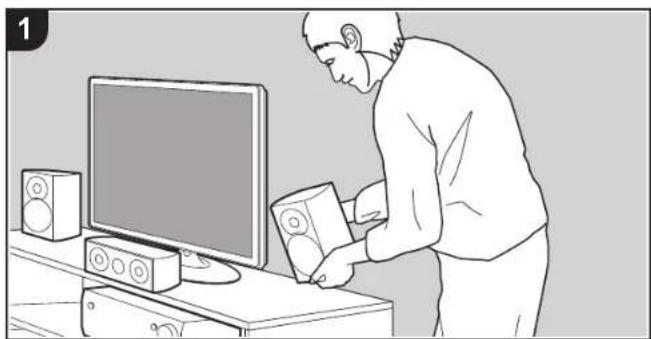
natural_image
Line drawing of a person installing or adjusting a CD on a TV set (no text or symbols)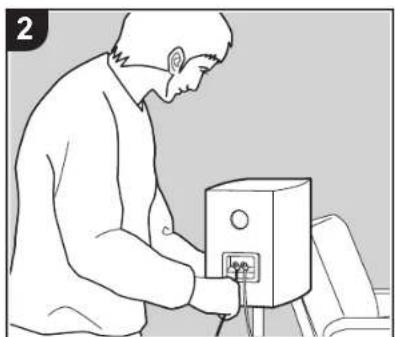
natural_image
Line drawing of a person using a power supply unit (no text or symbols)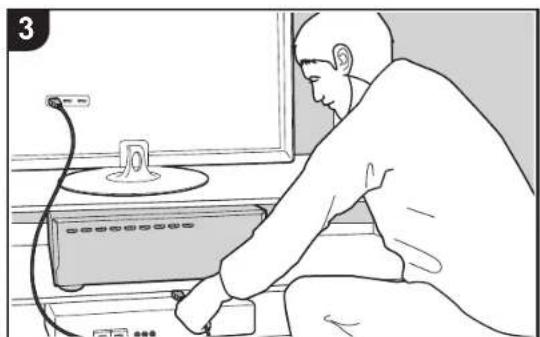
natural_image
Line drawing of a person using a power cord device to switch from a monitor (no text or symbols visible)This unit can be used in a number of ways, depending on the layout of the speakers you are installing, and the connections made to external devices. Read the following to help make the installation process smoother.
Step1: Speaker Layout
Select the speaker layout that suits the types of speakers you have and the conditions they will be used in from the choices presented on pages P8 to P12, then install the speakers by referring to the illustrations and explanations on the relevant page. Speaker layouts include systems that use surround back speakers, systems that use height speakers, and systems that use Bi-Amping speakers. Also refer to the combinations available in "Speaker combinations" on P13.
Step2: Connect the Speakers
To connect the speaker systems to this unit, refer to P14 if you are using a speaker layout described on one of P8 to P11, and to P15 to use a speaker layout using Bi-Amping speakers described on P12. The connection process will be smoother if you refer to the illustrations and explanations and prepare the required cables before hand.
Step3: Connect the TV & AV Components
Refer to P16 to P24 to connect your external devices such as your TV, Blu-ray Disc Player, and also supplied accessories such as the antennas. Also, P21 to P23 introduces the Multi-zone Connection option that allows you to play video or audio into rooms other than the main room. The connection process will be smoother if you refer to the illustrations and explanations, confirm the connection types on the external devices, and prepare the required cables before hand.
Before Start
Part Names
Install
Initial Setup
Playback
Advanced Manual

Troubleshooting | Supplementary Information, etc.
Step1: Speaker Layout
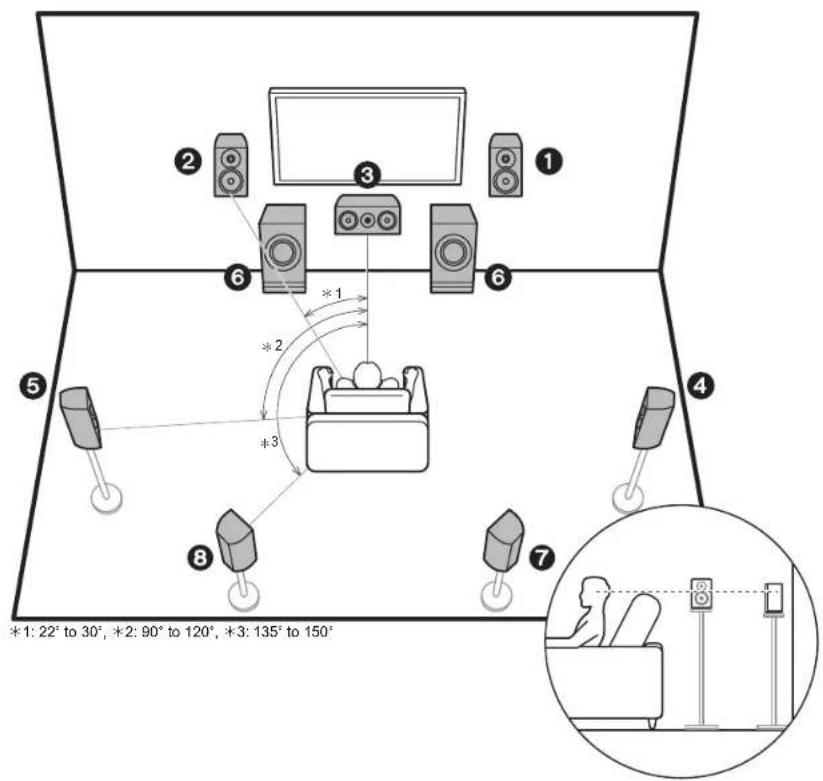
7.1 Channel System
Front speakers output front stereo sound and a center speaker outputs center sound such as dialogs and vocals. Surround speakers create back sound field. Powered subwoofer reproduces bass sounds and creates rich sound field.
This basic 5.1 Channel System with surround back speakers added is called a 7.1 Channel System. The connection of surround back speakers improves the sense of envelopment and connectivity of sound created by the back sound field and provides a more real sound field. Furthermore, by installing surround back speakers, you can select the Dolby Atmos listening mode, which realizes the most up-to-date 3D sound, when the input format is Dolby Atmos.
The front speakers should be positioned at ear height, while the surround speakers should be positioned just above ear height. Center speaker should be set up facing the listening position. Placing the powered subwoofer between the center speaker and a front speaker gives you a natural sound even when playing music. The optimal positioning is for surround back speakers to be at ear height.
- If you are including surround back speakers in the setup, surround speakers are required.
- "Speaker combinations" (P13) introduces some detailed examples of speaker combinations.
1.2 Front Speakers
3 Center Speaker
4.5 Surround Speakers
6 Powered Subwoofer
7,8 Surround Back Speakers
Before Start
Part Names
Install
Initial Setup
Playback
Advanced Manual

Troubleshooting | Supplementary Information, etc.
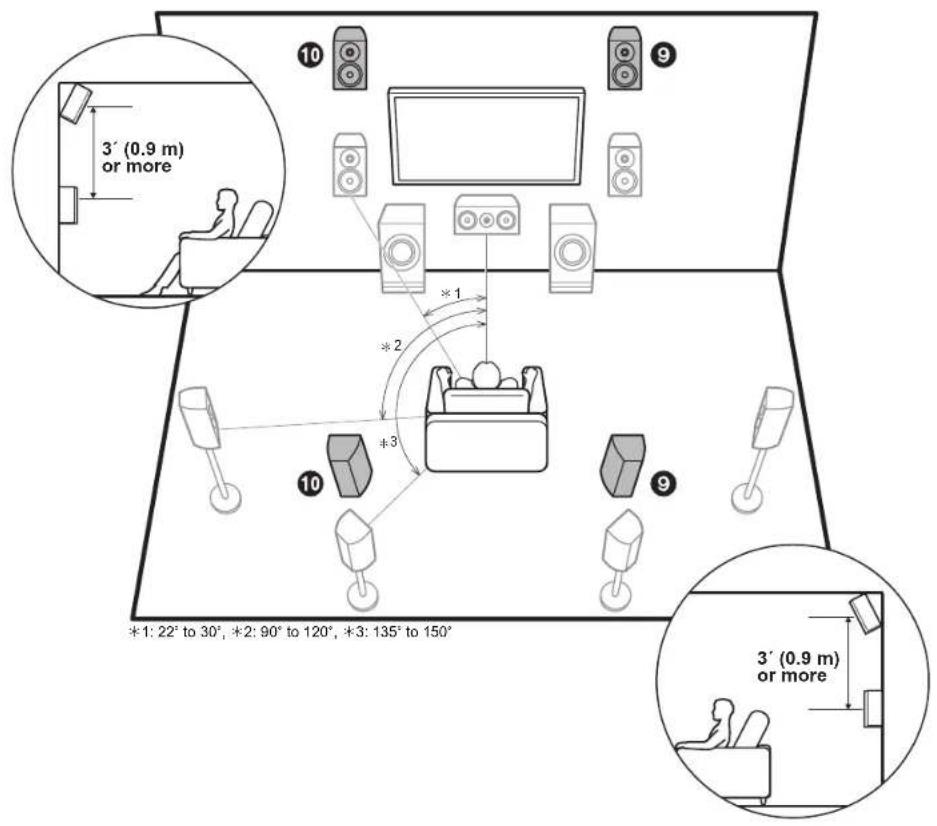
Height Speakers-1
(Front High Speakers/Rear High Speakers)
These are types of height speakers. Furthermore, by installing height speakers, you can select the Dolby Atmos listening mode, which realizes the most up-to-date 3D sound including overhead sounds, when the input format is Dolby Atmos.
Front high speakers or rear high speakers should be situated at least 3'0.9 m higher than the front speakers. Front high speakers should be situated directly above the front speakers and the distance between the rear high speakers should match the distance between the front speakers. Both should be set up facing the listening position. Note that with height speakers you can install up to two sets; Height 1 Speaker and Height 2 Speaker.
- "Speaker combinations" (P13) introduces some detailed examples of speaker combinations.
9.10 Height Speakers
- Front High Speakers
• Rear High Speakers

Before Start
Part Names
Install
Initial Setup
Playback
Advanced Manual

Troubleshooting | Supplementary Information, etc.
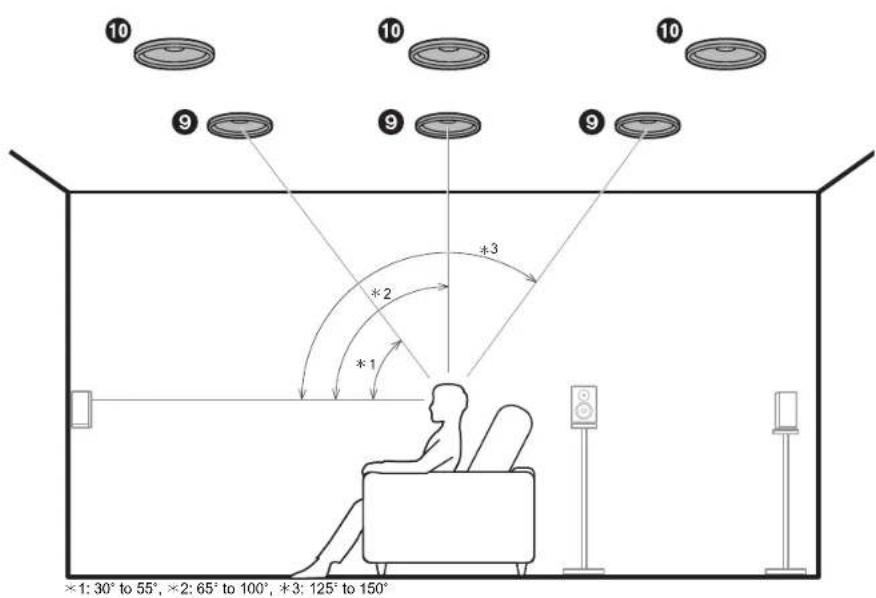
Height Speakers-2
(Ceiling Speakers)
These are types of height speakers. Furthermore, by installing height speakers, you can select the Dolby Atmos listening mode, which realizes the most up-to-date 3D sound including overhead sounds, when the input format is Dolby Atmos.
Fit top front speakers on the ceiling forward of the seating position, top middle speakers on the ceiling directly above the seating position, and top rear speakers on the ceiling behind the seating position. The distance between each pair should match the distance between the two front speakers. Note that with height speakers you can install up to two sets; Height 1 Speaker and Height 2 Speaker.
- Dolby Laboratories recommends placing this type of height speakers to obtain the best Dolby Atmos effect.
- "Speaker combinations" (P13) introduces some detailed examples of speaker combinations.
9,10 Height Speakers
• Top Front Speakers
• Top Middle Speakers
- Top Rear Speakers
Before Start
Part Names
Install
Initial Setup
Playback
Advanced Manual
Troubleshooting | Supplementary Information, etc.
flowchart
graph TD
    A["Person in living room"] --> B["Room 10"]
    B --> C["Room 9"]
    C --> D["Room 10"]
    D --> E["Room 10"]
    E --> F["Room 10"]
    F --> G["Room 10"]
    G --> H["Room 10"]
    H --> I["Room 10"]
    I --> J["Room 10"]
    J --> K["Room 10"]
    K --> L["Room 10"]
    L --> M["Room 10"]
    M --> N["Room 10"]
    N --> O["Room 10"]
    O --> P["Room 10"]
    P --> Q["Room 10"]
    Q --> R["Room 10"]
    R --> S["Room 10"]
    S --> T["Room 10"]
    T --> U["Room 10"]
    U --> V["Room 10"]
    V --> W["Room 10"]
    W --> X["Room 10"]
    X --> Y["Room 10"]
    Y --> Z["Room 10"]
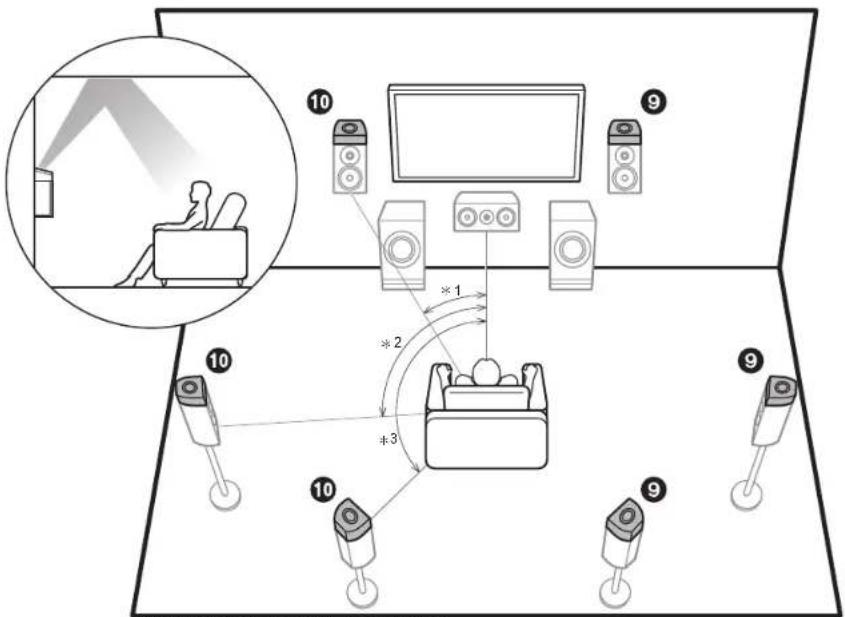
*1: 22° to 30°, *2: 90° to 120°, *3: 135° to 150°
Height Speakers-3
(Dolby Enabled Speakers (Dolby Speakers))
These are types of height speakers. Dolby enabled speakers are special speakers designed to face the ceiling so that sound is heard after bouncing off the ceiling so that sound appears to be coming from overhead. Furthermore, by installing height speakers, you can select the Dolby Atmos listening mode, which realizes the most up-to-date 3D sound including overhead sounds, when the input format is Dolby Atmos.
Place them either above the front speakers or above the surround speakers or surround back speakers. Note that with height speakers you can install up to two sets; Height 1 Speaker and Height 2 Speaker.
- "Speaker combinations" (P13) introduces some detailed examples of speaker combinations.
9,10 Height Speakers
• Dolby Enabled Speakers (Front)
• Dolby Enabled Speakers (Surround)
• Dolby Enabled Speakers (Surround Back)
Before Start
Part Names
Install
Initial Setup
Playback
Advanced Manual

Troubleshooting | Supplementary Information, etc.
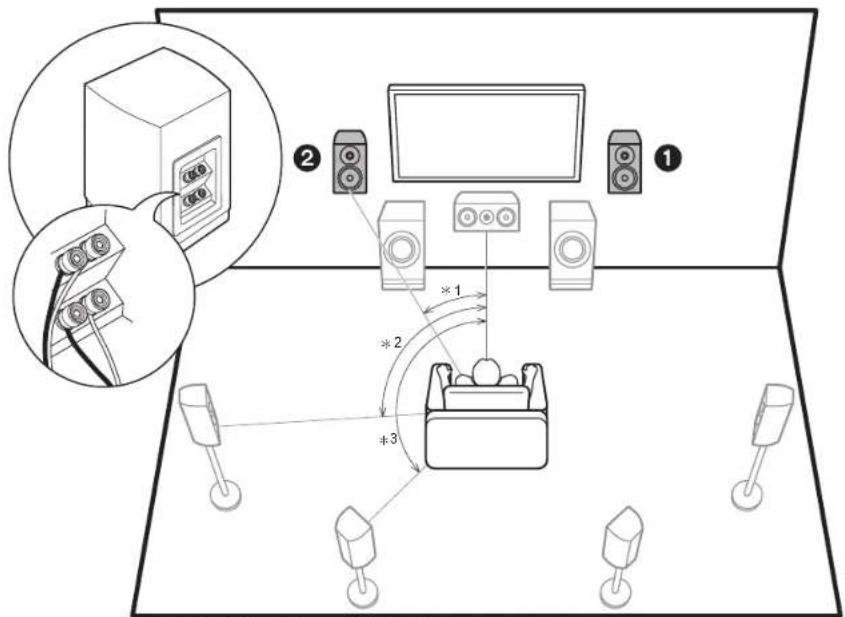
*1: 22° to 30°, *2: 90° to 120°, *3: 135° to 150°
Bi-Amping the Speakers
It is possible to connect front speakers supporting Bi-Amping to improve quality of the bass and treble. The effects and placements for speakers are the same as for a system that doesn't use Bi-Amping speakers.
- "Speaker combinations" (P13) introduces some detailed examples of speaker combinations.
1.2 Front Speakers (Bi-Amping)
Before Start
Part Names
Install
Initial Setup
Playback
Advanced Manual

Troubleshooting | Supplementary Information, etc.
Speaker combinations
- In any of the combinations, up to two powered subwoofers can be connected.
| SpeakerChannels FRONT CENTER | SURROUND | SURROUNDBACK | HEIGHT 1 | HEIGHT 2 | Bi-AMP (*1) | ZONE 2 (*1)(ZONE SPEAKER)(P22) | ZONE 3 (*1)(ZONE SPEAKER)(P23) | ||
| 2.1 ch | √ | √ | √ | √ | |||||
| 3.1 ch | √ | √ | √ | √ | √ | ||||
| 4.1 ch | √ | √ | √ | √ | √ | ||||
| 5.1 ch | √ | √ | √ | √ | √ | √ | |||
| 6.1 ch | √ | √ | √ | √ | √(*2) | √ | |||
| 7.1 ch | √ | √ | √ | √ | √ | √(*2) | √ | ||
| 2.1.2 ch | √ | √(*3) | √ | √ | √(*4) | ||||
| 3.1.2 ch | √ | √ | √(*3) | √ | √ | √(*4) | |||
| 4.1.2 ch | √ | √ | √(*3) | √ | √ | √(*4) | |||
| 5.1.2 ch | √ | √ | √ | √(*3) | √ | √ | √(*4) | ||
| 6.1.2 ch | √ | √ | √ | √(*5) | √ | √ | |||
| 7.1.2 ch | √ | √ | √ | √ | √(*5) | √ | √ | ||
| 4.1.4 ch | √ | √ | √ | √ | |||||
| 5.1.4 ch | √ | √ | √ | √ | √ | ||||
| 6.1.4 ch | √ | √ | √(*6) | √ | √ | ||||
| 7.1.4 ch | √ | √ | √ | √(*6) | √ | √ | |||
Points to note with speaker combinations
(*1) It is not possible to use Bi-AMP and ZONE speakers at the same time. However, with 2.1 ch to 7.1 ch, it is possible to use Bi-AMP and ZONE 2 speakers at the same time.
(*2) If you have not connected ZONE 3 speakers in another room but have only connected ZONE 2 speakers, connect the ZONE 2 speakers to the HEIGHT 1 jacks. However, if Bi-Amping connections are used for front speakers, connect the ZONE 2 speakers to the HEIGHT 2 jacks.
(*3) If front speakers are to be Bi-Amping connected, height speakers need to be connected to the HEIGHT 2 jacks.
(*4) ZONE 2 speakers need to be connected to the HEIGHT 1 jack, ZONE 3 speakers need to be connected to the SURROUND BACK jacks, and height speakers need to be connected to the HEIGHT 2 jacks.
(*5) This unit consists of a 9 ch amplifier, so when using a Bi-Amping connection for the front speakers, use an analog audio cable to connect the power amplifier to the PRE OUT HEIGHT 2 jacks, then connect the height speakers to the power amplifier.
(*6) This unit consists of a 9 ch amplifier, so with this combination use an analog audio cable to connect
the power amplifier to the PRE OUT BACK jacks, then connect the surround back speakers to the power amplifier.
HEIGHT 1/HEIGHT 2
When connecting 2 sets of height speakers, the height speaker combinations you can choose are as follows.
– Height 1 Speaker: Top Middle, Height 2 Speaker: Rear High
- Height 1 Speaker: Front High, Height 2 Speaker: One of Rear High/Top Middle/Top Rear/Dolby Enabled Speaker (Surround)/Dolby Enabled Speaker (Surround Back)
- Height 1 Speaker: Top Front or Dolby Enabled Speaker (Front), Height 2 Speaker: One of Rear High/Top Rear/Dolby Enabled Speaker (Surround)/Dolby Enabled Speaker (Surround Back)
When connecting only one set of height speakers, select one type of height speakers from the types available.

Before Start
Part Names
Install
Initial Setup
Playback
Advanced Manual

Troubleshooting | Supplementary Information, etc.
Step2: Connect the Speakers
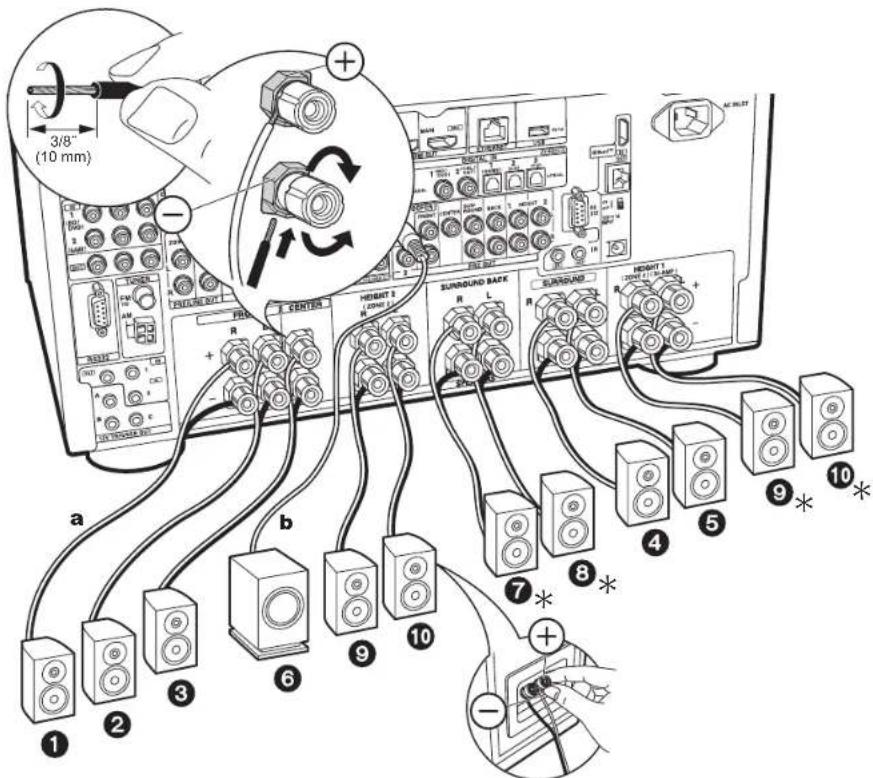
a Speaker Cable, b Subwoofer Cable
Standard Connections (Pages 8 to 11)
Refer to the illustration to connect the speaker system.
(*) Depending on the combination of speakers, you may need to connect to other jacks. See "Points to note with speaker combinations" (P13) for details.

Setup
- Settings for the speaker configuration you have connected need to be made in "1. AccuEQ Room Calibration" in Initial Setup (P25).
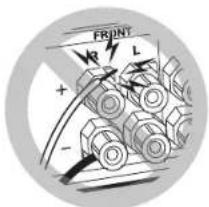
Make sure the exposed speaker cables do not stick out of the speaker terminals when connecting. If the exposed wires of the speakers touch the rear panel or the + and - wires touch each other, the protection circuit will be activated.
Before Start
Part Names
Install
Initial Setup
Playback
Advanced Manual

Troubleshooting | Supplementary Information, etc.
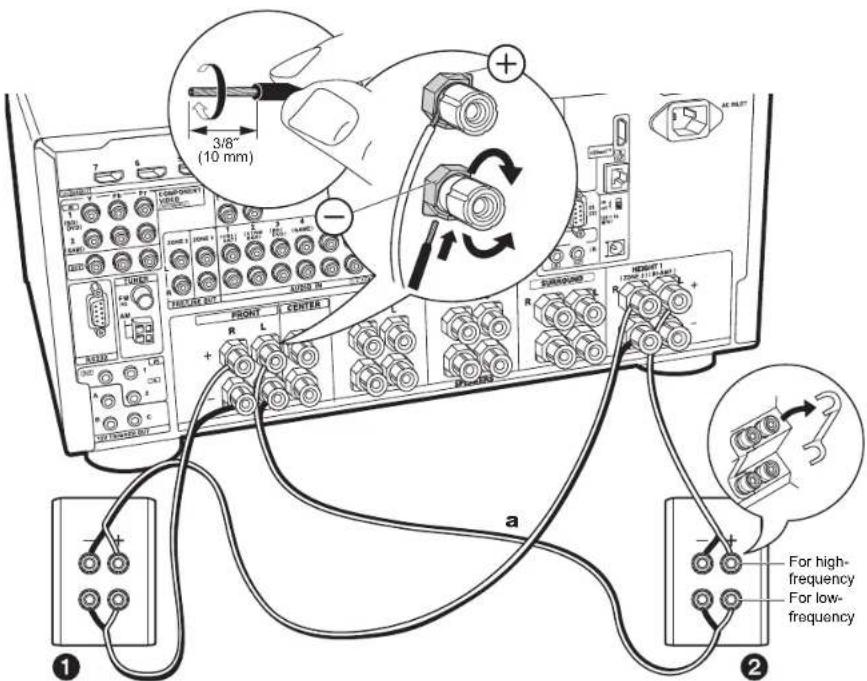
a Speaker Cable
Connecting with Bi-Amping Speakers (Page 12)
Connect front speakers compatible with Bi-Amping connection to the FRONT jacks and the HEIGHT 1 jacks. Make sure you remove the jumper bar fitted between the woofer jacks and tweeter jacks of the front speakers. See "Standard Connections (Pages 8 to 11)" (P14) for how to connect speakers other than the front speakers.
Also refer to the instruction manual for your speakers when using connections for Bi-Amping.

Setup
- Settings for the speaker configuration you have connected need to be made in "1. AccuEQ Room Calibration" in Initial Setup (P25).
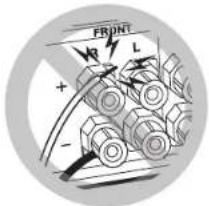
Make sure the exposed speaker cables do not stick out of the speaker terminals when connecting. If the exposed wires of the speakers touch the rear panel or the + and - wires touch each other, the protection circuit will be activated.

Before Start
Part Names
Install
Initial Setup
Playback
Advanced Manual

Troubleshooting | Supplementary Information, etc.
Step3: Connect the TV & AV Components
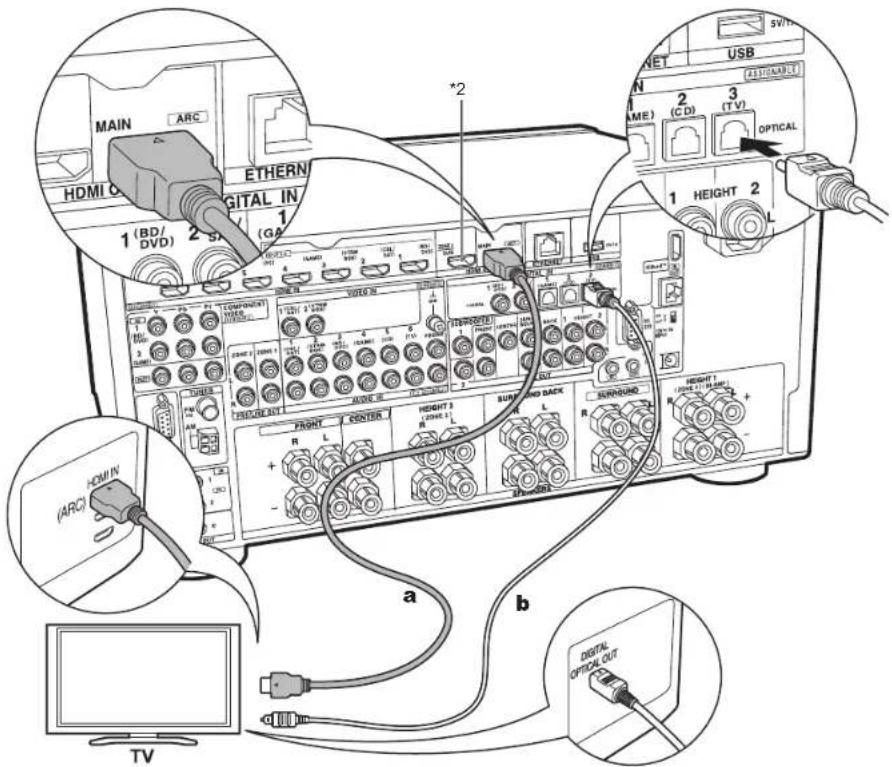
a HDMI Cable, b Digital Optical Cable
1. Connect the TV
To ARC TV
For a TV that supports the ARC (Audio Return Channel) (*1) feature, use an HDMI cable and connect according to illustration "a". Choose an HDMI IN jack on the TV that supports ARC when connecting.

Setup
- Settings are required to use the ARC function. Select "Yes" in "5. Audio Return Channel" (P26) in the Initial Setup.
- Refer to the instruction manual for the TV for TV connections and instructions regarding settings for CEC features and audio output.
To Non-ARC TV
For a TV that does not support the ARC (Audio Return Channel) feature (*1), connect both the HDMI cable in illustration "a" and the digital optical cable in "b". If the TV doesn't have a DIGITAL OPTICAL OUT jack, use an analog audio cable and connect the TV's ANALOG AUDIO OUT jack to the AUDIO IN TV jack on this unit.
- Connection with a digital optical cable is not necessary if you will watch TV through a device such as a cable set-top box (that is, not use a tuner built into the TV) that you have connected to the INPUT jack on this unit.
(*1) The ARC feature: This feature transfers TV audio signals via HDMI cable so that you can play the audio from the TV through this unit. Connection to an ARC compatible TV is complete with one HDMI cable. Refer to the instruction manual for your TV to see if it supports ARC.
(*2) Another TV or projector can be connected to the HDMI OUT SUB jack. Press Q (P6) on the remote control and use "Other" - "HDMI Out" to switch between MAIN and SUB. Note that this jack does not support ARC.
Before Start
Part Names
Install
Initial Setup
Playback
Advanced Manual

Troubleshooting | Supplementary Information, etc.

a HDMI Cable
2. Connect the HDMI AV Component
This is an example of connection with an AV component that has an HDMI jack. With connection to an AV component that conforms with the CEC (Consumer Electronics Control) standard, you can use features such as the HDMI CEC feature (*) that links with the input selector, and the HDMI Standby Through feature which allows you to play video and audio from AV components on the TV even when this unit is in standby mode.
- To play 4K or 1080p video, use a high speed HDMI cable. Further, to enjoy HDCP2.2 compatible video, connect to the HDMI IN1 to IN5 jacks.

Setup
- When "Yes" is selected for "5. Audio Return Channel" in Initial Setup (P26), the HDMI CEC function and HDMI Standby Through function are automatically enabled. If "No, Skip" is selected, settings are required in the Setup menu after Initial Setup is complete. Press ☑ on the remote controller and make the settings in "6. Hardware" - "HDMI".
- To enjoy digital surround sound including Dolby Digital, audio output should be set to Bitstream output on the connected Blu-ray Disc player or other device.
(*) The HDMI CEC feature: You can control features such as linking input switching with the input selector and players conforming to the CEC standard, switching audio to output it from the TV or from this unit, and adjusting the volume using the remote controller of a CEC-compliant TV, and automatically switching this unit to standby when the TV is turned off.

Before Start
Part Names
Install
Initial Setup
Playback
Advanced Manual

Troubleshooting | Supplementary Information, etc.
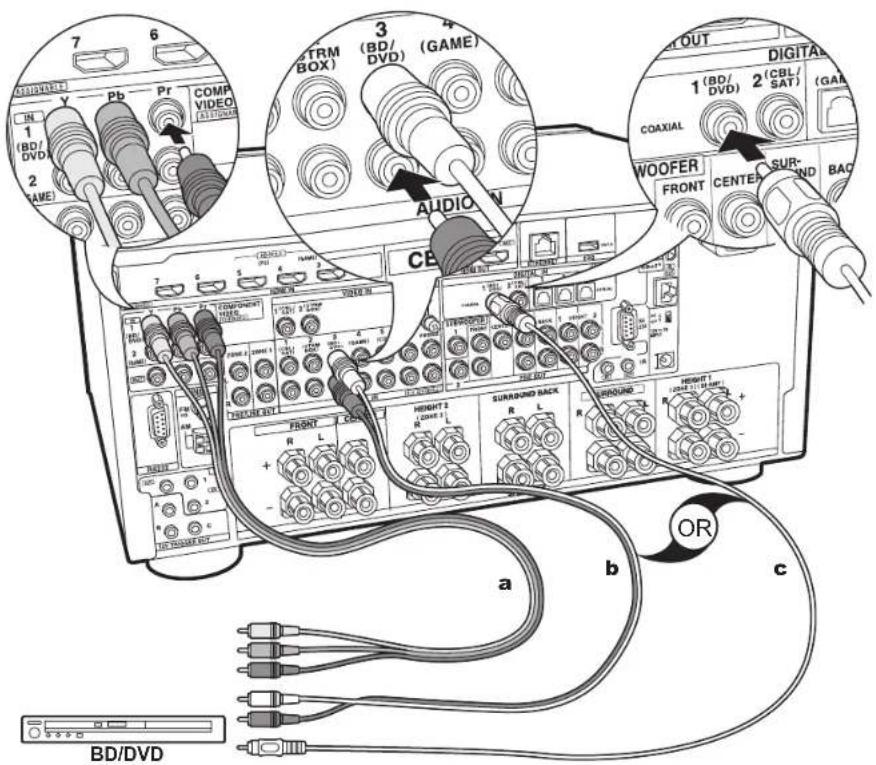
a Component Video Cable, b Analog Audio Cable, c Digital Coaxial Cable
3. Connect the Non-HDMI AV Component
This is an example of connection with an AV component that does not have an HDMI jack. Make the connections to the AV component to match the jacks it has. When video input connection is to the BD/DVD jack, the audio input connection should also be to the BD/DVD jacks, and so on, so that you connect the video input jacks to the jacks with the same name as the audio input jacks. Note that video signals input to the VIDEO IN jack or the COMPONENT VIDEO IN jack will be converted to HDMI video signals and then output from the HDMI OUT jack.
- To enjoy digital surround playback in formats such as Dolby Digital, you need to make a connection for audio signals with a digital coaxial cable or a digital optical cable.
- It is possible to change assignment of the input jacks you see in the illustration at left, so you can also connect to any jack other than BD/DVD. For details, see the Advanced Manual.

Setup
- The COMPONENT VIDEO IN jacks are compatible only with 480i or 576i resolution. When you connect to the COMPONENT VIDEO IN jacks, set the output resolution of the player to 480i or 576i. Select interlace if there is no option for 480i, etc. If your player does not support 480i or 576i output, use the VIDEO IN jack.
- To enjoy digital surround sound including Dolby Digital, audio output should be set to Bitstream output on the connected Blu-ray Disc player or other device.
Before Start
Part Names
Install
Initial Setup
Playback
Advanced Manual

Troubleshooting | Supplementary Information, etc.
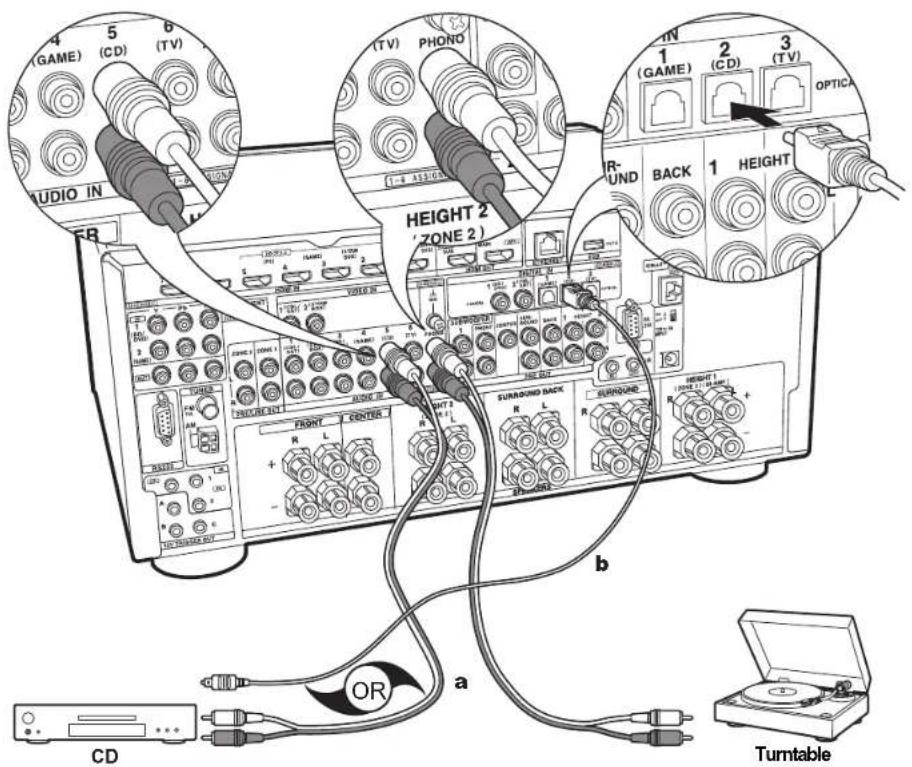
a Analog Audio Cable, b Digital Optical Cable
4. Connect the Audio Component
Example of a connection with an audio component.
Connect a CD player using a digital optical cable or analog audio cable. You can also connect a turntable that has an MM-type cartridge to the PHONO jack.
- If the turntable has a built-in audio equalizer, connect it to an AUDIO IN jack other than the PHONO jack. Further, if the turntable uses an MC type cartridge, install an audio equalizer compatible with the MC type cartridge between the unit and the turntable, then connect to any AUDIO IN jack other than the PHONO jack.
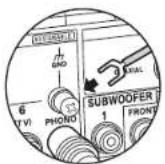
If the turntable has a ground wire.
connect it to the GND terminal of this unit.

Before Start
Part Names
Install
Initial Setup
Playback
Advanced Manual

Troubleshooting | Supplementary Information, etc.
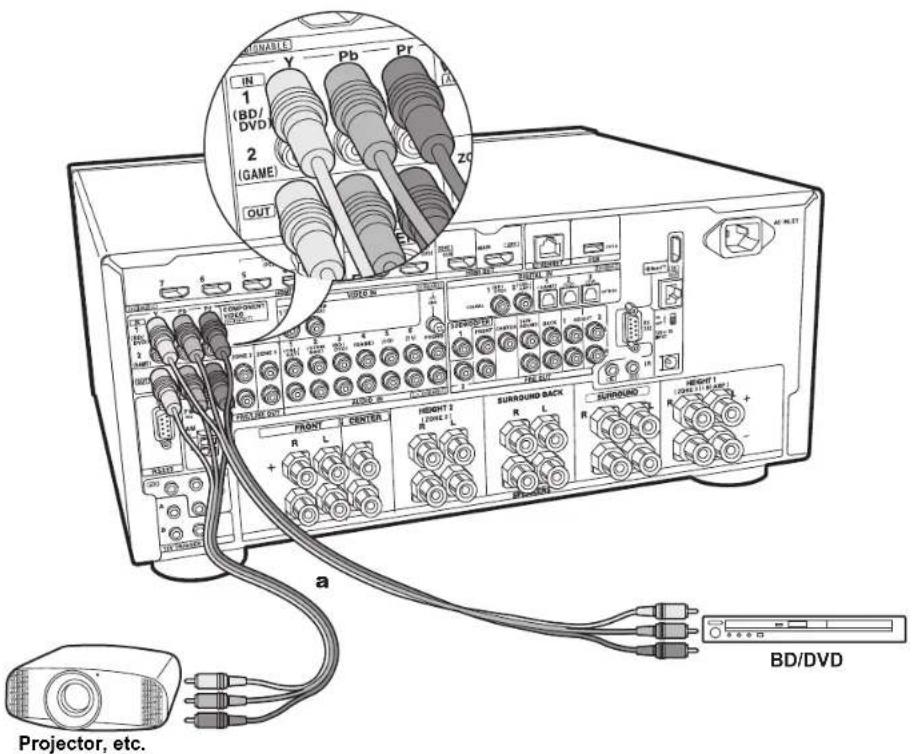
a Component Video Cable
5. Connect the Component Video Monitor
Use a component video cable to connect a TV or projector that has component video input jacks rather than an HDMI input jack. To output video from the COMPONENT VIDEO OUT jacks, you must connect the external AV components using a component video cable.
Before Start
Part Names
Install
Initial Setup
Playback
Advanced Manual

Troubleshooting | Supplementary Information, etc.
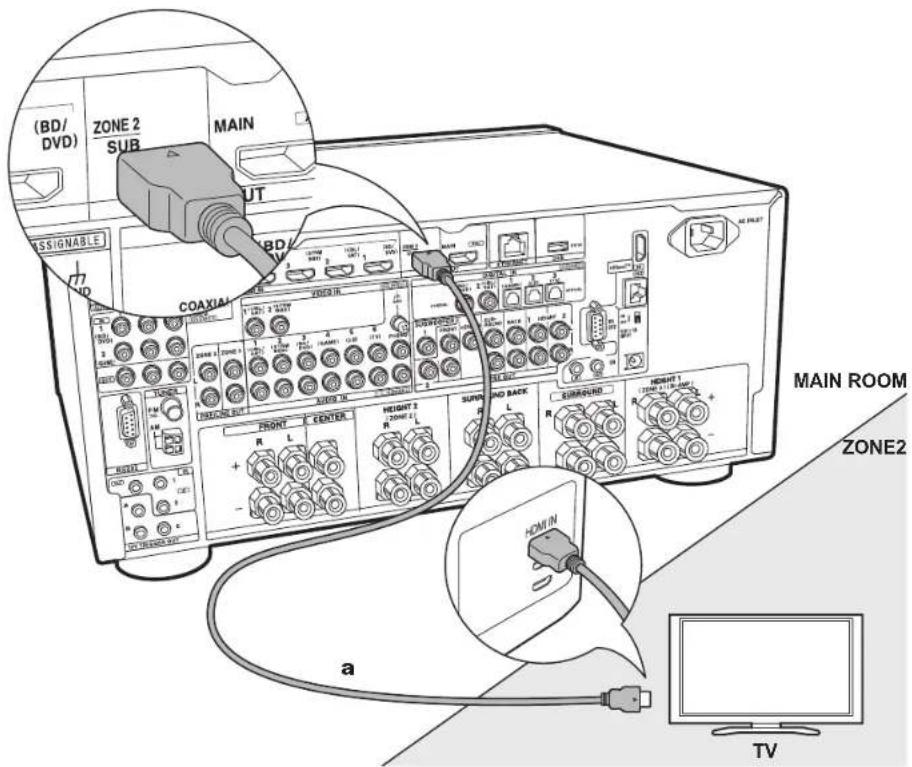
a HDMI Cable
6. Multi-zone Connection-1 (ZONE 2 TV)
You can enjoy content from a Blu-ray Disc player on a TV equipped with an HDMI input jack in the separate room (ZONE 2) by playing a Blu-ray Disc player in the main room (where this unit is located), or play the content from another AV component. Only the video from devices connected to the HDMI IN1 to IN5 jacks can be played on the TV in the separate room.

Setup
- Settings are required in Initial Setup, "4. Multi Zone Setup" (P26) to enjoy this feature.
- The audio from externally connected AV components can only be output when the signal is 2ch PCM audio. It may also be necessary to convert the audio output of the AV component to PCM output.

Before Start
Part Names
Install
Initial Setup
Playback
Advanced Manual

Troubleshooting | Supplementary Information, etc.
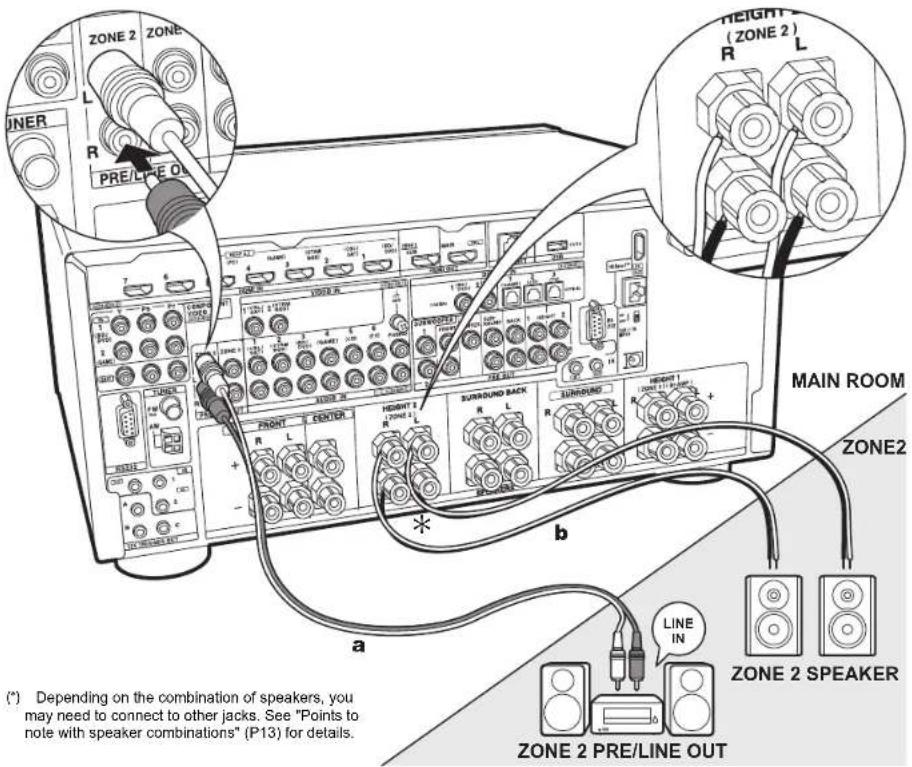
a Analog Audio Cable, b Speaker Cable
7. Multi-zone Connection-2 (ZONE 2 PRE/LINE OUT / ZONE 2 SPEAKER)
You can enjoy audio in the separate room by, for example, playing a Blu-ray Disc player in the main room (where this unit is located) and listening to internet radio in the separate room (ZONE 2).
Connections with an AV component
Connect with HDMI IN 1 to 5 if you want to output an external AV component to ZONE 2. If the AV component doesn't have an HDMI jack, connect using a digital optical cable, digital coaxial cable, or analog audio cable.
ZONE 2 PRE/LINE OUT
It is possible to play 2 ch sources in a separate room while sources with a maximum of 11.1 ch are being played in the main room. Connect the ZONE 2 PRE/LINE OUT jacks of the unit and the LINE IN jacks of the pre-main amplifier or the power amplifier in a separate room with an analog audio cable.
ZONE 2 SPEAKER
It is possible to connect speakers in a separate room and play 2 ch sources.
- You can play through a maximum of 7.1 channels in the main room during ZONE 2 playback. With Bi-Amping connection or while ZONE 3 speaker connection settings are enabled, no sound is heard from the surround back speakers or height speakers and a maximum of 5.1 channel playback is possible in the main room.

Setup
- Settings are required in Initial Setup, "4. Multi Zone Setup" (P26) to enjoy this feature.
- The audio from externally connected AV components can only be output when the audio is analog or 2ch PCM audio signals. If you have connected to this unit with an HDMI cable or digital optical/coaxial cable, may be necessary to convert the audio output of the AV component to PCM output.
Before Start
Part Names
Install
Initial Setup
Playback
Advanced Manual

Troubleshooting | Supplementary Information, etc.
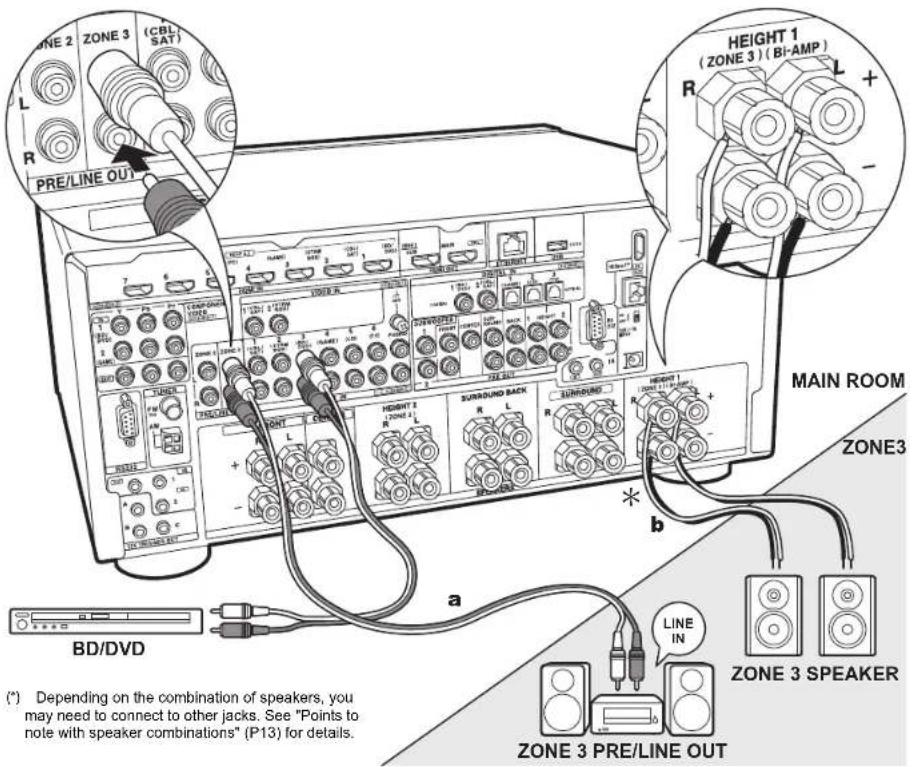
a Analog Audio Cable, b Speaker Cable
8. Multi-zone Connection-3 (ZONE 3 PRE/LINE OUT / ZONE 3 SPEAKER)
Along with the main room and ZONE 2, you can also enjoy audio in yet another room (ZONE 3).
Connections with an AV component
To output the audio of an external AV component to ZONE 3, connect using an analog audio cable. Output to ZONE 3 is not possible when you connect with an HDMI cable or digital optical/coaxial cable.
ZONE 3 PRE/LINE OUT
It is possible to play 2 ch sources in a separate room while sources with a maximum of 11.1 ch are being played in the main room. Connect the ZONE 3 PRE/LINE OUT jacks of the unit and the LINE IN jacks of the pre-main amplifier or the power amplifier in a separate room with an analog audio cable.
ZONE 3 SPEAKER
It is possible to connect speakers in a separate room and play 2 ch sources.
During ZONE 3 playback, no sound is heard from the surround back speakers or the height speakers and a maximum of 5.1 channel playback is possible in the main room.

Setup
- Settings are required in Initial Setup, "4. Multi Zone Setup" (P26) to enjoy this feature.

Before Start
Part Names
Install
Initial Setup
Playback
Advanced Manual

Troubleshooting | Supplementary Information, etc.
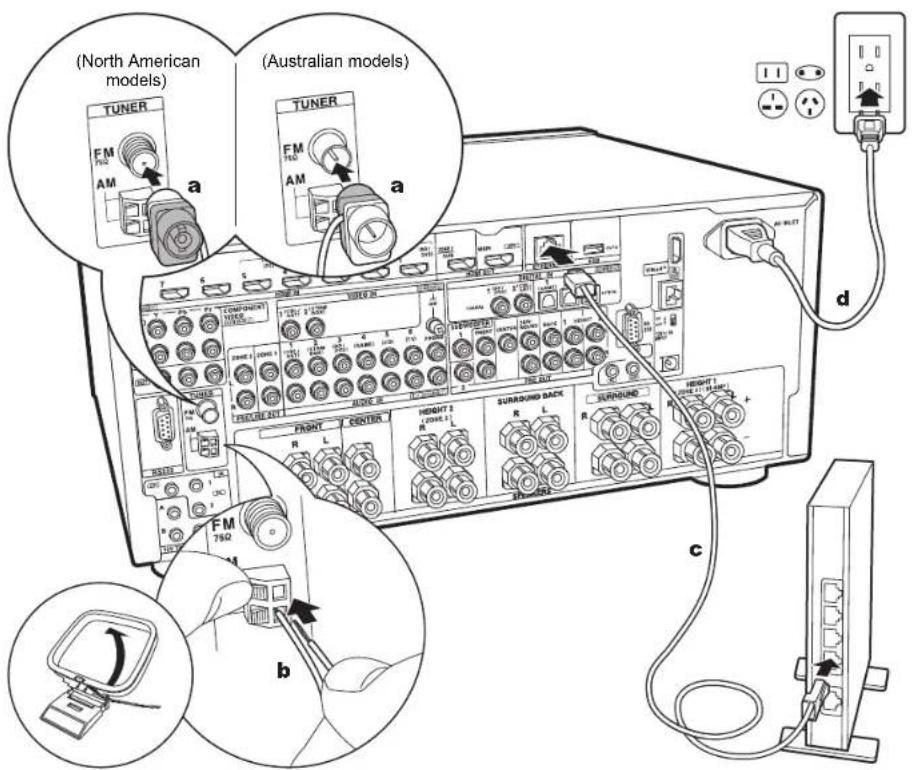
a Indoor FM Antenna, b AM Loop Antenna, c Ethernet Cable, d Power Cord
9. Connect Other Cables
Antenna Hookup
Move the antenna around while playing the radio to find the position with the best reception. Use a thumb tack or similar to attach the indoor FM antenna to a wall.
Network Hookup
Connect this unit to the network using wired LAN. You can enjoy network features such as internet radio by connecting the unit to the network. Connect with an Ethernet cable to the ETHERNET port as shown in the illustration.
Power Cord Hookup
This unit includes a removable power cord. Connect the power cord to the power outlet after completing all other connections. Connect the power cord to AC INLET of the unit and then connect to the outlet. Always disconnect the outlet side first when disconnecting the power cord.
Before Start
Part Names
Install
Initial Setup
Playback
Advanced Manual

Troubleshooting | Supplementary Information, etc.
Initial Setup with Auto Start-up Wizard
natural_image
Illustration of hands inserting a battery into a device (no text or symbols visible)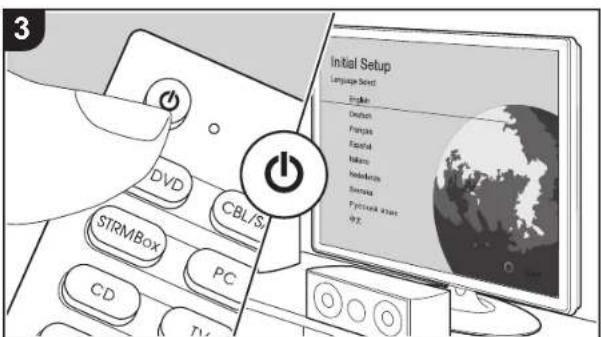
Initial Setup Starts Automatically
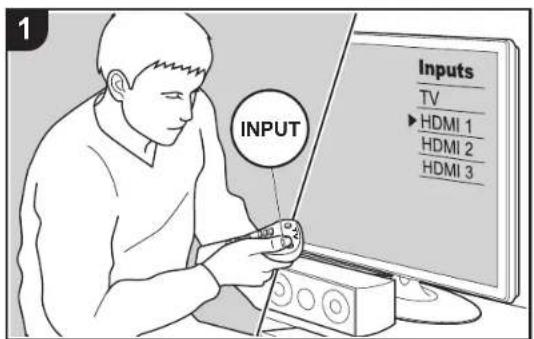
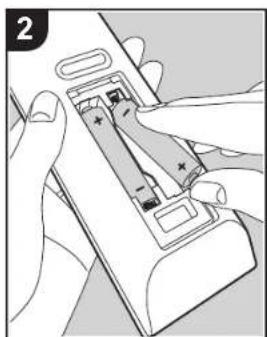
When you turn the unit on for the first time after purchasing it, Initial Setup is automatically shown on the TV to enable you to make settings required for startup using simple operations following onscreen guidance.
- Switch the input on the TV to that assigned to the unit.
- Put batteries into the remote controller of this unit.
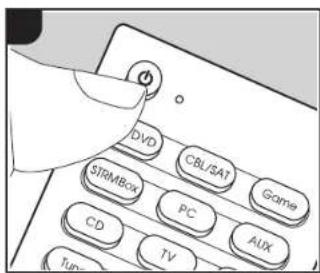
- Press ⏻ on the remote controller to turn the unit on.
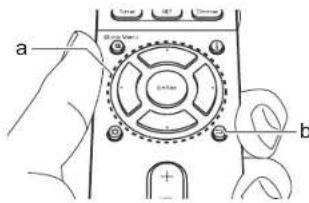
- Select the item with the cursors of the remote controller and press Enter (a) to confirm your selection. To return to the previous screen, press 📄.
- If you terminate the procedure on the way or want to change a setting made during Initial Setup, press ☑ on the remote controller, select "8. Miscellaneous" – "Initial Setup", and press Enter.
- A confirmation screen asking you to agree to the privacy policy is displayed during network setting. Select "Accept" and press Enter to indicate agreement.
■ 1. AccuEQ Room Calibration
Place the supplied speaker setup microphone in the listening position, measure the test tones emitted by the speakers, then the unit automatically sets the optimum volume level for each speaker, the crossover frequencies, and the distance from the listening position. This also enables correction of distortion caused by the acoustic
Before Start
Part Names
Install
Initial Setup
Playback
Advanced Manual

Troubleshooting | Supplementary Information, etc.
environment of the room.
- Calibration takes between 3 and 12 minutes to be completed. The speakers emit the test tone at high volume during measurement, so be careful of your surroundings. Keep the room as quiet as possible during measurement.
- If you have connected a subwoofer, check the power and volume of the subwoofer. Set the subwoofer volume to more than halfway.
- If the power of this unit suddenly turns off, the speaker cables may have touch the rear panel or other wires and tripped the protection circuit. Twist the wires again properly and make sure they do not stick out of the speaker terminals when connecting.
- When using THX certified speakers, THX recommends setting the crossover frequency to "80Hz(THX)". It is also recommended to manually adjust the settings for each speaker to suit the specific characteristics of each room.
- Place the supplied speaker setup microphone in the listening position, and connect to the Setup Mic jack on the main unit.
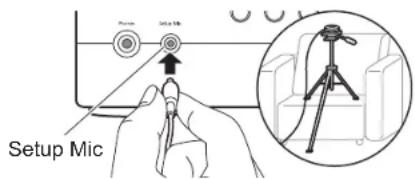
When putting the speaker setup microphone on a tripod, refer to the illustration when putting it in place.
- To cancel AccuEQ Room Calibration partway through, disconnect the speaker setup microphone.
- Select the connected speaker configuration.
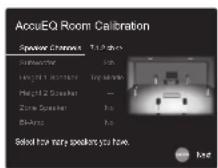
The image on the screen changes as you choose the number of channels in "Speaker Channels", so refer to it when performing the settings.
- Test tones are emitted by the speakers, and firstly the unit detects the speakers connected and the noise in the environment.
- After the results of the above measurements are displayed, select "Next", press Enter on the remote controller, and the test tones are emitted again, and the unit automatically makes settings such as the optimum volume level and the crossover frequency.
- Select whether to enable or disable the equalizer function that corrects for distortion caused by the acoustic environment of the room. If this is to be enabled, then normally you should select "On (All Channels)", and to disable just the front speakers you should select "On (Except Front Left / Right)".
- Disconnect the speaker setup microphone. You cannot use any other menu options while it is connected.
■ 2. Source Connection
Check that each input source is connected correctly. Follow the guidance, select the input you want to confirm, start play of the selected player, and confirm that the images appear on the TV and that sound is played.
■ 3. Network Connection
You can check the network connection status.
■ 4. Multi Zone Setup
Make these settings to enjoy video and audio in a room other than the main room (ZONE 2/ZONE 3). Select "Using AV Receiver" when connecting speakers in the separate room. Select "with External Premain Amplifier" when connecting a pre-main amplifier in the separate room. Select "with External Power Amplifier" when connecting a power amplifier. If you are going to be connecting a TV in the separate room (ZONE 2), then when "Would you be using TV in 2nd room?" is displayed, select "Yes".
■ 5. Audio Return Channel
If you have connected a TV that supports ARC, select "Yes". This unit's ARC setting turns on and you can listen to the TV's audio through this unit.
- If you select "Yes", the HDMI CEC function is enabled and power consumption increases during standby.
Before Start
Part Names
Install
Initial Setup
Playback
Advanced Manual

Troubleshooting | Supplementary Information, etc.
AV Component Playback
natural_image
Diagram of a CD/DVD drive with an arrow indicating rotation, no text or symbols presentBasic Operations
You can play the audio from AV components such as Blu-ray Disc players through this unit.
- When a TV is connected to the HDMI OUT SUB jack, press Q (P6) on the remote controller and use "Other" - "HDMI Out" to switch between MAIN and SUB.
Perform the following procedure when the unit is on.
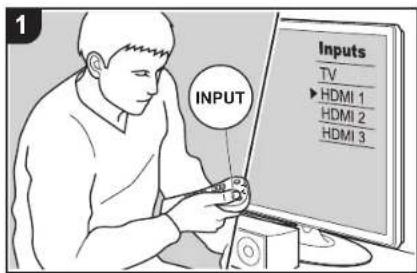
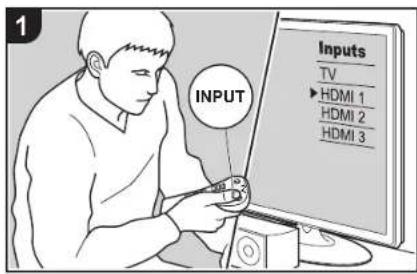
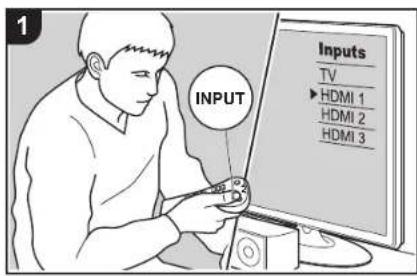
- Switch the input on the TV to that assigned to the unit.
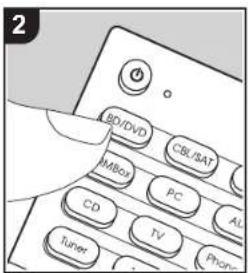
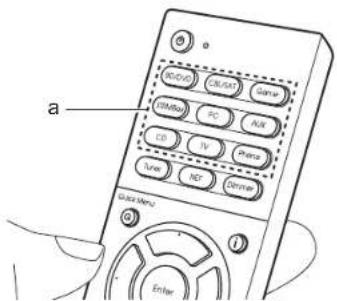
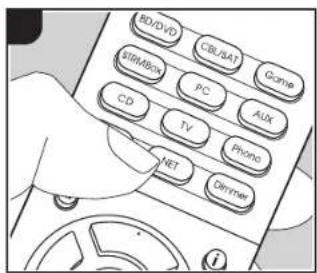
- Press the input selector button (a) on the remote controller with the same name as the jack to which you connected the player to switch the input. For example, press BD/DVD to play the player connected to the BD/DVD jack. Press TV to listen the TV's sound. To play a device connected to the AUX Input HDMI jack on the front panel, press AUX.
- When the CEC link function works, the input switches automatically when you have connected a CEC compliant TV and player to this unit using HDMI connection.
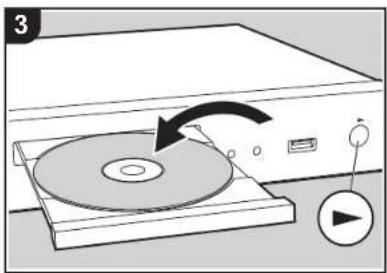
- Start play on the AV component.
Before Start
Part Names
Install
Initial Setup
Playback
Advanced Manual

Troubleshooting | Supplementary Information, etc.
Network Functions
Basic Operations
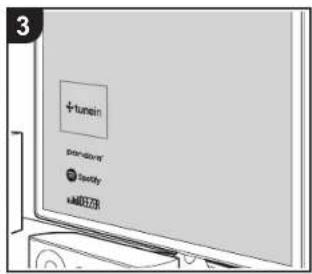
By connecting this unit to the network you can enjoy internet radio services such as Tuneln, streaming from Spotify Connect, and wireless playback using AirPlay® features. Furthermore, you can use the Music Server feature to stream music files stored on PCs or NAS devices that support the home network feature. The basic operations for Network Functions are introduced in the Basic Manual. For more advanced operations, see the Advanced Manual. There may also be additional network functions provided through firmware updates for this unit. Also see the Advanced Manual for information about new features.
- The network needs to be connected to the internet in order to play internet radio services.
- Depending on the internet radio service, the user may need to register from their computer first.
• To enable Spotify Connect, install the
Spotify application on your smartphone or tablet and create a Spotify premium account.
– Refer to the following for Spotify settings: www.spotify.com/connect/
- The network servers compatible with the Music Server feature are those PCs with players installed that have the server functionality of Windows Media® Player 11 or 12, or NAS that are compatible with home network functionality. Note that with PCs, only music files registered in the library of Windows Media® Player can be played.
- You may need to make some settings on the PC in advance to use Windows Media® Player 11 or 12 with the Music Server feature.
Perform the following procedure when the unit is on.
- Switch the input on the TV to that assigned to the unit.
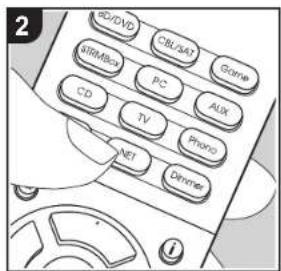
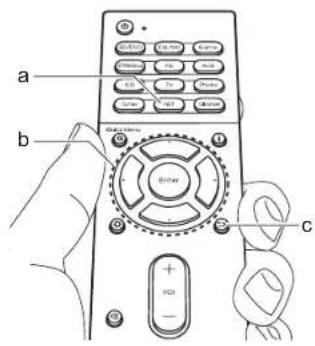
- Press NET (a) on the remote controller
to display a list of Network Functions on the TV.
- Select the Network Function with the cursors of the remote controller and press Enter (b) to confirm your selection. With internet radio services, follow the on-screen instructions, using the cursors to select radio stations and programs, then press Enter to play. With Spotify or AirPlay, select this unit with your smartphone to play. With Music Server, select the server with the cursors, then select the desired music file and press Enter to play.
- To return to the previous screen, press ⊃ (c).
Before Start
Part Names
Install
Initial Setup
Playback
Advanced Manual

Troubleshooting | Supplementary Information, etc.
USB Storage Device
Basic Operations
You can play music files stored on a USB storage device.
Perform the following procedure when the unit is on.
- Switch the input on the TV to that assigned to the unit.
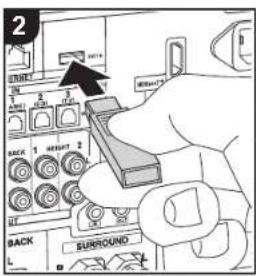
- Plug your USB storage device with the music files into the USB port of this unit's rear panel.
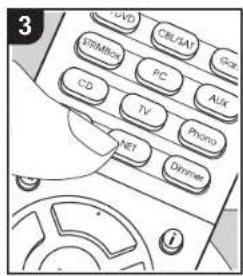
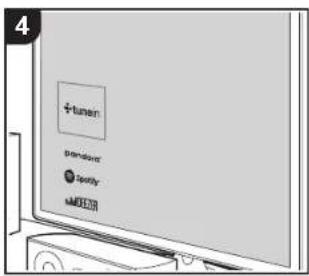
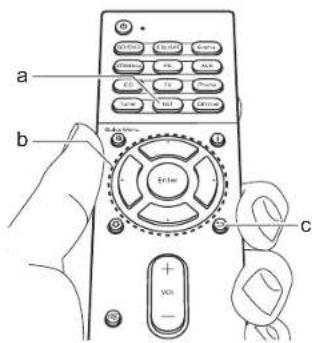
- Press NET (a) on the remote controller to display the network service list screen.
- With the cursors on the remote controller, select "USB", and then press Enter (b).
- If the "USB" indicator flashes on the display, check whether the USB storage device is plugged in properly.
-
Do not unplug the USB storage device while "Connecting..." is appeared on the display. This may cause data corruption or malfunction.
-
Press Enter on the remote controller again in the next screen. The list of folders and music files on the USB storage device are displayed. Select the folder with the cursors and press Enter to confirm your selection.
- With the cursors on the remote controller, select the music file, and then press Enter to start playback.
- To return to the previous screen, press ⊆ (c).
- The USB port of this unit conforms with the USB 2.0 standard. The transfer speed may be insufficient for some content you play, which may cause some interruption in sound.
• Operation cannot be guaranteed for all USB storage devices. - This unit can use USB storage devices that comply with the USB mass storage class standard. The unit is also compatible with USB storage devices using the FAT16 or FAT32 file system formats.
Before Start
Part Names
Install
Initial Setup
Playback
Advanced Manual

Troubleshooting | Supplementary Information, etc.
Listening to the AM/FM Radio
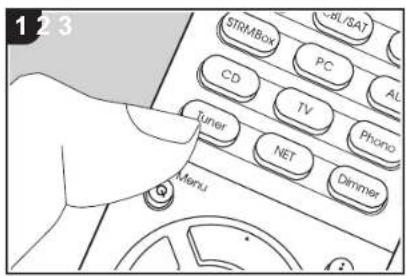
You can receive AM and FM radio stations on this unit with the built-in tuner. Perform the following procedure when the unit is on.
lights.
When FM broadcasts reception is poor: Perform the procedure for "Tuning Manually" in the following section. Note that if you tune manually, the reception for FM broadcasts will be monaural rather than stereo, irrespective of the sensitivity of the reception.
■ Tuning into a Radio Station
Tuning Automatically
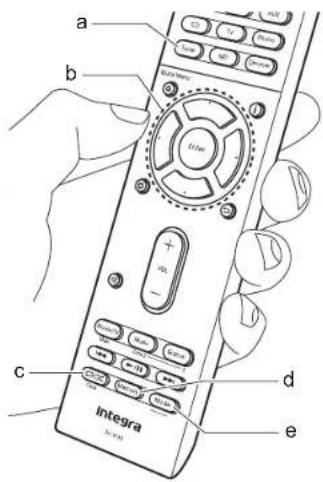
- Press Tuner (a) on the remote controller repeatedly to select either "AM" or "FM" on the display.
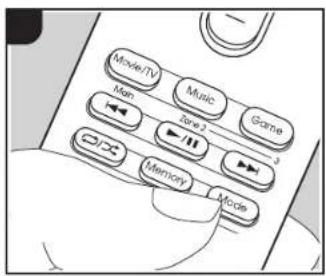
- Press Mode (e) on the remote controller, so that the "TunMode : Auto" is displayed on the display.
TunMode: Auto
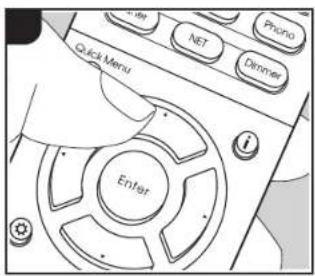
- When you press the cursors ▲ / ▼ (b) on the remote controller, automatic tuning starts, and searching stops when a station is found. When tuned into a radio station, the "TUNED" indicator on the display lights. When tuned into an FM stereo station, the "FM ST" indicator
Tuning Manually
Note that if you tune manually, the reception for FM broadcasts will be monaural rather than stereo, irrespective of the sensitivity of the reception.
- Press Tuner (a) on the remote controller repeatedly to select either "AM" or "FM" on the display.
- Press Mode (e) on the remote controller, so that the "TunMode : Manual" is displayed on the display.
TunMode:Manual
- While pressing the cursors ▲ / ▼ (b) on the remote controller, select the desired radio station.
• The frequency changes by 1 step each time you press the cursors ▲ /
▼. The frequency changes continuously if the button is held down and stops when the button is released.
Frequency step setting:
Press the button, the cursor buttons and Enter on the remote controller to select "8. Miscellaneous" - "Tuner" - "AM/FM Frequency Step" or "AM Frequency Step" and select the frequency step for your area. Note that when this setting is changed, all radio presets are deleted.
Before Start
Part Names
Install
Initial Setup
Playback
Advanced Manual

Troubleshooting | Supplementary Information, etc.
■ Presetting a Radio Station
It allows you to register up to 40 of your favorite AM/FM radio stations.
Registration Procedure
After tuning into the AM/FM radio station you want to register, perform the following procedure.
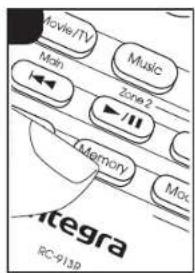
- Press Memory (d) on the remote controller so that the preset number on the display flashes.
FM 87.5 MHz

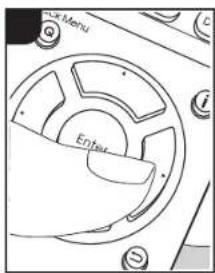
- While the preset number is flashing (about 8 seconds), repeatedly press the cursors ◀/▶ (b) on the remote controller to select a number between 1 and 40.
- Press Memory again on the remote controller to register the station. When registered, the preset number stops flashing. Repeat this procedure for
all of your favorite AM/FM radio stations.
Selecting a Preset Radio Station
- Press Tuner (a) on the remote controller.
- Press the cursors ◀ / ▶ (b) on the remote controller to select a preset number.
Deleting a Preset Radio Station
- Press Tuner (a) on the remote controller.
- Press the cursors ◀ / ▶ (b) on the remote controller to select the preset number to delete.
- After pressing Memory (d) on the remote controller, press Clear (c) while the preset number is flashing to delete the preset number. When deleted, the number on the display goes off.
■ Using RDS (Australian models)
RDS stands for Radio Data System and is a method of transmitting data in FM radio signals. In regions using RDS, the radio station name is displayed when you tune into a radio station broadcasting program information. When you press on the remote controller in this state, you can use the following functions.
Display Text Information (Radio Text)
- While the name of the station is being displayed on the display, press j on the remote controller once. Radio Text (RT) broadcast by the station is displayed scrolling across the display. "No Text Data" is displayed when no text information is available.
Search for Stations by Program Type
- While the name of the station is being displayed on the display, press j on the remote controller twice.
- Press the cursors ◀/▶ on the remote controller to select the Program Type you want to find, then press Enter to start the search.
The Program Types displayed are as follows: None / News (News reports) / Affairs (Current affairs) / Info (Information) / Sport / Educate (Education) / Drama / Culture / Science (Science and technology) / Varied / Pop M (Pop music) / Rock M
(Rock music) / Easy M (Middle of the road music) / Light M (Light classics) / Classics (Serious classics) / Other M (Other music) / Weather / Finance / Children (Children's programmes) / Social (Social affairs) / Religion / Phone In / Travel / Leisure / Jazz (Jazz music) / Country (Country music) / Nation M (National music) / Oldies (Oldies music) / Folk M (Folk music) / Document (Documentary)
• The information displayed may sometimes not match the content being broadcast by the station.
3. When a station is found, the station flashes on the display. Press Enter while this is happening to start receiving that station. If you don't press Enter, the unit continues to search for another station.
- If no stations are found, the message "Not Found" is displayed.
- Unusual characters may be displayed when the unit receives unsupported characters. However, this is not a malfunction. Also, if the signal from a station is weak, information may not be displayed.
Before Start
Part Names
Install
Initial Setup
Playback
Advanced Manual

Troubleshooting | Supplementary Information, etc.
Multi-zone
Basic Operations
You can enjoy audio in the separate room by, for example, playing a Blu-ray Disc player in the main room (where this unit is located) and listening to internet radio in the separate room (ZONE 2/ZONE 3).
- DSD and Dolby TrueHD audio signals are not output to ZONE 2/ZONE 3 when selected with the "NET" input selector.
- You cannot select different stations for the main room and separate room with the AM/FM radio. When you select the station for the separate room, the main room also switches.
• Power consumption in standby mode increases when the multi-zone function is being used.
Perform the following procedure when the unit is on.
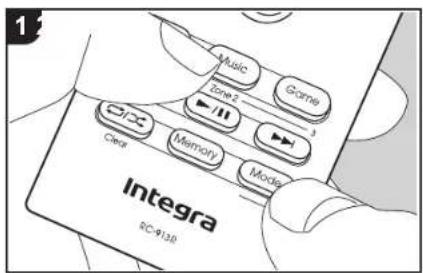
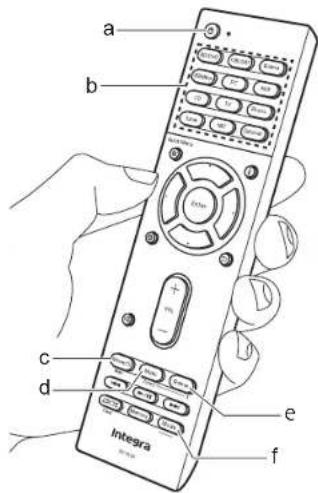
- To switch to the remote controller mode for controlling ZONE 2, while holding down Mode (f) on the remote controller, press Zone 2 (d) for 3 or more seconds
until the remote indicator blinks twice. To switch to the remote controller mode for controlling ZONE 3, while holding down Mode (f) on the remote controller, press Zone 3 (e) for 3 or more seconds until the remote indicator blinks three times.
- Point the remote controller at the main unit and press ⏻ (a). "Z2" or "Z3" lights on the main unit display.
공공
- Press the input selector button (b) of the input to be played in the separate room.
- On the main unit, after pressing Zone 2 or Zone 3, within 8 seconds press the input selector button to select the input to be played in the separate room. To play the same source in the main room and separate room, press Zone 2 or Zone 3 on the main unit
twice.
-
To adjust the volume on the power amplifier in the separate room or the ZONE SPEAKER, adjust with volume buttons on the remote controller. To control on the main unit, press Zone 2 or Zone 3 and adjust with the Master Volume dial within 8 seconds.
-
Adjust the volume on the pre-main amplifier if you have connected with a pre-main amplifier in the other room.
- You can also adjust the sound quality of a power amplifier connected in a separate room. After pressing Zone 2 or Zone 3 on the main unit, within 8 seconds press Tone and press the + or - button to adjust.
- The information for a connected device can be displayed on the TV screen in a separate room. Press the button while the remote controller is in the mode for controlling ZONE 2.
Before Start
Part Names
Install
Initial Setup
Playback
Advanced Manual

Troubleshooting | Supplementary Information, etc.
To turn off the function:
Press ⏻ while in the mode for controlling ZONE 2 or ZONE 3 on the remote controller.
Playing in ZONE 2 or ZONE 3 only:
If you turn the unit to standby during multi-zone playback, the Z2 or Z3 indicator is dimmed and the playback mode is switched to playback in a separate room only. Setting ZONE 2/ZONE 3 to on while this unit is in standby will also switch the playback mode to the same setting.
WHOLE HOUSE MODE
If you press Whole House Mode while playback is being performed in the main room, the WHOLE HOUSE MODE is turned on, "Z2" and "Z3" on the display light at the same time and the playback sources of all the rooms are switched to the same source at once.
- The sources that can be played in ZONE 2 can be played in all rooms.
- This function cannot be used if headphones are connected or audio is output from the speakers of the TV.

To return the remote controller to main room control mode: While holding down Mode on the remote controller, press Main (c) for 3 seconds or more until the remote indicator flashes once.

Before Start
Part Names
Install
Initial Setup
Playback
Advanced Manual

Troubleshooting | Supplementary Information, etc.
Listening Mode
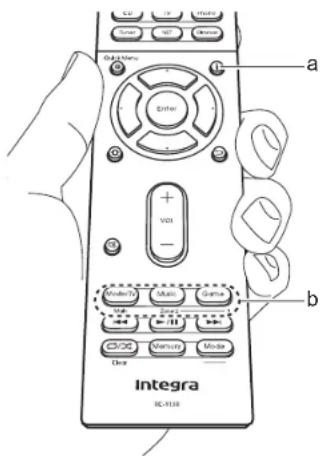
This unit is equipped with a variety of listening modes, and you can select the optimum listening mode for movies, TV, music, and games using Movie/TV, Music, and Game (b). The basic operations are introduced in the Basic Manual. For more details, see the Advanced Manual.
- The listening mode last selected for the source is remembered for each of the Movie/TV, Music, and Game buttons. If content you play is not supported by the listening mode you selected last, the listening mode that is standard for that content is selected automatically.
Dolby Digital/DTS Modes
When the input signal is a digital surround format such as Dolby Digital or DTS, you can select the listening mode that suits the input signal. Dolby Digital is displayed for Dolby Digital and DTS-HD Master Audio is displayed for DTS-HD Master Audio. The output is Stereo for 2-channel input signals.
Direct
This listening mode can be selected for all input signals. It shuts down processing that affects sound quality to deliver a playback sound quality closer to sources. Speakers play the sound field according to the number of channels in the input signal, so there would be output from only the front speakers for a 2 ch signal, for example. Note that the sound quality cannot be adjusted if this mode is selected.
Dolby Surround/DTS Neural:X
These listening modes allow you to expand the playback signal to a maximum of 11 channels to suit the connected speaker configuration when the input signal is 2 channel or 5.1 channel.
THX Surround Modes
Multiple surround speakers are installed in movie theaters so that the moviegoer is enveloped in a natural surround sound. Even with just two surround speakers, the THX Cinema mode achieves, with the high-quality technology developed by THX, the same kind of breadth of sound you would get in a movie theater along with the
natural flow of timbre with the sound field towards the front. Also available are modes such as THX Music and THX Games. Note that the sound quality cannot be adjusted if this mode is selected.
Original Surround Modes
You can select listening modes such as the All Ch Stereo mode where a stereo image is played from both the front and the rear, and Orchestra (only with the Music button) which is best for playback of classical and opera pieces.
Checking the Input Format and Listening Mode
Press (a) on the remote controller several times to switch the display of the main unit as follows.
Input source & volume
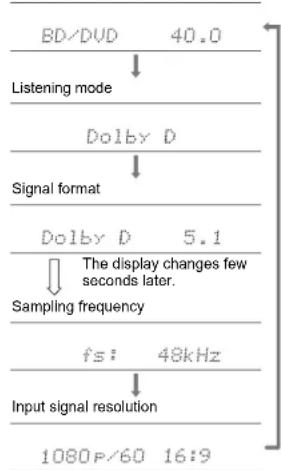
flowchart
graph TD
    A["BD/DVD 40.0"] --> B["Listening mode"]
    B --> C["Dolby D"]
    C --> D["Signal format"]
    D --> E["Dolby D 5.1"]
    E --> F["Sampling frequency"]
    F --> G["fs: 48kHz"]
    G --> H["Input signal resolution"]
    H --> I["1080P/60 16:9"]
DOLBY ATMOS DOLBY VISION COMPATIBLE
Manufactured under license from Dolby Laboratories. Dolby, Dolby Atmos, Dolby Surround, Dolby Vision and the double-D symbol are trademarks of Dolby Laboratories.

For DTS patents, see http://patents.dts.com. Manufactured under license from DTS, Inc. DTS, the Symbol, DTS in combination with the Symbol, DTS:X, and the DTS:X logo are registered trademarks or trademarks of DTS, Inc. in the United States and/or other countries. © DTS, Inc. All Rights Reserved.

THX and the THX logo are trademarks of THX Ltd., registered in the U.S. and other countries. THX CERTIFIED SELECT and the THX SELECT application icon are trademarks of THX Ltd.
THX Select
Before any home theater component can be THX Select certified, it must pass a rigorous series of quality and performance tests. Only then can a product feature the THX Select logo, which is your guarantee that the Home Theater products you purchase will give you superb performance for many years to come. THX Select requirements define hundreds of parameters, including power amplifier performance, and integrated amplifier performance and operation for both digital and analog domains. THX Select receivers also feature proprietary THX technologies (e.g., THX Mode) which accurately translate movie soundtracks for home theater playback.
Re-Equalization and the 'Re-EQ' logo are trademarks of THX Ltd.
HDMI
The terms HDMI and HDMI High-Definition Multimedia Interface, and the HDMI Logo are trademarks or registered trademarks of HDMI Licensing LLC in the United States and other countries.


AirPlay, iPad, iPhone, iPod, iPod classic, iPod nano and iPod touch are trademarks of Apple Inc., registered in the U.S. and other countries.
iPad Air and iPad mini are trademarks of Apple Inc.
"Made for iPod", "Made for iPhone" and "Made for iPad" mean that an electronic accessory has been designed to connect specifically to iPod, iPhone, or iPad, respectively, and has been certified by the developer to meet Apple performance standards. Apple is not responsible for the operation of this device or its compliance with safety and regulatory standards.
Please note that the use of this accessory with iPod, iPhone or iPad may affect wireless performance.
AirPlay works with iPhone, iPad, and iPod touch with iOS 4.3.3 or later, Mac with OS X Mountain Lion or later, and PC with iTunes 10.2.2 or later.
CHDBT
HDBase™ and the HDBaseT Alliance logo are trademarks of the HDBaseT Alliance.
The Spotify software is subject to third party licenses found here: https://developer.spotify.com/esdk-third-party-licenses/
This product is protected by certain intellectual property rights of Microsoft. Use or distribution of such technology outside of this product is prohibited without a license from Microsoft.
Windows 7, Windows Media, and the Windows logo are trademarks or registered trademarks of Microsoft Corporation in the United States and/or other countries.
DSD and the Direct Stream Digital logo are trademarks of Sony Corporation.

Theater-Dimensional
"Theater-Dimensional" and "Theater-Dimensional (logo)" are trademarks of Onkyo Corporation.
All other trademarks are the property of their respective owners. / Toutes les autres marques commerciales sont la propriété de leurs détenteurs respectifs. / El resto de marcas commerciales son propiedad de sus respectivos propietarios. / Tutti gli alni marché di fabbrica sono di proprietà dei rispettivi proprietari. / Alle anderen Warenzeichen sind das Eigentum ihrer jeweiligen Eigentümer. / Alle andere handelsmerken zijn eigendom van de desbetreffende rechtnebbenden. / Alla andra varumärken tillhör deras respektive âgare. / Kaikki muut tuotemerkit ovat omistajeniensa omaisuutta. / 所有苛責提供為各自所有者。
Integra®
1-10-5 Yokoami, Sumida-ku, Tokyo 130-0015 Japan
http://www.integraworldwide.com
18 Park Way, Upper Saddle River, N.J. 07458, U.S.A.
Tel: 800-225-1946, 201-818-9200 Fax: 201-785-2650
http://www.integrahometheater.com
Gutenbergstrasse 3, 82178 Puchheim, Germany
Tel: +49-8142-4401-0 Fax: +49-8142-4208-213
http://www.integra.eu
302, Building 1, 20 North Chaling Rd., Xuhui District, Shanghai, China 200032,
Tel: +86-21-52131366 Fax: +86-21-52130396
http://www.integra.com.cn
(C) Copyright 2017 Onkyo & Pioneer Corporation Japan. All rights reserved.
Onkyo group has established its Privacy Policy, available at [http://www.onkyo.com/privacy/].
Printed in Malaysia
SN 29403082
F1710-0
Specifications
Advanced Setup
Listening Modes
Network Functions
Basic Manual
Troubleshooting Supplementary Infor
AV Receiver
DRX-7.1
Advanced Manual
Specifications
General Specifications....2
About HDMI 4
Playback from USB storage devices 5
Playback from the Music Server....6
Advanced Setup
Setup Menu 7
Quick Menu 39
Web Setup....41
Control Function Settings 42
Connecting a Power Amplifier 43
Firmware Update 44
Listening Modes
Selecting Listening Modes 47
Listening Mode Effects 48
Selectable Listening Modes.... 51
Network Functions
Internet Radio 63
Spotify....64
AirPlay ^® 65
Music Server 66
Supplementary information for player functions 68
Troubleshooting 69
Supplementary Information, etc....77
Integra
The Basic Manual includes information needed when starting up and also instructions for frequently used operations. The Advanced Manual has more detailed information and advanced settings.
> Specifications > Advanced Setup > Listening Modes > Network Functions > Basic Manual
|Troubleshooting Supplementary Infor
General Specifications
■ Amplifier Section
Rated Output Power (FTC) (North American) With 8 ohm loads, both channels driven, at 1 kHz; rated 140 watts per channel minimum RMS power, with no more than 0.08% total harmonic distortion from 250 milliwatts to rated output.
Maximum Effective Output Power (North American) 260 W at 6 Ω, 1 kHz, 1 ch driven of 10% THD
Rated Output Power (IEC) (Australian) 9 ch × 200 W at 6 Ω, 1 kHz, 1 ch driven of 1% THD
Dynamic Power (*) * IEC60268-Short-term maximum output power 320 W (3 Ω, Front) 270 W (4 Ω, Front) 160 W (8 Ω, Front)
THD+N (Total Harmonic Distortion+Noise) 0.04% (1 kHz, 100 W, 8 Ω)
Input Sensitivity and Impedance 200 mV/82 kΩ (LINE (RCA)) 3.5 mV/47 kΩ (PHONO MM)
Rated RCA Output Level and Impedance 1 V/330 Ω (PRE OUT) 1 V/330 Ω (SUBWOOFER PRE OUT) 200 mV/1.2 kΩ (ZONE LINE OUT) 2 V/1.2 kΩ (ZONE PRE OUT)
Phono Overload 70 mV (MM 1 kHz 0.5%)
Tone Control Characteristics ±10 dB, 100 Hz (BASS) ±10 dB, 10 kHz (TREBLE)
Signal to Noise Ratio 108 dB (IHF-A, LINE IN, SP OUT) 90 dB (IHF-A, PHONO IN, SP OUT)
Speaker Impedance 4 Ω - 16 Ω
Headphone Output Impedance
43 Ω
Headphone Rated Output 57 mW (32 Ω, 1 kHz, 10% THD)
Video Section
Signal level 1 Vp-p/75 Ω (Composite Video) 1 Vp-p/75 Ω (Component Video Y) 0.7 Vp-p/75 Ω (Component Video PB/PR) Maximum resolution supported by component video 480i/576i
Tuner Section
FM Tuning Frequency Range 87.5 MHz - 107.9 MHz (North American) 87.5 MHz - 108.0 MHz, RDS (Australian) AM Tuning Frequency Range 530 kHz - 1710 kHz (North American) 522/530 kHz - 1611/1710 kHz (Australian)
Preset Channel 40
■ Network Section
Ethernet LAN 10BASE-T/100BASE-TX
General
Power Supply AC 120 V, 60 Hz (North American) AC 220 - 230 V, 50/60 Hz (Australian)
Power Consumption 330 W Power Consumption (Standby mode)
0.2 W (Full Standby mode) 1.8 W (Network Standby mode) (*1) 0.2 W (CEC standby mode) (*2) 1.8 W (All on) (*3)
*1. Network Standby: On
*2. HDMI CEC: On, HDMI Standby Through: Auto(Eco)
*3. Network Standby: On, Auto Input Change: On, HDMI CEC: On, HDMI Standby Through: Auto (Eco)
Dimensions (W × H × D) 435 mm × 197 mm × 446.5 mm 17-1/8" × 7-3/4" × 17-9/16"
Weight 19.0 kg (41.9 lbs.)
HDMI
Input IN1 (BD/DVD), IN2 (CBL/SAT), IN3 (STRM BOX), IN4 (GAME), IN5 (PC), IN6, IN7, AUX Input HDMI (front)
Output OUT MAIN (ARC), OUT ZONE 2/SUB
Supported Deep Color, x.v.Color™, LipSync, Audio Return Channel, 3D, 4K 60 Hz, CEC, Extended Colorimetry (sYCC601, Adobe RGB, Adobe YCC601), Content Type, HDR
Audio Format Dolby Atmos, Dolby TrueHD, Dolby Digital, Dolby Digital Plus, DTS, DTS:X, DTS-HD Master Audio, DTS-HD High Resolution Audio, DTS 96/24, DTS-ES, DTS Express, DSD, PCM
Maximum Video Resolution 4k 60 Hz (YCbCr 4:4:4)
HDBaseT™
IN : 1 OUT (*): 1 RS232 : 1 (Path through) IR IN : 1 (Path through) IR OUT : 1 (Path through) * Maximum Video Resolution : 4k 60 Hz (YCbCr 4:4:4) Use one of the following Ethernet cables to connect. Cat6 (Category 6) cable: AWG23 cable or better, 100 m or less in length Cat5e (Category 5e) cable: AWG24 cable or better,
> Specifications > Advanced Setup > Listening Modes > Network Functions > Basic Manual
Troubleshooting Supplementary Infor
90 m or less in length
■ Video Inputs
Component
IN1 (BD/DVD), IN2 (GAME)
Composite
IN1 (CBL/SAT), IN2 (STRM BOX)
■ Video Outputs
Component
OUT
■ Compatible input resolutions
HDMI input
4K, 1080p/24, 1080p, 1080i, 720p, 480p/576p
Component input
480i/576i
Composite input
480i/576i
- The output from the HDMI OUT jack to the TV is the same resolution as the input.
■ Audio Inputs
Digital
OPTICAL 1 (GAME), 2 (CD), 3 (TV)
COAXIAL 1 (BD/DVD), 2 (CBL/SAT)
Analog
CBL/SAT, STRM BOX, BD/DVD, GAME, CD, TV,
PHONO
■ Audio Outputs
Analog
ZONE2 PRE/LINE OUT
ZONE3 PRE/LINE OUT
(North American models are banana plug ready)
Phones
PHONES (Front, ø 6.3 mm, 1/4")
Others
Setup Mic : 1 (Front)
USB:1(Ver.2.0,5V/1A)
Ethernet :
RS232:1
Specifications and features are subject to change without notice.
> Specifications > Advanced Setup > Listening Modes > Network Functions > Basic Manual
|Troubleshooting Supplementary Infor
About HDMI
■ Compatible functions
HDMI (High Definition Multimedia Interface) is a digital interface standard for connecting TVs, projectors, Blu-ray Disc/DVD players, set-top boxes, and other video components. Until now, several separate video and audio cables have been required to connect AV components. With HDMI, a single cable can carry control signals, digital video and digital audio (2 ch PCM, multichannel digital audio, and multichannel PCM).
HDMI CEC functionality:
By connecting devices and HDMI cables that comply with the CEC (Consumer Electronics Control) specification of the HDMI standard, a variety of linked operation become possible between devices. You can enjoy features such as linking input switching with the input selector and players, control volume using the remote controller of the TV, and automatically switching this unit to standby when the TV is turned off.
The unit is designed to link with products that comply with the CEC standard, and that linked operation is not always guaranteed with all CEC devices. For linked functions to work properly, do not connect more CEC-compliant components than the quantities specified below, to the HDMI jack.
- Blu-ray Disc/DVD players: up to 3 units.
- Blu-ray Disc/DVD recorders: up to 3 units.
- Cable TV tuner, terrestrial digital tuner, and satellite broadcasting tuner: up to 4 units.
Operation has been confirmed on the following devices: (As of May 2017)
Toshiba brand televisions; Sharp brand televisions; Onkyo and Integra brand RIHD-compatible players; Toshiba brand players and recorders; Sharp brand players and recorders (when used with a Sharp brand television)
ARC (Audio Return Channel) :
By connection a TV that supports ARC with a single HDMI cable, you can not only output the audio and video from this unit to the TV, but also input the audio from the TV to this unit.
HDMI Standby Through:
Even if this unit is in standby, the input signals from AV components are transmitted to the TV.
Deep Color:
By connecting devices supporting Deep Color, video signals input from the devices can be reproduced on the TV with even more colors.
x.v.Color™:
This technology realizes even more realistic colors by broadening the color gamut.
3D:
You can transmit 3D video signals from AV components to the TV.
4K:
This unit supports 4K (3840 × 2160p) and 4K SMPTE (4096 × 2160p) video signals.
LipSync:
This setting automatically corrects any desynchronization between the video and audio signals based on data from the HDMI LipSync compatible TV.
Copyright Protection:
The unit supports Revision 1.4 and Revision 2.2 (HDMI OUT MAIN/SUB and HDMI IN1 to 5 only) of the HDCP (High-bandwidth Digital Content Protection), a copy-protection system for digital video signals. Other devices connected to the unit must also support HDCP.
■ Supported Audio Formats
2 ch linear PCM:
32 kHz, 44.1 kHz, 48 kHz, 88.2 kHz, 96 kHz, 176.4 kHz, 192 kHz, 16/20/24 bit
Multi-channel linear PCM:
Maximum 7.1 channels, 32 kHz, 44.1 kHz, 48 kHz, 88.2 kHz, 96 kHz, 176.4 kHz, 192 kHz, 16/20/24 bit
Bitstream:
Dolby Atmos, Dolby Digital, Dolby Digital Plus, Dolby TrueHD, DTS, DTS:X, DTS-HD High Resolution Audio, DTS-HD Master Audio
DSD:
Supported sampling rates: 2.8 MHz
Your Blu-ray Disc/DVD player must also support HDMI output of the above audio formats.
■ Supported resolutions
HDMI IN1 to IN5:
• Copyright protection technology: HDCP1.4/HDCP2.2
• Color space (Color Depth):
- 720×480i 60Hz, 720×576i 50Hz, 720×480p 60Hz, 720×576p 50Hz, 1920×1080i 50/60Hz, 1280×720p 24/25/30/50/60Hz, 1680×720p 24/25/30/50/60Hz, 1920×1080p 24/25/30/50/60Hz, 2560×1080p 24/25/30/50/60Hz, 4K (3840×2160p) 24/25/30Hz, 4K SMPTE (4096×2160p) 24/25/30Hz : RGB/YCbCr4:4:4 (8/10/12 bit), YCbCr4:2:2 (12 bit)
- 4K (3840×2160p) 50/60Hz, 4K SMPTE (4096×2160p) 50/60Hz : RGB/YCbCr4:4:4 (8 bit), YCbCr4:2:2 (12 bit), YCbCr4:2:0 (8/10/12 bit)
HDMI IN6 to IN7, AUX Input HDMI (front):
• Copyright protection technology: HDCP1.4
• Color space (Color Depth):
- 720×480i 60Hz, 720×576i 50Hz, 720×480p 60Hz, 720×576p 50Hz, 1920×1080i 50/60Hz, 1280×720p 24/25/30/50/60Hz, 1680×720p 24/25/30/50/60Hz, 1920×1080p 24/25/30/50/60Hz, 2560×1080p 24/25/30/50/60Hz : RGB/YCbCr4:4:4 (8/10/12 bit), YCbCr4:2:2 (12 bit)
- 4K (3840 × 2160p) 24/25/30Hz, 4K SMPTE (4096 × 2160p) 24/25/30Hz : RGB/YCbCr4:4:4 (8 bit), YCbCr4:2:2 (12 bit)
- 4K (3840 × 2160p) 50/60Hz, 4K SMPTE (4096 × 2160p) 50/60Hz : YCbCr4:2:0 (8 bit)
> Specifications > Advanced Setup > Listening Modes > Network Functions > Basic Manual
Troubleshooting Supplementary Infor
Playback from USB storage devices
■ Displaying the artist name, album name, and artwork for WAV format
When playing WAV format music files, you can display information such as the artist name, album name, and art work on the display of the main unit, on the TV screen, and in the screen of the Integra Control Pro app. To enable display, follow the folder structure and file naming as shown in the diagram when saving music files. The artwork is displayed by saving the jpg files to be displayed in the lowest folder. It may take some time for the jpg files to be displayed or they may not be displayed at all if the volume of the data is large.
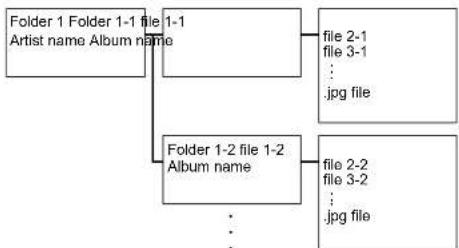
flowchart
graph TD
    A["Folder 1 Folder 1-1 file\nArtist name Album name"] --> B["1-1"]
    A --> C["Folder 1-2 file 1-2\nAlbum name"]
    B --> D["file 2-1\nfile 3-1\n...\n.jpg file"]
    C --> E["file 2-2\nfile 3-2\n...\n.jpg file"]
USB Storage Device Requirements
- This unit can use USB storage devices that comply with the USB mass storage device class standard.
• FAT16 or FAT32 file system format. - If the USB storage device has been partitioned, each section will be treated as an independent device.
-
Up to 20,000 tracks per folder can be displayed, and folders may be nested up to 16 levels deep.
-
USB hubs and USB storage devices with hub functions are not supported. Do not connect these devices to the unit.
- USB storage devices with security function are not supported on this unit.
- If you connect a USB hard disk drive to the USB port of the unit, we recommend that you use its AC adapter to power it.
• Media inserted to the USB card reader may not be available in this function. Furthermore, depending on the USB storage device, proper reading of the contents may not be possible. - Our company accepts no responsibility whatsoever for the loss or damage to data stored on a USB storage device when that device is used with this unit. We recommend that you back up your important music files beforehand.
■ Supported Audio Formats
This unit supports the following music file formats. Note that sound files that are protected by copyright cannot be played on this unit.
MP3 (.mp3/.MP3):
• Supported formats: MPEG-1/MPEG-2 Audio Layer 3
• Supported sampling rates: 44.1 kHz, 48 kHz
• Supported bitrates: Between 8 kbps and 320 kbps.
WMA (.wma/.WMA):
• Supported sampling rates: 44.1 kHz, 48 kHz
• Supported bitrates: Between 5 kbps and 320 kbps.
- WMA Pro/Voice/WMA Lossless formats are not supported
WAV (.wav/.WAV):
WAV files include uncompressed PCM digital audio.
• Supported sampling rates: 44.1 kHz, 48 kHz, 88.2 kHz, 96 kHz, 176.4 kHz, 192 kHz
• Quantization bit: 8 bit, 16 bit, 24 bit
AIFF (.aiff/.aif/.AIFF/.AIF):
AIFF files include uncompressed PCM digital audio.
• Supported sampling rates: 44.1 kHz, 48 kHz, 88.2 kHz,
96 kHz, 176.4 kHz, 192 kHz
• Quantization bit: 8 bit, 16 bit, 24 bit
AAC (.aac/.m4a/.mp4/.3gp/.3g2/.AAC/.M4A/
.MP4/.3GP/.3G2):
• Supported formats: MPEG-2/MPEG-4 Audio
• Supported sampling rates: 44.1 kHz, 48 kHz, 88.2 kHz, 96 kHz
• Supported bitrates: Between 8 kbps and 320 kbps.
FLAC (.flac/.FLAC):
• Supported sampling rates: 44.1 kHz, 48 kHz, 88.2 kHz, 96 kHz, 176.4 kHz, 192 kHz
• Quantization bit: 8 bit, 16 bit, 24 bit
Apple Lossless (.m4a/.mp4/.M4A/.MP4):
• Supported sampling rates: 44.1 kHz, 48 kHz, 88.2 kHz, 96 kHz, 176.4 kHz, 192 kHz
• Quantization bit: 16 bit, 24 bit
DSD (.dsf/.dff/.DSF/.DFF):
• Supported formats: DSF/DSDIFF
• Supported sampling rates: 2.8 MHz, 5.6 MHz, 11.2 MHz
Dolby TrueHD (.vr/.mlp/.VR/.MLP):
• Supported sampling rates: 44.1 kHz, 48 kHz, 88.2 kHz, 96 kHz, 176.4 kHz, 192 kHz
- Variable bit-rate (VBR) files are supported. However, playback times may not be displayed correctly.
- This unit supports the gapless playback of the USB storage device in the following conditions.
When playing WAV, FLAC and Apple Lossless, and the same format, sampling frequency, channels and quantization bit rate are played continuously.
> Specifications > Advanced Setup > Listening Modes > Network Functions > Basic Manual
Troubleshooting Supplementary Infor
Playback from the Music Server
■ Supported Audio Formats
This unit supports the following music file formats. Remote play of FLAC and DSD is not supported.
MP3 (.mp3/.MP3):
• Supported formats: MPEG-1/MPEG-2 Audio Layer 3
• Supported sampling rates: 44.1 kHz, 48 kHz
• Supported bitrates: Between 8 kbps and 320 kbps.
WMA (.wma/.WMA):
• Supported sampling rates: 44.1 kHz, 48 kHz
• Supported bitrates: Between 5 kbps and 320 kbps.
- WMA Pro/Voice/WMA Lossless formats are not supported
WAV (.wav/.WAV):
WAV files include uncompressed PCM digital audio.
• Supported sampling rates: 44.1 kHz, 48 kHz, 88.2 kHz, 96 kHz, 176.4 kHz, 192 kHz
• Quantization bit: 8 bit, 16 bit, 24 bit
AIFF (.aiff/.aif/.AIFF/.AIF):
AIFF files include uncompressed PCM digital audio.
• Supported sampling rates: 44.1 kHz, 48 kHz, 88.2 kHz, 96 kHz, 176.4 kHz, 192 kHz
• Quantization bit: 8 bit, 16 bit, 24 bit
AAC (.aac/.m4a/.mp4/.3gp/.3g2/.AAC/.M4A/
.MP4/.3GP/.3G2):
• Supported formats: MPEG-2/MPEG-4 Audio
• Supported sampling rates: 44.1 kHz, 48 kHz, 88.2 kHz, 96 kHz
• Supported bitrates: Between 8 kbps and 320 kbps.
FLAC (.flac/.FLAC):
• Supported sampling rates: 44.1 kHz, 48 kHz, 88.2 kHz, 96 kHz, 176.4 kHz, 192 kHz
• Quantization bit: 8 bit, 16 bit, 24 bit
LPCM (Linear PCM) :
• Supported sampling rates: 44.1 kHz, 48 kHz
• Quantization bit: 16 bit
Apple Lossless (.m4a/.mp4/.M4A/.MP4):
• Supported sampling rates: 44.1 kHz, 48 kHz, 88.2 kHz, 96 kHz
• Quantization bit: 16 bit, 24 bit
DSD (.dsf/.dff/.DSF/.DFF):
• Supported formats: DSF/DSDIFF
• Supported sampling rates: 2.8 MHz, 5.6 MHz, 11.2 MHz
- Variable bit-rate (VBR) files are supported. However, playback times may not be displayed correctly.
- Remote playback does not support the gapless playback.
> Specifications > Advanced Setup > Listening Modes > Network Functions > Basic Manual
|Troubleshooting Supplementary Infor
Setup Menu
The unit allows you to configure advanced settings to provide you with an even better experience.
Operation:
Use the on-screen displays (OSD) that appear on the TV to make the settings. Press ⚙ on the remote controller to display the Setup menu.
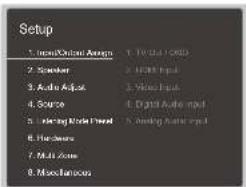
Select the item with the cursor ▲ buttons of the remote controller and press Enter to confirm your selection.
Use the cursors 🔊 to change the default values.
• To return to the previous screen, press ↩
• To exit the settings, press ⚙
1. Input/Output Assign
Make settings related to output to the TV, change the settings for jack allocations to the various input selectors, and set the feature for displaying operations on the TV (OSD), etc.
■ 1. TV Out / OSD
| Setting Item Default | It Value | Setting Details |
| HDMI Out | MAIN | Select the HDMI jack to be connected with the TV. "MAIN": When connecting the TV to the HDMI OUT MAIN jack"SUB": When connecting the TV to the HDMI OUT SUB jack"MAIN+SUB": When connecting to both the MAIN and SUB jacks |
| Dolby Vision | MAIN | If you want to output the Dolby Vision video from the player to a TV that supports Dolby Vision, select the HDMI OUT jack, MAIN or SUB, to which you have connected the TV that supports Dolby Vision. This setting is only necessary if you have set "HDMI Out" to "MAIN+SUB" and you have connected a TV to both the MAIN and SUB jacks."MAIN": To output Dolby Vision video to a TV that supports Dolby Vision that is connected to the HDMI OUT MAIN jack"SUB": To output Dolby Vision video to a TV that supports Dolby Vision that is connected to the HDMI OUT SUB jackIf you select "MAIN" or "SUB" but the video on the TV does not appear correctly, set this to "Off".If "ZONE 2 HDMI" is set to "Use" and a television that supports Dolby Vision is connected in the separate room (Zone 2), then if this setting is set to "SUB", Dolby Vision video is output to the television in the separate room only if the same input is selected in the main room and the separate room. |
> Specifications > Advanced Setup > Listening Modes > Network Functions > Basic Manual
|Troubleshooting Supplementary Infor
Setting Item Default Value Setting Details
| Zone 2 HDMI Not Use Make the setting when you output to the Zone 2 TV connected to the HDMI OUT ZONE 2/SUB jack. "Use": Enable this function "Not Use": Disable this function | |
| HDBaseT(TM) Not Use Set when outputting the input signals from the HDBaseT port via an Ethernet cable. "MAIN": When connecting the HDMI OUT MAIN jack and the HDBaseT IN port "SUB / ZONE 2": When connecting the HDMI OUT SUB/ZONE 2 jack and the HDBaseT IN port | |
| OSD Language English Select the on-screen display language from the following. English, German, French, Spanish, Italian, Dutch, Swedish, Russian, Chinese | |
| Impose OSD On | Set whether or not to display the information on the TV when the volume is adjusted or input is changed, for example. "On": OSD displayed on the TV. "Off": OSD not displayed on the TV. • OSD may not be displayed depending on the input signal even if "On" is selected. If the operation screen is not displayed, change the resolution of the connected device. |
Setting Item Default Value Setting Details
| Mini Player OSD | Always On | You can play on the TV the images from another input selected immediately prior while you are playing the audio from NET input. After switching to NET, play the images and audio, then when you press Mode on the remote controller, the image is displayed in full-screen mode, and the audio information (Mini Player) for NET is displayed in the corner of the screen. You can set whether to display this Mini Player on the screen all the time."Always On": The Mini Player is displayed all the time."Auto Off": The Mini Player turns off automatically 30 seconds after being displayed. It is displayed for 30 seconds after operations such as changing the volume.Each press of the Mode button displays or turns off the video.This cannot be selected if "Impose OSD" is set to "Off". |
| Screen Saver | 3 minutes | Set the time to start the screen saver.Select a value from "3 minutes", "5 minutes", "10 minutes" and "Off". |
> Specifications > Advanced Setup > Listening Modes > Network Functions > Basic Manual
|Troubleshooting Supplementary Infor
2. HDMI Input
You can change input assignment between the input selectors and HDMI IN jacks.
| Setting Item Default Value Setting Details | ||
| BD/DVD HDMI 1 | (HDCP 2.2) | "HDMI 1 (HDCP 2.2)" to "HDMI 7": Assign a desired HDMI IN jack to the BD/DVD button. If you do not assign a jack, select "--". To select an HDMI IN jack already assigned to another input selector, change its setting to "--" first. |
| CBL/SAT | HDMI 2 (HDCP 2.2) | "HDMI 1 (HDCP 2.2)" to "HDMI 7": Assign a desired HDMI IN jack to the CBL/SAT button. If you do not assign a jack, select "--". To select an HDMI IN jack already assigned to another input selector, change its setting to "--" first. |
| GAME | HDMI 4 (HDCP 2.2) | "HDMI 1 (HDCP 2.2)" to "HDMI 7": Assign a desired HDMI IN jack to the Game button. If you do not assign a jack, select "--". To select an HDMI IN jack already assigned to another input selector, change its setting to "--" first. |
| STRM BOX | HDMI 3 (HDCP 2.2) | "HDMI 1 (HDCP 2.2)" to "HDMI 7": Assign a desired HDMI IN jack to the STRM Box button. If you do not assign a jack, select "--". To select an HDMI IN jack already assigned to another input selector, change its setting to "--" first. |
| PC | HDMI 5 (HDCP 2.2) | "HDMI 1 (HDCP 2.2)" to "HDMI 7": Assign a desired HDMI IN jack to the PC button. If you do not assign a jack, select "--". To select an HDMI IN jack already assigned to another input selector, change its setting to "--" first. |
| CD | --- | "HDMI 1 (HDCP 2.2)" to "HDMI 7": Assign a desired HDMI IN jack to the CD button. If you do not assign a jack, select "--". To select an HDMI IN jack already assigned to another input selector, change its setting to "--" first. |
| TV | --- | "HDMI 1 (HDCP 2.2)" to "HDMI 7": Assign a desired HDMI IN jack to the TV button. If you do not assign a jack, select "--". To select an HDMI IN jack already assigned to another input selector, change its setting to "--" first. |
| Setting Item Default | It Value Setting Details | |
| PHONO | --- | "HDMI 1 (HDCP 2.2)" to "HDMI 7": Assign a desired HDMI IN jack to the Phono button. If you do not assign a jack, select "--". To select an HDMI IN jack already assigned to another input selector, change its setting to "--" first. |
■ 3. Video Input
You can change input assignment between the input selectors and COMPONENT VIDEO IN jacks and the VIDEO IN jacks. If you do not assign a jack, select "--".
| Setting Item Default | It Value Setting Details | |
| BD/DVD COMPONENT 1 "COMPONENT 1", "COMPONENT 2": Assign the COMPONENT VIDEO IN jacks to the BD/DVD button."VIDEO 1", "VIDEO 2": Assign a desired VIDEO IN jack to the BD/DVD button. | ||
| CBL/SAT | VIDEO 1 | "COMPONENT 1", "COMPONENT 2": Assign the COMPONENT VIDEO IN jacks to the CBL/SAT button."VIDEO 1", "VIDEO 2": Assign a desired VIDEO IN jack to the CBL/SAT button. |
| GAME | COMPONENT 2 | "COMPONENT 1", "COMPONENT 2": Assign the COMPONENT VIDEO IN jacks to the Game button."VIDEO 1", "VIDEO 2": Assign a desired VIDEO IN jack to the Game button. |
| STRM BOX | VIDEO 2 | "COMPONENT 1", "COMPONENT 2": Assign the COMPONENT VIDEO IN jacks to the STRM Box button."VIDEO 1", "VIDEO 2": Assign a desired VIDEO IN jack to the STRM Box button. |
| PC | --- | "COMPONENT 1", "COMPONENT 2": Assign the COMPONENT VIDEO IN jacks to the PC button."VIDEO 1" to "VIDEO 2": Assign a desired VIDEO IN jack to the PC button. |
> Specifications > Advanced Setup > Listening Modes > Network Functions > Basic Manual
|Troubleshooting Supplementary Inform
Setting Item Default Value Setting Details
| CD --- "COMPONENT 1", "COMPONENT 2": Assign the COMPONENT VIDEO IN jacks to the CD button. "VIDEO 1", "VIDEO 2": Assign a desired VIDEO IN jack to the CD button. |
| TV --- "COMPONENT 1", "COMPONENT 2": Assign the COMPONENT VIDEO IN jacks to the TV button. "VIDEO 1", "VIDEO 2": Assign a desired VIDEO IN jack to the TV button. |
| PHONO --- "COMPONENT 1", "COMPONENT 2": Assign the COMPONENT VIDEO IN jacks to the Phono button. "VIDEO 1", "VIDEO 2": Assign a desired VIDEO IN jack to the Phono button. |
■ 4. Digital Audio Input
You can change input assignment between the input selectors and DIGITAL IN COAXIAL/OPTICAL jacks. If you do not assign a jack, select "---".
Setting Item Default Value Setting Details
| BD/DVD | COAXIAL 1 | "COAXIAL 1", "COAXIAL 2", "OPTICAL 1", "OPTICAL 2", "OPTICAL 3": Assign a desired DIGITAL IN jack to the BD/DVD button. |
| CBL/SAT | COAXIAL 2 | "COAXIAL 1", "COAXIAL 2", "OPTICAL 1", "OPTICAL 2", "OPTICAL 3": Assign a desired DIGITAL IN jack to the CBL/SAT button. |
| GAME | OPTICAL 1 | "COAXIAL 1", "COAXIAL 2", "OPTICAL 1", "OPTICAL 2", "OPTICAL 3": Assign a desired DIGITAL IN jack to the Game button. |
| STRM BOX | --- "COAXIAL 1", | "COAXIAL 2", "OPTICAL 1", "OPTICAL 2", "OPTICAL 3": Assign a desired DIGITAL IN jack to the STRM Box button. |
| PC | --- "COAXIAL 1", | "COAXIAL 2", "OPTICAL 1", "OPTICAL 2", "OPTICAL 3": Assign a desired DIGITAL IN jack to the PC button. |
Setting Item Default Value Setting Details
| CD OPTICAL 2 | "COAXIAL 1", "COAXIAL 2", "OPTICAL 1", "OPTICAL 2", "OPTICAL 3": Assign a desired DIGITAL IN jack to the CD button. |
| TV OPTICAL 3 | "COAXIAL 1", "COAXIAL 2", "OPTICAL 1", "OPTICAL 2", "OPTICAL 3": Assign a desired DIGITAL IN jack to the TV button. |
| PHONO --- "COAXIAL 1", "COAXIAL 2", "OPTICAL 1", "OPTICAL 2", "OPTICAL 3": Assign a desired DIGITAL IN jack to the Phono button. | |
• Supported sampling rates for PCM signals (stereo, mono) from a digital input are 32 kHz, 44.1 kHz, 48 kHz, 08.2 kHz, 96 kHz/16 bit, 20 bit, and 24 bit.
> Specifications > Advanced Setup > Listening Modes > Network Functions > Basic Manual
|Troubleshooting Supplementary Infor
■ 5. Analog Audio Input
You can change input assignment between the input selectors and AUDIO IN jacks. If you do not assign a jack, select "--".
| Setting Item Default Value Setting Details | ||
| BD/DVD AUDIO 3 | "AUDIO 1" to "AUDIO 6": Assign a desired AUDIO IN jack to the BD/DVD button. | |
| CBL/SAT | AUDIO 1 "AUDIO 1" to "AUDIO 6": Assign a desired AUDIO IN jack to the CBL/SAT button. | |
| GAME | AUDIO 4 "AUDIO 1" to "AUDIO 6": Assign a desired AUDIO IN jack to the Game button. | |
| STRM BOX | AUDIO 2 "AUDIO 1" to "AUDIO 6": Assign a desired AUDIO IN jack to the STRM Box button. | |
| PC | --- | "AUDIO 1" to "AUDIO 6": Assign a desired AUDIO IN jack to the PC button. |
| CD | AUDIO 5 "AUDIO 1" to "AUDIO 6": Assign a desired AUDIO IN jack to the CD button. | |
| TV | AUDIO 6 "AUDIO 1" to "AUDIO 6": Assign a desired AUDIO IN jack to the TV button. | |
| PHONO | PHONO | The setting cannot be changed. |
2. Speaker
You can make changes to the connection environment of the speakers and change the volume level. Settings are automatically configured if you use AccuEQ Room Calibration. This setting cannot be selected if headphones are connected or audio is output from the speakers of the TV.
■ 1. Configuration
| Setting Item Default | It Value Setting Details | |
| Speaker Channels | 7.1.2 ch | Select "2.1 ch", "3.1 ch", "4.1 ch", "5.1 ch", "6.1 ch", "7.1 ch", "2.1.2 ch", "3.1.2 ch", "4.1.2 ch", "5.1.2 ch", "6.1.2 ch", "7.1.2 ch", "4.1.4 ch", "5.1.4 ch", "6.1.4 ch", or "7.1.4 ch" to suit the number of speaker channels connected.This unit consists of a 9 ch amplifier, so with "6.1.4 ch" or "7.1.4 ch" selected, use an analog audio cable to connect the power amplifier to the PRE OUT BACK jacks on this unit, then connect the surround back speakers to the power amplifier. |
| Subwoofer | 2ch | Set the PRE OUT SUBWOOFER jacks which output audio signals."1ch": Only the PRE OUT SUBWOOFER 1 jacks output audio signals."2ch": Both the PRE OUT SUBWOOFER 1 jacks and the PRE OUT SUBWOOFER 2 jacks output audio signals."No": Neither the PRE OUT SUBWOOFER 1 jacks nor the PRE OUT SUBWOOFER 2 jacks output audio signals. |
> Specifications > Advanced Setup > Listening Modes > Network Functions > Basic Manual
|Troubleshooting Supplementary Infor
Setting Item Default Value Setting Details
| Height 1 Speaker Top Middle Set the speaker type if height speakers are connected to the HEIGHT 1 terminals. Select "Front High", "Top Front", "Top Middle", "Top Rear", "Rear High", "Dolby Speaker (Front)", "Dolby Speaker (Surr)", or "Dolby Speaker (Back)" according to the type and layout of the connected speakers.This setting cannot be selected under any of following conditions. Set the height speakers type to "Height 2 Speaker".- "Bi-Amp" is set to "Yes"- "Zone Speaker" is set to "Zone 2/Zone 3"When two sets of height speakers are being used, "Top Rear", "Rear High", "Dolby Speaker (Surr)", and "Dolby Speaker (Back)" cannot be selected."Dolby Speaker (Surr)" and "Dolby Speaker (Back)" can only be selected when surround speakers or surround back speakers are being used, respectively. You can check speakers that you are using on the figure displayed in "Speaker Channels".If an item cannot be selected even though connection is correct, check that the settings in "Speaker Channels" matches the number of connected channels. |
Setting Item Default Value Setting Details
| Height 2 Speaker Rear High Set the speaker type if height speakers are connected to the HEIGHT 2 terminals. Select "Front High", "Top Front", "Top Middle", "Top Rear", "Rear High", "Dolby Speaker (Front)", "Dolby Speaker (Surr)", or "Dolby Speaker (Back)" according to the type and layout of the connected speakers. However, the options selectable for the "Height 1 Speaker" the are as follows.If "Height 1 Speaker" is set to "Front High": Select from "Top Middle", "Top Rear", "Rear High", "Dolby Speaker (Surr)", or "Dolby Speaker (Back)".If "Height 1 Speaker" is set to "Top Front" or "Dolby Speaker (Front)": Select from "Top Rear", "Rear High", "Dolby Speaker (Surr)", or "Dolby Speaker (Back)".If "Height 1 Speaker" is set to "Top Middle": Fixed to "Rear High".• "Dolby Speaker (Surr)" and "Dolby Speaker (Back)" can only be selected when surround speakers or surround back speakers are being used, respectively. You can check speakers that you are using on the figure displayed in "Speaker Channels".• If an item cannot be selected even though connection is correct, check that the settings in "Speaker Channels" matches the number of connected channels. |
| Zone Speaker NoSet the connection of speakers to Zone 2 or Zone 3 speaker terminals."Zone 2": When speakers are connected only to Zone 2 speaker terminals"Zone 2/Zone 3": When speakers are connected to both Zone 2 and Zone 3 speaker terminals• "Zone 2/Zone 3" cannot be selected when surround back speakers and height speakers are being used."No": When speakers are not connected to either speaker terminals• This item will be set to "No" when two sets of height speakers are being used. |
> Specifications > Advanced Setup > Listening Modes > Network Functions > Basic Manual
|Troubleshooting Supplementary Infor
Setting Item Default Value Setting Details
| Bi-Amp No Set whether the front speakers are bi-amp connected. "No": When front speakers are not bi-amp connected "Yes": When front speakers are bi-amp connected In any of the following cases, this item will be set to "No": - When two sets of height speakers are being used - When "Zone Speaker" is set to "Zone 2/Zone 3" - When height speakers and ZONE speakers are being used at the same time |
2. Crossover
- If you are using THX-certified speakers, we recommend the following settings:
- Set a value "80Hz(THX)" in Crossover frequency.
- Set a value "80Hz" in "LPF of LFE".
- Set a value "Off" in "Double Bass".
Setting Item Default Value Setting Details
| Front 80Hz(THX) Select the crossover frequency from "40Hz" to "200Hz" to start outputting frequencies for each channel."Full Band": Full band will be output.If "Configuration" - "Subwoofer" is set to "No", "Front" will be fixed to "Full Band" and the low pitched range of the other channels will be output from the front speakers. Refer to the instruction manual of your speakers to make the setting. | ||
| Center | 80Hz(THX) Select the crossover frequency from "40Hz" to "200Hz" to start outputting frequencies for each channel."Full Band": Full band will be output."Full Band" can be selected only when "Front" is set to "Full Band".If an item cannot be selected even though connection is correct, check that the settings in "Configuration" - "Speaker Channels" matches the number of connected channels. | |
| Height 1 | 80Hz (THX) | Select the crossover frequency from "40Hz" to "200Hz" to start outputting frequencies for each channel."Full Band": Full band will be output."Full Band" can be selected only when "Front" is set to "Full Band".If an item cannot be selected even though connection is correct, check that the settings in "Configuration" - "Speaker Channels" matches the number of connected channels. |
> Specifications > Advanced Setup > Listening Modes > Network Functions > Basic Manual
|Troubleshooting Supplementary Infor
Setting Item Default Value Setting Details
| Height 2 80Hz (THX) Select the crossover frequency from "40Hz" to "200Hz" to start outputting frequencies for each channel."Full Band": Full band will be output."Full Band" can be selected only when "Front" is set to "Full Band".If an item cannot be selected even though connection is correct, check that the settings in "Configuration" - "Speaker Channels" matches the number of connected channels. | |
| Surround 80Hz(THX) Select the crossover frequency from "40Hz" to "200Hz" to start outputting frequencies for each channel."Full Band": Full band will be output."Full Band" can be selected only when "Front" is set to "Full Band".If an item cannot be selected even though connection is correct, check that the settings in "Configuration" - "Speaker Channels" matches the number of connected channels. | |
| Surround Back 80Hz(THX) Select the crossover frequency from "40Hz" to "200Hz" to start outputting frequencies for each channel."Full Band": Full band will be output."Full Band" can be selected only when "Surround" is set to "Full Band".If an item cannot be selected even though connection is correct, check that the settings in "Configuration" - "Speaker Channels" matches the number of connected channels. | |
| LPF of LFE 120Hz | Set the low-pass filter for LFE (low-frequency effect) signals in order to pass lower frequency signals than the set value and thus cancel unwanted noises. The low-pass filter will be effective only on sources with LFE channel.The value from "80Hz" to "120Hz" can be set."Off": When this function is not to be used |
Setting Item Default Value Setting Details
| Double Bass | On | This can be selected only when "Configuration" - "Subwoofer" is set to other than "No" and "Front" is set to "Full Band".Boost bass output by feeding bass sounds from the front left and right, and center speakers to the subwoofer."On": Bass output will be boosted"Off": Bass output will not be boostedThe setting will not automatically be configured even if you performed AccuEQ Room Calibration. |
■ 3. Distance
Set the distance from each speaker to the listening position.
Setting Item Default Value Setting Details
| Front Left | 12' 0" / 3.60 m | Specify the distance between each speaker and the listening position. |
| Center | 12' 0" / 3.60 m | Specify the distance between each speaker and the listening position. |
| Front Right | 12' 0" / 3.60 m | Specify the distance between each speaker and the listening position. |
| Height 1 Left | 9' 0" / 2.70 m | Specify the distance between each speaker and the listening position. Depending on the use of the ZONE speakers, it may not be possible to select this setting. |
| Height 1 Right 9' 0" | / 2.70 m | Specify the distance between each speaker and the listening position. Depending on the use of the ZONE speakers, it may not be possible to select this setting. |
| Height 2 Left | 9' 0" / 2.70 m | Specify the distance between each speaker and the listening position. Depending on the use of the ZONE speakers, it may not be possible to select this setting. |
> Specifications > Advanced Setup > Listening Modes > Network Functions > Basic Manual
|Troubleshooting Supplementary Infor
Setting Item Default Value Setting Details
| Height 2 Right 9' 0" / 2.70 m Specify the distance between each speaker and the listening position. · Depending on the use of the ZONE speakers, it may not be possible to select this setting. |
| Surround Right 7' 0" / 2.10 m Specify the distance between each speaker and the listening position. |
| Surr Back Right 7' 0" / 2.10 m Specify the distance between each speaker and the listening position. · Depending on the use of the ZONE speakers, it may not be possible to select this setting. |
| Surr Back Left 7' 0" / 2.10 m Specify the distance between each speaker and the listening position. · Depending on the use of the ZONE speakers, it may not be possible to select this setting. |
| Surround Left 7' 0" / 2.10 m Specify the distance between each speaker and the listening position. |
| Subwoofer 1 12' 0" / 3.60 m Specify the distance between each speaker and the listening position. |
| Subwoofer 2 12' 0" / 3.60 m Specify the distance between each speaker and the listening position. |
- Default values vary depending on the regions.
- Distance units can be switched by pressing Mode on the remote controller. When the unit is set as feet, you can set between 0' 0" 1/2 and 30' 0" in increments of 1/2. When the unit is set as meters, you can set between 0.01 m and 9.00 m in increments of 0.01 m.
■ 4. Level Calibration
| Setting Item Default | It Value Setting Details | |
| Front Left | 0.0 dB | Select a value between "-12.0 dB" and "+12.0 dB" (in 0.5 dB increments). A test tone will be output each time you change the value. Select the desired level. |
| Center | 0.0 dB | Select a value between "-12.0 dB" and "+12.0 dB" (in 0.5 dB increments). A test tone will be output each time you change the value. Select the desired level. |
| Front Right | 0.0 dB | Select a value between "-12.0 dB" and "+12.0 dB" (in 0.5 dB increments). A test tone will be output each time you change the value. Select the desired level. |
| Height 1 Left | 0.0 dB | Select a value between "-12.0 dB" and "+12.0 dB" (in 0.5 dB increments). A test tone will be output each time you change the value. Select the desired level.· Depending on the use of the ZONE speakers, it may not be possible to select this setting. |
| Height 1 Right | 0.0 dB | Select a value between "-12.0 dB" and "+12.0 dB" (in 0.5 dB increments). A test tone will be output each time you change the value. Select the desired level.· Depending on the use of the ZONE speakers, it may not be possible to select this setting. |
| Height 2 Left | 0.0 dB | Select a value between "-12.0 dB" and "+12.0 dB" (in 0.5 dB increments). A test tone will be output each time you change the value. Select the desired level.· Depending on the use of the ZONE speakers, it may not be possible to select this setting. |
| Height 2 Right | 0.0 dB | Select a value between "-12.0 dB" and "+12.0 dB" (in 0.5 dB increments). A test tone will be output each time you change the value. Select the desired level.· Depending on the use of the ZONE speakers, it may not be possible to select this setting. |
> Specifications > Advanced Setup > Listening Modes > Network Functions > Basic Manual
|Troubleshooting Supplementary Infor
Setting Item Default Value Setting Details
| Surround Right | 0.0 dB | Select a value between "-12.0 dB" and "+12.0 dB" (in 0.5 dB increments). A test tone will be output each time you change the value. Select the desired level. |
| Surr Back Right | 0.0 dB | Select a value between "-12.0 dB" and "+12.0 dB" (in 0.5 dB increments). A test tone will be output each time you change the value. Select the desired level. · Depending on the use of the ZONE speakers, it may not be possible to select this setting. |
| Surr Back Left | 0.0 dB | Select a value between "-12.0 dB" and "+12.0 dB" (in 0.5 dB increments). A test tone will be output each time you change the value. Select the desired level. · Depending on the use of the ZONE speakers, it may not be possible to select this setting. |
| Surround Left | 0.0 dB | Select a value between "-12.0 dB" and "+12.0 dB" (in 0.5 dB increments). A test tone will be output each time you change the value. Select the desired level. |
| Subwoofer 1 | 0.0 dB | Select a value between "-15.0 dB" and "+12.0 dB" (in 0.5 dB increments). A test tone will be output each time you change the value. Select the desired level. |
| Subwoofer 2 | 0.0 dB | Select a value between "-15.0 dB" and "+12.0 dB" (in 0.5 dB increments). A test tone will be output each time you change the value. Select the desired level. |
■ 5. Dolby Enabled Speaker
Setting Item Default Value Setting Details
| Dolby EnabledSpeaker toCeiling | 6' 0" / 1.80 m | Set the distance between the Dolby EnabledSpeaker and the ceiling. Select between " 0' 0" 1/2"/"0.01 m" to " 15' 0""/"4.50 m" (1/2 / 0.01 m units).The unit of distance (feet / meters) shown is theunit selected for use in "Distance". |
Setting Item Default Value Setting Details
| AccuReflex | Off | You can enhance the reflection effect of Dolby Enabled Speakers from the ceiling. "Off": When this function is not to be used "On": When this function is to be used |
- This setting can be selected when "Configuration" - "Height 1 Speaker"/"Height 2 Speaker" is set to "Dolby Speaker".
■ 6. Equalizer Settings
You can adjust the output volume of the range of each connected speaker. You can adjust the volume of the different sound ranges for each of the speakers. You can set three different equalizers in Preset 1 to 3. You can select up to five bands for the Subwoofer and 15 bands for all other speakers.
Setting Item Default Value Setting Details
| Front | 0.0 dB After selecting the speaker frequency from between "25 Hz" and "16 kHz" with the cursors ◀/▶, adjust the volume of that frequency between "-6.0 dB" and "+6.0 dB" with ▲/▼. |
| Center | 0.0 dB After selecting the speaker frequency from between "25 Hz" and "16 kHz" with the cursors ◀/▶, adjust the volume of that frequency between "-6.0 dB" and "+6.0 dB" with ▲/▼. |
| Height 1 | 0.0 dB After selecting the speaker frequency from between 25 Hz" and "16 kHz" with the cursors ◀/▶, adjust the volume of that frequency between "-6.0 dB" and "+6.0 dB" with ▲/▼.• Depending on the use of the ZONE speakers, it may not be possible to select this setting. |
| Height 2 | 0.0 dB After selecting the speaker frequency from between 25 Hz" and "16 kHz" with the cursors ◀/▶, adjust the volume of that frequency between "-6.0 dB" and "+6.0 dB" with ▲/▼.• Depending on the use of the ZONE speakers, it may not be possible to select this setting. |
> Specifications > Advanced Setup > Listening Modes > Network Functions > Basic Manual
|Troubleshooting Supplementary Infor
| Setting Item Default Value Setting Details | |
| Surround 0.0 dB After selecting the speaker frequency from between "25 Hz" and "16 kHz" with the cursors ◀/►, adjust the volume of that frequency between "-6.0 dB" and "+6.0 dB" with ▲/▼. | |
| Surround Back 0.0 dB After selecting the speaker frequency from between "25 Hz" and "16 kHz" with the cursors ◀/►, adjust the volume of that frequency between "-6.0 dB" and "+6.0 dB" with ▲/▼. · Depending on the use of the ZONE speakers, it may not be possible to select this setting. | |
| Subwoofer 0.0 dB After selecting the speaker frequency from between "25 Hz" and "160 Hz" with the cursors ◀/►, adjust the volume of that frequency between "-6.0 dB" and "+6.0 dB" with ▲/▼. · This cannot be selected if "No" is set in "Configuration" - "Subwoofer". |
• The result may not be as expected depending on the input source and listening mode setting.
- THX Audio
| Setting item | Default Value Setting Details |
| Back Speaker Spacing | >4.0 ft/>1.2 m Select the distance between the surround back speakers from "<1.0 ft/<0.3 m", "1.0 - 4.0 ft/0.3 - 1.2 m", and ">4.0 ft/>1.2 m".The unit of distance (feet / meters) shown is the unit selected for use in "Distance".Depending on the use of the ZONE speakers, it may not be possible to select this setting.If an item cannot be selected even though connection is correct, check that the settings in "Configuration" - "Speaker Channels" matches the number of connected channels. |
| Setting item | Default Value Setting Details | |
| THX Ultra / Select Subwoofer | No | Set "Yes" or "No" of the connection of the THX certified subwoofer."Yes": When a THX-certified subwoofer is connected"No": When a THX-certified subwoofer is not connectedThe setting cannot be changed if"Configuration" - "Subwoofer" is set to "No". |
| BGC | Off | If your listening room layout (for practical or aesthetic reasons) locates most of the listeners close to the rear wall, the resulting bass level can be sufficiently reinforced by the boundary that the overall sound becomes "boomy". THX Select receivers contain a Boundary Gain Compensation (BGC) feature to improve bass balance."On": When this function is to be used"Off": When this function is not to be usedIn the following cases, the setting cannot be changed:- "Configuration" - "Subwoofer" is set to"No".- "THX Ultra / Select Subwoofer" is set to"No". |
> Specifications > Advanced Setup > Listening Modes > Network Functions > Basic Manual
|Troubleshooting Supplementary Infor
Setting item Default Value Setting Details
| Loudness Plus On When the setting is set to "On", it is possible toenjoy even subtle nuances of audio expressionat low volume. This is only available when theTHX listening mode is selected.THX Loudness PlusTHX Loudness Plus is a new volume controltechnology featured in THX Ultra and THXSelect Certified receivers.With THX Loudness Plus, home theateraudiences can now experience the rich detailsin a surround mix at any volume level.A consequence of turning the volume belowReference Level is that certain sound elementscan be lost or perceived differently by thelistener. THX Loudness Plus compensates forthe tonal and spatial shifts that occur when thevolume is reduced by intelligently adjustingambient surround channel levels and frequencyresponse. This enables users experiencethe true impact of soundtracks regardless ofthe volume setting. THX Loudness Plus isautomatically applied when listening in any THXlistening mode. The new THX Cinema, THXMusic, and THX Games modes are tailored toapply the proper THX Loudness Plus settingsfor each type of content. |
■ 8. EQ for Standing Wave
This controls the affect of the standing waves that occur when sound waves reverberating off obstacles such as walls interfere with the original sound waves.
| Setting Item Default Value | Setting Details |
| Filter 1-3 | 0.0 dB |
3. Audio Adjust
Make advanced settings such as those related to multiplex audio, settings for the LFE level, or those related to the volume of this unit.
■ 1. Multiplex/Mono
| Setting Item Default | It Value | Setting Details |
| Multiplex Input Channel | Main | Set the audio channel or language to be output when playing multiplex audio or multilingual TV broadcasts etc."Main": Main channel only"Sub": Sub channel only"Main/Sub": Main and sub channels will be output at the same time.If multiplex audio is being played, "1 + 1" will be displayed when i on the remote controller is pressed. |
| Mono Input Channel | Left + Right | Set the input channel to use for playing any 2 ch digital source such as Dolby Digital, or 2 ch analog/ PCM source in the Mono listening mode."Left": Left channel only"Right": Right channel only"Left + Right": Left and right channels |
| Mono Output Speaker | Center | Select the speaker to output monaural audio in the Mono listening mode."Center": Audio is output from the center speaker."Left/Right": Audio is output from the front L/R speakers.If an item cannot be selected even though connection is correct, check that the settings in "2. Speaker" - "Configuration" - "Speaker Channels" matches the number of connected channels. |
> Specifications > Advanced Setup > Listening Modes > Network Functions > Basic Manual
|Troubleshooting Supplementary Infor
2. Dolby
Setting Item Default Value Setting Details
| Loudness Management | On When playing | Dolby TrueHD, enable the dialog normalization function which keeps the volume of dialog at a certain level. Note that when this setting is Off, the Late Night function that allows you to enjoy surround at low volumes is fixed to off when playing Dolby Digital Plus/Dolby TrueHD. "On": When this function is to be used "Off": When this function is not to be used |
3. DTS
Setting Item Default Value Setting Details
| DTS Auto Surround | On When inputting DTS signals that include extended channel information, the optimum listening mode is automatically selected according to the extended information contained in the input signal and the speaker configuration of this unit when playing in the straight decoding listening mode. "On": Use this function "Off": Audio is played using the same amount of channels in the input signal according to the speaker configuration of this unit. The ES Matrix and ES Discrete listening modes cannot be selected if this function is set to "Off". |
4. LFE Level
Set the low-frequency effect (LFE) level for Dolby Digital series, DTS series, Multichannel PCM, and DSD signals.
Setting Item Default Value Setting Details
| LFE Level 0dB Select the low-frequency effect (LFE) level of each type of signal from "0dB" to "-∞dB". If the low-frequency effect sound is too strong, select "-20dB" or "-∞dB". |
5. Volume
Setting Item Default Value Setting Details
| Volume Display Absolute | Switch the volume display between the absolute value and relative value. The absolute value 82.0 is equivalent to the relative value 0.0dB."Absolute": Absolute value such as "0.5" and "99.5" "Relative": Relative value such as "-81.5dB" and "+18.0dB"If the absolute value is set to 82.0, "82.0Ref" will appear on the display. | |
| Mute Level | -∞dB | Set the volume lowered from the listening volume when muting is on. Select a value from "-∞dB", "-40dB", and "-20dB". |
| Maximum Volume | Off | Set the maximum value to avoid too high volume. Select a value from "Off", "50" to "99". (When "Volume Display" is set to "Absolute") |
| Power On Volume | Last | Set the volume level of when the power is turned on. Select a value from "Last" (Volume level before entering standby mode), "Min", "0.5" to "99.5" and "Max". (When "Volume Display" is set to "Absolute")You cannot set a higher value than that of "Maximum Volume". |
| Headphone Level | 0.0 dB | Adjust the output level of the headphones. Select a value between "-12.0 dB" and "+12.0 dB". |
> Specifications > Advanced Setup > Listening Modes > Network Functions > Basic Manual
|Troubleshooting Supplementary Infor
4. Source
Make settings for input sources, such as volume difference adjustments for each input selector for the connected equipment.
1. IntelliVolume
Adjust the volume level difference between the devices connected to the unit. Select the input selector to configure.
Setting Item Default Value Setting Details
| IntelliVolume | 0.0 dB | Select a value between “-12.0 dB” and “+12.0 dB”. Set a negative value if the volume of the target device is larger than the others and a positive value if smaller. To check the audio, start playback of the connected device. · This function is not effective in Zone 2/Zone 3. |
2. Name Edit
Set an easy name to each input. The set name will be shown on the main unit display. Select the input selector to configure.
Setting Item Default Value Setting Details
| Name Edit Input name 1. Select a character or symbol with the cursors and press Enter.Repeat it to input 10 or less characters."A/a": Switches between upper and lower cases.(Pressing Mode on the remote controller also toggles between upper and lower cases)"←" "→": Moves the cursor to the arrow direction."◇": Removes a character on the left of the cursor." └": Enters a space.Pressing Clear on the remote controller will remove all the input characters.2. After inputting, select "OK" with the cursors and press Enter.The input name will be saved. |
- To name a preset radio station, press Tuner on the remote controller, select AM/FM and select the preset number.
- This cannot be set if the "NET" input is selected.
Audio Select
Select the priority for input selection when multiple audio sources are connected to one input selector, such as connections to both the "BD/DVD" HDMI IN jack and the "BD/DVD" AUDIO IN jack. The setting can be separately set to each input selector button. Select the input selector to configure. Note that there are some default values you cannot change.
Setting Item Default Value Setting Details
| Audio Select BD/DVD: | "ARC": When giving priority to input signal from ARC compatible TV. |
| HDMI | The setting can be selected only when "6. Hardware" - "HDMI" - "Audio Return Channel" is set to "Auto" and also the "TV" input is selected. |
| CBL/SAT: | |
| HDMI | |
| GAME: | |
| HDMI | |
| STRM BOX: | "HDMI": When giving priority to input signal from HDMI IN jacks |
| HDMI | |
| PC: | The setting can be selected only when the input is assigned to the HDMI jack in the "1. Input/Output Assign" - "HDMI Input" setting. |
| HDMI | |
| AUX: | |
| HDMI | "COAXIAL": When giving priority to input signal from DIGITAL IN COAXIAL jacks |
| CD: | |
| OPTICAL | The setting can be selected only when the input is assigned to the COAXIAL jack in the "1. Input/Output Assign" - "Digital Audio Input" setting. |
| TV: | |
| OPTICAL | "OPTICAL": When giving priority to input signal from DIGITAL IN OPTICAL jacks |
| PHONO: | |
| Analog | The setting can be selected only when the input is assigned to the OPTICAL jack in the "1. Input/Output Assign" - "Digital Audio Input" setting. "Analog": To always output analog audio independently of the input signalThe setting can be selected only when the input is assigned to the AUDIO IN jack in the "1. Input/Output Assign" - "Analog Audio Input" setting. |
> Specifications > Advanced Setup > Listening Modes > Network Functions > Basic Manual
|Troubleshooting Supplementary Infor
Setting Item Default Value Setting Details
| PCM Fixed Mode Off Select whether to fix input signals to PCM (except multi-channel PCM) when you have selected "HDMI", "COAXIAL", or "OPTICAL" in the "Audio Select" setting. Set this item to "On" if noise is produced or truncation occurs at the beginning of a track when playing PCM sources. Select "Off" normally.Changing "Audio Select" changes the setting to "Off". |
- The setting cannot be changed when "TUNER" or "NET" input is selected.
■ Video Select
When "TUNER" or "NET" input is selected, you can set the input from which video is displayed on the TV.
Setting Item Default Value Setting Details
| Video Select Last | "Last"; Select the video input played immediately prior. "BD/DVD", "CBL/SAT", "GAME", "STRM BOX", "PC", "AUX", "CD", "TV", "PHONO": Play the video from the selected input. This setting is effective for an input selector which is assigned in "1. Input/Output Assign" - "HDMI Input" and "Video Input". |
- If the OSD language is set to Chinese, you can only select this setting when "TUNER" is selected as input.
5. Listening Mode Preset
You can preset your favorite listening mode to each input. (For example, you can always apply straight decode to the Dolby TrueHD source of Blu-ray Disc to play it in unchanged sound field.)
When the list of input sources is displayed, set the signal type and listening mode. Although it is possible to select the listening mode during playback, the selected mode will be reset when the unit enters standby mode.
Setting Item Default Value Setting Details
| Analog/PCM All Ch | Stereo Set the listening mode for playing PCM signals of CD and analog signals of record and cassette tape. | |
| Dolby | Dolby Surround | Set the listening mode for playing Dolby Digital, Dolby Digital Plus and Dolby TrueHD signals. Input signals are played as they are input if you select "Straight Decode". |
| DTS | DTS Neural:X | Set the listening mode for playing digital audio signals in DTS and DTS-HD High Resolution formats. Select the listening mode specified for Blu-ray or such other DTS-HD Master Audio source. Input signals are played as they are input if you select "Straight Decode". |
| Other | Dolby Surround | Set the listening mode for playing audio such as DVD-audio and DSD signals. Input signals are played as they are input if you select "Straight Decode". |
• Available listening modes vary depending on speaker configuration and the input signal.
- Setting "Last Valid" will always select the last selected mode.
- Only "Analog" can be set to the "TUNER" input.
• "Digital", "Dolby" and "DSD" can be set to the "NET" input.
> Specifications > Advanced Setup > Listening Modes > Network Functions > Basic Manual
|Troubleshooting Supplementary Infor
6. Hardware
Make settings related to the HDMI CEC, HDMI Standby Through, ARC features, settings related to network features, and settings related to power management of the unit, such as Auto Standby and Network Standby, and 12V Trigger jack output settings.
1. HDMI
Setting Item Default Value Setting Details
| HDMI CEC Off Setting to "On" enables the input selection link and other link functions with HDMI connected CEC compliant device. "On": When this function is to be used "Off": When this function is not to be used When changing this setting, turn off and then on again the power of all connected components. Depending on the TV set, a link may need to be configured on the TV. This function is effective only when the device is connected to the HDMI OUT MAIN terminal. Setting to "On" and closing the on-screen menu displays the name of the CEC-compatible components and "CEC On" on the display. Power consumption in standby mode may increase if "On" is set. (Depending on the TV status, the unit will enter the normal standby mode.) If you operate the Master Volume dial on the main unit when this setting is "On" and audio is output from the TV speakers, audio will be output also from the speakers connected to the unit. If you want to output from only either of them, change the unit or TV settings, or reduce the volume of the unit. If abnormal operation occurs when you set the setting to "On", set it to "Off". When connecting a non-CEC compatible component, or when you are not sure whether it is compatible, set the setting to "Off". |
Setting Item Default Value Setting Details
| HDMI Standby Through | Off When this is set to anything other than "Off", you can play the video and audio of an HDMI connected player on the TV even if the unit is in standby mode. Only "Auto" and "Auto(Eco)" can be selected if "HDMI CEC" is set to "On". If you select anything else, set "HDMI CEC" to "Off".Power consumption in standby mode increases if set to anything other than "Off". "BD/DVD", "CBL/SAT", "GAME", "STRM BOX", "PC", "AUX", "CD", "TV", "PHONO": For example, if you select "BD/DVD", you can play the equipment connected to the "BD/DVD" jack on the TV even if the unit is in standby mode. Select this setting if you have decided which player to use with this function."Last": You can play the video and audio of the input selected immediately prior to the unit being switched to standby on the TV."Auto", "Auto (Eco)": Select one of these settings when you have connected equipment that conforms to the CEC standard. You can play the video and audio of the input selected on the TV, irrespective of what input was selected immediately prior to the unit being switched to standby, using the CEC link function.To play players on the TV that do not conform to the CEC standard, you will need to turn the unit on and switch to the relevant input.When using TV that complies with the CEC standard, you can reduce the power consumption in standby mode by selecting "Auto (Eco)". |
> Specifications > Advanced Setup > Listening Modes > Network Functions > Basic Manual
|Troubleshooting Supplementary Infor
Setting Item Default Value Setting Details
| Audio TV Out Off You can enjoy audio through the speakers of the TV while this unit is on. "On": When this function is to be used "Off": When this function is not to be usedThis setting is fixed to "Auto" if you have set "1. Input/Output Assign" - "TV Out/OSD" - "HDMI Out" or "Other" - "HDMI Out" in the "Quick Menu" to "MAIN" or "MAIN+SUB" and "HDMI CEC" is set to "On". If you change this setting, set "HDMI CEC" to "Off".Listening mode cannot be changed while "Audio TV Out" is set to "On" and audio is being output through the speakers of the TV.Depending on your TV set or input signal of the component, audio may not output through the speakers of the TV even if this setting is set to "On". In such case, audio is output from the speakers of the unit.If you operate the Master Volume dial on this unit when audio that is being input through this unit for output from the TV speakers, audio is output from this unit. If you do not want to output audio from the unit, change the unit or TV settings, or reduce the volume of the unit. | |
| Audio Return Channel | Auto (*) You can enjoy sound of the HDMI connected ARC compatible TV through the speakers connected to the unit.* To use this function, set "HDMI CEC" to "On" in advance."Auto": When enjoying the TV sound through the speakers connected to the unit"Off": When not using the ARC function |
| Auto Lip Sync On | |
2. Network
- When LAN is configured with a DHCP, set "DHCP" to "Enable" to configure the setting automatically. ("Enable" is set by default) To assign fixed IP addresses to each components, you must set "DHCP" to "Disable" and assign an address to this unit in "IP Address" as well as set information related to your LAN, such as Subnet Mask and Gateway.
| Setting Item Default Value Setting Details | ||
| MAC Address | - | This is the MAC address of this unit.This value is specific to the component and cannot be changed. |
| DHCP | Enable | "Enable": Auto configuration by DHCP"Disable": Manual configuration without DHCPIf selecting "Disable", you must set "IP Address","Subnet Mask", "Gateway", and "DNS Server" manually. |
| IP Address 0.0.0.0 | Displays/Sets the IP address. | |
| Subnet Mask 0.0.0.0 | Displays/Sets the subnet mask. | |
| Gateway | 0.0.0.0 | Displays/Sets the gateway. |
| DNS Server | 0.0.0.0 | Displays/Sets the primary DNS server. |
| Proxy URL | - | Displays/Sets the proxy server URL. |
| Proxy Port | 8080 | Displays/Sets the proxy server port number when you enter "Proxy URL". |
> Specifications > Advanced Setup > Listening Modes > Network Functions > Basic Manual
|Troubleshooting Supplementary Infor
Setting Item Default Value Setting Details
| Friendly Name Integra DRX-7.1 XXXXXX | Change the device name for this unit which is shown on other devices connected to the network to an easily recognized name. 1. Press Enter to display the Edit screen. 2. Select a character or symbol with the cursors and press Enter. Repeat it to input 31 or less characters. "A/a": Switches between upper and lower cases. (Pressing Mode on the remote controller also toggles between upper and lower cases.) "←-" "→": Moves the cursor to the arrow direction. "×": Removes a character on the left of the cursor. "Enter a space. • Pressing Clear on the remote controller will remove all the input characters. 3. After inputting, select "OK" with the cursors and press Enter. The input name will be saved. |
Setting Item Default Value Setting Details
| AirPlay Password | You can set a password of up to 31 characters so that only registered users can use AirPlay®.1. Press Enter to display the Edit screen.2. Select a character or symbol with the cursors and press Enter.Repeat it to input 31 or less characters."A/a": Switches between upper and lower cases. (Pressing Mode on the remote controller also toggles between upper and lower cases.) "-" ->": Moves the cursor to the arrow direction."☒": Removes a character on the left of the cursor."☐ Enters a space.To select whether to mask the password with "*" or display it in plain text, press Memory on the remote controller.Pressing Clear on the remote controller will remove all the input characters.3. After inputting, select "OK" with the cursors and press Enter.The input password will be saved. | |
| Usage Data | No | As a means of improving the quality of our products and services, we may collect information about your usage over the network. Select "Yes" if you agree to our collecting this information.Select "No" if you do not want us to collect this information.You can set this after confirming the Privacy Policy. When you select "Usage Data" and press Enter, the Privacy Policy is displayed.(The same screen is displayed once also when setting up the network connection.) If you agree to the collection of the information, this setting also becomes "Yes". Note that if you agree to the Privacy Policy but select "No" for this setting, the information will not be collected. |
| Network Check | - | You can check the network connection.Press Enter when "Start" is displayed. |
> Specifications > Advanced Setup > Listening Modes > Network Functions > Basic Manual
|Troubleshooting Supplementary Infor
- Wait for a while if "Network" cannot be selected. It will appear when the network feature is started.
■ 3. Power Management
| Setting Item Default Value Setting Details | ||
| Sleep Timer | Off | Allows the unit to enter standby automatically when the specified time elapses. Select a value from "30 minutes", "60 minutes", and "90 minutes". "Off": Does not turn the unit to standby automatically. |
| Auto Standby On/Off | This setting places the unit on standby automatically after 20 minutes of inactivity without any video or audio input. (When "Network Standby" is on, this becomes the Hybrid Standby mode which reduces the increase in power consumption to a minimum.) "On": The unit will automatically enter standby mode ("AUTO STBY" will light.) "Off": The unit will not automatically enter standby mode. · "Auto Standby" is displayed on the display and TV screen 30 seconds before the Auto Standby comes on. · "Auto Standby" does not work when Zone 2/ Zone 3 is active. · Default values vary depending on the regions. | |
| Auto Standby in HDMI Standby Through | Off Enable or disable "Auto Standby" while "HDMI Standby Through" is on. "On": The setting will be enabled. "Off": The setting will be disabled. · This setting cannot be set to "On" if "Auto Standby" and "HDMI Standby Through" are set to "Off". | |
> Specifications > Advanced Setup > Listening Modes > Network Functions > Basic Manual
|Troubleshooting Supplementary Infor
Setting Item Default Value Setting Details
| Network Standby On When this feature is turned "On", you can turn on the power of the unit via the network using an application such as Integra Remote that can control this unit.When "Network Standby" is used, the power consumption increases even when the unit is on standby. However, the increase in power consumption is kept to a minimum by automatically entering the Hybrid Standby mode, where only the essential circuit is operating.When the connection to the network is lost, "Network Standby" is disabled to reduce power consumption. Use the power button on the remote controller or main unit to turn the unit on if this happens. |
- Wait for a while if "Network Standby" cannot be selected. It will appear when the network feature is started.
4. 12V Trigger A
Set when outputting the control signal (maximum 12 V/100 mA) through the 12V TRIGGER OUT A jack. Different settings can be set for each input selector. You can enable power link operation when you connect the unit and the external devices equipped with 12V trigger input jack.
Setting Item Default Value Setting Details
| Delay 0 sec Set after how many seconds the 12V trigger output | |
| will occur in response to the unit's operation. As some devices cause a large current when they turn on, delay the output if such devices are connected. Select a value between "0 sec" to "3 sec". | |
Setting Item Default Value Setting Details
| BD/DVD | Main | Set the 12V trigger output setting to each input. "Off": No output"Main": Output when "BD/DVD" is selected as input for main room."Zone 2": Output when "BD/DVD" is selected as input for ZONE2."Main/Zone 2": Output when "BD/DVD" is selected as input for main room or ZONE2."Zone 3": Output when "BD/DVD" is selected as input for ZONE3."Main/Zone 3": Output when "BD/DVD" is selected as input for main room or ZONE3."Zone 2/Zone 3": Output when "BD/DVD" is selected as input for ZONE2 or ZONE3."Main/Zone 2/Zone 3": Output when "BD/DVD" is selected as input for main room, ZONE2 or ZONE3. |
| CBL/SAT | Main | Set the 12V trigger output setting to each input. "Off": No output"Main": Output when "CBL/SAT" is selected as input for main room."Zone 2": Output when "CBL/SAT" is selected as input for ZONE2."Main/Zone 2": Output when "CBL/SAT" is selected as input for main room or ZONE2."Zone 3": Output when "CBL/SAT" is selected as input for ZONE3."Main/Zone 3": Output when "CBL/SAT" is selected as input for main room or ZONE3."Zone 2/Zone 3": Output when "CBL/SAT" is selected as input for ZONE2 or ZONE3."Main/Zone 2/Zone 3": Output when "CBL/SAT" is selected as input for main room, ZONE2 or ZONE3. |
> Specifications > Advanced Setup > Listening Modes > Network Functions > Basic Manual
|Troubleshooting Supplementary Infor
Setting Item Default Value Setting Details
| GAME Main | Set the 12V trigger output setting to each input. "Off": No output"Main": Output when "GAME" is selected as input for main room."Zone 2": Output when "GAME" is selected as input for ZONE2."Main/Zone 2": Output when "GAME" is selected as input for main room or ZONE2."Zone 3": Output when "GAME" is selected as input for ZONE3."Main/Zone 3": Output when "GAME" is selected as input for main room or ZONE3."Zone 2/Zone 3": Output when "GAME" is selected as input for ZONE2 or ZONE3."Main/Zone 2/Zone 3": Output when "GAME" is selected as input for main room, ZONE2 or ZONE3. | |
| STRM BOX Main | Set the 12V trigger output setting to each input. "Off": No output"Main": Output when "STRM BOX" is selected as input for main room."Zone 2": Output when "STRM BOX" is selected as input for ZONE2."Main/Zone 2": Output when "STRM BOX" is selected as input for main room or ZONE2."Zone 3": Output when "STRM BOX" is selected as input for ZONE3."Main/Zone 3": Output when "STRM BOX" is selected as input for main room or ZONE3."Zone 2/Zone 3": Output when "STRM BOX" is selected as input for ZONE2 or ZONE3."Main/Zone 2/Zone 3": Output when "STRM BOX" is selected as input for main room, ZONE2 or ZONE3. |
Setting Item Default Value Setting Details
| PC Main | Set the 12V trigger output setting to each input."Off": No output"Main": Output when "PC" is selected as input for main room."Zone 2": Output when "PC" is selected as input for ZONE2."Main/Zone 2": Output when "PC" is selected as input for main room or ZONE2."Zone 3": Output when "PC" is selected as input for ZONE3."Main/Zone 3": Output when "PC" is selected as input for main room or ZONE3."Zone 2/Zone 3": Output when "PC" is selected as input for ZONE2 or ZONE3."Main/Zone 2/Zone 3": Output when "PC" is selected as input for main room, ZONE2 or ZONE3. | |
| AUX Main | Set the 12V trigger output setting to each input."Off": No output"Main": Output when "AUX" is selected as input for main room. |
> Specifications > Advanced Setup > Listening Modes > Network Functions > Basic Manual
|Troubleshooting Supplementary Infor
Setting Item Default Value Setting Details
| CD Main | Set the 12V trigger output setting to each input. "Off": No output"Main": Output when "CD" is selected as input for main room."Zone 2": Output when "CD" is selected as input for ZONE2."Main/Zone 2": Output when "CD" is selected as input for main room or ZONE2."Zone 3": Output when "CD" is selected as input for ZONE3."Main/Zone 3": Output when "CD" is selected as input for main room or ZONE3."Zone 2/Zone 3": Output when "CD" is selected as input for ZONE2 or ZONE3."Main/Zone 2/Zone 3": Output when "CD" is selected as input for main room, ZONE2 or ZONE3. | |
| TV Main | Set the 12V trigger output setting to each input. "Off": No output"Main": Output when "TV" is selected as input for main room."Zone 2": Output when "TV" is selected as input for ZONE2."Main/Zone 2": Output when "TV" is selected as input for main room or ZONE2."Zone 3": Output when "TV" is selected as input for ZONE3."Main/Zone 3": Output when "TV" is selected as input for main room or ZONE3."Zone 2/Zone 3": Output when "TV" is selected as input for ZONE2 or ZONE3."Main/Zone 2/Zone 3": Output when "TV" is selected as input for main room, ZONE2 or ZONE3. |
Setting Item Default Value Setting Details
| PHONO Main | Set the 12V trigger output setting to each input. "Off": No output"Main": Output when "PHONO" is selected as input for main room."Zone 2": Output when "PHONO" is selected as input for ZONE2."Main/Zone 2": Output when "PHONO" is selected as input for main room or ZONE2."Zone 3": Output when "PHONO" is selected as input for ZONE3."Main/Zone 3": Output when "PHONO" is selected as input for main room or ZONE3."Zone 2/Zone 3": Output when "PHONO" is selected as input for ZONE2 or ZONE3."Main/Zone 2/Zone 3": Output when "PHONO" is selected as input for main room, ZONE2 or ZONE3. | |
| TUNER Main | Set the 12V trigger output setting to each input. "Off": No output"Main": Output when "TUNER" is selected as input for main room."Zone 2": Output when "TUNER" is selected as input for ZONE2."Main/Zone 2": Output when "TUNER" is selected as input for main room or ZONE2."Zone 3": Output when "TUNER" is selected as input for ZONE3."Main/Zone 3": Output when "TUNER" is selected as input for main room or ZONE3."Zone 2/Zone 3": Output when "TUNER" is selected as input for ZONE2 or ZONE3."Main/Zone 2/Zone 3": Output when "TUNER" is selected as input for main room, ZONE2 or ZONE3. |
> Specifications > Advanced Setup > Listening Modes > Network Functions > Basic Manual
|Troubleshooting Supplementary Infor
Setting Item Default Value Setting Details
| NET Main | Set the 12V trigger output setting to each input. "Off": No output"Main": Output when "NET" is selected as input for main room."Zone 2": Output when "NET" is selected as input for ZONE2."Main/Zone 2": Output when "NET" is selected as input for main room or ZONE2."Zone 3": Output when "NET" is selected as input for ZONE3."Main/Zone 3": Output when "NET" is selected as input for main room or ZONE3."Zone 2/Zone 3": Output when "NET" is selected as input for ZONE2 or ZONE3."Main/Zone 2/Zone 3": Output when "NET" is selected as input for main room, ZONE2 or ZONE3. |
5. 12V Trigger B
Set when outputting the control signal (maximum 12 V/25 mA) through the 12V TRIGGER OUT B jack. Different settings can be set for each input selector. You can enable power link operation when you connect the unit and the external devices equipped with 12V trigger input jack.
Setting Item Default Value Setting Details
| Delay 1 sec Set after how many seconds the 12V trigger output will occur in response to the unit's operation. As some devices cause a large current when they turn on, delay the output if such devices are connected. Select a value between "0 sec" to "3 sec". |
Setting Item Default Value Setting Details
| BD/DVD Zone 2 | Set the 12V trigger output setting to each input."Off": No output"Main": Output when "BD/DVD" is selected as input for main room."Zone 2": Output when "BD/DVD" is selected as input for ZONE2."Main/Zone 2": Output when "BD/DVD" is selected as input for main room or ZONE2."Zone 3": Output when "BD/DVD" is selected as input for ZONE3."Main/Zone 3": Output when "BD/DVD" is selected as input for main room or ZONE3."Zone 2/Zone 3": Output when "BD/DVD" is selected as input for ZONE2 or ZONE3."Main/Zone 2/Zone 3": Output when "BD/DVD" is selected as input for main room, ZONE2 or ZONE3. | |
| CBL/SAT | Zone 2 | Set the 12V trigger output setting to each input."Off": No output"Main": Output when "CBL/SAT" is selected as input for main room."Zone 2": Output when "CBL/SAT" is selected as input for ZONE2."Main/Zone 2": Output when "CBL/SAT" is selected as input for main room or ZONE2."Zone 3": Output when "CBL/SAT" is selected as input for ZONE3."Main/Zone 3": Output when "CBL/SAT" is selected as input for main room or ZONE3."Zone 2/Zone 3": Output when "CBL/SAT" is selected as input for ZONE2 or ZONE3."Main/Zone 2/Zone 3": Output when "CBL/SAT" is selected as input for main room, ZONE2 or ZONE3. |
> Specifications > Advanced Setup > Listening Modes > Network Functions > Basic Manual
|Troubleshooting Supplementary Infor
Setting Item Default Value Setting Details
| GAME Zone 2 | Set the 12V trigger output setting to each input. "Off": No output"Main": Output when "GAME" is selected as input for main room."Zone 2": Output when "GAME" is selected as input for ZONE2."Main/Zone 2": Output when "GAME" is selected as input for main room or ZONE2."Zone 3": Output when "GAME" is selected as input for ZONE3."Main/Zone 3": Output when "GAME" is selected as input for main room or ZONE3."Zone 2/Zone 3": Output when "GAME" is selected as input for ZONE2 or ZONE3."Main/Zone 2/Zone 3": Output when "GAME" is selected as input for main room, ZONE2 or ZONE3. | |
| STRM BOX Zone 2 | Set the 12V trigger output setting to each input. "Off": No output"Main": Output when "STRM BOX" is selected as input for main room."Zone 2": Output when "STRM BOX" is selected as input for ZONE2."Main/Zone 2": Output when "STRM BOX" is selected as input for main room or ZONE2."Zone 3": Output when "STRM BOX" is selected as input for ZONE3."Main/Zone 3": Output when "STRM BOX" is selected as input for main room or ZONE3."Zone 2/Zone 3": Output when "STRM BOX" is selected as input for ZONE2 or ZONE3."Main/Zone 2/Zone 3": Output when "STRM BOX" is selected as input for main room, ZONE2 or ZONE3. |
Setting Item Default Value Setting Details
| PC Zone 2 | Set the 12V trigger output setting to each input."Off": No output"Main": Output when "PC" is selected as input for main room."Zone 2": Output when "PC" is selected as input for ZONE2."Main/Zone 2": Output when "PC" is selected as input for main room or ZONE2."Zone 3": Output when "PC" is selected as input for ZONE3."Main/Zone 3": Output when "PC" is selected as input for main room or ZONE3."Zone 2/Zone 3": Output when "PC" is selected as input for ZONE2 or ZONE3."Main/Zone 2/Zone 3": Output when "PC" is selected as input for main room, ZONE2 or ZONE3. | |
| AUX Off | Set the 12V trigger output setting to each input."Off": No output"Main": Output when "AUX" is selected as input for main room. |
> Specifications > Advanced Setup > Listening Modes > Network Functions > Basic Manual
|Troubleshooting Supplementary Infor
Setting Item Default Value Setting Details
| CD Zone 2 | Set the 12V trigger output setting to each input. "Off": No output"Main": Output when "CD" is selected as input for main room."Zone 2": Output when "CD" is selected as input for ZONE2."Main/Zone 2": Output when "CD" is selected as input for main room or ZONE2."Zone 3": Output when "CD" is selected as input for ZONE3."Main/Zone 3": Output when "CD" is selected as input for main room or ZONE3."Zone 2/Zone 3": Output when "CD" is selected as input for ZONE2 or ZONE3."Main/Zone 2/Zone 3": Output when "CD" is selected as input for main room, ZONE2 or ZONE3. | |
| TV Zone 2 | Set the 12V trigger output setting to each input. "Off": No output"Main": Output when "TV" is selected as input for main room."Zone 2": Output when "TV" is selected as input for ZONE2."Main/Zone 2": Output when "TV" is selected as input for main room or ZONE2."Zone 3": Output when "TV" is selected as input for ZONE3."Main/Zone 3": Output when "TV" is selected as input for main room or ZONE3."Zone 2/Zone 3": Output when "TV" is selected as input for ZONE2 or ZONE3."Main/Zone 2/Zone 3": Output when "TV" is selected as input for main room, ZONE2 or ZONE3. |
Setting Item Default Value Setting Details
| PHONO Zone 2 | Set the 12V trigger output setting to each input. "Off": No output"Main": Output when "PHONO" is selected as input for main room."Zone 2": Output when "PHONO" is selected as input for ZONE2."Main/Zone 2": Output when "PHONO" is selected as input for main room or ZONE2."Zone 3": Output when "PHONO" is selected as input for ZONE3."Main/Zone 3": Output when "PHONO" is selected as input for main room or ZONE3."Zone 2/Zone 3": Output when "PHONO" is selected as input for ZONE2 or ZONE3."Main/Zone 2/Zone 3": Output when "PHONO" is selected as input for main room, ZONE2 or ZONE3. | |
| TUNER Zone 2 | Set the 12V trigger output setting to each input. "Off": No output"Main": Output when "TUNER" is selected as input for main room."Zone 2": Output when "TUNER" is selected as input for ZONE2."Main/Zone 2": Output when "TUNER" is selected as input for main room or ZONE2."Zone 3": Output when "TUNER" is selected as input for ZONE3."Main/Zone 3": Output when "TUNER" is selected as input for main room or ZONE3."Zone 2/Zone 3": Output when "TUNER" is selected as input for ZONE2 or ZONE3."Main/Zone 2/Zone 3": Output when "TUNER" is selected as input for main room, ZONE2 or ZONE3. |
> Specifications > Advanced Setup > Listening Modes > Network Functions > Basic Manual
|Troubleshooting Supplementary Infor
Setting Item Default Value Setting Details
| NET Zone 2 | Set the 12V trigger output setting to each input. "Off": No output"Main": Output when "NET" is selected as input for main room."Zone 2": Output when "NET" is selected as input for ZONE2."Main/Zone 2": Output when "NET" is selected as input for main room or ZONE2."Zone 3": Output when "NET" is selected as input for ZONE3."Main/Zone 3": Output when "NET" is selected as input for main room or ZONE3."Zone 2/Zone 3": Output when "NET" is selected as input for ZONE2 or ZONE3."Main/Zone 2/Zone 3": Output when "NET" is selected as input for main room, ZONE2 or ZONE3. |
6. 12V Trigger C
Set when outputting the control signal (maximum 12 V/25 mA) through the 12V TRIGGER OUT C jack. Different settings can be set for each input selector. You can enable power link operation when you connect the unit and the external devices equipped with 12V trigger input jack.
Setting Item Default Value Setting Details
| Delay 2 sec Set after how many seconds the 12V trigger output will occur in response to the unit's operation. As some devices cause a large current when they turn on, delay the output if such devices are connected. Select a value between "0 sec" to "3 sec". |
Setting Item Default Value Setting Details
| BD/DVD Main/Zone | 2/Zone 3 | Set the 12V trigger output setting to each input."Off": No output"Main": Output when "BD/DVD" is selected as input for main room."Zone 2": Output when "BD/DVD" is selected as input for ZONE2."Main/Zone 2": Output when "BD/DVD" is selected as input for main room or ZONE2."Zone 3": Output when "BD/DVD" is selected as input for ZONE3."Main/Zone 3": Output when "BD/DVD" is selected as input for main room or ZONE3."Zone 2/Zone 3": Output when "BD/DVD" is selected as input for ZONE2 or ZONE3."Main/Zone 2/Zone 3": Output when "BD/DVD" is selected as input for main room, ZONE2 or ZONE3. |
| CBL/SAT | Main/Zone 2/Zone 3 | Set the 12V trigger output setting to each input."Off": No output"Main": Output when "CBL/SAT" is selected as input for main room."Zone 2": Output when "CBL/SAT" is selected as input for ZONE2."Main/Zone 2": Output when "CBL/SAT" is selected as input for main room or ZONE2."Zone 3": Output when "CBL/SAT" is selected as input for ZONE3."Main/Zone 3": Output when "CBL/SAT" is selected as input for main room or ZONE3."Zone 2/Zone 3": Output when "CBL/SAT" is selected as input for ZONE2 or ZONE3."Main/Zone 2/Zone 3": Output when "CBL/SAT" is selected as input for main room, ZONE2 or ZONE3. |
> Specifications > Advanced Setup > Listening Modes > Network Functions > Basic Manual
|Troubleshooting Supplementary Infor
Setting Item Default Value Setting Details
| GAME Main/Zone 2/Zone 3 | Set the 12V trigger output setting to each input."Off": No output"Main": Output when "GAME" is selected as input for main room."Zone 2": Output when "GAME" is selected as input for ZONE2."Main/Zone 2": Output when "GAME" is selected as input for main room or ZONE2."Zone 3": Output when "GAME" is selected as input for ZONE3."Main/Zone 3": Output when "GAME" is selected as input for main room or ZONE3."Zone 2/Zone 3": Output when "GAME" is selected as input for ZONE2 or ZONE3."Main/Zone 2/Zone 3": Output when "GAME" is selected as input for main room, ZONE2 or ZONE3. |
| STRM BOX Main/Zone 2/Zone 3 | Set the 12V trigger output setting to each input."Off": No output"Main": Output when "STRM BOX" is selected as input for main room."Zone 2": Output when "STRM BOX" is selected as input for ZONE2."Main/Zone 2": Output when "STRM BOX" is selected as input for main room or ZONE2."Zone 3": Output when "STRM BOX" is selected as input for ZONE3."Main/Zone 3": Output when "STRM BOX" is selected as input for main room or ZONE3."Zone 2/Zone 3": Output when "STRM BOX" is selected as input for ZONE2 or ZONE3."Main/Zone 2/Zone 3": Output when "STRM BOX" is selected as input for main room, ZONE2 or ZONE3. |
Setting Item Default Value Setting Details
| PC Main/Zone 2/ | Zone 3 | Set the 12V trigger output setting to each input."Off": No output"Main": Output when "PC" is selected as input for main room."Zone 2": Output when "PC" is selected as input for ZONE2."Main/Zone 2": Output when "PC" is selected as input for main room or ZONE2."Zone 3": Output when "PC" is selected as input for ZONE3."Main/Zone 3": Output when "PC" is selected as input for main room or ZONE3."Zone 2/Zone 3": Output when "PC" is selected as input for ZONE2 or ZONE3."Main/Zone 2/Zone 3": Output when "PC" is selected as input for main room, ZONE2 or ZONE3. |
| AUX Main | Set the 12V trigger output setting to each input."Off": No output"Main": Output when "AUX" is selected as input for main room. |
> Specifications > Advanced Setup > Listening Modes > Network Functions > Basic Manual
|Troubleshooting Supplementary Infor
Setting Item Default Value Setting Details
| CD Main/Zone 2/ | Zone 3 | Set the 12V trigger output setting to each input. "Off": No output"Main": Output when "CD" is selected as input for main room."Zone 2": Output when "CD" is selected as input for ZONE2."Main/Zone 2": Output when "CD" is selected as input for main room or ZONE2."Zone 3": Output when "CD" is selected as input for ZONE3."Main/Zone 3": Output when "CD" is selected as input for main room or ZONE3."Zone 2/Zone 3": Output when "CD" is selected as input for ZONE2 or ZONE3."Main/Zone 2/Zone 3": Output when "CD" is selected as input for main room, ZONE2 or ZONE3. |
| TV Main/Zone 2/ | Zone 3 | Set the 12V trigger output setting to each input. "Off": No output"Main": Output when "TV" is selected as input for main room."Zone 2": Output when "TV" is selected as input for ZONE2."Main/Zone 2": Output when "TV" is selected as input for main room or ZONE2."Zone 3": Output when "TV" is selected as input for ZONE3."Main/Zone 3": Output when "TV" is selected as input for main room or ZONE3."Zone 2/Zone 3": Output when "TV" is selected as input for ZONE2 or ZONE3."Main/Zone 2/Zone 3": Output when "TV" is selected as input for main room, ZONE2 or ZONE3. |
Setting Item Default Value Setting Details
| PHONO Main/Zone | 2/Zone 3 | Set the 12V trigger output setting to each input."Off": No output"Main": Output when "PHONO" is selected as input for main room."Zone 2": Output when "PHONO" is selected as input for ZONE2."Main/Zone 2": Output when "PHONO" is selected as input for main room or ZONE2."Zone 3": Output when "PHONO" is selected as input for ZONE3."Main/Zone 3": Output when "PHONO" is selected as input for main room or ZONE3."Zone 2/Zone 3": Output when "PHONO" is selected as input for ZONE2 or ZONE3."Main/Zone 2/Zone 3": Output when "PHONO" is selected as input for main room, ZONE2 or ZONE3. |
| TUNER Main/Zone | 2/Zone 3 | Set the 12V trigger output setting to each input."Off": No output"Main": Output when "TUNER" is selected as input for main room."Zone 2": Output when "TUNER" is selected as input for ZONE2."Main/Zone 2": Output when "TUNER" is selected as input for main room or ZONE2."Zone 3": Output when "TUNER" is selected as input for ZONE3."Main/Zone 3": Output when "TUNER" is selected as input for main room or ZONE3."Zone 2/Zone 3": Output when "TUNER" is selected as input for ZONE2 or ZONE3."Main/Zone 2/Zone 3": Output when "TUNER" is selected as input for main room, ZONE2 or ZONE3. |
> Specifications > Advanced Setup > Listening Modes > Network Functions > Basic Manual
|Troubleshooting Supplementary Infor
Setting Item Default Value Setting Details
| NET Main/Zone 2/ | Zone 3 | Set the 12V trigger output setting to each input. "Off": No output"Main": Output when "NET" is selected as input for main room."Zone 2": Output when "NET" is selected as input for ZONE2."Main/Zone 2": Output when "NET" is selected as input for main room or ZONE2."Zone 3": Output when "NET" is selected as input for ZONE3."Main/Zone 3": Output when "NET" is selected as input for main room or ZONE3."Zone 2/Zone 3": Output when "NET" is selected as input for ZONE2 or ZONE3."Main/Zone 2/Zone 3": Output when "NET" is selected as input for main room, ZONE2 or ZONE3. |
7. Multi Zone
Make settings related to Multi-zone Connection, such as the volume for the separate room.
- Zone 2
| Setting Item Default Value Setting Details | ||
| Output Level Fixed | Select whether to | adjust the volume on the pre-main amplifier in the separate room or on this unit when outputting to Zone 2."Fixed": Adjust on the pre-main amplifier in the separate room"Variable": Adjust on this unit |
| Maximum Volume | Off Set the maximum value for Zone 2 to avoid too high volume. Select a value from "Off", "50" to "99". (When "3. Audio Adjust" - "Volume" - "Volume Display" is set to "Absolute") | |
| Power On Volume | Last | Set the Zone 2 volume level of when this unit is turned on. Select a value from "Last" (Volume level when the unit was turned off), "Min", "0.5" to "99.5" and "Max". (When "3. Audio Adjust" - "Volume" - "Volume Display" is set to "Absolute")You cannot set a higher value than that of "Maximum Volume". |
- Zone 3
| Setting Item Default | It Value Setting Details | |
| Output Level Fixed | Select whether to | adjust the volume on the pre-main amplifier in the separate room or on this unit when outputting to Zone 3. "Fixed": Adjust on the pre-main amplifier in the separate room "Variable": Adjust on this unit |
| Maximum Volume | Off Set the maximum value for Zone 3 to avoid too high volume. Select a value from "Off", "50" to "99". (When "3. Audio Adjust" - "Volume" - "Volume Display" is set to "Absolute") | |
> Specifications > Advanced Setup > Listening Modes > Network Functions > Basic Manual
|Troubleshooting Supplementary Infor
Setting Item Default Value Setting Details
| Power On Volume | Last Set the Zone | 3 volume level of when this unit is turned on. Select a value from "Last" (Volume level when the unit was turned off), "Min", "0.5" to "99.5" and "Max". (When "3. Audio Adjust" - "Volume" - "Volume Display" is set to "Absolute")You cannot set a higher value than that of "Maximum Volume". |
■ 3. Remote Play Zone
Setting Item Default Value Setting Details
| Remote Play Zone | Auto When playing using AirPlay or Spotify Connect,or when using the Music Server feature to play remotely from your PC, you can set whether to play in the main room (where this unit is) or in a separate room (Zone 2/Zone 3). "Auto": When the main room input selector is NET, music is played in the main room. When the separate room input selector is NET and the main room is other than NET, then the music is played in the separate room."Main", "Zone 2", "Zone 3"; Select when limiting the play zone to a particular room. For example, when playing only in the separate room, select "Zone 2" or "Zone 3".This feature may not work if something is already being played with the same network feature. |
8. Miscellaneous
Change the frequency step for the tuner, update the firmware, and perform Initial Setup, etc.
- Tuner
| Setting Item Default Value Setting Details | ||
| AM / FM Frequency Step (North American models) | 10 kHz / 0.2 MHz | Select a frequency step depending on your area of residence.Select "10 kHz/0.2 MHz" or "9 kHz/0.05 MHz".When this setting is changed, all radio presets are deleted. |
| AM Frequency Step (Australian models) | 9 kHz | Select a frequency step depending on your area of residence.Select "10 kHz" or "9 kHz".When this setting is changed, all radio presets are deleted. |
| AM Noise Cut Mode | 1 | You can improve reception sensitivity by changing this mode if you are finding AM broadcasts difficult to hear. Select "1" or "2". |
> Specifications > Advanced Setup > Listening Modes > Network Functions > Basic Manual
|Troubleshooting Supplementary Infor
2. Remote ID
Setting Item Default Value Setting Details
| Remote ID 1 Select | an ID for the unit's remote controller from"1", "2", and "3" to prevent interference between the unit and other Integra/ONKYO components that are installed in the same room. After changing the ID on the main unit, change the ID on the remote controller accordingly with the following procedure.While holding down Mode, press the following buttons for about 3 seconds.To change the remote controller ID to "1":◀◀(The remote indicator flashes once.)To change the remote controller ID to "2":▶/!!(The remote indicator flashes twice.)To change the remote controller ID to "3":▶▶!(The remote indicator flashes three times.) |
■ 3. Preamp Mode
If speakers are connected to the PRE OUT jacks on this unit via a power amplifier, you can reduce the power consumed by this unit by turning off the power supplied to the SPEAKERS terminals you are not using on this unit.
| Setting Item Default | It Value Setting Details | |
| Preamp Mode | No | Select the SPEAKERS terminals whose power you want to turn off."No": Power is supplied to all SPEAKERS terminals. Select when a power amplifier is not connected."Front": Turns off the power for the SPEAKERS terminals for the front speakers."Front + Center": Turns off the power for the SPEAKERS terminals for the front speakers and center speaker."All": Turns off the power for all SPEAKERS terminals. Select when this unit is to be used as the pre-amplifier.This setting cannot be selected when bi-amp connection is used for speakers. |
> Specifications > Advanced Setup > Listening Modes > Network Functions > Basic Manual
|Troubleshooting Supplementary Infor
4. Firmware Update
Setting Item Default Value Setting Details
| Update Notice Enable Availability of a firmware update will be notified via network."Enable": Notify updates"Disable": Disable notifications | ||
| Version - The current firmware version will be displayed. | ||
| Update via NET | - Press Enter to | select when you want to update the firmware via network.You will not be able to select this setting if you do not have Internet access or there is nothing to update. |
| Update via USB | - Press Enter to | select when you want to update the firmware via USB.You will not be able to select this setting if a USB storage device is not connected or there is nothing to update in the USB storage device. |
- Wait for a while if "Firmware Update" cannot be selected. It will appear when the network feature is started.
5. Initial Setup
You can make the initial setup from the setup menu.
- Wait for a while if "Initial Setup" cannot be selected. It will appear when the network feature is started.
6. Lock
Setting Item Default Value Setting Details
| Setup Parameter | Unlocked | Lock the Setup menu to protect the settings. "Locked": The menu is locked. "Unlocked": The menu is unlocked. |
> Specifications > Advanced Setup > Listening Modes > Network Functions > Basic Manual
Troubleshooting Supplementary Infor
Quick Menu
You can quickly adjust settings you frequently use, such as tone adjustments, etc.
Operation:
You can make the settings on the TV screen while playing something. Press Q on the remote controller to display the Quick Menu.
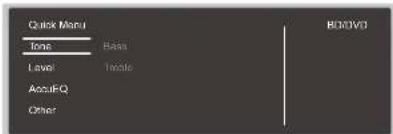
Select the item with the cursor ▲ buttons of the remote controller and press Enter to confirm your selection. Use the cursors to change the settings.
• To return to the previous screen, press
• To exit the settings, press Q.
Tone
Bass:
Enhance or moderate the low pitched range in all channels except the subwoofer.
Treble:
Enhance or moderate the high pitched range in all channels except the subwoofer.
- It cannot be set if the listening mode is Direct or THX.
Level
Center:
Adjust the speaker level of the center speaker while
listening to some sound.
Subwoofer 1 / Subwoofer 2 :
Adjust the speaker level of the subwoofer while listening to some sound.
- The adjustment you made will be reset to the previous status when you turn the unit to standby mode.
AccuEQ
AccuEQ Room Calibration:
Enable or disable the equalizer function that corrects for distortion caused by the acoustic environment of the room. If this is to be enabled, then normally you should select "On (All Ch)", and to disable just the front speakers you should select "On (ex. L/R)". The setting can be separately set to each input selector.
Equalizer:
Select "Preset 1" to "Preset 3" configured in "2. Speaker" - "Equalizer Settings" in the Setup menu. The same sound field setting is applied all ranges when set to "Off".
EQ for Standing Wave:
Select whether to enable or disable the standing wave control calibrated in "2. Speaker" - "EQ for Standing Wave" in the Setup menu.
Re-EQ, Re-EQ(THX):
Adjust the soundtrack that was processed to enhance its high pitch range, in order to make it suitable for home theater.
In Re-EQ, the following listening modes can be used: Dolby Digital, Dolby Digital Plus, Dolby Surround, Dolby TrueHD, Multichannel, DTS, DTS-ES, DTS 96/24, DTS-HD High Resolution Audio, DTS-HD Master Audio, DTS Neural:X, DTS Express and DSD.
In Re-EQ(THX), the following listening modes can be used: THX Cinema and THX Select Cinema.
- It cannot be set if the listening mode is Direct.
■ Other
A/V Sync:
If the video is behind the audio, you can delay the audio to
offset the gap. Different settings can be set for each input selector.
- It cannot be set if the listening mode is Direct.
Music Optimizer:
Improve the quality of the compressed audio. Playback sound of lossy compressed files such as MP3 will be improved. The setting can be separately set to each input selector. The setting is effective with 2 ch signals with a sampling frequency of 48 kHz or less. The setting is not effective in the bitstream signals. This function works in the Stereo, Mono, All Ch Stereo, and Full Mono listening modes.
Upsampling:
By increasing the sampling frequency of PCM 2 channel audio by a factor of 2 or 4, you can achieve high-quality sound reproduction. The setting can be separately set to each input selector. This can be set when the sampling frequency is between 44.1 kHz and 96 kHz. This function works in the Direct and Stereo listening modes.
Late Night:
Make small sounds easily heard. It is useful when you need to reduce the volume while watching a movie late night. You can enjoy the effect only when playing Dolby series and DTS series input signals.
- The setting cannot be used in the following cases.
- If "Loudness Management" is set to "Off" when playing Dolby Digital Plus or Dolby TrueHD
- When the input signal is DTS:X and "Dialog Control" is other than 0 dB
Center Spread:
Adjust the width of the sound field of the front channel when playing in the Dolby Surround listening mode. To spread the width of the sound field to the left and right, set to "On". To concentrate sound in the center, set to "Off". - Depending on the speaker settings, this becomes "Off".
Dialog Control:
You can increase the dialog portion of the audio in 1 dB steps up to 6 dB so that you can make dialog easier to hear over background noise.
- This cannot be set for content other than DTS:X.
> Specifications > Advanced Setup > Listening Modes > Network Functions > Basic Manual
Troubleshooting Supplementary Infor
- The effect may not be selectable with some content.
Screen Centered Dialog:
Front high speakers are used to move acoustic images such as dialogs from the center speakers upward according to the height of the TV screen. Acoustic images of the center speakers move up as the set value is increased.
- Depending on the speaker settings, this becomes "Off".
- This item may not be available depending on the source being played and the selected listening mode.
HDMI Out:
Allows you to select the HDMI OUT jack to output video signals from "MAIN", "SUB", and "MAIN+SUB".
> Specifications > Advanced Setup > Listening Modes > Network Functions > Basic Manual
|Troubleshooting Supplementary Infor
Web Setup
You can make the settings for network features for this unit in an internet browser on a PC, smartphone, etc.
- Press ⚙ on the remote controller to display the Setup menu.
- Select "6. Hardware" - "Network" with the cursors, then take a note of the IP address displayed in "IP Address".
- Start the internet browser on your PC or smartphone and enter the IP address of the unit in the URL field.
- Information for the unit (Web Setup screen) is displayed in the internet browser.
- After changing the settings, select "Save" to save the settings.
Device Information
You can change the Friendly Name, set an AirPlay Password, etc.
Control4: Register this unit if you are using a Control4 system.
Firmware Update: Select the firmware update you have downloaded to your PC so you can update this unit.
Network Setting
Status: You can see information for the network such as
the MAC address and IP address for this unit.
Network Connection: This unit does not support wireless connection, so select "Wired".
DHCP: You can change DHCP settings. If you select "Off", set "IP Address", "Subnet Mask", "Gateway", and "DNS Server" manually.
Proxy: Display and set the URL for the proxy server.
> Specifications > Advanced Setup > Listening Modes > Network Functions > Basic Manual
|Troubleshooting Supplementary Infor
Control Function Settings
You can enable the control functions between the unit and external devices. Special devices or cable connections are necessary to enable the functions. For more information about installation, contact a store specializing in these products.
RS232 port
Use this port for connection with an integrated control system that can enable home automation. Some integrated control systems provide a centralized operation with a single touch panel controller in order to control audio and video home appliances and security devices together. For more information about adopting an integrated control system, contact the specialized stores.
■ IR jack
If you use a commercially available multiroom remote control kit with this jack, you can operate the unit with the remote controller even when you are in a separate room, or operate the unit with the remote controller even if its remote control sensor is difficult to see. You can also connect a device with the unit and operate it with the remote controller.
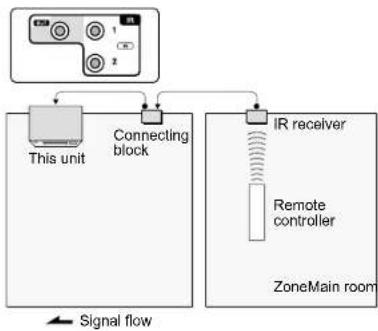
flowchart
graph TD
    A["Device Unit"] --> B["This unit"]
    B --> C["Connecting block"]
    C --> D["IR receiver"]
    D --> E["Remote controller"]
    E --> F["ZoneMain room"]
    style A fill:#f9f,stroke:#333
    style D fill:#ccf,stroke:#333
    style E fill:#cfc,stroke:#333
    linkStyle 0 stroke:#000,stroke-width:2px
    linkStyle 1 stroke:#000,stroke-width:2px
    linkStyle 2 stroke:#000,stroke-width:2px
    linkStyle 3 stroke:#000,stroke-width:2px
    linkStyle 4 stroke:#000,stroke-width:2px
    linkStyle 5 stroke:#000,stroke-width:2px
    linkStyle 6 stroke:#000,stroke-width:2px
    linkStyle 7 stroke:#000,stroke-width:2px
    linkStyle 8 stroke:#000,stroke-width:2px
    linkStyle 9 stroke:#000,stroke-width:2px
    linkStyle 10 stroke:#000,stroke-width:2px
    linkStyle 11 stroke:#000,stroke-width:2px
    linkStyle 12 stroke:#000,stroke-width:2px
    linkStyle 13 stroke:#000,stroke-width:2px
    linkStyle 14 stroke:#000,stroke-width:2px
    linkStyle 15 stroke:#000,stroke-width:2px
    linkStyle 16 stroke:#000,stroke-width:2px
    linkStyle 17 stroke:#000,stroke-width:2px
    linkStyle 18 stroke:#000,stroke-width:2px
    linkStyle 19 stroke:#000,stroke-width:2px
    linkStyle 20 stroke:#000,stroke-width:2px
- Other companies may use indications other than IR on their products. Confirm in the instruction manual included with your components.
- Refer to the instruction manual of the IR receiver for the types of cables required for connection.
■ 12V trigger output jack
You can enable power link operation when you connect the unit and an external device such as power amplifier equipped with 12V trigger input jack. When the desired input is selected on the unit, power link operation will be activated with a control signal of maximum 12 V/100 mA from the 12V TRIGGER OUT A jack or maximum 12 V/25 mA when using the 12V TRIGGER OUT B or C jack. You can select the zone to output the control signal by setting each of the inputs. For connection, use a monaural mini plug cable.
> Specifications > Advanced Setup > Listening Modes > Network Functions > Basic Manual
|Troubleshooting Supplementary Infor
Connecting a Power Amplifier
You can connect a power amplifier to the unit and use the unit as a pre-amplifier in order to produce a large volume that cannot be output with the unit only. Connect the speakers to the power amplifier. For details, refer to the power amplifier's instruction manual.
■ Connections
- Connect as below using the PRE OUT terminals.
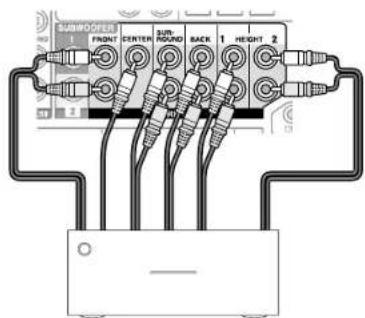
Power amplifier
- Set to suit the number of speaker channels connected.
Press ⚙ on the remote controller to display the Setup menu. Select "2. Speaker" - "Configuration" - "Speaker Channels" in order with the cursors, and set the number of speaker channels. - You can reduce power consumption by turning off the power of the SPEAKERS terminals you are not using on this unit. Make the setting in "8.
Miscellaneous" - "Preamp Mode" in the Setup menu.
> Specifications > Advanced Setup > Listening Modes > Network Functions > Basic Manual
Troubleshooting Supplementary Infor
Firmware Update
The updating function on this unit
This unit has functionality to update the firmware (the system software) over a network or by the USB port. This enables us to make improvements to a variety of operations and to add features.
- For the latest information on updates, visit our company's website. There is no need to update the firmware on this unit if there is no update available.
- Before updating, make sure that the speaker setup microphone is not connected.
- During an update, do not - Disconnect and reconnect any cable, USB storage device, speaker setup microphone or headphones, or perform any operation on the component such as turn off its power
- Accessing this unit from a PC or smartphone using an application
- The update may take about 20 minutes to complete for either method: via network or via USB. Furthermore, existing settings are guaranteed regardless of the method used for update.
Note that when this unit is connected to a network, you may see notifications about firmware updates on the display. To execute updating, select "Update Now" with the cursor buttons of the remote controller and press Enter. The unit automatically turns itself into standby mode after "Completed!" appears on the display, and updating will be complete.
Disclaimer: The program and accompanying online documentation are furnished to you for use at your own risk.
Our company will not be liable and you will have no remedy for damages for any claim of any kind whatsoever
concerning your use of the program or the accompanying online documentation, regardless of legal theory, and whether arising in tort or contract.
In no event will our company be liable to you or any third party for any special, indirect, incidental, or consequential damages of any kind, including, but not limited to, compensation, reimbursement or damages on account of the loss of present or prospective profits, loss of data, or for any other reason whatsoever.
Updating the Firmware via Network
Preparation:
- Check that the unit is turned on, and the connection to the Internet is secured.
- Turn off the controller component (PC etc.) connected to the network.
- Stop any playing Internet radio, USB storage device, or server content.
- If the multi-zone function is active, turn it off.
-
If "HDMI CEC" is set to "On", set it to "Off".
-
Press ⚙ on the remote controller. Then, after selecting "6. Hardware" - "HDMI" and pressing Enter, select "HDMI CEC" and select "Off".
* The description may differ from the on-screen display but that will not change the way to operate or the function.
Update
- Press ☐ on the remote controller. The Setup menu is displayed on the TV screen.
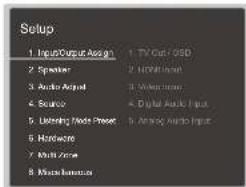
- Select "8. Miscellaneous" - "Firmware Update" - "Update via NET" with the cursors in order, then press Enter.
> Specifications > Advanced Setup > Listening Modes > Network Functions > Basic Manual
|Troubleshooting Supplementary Infor
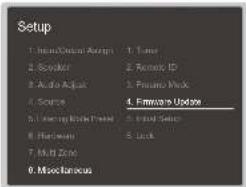
- If "Firmware Update" is grayed out and cannot be selected, wait for a while until it starts up.
-
You will not be able to select "Update via NET" if there is nothing to update.
-
Press Enter with "Update" selected to start update.
-
During the update, the TV screen may go black depending on the updated program. In that case, check the progress on the display of the unit. The TV screen will remain black until the update is complete and the power is turned on again.
-
"Completed!" is displayed when the update is complete.
-
Press ☐On/Standby on the main unit to turn the unit into standby mode. The process is completed and your firmware is updated to the latest version.
- Do not use on the remote controller.
■ If an Error Message is Displayed
When an error occurs, "*-* * Error!" is displayed on the display of the unit. ("*" represents an alphanumeric character.) Check the following:
Error Code
- *-01, *-10: Ethernet cable not found. Connect the Ethernet cable properly.
- *-02, *-03, *-04, *-05, *-06, *-11, *-13, *-14, *-16, *-17, *-18, *-20, *-21:
Internet connection error. Check the following:
- The router is turned on
- This unit and the router are connected via the network
Try to disconnect and then connect again the power to the unit and router. This may solve the problem. If you are still unable to connect to the Internet, the DNS server or proxy server may be temporarily down. Check the service status with your ISP provider.
- Others
Disconnect then reconnect the AC power cord, then repeat from the beginning.
Updating via USB
Preparation:
• Prepare a 128MB or larger USB storage device. FAT16 or FAT32 file system format.
– Media inserted in a USB card reader may not be used for this function.
- USB storage devices with security function are not supported.
- USB hubs and USB devices with hub function are not supported. Do not connect these devices to the unit.
- Delete any data stored on the USB storage device.
- Turn off the controller component (PC etc.) connected to the network.
- Stop any playing Internet radio, USB storage device, or server content.
- If the multi-zone function is active, turn it off.
-
If "HDMI CEC" is set to "On", set it to "Off".
-
Press ⚙ on the remote controller. Then, after selecting "6. Hardware" - "HDMI" and pressing Enter, select "HDMI CEC" and select "Off".
* Some USB storage devices may take long to load, may not be loaded correctly, or may not be correctly fed depending on the device or their content.
* Our company will not be liable whatsoever for any loss or damage of data, or storage failure arising from the use of the USB storage device with this unit. Thank you for your understanding.
* The description may differ from the on-screen display but that will not change the way to operate or the function.
Update
- Connect the USB storage device to your PC.
- Download the firmware file from our company's website to your PC and unzip.
Firmware files are named in the following way: ONKAVR* * * * * _ * * * * * * * * * * *.zip Unzip the file on your PC. The number of unzipped files and folders varies depending on the model.
- Copy all unzipped files and folders to the root folder of the USB storage device.
• Make sure to copy the unzipped files.
> Specifications > Advanced Setup > Listening Modes > Network Functions > Basic Manual
|Troubleshooting Supplementary Infor
- Connect the USB storage device to the USB port of the unit.
- If you connect a USB hard disk drive to the USB port of the unit, we recommend that you use its AC adapter to power it.
- If the USB storage device has been partitioned, each section will be treated as an independent device.
- Press ⚙ on the remote controller. The Setup menu is displayed on the TV screen.
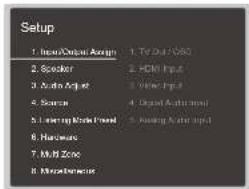
- Select "8. Miscellaneous" - "Firmware Update" - "Update via USB" with the cursors in order, then press Enter.
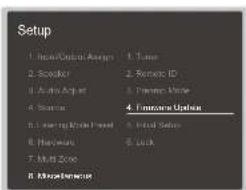
- If "Firmware Update" is grayed out and cannot be selected, wait for a while until it starts up.
- You will not be able to select "Update via USB" if there is nothing to update.
- Press Enter with "Update" selected to start update. • During the update, the TV screen may go black depending on the updated program. In that case, check the progress on the display of the unit. The
TV screen will remain black until the update is complete and the power is turned on again.
- During the update, do not turn off, or disconnect then reconnect the USB storage device.
- "Completed!" is displayed when the update is complete.
-
Disconnect the USB storage device from the unit.
-
Press ☐On/Standby on the main unit to turn the unit into standby mode. The process is completed and your firmware is updated to the latest version.
- Do not use ☑ on the remote controller.
■ If an Error Message is Displayed
When an error occurs, "*-* * Error!" is displayed on the display of the unit. ("*" represents an alphanumeric character.) Check the following:
Error Code
- * -01, * -10 :
USB storage device not found. Check whether the USB storage device or USB cable is correctly inserted to the USB port of the unit.
Connect the USB storage device to an external power source if it has its own power supply.
• *-05, *-13, *-20, *-21:
The firmware file is not present in the root folder of the USB storage device, or the firmware file is for another model. Retry from the download of the firmware file.
- Others
Disconnect then reconnect the AC power cord, then repeat from the beginning.
Specifications > Advanced Setup > Listening Modes > Network Functions > Basic Manual
|Troubleshooting Supplementary Infor
Selecting Listening Modes
Select the optimum listening mode for movies, TV, music, and games by repeatedly pressing the Movie/TV, Music, and Game buttons.
- During play, press one of the following three buttons on the remote controller.
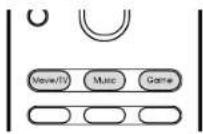
- Press the selected button repeatedly to switch the modes displayed on the display of the unit.
Dolby D
For details on the effects of each of the listening modes see "Listening Mode Effects". For listening modes selectable for each of the audio formats in the input signals, refer to "Selectable Listening Modes".
> Specifications > Advanced Setup > Listening Modes > Network Functions > Basic Manual
|Troubleshooting Supplementary Infor
Listening Mode Effects
In alphabetical order
AllCh Stereo
This mode is ideal for background music. Stereo sound is played through the surround speakers as well as the front speakers, creating a stereo image.
Direct
This listening mode can be selected for all input signals. Processing that affects sound quality is shut down so sound closer to the original is reproduced. Speakers play the sound field according to the number of channels in the input signal, so there would be output from only the front speakers for a two-channel signal, for example.
Dolby Atmos
This mode faithfully reproduces the sound design recorded in the Dolby Atmos audio format.
The Dolby Atmos audio format has been implemented in movie theaters equipped with the latest facilities and enables a revolutionary sound experience in home theaters. Unlike existing surround systems, Dolby Atmos doesn't rely on channels, but rather enables the accurate placement of sound objects that have independent motion in a three-dimensional space with even greater clarity. Dolby Atmos is an optional audio format on Blu-ray Discs and achieves a three-dimensional sound field by introducing a sound field above the listener.
- To enable transfer of this audio format, connect via HDMI cable and set audio output on the player to bitstream output.
■ Dolby D (Dolby Digital)
This mode faithfully reproduces the sound design recorded in the Dolby Digital audio format.
Dolby Digital is a multi-channel digital format developed by Dolby Laboratories, Inc. widely adopted for use in movie production. It is also a standard audio format on DVD-Video and Blu-ray Discs. It is possible to record a maximum of 5.1 channels on a DVD-Video or Blu-ray Disc; two front channels, a center channel, two surround channels, and the LFE channel dedicated to the bass region (sound elements for the subwoofer).
- To enable transfer of this audio format, connect via digital cable and set audio output on the player to bitstream output.
■ Dolby D+ (Dolby Digital Plus)
This mode faithfully reproduces the sound design recorded in the Dolby Digital Plus audio format.
The Dolby Digital Plus format is a revision based on Dolby Digital, increasing the number of channels and endeavoring to improve sound quality by giving more flexibility in data bit rates. Dolby Digital Plus is used as an optional audio format on Blu-ray Discs, based on 5.1ch, but with additional channels such as the surround back channel added for a maximum of 7.1ch.
- To enable transfer of this audio format, connect via HDMI cable and set audio output on the player to bitstream output.
Dolby Surround
These listening modes allow you to expand the playback signal to a maximum of 11 channels to suit the connected speaker configuration when the input signal is 2 channels or 5.1 channels. Dolby surround is compatible with traditional speaker layouts, as well as Dolby Atmos enabled playback systems that employ inceiling speakers or products with Dolby speaker technology.
Dolby TrueHD
This mode faithfully reproduces the sound design recorded in the Dolby TrueHD audio format.
The Dolby TrueHD audio format is a reversible format expanded based on the lossless compression technology referred to as MLP, and it makes it possible to faithfully reproduce the master audio recorded in the studio. Dolby
TrueHD is used as an optional audio format on Blu-ray Discs, based on 5.1ch, but with additional channels such as the surround back channel added for a maximum of 7.1ch. 7.1ch is recorded at 96 kHz/24 bit, and 5.1ch is recorded at 192 kHz/24 bit.
- To enable transfer of this audio format, connect via HDMI cable and set audio output on the player to bitstream output.
DSD
Mode suitable for playing sources recorded in DSD.
- This unit supports DSD signals input through HDMI IN. However, depending on the connected player, better sound is possible when output from the PCM output of the player.
- This listening mode cannot be selected if the output setting on your Blu-ray Disc/DVD player is not set to DSD.
■ DTS
This mode faithfully reproduces the sound design recorded in the DTS audio format.
The DTS audio format is a multi-channel digital format developed by DTS, Inc. This format is an optional audio format on DVD-Video and a standard on Blu-ray Discs. It enables recording of 5.1 channels; two front channels, a center channel, two surround channels, and the LFE channel dedicated to the bass region (sound elements for the subwoofer). The content is recorded with a rich volume of data, with maximum sampling rate of 48 kHz at a resolution of 24 bits and a bit rate of 1.5 Mbps.
- To enable transfer of this audio format, connect via digital cable and set audio output on the player to bitstream output.
DTS 96/24
This mode faithfully reproduces the sound design recorded in the DTS 96/24 audio format.
The DTS 96/24 format is an optional audio format on DVD-Video and Blu-ray Discs. It enables recording of 5.1 channels; two front channels, a center channel, two surround channels, and the LFE channel dedicated to the
> Specifications > Advanced Setup > Listening Modes > Network Functions > Basic Manual
|Troubleshooting Supplementary Infor
bass region (sound elements for the subwoofer). Detailed reproduction is achieved by recording the content at a sampling rate of 96 kHz at a resolution of 24 bits.
- To enable transfer of this audio format, connect via digital cable and set audio output on the player to bitstream output.
■ DTS Express
This mode faithfully reproduces the sound design recorded in the DTS Express audio format.
DTS Express is used as an optional audio format on Blu-ray Discs, based on 5.1ch, but with channels such as the surround back channel added for a maximum of 7.1ch. It also supports low bit rates.
- To enable transfer of this audio format, connect via HDMI cable and set audio output on the player to bitstream output.
■ DTS-HD HR (DTS-HD High Resolution Audio)
This mode faithfully reproduces the sound design recorded in the DTS-HD High Resolution Audio audio format.
DTS-HD High Resolution Audio is used as an optional audio format on Blu-ray Discs, based on 5.1ch, but with additional channels such as the surround back channel added for a maximum of 7.1ch. It can be recorded at a sampling rate of 96 kHz with a resolution of 24 bits.
- To enable transfer of this audio format, connect via HDMI cable and set audio output on the player to bitstream output.
■ DTS-HD MSTR (DTS-HD Master Audio)
This mode faithfully reproduces the sound design recorded in the DTS-HD Master Audio audio format.
DTS-HD Master Audio is used as an optional audio format on Blu-ray Discs, based on 5.1ch, but with additional channels such as the surround back channel added for a maximum of 7.1ch, recorded using lossless audio reproduction technology. 96kHz / 24 bit is supported with 7.1ch, and 192kHz / 24 bit is supported with 5.1ch.
- To enable transfer of this audio format, connect via HDMI cable and set audio output on the player to bitstream output.
■ DTS Neural:X
This listening mode allows you to expand the playback signal to a maximum of 11ch to suit the connected speaker configuration when the input signal is 2 channels or 5.1 channels.
DTS:X
This mode faithfully reproduces the sound design recorded in the DTS:X audio format.
The DTS:X audio format is a combination of the mixing methodology based on past channel based formats (5.1ch and 7.1ch) and object based dynamic audio mixing, and it is characterized by the precise positioning of sounds and the ability to express movement.
- To enable transfer of this audio format, connect via HDMI cable and set audio output on the player to bitstream output.
■ ES Discrete (DTS-ES Discrete)
This mode faithfully reproduces the sound design recorded in the DTS-ES Discrete audio format.
DTS-ES Discrete is used as an optional audio format on DVD-Video and Blu-ray Discs, based on 5.1ch, but with an additional monaural surround back channel added for a maximum of 6.1ch.
- To enable transfer of this audio format, connect via digital cable and set audio output on the player to bitstream output.
■ ES Matrix (DTS-ES Matrix)
This mode faithfully reproduces the sound design recorded in the DTS-ES Matrix audio format.
DTS-ES Matrix is used as an optional audio format on DVD-Video and Blu-ray Discs, based on 5.1ch, but with a monaural surround back channel included by matrix encoding. The matrix decoder on this unit decodes this during playback to produce 6.1 channels.
- To enable transfer of this audio format, connect via digital cable and set audio output on the player to bitstream output.
Full Mono
In this mode, all speakers output the same sound in mono, so the sound you hear is the same regardless of where you are within the listening room.
Game-Action
This mode is suitable for games with a lot of action.
Game-Rock
This mode is designed to help you enjoy games with rock content.
Game-RPG
This mode is best for role-playing games.
■ Game-Sports
This mode is great for sports games.
Mono
In this mode, when the input signal is analog or PCM, the left and right front speakers output the sound in monaural.
■ Multich (Multichannel)
Mode suitable for playing sources recorded in multichannel PCM.
Orchestra
Suitable for classical or operatic music. This mode emphasizes the surround channels in order to widen the sound image, and simulates the natural reverberation of a large hall.
Stereo
In this mode, sound is output from the front left and right speakers and subwoofer.
■ Studio-Mix
Suitable for rock or pop music. Listening to music in this mode creates a lively sound field with a powerful acoustic image, like being at a club or rock concert.
> Specifications > Advanced Setup > Listening Modes > Network Functions > Basic Manual
|Troubleshooting Supplementary Infor
■ T-D (Theater-Dimensional)
In this mode, you can enjoy a virtual playback of multichannel surround sound even with only two or three speakers. This works by controlling how sounds reach the listener's left and right ears.
THX
THX is a series of specifications for the accurate reproduction of movies propounded by the film director George Lucas. THX listening modes include the THX Cinema mode, and using technology such as THX Loudness Plus and Timbre Matching, the sound of a movie theater is reproduced accurately.
THX technology:
A movie soundtrack is mixed in large-scale theater specially made for mixing that is called a dubbing stage on the assumption that the soundtrack is played in such theaters with similar equipment and conditions. These sound tracks are recorded as is, even when recording to a DVD-Video, for example, without making any modifications to suit a home theater. THX technology is able to reproduce the theater sound in a home theater environment by minimizing acoustic and spatial deviation.
• THX Loudness Plus
THX Loudness Plus is a new volume control technology featured in THX Ultra and THX Select certified AV receivers. With THX Loudness Plus, home theater audiences can experience the rich details of surround sound at any volume level. If the volume is turned down below the reference level, elements of sound in a certain range are lost or the sound is perceived differently by audience. THX Loudness Plus compensates for the tonal and spatial shifts that occur when the volume level is reduced, by intelligently correcting the levels of the surround channels and their frequency response in the environment.
• Re-EQ
The speakers for the front channel are installed behind the screen in a movie theater. For this reason the high range is enhanced in the front channel of the sound track to take account of acoustic characteristics such as the necessity to penetrate the screen. Re-EQ adjusts soundtrack with enhanced high range to make it suitable for home theater.
- Timbre Matching
The perception of the human ear differs depending on the direction of the sound. Movie theaters have many surround speakers installed so they are great at surrounding the viewer with natural sound, but home theaters have only two surround speakers installed. The Timbre Matching function filters the signals sent to the surround speakers and adjusts the tonal characteristics of front speakers and surround speakers to create smooth sound movement from front speakers to surround speakers.
• Adaptive Decorrelation
Although movie theaters have many surround speakers to surround the room with sound, home theaters normally have only two surround speakers. Such two surround speakers give a headphone-like sound, not a broad and embracing surround sound. If the listener moves away from the middle of the surround speakers, sound from the surround speakers mixes with that from the near speakers and cannot be distinguished any more. Adaptive Decorrelation slightly changes the time axis and phase between the surround channels so you can enjoy the same kind of breadth of sound you can in a movie theater even with only two surround speakers.
• ASA (Advanced Speaker Array)
ASA is a technology patented by THX to provide a broad surround sound experience by adjusting the side and back surround speaker sounds respectively. When installing the surround back speakers, first select the distance between the two surround back speakers in the THX Audio settings. This setting optimizes the surround sound environment.
THX listening modes:
-THX Cinema: Use in a home theater environment for playing a soundtrack that was recorded with the intention of it being played in a movie theater or similar large area. In this mode, THX Loudness Plus is set to the theater level and Re-EQ, Timbre Matching, and Adaptive Decorrelation are all enabled.
-THX Games: Use for high-fidelity spatial reproduction of game sound. THX Loudness Plus is set to a level suited to the audio level of the game and Timbre Matching is enabled.
-THX Music: Use mainly for music sources that are clearly mastered to a much higher quality than movie audio. THX Loudness Plus is set to a level suited to the playback of music and Timbre Matching is enabled.
-THX S Cinema (THX Select Cinema): The THX Select Cinema mode provides a high-quality surround sound experience by expanding movie sources recorded in 5.1 ch for 7.1 ch playback. In this mode, the THX ASA processing technology gives smooth transition between side and back surround sounds creating the best atmosphere and directional sense of surround sound.
-THX S Games (THX Select Games): Select the THX Select Games mode to play game sound recorded in a multichannel format. In this mode, the THX ASA processing technology creates a 360-degree sound field with game sound recorded in PCM, DTS, Dolby Digital and other 5.1 ch formats.
-THX S Music (THX Select Music): Select THX Select Music to play music sources recorded in a multichannel format. In this mode, the THX ASA processing technology creates a broad and stable back sound field for music sources recorded in 5.1ch such as DTS, Dolby Digital, and DVD-Audio.
TV Logic
Suitable for TV shows produced in a TV studio. This mode enhances the surround effects to the entire sound to give clarity to voices and create a realistic acoustic image.
■ Unplugged
Suitable for acoustic instruments, vocals and jazz. This mode emphasizes the front stereo image, giving the impression of being right in front of the stage.
> Specifications > Advanced Setup
> Listening Modes
> Network Functions
> Basic Manual
|Troubleshooting Supplementary Infor
Selectable Listening Modes
You can select a variety of listening modes to suit the audio format of the signal being input. Refer to the following for the listening mode choices.
- Listening modes available when headphones are connected are: Mono, Direct, and Stereo. Only Mono or Stereo can be selected when the input signal is DSD.
■ Movie/TV button
This is a list of listening modes you can select according to the audio format of the input signal.
Input Format Listening Mode
| Analog Direct | |
| Mono | |
| Dolby Surround | |
| DTS Neural:X | |
| THX Cinema *1 | |
| TV Logic^2 | |
| AllCh Stereo *3 | |
| Full Mono *3 | |
| T-D |
*1 Surround speakers need to be installed.
* Surround speakers or height speakers need to be installed.
* A center speaker, surround speakers, or height speakers need to be installed.
Input Format Listening Mode
| PCM Music files (except DSD/Dolby TrueHD) | Direct |
| Mono | |
| Dolby Surround | |
| DTS Neural:X | |
| THX Cinema*1 | |
| TV Logic^2 | |
| AllCh Stereo*3 | |
| Full Mono*3 | |
| T-D |
*1 Surround speakers need to be installed.
Surround speakers or height speakers need to be installed.
^13 A center speaker, surround speakers, or height speakers need to be installed.
Input Format Listening Mode
| Multich PCM Direct | |
| Multich^*1 | |
| Dolby Surround | |
| DTS Neural:X | |
| THX Cinema ^32 | |
| THX S Cinema ^43 | |
| TV Logic ^44 | |
| AllCh Stereo ^45 | |
| Full Mono ^45 | |
| T-D |
^1 A center speaker or surround speakers need to be installed.
× Surround speakers need to be installed.
- Surround back speakers need to be installed. Can be selected when the input format is 5.1 ch.
- Surround speakers or height speakers need to be installed.
- A center speaker, surround speakers, or height speakers need to be installed.
| Input Format | Listening Mode |
| DSD | Direct |
| DSD^*1*2 | |
| Dolby Surround | |
| DTS Neural:X | |
| THX Cinema^*3 | |
| THX S Cinema^*4 | |
| TV Logic^*5 | |
| AllCh Stereo*6 | |
| Full Mono^-6 | |
| T-D |
×1 Cannot be selected when the input format is 2 ch.
×: A center speaker or surround speakers need to be installed.
×3 Surround speakers need to be installed.
- Surround back speakers need to be installed. Can be selected when the input format is 5.1 ch.
- Surround speakers or height speakers need to be installed.
^** A center speaker, surround speakers, or height speakers need to be installed.
> Specifications > Advanced Setup > Listening Modes > Network Functions > Basic Manual
|Troubleshooting Supplementary Infor
| Input Format Listening Mode | |
| Dolby AtmosYou can select the Dolby Digital Plus or Dolby TrueHD listening modes if surround back speakers or height speakers are not connected. | Direct |
| Dolby Atmos | |
| TV Logic | |
| AllCh Stereo | |
| Full Mono | |
| T-D | |
| Input Format Listening Mode | |
| Dolby D Direct | |
| Dolby D^+1^+2 | |
| Dolby Surround | |
| THX Cinema^+3 | |
| THX S Cinema^+4 | |
| TV Logic^+5 | |
| AllCh Stereo^+6 | |
| Full Mono^+6 | |
| T-D | |
- Cannot be selected when the input format is 2 ch.
- A center speaker or surround speakers need to be installed.
« Surround speakers need to be installed.
- Surround back speakers need to be installed. Can be selected when the input format is 5.1 ch.
- Surround speakers or height speakers need to be installed.
- A center speaker, surround speakers, or height speakers need to be installed.
| Input Format Listening Mode | |
| Dolby D+ Direct | |
| Dolby D^+^-1^+2 | |
| Dolby Surround | |
| THX Cinema ^*3 | |
| THX S Cinema ^~4 | |
| TV Logic ^~5 | |
| AllCh Stereo ^*6 | |
| Full Mono ^*8 | |
| T-D | |
^41 Cannot be selected when the input format is 2 ch.
** A center speaker or surround speakers need to be installed.
- Surround speakers need to be installed.
** Surround back speakers need to be installed. Can be selected when the input format is 5.1 ch.
^45 Surround speakers or height speakers need to be installed.
* A center speaker, surround speakers, or height speakers need to be installed.
| Input Format Listening Mode | |
| Dolby TrueHD Direct | |
| Dolby TrueHD ^*1*2 | |
| Dolby Surround | |
| THX Cinema ^*3 | |
| THX S Cinema ^4 | |
| TV Logic ^5 | |
| AllCh Stereo ^*8 | |
| Full Mono ^*9 | |
| T-D | |
11 Cannot be selected when the input format is 2 ch.
12 A center speaker or surround speakers need to be installed.
- Surround speakers need to be installed.
Surround back speakers need to be installed. Can be selected when the input format is 5.1 ch.
* * Surround speakers or height speakers need to be installed.
* A center speaker, surround speakers, or height speakers need to be installed.
| Input Format Listening Mode | |
| DTS | Direct |
| DTS^*1-2 | |
| DTS Neural:X | |
| THX Cinema^*3 | |
| THX S Cinema^*4 | |
| TV Logic^*5 | |
| AllCh Stereo ^+6 | |
| Full Mono^*E | |
| T-D | |
× Cannot be selected when the input format is 2 ch.
» A center speaker or surround speakers need to be installed.
×a Surround speakers need to be installed
Surround back speakers need to be installed. Can be selected when the input format is 5.1 ch.
- Surround speakers or height speakers need to be installed.
-6 A center speaker, surround speakers, or height speakers need to be installed.
| Input Format Listening Mode | |
| DTS 96/24 | Direct |
| DTS 96/24^*1*2 | |
| DTS Neural:X | |
| THX Cinema^*3 | |
| THX S Cinema^*4 | |
| TV Logic^*5 | |
| AllCh Stereo^*6 | |
| Full Mono^*6 | |
| T-D | |
×1 Cannot be selected when the input format is 2 ch.
× A center speaker or surround speakers need to be installed.
×3 Surround speakers need to be installed
Surround back speakers need to be installed. Can be selected when the input format is 5.1 ch.
-5 Surround speakers or height speakers need to be installed.
^* A center speaker, surround speakers, or height speakers need to be installed.
> Specifications > Advanced Setup > Listening Modes > Network Functions > Basic Manual
|Troubleshooting Supplementary Infor
Input Format Listening Mode
| DTS Express Direct | |
| DTS Express^41+2 | |
| DTS Neural:X | |
| THX Cinema *3 | |
| THX S Cinema *4 | |
| TV Logic *5 | |
| AllCh Stereo *6 | |
| Full Mono *6 | |
| T-D |
** Cannot be selected when the input format is 2 ch.
* A center speaker or surround speakers need to be installed.
* Surround speakers need to be installed.
* Surround back speakers need to be installed. Can be selected when the
input format is 5.1 ch
- Surround speakers or height speakers need to be installed.
* A center speaker, surround speakers, or height speakers need to be
installed.
Input Format Listening Mode
| DTS-HD HR Direct | |
| DTS-HD HR^*+ *2 | |
| DTS Neural: X^*3 | |
| THX Cinema*4 | |
| THX S Cinema+5 | |
| TV Logic*6*7 | |
| AllCh Stereo+8 | |
| Full Mono*8 | |
| T-D*7 |
- Cannot be selected when the input format is 2 ch.
^12 A center speaker or surround speakers need to be installed. - Cannot be selected when the sampling rate of the input format is 88.2 kHz
or more.
*1 Surround speakers need to be installed.
** Surround back speakers need to be installed. Can be selected when the
input format is 5.1 ch - Surround speakers or height speakers need to be installed.
- Cannot be selected when the input format is 2 ch and the sampling rate is
88.2 kHz or more
** A center speaker, surround speakers, or height speakers need to be
installed.
Input Format Listening Mode
| DTS-HD MSTR Direct | |
| DTS-HD MSTR^+1-2 | |
| DTS Neural:X^+3 | |
| THX Cinema^+2 | |
| THX S Cinema^-5 | |
| TV Logic^-6-7 | |
| AllCh Stereo^+8 | |
| Full Mono^+8 | |
| T-D^+7 |
** Cannot be selected when the input format is 2 ch.
** A center speaker or surround speakers need to be installed.
v: Cannot be selected when the sampling rate of the input format is 88.2 kHz
or more.
++ Surround speakers need to be installed.
^45 Surround back speakers need to be installed. Can be selected when the
input format is 5.1 ch
* Surround speakers or height speakers need to be installed.
** Cannot be selected when the input format is 2 ch and the sampling rate is
88.2 kHz or more.
16 A center speaker, surround speakers, or height speakers need to be
installed.
Input Format Listening Mode
| DTS-ES Direct | |
| DTS^*1 | |
| ES Matrix^*2 | |
| ES Discrete^*2 | |
| DTS Neural:X | |
| THX Cinema^*3 | |
| TV Logic^*4 | |
| AllCh Stereo*5 | |
| Full Mono*5 | |
| T-D |
This cannot be selected when surround back speakers are connected. (When "DTS Auto Surround" in the Setup menu is set to "Off", this can be selected.)
-2 Surround back speakers need to be installed.
-3 Surround speakers need to be installed.
-4 Surround speakers or height speakers need to be installed.
× A center speaker, surround speakers, or height speakers need to be
installed
Input Format Listening Mode
| DTS:X | Direct |
| DTS:X | |
| TV Logic*1 | |
| AllCh Stereo*,2 | |
| Full Mono^2 | |
| T-D |
×1 Surround speakers or height speakers need to be installed.
A center speaker, surround speakers, or height speakers need to be installed.
> Specifications > Advanced Setup > Listening Modes > Network Functions > Basic Manual
|Troubleshooting Supplementary Infor
■ Music button
This is a list of listening modes you can select according to the audio format of the input signal.
| Input Format Listening Mode | |
| Analog Direct | |
| Stereo | |
| Dolby Surround | |
| DTS Neural:X | |
| THX Music ^*1 | |
| Orchestra ^*2 | |
| Unplugged ^*2 | |
| Studio-Mix ^-2 | |
| AllCh Stereo ^*3 | |
| Full Mono ^*3 | |
*1 Surround speakers need to be installed.
+: Surround speakers or height speakers need to be installed.
* A center speaker, surround speakers, or height speakers need to be
installed.
| Input Format Listening Mode | |
| PCM | Direct |
| Music files (except DSD/Dolby TrueHD) | Stereo |
| Dolby Surround | |
| DTS Neural:X | |
| THX Music*1 | |
| Orchestra*2 | |
| Unplugged^2 | |
| Studio-Mix^2 | |
| AllCh Stereo*3 | |
| Full Mono*3 | |
^41 Surround speakers need to be installed.
* Surround speakers or height speakers need to be installed.
* A center speaker, surround speakers, or height speakers need to be installed.
| Input Format Listening Mode | |
| Multich PCM Direct | |
| Stereo | |
| Multich ^+1 | |
| Dolby Surround | |
| DTS Neural:X | |
| THX Music ^+2 | |
| THX S Music ^+3 | |
| Orchestra ^+4 | |
| Unplugged ^+4 | |
| Studio-Mix ^+4 | |
| AllCh Stereo ^+5 | |
| Full Mono ^+5 | |
^** A center speaker or surround speakers need to be installed.
^42 Surround speakers need to be installed.
^43 Surround back speakers need to be installed. Can be selected when the input format is 5.1 ch.
* Surround speakers or height speakers need to be installed.
^15 A center speaker, surround speakers, or height speakers need to be installed.
| Input Format Listening Mode | |
| DSD Direct | |
| Stereo | |
| DSD^*1^*2 | |
| Dolby Surround | |
| DTS Neural:X | |
| THX Music ^*3 | |
| THX S Music ^*4 | |
| Orchestra ^*5 | |
| Unplugged ^*5 | |
| Studio-Mix ^*5 | |
| AllCh Stereo ^*6 | |
| Full Mono ^*6 | |
× 1 Cannot be selected when the input format is 2 ch.
^2 A center speaker or surround speakers need to be installed.
-3 Surround speakers need to be installed.
- Surround back speakers need to be installed. Can be selected when the
input format is 5.1 ch.
» Surround speakers or height speakers need to be installed.
** A center speaker, surround speakers, or height speakers need to be
| Input Format Listening Mode | |
| Dolby AtmosYou can select the Dolby Digital Plus or Dolby TrueHD listening modes if surround back speakers or height speakers are not connected. | Direct |
| Stereo | |
| Dolby Atmos | |
| Orchestra | |
| Unplugged | |
| Studio-Mix | |
| AllCh Stereo | |
| Full Mono | |
> Specifications > Advanced Setup > Listening Modes > Network Functions > Basic Manual
|Troubleshooting Supplementary Infor
Input Format Listening Mode
| Dolby D Direct | |
| Stereo | |
| Dolby D^*1^*2 | |
| Dolby Surround | |
| THX Music ^*3 | |
| THX S Music ^*4 | |
| Orchestra ^*5 | |
| Unplugged ^*5 | |
| Studio-Mix ^-5 | |
| AllCh Stereo ^*6 | |
| Full Mono ^*6 |
** Cannot be selected when the input format is 2 ch.
* A center speaker or surround speakers need to be installed.
* Surround speakers need to be installed.
- Surround back speakers need to be installed. Can be selected when the
input format is 5.1 ch.
* Surround speakers or height speakers need to be installed.
- A center speaker, surround speakers, or height speakers need to be installed.
Input Format Listening Mode
| Dolby D+ Direct | |
| Stereo | |
| Dolby D+ *1 *2 | |
| Dolby Surround | |
| THX Music *3 | |
| THX S Music *4 | |
| Orchestra *5 | |
| Unplugged *5 | |
| Studio-Mix *5 | |
| AllCh Stereo *6 | |
| Full Mono *6 |
*1 Cannot be selected when the input format is 2 ch.
** A center speaker or surround speakers need to be installed.
* Surround speakers need to be installed.
++ Surround back speakers need to be installed. Can be selected when the
input format is 5.1 ch.
^45 Surround speakers or height speakers need to be installed.
* A center speaker, surround speakers, or height speakers need to be installed.
Input Format Listening Mode
| Dolby TrueHD Direct | |
| Stereo | |
| Dolby TrueHD ^*1 ^42 | |
| Dolby Surround | |
| THX Music ^*3 | |
| THX S Music ^*4 | |
| Orchestra ^45 | |
| Unplugged ^*5 | |
| Studio-Mix ^*5 | |
| AllCh Stereo ^*6 | |
| Full Mono ^*6 |
-1 Cannot be selected when the input format is 2 ch.
-2 A center speaker or surround speakers need to be installed.
-3 Surround speakers need to be installed.
-4 Surround back speakers need to be installed. Can be selected when the
input format is 5.1 ch.
× Surround speakers or height speakers need to be installed.
^*6 A center speaker, surround speakers, or height speakers need to be installed.
> Specifications > Advanced Setup > Listening Modes > Network Functions > Basic Manual
|Troubleshooting Supplementary Infor
Input Format Listening Mode
| DTS Direct | |
| Stereo | |
| DTS^*1^*2 | |
| DTS Neural:X | |
| THX Music*3 | |
| THX S Music*4 | |
| Orchestra*5 | |
| Unplugged*5 | |
| Studio-Mix-5 | |
| AllCh Stereo*6 | |
| Full Mono*6 |
** Cannot be selected when the input format is 2 ch.
* A center speaker or surround speakers need to be installed.
* Surround speakers need to be installed.
- Surround back speakers need to be installed. Can be selected when the
input format is 5.1 ch.
* Surround speakers or height speakers need to be installed.
- A center speaker, surround speakers, or height speakers need to be installed.
Input Format Listening Mode
| DTS 96/24 Direct | |
| Stereo | |
| DTS 96/24 *1 *2 | |
| DTS Neural:X | |
| THX Music^3 | |
| THX S Music *4 | |
| Orchestra *5 | |
| Unplugged *5 | |
| Studio-Mix *5 | |
| AllCh Stereo *6 | |
| Full Mono *6 |
^** Cannot be selected when the input format is 2 ch.
** A center speaker or surround speakers need to be installed.
*1 Surround speakers need to be installed.
^++ Surround back speakers need to be installed. Can be selected when the
input format is 5.1 ch.
^45 Surround speakers or height speakers need to be installed.
* A center speaker, surround speakers, or height speakers need to be installed.
Input Format Listening Mode
| DTS Express Direct | |
| Stereo | |
| DTS Express ^*1 ^*2 | |
| DTS Neural:X | |
| THX Music ^*3 | |
| THX S Music ^*4 | |
| Orchestra ^*5 | |
| Unplugged ^*5 | |
| Studio-Mix ^*5 | |
| AllCh Stereo ^*6 | |
| Full Mono ^*6 |
^1 Cannot be selected when the input format is 2 ch.
A center speaker or surround speakers need to be installed.
× Surround speakers need to be installed.
- Surround back speakers need to be installed. Can be selected when the
input format is 5.1 ch.
-5 Surround speakers or height speakers need to be installed.
- " A center speaker, surround speakers, or height speakers need to be installed.
> Specifications > Advanced Setup > Listening Modes > Network Functions > Basic Manual
|Troubleshooting Supplementary Infor
Input Format Listening Mode
| DTS-HD HR Direct | |
| Stereo | |
| DTS-HD HR^*1 *2 | |
| DTS Neural:X^*3 | |
| THX Music^*4 | |
| THX S Music^*5 | |
| Orchestra^*5+7 | |
| Unplugged^*6+7 | |
| Studio-Mix^-6+7 | |
| AllCh Stereo^*8 | |
| Full Mono^*8 |
** Cannot be selected when the input format is 2 ch.
* A center speaker or surround speakers need to be installed.
* Cannot be selected when the sampling rate of the input format is 88.2 kHz or more.
*1 Surround speakers need to be installed.
* Surround back speakers need to be installed. Can be selected when the input format is 5.1 ch.
** Surround speakers or height speakers need to be installed.
- Cannot be selected when the input format is 2 ch and the sampling rate is 88.2 kHz or more.
* A center speaker, surround speakers, or height speakers need to be installed.
Input Format Listening Mode
| DTS-HD MSTR Direct | |
| Stereo | |
| DTS-HD MSTR *1 *2 | |
| DTS Neural:X *3 | |
| THX Music *4 | |
| THX S Music *5 | |
| Orchestra *6*7 | |
| Unplugged *8 *7 | |
| Studio-Mix *8*7 | |
| AllCh Stereo *8 | |
| Full Mono *8 |
^44 Cannot be selected when the input format is 2 ch.
** A center speaker or surround speakers need to be installed.
- Cannot be selected when the sampling rate of the input format is 88.2 kHz or more.
++ Surround speakers need to be installed.
^45 Surround back speakers need to be installed. Can be selected when the input format is 5.1 ch.
* Surround speakers or height speakers need to be installed.
** Cannot be selected when the input format is 2 ch and the sampling rate is 88.2 kHz or more.
^16 A center speaker, surround speakers, or height speakers need to be installed.
Input Format Listening Mode
| DTS-ES Direct |
| Stereo |
| DTS^*1 |
| ES Matrix^*2 |
| ES Discrete^*2 |
| DTS Neural:X |
| THX Music^*3 |
| Orchestra^*4 |
| Unplugged^*4 |
| Studio-Mix^*4 |
| AllCh Stereo*5 |
| Full Mono^*5 |
This cannot be selected when surround back speakers are connected. (When "DTS Auto Surround" in the Setup menu is set to "Off", this can be selected.)
^2 Surround back speakers need to be installed.
- Surround speakers need to be installed.
×4 Surround speakers or height speakers need to be installed.
× A center speaker, surround speakers, or height speakers need to be installed.
Input Format Listening Mode
| DTS:X Direct | |
| Stereo | |
| DTS:X | |
| Orchestra ^1 | |
| Unplugged ^1 | |
| Studio-Mix ^1 | |
| AllCh Stereo ^2 | |
| Full Mono ^2 |
×1 Surround speakers or height speakers need to be installed.
×_2 A center speaker, surround speakers, or height speakers need to be installed.
> Specifications > Advanced Setup > Listening Modes > Network Functions > Basic Manual
|Troubleshooting Supplementary Infor
Game button
This is a list of listening modes you can select according to the audio format of the input signal.
| Input Format Listening Mode | |
| Analog Direct | |
| Dolby Surround | |
| DTS Neural:X | |
| THX Games ^*1 | |
| Game-RPG ^*2 | |
| Game-Action ^*7 | |
| Game-Rock ^*2 | |
| Game-Sports ^-2 | |
| AllCh Stereo ^43 | |
| Full Mono ^*3 | |
| T-D | |
*1 Surround speakers need to be installed.
*2 Surround speakers or height speakers need to be installed.
A center speaker, surround speakers, or height speakers need to be installed.
| Input Format Listening Mode | |
| PCM | Direct |
| Music files (except DSD/Dolby TrueHD) | Dolby Surround |
| DTS Neural:X | |
| THX Games ^*1 | |
| Game-RPG ^*2 | |
| Game-Action ^*2 | |
| Game-Rock ^*7 | |
| Game-Sports ^* | |
| AllCh Stereo ^*3 | |
| Full Mono ^*3 | |
| T-D | |
| *1 Surround speakers need to be installed.*2 Surround speakers or height speakers need to be installed.*3 A center speaker, surround speakers, or height speakers need to be installed. | |
| Input Format Listening Mode | |
| Multich PCM Direct | |
| Multich^*1 | |
| Dolby Surround | |
| DTS Neural:X | |
| THX Games ^2 | |
| THX S Games ^3 | |
| Game-RPG ^4 | |
| Game-Action ^4 | |
| Game-Rock ^4 | |
| Game-Sports ^4 | |
| AllCh Stereo ^5 | |
| Full Mono ^45 | |
| T-D | |
- A center speaker or surround speakers need to be installed.
^2 Surround speakers need to be installed. - Surround back speakers need to be installed. Can be selected when the input format is 5.1 ch.
- Surround speakers or height speakers need to be installed.
^* A center speaker, surround speakers, or height speakers need to be installed.
> Specifications > Advanced Setup > Listening Modes > Network Functions > Basic Manual
|Troubleshooting Supplementary Infor
Input Format Listening Mode
| DSD Direct | |
| DSD^+1^+2 | |
| Dolby Surround | |
| DTS Neural:X | |
| THX Games *3 | |
| THX S Games *4 | |
| Game-RPG *5 | |
| Game-Action * 5 | |
| Game-Rock *6 | |
| Game-Sports ~5 | |
| AllCh Stereo *6 | |
| Full Mono *6 | |
| T-D |
*1 Cannot be selected when the input format is 2 ch.
^* : A center speaker or surround speakers need to be installed.
*1 Surround speakers need to be installed.
- Surround back speakers need to be installed. Can be selected when the input format is 5.1 ch.
- Surround speakers or height speakers need to be installed.
* A center speaker, surround speakers, or height speakers need to be installed.
Input Format Listening Mode
| Dolby AtmosYou can select the Dolby Digital Plus or Dolby TrueHD listening modes if surround back speakers or height speakers are not connected. | Direct |
| Dolby Atmos | |
| Game-RPG | |
| Game-Action | |
| Game-Rock | |
| Game-Sports | |
| AllCh Stereo | |
| Full Mono | |
| T-D |
Input Format Listening Mode
| Dolby D Direct | |
| Dolby D *1 *2 | |
| Dolby Surround | |
| THX Games *3 | |
| THX S Games *4 | |
| Game-RPG *5 | |
| Game-Action *5 | |
| Game-Rock *5 | |
| Game-Sports *6 | |
| AllCh Stereo *6 | |
| Full Mono *5 | |
| T-D |
** Cannot be selected when the input format is 2 ch.
^42 A center speaker or surround speakers need to be installed.
^43 Surround speakers need to be installed.
Surround back speakers need to be installed. Can be selected when the input format is 5.1 ch.
15 Surround speakers or height speakers need to be installed.
^16 A center speaker, surround speakers, or height speakers need to be installed.
Input Format Listening Mode
| Dolby D+ Direct | |
| Dolby D^+1 +2 | |
| Dolby Surround | |
| THX Games*3 | |
| THX S Games*4 | |
| Game-RPG*5 | |
| Game-Action*5 | |
| Game-Rock*5 | |
| Game-Sports*5 | |
| AllCh Stereo*6 | |
| Full Mono*6 | |
| T-D |
× 1 Cannot be selected when the input format is 2 ch.
^2 A center speaker or surround speakers need to be installed.
-3 Surround speakers need to be installed.
Surround back speakers need to be installed. Can be selected when the input format is 5.1 ch.
» Surround speakers or height speakers need to be installed.
× A center speaker, surround speakers, or height speakers need to be installed.
> Specifications > Advanced Setup > Listening Modes > Network Functions > Basic Manual
|Troubleshooting Supplementary Infor
| Input Format Listening Mode | |
| Dolby TrueHD Direct | |
| Dolby TrueHD^+1 +2 | |
| Dolby Surround | |
| THX Games^+3 | |
| THX S Games^+4 | |
| Game-RPG^+5 | |
| Game-Action^+5 | |
| Game-Rock^+5 | |
| Game-Sports^+5 | |
| AllCh Stereo^+8 | |
| Full Mono^+6 | |
| T-D | |
* Cannot be selected when the input format is 2 ch.
^42 A center speaker or surround speakers need to be installed.
*2 Surround speakers need to be installed.
*1 Surround back speakers need to be installed. Can be selected when the input format is 5.1 ch.
* Surround speakers or height speakers need to be installed.
A center speaker, surround speakers, or height speakers need to be installed.
| Input Format Listening Mode | |
| DTS Direct | |
| DTS^*1 × 2 | |
| DTS Neural:X | |
| THX Games ^×3 | |
| THX S Games ^*4 | |
| Game-RPG ^*5 | |
| Game-Action ^*6 | |
| Game-Rock ^*5 | |
| Game-Sports ^*6 | |
| AllCh Stereo ^※6 | |
| Full Mono ^*6 | |
| T-D | |
** Cannot be selected when the input format is 2 ch.
^42 A center speaker or surround speakers need to be installed.
*3 Surround speakers need to be installed.
* Surround back speakers need to be installed. Can be selected when the input format is 5.1 ch.
15 Surround speakers or height speakers need to be installed.
^16 A center speaker, surround speakers, or height speakers need to be installed.
| Input Format Listening Mode | |
| DTS 96/24 Direct | |
| DTS 96/24^*1 *2 | |
| DTS Neural:X | |
| THX Games*3 | |
| THX S Games*4 | |
| Game-RPG*5 | |
| Game-Action*5 | |
| Game-Rock*5 | |
| Game-Sports*6 | |
| AllCh Stereo*8 | |
| Full Mono*6 | |
| T-D | |
× 1 Cannot be selected when the input format is 2 ch.
^*2 A center speaker or surround speakers need to be installed.
-3 Surround speakers need to be installed.
- Surround back speakers need to be installed. Can be selected when the input format is 5.1 ch.
» Surround speakers or height speakers need to be installed.
^** A center speaker, surround speakers, or height speakers need to be installed.
> Specifications > Advanced Setup > Listening Modes > Network Functions > Basic Manual
|Troubleshooting Supplementary Infor
Input Format Listening Mode
| DTS Express Direct |
| DTS Express^+1+2 |
| DTS Neural:X |
| THX Games^+3 |
| THX S Games^+4 |
| Game-RPG^+5 |
| Game-Action^*5 |
| Game-Rock^+5 |
| Game-Sports^+5 |
| AllCh Stereo^+6 |
| Full Mono^*6 |
| T-D |
* Cannot be selected when the input format is 2 ch.
^42 A center speaker or surround speakers need to be installed.
*2 Surround speakers need to be installed.
*1 Surround back speakers need to be installed. Can be selected when the input format is 5.1 ch.
* Surround speakers or height speakers need to be installed.
A center speaker, surround speakers, or height speakers need to be installed.
Input Format Listening Mode
| DTS-HD HR Direct |
| DTS-HD HR^*1*2 |
| DTS Neural: X^*3 |
| THX Games ^*4 |
| THX S Games ^*5 |
| Game-RPG ^*8*7 |
| Game-Action ^*6*7 |
| Game-Rock ^*8*7 |
| Game-Sports ^*6*7 |
| AllCh Stereo ^*8 |
| Full Mono ^*8 |
| T-D ^A7 |
** Cannot be selected when the input format is 2 ch.
^42 A center speaker or surround speakers need to be installed.
^33 Cannot be selected when the sampling rate of the input format is 88.2 kHz or more.
* Surround speakers need to be installed.
^10 Surround back speakers need to be installed. Can be selected when the input format is 5.1 ch.
16 Surround speakers or height speakers need to be installed.
* Cannot be selected when the input format is 2 ch and the sampling rate is 88.2 kHz or more.
* A center speaker, surround speakers, or height speakers need to be installed.
Input Format Listening Mode
| DTS-HD MSTR Direct |
| DTS-HD MSTR ^*,1, *2 |
| DTS Neural:X ^*3 |
| THX Games ^*4 |
| THX S Games ^*5 |
| Game-RPG ^*,6,7 |
| Game-Action ^*6,9,7 |
| Game-Rock ^*6,7 |
| Game-Sports ^*6,9,7 |
| AllCh Stereo ^*8 |
| Full Mono ^*8 |
| T-D ^*7 |
× 1 Cannot be selected when the input format is 2 ch.
^2 A center speaker or surround speakers need to be installed.
^3 Cannot be selected when the sampling rate of the input format is 88.2 kHz or more.
-4 Surround speakers need to be installed.
× Surround back speakers need to be installed. Can be selected when the input format is 5.1 ch.
× 6 Surround speakers or height speakers need to be installed.
- Cannot be selected when the input format is 2 ch and the sampling rate is 88.2 kHz or more.
- A center speaker, surround speakers, or height speakers need to be installed.
> Specifications > Advanced Setup > Listening Modes > Network Functions > Basic Manual
|Troubleshooting Supplementary Infor
Input Format Listening Mode
| DTS-ES Direct | |
| DTS^*1 | |
| ES Matrix^*2 | |
| ES Discrete^*2 | |
| DTS Neural:X | |
| THX Games*3 | |
| Game-RPG*4 | |
| Game-Action*4 | |
| Game-Rock*4 | |
| Game-Sports*4 | |
| AllCh Stereo*5 | |
| Full Mono*5 | |
| T-D |
*1 This cannot be select when surround back speakers are connected. (When "DTS Auto Surround" in the Setup menu is set to "Off", this can be selected.)
*2 Surround back speakers need to be installed.
+2 Surround speakers need to be installed.
^44 Surround speakers or height speakers need to be installed.
* A center speaker, surround speakers, or height speakers need to be installed.
Input Format Listening Mode
| DTS:X Direct | |
| DTS:X | |
| Game-RPG ^*1 | |
| Game-Action ^*1 | |
| Game-Rock ^*1 | |
| Game-Sports ^-1 | |
| AllCh Stereo ^+2 | |
| Full Mono ^*2 | |
| T-D |
+1 Surround speakers or height speakers need to be installed.
*2. A center speaker, surround speakers, or height speakers need to be installed.
> Specifications > Advanced Setup > Listening Modes > Network Functions
> Basic Manual
|Troubleshooting Supplementary Infor
Internet Radio
You can use internet radio services such as Tuneln Radio, Pandora, Deezer, and TIDAL by connecting this unit to a network that has an internet connection.
• Services available may vary depending on the region.
- Depending on the internet radio service, the user may need to register from their computer first. Refer to the websites for each of the services for details about them.
- Functionality may be introduced by firmware updates and service providers may cease services, meaning that some network services and content may become unavailable in the future.
Playing Back
- Switch the input on the TV to that assigned to the unit.
- Press NET on the remote controller to display a list of Network Functions on the TV.
- Select the internet radio service you want with the cursors of the remote controller and press Enter to confirm your selection.
- Follow the on-screen instructions, using the cursors on the remote controller to select radio stations and programs, then press Enter to play.
• To return to the previous screen, press ↻.
■ Internet radio service menus
You can register certain stations as your favorites or delete stations you have registered from your favorites. The menu displayed depends on the service currently selected. Menu icons are displayed at the bottom right of the screen while playing a station. When just this icon is displayed, you can display the menu on the screen just by pressing Enter on the remote controller. When multiple icons are displayed, select an icon with the cursors of the remote controller and press Enter.
■ Regarding the TuneIn Radio Account
Creating an account on the Tuneln Radio website (tunein.com) and logging in it from the unit allows you to automatically add your favorite radio stations and programs to your "My Presets" on the unit as you follow them on the website. "My Presets" are displayed in the level under Tuneln Radio.
To display a radio station registered in "My Presets", you must log into Tuneln Radio from the unit. To log in, select "Login" - "I have a Tuneln account" in the "Tuneln Radio" top list on the unit, and then enter your user name and password.
- If you select "Login" on this unit, you can use the displayed registration code to associate this device on the My Page section of the TuneIn Radio website so that you can login to "Login" - "Login with a registration code" without having to enter your user name and password.
> Specifications > Advanced Setup > Listening Modes > Network Functions
> Basic Manual
|Troubleshooting Supplementary Infor
Spotify
Spotify Connect play is possible by connecting this unit to the same network as a smart phone or tablet.
- To play Spotify Connect, you need to install the Spotify application on your smartphone or tablet. You also need to create a Spotify premium account.
• Refer to the following for Spotify settings: www.spotify.com/connect/
Playing Back
- Connect the smartphone to the access point that this unit is connected to.
- Start the Spotify app.
- Play the track in the Spotify app, then after switching to the screen for controlling play, tap "Devices Available" at the bottom of the screen.
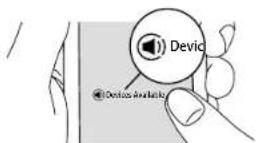
- Select this unit.
- This unit turns on automatically and the input selector changes to NET and streaming of Spotify starts.
- If "6. Hardware" - "Power Management" - "Network Standby" is set to "Off" in the Setup menu, manually turn the unit on and then press NET on the remote controller.
> Specifications > Advanced Setup > Listening Modes > Network Functions
> Basic Manual
Troubleshooting Supplementary Infor
AirPlay®
You can wirelessly enjoy the music files on an iPhone ^® , iPod touch ^® , or iPad ^® connected to the same access point as this unit.
- Update the OS version on your iOS device to the latest version.
- There may be some differences in the operations screens and how operations are performed on the iOS device depending on the iOS version. For details, see the operating instructions for the iOS device.
- Connect the iOS device to the access point.
- Press NET.
- Tap the AirPlay icon 🔒 in the play screen of the music app on the iOS device and select this unit from the list of devices displayed.
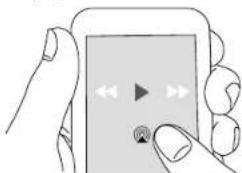
natural_image
Illustration of a hand holding a smartphone with a play button and sound icon (no text or symbols)-
Play the music files on the iOS device.
-
The default status is for the Network Standby feature to be on, so when you do steps 3 and 4 above, this unit automatically comes on and input switches to "NET". To reduce the amount of power consumed in standby mode, press the 🔒 button on the remote controller, then in the Setup menu displayed set "6. Hardware" - "Power Management" - "Network Standby" to "Off".
- Due to the characteristics of AirPlay wireless technology, the sound produced on this unit may slightly be behind the sound played on the AirPlay-enabled device.
You can also play the music files on a computer with iTunes (Ver. 10.2 or later). Before operation, make sure this unit and the PC are connected to the same network, then press NET on this unit. Next, click the AirPlay icon in iTunes, select this unit from the list of devices displayed, and start play of a music file.
> Specifications > Advanced Setup > Listening Modes > Network Functions
> Basic Manual
Troubleshooting Supplementary Infor
Music Server
Overview
Streaming play of music files stored on PCs or NAS devices connected to the same network as this unit is supported.
- The network servers this unit is compatible with are those PCs with players installed that have the server functionality of Windows Media ^11 Player 11 or 12, or NAS that are compatible with home network functionality. You may need to make some settings in advance to use Windows Media ^10 Player 11 or 12. Note that with PCs, only music files registered in the library of Windows Media ^11 Player can be played.
Configuring the Windows Media® Player
Windows MedPlayer 11
- Turn on your PC and start Windows Media ^4 Player 11.
- In the "Library" menu, select "Media Sharing" to display a dialog box.
- Select the "Share my media" check box, and then click "OK" to display the compatible devices.
- Select this unit, and then click "Allow".
- When it is clicked, the corresponding icon is checked.
- Click "OK" to close the dialog.
- Depending of the version of Windows Media Player, there may be differences in the names of items you can select.
Windows Medlayer 12
- Turn on your PC and start Windows Media ^1 Player 12.
- In the "Stream" menu, select "Turn on media streaming" to display a dialog box.
- If media streaming is already turned on, select "More streaming options..." in the "Stream" menu to list players in the network, and then go to step 4.
- Click "Turn on media streaming" to list players in the network.
- Select this unit in "Media streaming options" and check that it is set to "Allow".
- Click "OK" to close the dialog.
- Depending of the version of Windows Media ^4 Player, there may be differences in the names of items you can select.
Play
- Start the server (Windows Media® Player 11, Windows Media® Player 12, or NAS device) containing the music files to play.
- Make sure that the PCs and/or NASs are properly connected to the same network as this unit.
- Press NET on the remote controller to display the network service list screen.
- If the "NET" indicator flashes in the display, the unit is not properly connected to the network. Check the connection.
- With the cursors on the remote controller, select "Music Server", and then press Enter.
- Select the target server with the cursors on the remote controller and press Enter to display the items list screen.
- The unit cannot access pictures and videos stored on servers.
- Contents stored on the server may not be displayed depending on the server sharing settings.
- With the cursors on the remote controller, select the music file to play, and then press Enter to start playback.
- If "No Item." is displayed, check whether the network is properly connected.
• To return to the previous screen, press ↩. - For music files on a server, there can be up to 20,000 tracks per folder, and folders may be nested up to 16 levels deep.
- Depending on the media server, the unit may not recognize it, or may not be able to play its music files.
■ Searching for music files and selecting them
Perform the following procedure when servers that can be used as Music Servers are displayed.
- With the up and down cursors on the remote controller, select the server that has the music file you want to play
> Specifications > Advanced Setup > Listening Modes > Network Functions
> Basic Manual
Troubleshooting Supplementary Infor
and press Enter.
-
With the up and down cursors on the remote controller, select the Search folder and press Enter. There are the following 3 Search folders.
-
"Search by Artist": Select when searching by artist name.
- "Search by Album": Select when searching by album name.
-
"Search by Track": Select when searching by track name.
-
With the up and down cursors on the remote controller, select the folder and press Enter.
- Enter the text you want to find and press Enter to display the results of the search.
- With the up and down cursors on the remote controller, select the music file you want to play and press Enter.
Controlling Remote Playback from a PC
You can use this unit to play music files stored on your PC by operating the PC inside your home network. The unit supports remote playback with Windows Media® Player 12. To use the remote playback function with Windows Media® Player 12, it must be configured in advance.
Setting PC
- Turn on your PC and start Windows Media ^® Player 12.
- In the "Stream" menu, select "Turn on media streaming" to display a dialog box.
- If media streaming is already turned on, select "More streaming options..." in the "Stream" menu to list players in the network, and then go to step 4.
- Click "Turn on media streaming" to list players in the network.
- Select this unit in "Media streaming options" and check that it is set to "Allow".
- Click "OK" to close the dialog box.
- Open the "Stream" menu and check that "Allow remote control of my Player..." is checked.
- Depending of the version of Windows Media® Player, there may be differences in the names of items you can select.
■ Remote playback
- Turn on the power of the unit.
- Turn on your PC and start Windows Media ^® Player 12.
- Select and right-click the music file to play with Windows Media ^® Player 12.
- To remotely play a music file on another server, open the target server from "Other Libraries" and select the music file to play.
- Select this unit in "Play to" to open the "Play to" window of Windows Media® Player 12 and start playback on the unit.
- If your PC is running on Windows® 8.1, click "Play
to", and then select this unit. If your PC is running on Windows® 10, click "Cast to Device", and select this unit. Operations during remote playback are possible from the "Play to" window on the PC. The playback screen is displayed on the TV connected to the HDMI output of the unit.
-
Adjust the volume using the volume bar on the "Play to" window.
-
Sometimes, the volume displayed on the remote playback window may differ from that appeared on the display of the unit.
- When the volume is adjusted from the unit, the value is not reflected in the "Play to" window.
- This unit cannot play music files remotely in the following conditions.
It is using a network service. It is playing a music file on a USB storage device.
- Depending of the version of Windows Media® Player, there may be differences in the names of items you can select.
Specifications
Advanced Setup
Listening Modes
Network Functions
Basic Manual
|Troubleshooting Supplementary Infor
Supplementary information for player functions
Due to firmware (the software for the system) updates after you make your purchase or firmware changes during production of the product, there may be additions or changes to the features available compared to what is in the instruction manual.
For information about player functions that have been added or changed, see the following references. Refer to "Supplementary Information, etc." - "Supplementary Information" for information about changes to settings, etc., other than player functions.
- Some player features may have already been installed on your unit when you purchased it.
Supplementary information for player functions
Click here <<<
> Specifications > Advanced Setup > Listening Modes > Network Functions > Basic Manual
Troubleshooting Supplementary Infor
Troubleshooting
Before starting the procedure
Problems may be solved by simply turning the power on/off or disconnecting/connecting the power cord, which is easier than working on the connection, setting and operating procedure. Try the simple measures on both the unit and the connected device. If the problem is that the video or audio is not output or the HDMI linked operation does not work, disconnecting/connecting the HDMI cable may solve it. When reconnecting, be careful not to wind the HDMI cable since if wound the HDMI cable may not fit well. After reconnecting, turn off and on the unit and the connected device.
- This unit contains a microPC for signal processing and control functions. In very rare situations, severe interference, noise from an external source, or static electricity may cause it to lockup. In the unlikely event that this happens, unplug the power cord from the wall outlet, wait at least 2 minutes, and then plug it back in.
- Our company is not responsible for reparations for damages (such as CD rental fees) due to unsuccessful recordings caused by the unit's malfunction. Before you record important data, make sure that the material will be recorded correctly.
When the unit is operating erratically
■ Try restarting the unit
Restarting the unit may help it operate more smoothly. To restart the unit, turn it to standby, and then press On/Standby on the main unit for at least 5 seconds. (The unit's settings will be maintained.) If there is no improvement even after the unit is restarted, try disconnecting and reconnecting the power cords of the unit and connected equipment.
■ Resetting the unit (this resets the unit settings to the default)
If restarting the unit doesn't fix the problem, resetting the unit to the status at the time of shipment may solve the problem. If you reset the unit status, your preferences will be reset to the defaults. Note them down before the operation below.
- While pressing the CBL/SAT input selector button on the main unit, press ⏻On/Standby.
- "Clear" appears on the display and the unit returns to standby. Do not unplug the power cord until "Clear" disappears from the display.
To reset the remote controller, while holding down Mode, press ☐/☐ until the remote indicator flashes twice (3 seconds or more).
Power
■ Cannot turn on the unit
- Make sure that the power cord is properly plugged into the wall outlet.
- Unplug the power cord from the wall outlet, wait 2 minutes or more, then plug it in again.
■ The unit turns off unexpectedly
- The unit automatically switches to standby when the "Hardware" - "Power Management" - "Auto Standby" setting in the Setup menu functions.
- (Models with built-in amplifiers only) If you play at high volumes or allow input of excessive bass, the protection circuits in the amplifier can be tripped which may suddenly turn the unit off. Try the following if this occurs.
- Reduce the volume
- Select under 100 Hz for each of the speakers in "Speaker" - "Equalizer Settings" in the Setup menu, and reduce the volume compared to the current setting.
- In "Speaker" - "Crossover" in the Setup menu, set "Front" to the crossover frequency value other than "Full Band"
- (Models with built-in amplifiers only) If the power turns off and indicators on the front panel continually blink, or the following error messages appear on the display, there may have been a malfunction with the amplifier or the protection circuit may have tripped.
- If "CHECK SP WIRE" is displayed
The wires in the speaker cables may have touch the rear panel or other wires. Twist the wires again properly and make sure they do not stick out of the speaker terminals when connecting.
- If "FAN STOP" is displayed:
The internal cooling fan has malfunctioned. Unplug the power cord from the wall outlet immediately and contact the dealer or our company's support.
- If "AMP OVERHEAT" is displayed:
The temperature inside the unit has exceeded the admissible value. Make sure the unit has plenty of space for ventilation around it, wait for the unit to cool down sufficiently, and then try turning it on
> Specifications > Advanced Setup > Listening Modes > Network Functions > Basic Manual
Troubleshooting Supplementary Infor
again.
- If "AMP ERR" is displayed: It is possible that the amplifier circuits in the unit have malfunctioned. Wait for at least a minute and then turn the unit on again.
If the same symptoms such as being unable to turn the unit on happen repeatedly, unplug the power cord from the wall outlet immediately and contact the dealer or our company's support.
WARNING: If smoke, smell or abnormal noise is produced by the unit, unplug the power cord from the wall outlet immediately and contact the dealer or our company's support.
Audio
• Make sure that the speaker setup microphone is not still connected.
- Confirm that the connection between the output jack on the device and the input jack on this unit is correct.
- Make sure that none of the connecting cables are bent, twisted, or damaged.
- If the MUTE indicator on the display flashes, press ☑ on the remote controller to cancel muting.
- While headphones are connected to the Phones jack, no sound is output from the speakers.
- When "Source" - "Audio Select" - "PCM Fixed Mode" in the Setup menu is set to "On", no sound is played when signals other than PCM are input. Change the setting to Off.
Check the following if the above does not fix the problem:
■ There is no sound from the TV
- If your TV supports ARC, set "Hardware" - "HDMI" - "HDMI CEC" in Setup menu to "On" to enable ARC on this unit.
- If the TV doesn't support the ARC function, along with connection by HDMI, connect the TV and this unit using a digital optical cable, digital coaxial cable, or analog audio cable.
- Change the input selector on this unit to the position of the terminal to which the TV is connected.
■ No sound from a connected player
- Change the input selector on this unit to the position of the terminal to which the player is connected.
- Check the digital audio output setting on the connected component. On some game consoles, such as those that support DVD, the default setting is off.
- With some DVD-Video discs, you need to select an audio output format from a menu.
■ A speaker produces no sound
- Make sure that the polarity of the speaker cables (+/-) is correct, and that no bare wires are in contact with the metal part of speaker terminals.
-
Make sure that the speaker cables are not shorting.
-
Check in "Connect the Speakers" in the Basic Manual that the speaker connections have been made correctly. Settings for the speaker connection environment need to be made in "AccuEQ Room Calibration" in Initial Setup. Check in "Initial Setup" in the Basic Manual.
- Depending on the source and current listening mode, not much sound may be produced. Select another listening mode to see if sound is output.
- If you are installing surround back speakers (for compatible models only), surround speakers are required.
■ The subwoofer produces no sound
If the setting of the front speakers is "Full Band" and during 2ch input such as from the TV or music, the low range elements will be output from the front speakers rather than from the subwoofer. If you would rather output from the subwoofer, make one of the following settings.
- Change the front speakers settings to a setting other than "Full Band" for the crossover frequency value. The range below the frequency you specify will be output from the subwoofer rather than the front speakers. We do not recommend changing this if your front speakers have good low range reproduction capabilities.
- Change "Double Bass" to "On". The low range elements will be output from both the front speakers and the subwoofer. This may mean that there is too much bass. Do not change if this happens, or choose option 1.
- Refer to "Setup Menu" - "2. Speaker" - "Crossover" in the Advanced Manual for details.
- When you play source material that contains no information in the LFE channel, the subwoofer produces no sound.
■ Noise can be heard
- Using cable ties to bundle analog audio cables, power cords, speaker cables, etc. may degrade the audio performance. Do not bundle cords.
- An audio cable may be picking up interference. Try repositioning your cables.
■ The beginning of audio received by an HDMI IN
> Specifications > Advanced Setup > Listening Modes > Network Functions > Basic Manual
Troubleshooting Supplementary Infor
cannot be heard
- Since it takes longer to identify the format of an HDMI signal than it does for other digital audio signals, audio output may not start immediately.
Listening Modes
- To enjoy digital surround playback, such as Dolby Digital, the audio signals need to pass through a connection via HDMI cable, digital coaxial cable, or digital optical cable. Audio output should be set to bitstream output on the connected Blu-ray Disc player or other device.
- Press i on the remote controller several times to switch the display of the main unit to check the input format.
Check the following if the above does not fix the problem:
■ Cannot select a desired listening mode
- Depending on the connecting status of the speaker, some listening modes may not be selected. Check in "Selectable Listening Modes" in "Listening Modes" in the Advanced Manual.
■ There is no sound with Dolby TrueHD, Dolby Atmos, and DTS-HD Master Audio (for compatible models only)
- You need to connect surround back speakers or height speakers to enjoy Dolby Atmos. Furthermore, Dolby Atmos can only be enjoyed when the input signals are Dolby Atmos.
- If you cannot output formats such as Dolby TrueHD, Dolby Atmos, or DTS-HD Master Audio according to the format of the source, in the Blu-ray Disc player settings try setting "BD video supplementary sound" (or re-encode, secondary sound, video additional audio, etc.) to "Off". Change the listening mode for each source after changing the setting to confirm.
■ About DTS signals
- With media that switches suddenly from DTS to PCM, PCM playback may not start immediately. In such cases, you should stop your player for about 3 seconds and then resume playback.
- With some CD and LD players, you will not be able to playback DTS material properly even though your player is connected to a digital input on the unit. This is usually because the DTS bitstream has been processed
(e.g., output level, sampling rate, or frequency response changed) and the unit does not recognize it as a genuine DTS signal. In such cases, you may hear noise.
- Playing DTS program material, using the pause or skip function on your player may produce a short audible noise. This is not a malfunction.
> Specifications > Advanced Setup > Listening Modes > Network Functions > Basic Manual
Troubleshooting Supplementary Infor
Video
- Confirm that the connection between the output jack on the device and the input jack on this unit is correct.
- Make sure that none of the connecting cables are bent, twisted, or damaged.
- When the TV image is blurry or unclear, power code or connection cables of the unit may have interfered. In that case, keep distance between TV antenna cable and cables of the unit.
- Make sure the switching of input screens is proper at the monitor side such as a TV.
Check the following if the above does not fix the problem:
There is no video
Change the input selector on this unit to the position of the terminal to which the player is connected.
■ There is no picture from a source connected to an HDMI IN terminal.
- To display video from the connected player on the TV while the unit is in standby, you need to enable "Hardware" - "HDMI" - "HDMI Standby Through" in the Setup menu. Refer to "Setup Menu" - "6. Hardware"
- "■ 1. HDMI" in "Advanced Setup" in the Advanced Manual for information about HDMI Standby Through.
- To output video to a TV connected to the HDMI OUT SUB jack (for compatible models only), in the "Quick Menu" displayed when Q is pressed on the remote controller, select the HDMI OUT jack for output in "Other" - "HDMI Out".
- If you connect a player supporting HDCP2.2, be sure to connect it to one of the HDMI IN1 to IN5 jacks of the unit.
- Check if "Resolution Error" is displayed on the main unit display when video input via HDMI IN jack is not displayed. In this case, the TV does not support the resolution of the video input from the player. Change the setting on the player.
- Reliable operation with an HDMI-DVI adapter is not guaranteed. In addition, video signals from a PC are not supported.
Images flicker
- It is possible that the resolution of the player is not compatible with the TV's resolution. If you have connected the player to this unit with an HDMI cable, try changing the output resolution on the player. There also may be an improvement if you change the screen mode on the TV.
■ Video and audio are out of synch
- Video may be delayed relative to audio depending on the settings and connections with your television. To adjust, press Q on the remote controller, and adjust in "Other" - "A/V Sync" in the "Quick Menu".
Linked operation
■ There is no linked operation with CEC compliant devices, such as a TV.
- In the Setup menu of the unit, set "Hardware" - "HDMI" - "HDMI CEC" to "On".
- It is also necessary to set HDMI linking on the CEC compliant device. Check the instruction manual.
Tuner
■ Radio reception is poor or there is a lot of noise.
- Re-check the antenna connection.
- Move the unit away from your TV or PC.
- Passing cars and airplanes can cause interference.
• Concrete walls weaken radio signals.
- Listen to the station in mono.
- When listening to an AM station, operating the remote controller may cause noise.
- (Models with built-in amplifiers only) You can improve reception sensitivity by changing the setting in "Miscellaneous" - "Tuner" - "AM Noise Cut Mode" in the Setup menu if you are finding AM broadcasts difficult to hear.
- FM reception may become clearer if you use the antenna jack on the wall used for the TV.
- Re-check the antenna connection. - Relocate your antenna. - Move the unit away from your TV or PC. - Passing cars and airplanes can cause interference. - Concrete walls weaken radio signals. - Listen to the station in mono. - When listening to an AM station, operating the remote controller may cause noise. - (Models with built-in amplifiers only) You can improve reception sensitivity by changing the setting in "Miscellaneous" - "Tuner" - "AM Noise Cut Mode" in the Setup menu if you are finding AM broadcasts difficult to hear. - FM reception may become clearer if you use the antenna jack on the wall used for the TV.
> Specifications > Advanced Setup > Listening Modes > Network Functions > Basic Manual
Troubleshooting Supplementary Infor
BLUETOOTH function (for compatible models only)
- Try plugging/unplugging the power of the unit and try turning on/off the BLUETOOTH wireless technology enabled device. Re-startup of the BLUETOOTH wireless technology enabled device may be effective.
- The BLUETOOTH wireless technology enabled devices must support the A2DP profile.
- Near components such as microwave oven or cordless phone, which use the radio wave in the 2.4 GHz range, a radio wave interference may occur, which disables the use of this unit.
- If there is a metallic object near the unit, BLUETOOTH connection may not be possible as the metal can effect on the radio waves.
Check the following if the above does not fix the problem:
■ Cannot connect with this unit
- Check that the BLUETOOTH function of the BLUETOOTH wireless technology enabled device is enabled.
■ Music playback is unavailable on the unit even after successful BLUETOOTH connection
- When the audio volume of your BLUETOOTH wireless technology enabled device is set low, the playback of audio may be unavailable. Volume up the BLUETOOTH wireless technology enabled device.
- Depending on the BLUETOOTH wireless technology enabled device, Send/Receive selector switch may be provided. Select Send mode.
- Depending on the characteristics or specifications of your BLUETOOTH wireless technology enabled device, playback on the unit is not guaranteed.
■ Sound is interrupted
- Problem may be occurring at the BLUETOOTH wireless technology enabled device. Check the information on the internet.
■ The audio quality is poor after connection with a BLUETOOTH wireless technology enabled device
• The BLUETOOTH reception is poor. Move the
BLUETOOTH wireless technology enabled device closer to the unit or remove any obstacle between the BLUETOOTH wireless technology enabled device and this unit.
Network function
- If you cannot select a network service, it will become selectable when the network function is started. It may take about a minute to start up.
- When NET is blinking, this unit is not properly connected to the home network.
- Try plugging/unplugging the power supply of this unit and the router, and try rebooting the router.
- If the desired wireless LAN router is not in the access point list, it may be set to hide SSID or the ANY connection may be off. Change the setting and try again. (for compatible models only)
Check the following if the above does not fix the problem:
■ Cannot access the Internet radio
- Certain network service or contents available through the unit may not be accessible in case the service provider terminates its service.
- Make sure that your modem and router are properly connected, and make sure they are both turned on.
- Make sure that the LAN side port on the router is properly connected to this unit.
- Make sure that connecting to Internet from other components is possible. If connecting is not possible, turn off all components connected to the network, wait for a while, and then turn on the components again.
- If a specific radio station is unavailable for listening, make sure the registered URL is correct, or whether the format distributed from the radio station is supported by this unit.
- Depending on ISP, setting the proxy server is necessary.
• Make sure that the used router and/or modem is supported by your ISP.
■ Cannot access the network server
- This unit needs to be connected to the same router as the network server.
- This unit is compatible with Windows Media® Player 11 or 12 network servers or NAS that are compatible with home network functionality.
- You may need to make some settings on Windows Media® Player. Check in "Music Server" in "Network
> Specifications > Advanced Setup > Listening Modes > Network Functions > Basic Manual
Troubleshooting Supplementary Infor
Functions" in the Advanced Manual.
- When using a PC, only music files registered in the Windows Media® Player library can be played.
■ Playback stops while listening to music files on the network server - Make sure the network server is compatible with this unit.
- When the PC is serving as the network server, try quitting any application software other than the server software (Windows Media® Player 12, etc.).
- If the PC is downloading or copying large files, the playback may be interrupted.
USB storage device
■ USB storage device is not displayed
- Check whether the USB storage device or USB cable is correctly inserted to the USB port of the unit.
- Disconnect the USB storage device from the unit, and then try reconnecting.
• Performance of the hard disk that receive power from the USB port of the unit is not guaranteed. - Depending on the type of format, the playback may not be performed normally. Check the type of the file formats that is supported.
- USB storage devices with security functions may not be played.
Wireless LAN Network (for compatible models only)
- Try plugging/unplugging the power supply of wireless LAN router and the unit, check the wireless LAN router power-on status, and try reboot of the wireless LAN router.
Check the following if the above does not fix the problem:
■ Cannot access wireless LAN network
- The wireless LAN router setting may be switched to Manual. Return the setting to Auto.
- Try the manual set-up. The connection may succeed.
- When the wireless LAN router setting is at stealth mode (mode to hide the SSID key) or when ANY connection is off, the SSID is not displayed. Change the setting and try again.
- Check that the setting of SSID and encryption (WEP, etc.) is correct. Make sure the network settings of the unit is properly set.
- Connection to an SSID that includes multi-byte characters is not supported. Name the SSID of the wireless LAN router using single-byte alphanumeric characters only and try again.
■ Connected to an SSID different to the SSID selected
- Some wireless LAN routers allow you to set multiple SSIDs for one unit. If you use the automatic setting button on such a router, you may end up connecting with a different SSID from the SSID you wanted to connect to. Use the connection method requiring you to enter a password if this happens.
■ Playback is interrupted and communication does not work
- You may not receive radio waves due to bad radio wave conditions. Shorten the distance from the wireless LAN access point or remove obstacles to improve visibility, and try again. Place the unit away from microwave ovens or other access points. It is recommended to place the wireless LAN router (access point) and the unit in the same room.
• If there is a metallic object near the unit, wireless LAN
connection may not be possible as the metal can effect on the radio wave.
- When other wireless LAN devices are used near the unit, several issues such as interrupted playback and communication may occur. You can avoid these issues by changing the channel of your wireless LAN router. For instructions on changing channels, see the instruction manual provided with your wireless LAN router.
- There may not be enough bandwidth available in wireless LAN. Connect using an Ethernet cable.
Multi-zone function (for compatible models only)
■ Cannot ZONE output audio of external AV component
- Depending on the model, input by HDMI cable may not be supported. Check in "Multi-zone Connection" in the Basic Manual, and if input by HDMI cable is not supported, connect using a cable that is supported.
- The audio from externally connected AV components can only be output when the audio is analog or 2ch PCM audio signals. If you have connected the AV component to this unit with a digital optical/coaxial cable, the audio output of the AV component needs to be set to PCM.
Others
- Settings are required in Initial Setup, "Multi Zone Setup" to use the multi-zone feature. Check in "Initial Setup" in the Basic Manual.
- If the audio signal is from the NET input selector, zone output is not possible for DSD and Dolby TrueHD audio signals.
Remote Controller
- Make sure that the batteries are installed with the correct polarity.
• Install new batteries. Do not mix different types of batteries, or old and new batteries.
• Make sure that the unit is not subjected to direct
> Specifications > Advanced Setup > Listening Modes > Network Functions > Basic Manual
Troubleshooting Supplementary Infor
sunshine or inverter-type fluorescent lights. Relocate if necessary.
- If the unit is installed in a rack or cabinet with colored-glass doors or if the doors are closed, the remote controller may not work reliably.
- After operating the Multi-zone function (for compatible models only), the remote controller may have switched to the mode for operating ZONE output audio. Check "Multi-zone" in "Playback" in the Basic Manual to switch the remote controller back to the mode for operating in the main room.
Display
■ The display doesn't light
- The display may go dim while the Dimmer is working, and may also turn off (for compatible models only). Press Dimmer button and change the brightness level of the display.
Others
■ Strange noises can be heard from the unit
- If you have connected another unit to the same wall outlet as this unit, this noise may be an effect from the other unit. If the symptoms improve by unplugging the power cord of the other unit, use different wall outlets for this unit and the other unit.
■ When performing AccuEQ Room Calibration, the message "Noise Error" appears
- This can be caused by a malfunction in your speaker unit. Check if the speakers produce normal sounds.
■ The results of AccuEQ Room Calibration give a different distance to the speakers than the actual distance
- There may be some discrepancies in the results depending on the speakers you are using. If this is the case, make the settings in "2. Speaker" - "Distance" in the Setup menu.
Information about products with Wi-Fi/BLUETOOTH features (for compatible models only)
■ Radio Wave Caution
Products with Wi-Fi/BLUETOOTH use radio waves in the 2.4 GHz and 5 GHz frequency bands.
There are nations and regions where the use of particular 5 GHz bands are prohibited outdoors, so do not use these products outside.
2.4 GHz radio waves are used by a variety of devices, as shown in lists 1 and 2 below.
- Devices which use a 2.4 GHz radio wave frequency
- Cordless phones
- Cordless facsimiles
- Microwave ovens
• Wireless LAN devices (IEEE802.11b/g/n)
- Wireless AV equipment
- Wireless controllers for game systems
• Microwave oven-based health aids
• Video transmitter
• Specific type of external monitor and LCD display
-
Less common devices which use a 2.4 GHz radio wave frequency
-
Anti-theft systems
• Amateur radio stations (HAM)
• Warehouse logistic management systems
• Discrimination systems for train or emergency vehicles
If these devices and the AV receiver are used at the same time, the audio may be undesirably stopped or disturbed due to a radio wave interference.
Suggestions for improvement
- Switch off the devices which emit the radio wave.
-
Place the interfering devices away from the AV receiver.
-
The AV receiver uses radio wave, and a third person can receive the wave on purpose or accidentally. Do not use the communication for important or fatal matters.
• We assume no responsibility whatsoever for any error or damage of network environment or access device
resulting from the use of this apparatus.
Confirm with the provider or access device maker for more information.
■ Scope of Operation
Use of the AV receiver is limited to home use. (Transmission distances may be reduced depending on communication environment.) In the following locations, poor condition or inability to receive radio waves may cause the audio to be interrupted or stopped:
- In reinforced concrete buildings or steel framed or iron framed buildings.
• Near large metallic furniture.
• In a crowd of people or near a building or obstacle. - In a location exposed to the magnetic field, static electricity or radio wave interference from radio communication equipment using the same frequency band (2.4 GHz) as the AV receiver, such as a 2.4 GHz wireless LAN device (IEEE802.11b/g/n) or microwave oven.
- If you live in a heavily populated residential area (apartment, townhouse, etc.) and if your neighbor's microwave oven is placed near your AV receiver, you may experience radio wave interference. If this occurs, move your AV receiver to a different place. When the microwave oven is not in use, there will be no radio wave interference.
■ Radio Wave Reflections
The radio waves received by the AV receiver include the radio wave coming directly from the devices and waves coming from various directions due to reflections by walls, furniture and building (reflected waves). The reflected waves (due to obstacles and reflecting objects) further produce a variety of reflected waves as well as variation in reception condition depending on locations. If the audio cannot be received properly due to this phenomenon, try moving the location of the wireless LAN device a little. Also note that audio may be interrupted due to the
> Specifications > Advanced Setup > Listening Modes > Network Functions > Basic Manual
Troubleshooting Supplementary Infor
reflected waves when a person crosses or approaches the space between the AV receiver and the wireless LAN device.
- We assume no responsibility whatsoever for any damages resulting from the use of this apparatus except in the cases deemed acceptable under the applicable laws and regulations.
- Operation in all environment is not guaranteed for wireless LAN. The communication may not be possible or have desirable communication speed.
■ Precautions
- Do not use this apparatus near an electronic device handling high-accuracy controls or weak signals. Doing so may cause an accident due to a malfunction of the device.
- Do not use this apparatus in use prohibited location such as an aircraft equipment or a hospital. Doing so may cause an accident due to a malfunction of an electronic device or an electro-medical apparatus. Follow the instructions of the medical facilities.
Electronic device which requires cautions
Hearing aid, pace maker, other medical electronic devices, fire alarm, automatic door, and other automatic control device.
When using a pace maker or other medical electronic devices, confirm with the medical electronic device maker or dealer for the effect of the radio wave.
Specifications > Advanced Setup > Listening Modes > Network Functions > Basic Manual
|Troubleshooting Supplementary Infor
Supplementary Information
Due to firmware (the software for the system) updates after you make your purchase or firmware changes during production of the product, there may be additions or changes to the settings and operation available compared to what is in the instruction manual.
For information about the settings and operations that have been added or changed, see the following references. Refer to "Network Functions" - "Supplementary information for player functions" for information about changes to player functions.
Supplementary Information
Click here <<<

> Specifications > Advanced Setup > Listening Modes > Network Functions > Basic Manual
|Troubleshooting Supplementary Infor
License and Trademark
DOLBY ATMOS
DOLBY VISION COMPATIBLE
Manufactured under license from Dolby Laboratories. Dolby, Dolby Atmos, Dolby Surround, Dolby Vision and the double-D symbol are trademarks of Dolby Laboratories.

For DTS patents, see http://patents.dts.com. Manufactured under license from DTS, Inc. DTS, the Symbol, DTS in combination with the Symbol, DTS:X, and the DTS:X logo are registered trademarks or trademarks of DTS, Inc. in the United States and/or other countries. © DTS, Inc. All Rights Reserved.
HDMI®
The terms HDMI and HDMI High-Definition Multimedia Interface, and the HDMI Logo are trademarks or registered trademarks of HDMI Licensing LLC in the United States and other countries.


AirPlay, iPad, iPhone, iPod, iPod classic, iPod nano and iPod touch are trademarks of Apple Inc., registered in the U.S. and other countries.
iPad Air and iPad mini are trademarks of Apple Inc.
"Made for iPod", "Made for iPhone" and "Made for iPad" mean that an electronic accessory has been designed to connect specifically to iPod, iPhone, or iPad, respectively, and has been certified by the developer to meet Apple performance standards. Apple is not responsible for the operation of this device or its compliance with safety and regulatory standards.
Please note that the use of this accessory with iPod, iPhone or iPad may affect wireless performance.
AirPlay works with iPhone, iPad, and iPod touch with iOS 4.3.3 or later, Mac with OS X Mountain Lion or later, and PC with iTunes 10.2.2 or later.
pandora®
PANDORA, the PANDORA logo, and the Pandora trade dress are trademarks or registered trademarks of Pandora Media, Inc. Used with permission.
CHDBT™
HDBaseT™ and the HDBaseT Alliance logo are trademarks of the HDBaseT Alliance.
The Spotify software is subject to third party licenses found here:
https://developer.spotify.com/esdk-third-party-licenses/
This product is protected by certain intellectual property rights of Microsoft. Use or distribution of such technology outside of this product is prohibited without a license from Microsoft.
Windows 7, Windows Media, and the Windows logo are trademarks or registered trademarks of Microsoft Corporation in the United States and/or other countries.
"x.v.Color" and "x.v.Color" logo are trademarks of Sony Corporation.
DSD and the Direct Stream Digital logo are trademarks of Sony Corporation.

Theater-Dimensional
"Theater-Dimensional" and "Theater-Dimensional (logo)"
are trademarks of Onkyo Corporation.
DRX-7.1, DRX-R1.1
CERTIFIED BY THX
THX and the THX logo are trademarks of THX Ltd., registered in the U.S. and other countries. THX CERTIFIED SELECT and the THX SELECT application icon are trademarks of THX Ltd.
THX Select
Before any home theater component can be THX Select certified, it must pass a rigorous series of quality and performance tests. Only then can a product feature the THX Select logo, which is your guarantee that the Home Theater products you purchase will give you superb performance for many years to come. THX Select requirements define hundreds of parameters, including power amplifier performance, and integrated amplifier performance and operation for both digital and analog domains. THX Select receivers also feature proprietary THX technologies (e.g., THX Mode) which accurately translate movie soundtracks for home theater playback.
Re-Equalization and the "Re-EQ" logo are trademarks of THX Ltd.
> Specifications > Advanced Setup > Listening Modes > Network Functions > Basic Manual
|Troubleshooting Supplementary Infor
DRC-R1.1
THX and the THX logo are trademarks of THX Ltd., registered in the U.S. and other countries. THX CERTIFIED ULTRA and the THX ULTRA application icon are trademarks of THX Ltd.
THX Ultra
Before any home theater component can be THX Ultra certified, it must pass a rigorous series of quality and performance tests. Only then can a product feature the THX Ultra logo, which is your guarantee that the Home Theater products you purchase will give you superb performance for many years to come. THX Ultra requirements define hundreds of parameters, including power amplifier performance, and integrated amplifier performance and operation for both digital and analog domains. THX Ultra receivers also feature proprietary THX
technologies (e.g., THX Mode) which accurately translate movie soundtracks for home theater playback.
Re-Equalization and the "Re-EQ" logo are trademarks of THX Ltd.
All other trademarks are the property of their respective owners. / Toutes les autres marques commerciales sont la propriété de leurs détenteurs respectifs. / El resto de marcas comerciales son propiedad de sus respectivos propietarios. / Tutti gli altri marchi di fabbrica sono di proprietà dei rispettivi proprietari. / Alle anderen Warenzeichen sind das Eigentum ihrer jeweiligen Eigentümer. / Alle andere handelsmerken zijn eigendom van de desbetreffende rechthebbenden. / Alla andra varumärken tillhör deras respektive ägare. / Kaikki muut tuotemerkit ovat omistajiensa omaisuutta. / 所有其他商標為各自所有者所有。
Integra®
1-10-5 Yokoami, Sumida-ku, Tokyo 130-0015 Japan http://www.integraworldwide.com
SN 29403099PDF_EN (C) Copyright 2017 Onkyo & Pioneer Corporation Japan. All rights reserved. Onkyo group has established its Privacy Policy, available at [http://www.onkyo.com/privacy/].
F1711-0