
TU-DSB30 - Receiver PANASONIC - Free user manual and instructions
Find the device manual for free TU-DSB30 PANASONIC in PDF.


| Product Type | Satellite Receiver |
| Brand | Panasonic |
| Model | TU-DSB30 |
| Dimensions (W x H x D) | 360 x 60 x 240 mm |
| Weight | 2.5 kg |
| Power Supply | AC 220-240V, 50Hz |
| Power Consumption | 25 W (max) |
| Tuner Type | DVB-S / DVB-S2 |
| Video Output | HDMI, SCART, Composite (RCA) |
| Audio Output | Stereo RCA, S/PDIF Optical |
| USB Port | 1 x USB 2.0 (front) |
| Remote Control | Included (IR) |
| Display | LED front panel |
| DiSEqC | 1.0, 1.1, 1.2, USALS |
| LNB Control | 13/18V, 22kHz |
| Channel Storage | Up to 4000 channels |
| EPG | 7-day electronic program guide |
| Parental Control | Yes (PIN protected) |
| Timer Functions | Sleep timer, event timer |
| Firmware Update | Via satellite or USB |
| Accessories Included | Remote control, batteries, AV cable, manual |
| Languages | Multilingual menu (English, French, German, etc.) |
| Safety Certifications | CE, RoHS |
Frequently Asked Questions - TU-DSB30 PANASONIC
User questions about TU-DSB30 PANASONIC
0 question about this device. Answer the ones you know or ask your own.
Ask a new question about this device
Download the instructions for your Receiver in PDF format for free! Find your manual TU-DSB30 - PANASONIC and take your electronic device back in hand. On this page are published all the documents necessary for the use of your device. TU-DSB30 by PANASONIC.
USER MANUAL TU-DSB30 PANASONIC
Digital Satellite Receiver
Using your Sky digibox
skydigibox
Please read these instructions completely before use and retain them for future reference.
TQB8EN06

Contents
Welcome to digital satellite TV!....1
Getting started 3
Your Sky remote control.... 3
Turning your Sky digibox on and off....4
Changing channels....5
Changing the volume 6
Using teletext....7
Using your SkyGuide 8
What is SkyGuide? 8
Your SkyGuide and your Sky remote control....9
Using the Search & Scan banner.... 10
TV Guide 11
Finding a programme 12
Box Office....15
Services....17
Favourite Channel....18
Parental Control and your PIN 20
Viewing Restrictions....22
Spending Limit....23
Changing your PIN 24
Interactive....25
Extra information 26
Recording a satellite programme 26
Setting your remote control to operate your TV 27
Replacing the batteries in your remote control 29
Adding Other Channels 30
Looking after your Sky Viewing Card.... 32
Connecting your Sky digibox 33
System setup.... 35
Further help....37
Solving problems....38
Remote control setup codes....42
Specifications....43
Index 44
▼ Welcome to digital satellite TV!
▼ About this booklet
This information booklet contains all you need to know to use your new Sky digibox.

Look out for this symbol. It indicates useful and important tips.
▼ What is digital satellite TV?
Digital satellite TV is the latest stage in the evolution of TV, giving you not only crystal clear pictures and digital quality stereo sound, but also the opportunity to receive many more channels and services.
▼ Your Sky digibox
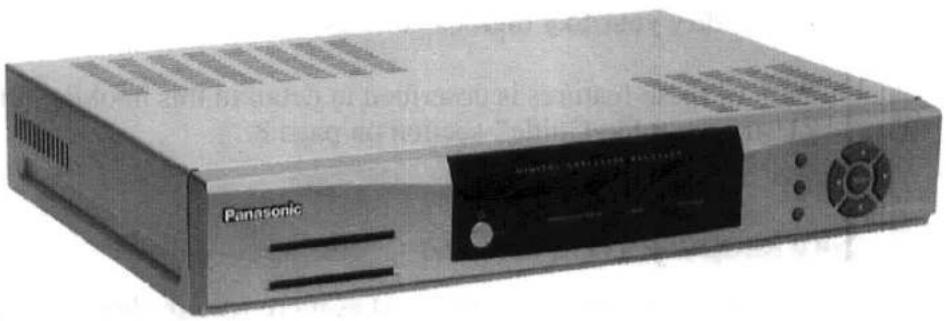
natural_image
Exterior view of a Panasonic electronic device (no visible text or symbols on body)Your Sky digibox receives the digital information via the satellite, decodes it and sends it through to your TV. As well as watching satellite TV, you can also see the useful on-screen SkyGuide.
Your Sky digibox comes with the Sky remote control. This controls both your TV and your Sky digibox. For more information see the "Your Sky remote control" section on page 3.
▼ What is SkyGuide?
SkyGuide is a helpful and easy to use on-screen guide to your digital satellite services. It is designed for people who want to get the most out of watching television.
SkyGuide allows you to:
◆ see on-screen TV programme listings for up to two days.
◆ see TV listings while you are watching a programme.
◆ set up and see your favourite channels
♦ order Box Office movies, sports and events
◆ use an ever increasing range of interactive services
◆ set parental control restrictions and programme purchase price limits.
♦ modify your Sky digibox settings.
Each of these features is described in detail in this booklet, refer to the "Using your SkyGuide" section on page 8.
Sky keeps you up-to-date
As digital television develops and as more features become available, Sky may occasionally update the SkyGuide software by loading it into your Sky digibox directly from the satellite. We will give you information on these additions and new features as they are added.
▼ Getting started
This section gives you the information you need to start watching digital satellite TV.
For more detailed information about your Sky digibox, use the Contents or Index to find the relevant section of this booklet.

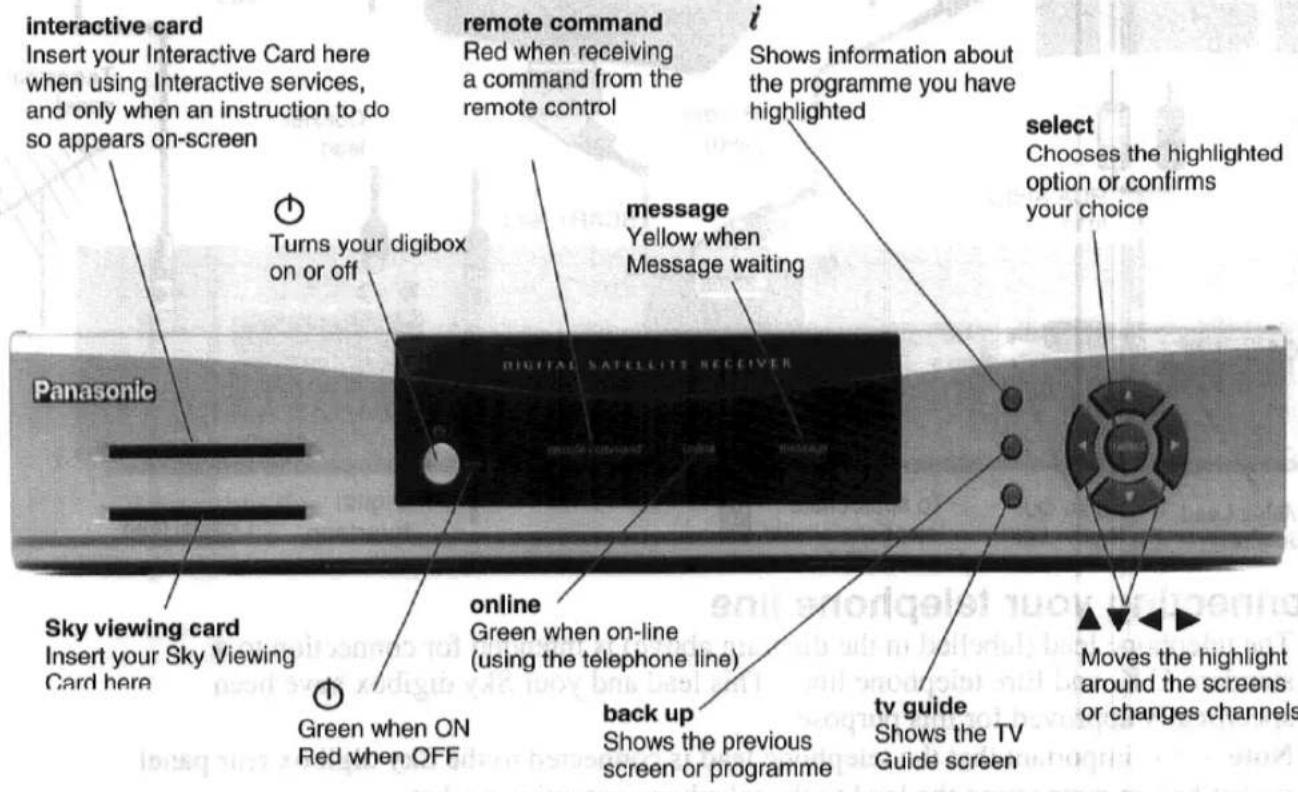
Before starting, make sure your Sky Viewing Card is inserted the right way up in the slot marked Sky Viewing Card on the front of your Sky digibox. If you do not have a Sky Viewing Card, call your broadcaster's helpdesk. For your broadcaster's helpdesk number, select the Telephone Numbers option from Services screen.

So that you can watch all the channels and services you want, you must leave your Sky Viewing Card in your Sky digibox at all times.
▼ Your Sky remote control
Your Sky remote control can operate your TV as well as your Sky digibox. To use your Sky remote control to operate your Sky digibox, press SKY.

To use your Sky remote control to operate your Sky digibox, press SKY.

To use your Sky remote control to operate your TV, press tv.

For details of the functions of the Sky remote control buttons, refer to the fold-out section of this booklet.

Your Sky remote control will always operate your Sky digibox. If your Sky remote control does not also operate your TV, refer to the "Setting your remote control to operate your TV" section on page 24.
▼ Turning your Sky digibox on and off

To turn your Sky digibox on, press SKY on your Sky remote control.
Make sure the on/off light on the front of your Sky digibox is green – this shows your Sky digibox is on.
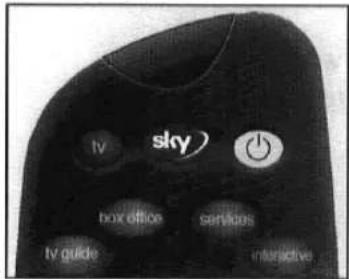
To turn your Sky digibox off, press the on/off button on your remote control.
The on/off light is red when your Sky digibox is off, but still plugged into the mains. It is not necessary to unplug your Sky digibox from the mains.
Your Sky remote control can also turn your TV on or off – press tv and then the on/off button.
▼ Changing channels
Using the ch button

Press ch + or - on your Sky remote control to change channels up or down, one at a time.
Using the channel number
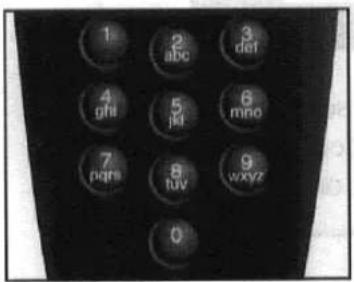
If you know the channel number, you can use the number buttons to key it in. Channel numbers are always three digits, for example 106.

Each time you change channel, the Search & Scan banner appears on-screen.

The banner will disappear automatically after a few seconds, or you can press back up to remove it immediately. For more details about this banner, refer to the “Using your SkyGuide” section on page 8.
▼ Changing the volume

Press vol + or - on your Sky remote control to increase or decrease the volume of your TV.
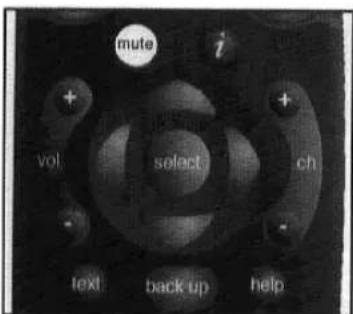
Press mute to turn the TV sound off. To turn the TV sound back on, press mute again.
▼ Using teletext
If your television has teletext features, press TV and then text on your Sky remote control to use teletext services.
Use the number buttons to choose the page you require. The table below shows what Sky remote control buttons to use for teletext functions.
| Button | Function |
| text | Enters text mode |
| back up | Exits text mode(On some TV models, you need to press text again, instead of back up) |
| 0-9 | Text page number entry |
| i | Text reveal |
| select | Text hold |
| colours | Fastext functions |
To return to satellite services, press back up, then press SKY.

To use teletext via your Sky remote control, your remote control must be set to work with your TV. For further information, refer to the “Setting your remote control to operate your TV” section on page 27.

Using your SkyGuide
▼ What is SkyGuide?
SkyGuide is a helpful and easy to use on-screen guide to your digital satellite services.
All SkyGuide features can be controlled using your Sky remote control. There are four major parts; each of these has a separate button on your remote control. The four parts are:

TV Guide
Shows on-screen listings for channels and programmes.

Box Office
Allows you to order specific movies, sports and events that you choose to purchase.

Services
Allows you to set Parental Controls and your Favourite Channels, and see useful customer information.
Interactive
Gives access to a range of interactive services.
▼ Your SkyGuide and your Sky remote control
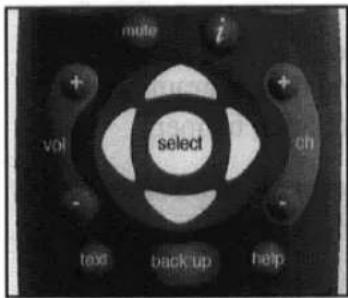
Your SkyGuide and Sky remote control are designed to work together. Whatever part of the SkyGuide is on your screen, use the arrows to move the highlight around, then press select to choose the option you want.
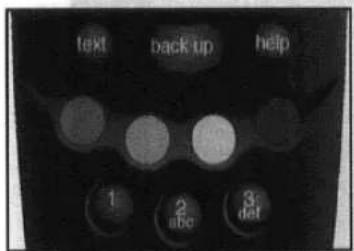
You can use the colour buttons on many of the SkyGuide screens. The function of the colour buttons is shown on the screen. Press the button of the same colour to choose that option or function.

You can also use the number buttons as shortcuts. Whenever a list of numbered options is shown, you can press the appropriate number button to choose an option quickly.
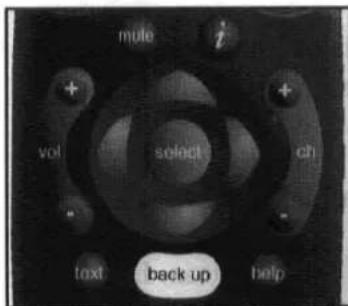
If you go to a screen you don't want, press back up to return to the previous SkyGuide screen.

To see information about the programme you are watching, press this button. If you are using TV Guide or Box Office, you can use this button to see information about the highlighted programme.

Press SKY to return to the channel you were watching.
Using the Search & Scan banner
When you are watching a satellite channel and want to find out what else is on, either now or later, without interrupting the programme you are watching, press select to display the Search & Scan banner.

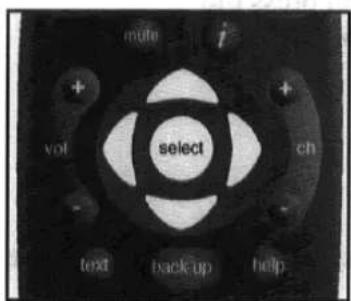
Use the left and right arrows to see what programmes are on at different times on the current channel.
Use the up and down arrows to see what is on another channel. If you see a programme you want and it is on now, press select, your Sky digibox tunes to it.
If the channel shown in the Search & Scan banner is set as one of your Favourite Channels, this is indicated by a tick (√).
To see what is on your Favorite Channels, press the Search Favourite (blue) button. If you see a programme you want to watch on one of your Favourite Channels, press select. If the programme is on now, your Sky digibox tunes to it.
Each time you press the Search Favourites (blue) button, programme information for another of your Favourite channels is shown in the banner (you can actually hold it down to cycle through also).
For more details on Favourite Channels, refer to the “Favourite Channels” section on page 18.

The banner will disappear automatically after a few seconds, or you can press back up to remove it immediately.
TV Guide

Press tv guide on your remote control to see the TV Guide screen.

Here you can choose to see:
All Channels – listing of all TV programmes scheduled for today and tomorrow, listed by channel number.
◆ Entertainment, Movies, Sports, News & Documentaries, Kids and Music & Specialist - programmes scheduled for today and the coming week, listed by channel type.
- Other Channels – a list of channels that your Sky digibox is capable of receiving but for which listings may not be available in SkyGuide.
Finding a programme
To find a programme from the full listings, press tv guide on your remote control, highlight All Channels, then press select. The All Channels screen is shown.

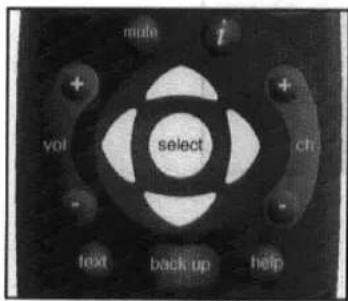

Use the up and down arrows to move the highlight through the channels.
Use the right and left arrows to see programmes being shown at different times.
Times are shown at the top of the programme listing.
You can also use the Page Up (red) and Page Down (green) buttons to see the preceding or next section of the channel listing.
Use the +24 Hours (yellow) button to move forwards 24 hours at a time. To move backwards 24 hours at a time, use the -24 Hours (blue) button.

The TV Guide listing screens show the programme listings for the next two days.
Choosing a programme
When you see a programme you want to watch and it is on now, use the arrows to highlight it, then press select, your Sky digibox tunes to it.
If you choose a programme that you need to order to watch, you will see the Box Office screen showing the programme details and purchase price. For further information about ordering Box Office programmes, refer to the Box Office section on page 15.
If you choose a programme that is on a channel to which you do not currently subscribe, you will be given information on how to include this channel in your subscription.
Other Channels
Other Channels include channels that your Sky digibox is capable of receiving but for which listings may not be available in SkyGuide, for example, foreign language channels.
To see the Other Channels screen, press tv guide, highlight Other Channels, then press select. The Other Channels list is shown on your screen.
To watch one of these channels, highlight it, then press select.
When you first get your Sky digibox, the Other Channels screen is empty. For information on adding Other Channels, referto the “Adding Other Channels” Section on page 30.
More information?
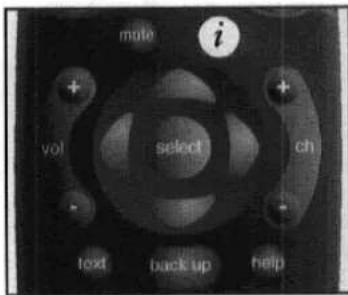
If you would like more information about a particular programme, use the arrows to highlight it, then press i on your Sky remote control. The programme information banner appears on your screen.
Press back up to remove the programme information and show the previous screen.
The information banner may also include letter codes giving more information about the programme. These letter codes have the following meanings:
| Letter code: | Means this: |
| C | Copy-protected. If you try to record this programme it may not play back correctly. |
| D | Surround sound. If your TV has surround sound capabilities, you will hear this programme in surround sound. |
| L | Letterbox format. The programme is being shown in letterbox format; i.e. in a wide ‘cinema-style’ picture with black borders across the top and bottom of the picture. |
| T | Subtitles. Language and/or subtitles for the hard of hearing are available for the programme. |
| W | Widescreen. The programme is being shown in wide-screen format. |
| Rating codes | |
| U | Universal, suitable for all audiences, including younger children. |
| PG | Parental guidance is recommended. Some discretion may need to be applied as to the suitability of the film for younger or impressionable children. |
| 12 | Suitable for viewers aged 12 years or over. More mature themes or language make the film unsuitable viewing for young children. |
| 15 | Suitable for viewers aged 15 years or over. May contain stronger language, violence, or themes unsuitable for younger viewers. |
| 18 | Suitable only for adult viewers aged 18 and over. |
| Content codes | |
| s | The programme contains sex or nudity. |
| l | The programme contains strong language. |
| v | The programme contains violent scenes. |
| m | The programme contains material which is intended for a mature audience. |
▼ Box Office
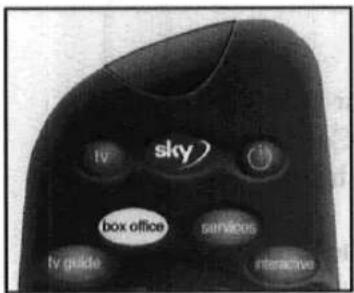
Press box office on your remote control to see the Box Office listings screen.
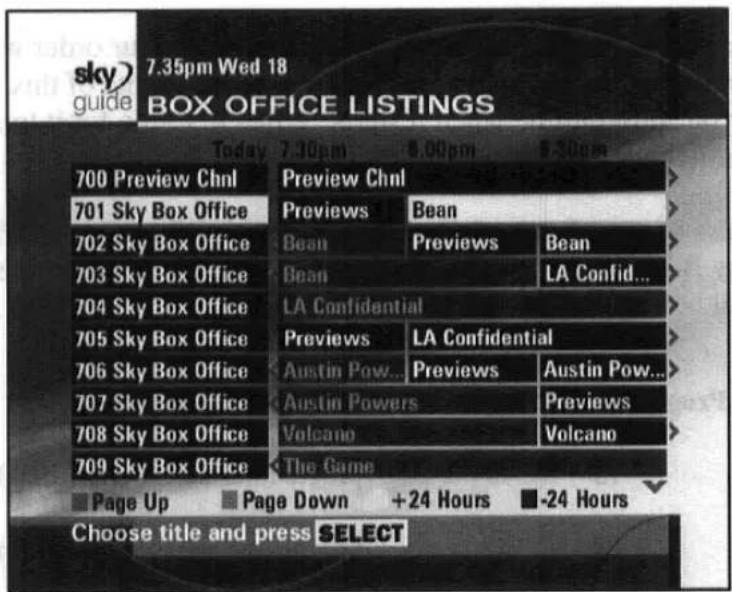
This section of SkyGuide is where you can choose the Box Office programmes you want to watch.
Ordering a Box Office programme
You can order Box Office programmes using your remote control.
To order a Box Office programme, complete the following steps.
- Use the arrows to highlight the programme you want to watch, then press the select button.
Your Sky Guide will show the time the programme starts, the channel and the purchase price. Additional special offers may be advertised on-screen for particular programmes.
- You may be able to choose what time you see the programme. Use the left or right arrow to choose a suitable start time and press select.
If you want to change your selection, press back-up
-
To confirm your choice press select again or enter your PIN if needed. Your PIN will be required if you set up your Parental Control viewing or spending restrictions, or if your choice is out of watershed hours.
-
If the programme has already started or starts within the next five minutes, your Sky digibox tunes to the correct channel right away.
-
If you are ordering a programme in advance, your order will be confirmed along with the channel and start time. Make a note of this, so you can tune to your programme when it starts. When it's time for it to start, enter the channel number.
Regardless of your Parental Control settings you'll need your PIN to watch or order any Box Office programme shown before its normal watershed time. PINs will be required as follows:
| Programme rating | When PIN is required |
| 18 | programme starts before 10.00pm |
| 15 | programme starts before 8.00pm |
| 12 | programme starts before 8.00pm |

If you order a Box Office programme using your remote control but then don't tune to the relevant channel at any time during the programme, you will not be charged for it.

Services
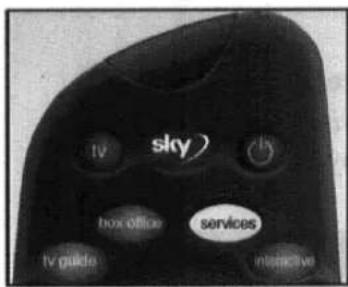
Press services on your remote control to see the Services screen.

Services allows you to use Parental Controls, set up your Favourite Channels, and view information on using your Sky digibox and a list of important telephone numbers. You can also see and modify the settings for your Sky digibox.

Use the arrows to move the highlight around the screen; use select and all the other buttons just as you do elsewhere.
Favourite Channels
You can create a list of the channels you watch most often, so that you can tune to these favourite channels quickly. You can have up to twenty Favourite Channels.
To see the Favourite Channels screen, press services, highlight Favourite Channels, then press select. The Favourite Channels screen is shown. This screen lists the available channels by channel number.


When you first get your Sky digibox, the Favourite Channels screen has no favourite channels set.
Setting a Favourite Channel
You can use the Favourite Channels screen to set your favourites.
Use the arrows or the Page Up (red) and Page Down (green) buttons to move through the list.
To mark a channel as a favourite, highlight it, then press the Favourite (yellow) button. The channels you have selected as favourites are marked with a tick and added to your Favourite Channels list.

If you want to see information about a channel, highlight it and press i. Press select when you have finished adding Favourite Channels.
Removing a Favourite Channel
To remove a channel from your list of favourites, highlight it on the Favourite Channels screen, then press the Favourite (yellow) button. The tick disappears and that channel has been removed from your list of favourites.
Using a Favourite Channel
You can easily check what is on your Favourite Channels and tune to them whenever you are watching television, without interrupting the programme you are watching.
Each time you press the Search Favourites (blue) button programme information for another of your Favourite channels is shown in the banner.
Just press select to display the Search & Scan banner.

Your favourite channels are indicated a tick (√) on the top of the Search & Scan banner.
To see information about what is on your Favourite Channels, press the Search Favourite (blue) button. If you see a programme you want to watch on one of your Favourite Channels, press select. If the programme is on now, your Sky digibox tunes to it.
▼ Parental Control and your PIN
Using your Sky digibox, you have control over which programmes are seen in your home. You can do this by using a PIN (Personal Identification Number).
Information about your PIN is provided with your Sky viewing card. You can change your PIN at any time. For more information about changing your PIN refer to the “Changing your PIN” section on page 24.
Parental Control lets you specify what categories of programme can be viewed and how much can be spent when a programme is ordered before a PIN is needed.
To display the Parental Control screen, press services on your remote control. Highlight Parental Control, then press select.

If your Sky digibox is not connected to your telephone line, you will have to call your broadcaster's helpdesk to change your PIN or spending limits. For your broadcaster's helpdesk number, select the Telephone Numbers option from the Services screen.
Using Parental Control
To display the Parental Control screen, press services on your remote control. Highlight Parental Control, then press select. After you correctly enter your PIN, the Parental Control screen is shown.
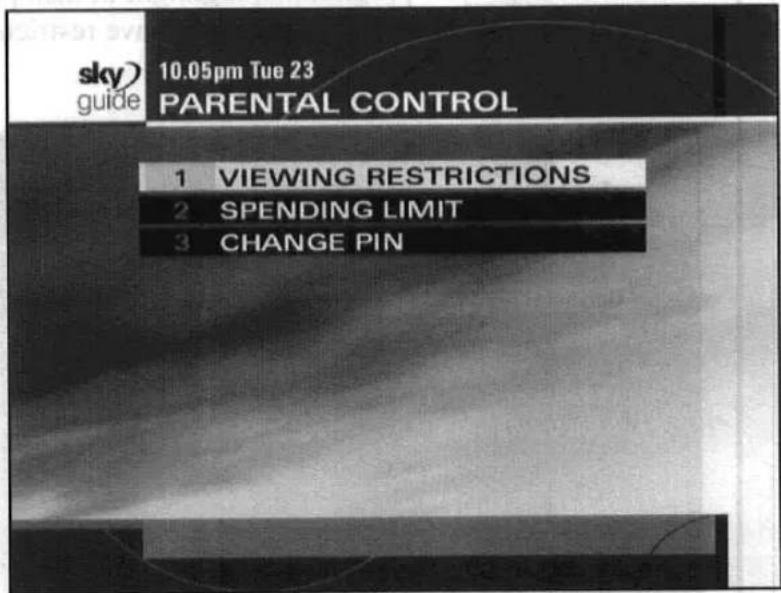
Viewing Restrictions
To see the Viewing Restrictions screen, highlight Viewing Restrictions on the Parental Control screen, then press select.
The Viewing Restrictions screen lets you specify the programme categories that cannot be viewed unless your PIN is entered. Viewing restrictions can only be applied to programmes where the broadcaster provides category restriction information.
To restrict a category of programme, highlight it, then press the Restrict (red) button. A cross marks a category you have restricted.

To remove a restriction, highlight the category, then press the Unrestrict (red) button. The cross is removed, indicating that the restriction has been removed.
When you have finished setting or changing Viewing Restrictions, press select.
You may only watch programmes in restricted categories if you have first entered your PIN.

Regardless of your Parental Control settings you'll need your PIN to watch or order any Box Office programme shown before its normal watershed time.
PINs will be required as follows:
| Programme Rating | When PIN is required |
| 18 | programme starts before 10:00pm |
| 15 | programme starts before 8:00pm |
| 12 | programme starts before 8:00pm |
Spending Limit
To see the Spending Limit screen, highlight Spending Limit on the Parental Control screen, then press select.
The Spending Limit screen lets you specify how much a programme can cost before your PIN is required to order it. For example, if you set the limit at £3.00, you can order a programme costing £3.00 (or less) without using your PIN, but you would need the PIN for a programme costing £3.01 or more.
To set a Spending Limit complete the following steps.
- Highlight Spending Restriction and use the left or right arrow to set it to ON.
- Highlight PIN Required For purchases over and use the left or right arrow to set the maximum amount that a programme can cost before your PIN is needed.
- Highlight Save New Settings and then press select.
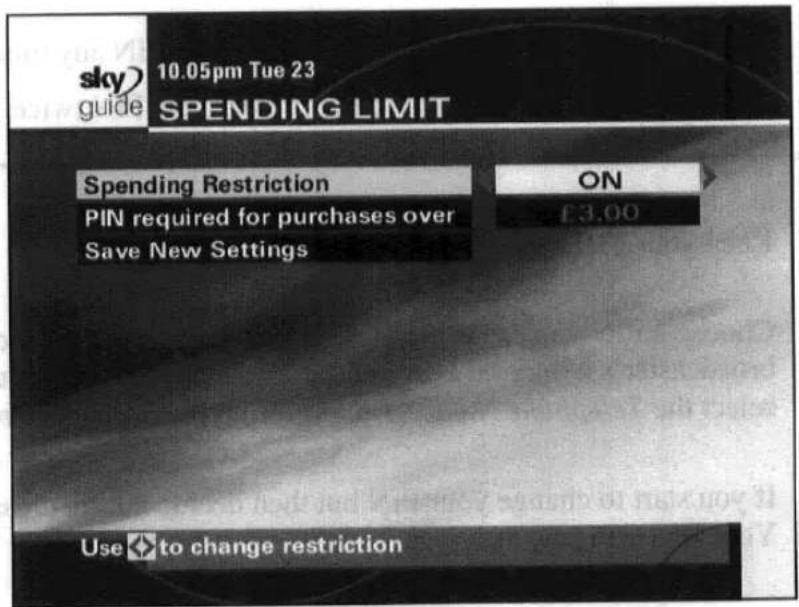

If you set the Spending Limit at £0.00, then your PIN will always be required when ordering a Box Office programme.
Changing your PIN
To see the Change PIN screen, highlight Change PIN on the Parental Control screen, then press select.

The Change PIN screen lets you change your PIN any time you wish. To change your PIN you must key in your new PIN twice.

Keep your PIN secret!

Choose a PIN you can remember. If you forget your PIN, call your broadcaster's helpdesk. For your broadcaster's helpdesk number, select the Telephone Numbers option from the Services screen.

If you start to change your PIN but then decide not to, press back up. Your PIN will stay as it was.

If your Sky digibox is not connected to your telephone line, you will have to call your broadcaster's helpdesk to change your PIN or spending limits. For your broadcaster's helpdesk number, select the Telephone Numbers option from the Services screen.
Interactive
Interactive services are available through your Sky digibox. You can shop, bank, get information, play games and send and receive emails, simply by using your remote control.

Press interactive on your remote control to see the Interactive screen.
You can get most Interactive services by using your Sky Viewing Card. However, some Interactive services may need a specific Interactive Card which you insert into the Interactive Card slot in the front of your Sky digibox.

Only insert a card into the Interactive Card slot when an instruction to do so appears on the screen.

Use the arrows to move the highlight around the screen; use select and all the other buttons just as you do elsewhere.

Extra information
▼ Recording a satellite programme
If you have a video recorder, you can use it to record satellite programmes from your Sky digibox.
To record a satellite programme, make sure your Sky digibox is switched on, tuned to the channel you wish to record and your video recorder is correctly programmed to record at the appropriate time. For further information about your video recorder, refer to your video recorder's instruction book.

Your video recorder must be correctly connected to your Sky digibox. For further information, refer to the “Connecting your Sky digibox” section on page 33.

When recording a satellite programme, your video recorder must be set to record the channel on your video recorder that has been tuned to your Sky digibox.

Some programmes are copy-protected and may not play back correctly if you record them. Copy-protected programmes are marked with a 'C' on the programme information banner. For further details, refer to the "More information?" section on page 13.
Setting your remote control to operate your TV
The Sky Digital remote control can control both your Sky digibox and TV.
Your Sky remote control should have been set up to work with your TV when your Sky digibox was installed.
If your Sky remote control is not correctly operating your television, complete the following steps.

Before you start, look up the four digit code for your brand of TV in this list.
| Brand | Code | Brand | Code | Brand | Code |
| Akai | 0098 | Granada | 0340 | Panasonic | 0051 |
| Alba | 0043 | Grundig | 0345 | Philips | 0081 |
| Amstrad | 0063 | Hinari | 0365 | Saisho | 0649 |
| Bush | 0157 | Hitachi | 0145 | Samsung | 0060 |
| Decca | 0244 | JVC | 0053 | Sanyo | 0159 |
| Ferguson | 0293 | Matsui | 0477 | Sharp | 0093 |
| Fidelity | 0294 | Mitsubishi | 0150 | Sony | 0000 |
| Finlandia | 0296 | NEI | 0514 | Tatung | 0049 |
| Goodmans | 0335 | Nokia | 0536 | Toshiba | 0156 |

If your brand of TV is not shown here, refer to the "Remote control setup codes" section on page 42.
- Turn your TV on.
- Press tv on your Sky remote control.
- Hold down select and the red button together for about two seconds, until the red light on the Sky remote control blinks twice.

If your TV is a Panasonic brand, simply key in 678
(instead of the four digit code shown above).
The light on the remote control blinks twice.
Press the On/Off button on your Sky remote control. If your TV switched off, press the On/Off button again and go to Step 7.
If your TV did not switch off, please start again at Step 2 and key in 254.
Follow the above procedure and go to Step 7.
-
Press tv on your Sky remote control again.
-
Key in the four digit code for your brand of TV. The light on the Sky remote control blinks twice.
If the light blinks once only, re-check the code for your brand of TV and start again at Step 2.
- Press the On/Off button on your Sky remote control.
If your TV switches off, press select. The light on the Sky remote control blinks twice.
If your TV does not switch off, press tv, then press the On/Off button. Repeat this (press tv, then On/Off) until your TV turns off, then press select.

If the light on your Sky remote control blinks three times, your Sky digibox has checked all the possible settings for the code you used. Check that you have the right 4 digit code and start again at Step 1.
- Turn your TV back on again and press tv guide.
If you see the TV Guide screen, the remote control setup process is complete.
If you do not see the TV Guide screen, you must now complete the following steps.
-
Press tv on your Sky remote control.
-
Hold down select and the green button together for about two seconds, until the red light on the Sky remote control blinks twice.
-
Key in the number of the channel on your TV that you use for watching satellite TV.
-
Press select on your Sky remote control. The red light blinks twice. The remote control setup process is complete.

If after trying this, you still have problems, call your broadcaster's helpdesk. For your broadcaster's helpdesk number, select the Telephone Numbers option from the Services screen.
▼ Replacing the batteries in your remote control
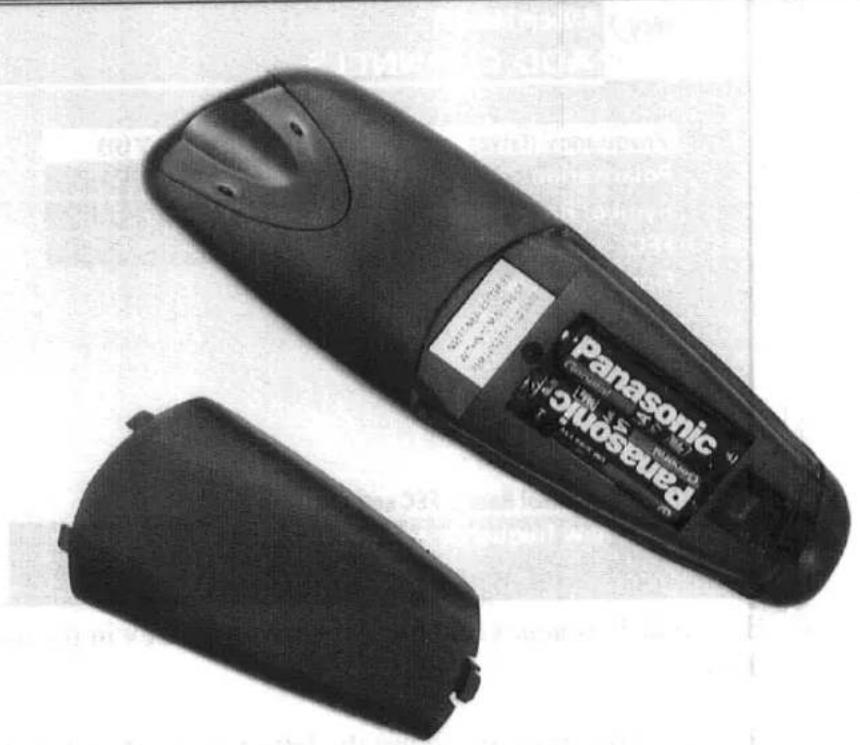
When the batteries in your Sky remote control need replacing, insert two AA (MN1500, LR6 or UM-3) batteries. Make sure you put them in the correct way round.

Don't leave flat batteries in your remote control.

Replace both batteries at the same time.

Do not mix different battery types, i.e. Alkaline and Manganese. Do not use rechargeable batteries.

If you leave the remote control without batteries for more than 10 minutes your remote control settings for operating your TV will be lost. After replacing the batteries, you will be able to control your Sky digibox as normal, but you will have to reset your remote control to operate your TV. Refer to the “Setting your remote control to operate your TV” section on page 27 for further information.
natural_image
Two black Panasonic remote devices, one open and one closed, with visible brand labels (no text extraction needed)▼ Adding Other Channels
There is normally no need for you to tune in satellite channels because your Sky digibox tunes in all the available channels for you, including new channels as they are added to the digital satellite TV service.
The Sky digibox is designed for receiving digital television signals transmitted from the Astra satellite system at 28.2 degrees East, either unencrypted or encrypted using BSkyB's encryption system. Reception of other satellite signals may be possible but it is not guaranteed.
If you want to tune in other channels that are not listed in SkyGuide, for example foreign language channels, complete the following steps.
- Press services on your Sky remote control. The Services screens appears on your TV.
- Select the System Setup option. The System Setup screenappears on your TV.
- Select the Add Channels option. The Add Channels screen appears on your TV.
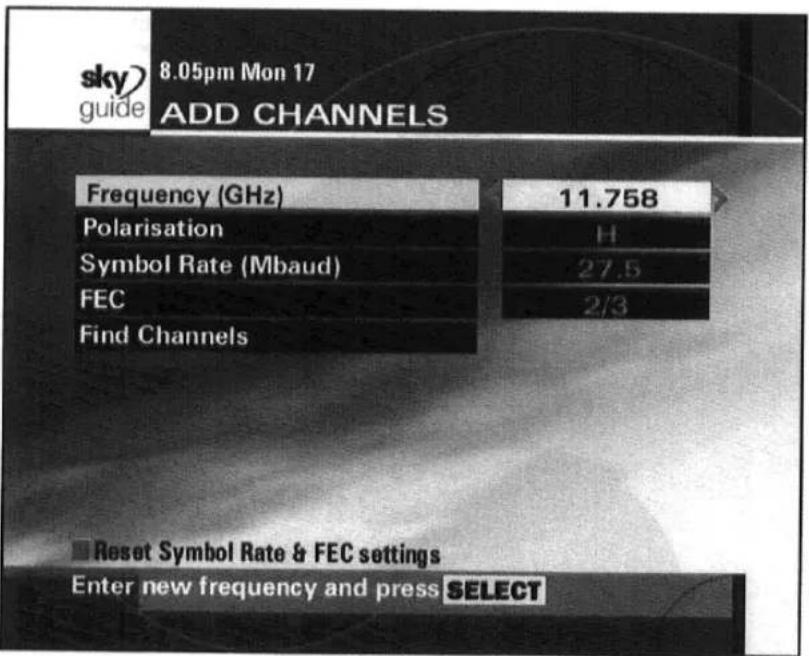
- Highlight Frequency and use the numbers to key in the transponder frequency.
- Highlight Polarisation and use the left or right arrow to set the polarisation for the transponder.
-
Highlight Symbol Rate and use the left or right arrow to set the symbol rate for the transponder.
-
Highlight FEC and use the left or right arrow to set the FEC setting for the transponder.
-
Highlight Find Channels and press select. Your Sky digibox checks the settings you entered and looks for any new channels at those settings.
-
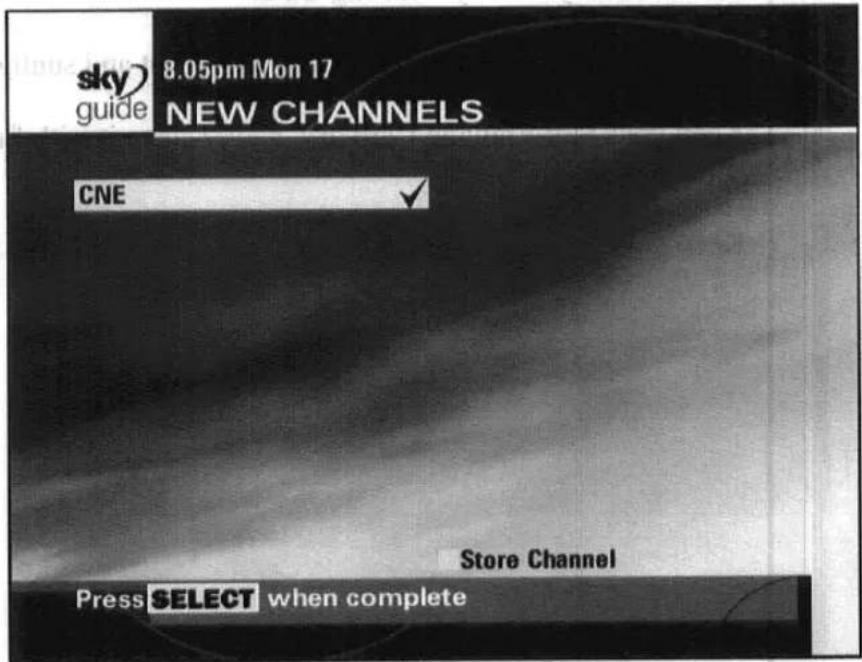
The New Channels screen appears on your TV. This is a list of the channels that your Sky digibox has found. You can select those you want to add to the Other Channels list.
-
To add a channel, highlight it, then press the Store Channel (yellow) button.
-
When you have finished adding Other Channels, press select.

To watch any of the Other Channels you have added, press tv guide and select the Other Channels option. For further details on watching these channels refer to the “Other Channels” section on page 13.
Looking after your Sky Viewing Card
Do not remove and re-insert your Sky Viewing Card unnecessarily.
There is no need to remove your Sky Viewing Card unless it is faulty or has expired.
Do not bend your Sky Viewing Card.
Keep your Sky Viewing Card away from heat and sunlight.
Keep your Sky Viewing Card dry. Never clean it with fluids – use a soft, dry tissue.
Keep your Sky Viewing Card away from small children and pets.

Connecting your Sky digibox
This section shows you how:
- your Sky digibox can be connected to other equipment such as your hi-fi stereo system.
- your Sky digibox can be reconnected after minor changes, for example, after you have moved your TV or Sky digibox.
◆ your Sky digibox settings can be updated.
▼ Connecting your Sky digibox
Warning! You must disconnect your Sky digibox from the mains supply before connecting or disconnecting your Sky digibox to any other equipment.
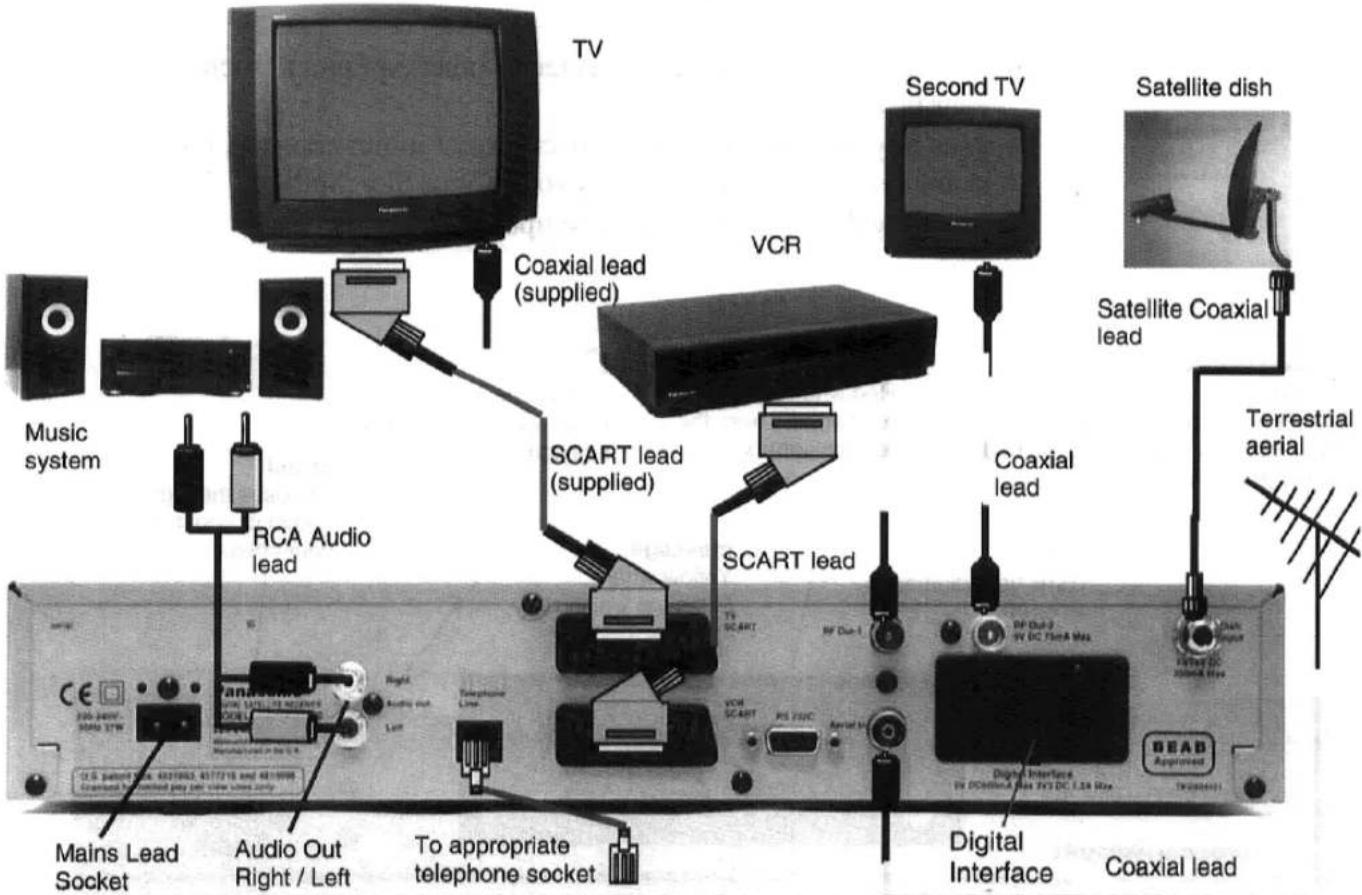
Connecting your telephone line.
The telephone lead (labelled in the diagram above) is intended for connection to a standard U.K. and Eire telephone lines. This lead and your Sky digibox have been specifically approved for this purpose.
Note :- It is important that the telephone lead is connected to the Sky digibox rear panel socket before connecting the lead to the telephone extension socket.
After the telephone lead has been connected, you cannot remove it from the rear panel. If you need to move your Sky digibox, you must first remove the mains lead, then disconnect the telephone lead at its extension socket.
Digital interface
There is a general purpose digital interface (PCMCIA) at the rear of the Sky digibox behind the plate marked “WARNING”. This is for future plug-in modules, which will have their own installation instructions.
Warning! You must disconnect your Sky digibox from the mains supply before removing the warning plate or inserting any plug-in modules.
▼ System setup
There should be no need for you to use the System Setup screens, as your Sky digibox should have been set up when it was installed.
However, the System Setup screens can be useful if, for example, you buy a new TV and you want to make sure your Sky digibox makes the best use of the new TV's features.
To use the System Setup screens, press services on your remote control. The Services screen appears on your TV. Highlight the System Setup option, then press select. The System Setup screen appears on your TV.
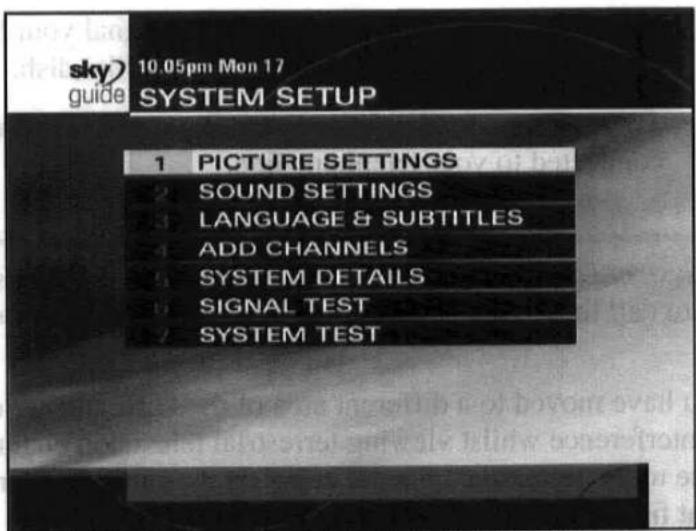
These System Setup options let you set the following:
Picture Settings – to see and change the Sky digibox picture format, video output type, contrast level and time out for the Search & Scan banner. Select Save New Settings to confirm any changes or press back up to cancel.
Sound Settings – to see and change the type of sound output and standard volume level turn background music on or off. You can also turn the 'beep' on or off. Select Save New Settings to confirm any changes or press back up to cancel.
Language & Subtitles - to see and change the preferred audio language and to turn subtitles on or off, where available. Some programmes may offer a choice of language and/or subtitles. Select Save New Settings to confirm any changes or press back up to cancel.

You can easily reset the settings for your Sky digibox to the standard settings. Press the Reset (red) button when viewing the Picture Settings, Sound Settings and/or Language and Subtitles screens. Select Save New Settings to confirm any changes you make or press back up to cancel.
- Add Channels – add Other Channels to your SkyGuide. For further details on adding channels, refer to the “Adding other channels” section on page 30.
- System Details – to see details of your Sky digibox, including your Sky digibox model number, manufacturer and your Sky Viewing Card number.
- Signal Test – to test the quality of the signal your Sky digibox is receiving from the satellite via your satellite dish.
◆ System Test – to check that your Sky digibox is properly connected to your telephone line.

The System Details, Signal Test and System Test can be useful if you ever have to call for technical help or repairs to your Sky digibox.

If you have moved to a different area of the U.K. and are experiencing any interference whilst viewing terrestrial television channels, this may be due to the terrestrial channel being on the same frequency as the output frequency of your digibox.
Please call your broadcaster's helpdesk for assistance. For your broadcaster's helpdesk number, select the Telephone Numbers option from the Services screen.

Please note: A Wide Screen Signal (WSS) is not transmitted through the RF out sockets or the TV / VCR 21 pin SCART sockets. If you have a wide screen TV or your VCR has wide screen capabilities you will have to switch them manually.

Although this equipment can use either loop disconnect or DTMF signalling, only the performance of the DTMF signalling is subject to regulatory requirements for correct operation. It is therefore strongly recommended that the equipment is set to use DTMF signalling for access to public or private emergency services. DTMF signalling also provides faster call setup.
▼ Further help
For further information and tips on getting the most out of your Sky digibox, tune to channel 999, the SkyDigital Information Channel.
If you need help or information about your TV or video recorder, please refer to the instruction books that came with them.
If you are having problems using your "Sky digibox, refer to the "Solving problems" section on page 38.

If you still have a problem, call your broadcaster's helpdesk. For your broadcaster's helpdesk number, select the Telephone Numbers option from the Services screen.
Make sure you have your Sky Viewing Card number, Sky digibox brand and model number available before you call your broadcaster. You can find this information on the System Details screen. To see this screen, press services on your remote control, select the System Setup option, then select System Details.

Solving problems
▼ On-screen messages
| Message | Possible reason | What to do now |
| Please insert your Sky Viewing Card. | There is no viewing card in the “Sky Viewing Card slot in your Sky digibox. | Insert your viewing card into the “Sky Viewing Card” slot. |
| There is a problem with your Sky Viewing Card. | Your Sky digibox cannot recognise your viewing card. | Check it is your Sky Viewing Card. Check it is in the right way up. Check that your card is not damaged. If the problem continues, call your broadcaster's helpdesk. For your broadcaster's helpdesk number, select the Telephone Numbers option on the Services screen. |
| Please insert your new Sky Viewing Card. | You have inserted your old Sky Viewing Card. | Remove your old Sky Viewing Card and insert your new viewing card. |
| This viewing card is not authorised. | Your Sky Viewing Card is not authorised. | Call the telephone number shown on your screen to get your Sky Viewing Card authorised. |
| There is a problem with your viewing card. | Your Sky Viewing Card has developed a problem. | Call your broadcaster's helpdesk. For your broadcaster's helpdesk number, select the Telephone Numbers option on the Services screen. |
| This is the wrong card for this digibox. Insert the correct Sky Viewing Card. | You have more than one Sky digibox and have put the wrong Sky Viewing Card in this Sky digibox. | Insert the right Sky Viewing Card for this Sky digibox. |
| The current viewing card is not a Sky card. Please insert your Sky viewing card. | You have inserted a different kind of card into the “Sky Viewing Card” slot of your Sky digibox. | Remove the card and replace it with your Sky Viewing Card. |
| This programme is not available. | This programme is not available in your area. | You will not be able to watch this programme. |
| You cannot purchase this programme at the moment. | You cannot buy this programme now. | You may be able to buy it later. |
| This programme has already started. | The programme has already started and you cannot purchase it now. | Check the listings to find out when it is next on. |
| There is insufficient credit left on your viewing card. | There is not enough credit left on your Sky Viewing Card to buy this programme. | Call the number shown on your screen so you can order this programme. |
| There is insufficient space left on your viewing card. | There is not enough space on your Sky Viewing Card to store the information for this programme. | Call the number shown on your screen so you can order this programme. |
| You have entered your PIN incorrectly three times.PINs now blocked for 10 minutes. | Your PIN has been entered incorrectly three times in a row. | You will not be able to access anything that needs a PIN for 10 minutes. If you have forgotten your PIN, call your broadcaster's helpdesk. For your broadcaster's helpdesk number, select the Telephone Numbers option on the Services screen. |
| No satellite signal is being received. | Your Sky digibox is not receiving a satellite signal. | Check the cable from your satellite dish is correctly plugged into the back of your Sky digibox. Always turn your Sky digibox off at the mains before plugging or unplugging any other equipment.If the problem continues, call your broadcaster's helpdesk. For your broadcaster's helpdesk number, select the Telephone Numbers option on the Services screen. |
| Ensure that an operating telephone line is connected. | Your Sky digibox is not connected to an operating telephone line. | Check that the telephone lead between your Sky digibox and the socket is properly plugged in. Always turn your Sky digibox off at the mains before plugging or unplugging any other equipment. |
| No signal found. | Your Sky digibox was not able to find a signal after you asked it to find new channels. | Check the settings you entered were correct. |
▼ General problems
| Problem | Possible reason | What to do now |
| You've forgotten your PIN. | Call your broadcaster's helpdesk. For your broadcaster's helpdesk number, select the Telephone Numbers option from the Services screen. | |
| You can't find the remote control. | Use the buttons on the front of your Sky digibox. You can perform most Sky digibox functions using these buttons. | |
| Nothing is happening. | Your Sky digibox is not plugged into the mains.Your Sky digibox is switched off (the on/off light is red). | Make sure the mains lead is properly plugged in and your Sky digibox is switched on.Press SKY on your remote control. |
| Your remote control isn't working. | The batteries are flat or something is between the remote and your Sky digibox. | Make sure you point your remote control directly at your Sky digibox and that nothing is between it and your Sky digibox. The remote command light should flash on your Sky digibox and on the remote control each time you push a remote control button. If neither light flashes, check the batteries in your remote control. |
| Your remote control works with the TV but not with your Sky digibox. | Someone has pressed tv on your remote control. | Press SKY on your remote control. |
| Your remote control isn't working with your TV. | Someone has pressed SKY on your remote control. | Press tv on your remote control. |
| tv, vol and mute buttons don't work with your TV. | Your remote control isn't properly set to operate your TV. | Refer to the “Setting your remote control to operate your TV” section on page 27. |
| You can't find a channel you have previously watched. | The channel only broadcasts for part of the day. | Check the TV Guide listings to see when the channel is available |
| On-screen interference. | TV or video recorder not correctly tuned. | Check that your TV and video recorder are correctly tuned to your Sky digibox. For further information, refer to your TV and VCR instruction books.In some cases your Sky digibox may need re-tuning. Call your broadcaster's helpdesk for further advice. For your broadcaster's helpdesk number, select the Telephone Numbers option on the Services screen. |

Remote control setup codes
| Brand | Code | Brand | Code | Brand | Code |
| Akai | 0098 | Goldstar | 0056 | Protech | 0595 |
| Akura | 0042 | Goodmans | 0335 | Pye | 0600 |
| Alba | 0043 | Granada | 0340 | Roadstar | 0625 |
| Amstrad | 0063 | Grundig | 0345 | Saba | 0645 |
| BPL | 0115 | Harwood | 0361 | Saisho | 0649 |
| Bang & Olufsen | 0118 | Hinari | 0365 | Salora | 0651 |
| Baird | 0117 | Hitachi | 0145 | Samsung | 0060 |
| Beko | 0125 | ITT | 0384 | Sanyo | 0159 |
| Beon | 0899 | JVC | 0053 | Schneider | 0665 |
| Brionvega | 0147 | Loewe | 0442 | Seleco | 0672 |
| Bush | 0157 | Matsui | 0477 | Sharp | 0093 |
| Crown | 0225 | Memorex | 0037 | Siemens | 0680 |
| Daewoo | 0092 | Minoka | 0921 | Sony | 0000 |
| Decca | 0244 | Mitsubishi | 0150 | Soundwave | 0702 |
| Dual | 0257 | NEI | 0514 | Tandy | 0741 |
| Ferguson | 0293 | Nikkai | 0528 | Tatung | 0049 |
| Fidelity | 0294 | Nokia | 0536 | Technics | 0250 |
| Finlandia | 0296 | Nordmende | 0537 | Telefunken | 0757 |
| Finlux | 0297 | Orion | 0549 | Thomson | 0771 |
| Fisher | 0154 | Panasonic | 0051 | Thorn | 0772 |
| Funai | 0179 | Philips | 0081 | Thorn-Ferguson | 0936 |
| Genexxa | 0330 | Pioneer | 0166 | Toshiba | 0156 |

If your brand of TV is not listed here, contact your broadcaster's helpdesk for further advice.
For your broadcaster's help desk number, select the Telephone Numbers option from the Services screen.

Specifications
General
| UHF modulator | CCIR PAL I, Preset CH 68 |
Set-up by an installation engineer
| Operating voltage | 240V AC |
| Power consumption | 35 W (max) |
| Power consumption | 18 W (typical) |
| Standby consumption | 17 W (typical) |
Connectors
| LNB | F-type |
| Digital interface (Male) | 68 pin PCMCIA/JEIDA |
| RS-232 | 9-way D-type (Female) |
| Audio right | Phono (L = left, R = and MONO) |
| TV | SCART |
| VCR | SCART |
| TV (RF output) | IEC male X2 |
| Aerial | IEC female |
| Modem | RJ11 |
Dimensions/Weight
| Height | 6.5 cm |
| Width | 38.0 cm |
| Depth | 26.5 cm |
| Weight | 2.6 kg |
Tuner
| Receiver frequency range | 950 to 2150 MHz |
| Vertical | 13.0V |
| Horizontal | 18.0V |
Audio/Video Signals
| Audio frequency range | 20 Hz to 20 KHz |
| Audio output level | 0.5Vrms |
| Video output level | 1.0V peak-to-peak |
| Video output impedance | 75 ohms |
Operating/Storage Conditions
Operating temperature range
$$ + 0 ^ {\circ} \mathrm{C} \text { to } + 4 0 ^ {\circ} \mathrm{C} $$
Storage temperature range
$$ - 2 0 ^ {\circ} \mathrm{C} \text { to } + 6 0 ^ {\circ} \mathrm{C} $$
Connector Specifications
TV SCART Connector
Output signals provided
Composite video out
RGB
Function switch (pin 8) out
Audio left and right out
VCR SCART Connector
Input and output signals provided
Composite video in
Composite video out
RGB
Function switch (pin 8), in/out
Audio left and right in
Audio left and right out
RS-232 Connector
Type DB-9 female
Configuration (DCE)
Rate 115.2 kbaud (max)
Note :-
Specifications and software may be subject to change. If you are experiencing any difficulties using your Sky digibox please contact your broadcaster's helpdesk number, select the Telephone Numbers option from the Services screen.

Index
About this booklet....1
Adding Other Channels....30
Banner
Search & Scan 6,10
Batteries
Replacing....29
Box Office....15
ordering a programme 16
Card
Sky Viewing....3, 32
Changing
channels 5
volume 6
your PIN 24
Channel
adding Other 30
changing 5
finding 5
Other....13
Choosing a programme 13
Classifications
programme....22
Connecting
to the telephone line....34
your Sky digibox 33
digibox ....1
connecting 33
specification....43
system setup 35
Digital interface 34
Digital satellite TV....1
FavouriteChannels 18
Finding
a channel....5,12
a programme....12
Further help....37
Getting started....3
Help....37
Interactive 25
Limit
spending....23
Looking after your Sky card 32
On/Off 4
Ordering a Box Office programme ..... 15
Other channels 11
adding....30
Parental Control 20
changing your PIN....24
removing a viewing restriction ..... 22
setting a spending limit....23
setting a viewing restriction....22
using 21
PIN 20
changing your 24
Problem-solving....38
Programme
choosing a....13
finding one....12
information 13
recording....26
Recording a satellite programme ..... 26
Remote control....3
and the SkyGuide 9
batteries 29
setting 27
setup codes 42
Removing
Favourite Channel 19
Viewing Restrictions 22
Replacing the batteries....29
Restricting
spending....23
viewing 22
Search & Scan banner....6, 10
timeout....35
Services....17
Parental Control....20
PIN 20
System Setup 35
Setting
Favourite Channel 18
Spending Limit 23
Viewing Restrictions 22
Settings
digibox....35
Sky remote control....3
Sky Viewing Card.... 3, 32
SkyGuide
and your remote 9
finding a channel....5
Services....17
Sky keeps you up-to-date....2
TV Guide 11
Using it....9
What is it? 2,9
Solving problems....38
Specifications 43
Spending Limit....23
System Setup 35
Telephone line 20,34
Teletext....7
Troubleshooting....38
Turning your Sky digibox on....4
TV Guide 11
Upgrades....2
Using
Favourite Channel 19
Interactive 25
Services 17
SkyGuide....8
Teletext....7
TV Guide....11
your video recorder 26
Video recorder
recording 26
Viewing Restrictions
removing 22
setting 22
Volume
changing 6
Welcome to digital satellite TV....1
What is SkyGuide? 8
 | Door No.3 | |
| Drop No.0 | ||
| Customer: FAO CLARE1 | ||
| Load: SPOM01 | ||
| Model:TQBBEN06-2 | Qty:1 | |
| Assemble at: 60 | 03/07/00 | |

- Contents
- Welcome to digital satellite TV!....1
- Getting started 3
- Using your SkyGuide 8
- Extra information 26
- Connecting your Sky digibox 33
- Further help....37
- Solving problems....38
- Remote control setup codes....42
- Specifications....43
- Index 44
- ▼ Welcome to digital satellite TV!
- ▼ About this booklet
- ▼ What is digital satellite TV?
- ▼ Your Sky digibox
- ▼ What is SkyGuide?
- Sky keeps you up-to-date
- ▼ Getting started
- ▼ Your Sky remote control
- ▼ Turning your Sky digibox on and off
- ▼ Changing channels
- Using the ch button
- Using the channel number
- ▼ Changing the volume
- ▼ Using teletext
- Using your SkyGuide
- TV Guide
- Box Office
- Services
- Interactive
- ▼ Your SkyGuide and your Sky remote control
- Using the Search & Scan banner
- Finding a programme
- Choosing a programme
- Other Channels
- More information?
- ▼ Box Office
- Ordering a Box Office programme
- Favourite Channels
- Setting a Favourite Channel
- Removing a Favourite Channel
- Using a Favourite Channel
- ▼ Parental Control and your PIN
- Using Parental Control
- Viewing Restrictions
- Spending Limit
- Changing your PIN
- Extra information
- ▼ Recording a satellite programme
- Setting your remote control to operate your TV
- If you do not see the TV Guide screen, you must now complete the following steps.
- ▼ Replacing the batteries in your remote control
- ▼ Adding Other Channels
- Looking after your Sky Viewing Card
- Connecting your Sky digibox
- This section shows you how:
- ▼ Connecting your Sky digibox
- Connecting your telephone line.
- Digital interface
- ▼ System setup
- ▼ Further help
- Solving problems
- Specifications
- Operating/Storage Conditions
- Connector Specifications
- TV SCART Connector
- VCR SCART Connector
- RS-232 Connector
- Note :-
- Index
Brand : PANASONIC
Model : TU-DSB30
Category : Receiver