Voltaire - Tablet bq - Free user manual and instructions
Find the device manual for free Voltaire bq in PDF.


| Product Type | Tablet |
| Brand | bq |
| Model | Voltaire |
| Display | Touchscreen |
| Connectivity | Wi-Fi 802.11 b/g/n, microUSB, Headphone jack |
| Memory Card Support | MicroSD card slot |
| Battery | Rechargeable Li-ion, charging time approx. 5 hours |
| Power Adapter | AC adapter (included) |
| Audio | Built-in speakers, earphones (included) |
| Control Buttons | Back, Next, Reset, Power button |
| Operating System | Android (version not specified) |
| Pre-installed Apps | E-book reader, Internet browser, Settings |
| Wireless Networks | Wi-Fi connectivity required for web browsing |
| Cleaning Instructions | Use soft lint-free cloth; mild cleaning solution for shell; avoid liquids on screen |
| Safety Precautions | Keep away from dust, sand, dirt; avoid impacts; do not spill liquids |
| Warranty | 2 years from delivery date; covers manufacturing defects; excludes misuse, unauthorized repairs, screen breakage |
| Technical Support | Email: soporte@bqreaders.com; Phone: +34 914 575 012; Website: www.bqreaders.com/contacto.html |
| Reset Method | Use Reset button if device does not respond |
| File Transfer | Via USB cable to PC; device recognized as removable drive |
Frequently Asked Questions - Voltaire bq
User questions about Voltaire bq
0 question about this device. Answer the ones you know or ask your own.
Ask a new question about this device
Download the instructions for your Tablet in PDF format for free! Find your manual Voltaire - bq and take your electronic device back in hand. On this page are published all the documents necessary for the use of your device. Voltaire by bq.
USER MANUAL Voltaire bq
natural_image
Abstract 3D geometric shape with translucent shading, no text or symbols presentEspañol
Introducción 1
Toma de contacto 4
Connecting to a WI-FI Network 13
Cleaning and safety 14
Warranty 16
Español
INTRODUCCIÓN
natural_image
Back view of a computer monitor with control buttons and drive slots (no visible text or symbols)natural_image
Close-up of a computer monitor with a blue tab and control buttons (no visible text or symbols)Thank you for purchasing bq Voltaire. Read this Quick Start Guide carefully to get your device ready for use.
Unpacking the Box
Make sure the following items came in the box when first unpacked:
• bq Voltaire device
- Power adapter
- USB cable
- Earphones
•This Quick Start Guide
- Warranty card
Overview
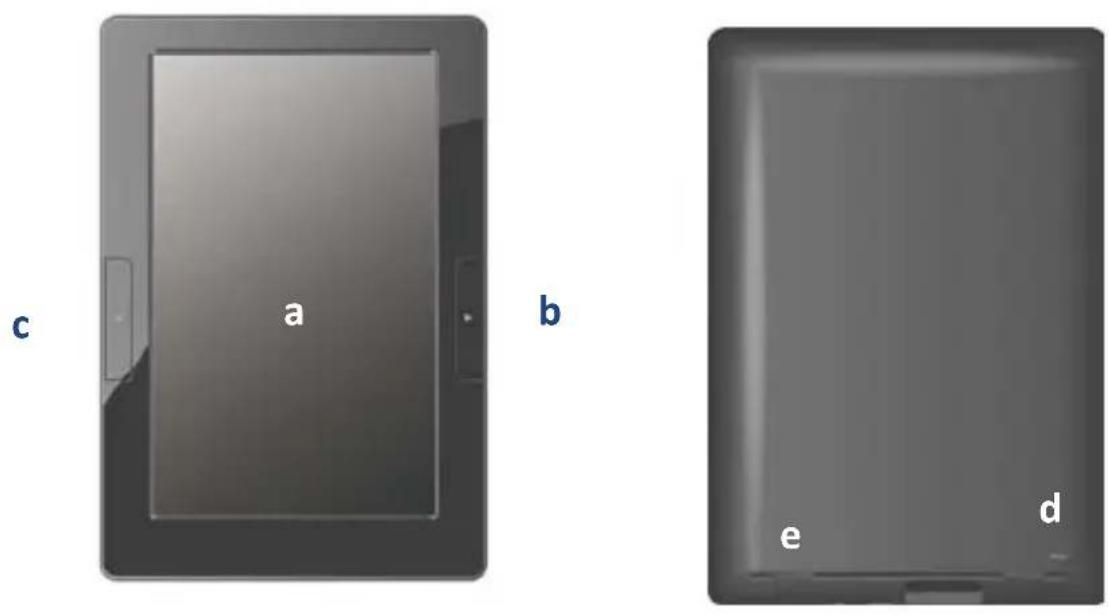
a - Touchscreen
b - Back - Press briefly to return to the previous page /Press and hold down to return to the Home screen.
c - Next - Press briefly to turn to the next page / Press and hold down to return to view Menu options
d - Reset button - Reset the button if it does not respond to any operations.
e - Speakers - Built-in speakers for playing sounds.

f - DC-IN port - Connect to any standard electrical source with the AC adaptor supplied.
g - SD card slot - Insert a MicroSD card into the memory card slot to access image/ audio/ text files stored on the card
h - Headphone Jack - Insert your headphone connector into this jack to listen to the audio files through the headphones.
i - USB port - The USB connects the device to a computer.
j - Power button - Press and hold down a few seconds to switch off unit.

Warning: Do NOT insert or remove the memory card when the device is playing files or transferring data. It may cause errors.
STARTING UP
Charging the battery
The device contains a rechargeable Li-ion battery. To charge the battery of your bq Voltaire, insert the power cord to any standard outlet power cord AC adaptor in the power port and connect. Once the battery is completely charged, the battery icon will turn “full”. The approximate time for charging the battery is 5 hours.

It is best to completely charge the battery before using the device for the first time.
Turning your device On and Off
Press and hold the Power button ⏻ to turn on the device. You will enter the Home screen after system startup.

To turn the device off, press and hold the Power button until the Device options menu appears. Touch Power off and confirm with OK.
Inserting the MicroSD Card
Insert the MicroSD card with its metal contacts facing downwards into the MicroSD card slot, and push it in until it clicks into place.

natural_image
Back view of a computer monitor with a blue logo on the left side (no visible text or symbols)To remove the MicroSD card push the card in to eject it from the slot.
Exanging files with you PC
You can copy personal files from your computer to the device, or vice versa.
- Insert the supplied cable's mini USB connector into the device's mini USB port.
- Insert the cable's Type A USB connector into your computer's Type A USB port. With the USB connection icon
displayed on the status bar, your device memory is recognized by the computer as a removable drive (Windows systems).
-
From your computer, copy desired personal files from another drive/folder to the removable drive.
-
When done, remove the cable safely from both the device.

Warning: Do not disconnect the cable while the files are being copied.

Warning: It is advisable to periodically make backup copies of the content of your reader to prevent the total loss of your files in the event of physical damage, loss or theft.
USING THE SCREEN
Home screen
The Home screen is the main platform where you can access all the features and applications installed on your device. You can monitor the status of the device, access the web pages, and use widgets to obtain information, or shortcuts to launch applications on the Home screen.
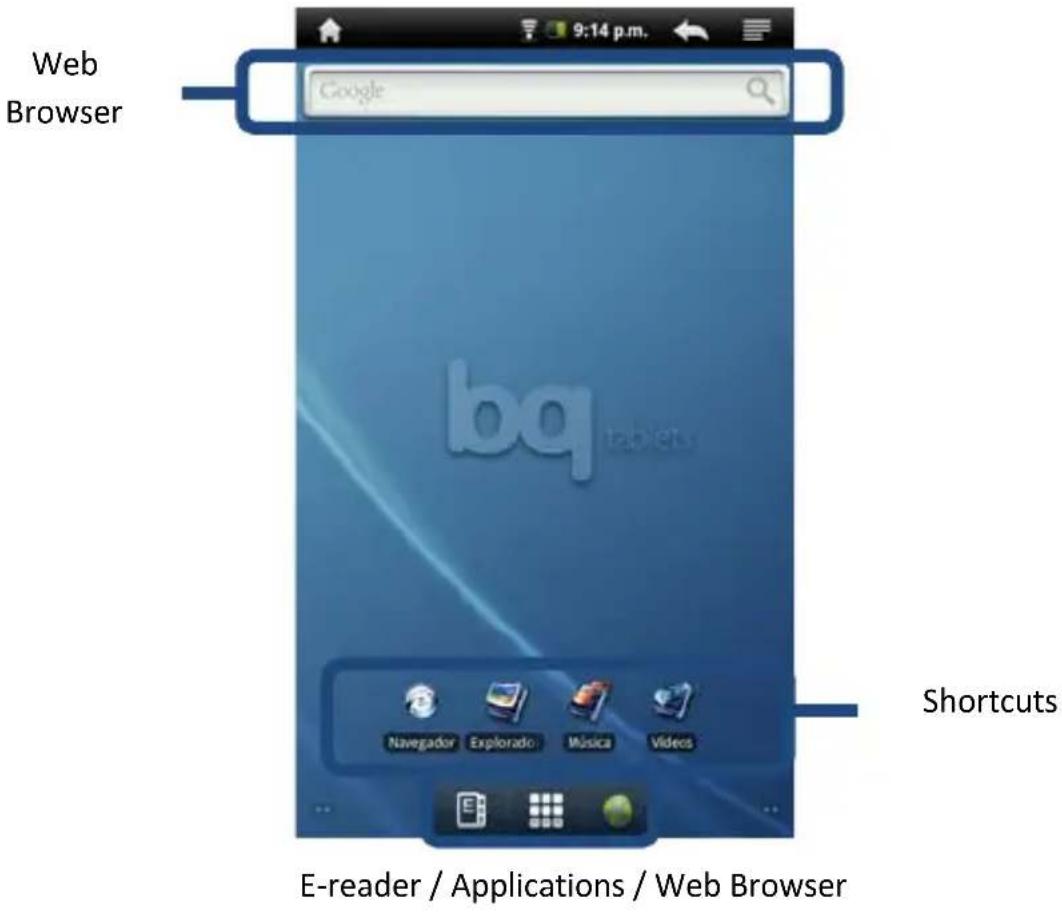
Internet Search - This application searches the Internet quickly. Requires Wi-Fi connection.
Shortcuts - Shortcuts allow you to open an application directly just by touching the icon.
E-book / Applications/ Setup - These icons enable reading e-books, access to applications and setup, respectively.
Toolbar
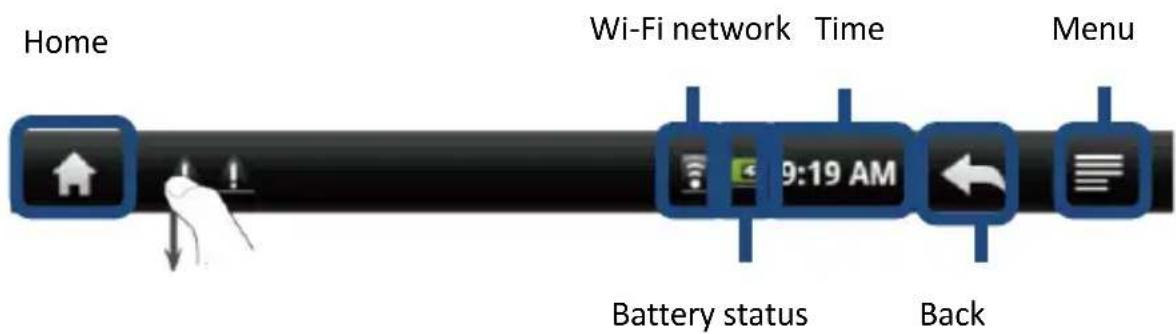
Home - Back to Home Screen from any section.
Wi-Fi network - Shows status of Wi-Fi network.
Battery status - Shows the status of the battery. When the battery is fully charged, it shows the icon
Time - Shows current time.
Back - In some applications, you can go back one level by pressing on this icon.
Menu - Press on this option to access menu items.
Extension screens
To navigate across the Home and extension screens, flick your finger to the left or right on the screen.

natural_image
Computer desktop icons arranged in a symmetrical layout (no text or symbols visible)Personalize Home Screen
You can personalize the Home Screen of your bq by adding or removing widgets and applications or by changing the screen background.
Add an item to the Home Screen
To add an item to the Home Screen, press the Menu icon >Add >+Shortcuts. Select and item to place on the Home Screen.

Add an item to the Home Screen
To add an item to the Home Screen, press the Menu icon >Add >Widgets. Select and item to place on the Home Screen.

Add a folder to the Home Screen
To add a folder to the Home Screen, press the Menu icon >Add +> Folders >New Folder.

Change the screen background
To change the screen background, press the Menu icon Wallpapers. Select a screen background, a live screen background or an image and select an image and tap on “Set as screen background.”
Other customizations
Rename folder
To rename a folder, hold your finger down on the title bar of an open folder until a pop-up appears. Enter the new name of the folder.
Move and item in the Home Screen
To move an item on the Home Screen, hold the icon down with your finger until it changes size, drag it to the desired location and release it.
Delete an item from the Home Screen
To delete an item from the Home Screen, hold it down with your finger until it changes size. Then, drag it to the Recycling Bin on the Applications Bar.
CONNECTING TO A WI-FI NETWORK
To browse the Internet or use other web applications, you need to connect the device to a Wi-Fi network first.
- Touch Settings > Wireless & networks > Wi-Fi to select the check box. The device then scans for available wireless networks.
- Touch Wi-Fi settings. The network names (SSID) of the discovered Wi-Fi networks display in a list.
- Flick through the network list and touch your desired network to display its security level and signal strength.
- Enter the password if the network is secured, and touch
Connect to start connection. The signal strength icon then appears on the status bar.

CLEANING AND SAFETY
Cleaning
Before cleaning the device, shut it down and disconnect all system and power cables. Make sure the screen is completely dry before re-connecting the cables and powering it on.
Do not use any cleaning liquid or spray directly on the surface of the screen or the outer shell.
- Screen: Use a soft, clean, lint-free cloth to remove dust and dirt from the screen. For fingerprints and stains, use a cloth with mild cleaning products.
- Outer shell: To clean the outer shell, use soft cloth moistened with a mild cleaning solution. Moisten the cloth with clean water, wring it out well and clean the shell to remove any leftover cleaning agent.
Safety
To minimize the risk of electrical discharges and electrocution, follow these safety instructions:
- Never leave the outer shell open and shut down the device before cleaning it.
- Do not place any object within the four edges of the screen.
- Do not spill any liquids on the reader and clean it with a moist cloth. If the device gets wet, do not switch it on or try to repair it yourself. Please call the technical service to check the reader before turning it on again.
- Use environmentally responsible products and do not handle them in extreme environmental conditions.
- Be careful with possible blows to the device, either direct or indirect, that may cause irreparable damage to the screen and poor product performance.
- Keep the reader away from dust, sand and dirt.
WARRANTY
If you have any problems with your bq Voltaire or you wish to get in contact with us regarding technical support, you can do so using one of the following options:
Email: soporte@bqreaders.com
Visit our website: www.bqreaders.com/contacto.html
Telephone: +34 914 575 012
Warranty coverage
- The warranty is for a period of 2 years from the date of delivery.
- Your warranty does not cover any defects or costs caused by any use of the product other than that for which it was intended.
- During warranty period, any faults or malfunctions caused by a manufacturing error will be covered. All warranty returns will be repaired or replaced at Mundo Reader's discretion. All repairs must be carried out at an Authorized Technical Support centre, for any other solutions please visit your point of purchase.
Warranty nullity
The present warranty will not be valid if any of the following: defects or faults resulting from an accident, misuse or inadequate use of your device, handling/tampering at a non Authorized Technical centre or the wear of the product as a result of external agents, not original from the brand. The warranty will not cover any faults as a result of high voltage and electrical discharge.
The warranty will not cover screen breakage or aesthetic parts broken after first use.
Our Technical Support Team cannot be hold responsible in the event of data loss or information stored in the device and under no circumstances can be expected to perform backups beforehand. Devices will return with the manufactures original configuration and applications.
For further instructions about your bq Voltaire, please check the user guide on our website www.bqtablets.com
- Español
- INTRODUCCIÓN
- Unpacking the Box
- Overview
- STARTING UP
- Charging the battery
- Turning your device On and Off
- Inserting the MicroSD Card
- Exanging files with you PC
- USING THE SCREEN
- Home screen
- Toolbar
- Extension screens
- Personalize Home Screen
- Add an item to the Home Screen
- Add a folder to the Home Screen
- Change the screen background
- Other customizations
- Rename folder
- Move and item in the Home Screen
- Delete an item from the Home Screen
- CONNECTING TO A WI-FI NETWORK
- CLEANING AND SAFETY
- Cleaning
- Safety
- WARRANTY
- Warranty coverage
- Warranty nullity
Brand : bq
Model : Voltaire
Category : Tablet