
DT940C - Calculator AURORA - Free user manual and instructions
Find the device manual for free DT940C AURORA in PDF.


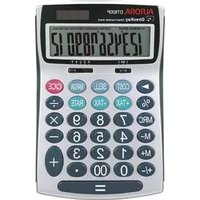
| Product Type | Basic Desktop Calculator |
| Brand | Aurora |
| Model | DT940C |
| Display | 8-digit LCD |
| Power Source | Solar cell with LR44 backup battery |
| Dimensions (LxWxH) | 15 x 8 x 2 cm |
| Weight | Approx. 100 g |
| Key Functions | Basic arithmetic, percentage, square root, memory keys (M+, M-, MR, MC) |
| Auto Power Off | Yes, after approx. 8 minutes of inactivity |
| Dual Power | Solar and battery (automatic switching) |
| Housing Material | Plastic |
| Key Type | Plastic keys with tactile feedback |
| Protective Cover | Sliding hard cover |
| Cleaning Instructions | Wipe with a soft, dry cloth; do not use solvents |
| Battery Replacement | LR44 coin cell; slide off cover, replace with correct polarity |
| Repairability | Not user-serviceable; contact manufacturer for repairs |
| Certifications | CE, RoHS |
| Operating Temperature | 0°C to 40°C |
Frequently Asked Questions - DT940C AURORA
User questions about DT940C AURORA
0 question about this device. Answer the ones you know or ask your own.
Ask a new question about this device
Download the instructions for your Calculator in PDF format for free! Find your manual DT940C - AURORA and take your electronic device back in hand. On this page are published all the documents necessary for the use of your device. DT940C by AURORA.
USER MANUAL DT940C AURORA
Thank you for purchasing your new Aurora DT940C calculator, please remove and recycle all packaging.
Instructions and FAQ's:
1. Turning your calculator on and off.
To turn your calculator on simply press the red · CE key.
The calculator is equipped with an ‘auto off’ feature and will power down by itself after approx. 5 minutes of inactivity.
The CE on this key means clear entry, during a calculation pressing this key once will remove you last entry but not your whole sum.
The C means cancel, during a calculation pressing this key twice will cancel your whole calculation.
2. What are the LOCAL and EURO keys for?
These buttons allow you to program a currency exchange rate and to easily convert amounts from one currency to another. Firstly you need to set a currency rate into the calculator which will be stored in the memory until you change it even when the calculator turns off.
- Storing a rate.
Let us assume you want to store a rate for converting between £'s and €'s. We will use a rate of 1€ being equal to £0.70.
Firstly press the CA key to clear the calculator, then press the LOCAL key, then enter 0.7, then press the LOCAL key again.
This rate is now set in the calculator. You can check the rate that is set by pressing the CA key and then the EURO key, the rate that is currently set will be displayed on the calculator screen.
- Converting an amount from £'s into Euros.
If we have £1000 how much is this in Euros? Clear the calculator then enter 1000 and press the EURO key, the amount of 1,428.57 will be displayed on screen* along with a € symbol.
- Converting an amount from Euros into £'s.
If we have 1000€ how much is this in £'s? Clear the calculator then enter 1000 and press the LOCAL key, the amount of 700.00 will be displayed on the screen*.
You can set any two currencies you like into the calculator simply by programming the relevant conversion rate.
*The amounts shown on the screen referred to above may vary depending on your slide switch settings see below.
3.What is the switch marked 54 for?
This switch is the round up/down switch, there are 3 positions, the first is marked with the arrow pointing upwards, on this setting the calculator will round all answers up. The middle setting is marked 5/4, on this setting the calculator will use the mathematical rule of rounding up when above 5 and rounding down when below 5, the 3rd setting marked by the arrow pointing down will round all answers down.
- IMPORTANT – the rounding and number of decimal places will be affected by the setting of the decimal place switch see below.
4.What is the switch marked F20A for?
This is the decimal place setting switch.
The ‘F’ stands for floating, your answer will not be shortened and will be displayed using the largest amount of decimal places the screen permits. The ‘2’ fixes the number of decimal places to two; all answers will be rounded to two decimal places based on the setting of your rounding switch (see above).
The '0' fixes the number of decimal places to zero, all answers will be rounded to zero decimal places based on the setting of your rounding switch
(see above).
The ‘A’ stands for Add mode; here addition and subtraction functions are performed with an automatic 2 digit decimal, this is useful when working with currency as it speeds up data entry.
i.e. If you enter 1, 0, 0, 0 then press +, you will notice that the display shows 10.00, it assumes when you typed 1, 0, 0, 0 you were entering 10.00 and not 1000.
5.How do the memory keys work?
Your calculator has a memory and you can store a variable number, to store a number press the 'M+' key, you can store a simple number or an answer from a calculation. The memory also has a running total, so you can add and deduct numbers using the M+ and M- keys. To see the number stored in the memory or the running total press the R.CM key once. To clear the memory and reset back to zero press R.CM key twice or just press the CA key.
Example1 – Store the answers to the simple sums 2+2 and 3+3 in the memory and calculate the total.
[Input 2, +, 2, M+, 3, +, 3, M+] press the R.CM key once, the correct answer of 10 will be displayed.
Example 2 – Use the memory to add these number together; 5, -6, 8, 9, -4. [Input 5, M+, 6, M-, 8, M+, 9, M+, 4, M-] press the R.CM key once the correct answer 12 will be displayed. To clear and reset your memory press the R.CM key twice or the CA key. Whenever a number is stored in the memory an 'M' will show on the display.
6.What does the CA key do?
This is the Clear All key, pressing this clears the calculator of all calculations and also clears the memory. It does not clear the currency exchange rate which remains stored at your programmed rate.
7.What does the key do?
This is the backspace or delete key, pressing this deletes the last digit you entered.
8.How do I change the battery?
The calculator uses a single LR1130 battery which can be replaced.
On the back of the calculator there are 3 small screws, remove these and keep safe.
The calculator case splits into two halves but it is held together inside by plastic clips which need to be released, using a flat screwdriver on one of the sides gently prise the case apart and run the screwdriver around the case to release the clips. There are 7 in all, two on the top corners, two on both side corners and one centrally on the bottom.
Now remove the back case, the battery is located in the battery holder that is visible on the back of the circuit board in the front case. Gently slide the battery out of the holder and replace. With the battery replaced reattached the back case ensuring all the plastic clips are connected and replace the 3 screws.
9. My calculator has stopped working – what should I do?
If the screen of the calculator is fading or the calculator will not turn on then it is likely the battery needs replacing (see above).
If you believe your calculator is faulty and you purchased it less than 1 year ago then it is covered by a manufacturer's warranty. Please contact your supplier for details.
Aurora Electronics (UK) LTD.
Units 1&2 Shires Industrial Estate
Lichfield, Staffordshire WS14 9AZ
www.aurora-europe.co.uk

- Instructions and FAQ's:
- Turning your calculator on and off.
- What are the LOCAL and EURO keys for?
- - Storing a rate.
- - Converting an amount from £'s into Euros.
- - Converting an amount from Euros into £'s.
- 3.What is the switch marked 54 for?
- 4.What is the switch marked F20A for?
- 5.How do the memory keys work?
- 6.What does the CA key do?
- 7.What does the key do?
- 8.How do I change the battery?
- My calculator has stopped working – what should I do?
Brand : AURORA
Model : DT940C
Category : Calculator