
IM5 - Smartphone KODAK - Free user manual and instructions
Find the device manual for free IM5 KODAK in PDF.


| Product Type | Smartphone |
| Manufacturer | Kodak |
| Model | IM5 |
| Display Size | 5 inches IPS LCD |
| Resolution | 1280 x 720 pixels |
| Operating System | Android 4.4 KitKat |
| Processor | MediaTek MT6592M Octa-core 1.7 GHz |
| RAM | 1 GB |
| Internal Storage | 8 GB (expandable via microSD) |
| Rear Camera | 13 MP with flash |
| Front Camera | 5 MP |
| Battery Capacity | 2500 mAh (removable) |
| Dimensions | 147.2 x 70.5 x 8.5 mm |
| Weight | 150 g |
| SIM Type | Micro-SIM |
| Network | GSM / HSPA / LTE |
| Connectivity | Wi-Fi 802.11 b/g/n, Bluetooth 4.0, GPS |
| Sensors | Accelerometer, proximity, compass |
| Colors Available | Black, White |
| Release Year | 2015 |
| Power Supply | 5V 1A charger (included) |
| Maintenance | Clean with soft dry cloth; avoid liquids |
| Safety Precautions | Do not expose to extreme heat; use original charger |
| Spare Parts & Repair | Parts available online; professional repair recommended |
Frequently Asked Questions - IM5 KODAK
User questions about IM5 KODAK
0 question about this device. Answer the ones you know or ask your own.
Ask a new question about this device
Download the instructions for your Smartphone in PDF format for free! Find your manual IM5 - KODAK and take your electronic device back in hand. On this page are published all the documents necessary for the use of your device. IM5 by KODAK.
USER MANUAL IM5 KODAK
Kodak
IM5 Smartphone
Life less complicated
Congratulations on your purchase. We live in an unnecessarily complex world.
Life is as challenging as you make it - so why not make it easier? The KODAK IM5 intuitively eases life's complications.
Contents
Phone Overview....3
Insert your SIM card(s)....4
Insert your SD card ....4
Charge the battery 5
Power on and Power off....6
Using the touchscreen....7
Phone keys 8
Lock screen 8
Simple interface and settings....9
Notifications and Status bar....9
Add someone to your Contacts....10
Sending a text message....10
Making a call 11
Receiving a call....11
Accessing the internet 12
Sending an email 12
App store....13
App drawer 13
Play store....13
Google app folder 13
Calendar 14
Flashlight 14
Magnifier 14
Taking a picture....15
Gallery 15
Editing and sharing images....16
Remote assist....17
Android user guide....19
Kodak
IM5 Smartphone


Phone Overview
1 Power Key
2 Headset Jack
3a SIM card slot 1
3b SIM card slot 2
4 Notification light
5 Auto light/proximity sensor
6a Front camera
6b Front flash
7 Earpiece
8 Menu key
9 Home key
10 Back key
11 Microphone
12 USB/Charger port
13 SD card slot
14 Volume key
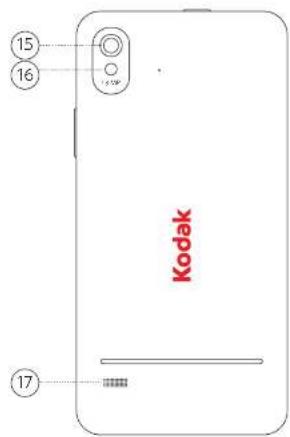
15 Rear-facing camera
16 Flash
17 Loudspeaker


Kodak
IM5 Smartphone

natural_image
Row of identical yellow icons on orange background, no text or symbols present
Insert your SIM card(s)
- Insert the SIM/SD card eject tool into the small hole next to SIM slot 1 on the left side of the device. The tray will pop out. Repeat with SIM slot 2 if required.


Insert your SD card
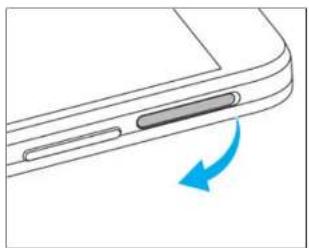
- Use the SIM/SD card eject tool to flick open the SD card cover on the right side of the device.
natural_image
Side view of a smartphone edge showing a blue arrow indicating rotation or change (no text or symbols present)- Insert the SIM card(s) as shown.

- Insert the SD card as shown.

natural_image
Diagram of a device with a blue arrow pointing to a component, no text or symbols presentKodak
IM5 Smartphone


Charge the battery
Fully charge the battery before using your device for the first time.
- Connect the USB cable that came with your mobile phone to the charger.
Note: Use only the cable and charger supplied with the phone. Unapproved equipment may cause damage to the device or cause batteries to explode.
- Connect the USB cable to the USB port of the phone.
Be careful not to use excessive force when plugging the USB cable.
Be aware of the correct orientation of the plug. Damage can be caused by attempting to insert the connector the wrong way, which is not covered under warranty.

natural_image
Line drawing of a smartphone with a blank screen and red warning symbols on the screen (no text or labels)
Important Information about the Battery
If the battery has not been used for a long period of time, you may not be able to power on your mobile phone immediately after you begin charging the battery. Allow the battery to charge for a few minutes with the phone powered off before attempting to power on the phone. The on-screen charge animation may not be displayed during this period.
Using data services increases demand on the battery and will reduce the length of time it can hold a charge.
The time required to charge the battery depends on the environmental temperature and the age of the battery.
When the battery power level is low, the phone plays an alert and displays a prompt. When the battery power is almost exhausted, your phone will power off automatically.
Kodak
IM5 Smartphone

natural_image
Row of identical yellow icons on orange background, no text or symbols present
Power on and Power off
Powering On your Mobile Phone
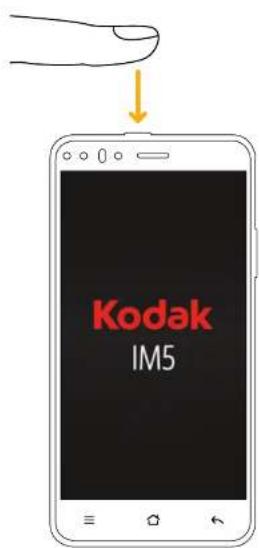
Press the Power button.
The first time you power on your phone, you will see a Welcome screen. Select your preferred language and touch the Start icon to continue with the set up process.
Note: If personal identification number (PIN) protection is enabled on your SIM Card, you will be asked to enter your PIN before the Welcome screen. A Wi-Fi or Data connection is needed to complete the set up process.
You will now be prompted to sign in with your existing Google account, or set up a new account and complete the set up process.
Note: You can skip the account set up process to complete at another time. A Google account is required to use some of the Google services on offer through your device.
Powering Off your Mobile Phone
- Press and hold the Power button to open the Phone options menu.
- Touch Power off.
- Touch OK.

Kodak
IM5 Smartphone


Using the Touchscreen
Touch
Touch using your fingertip to select an item, confirm a selection, or start an application.

Touch and Hold
Touch an item with your fingertip and continue to press down until your mobile phone responds. For example, to open the options menu for the active screen, touch the screen and hold down until the menu appears.
natural_image
Simple line drawing of a finger with four directional arrows (no text or symbols)Swipe
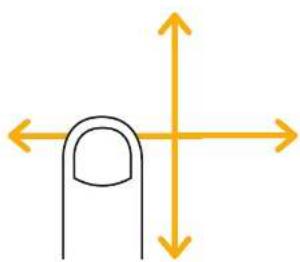
Move your finger across the screen either vertically or horizontally. For example, swipe left or right to switch between pictures.

natural_image
Simple diagram showing a finger pressing a curved object with directional arrows around the circle (no text or symbols)Drag
Touch and hold the desired item with your finger. Drag the item to any part of the screen. You can drag an icon to move or delete it.
Rotating your Mobile Phone Display
The orientation of most screens will rotate with the phone as you turn it from upright to sideways and back again. See "Auto-rotate screen" on page 64.
Kodak
IM5 Smartphone

natural_image
Row of identical yellow icons on a solid background, no text or symbols present
Phone keys Lock screen
- To return to the Home screen from within an app, press the Home key.
- Within an app, press the Back key to return to the previous screen.
- From within some apps you can press the Menu key to access app options.


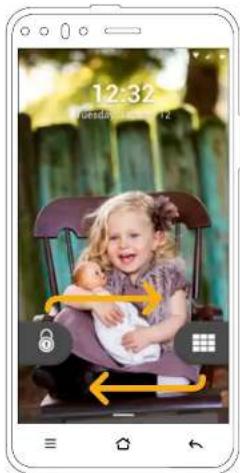
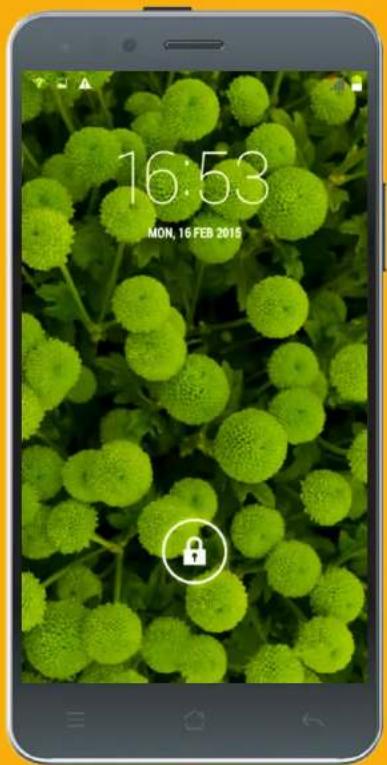
- Slide the Lock symbol to the right to unlock the phone.

- Slide the Gallery icon to the left to view your photos.

- Your lock screen background will be set by default to pan across full-screen photos from among the last 20 images saved in your Camera roll
Kodak
IM5 Smartphone


Simple interface and settings Notifications and Status bar
- Your KODAK device has a clear and intuitive user interface for easy access to all the most used apps.
- Touch each tile to launch an application.
- To access settings, select the settings icon. From here you can alter various phone settings, including display brightness and audio profiles.


- The status bar shows when you have a message or a missed call, as well as the status of your battery, phone signal and Wi-Fi.
- Drag the status bar downwards to view updates and notifications. Press the Quick Settings button in the top right corner of the screen for options to enable Bluetooth, Wi-Fi and flight mode.
- The light in the top left corner of your phone will flash green when you have a new notification.

Kodak
IM5 Smartphone


Add someone to your Contacts Sending a text message

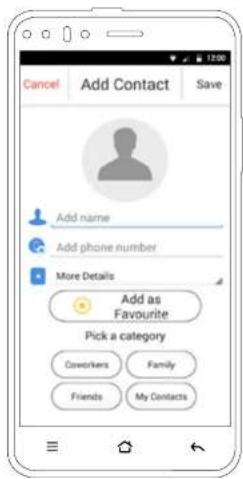
- From the Home screen, press the Contacts icon.
- In the contact list, select 'Add Contact'.
- Enter the information required. When you have finished, press Save. Select 'Add as Favorite' to show this contact in your favorite list.

Add as Favorite
- From the Home screen, press the Text icon. Then press the New Text Message icon to start composing a message.

- Touch the 'Type name or number' box to display the on-screen keyboard. Enter the number of the person you wish to text, or their name if you have already saved them as a contact. Enter your message where is says 'Type text message'.
- When the message is complete, press the Arrow symbol to send it.

Kodak
IM5 Smartphone


Making a call Receiving a call

- From the Home screen, press the Phone icon. Then press the Keypad icon to display a numbered keypad.
- Enter the telephone number you wish to dial, or their name if you have already saved them as a contact. Press the blue Call button to start the call.
- To end the call, press the red End Call button.


- To receive a call, swipe the phone icon right towards the green 'Answer call' symbol.
- To reject a call swipe the phone icon left towards the red 'End call' symbol. To send a predefined text, swipe the phone icon towards the text symbol.
- Within a call press the Speakerphone icon to put the call on loud speaker. Press the Keypad button to access the keypad.

Kodak
IM5 Smartphone


Accessing the internet Sending an email
- Select the Settings icon. Select Wi-Fi, and turn it on to see a list of available networks. Select the network you wish to join. If required, enter the Wi-Fi password when prompted, then press Connect.
- On the Home screen press the Internet icon. Touch the 'Search or type URL' bar at the top of the screen to display the keyboard.
- Enter the search term or the address of the website you are looking for, and then press the Enter or Go key on the keyboard to start browsing.
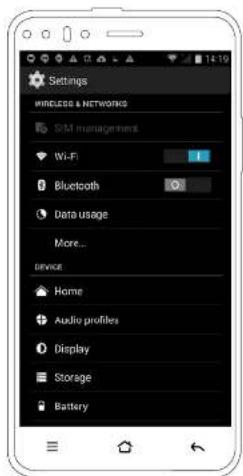

- Press the Gmail icon, select your account, and press Always. You will be asked to set up a Google account if you have not already done so.

- On the Inbox screen, select the Compose icon. Touch the To field to display the keyboard, and enter the email address(es) of the person (or people) you wish to receive the message. Enter the subject of the email in the Subject line, then compose your message.
- Press the Arrow symbol ▶ to send the message.

Kodak
IM5 Smartphone


App store Play store
- Select the Apps icon from the home screen to enter the app store for your KODAK Smartphone.
- From here, you can download and install new apps to your device from a secure and curated catalogue of hundreds of high quality apps.

App drawer
- To access other apps, already installed on your device, press the App Drawer icon on the Home screen.

Back to contents


- To access the Google Play store, select the Play store icon.

- This is an alternative store for downloading Android apps.

Google app folder
- Select the Google app folder to access a range of applications, including Google Maps, YouTube and Google Drive.

Kodak
IM5 Smartphone


Calendar Magnifier
- Press the Calendar icon to open the calendar.

- Select a time to add a new event.
- Fill in the event details and select Done. The event will now show in your calendar.

Flashlight
- Select the Light button to turn on the IM5 flashlight. Tap it again to turn it off.


Back to contents

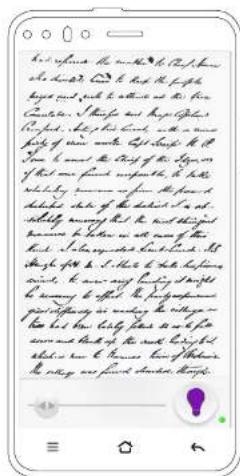
- Your KODAK Smartphone also includes a magnifying application.

- Select the Magnifier icon, and point the camera at the document or item you wish to view. You can zoom in or out by sliding the bar at the bottom of the screen. Turn on the light by pressing the Light button.
Kodak
IM5 Smartphone

natural_image
Row of identical yellow icons on orange background, no text or symbols present
Taking a picture
- The KODAK IM5 is designed around an excellent and easy-to-use camera experience. Select the Camera icon to start taking pictures.
- Press the central Capture button to take the picture. Once you have taken the picture, you can choose the X to discard it or √ to keep it.
- Your captured photos will appear at the bottom of the screen.

natural_image
Child in winter coat standing in snowy forest, no visible text or symbols
Gallery
- From the Home screen touch the Camera icon. Once camera is opened, swipe up from the bottom of display to access the tiled photo gallery. Here you can scroll through all the images you have taken.

- Select an image to share, edit, or print it.

Kodak
IM5 Smartphone


Editing and sharing images
- You can edit photos easily from the Gallery or Camera app. Select an image by pressing on it.
- To edit the image, press the Edit icon (a pencil symbol). You will be given a number of options for editing the picture.

- Or, to share a picture, press the Share icon from the image to send it to a contact through email, text message, or social media.

1.2

natural_image
Black-and-white photo of a girl standing on a beach with water and distant ships in the background (no text or symbols visible)

Kodak
IM5 Smartphone

natural_image
Row of identical yellow icons on a white background, no text or symbols present
Remote assist

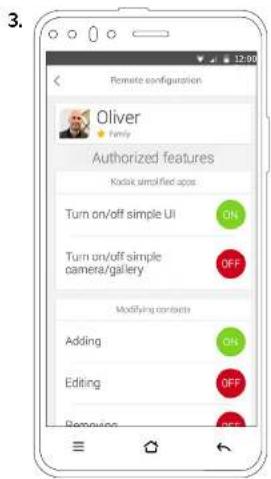
- Remote assist is an application on your phone that allows you to request help with some of your phone's functions from friends or relatives. Open the app drawer and select the Remote icon. Press the 'Allow remote access' button to turn the function on.
- To add someone you know as a remote helper, select 'Add new' from the connections box. Enter the person's email address, or choose someone from Contacts and press the + icon.
- Once you have selected your chosen helper, the screen will show you a list of features they can help with. Turn them On and Off as you wish. Then press Send.


Kodak
IM5 Smartphone

natural_image
Row of identical yellow icons on a solid background, no text or symbols present
Remote assist
- Your phone will now send an invitation to the selected helper. The Remote Configurations screen will show a list of your helpers and their status.
- When the helper accepts your invite, a notification will be sent to you and their status will show as green.
- The helper can now access features of your phone through a web interface. When your helper makes a change you will receive a notification and can choose to accept or reject a change. Select Access to show the list of changes made by the helper.
4.5


Kodak
IM5 Smartphone
Android User Guide
Kodak
IM5 Smartphone
All Rights Reserved
©2015. All rights are reserved. No part of this document can be reproduced without permission. All trademarks and brand names mentioned in this publication are property of their respective owners.
While all the efforts have been made to ensure the accuracy of contents in this manual, we presume no responsibility for errors or omissions or statements of any kind, whether such errors are omissions or statements resulting from negligence, accidents, or any other cause. We operate a policy of continuous development and reserve the right to make changes, modifications and improvements to the device, device features/specifications or any of its parts without prior notice.
Your device may have preinstalled bookmarks and links for third party internet sites and may allow you to access third party sites. These are no affiliated with us, and we do not endorse or assume liability for them. If you access such sites, take precautions for security or content.
The limited warranty does not cover user manuals or any third party software, settings, content, data or links, whether included/downloaded in the product, whether included during installment, assembly, shipping or any other time in the delivery chain or otherwise and in any way acquired by you. To the extent permitted by applicable law(s), we do not warrant that any our software will meet your requirements, will work in combination with any hardware or software applications provided by a third party, that the operations of the software will be uninterrupted or error free or that any defects in the software are correctable or will be corrected.
User's Manual is provided just to guide the user about the functionality of the device. This does not seem to be any certificate of technology. Some functions may vary due to modifications and up-gradations of software or due to printing mistake.
Safety Precautions
Please read the safety precautions carefully to ensure the correct use of your mobile phone.
Avoid using your mobile phone in a damp environment, such as the bathroom. Prevent your mobile phone from being intentionally soaked or washed in liquid.
Do not switch on your mobile phone when it is prohibited to use phones or when the phone may cause interference or danger.
Do not use your mobile phone while driving.
Follow any rules or regulations in hospitals and health care facilities. Switch off your mobile phone near medical apparatus.
Switch off your mobile phone in aircraft. The phone may cause interference to control equipment of the aircraft.
Switch off your mobile phone near high-precision electronic devices. The phone may affect the performance of these devices.
Do not attempt to disassemble your mobile phone or its accessories. Only qualified personnel are allowed to service or repair the phone.
Do not place your mobile phone or its accessories in containers with a strong electromagnetic field.
Do not place magnetic storage media near your mobile phone. Radiation from the phone may erase the information stored on them.
Kodak
IM5 Smartphone
(Safety Precautions Continued)
Do not put your mobile phone in a high-temperature place or use it in a place with flammable gas such as a gas station.
Keep your mobile phone and its accessories away from young children. Do not allow children to use your mobile phone without guidance.
Use only approved batteries and chargers to avoid the risk of explosions.
Observe any laws or regulations on the use of wireless devices. Respect others' privacy and legal rights when using your wireless device.
Do not use the mobile phone in airplanes, hospital, gas stations, or professional garages.
For medical implants patient (heart, insulin, etc), keep the mobile phone 15cm away from the implant and, while calling, keep the phone on the opposite side of the implant.
Strictly follow the relevant instructions of this manual while using the USB cable. Otherwise your mobile phone or PC may be damaged.
Notice
Some features of the product and its accessories described herein rely on the software installed, capacities and settings of local network, and may not be activated or may be limited by local network operators or network service providers. Thus the descriptions herein may not exactly match the product or its accessories you purchase.
The manufacturer reserves the right to change or modify any information or specifications contained in this manual without prior notice or obligation.
The manufacturer is not responsible for the legitimacy and quality of any products that you upload or download through this mobile phone, including but not limited to the text, pictures, music, movies, and non-built-in software with copyright protection. Any consequences arising from the installation or usage of the preceding products on this mobile phone shall be borne by yourself.
If your phone or any of its accessories do not function normally, then please visit your nearest authorized service facility. The qualified personnel will assist you, and if necessary, will arrange for the service.
Kodak
IM5 Smartphone
Contents
Understanding your Device
General info....24
Getting to know the home screen....25
Locking and unlocking the screen 26
Display
Display layout....27
Notification panel 29
Shortcut icons.... 31
Wallpapers....32
Folders 32
Using the Airplane mode....33
Transferring media to and from your mobile phone....33
Phone
Making a call....34
Answering and rejecting a call....36
Other operations during a call.... 36
Using call log....37
Contacts
Contacts....38
Communicating with your contacts 39
Using the onscreen keyboard 39
Messaging
SMS and MMS 40
Email 42
Wi-Fl 44
Browser 45
Bluetooth 46
Entertainment
Taking photos and recoding videos....49
Enjoying music 51
Listening to FM radio....53
Google Services....54
Using Maps 56
Using YouTube 57
Using Play Store 58
Kodak
IM5 Smartphone
Synchronizing Information
Managing your accounts....59
Customizing your account synchronization....60
Using other Applications
Using the calendar 61
Using the alarm....62
Calculator 62
Using the file manager 63
Managing your Mobile Phone
Setting the date and time....64
Setting the display....64
Setting phone ringtone 65
Setting phone services 65
Setting dual SIM functionality....66
Protecting your mobile phone 66
Managing applications....67
Ways to free up your mobile phone memory....67
Resetting your mobile phone....67
Specifications 68
Environmental Concern 69
KODAK Phone Information 70
Kodak
IM5 Smartphone
Understanding your Device
General Info
The KODAK IM5 Smartphone is a multi SIM phone with many great features such as Android version 4.4.2, Wi-Fi and an 13 MP Digital Camera. The two SIM slots provide the flexibility to manage both personal and professional SIM requirements with ease.
Powered by Android and featuring the Google suite of applications you'll be able to enjoy web browsing, messaging, music and more with the high capacity battery and expandable memory up to 32GB.
Kodak
IM5 Smartphone
Getting to know the Home Screen
After you sign in, or when you power on the phone, the Home screen opens. The Home screen is your starting point to access all the features on your phone. It displays application icons, widgets, shortcuts, and other features. You can customize the Home screen with different wallpaper and display the items you want.
The home screen has the Launcher icon touch this to view and launch installed applications (apps).


Kodak
IM5 Smartphone
Locking and Unlocking the Screen
Locking the Screen
When your mobile phone is on, press the Power button to lock the screen. When the screen is locked, you can still receive messages and calls.
If you leave your mobile phone undisturbed for a while, the screen will lock automatically.

Unlocking the Screen
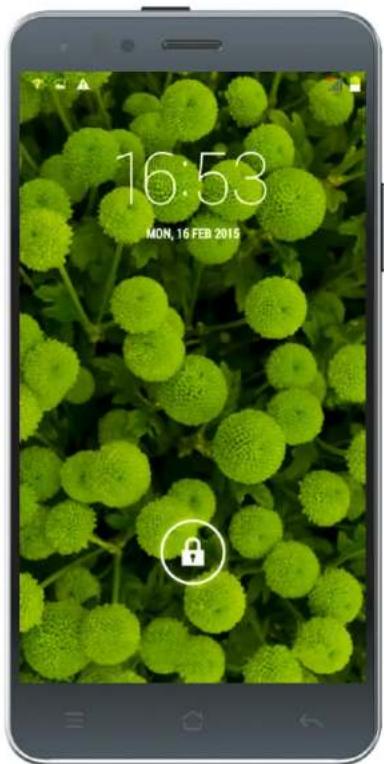
Press the Power key to wake up the screen. Then drag the lock icon to the unlock icon to unlock the screen.

flowchart
graph LR
    A["Lock Icon"] --> B["Arrow"]
    C["Black Block"] --> D["Arrow"]
Note: If you have set up a screen lock, you will be prompted to unlock the screen. For details, refer to "Protecting Your Mobile Phone with a Screen Lock" on page 66.
Kodak
IM5 Smartphone
Display Layout
Notifications and Status Information
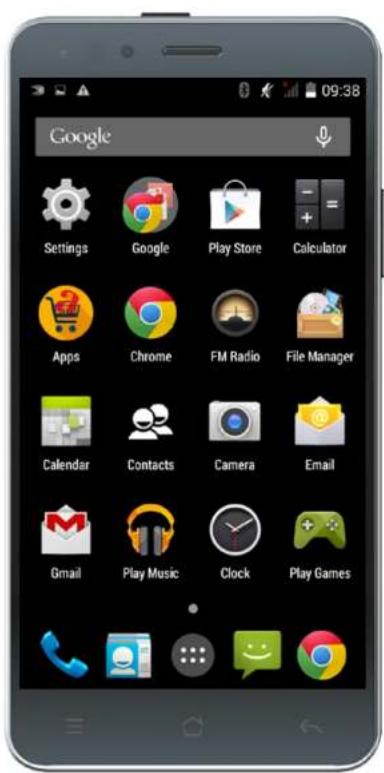
The Status bar appears at the top of every screen. It displays notifications icons, such as missed call or received messages (on the left) and phone status icons, such as battery status (on the right), along with the current time.

Notification icons Status icons
Kodak
IM5 Smartphone
Status Icons
| G | Connected to GPRS mobile network |
| E | Connected to EDGE mobile network |
| 3G | Connected to 3G mobile network |
| H | Connected to HSDPA mobile network |
| H^+ | Connected to HSPA+ mobile network |
| Mobile network signal strength | |
| Searching for a network signal | |
| No signal | |
| Connected to a Wi-Fi network | |
| Bluetooth is on | |
| Connected to a Bluetooth device | |
| Vibrate mode | |
| Ringer is silenced | |
| Battery is very low | |
| Battery is low | |
| Battery is partially drained | |
| Battery is full | |
| Battery is charging | |
| R | Roaming |
| Airplane mode | |
| Receiving location data from GPS |
Notification Icons
| New email message | |
| New text or multimedia message | |
| Alarm is set | |
| Upcoming event | |
| Data is syncing | |
| Problem with sign-in or sync | |
| Incoming call | |
| Missed call | |
| Speakerphone is activated | |
| Phone microphone is muted | |
| Downloading data | |
| Phone is connected via USB cable |
Kodak
IM5 Smartphone
Notification Panel
Your mobile phone will notify you when you receive a new message or there is an incoming event. The notification panel also informs you about alarms and settings — for example, when an alarm is activated.
Open the notification panel to see who the wireless network operator is or to view a message, reminder, or event notification.
Opening the Notification Panel
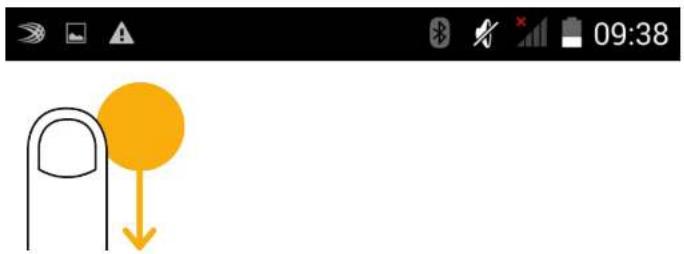
- When a new notification icon appears on the notification bar, touch the notification bar, and then drag down to open the notification panel.
natural_image
Simple line drawing of a finger pressing a yellow circle with a downward arrow, no text or symbols present.- Touch a notification to open the related application.

Kodak
IM5 Smartphone
Closing the Notification Panel
To directly close a notification (without viewing), simply touch and hold the notification and drag it to the left/right of the screen.

natural_image
Simple diagram showing a finger pointing to an orange circle with directional arrows (no text or symbols)To close the notification panel, slide the bottom of the panel upwards to close the notifications panel.

natural_image
Simple diagram showing a curved line and a circle with an upward arrow, no text or symbols present.
Kodak
IM5 Smartphone
Shortcut Icons
Adding a New Screen Item
- From the Home screen, touch launcher icon to display all the applications.


- Touch and hold an application icon until the icon vibrates.
- Without lifting your finger, drag the icon to the desired position on the home screen, and then release it.
Moving a Screen Item
- Touch and hold an application icon on the Home screen until the icon enlarges.
- Without lifting your finger, drag the icon to the desired position on the screen, and then release it.
Note: There must be enough space for the icon to fit on the current Home screen panel.
Removing a Screen Item
- Touch and hold an application icon on the Home screen until the icon enlarges.
- Without lifting your finger, drag the item to Remove.
- When the item turns red, release your finger to remove it from the Home screen.
Widgets
A widget lets you preview or use an application. You can place widgets on your Home screen as icons or preview windows.
Several widgets are installed on your phone by default. More widgets can be downloaded from Google Play Store. To add a widget to one of the screens:
- From the Home screen, touch the Menu key. Then touch WIDGETS to display the available widgets.
- To add an item, drag your desired widget to a specific Home screen.
Kodak
IM5 Smartphone
Wallpapers
Changing the Wallpaper
- From the Home screen, touch the Menu key or touch and hold the Home screen.
- Touch WALLPAPERS.


- Scroll through the available options to set a wallpaper of your choice.

Folders
Creating a Folder
Drag the application icon or shortcut and drop it on top of similar applications.

natural_image
Simple diagram showing a finger pressing a curved object with directional arrows around the circle (no text or symbols)Renaming a Folder
- Touch a folder to open it.
- On the title bar of the folder, enter the new folder name.
- When complete, touch the Back key.

Kodak
IM5 Smartphone
Using the Airplane Mode
Some locations may require you to turn off your phone's wireless connections. Rather than powering off your phone, you can set it to Airplane mode.
-
Press and hold the Power button.
-
Touch Airplane mode in the options menu.
Or using the Settings application, access the More...to enable the Airplane mode.

Transferring Media to and from Your Mobile Phone
Transfer all your favorite music and pictures between your mobile phone and PC in Media Device MTP mode.
- Connect your mobile phone to your PC with the USB cable and MTP mode will be activated.
- Your phone should be displayed as a removable device displaying Phone storage and if a memory card is inserted, SD card will also be visible.
Note: If using a MAC you will need to download drivers from: http://www.android.com/filetransfer/
Kodak
IM5 Smartphone
Phone
There are several ways to place a phone call. You can dial a number, select a number in your contacts list, on a Web page, or from a document that contains a phone number. When you are on a call, you can either answer incoming calls or send them to your voicemail box. You can also set up conference calls with several participants.
Note: When you are in a call using one SIM card, you will not be able to receive other calls using the other SIM card for the duration of that call. Contact your network operator to learn whether it supports conference calls and how many participants you can add.
Making a Call
To make a call, you can use the Phone application, or select a number from Contacts or Call Log.
When you are on a call, you can touch the Home key to return to the Home screen and use other functions. To return to the calling screen, drag the notification bar down and touch Current call.
Note: Be careful not to block the microphone with your fingers.
Kodak
IM5 Smartphone
Making a Call with the Dialer
- Touch 📞 on the Home screen display to display the dialer.
If you are already working with Contacts or Call Log, touch the Phone tab.
Or you can touch 🙏 and then Phone 📞
- Touch the appropriate numeric keys to enter the phone number.
Tip: Your mobile phone supports the SmartDial function, that is, when you touch numbers on the dialer, the phone automatically searches among your contacts and lists the matching results based on the accuracy. Close the keypad to view more possible matches.
- After entering the number, or selecting the contact, touch
If you have inserted two SIM cards, touch the desired network to dial the phone number.
Note: You can also specify the desired network that you want to use for data connection. See "Set up the Default Network" on page 65.
Making a Call from Contacts
- Touch 📄 and then Contacts 📋 to display the contact list. If you are already within the Dialer, touch the Menu key or 📋 and select People.
- In the list, touch the contact you want to call.
- Touch 📋 If you have inserted two SIM cards, touch the desired network to dial the phone number.
Making a Call from Call log
- Touch 📋 > Phone 📋 > Call Log tab (lower left corner of screen) to display all call history.
- Touch of the contact you want to call.
Kodak
IM5 Smartphone
Answering and Rejecting a Call
Answering or Rejecting an Incoming Call
When you receive a phone call, the incoming call screen opens with the caller ID and any additional information about the caller that you have entered in Contacts.
To answer a call, touch 📞 and drag it to the right
To reject the call, touch 🔒 and drag it to the left 📞.
Note: When you touch 🔒 it automatically changes to ●
Ending a Call
During a call, touch 📞 to hang up.
Other Operations During a Call
Making a Conference Call
If you receive a new call while you are already on a call, you can connect the second call to the call you are on. This feature is known as conference calling. You can also set up a conference call with multiple callers.
Note: Contact your network operator to learn whether it supports conference calls and how many participants you can add.
- To initiate a conference call, dial the number of the first person to be on the call.
While you are on that call, touch
- Enter the phone number of the person you want to join the conversation
and touch 🔔, or select someone from your Call Log or Contacts. The first call is automatically placed on hold.
-
Once the additional call has been connected, touch 🖱️ to begin the conference call.
-
To add more people, touch + and repeat steps 2 and 3.
-
To end the conference call and disconnect everyone, touch
Kodak
IM5 Smartphone
Switching Between Calls
If you receive a new call while you are already on a call, you can switch between the two calls.
- While you are on two calls, touch
- The current call is placed on hold and you are connected to the other call.
Using Call log
The Call log contains a list of calls that you have dialed, received, or missed. You can use the call log to quickly find a recently called number or add an incoming number to your contact list.
Saving an entry to Contacts
- Touch 📞 on the Home screen, then touch Call Log tab.
- Touch the entry you want to add.
- Touch
- Either add to existing contact or touch Create new contact.
Removing an entry from the list
- Touch 📞 on the Home screen, then touch Call Log tab.
- Select the entry that you want to delete.
- Touch the 📄 icon to delete.
Clearing the call log
- Touch 📞 on the Home screen, then touch Call Log tab.
- Touch the Menu key and then touch Delete, touch respective.call log(s), and then touch OK.
Kodak
IM5 Smartphone
Contacts
The Contacts application enables you to save and manage information such as phone numbers and addresses of your contacts. After you save the contact information on your mobile phone, it gives you easy access to people with whom you want to communicate.
Opening the Contacts Application
If you have a new mobile phone and have not yet added any contacts, Contacts displays a message with hints on how to start adding contacts to your mobile phone.
To open the application, do one of the following:
- Touch and then Contacts to display the contact list.
- Touch 📞 on the Home screen, then touch People tab.
All of your contacts are displayed alphabetically in a scrolling list.
Copying Contacts
You can copy contacts to and from the device, memory card, or USB storage.
- In the contacts list, touch the Menu key, and then touch Import/export.
- Select the source location of the contacts that you want to copy and touch Next.
- Select the destination location to copy the contacts to and touch Next.
- Select the contacts to copy and touch OK.
Adding a Contact
- In the contacts list, touch + to add a new contact.
- Select the location you want to save the contact to.
- Enter the contact's name, and then add any detailed information such as phone number or address.
- When you are finished, touch Done to save the contact information.
Adding a Contact to Your Favorites
- Touch the contact you want to add to Favorites.
- Touch ☆ beside the name and the icon turns white

Searching for a Contact
- In the contacts list, touch to search for a contact.
- Enter the name of the contact for which you are searching. As you type, contacts with matching names appear below the search box.
Editing a Contact
You can always make changes to the information you have stored for a contact.
- In the contacts list, touch the contact whose details you want to edit.
- Touch the Menu key, and then touch Edit.
- Make the desired changes to the contact information, and then touch Done. To cancel all changes you have made to the contact information, touch the Back key.
Kodak
IM5 Smartphone
Communicating with Your Contacts
From the Contacts or Favorites tab, you can quickly call or send a text (SMS) or multimedia message (MMS) to a contact's default phone number. You can also open details to view a list of all the ways you can communicate with that contact. This section describes how to communicate with a contact when you view your contacts list.
Communicating with a Contact
- In the contacts list, touch the contact that you want to communicate with.
-
In the contact's details, you can do one of the following:
-
Touch the phone number to make a call.
- Touch to send message.
- Touch to make a video call.
Deleting a Contact
- In the contacts list, touch the contact that you want to delete.
- Touch the Menu key, and then touch Delete.
- Touch OK to confirm that you want to delete the contact.
Using the Onscreen Keyboard
Displaying the Keyboard Panel
To enter text, use the onscreen keyboard. Some applications open the keyboard automatically. In others, touch a text field to open the keyboard.
To open the keyboard, touch the space where you want to write the text. Touch the Back key to hide the keyboard.
Using the Landscape Keyboard
If you find the keyboard inconvenient or difficult to use, turn your mobile phone sideways. The screen will display the keyboard in landscape orientation, providing you with a wider keyboard layout.
Customizing Keyboard Settings
- Touch > Settings > Language & input.
- On KEYBOARD & INPUT METHODS option, touch 📁 to customize the Android keyboard settings.
Kodak
IM5 Smartphone
Messaging
The Messaging application allows you to exchange text messages (SMS) and multimedia messages (MMS) with anyone using an SMS or MMS-capable phone. With the Email application you can read and send emails.
SMS and MMS
Opening Messaging
To open the application, do one of the following:
- Touch 🤘 on the Home screen.
- Touch > Messaging
Creating and Sending a Text Message
The Messaging window opens, where you can create a new message or open an ongoing message thread.
- Touch 📄 to start a new text or multimedia message or touch an existing message thread to open it.
- Enter a phone number in the Type name or number field, or touch to select a contact from Contacts. As you enter the phone number, matching contacts appear. You can touch a suggested recipient or continue entering the phone number.
- Touch the composition text box to start entering your message. If you touch the Back key while composing a message, it is saved as a draft in your message list. Touch the message to resume composing it.
- Once you are done, touch ▶ If you have inserted two SIM cards, touch the desired network to send your message.
Note: Responses appear in the window. As you view and send additional messages, a message thread is created.
Kodak
IM5 Smartphone
Creating and Sending a Multimedia Message

- On the messaging screen, touch
- Enter a phone number in the Type name or number field, or touch 📋 to select a contact from Contacts.
- Touch the composition text box to start entering your message.
- Touch the Menu key to display the options panel, and then touch Add subject to add the message subject.
- Enter a subject.
- Your mobile phone is now in multimedia message mode.
- Touch + and select the kind of media file to attach to the message.
- Once you are done, touch ▶ If you have inserted two SIM cards, touch the desired network to send your message.
Opening and Viewing a Multimedia Message
- In the message list, touch the message thread to open it.
- Touch the multimedia message to view the message.
- Flick up or down to view the previous or next slide.
Replying to a Message
- In the message list, touch a text or multimedia message thread to open it.
- Touch the text box to compose your message.
- Touch ▶ If you have inserted two SIM cards, touch the desired network to send your message.
Customizing the Message Settings
In the message list, touch the Menu key, and then touch Settings to customize the message settings.
Kodak
IM5 Smartphone
Your mobile phone puts email at your fingertips, too. Using your Email application, you can configure it for most popular email services. These types of email accounts are known as POP3, IMAP, or Exchange.
Opening Email
To open the application, touch


Adding an Email Account
When using the Email application for the first time, you must configure your email account. The Email setup wizard helps you set up your account for many popular email systems, so you can read and work with the same email that you do on a computer in a web browser, or with another email application.
- Launch Email application. See "Opening Email".
- Enter your Email address and Password.
- Touch Next. The device will automatically retrieve the email settings.
To manually set up email, touch Manual setup.
Note: If you select Manual setup, contact your email service provider for the parameters required for your account if you don't know what they are.
- Select an email connection protocol which best suits your needs. Follow the on-screen instructions and enter all the server information, Domain, Username, Password, and other related information. Touch Next to continue.
Back to contents
Note: Your account settings may vary, depending on the kind of email service for the account. For setup parameter details, please check with your service provider.
- Set the Inbox checking frequency settings and touch Next.
- Enter Give this account a name and Your Name.
Note: Give this account a name is the name shown on the Email screen.
- Touch Next.
After the initial setup, your email application opens to display the contents of your Inbox.
Adding Other Email Accounts
- After creating your initial email account, touch the Menu key, and then touch Settings.
- Touch ADD ACCOUNT to create another email account.
- Repeat steps 2-6 on "Adding an Email Account".
Tip: When adding a subsequent email account, you can also select Send email from this account by default option to use the new account to send all outgoing messages.
Kodak
IM5 Smartphone
Viewing an Email Message
- On the Inbox screen, touch an email to open it.
- To access a folder(s) on an email account that has been set up through Exchange, touch the account selection box at the top left of the screen, the folder(s) for the selected account will be displayed under ALL FOLDERS.
Creating and Sending an Email Message
- On the Inbox screen, touch 📄 to compose.
Note: To switch to another email account, touch the account selection box at the top left of the screen, then touch the account that you want to view.
- In the To field, enter the recipient's email address.
- Enter the subject and compose your email.
-
To send an attachment with the message, touch the Menu key, and then touch Attach file. Select the type of file then select the file you want to attach.
-
When you are finished, touch
- If you touch the Back key while composing a message, it saves the current message as a draft.
Replying to an Email Message
- Touch the email message you want to view and reply to.
- Touch ← or touch : > Reply all to reply to the email message.
Deleting an Email Account
- Touch the Home key to take you back to the Home screen. Touch the Menu key and select SETTINGS.
- Scroll down to ACCOUNTS and select Corporate.
- Touch the email account you want to delete.
- Touch the Menu key or Options and select Remove account.
Changing Email Account Settings
You can change a number of settings for an account, including how often you check for emails, how you are notified of a new mail, and details about the servers the account uses to send and receive mails.
- On the Inbox screen, touch the Menu key, and then touch Settings to customize the message settings.
- Touch General settings or an email account.
- Touch an option and change the necessary settings.
Note: Your account's incoming and outgoing settings depend on the kind of email service for your account: POP3, IMAP, or Exchange. You can enter the necessary details manually, although you will typically need to contact your email service provider to determine the right settings for the account.
Kodak
IM5 Smartphone
Wi-Fi
Wi-Fi gives you wireless access to broadband Internet access. To use Wi-Fi on your mobile phone, you need to have access to wireless access points (hotspots). Obstacles that block the Wi-Fi signal will reduce its strength.
Turning On Wi-Fi
- Touch

Settings


- Drag

to the right to enable Wi-Fi


Kodak
IM5 Smartphone
Connecting to a Wireless Network
- A list of detected Wi-Fi networks will be displayed. Touch a W-Fi network to connect to it.
- If you select an open network, you will be automatically connected to the network. If you select a network that is secured and connect to it for the first time, enter the password, and then touch Connect.
Note: If you connect to a secured wireless network that you have already used, you will not be prompted to enter the password again unless you reset your mobile phone to its default settings.
Tip: On the Wi-Fi settings screen, touch 📁 to add a new Wi-Fi network.
Browser
Google Chrome is the default browser on your mobile phone. Chrome is a simple, streamlined browser allowing you to navigate with ease, open and switch between an unlimited number of tabs.
When you access the Chrome application for the first time there is an option to "Take a tour" to find new ways of enhancing your browsing experience.
Kodak
IM5 Smartphone
Bluetooth
Your mobile phone has Bluetooth, which allows you to create a wireless connection with other Bluetooth devices so you can share files with your friends, talk hands-free with a Bluetooth headset, or even transfer photos on your phone to your PC.
If you are using Bluetooth, remember to stay within 10 meters (33 feet) of other Bluetooth devices. Be aware that obstacles like walls or other electronic equipment may interfere with your Bluetooth connection.
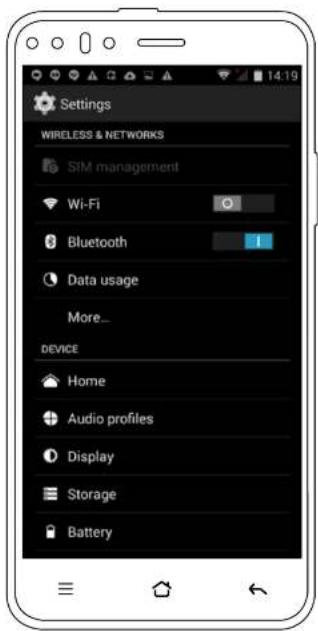
Turning On Bluetooth
- Touch > Settings

- Drag to the right to enable Bluetooth

When Bluetooth is turned on, the Bluetooth icon appears in the notification bar.

Kodak
IM5 Smartphone
Note: When the Bluetooth is turned on, your phone detects other Bluetooth devices, but your phone is not visible to others.
- To make your phone visible to others, touch your phone model name to make this device visible to other Bluetooth devices.
Pairing and Connecting a Bluetooth Device
Your mobile Bluetooth lets you do the following:
- Hands Free Profile (HFP): allows you to use a hands-free Bluetooth device.
- Headset Profile (HSP): allows you to use a mono Bluetooth headset.
- Object Push Profile (OPP): allows you to transfer files through Bluetooth.
- Advanced Audio Distribution Profile (A2DP): allows you to use a stereo Bluetooth headset.
- A/V Remote Control Profile (AVRCP): allows you to control what plays through the Bluetooth headset remotely.
Before you use Bluetooth, you need to pair your mobile phone with another Bluetooth device as follows:
- Ensure that the Bluetooth function on your mobile phone is enabled.
- Your mobile phone will then search for Bluetooth devices in range (or touch SEARCH FOR DEVICES).
- Touch the device you want to pair with your mobile phone.
- Enter the pairing password to complete the connection.
Note: If pairing with a car kit please enable Remote SIM mode before you start the pairing process. In the Bluetooth menu, touch Menu key or Options and select Advanced settings. The box needs to be checked to enable Remote SIM mode. Once a partnership has been created, connecting to that Bluetooth device again will no longer require entering the password.
Sending Files via Bluetooth
With Bluetooth, you can share pictures, videos, or music files with your family and friends.
To send files via Bluetooth, do as follows:
- Touch > File Manager to open the file manager
- Touch and hold the file to be sent.
- Touch < Bluetooth, and then select a paired device.
Kodak
IM5 Smartphone
Disconnecting or Unpairing a Bluetooth Device
- Touch > Settings

- Drag to the right to enable Bluetooth

- On the connected device option, touch and then Unpair to disconnect the device.
Kodak
IM5 Smartphone
Entertainment
In addition to being a communication device and personal assistant, your mobile phone also provides you with a multitude of entertainment possibilities. You can take photos, create videos and audio clips, and download and listen to music.
Taking Photos and Recording Videos
The camera is a combination of camera and camcorder that you can use to shoot and share pictures and videos.
Opening Your Camera
Touch > Camera to open the camera.
Touch the Back key or the Home key to close the camera.
Taking a Photo
- Touch > Camera
Note: To switch between front and rear camera, touch

- Compose your photo within the photo capture screen.
- Pinch to zoom in/out on the subject.
- Touch 🎨 to change the camera settings. The preview changes as you change the settings.
- Touch to take your photo.
Back to contents
Viewing Your Photos
- After taking a photo, a thumbnail of the photo you have just taken is shown in the corner of the Capture screen. Touch the thumbnail to view it.
-
Touch the onscreen button to do any of the following:
-
To share the photo, touch 📁, then touch an application for sharing.
• To delete the photo, touch 📄 > OK.
• To view other photos and videos in Photos, touch -
If you want to view more photos, touch the screen, and then flick right or left.
Shooting a Video
- Touch > Camera
- Touch when you want to start recording.
-
In recording mode will show and timer will be displayed in top right corner.
-
Pinch to zoom in/out on the subject.
- Touch ⑪ beside the timer to pause recording, timer will start flashing now.
-
Touch the next to flashing timer to resume.
-
Touch to stop shooting.
Kodak
IM5 Smartphone
Viewing Your Videos
After recording a video, a thumbnail of the video you have just recorded is shown in the bottom right corner of the Capture screen. Touch the thumbnail to view it.
Using the Gallery
Your Photos application can automatically search for pictures and videos saved to Phone or SD storage. Select the album/folder and play as a slideshow or select items to share with other applications.
Opening the Gallery
Touch > Photos to open the application. The Gallery application categorizes your pictures and videos by storage location and stores these files in folders. Touch a folder to view the pictures or videos inside.
Viewing a Picture
- In the Photos, touch the folder that contains the pictures you want to view.
- Touch the picture to view it in full-screen mode. When viewing a picture in full-screen mode, flick the picture left or right to view the previous or next picture.
- To zoom in on the image, move your two fingers apart from each other at the location of the screen where you want to zoom in. In zoom mode, swipe your finger up or down and left or right.
Tip: The picture viewer supports the automatic rotation function. When you rotate your mobile phone, the picture adjusts itself to the rotation.
Cropping a Picture
- When viewing a picture, touch the 📋 and then touch Crop.
- Use the cropping tool to select the portion of the picture to crop.
- Drag from the inside of the cropping tool to move it.
- Drag an edge of the cropping tool to resize the image.
- Drag a corner of the cropping tool to resize the image without changing the length to width ratio.
- Touch √ to save the cropped picture. Touch the Back key to discard the changes.
Kodak
IM5 Smartphone
Enjoying Music
You can transfer music files from your PC to your microSD card so you can listen to music on your mobile phone.
Copying Music to the microSD Card
- Connect the phone to your computer with a USB cable and mount the microSD card.
- On the PC, navigate to the USB drive and open it.
- Create a folder in the root directory of the microSD card (for example, Music).
- Copy the music from your computer to the folder you have created.
- After copying music, unmount or eject the drive as required by your PC's operating system to safely remove the mobile phone.
- Disconnect the mobile phone from the PC.
Opening the Media Library
Touch 📄 > Play Music 📋 to display the media library. The Music application organizes your music files by storage location.
Kodak
IM5 Smartphone
Playing Music
Touch the song you want to play.
Tip: When you are listening to music, touch the Back key to use another application. Your music continues to play. To return to the music controls, open the notification panel and then touch the song.
Adding Music to a Playlist
-
Touch the song, and then touch > Add to playlist.
-
Select a playlist or touch New playlist to add the song to an existing playlist.
Playing a Playlist
- Touch 3 icon on the music screen.

-
Touch Playlists.
-
Touch ⋮ to play.

Kodak
IM5 Smartphone
Listening to FM Radio
FM Radio lets you listen to FM radio stations on your mobile phone. Connect your headset first to the audio jack of your phone before opening the application.
Opening the FM Radio
-
Touch > FM Radio to open the application.
-
The FM Radio automatically scans for available FM channels, saves them as presets and plays the first FM channel found.
Tuning the FM Radio
Do any of the following:
• To select the radio station to listen to, touch
• To manually tune to a frequency, touch
• To add the current radio station to the Favorite list, touch
• To view the Favorite List, touch
• To turn on the speaker, touch 📄 and select Speaker.
• To scan for all available channels, touch Ⓗ > Search.
• To turn off the radio, touch ⏻ to exit out of application.


Recording the FM Radio
To record the radio, touch B > Record FM and do the following:
- To start recording, touch

- To stop recording, touch
and then enter the file name and touch Save.
• To listen to the recorded file, touch

Kodak IM5 Smartphone
Google Services
You must sign in to a Google account to use Gmail, Google Calendar, and other Google applications. To download applications from Play Store, you will also be prompted to sign in to your Google account.
Note: If your phone does not have a SIM card installed, you cannot connect to mobile networks for voice and data services, but you can connect to a Wi-Fi network to sign in to your Google Account and to use all the features of your phone, except making a phone call.
If you start an Android phone the first time without a SIM card, you will be asked to touch Connect to Wi-Fi to connect to a Wi-Fi network (instead of to a mobile network) to set up your phone. If you already have a Google account, touch Sign in and enter your username and password.
Creating a Google Account
If you do not have a Google account, you can create one:
- Touch > Settings

- In ACCOUNTS, touch Add account.
- Touch Google to create a Google account.
- Touch New to create a new account.
- Enter your name and touch
- Enter the username and touch
Back to contents
The mobile phone will connect to the Google server to check whether the username is available. If the username you entered is already in use, you will be prompted to choose another one.
- Enter and confirm your Google account password.
- Set the recovery information (i.e. alternative email account and security
question) and touch

-
Read the agreement and touch ▶ to complete the account setup.
-
Enter the authenticating code and touch

- Enter your credit card information to enable purchases from Google Play Store, and then touch Save. Or, touch Skip to skip this step.
Using Gmail
Gmail is Google's web-based email service. When you first set up your phone, you may have configured it to use an existing Gmail account or create a new account. The first time you open the Gmail application on your phone, your Inbox will contain the messages from your Gmail account on the web.
Kodak
IM5 Smartphone
Opening Gmail
Touch > Gmail The Inbox mail list appears. Any emails you decide to keep on your mobile phone will go to your Inbox folder.
Switching Between Accounts
To switch to another email account, touch the account selection box at the top left of the screen, then touch the account that you want to view.
Creating and Sending an Email
- On the Inbox screen, touch

-
Enter the message recipient's email address in the To field.
-
If you are sending the email to several recipients, separate the email addresses with commas.
-
If you want to send a copy (Cc) or a blind copy (Bcc) of the email to other recipients, touch the Menu key, and then touch Add Cc/Bcc.
-
Enter the email subject and compose your message. If you want to add a picture attachment, touch the Menu key, and then touch Attach file to select the picture you want to attach.
- After composing your email, touch

Back to contents
Replying To or Forwarding an Email
- On the Inbox screen, touch the email that you want to reply to or forward.
- Touch Reply ← ,Reply all > Reply all, or Forward > Forward.
- Do one of the following:
• If you select Reply or Reply all, enter your message.
- If you select Forward, specify the message recipients and add any additional text you want to include with the forwarded message.
- Touch

Searching for an Email
- On the Inbox screen, touch

- Enter the search keywords in the box, and then touch

Customizing Your Gmail Settings
On the Inbox screen, touch the Menu key, and then touch Label settings to customize the message settings.
Kodak
IM5 Smartphone
Using Maps
Maps lets you find your current location, view real-time traffic conditions (depending on availability in your location), and get detailed directions to various destinations on a satellite,traffic, or other kind of map.
Enabling Location
Before you open Maps to find your location or search for places of interest, you must enable "location source".
-
Touch > Settings
-
Touch Location.
-
Touch Mode to choose the relevant option.
Note: To use the navigation feature the Mode function will have to be set to High Accuracy or Device only.
Opening Maps
Touch > Maps to open the application.
Searching for Places of Interest
- While viewing a map, touch

- Enter the place you want to search for in the search box, and then touch

Note: You can also select one option from the suggestions list.
- Your search results will then be displayed. Touch the marker and it displays the location name.
- Touch the onscreen buttons to view the location on the map, get directions, and more.
Getting Directions
- While viewing a map, touch.

- Enter the starting point in the first text box, and then enter your destination in the second text box.
Note: You can also touch the corresponding and select an option.
- Touch the icon for car, public transit, or walking directions.
- Directions list will be displayed.
Kodak
IM5 Smartphone
Using YouTube
YouTube is Google's free online video streaming service for viewing, searching for, and uploading videos.
Opening YouTube
Touch 📷 > YouTube 🎯 The videos are grouped into categories, such as Recommended, Trending, Live, and more.
Searching for a Video
- On the YouTube screen, touch

- Enter a search keyword, and then touch

- Scroll through the results and touch a video to watch it.
TIP: You also have the option to view results of recently posted videos. Touch All time, and then select one of the available options.
Sharing a Video
- While viewing a video, touch

- Touch an application for sharing the video link from the available options.
Kodak
IM5 Smartphone
Using Play Store
Play Store provides direct access to applications and games, which you can download and install on your phone.
Opening Market

- When you open Play Store for the first time, the Terms of Service window will appear. Touch Accept to continue.
Searching for Applications
There are a few different ways to find applications on the Play Store home screen, including:
- List of applications by category: Touch the desired category and scroll down to view more.
- Search function: Touch

To view the installed applications, touch the ☐, and then touch My Apps.
Installing an Application
Note: If you want to install a non-Market application, touch Settings > Security, and then select the Unknown sources check box to allow installation of the non-Market application.
-
Touch > Play Store
-
Touch a category, and then touch the item you want to download.
-
On the item details screen, read more about the application, including overall rating, and user comments. If you scroll down to the Developer Info section, you can see other applications from the same developer, or link to the developer's website.
-
To install the item, touch INSTALL, then the screen changes to show requested permissions, then touch ACCEPT.
Note: To check the progress of a download, open the notification panel. The installation duration will depend on the size of the application and your data connection speed.
Uninstalling an Application
- On the Play Store screen, touch 📋 > My Apps.
- Touch the application you want to uninstall, and then touch UNINSTALL.
- When prompted, touch OK to remove the application from your mobile phone.
Note: Applications can also be managed by touching Settings > Apps.
Kodak
IM5 Smartphone
Synchronizing Information
Some applications (for example, Gmail) on your mobile phone give you access to the same personal information that you can add, view, and edit on your computer. If you add, change, or delete your information in any of these applications on the web, the updated information also appears on your mobile phone.
This is made possible through over-the-air data synchronization. The process occurs in the background and does not interfere with the use of your mobile phone. When your phone is synchronizing, a data synchronization icon will be shown in the notification bar.
Managing Your Accounts
You can synchronize contacts, email, and other information on your mobile phone with multiple Google accounts or other kinds of accounts, depending on the applications installed on your mobile phone.
For example, you can start by adding your personal Google account, so your personal email, contacts, and calendar are always available. You could then add a work account, so your work-related emails, contacts and calendar entries are also handy.
Adding an Account
- Touch

Settings

- In ACCOUNTS, touch Add Account. The screen displays your current synchronization settings and a list of your current accounts.
Note: In some cases, you may need to obtain account details from network administrator support. For example, you may need to know the account's domain or server address.
-
Touch the account type to add.
-
Follow the onscreen steps to enter the required and optional information about the account. Most accounts require a username and password, but the details depend on the kind of account and the configuration of the service to which you are connecting.
-
Configure the account. Depending on the kind of account, you may be asked to configure what kind of data you want to sync to the mobile phone, to name the account, and for other details. When you are finished, the account is added to the list in the ACCOUNTS settings screen.
Kodak
IM5 Smartphone
Removing an Account
You can remove an account and all information associated with it from your mobile phone, including email, contacts, settings, and so on. You cannot, however, remove some accounts, such as the first account you signed into on the mobile phone. If you attempt to remove certain accounts, be aware that all personal information associated with it will be deleted.
- On the ACCOUNTS settings screen, touch the account type.
- Touch the account to delete.
- Touch the Menu key, and then touch Remove account.
- Touch Remove account to confirm that you want to remove the account.
Customizing Your Account Synchronization
You can configure background data use and synchronization options for all the applications on your phone. You can also configure what kind of data you synchronize for each account. Some applications, such as Contacts and Gmail, can synchronize data from multiple applications. Others, such as Calendar, synchronize data only from the first
Google account you signed into on your phone, or from an account associated specifically with that application. For some accounts, synchronizing is two-directional; changes that you make to the information on your mobile phone are made to the copy of that information on the web. Some accounts support only one-way synchronization; the information on your mobile phone is read-only.
Changing an Account's Synchronization Settings
- On the ACCOUNTS settings screen, touch the account type, touch the account whose synchronization settings you want to change. The data and synchronization screen opens, displaying a list of the kinds of information the account can synchronize.
- Selected items are configured to synchronize to your mobile phone.
- Select or clear the check box of information you want to synchronize to the mobile phone.
Kodak
IM5 Smartphone
Using Other Applications
Using the Calendar
Use Calendar to create and manage events, meetings, and appointments. Depending on your synchronization settings, the calendar on your phone stays in synchronization with your calendar on the web.
Opening the Calendar
Touch > Calendar to open the application. Touch the Menu key to display various view and settings options.
Creating an Event
- On any calendar view, touch Menu key and select the New event option.
- Enter the event name on the keyboard
- Enter the location of the event and the description.
- If there is a time frame for the event, touch the time FROM and TO, so you can set the duration of the event.
- If it is a special occasion such as a birthday or a day-long event, touch the ALL DAY check box.
- Enter email addresses to invite Guests and Description
- Set the time of your event reminder in REMINDERS, and then specify in REPETITION whether the event recurs and its frequency of recurrence.
- After all settings are complete, touch DONE.
Setting an Event Reminder
- On any calendar view, touch an event to view its details or event summary.
- Touch Add reminder to add a reminder. Or touch the "X" icon to delete it.
- Touch the reminder time, and then touch the length of time before the event when you want to be reminded. When the time comes, you will receive a notification about the event.
Customizing the Calendar Settings
On any calendar view, touch the Menu key, and then touch Settings > General settings. Choose from:
- Hide declined events: Select to hide events for which you have declined invitations.
- Show week number: Select to show the number of week.
- Week starts on: Specify the first day of the week.
- Use home time zone: Display calendars and event times in your home time zone when travelling.
• Home time zone: Specify the time zone of the current location. - Notifications: Select to send you an event notification.
- Choose ringtone: Touch to select the ringtone to sound when you receive an event reminder.
- Vibrate: Touch to select the vibrate mode when you receive an event notification.
- Pop-up notification: Select to set an event reminder.
- Default reminder time: Touch to select the default time before an event for event reminders to occur.
- Quick responses: Touch to edit the default responses when emailing event information to the respective guests.
Kodak
IM5 Smartphone
Using the Alarm
You can set a new alarm or modify an existing alarm.
Opening the Alarm
Touch >Clock touch to set alarm to use your mobile phone alarm. Here you will see a list of current alarm details.
Adding an Alarm
- On the alarm list screen, touch + to add an alarm.
- To set the alarm, do the following:
- Set the hour and minutes by navigating around the dial and touch Done.
- To set repeat mode, touch REPEAT. Touch one or more options, then touch Done.
• To set the ringtone, touch WAKE UP. Touch an option, then touch OK.
• To vibrate when the alarm sounds, check Vibrate. -
To add an alarm label, touch Label.
-
After all settings are complete, touch the blank area of the alarm to save it.
Calculator
Use the calculator to solve simple arithmetic problems or use its advanced operations to solve more complex equations.
Opening the Calculator
Touch > Calculator to open the application.
Switching to the Advanced panel:
On the Calculator screen, touch the Menu key, and then touch Advanced panel.
Kodak
IM5 Smartphone
Using the File Manager
File Manager lets you organize, edit, and delete files and folders.
Opening the File Manager
Touch File Manager to open the application.
Creating a Folder
- On the File Manager screen, touch
- Enter the name of the new folder in the text box.
- Touch OK.
Moving or Copying File(s)
- On the File Manager screen, long press the file or folder you want to move or copy.
Note: To select another file(s), touch the respective file(s). To select all files, touch Select All.
- Touch 📄 to copy or touch ✗ to move the file.
- Select the destination folder.
- Touch 📄 to paste the file.
Delete File(s)
- On the File Manager screen, long press the file or folder you want to delete. Note: To select another file(s), touch the respective file(s). To select all files, touch Select All.
- Touch
- Touch OK to confirm the deletion.
Kodak
IM5 Smartphone
Managing Your Mobile Phone
To configure your mobile phone, touch 📋 > Settings

Setting the Date and Time
When you first start the phone, you are asked if you want the time and date to update automatically using the time provided by the network.
Note: When the time provided by the network is automatically used, you cannot set the date, time, and time zone.
- On the Settings screen, touch Date & time.
- Touch Automatic date & time and set its setting to Off.
- Clear the Automatic time zone check box.
- Touch Set date. On the set date screen, touch the desired field, and then scroll up or down to set the date. Touch Done when the configuration is complete.
- Touch Select time zone, and then select the desired time zone from the list. Scroll the list to view more time zones.
- Touch Set time. On the set time screen, touch the desired field, and then scroll up or down to set the time. Touch Done when the configuration is complete.
- Select or clear the Use 24-hour format check box to switch between 24-hour format and 12-hour format.
- Touch Choose date format to select how you want the date to display on your mobile phone.
Setting the Display
Adjusting the Screen Brightness
- On the Settings screen, touch Display > Brightness.
- Drag the slider left to make the screen darker, or right to make it brighter.
- Once you lift your finger off the slider, this will save your setting automatically.
Note: Tap AUTO to enable the device to automatically adjust the brightness of the screen depending on the surrounding light.
Auto-rotate screen
Check this box to enable the display to rotate when you turn the phone between landscape and portrait.
Adjusting the Time Before the Screen Turns Off
If your mobile phone is idle for several minutes, it will turn off the screen to save battery power. To set a longer or shorter idle time, do the following:
- On the Settings screen, touch Display > Sleep.
- Select the duration you want the screen to be illuminated.
Kodak IM5 Smartphone
Setting Phone Ringtone
Turning On Silent Mode
On the Settings screen, touch Audio profiles > Silent to enable the silent mode. Then all sounds except media and alarms are silenced.
Adjusting the Ringtone Volume
You can adjust the ringer volume when you are on the Home screen or any application screens (except during a call or when playing music or videos). Press the Volume keys to adjust the ringer volume to your desired level. You can also adjust the ringer volume on the settings screen.
- On the Settings screen, touch Audio profiles > General > and touch Volumes.
- Drag the slider left to make the volume softer, or right to make it louder.
- Touch OK to save the adjustment.
Changing the Phone Ringtone
- On the Settings screen, touch Audio profiles > General > and touch Voice call ringtone.
- Touch the ringtone you want to use, and then touch OK. The ringtone plays when selected.
Setting Your Phone to Vibrate for Incoming Calls
- On the Settings screen, touch Audio profiles > General >
- Select the Vibrate check box to enable your phone to vibrate for incoming calls.
Back to contents
Setting Phone Services
Set up the Default Network
- On the Settings screen, touch SIM management.
- In DEFAULT SIM, touch Voice call, Video call, Messaging, or Data connection and then select the network that you want to use for data connection.
Note: Check the availability of service and plan rates of data connections with your network service provider.
Customize the Network Settings
- On the Settings screen, touch SIM management.
- In SIM INFORMATION, select the network that you want to customize. The following network settings are available:
- Edit SIM name: Select to change the network name.
- Enter phone number: Select to set the phone number.
- Set background color: Select to customize the network icon shown on the status bar.
- Display numbers: Select to hide the number or to display the first/last 4 digits.
Kodak
IM5 Smartphone
Setting Dual SIM functionality
In the SIM management menu within WIRELESS & NETWORKS, you can view SIM information and configure which SIM is used for Voice, Video calls, Messaging and Data Connection. By default the setting for Calls and Messaging is set to Always ask. Data connection will default to use the SIM placed in the SIM slot 1 If you change the Data connection from the defaulted SIM slot a warning pop up message will be displayed that the selected SIM does not support 3G service, which may make data loading slower, so 3G service may need to be changed.
Setting 3G Service
On your Dual SIM phone both SIM card slots support 3G services, however only one can be 3G enabled at a time, with the default set to SIM slot 1
In WIRELESS & NETWORKS, select More... > Mobile networks > 3G service > Enable 3G and select the SIM to be used for 3G services.
Turning on Data Roaming
In WIRELESS & NETWORKS, select SIM management > GENERAL SETTINGS > Roaming > Data roaming, check to enable Data roaming.
Note: Accessing data services while roaming may incur considerable additional charges. Ask your network service provider about data roaming fees.
Disable Data Service
In WIRELESS & NETWORKS, select More... > Mobile networks > Data connection and select off.
Back to contents
Protecting Your Mobile Phone
Enable Your SIM Card PIN
- On the Settings screen, touch Security > Set up SIM card lock.
- If you have inserted two SIM cards, touch the desired SIM card network that you want to set the PIN code.
- Check the Lock SIM card check box.
- Enter the SIM card PIN, and then touch OK.
To change the SIM card PIN at any time, touch Change SIM PIN.
Note: You can dial emergency numbers any time from your mobile phone.
Protecting Your Mobile Phone with a Screen Lock
To keep your data more secure, lock the screen and/or require a screen unlock pattern every time your mobile phone is turned on or wakes up from sleep mode.
- On the Settings screen, touch Security > Screen lock.
- Select the one of the available options.
- None: The device is not protected.
- Slide: Slide to lock icon to unlock the phone.
- Face Unlock: Use face detection to unlock the phone.
• Voice Unlock: Use a voice command to unlock the phone. - Pattern: Trace the correct unlock pattern on the screen to unlock the phone.
• PIN: Enter a PIN number to unlock the phone. - Password: Enter a password to unlock the phone.
- Follow instructions for the chosen method to complete the settings.
Kodak
IM5 Smartphone
Managing Applications
Viewing an Installed Application
- On the Settings screen, touch Apps.
-
In the applications list, do any of the following:
-
Touch the Menu key, and then touch Sort by size. Then touch an application to view its details.
- Select Downloaded, Phone storage, Running, or All tab at the top of the screen. Then touch an application to view its details.
- Touch an application to view its details directly.
Removing an Installed Application
- On the Settings screen, touch Apps.
- Touch an application, and then touch Uninstall to remove the application from your mobile phone.
Note: Pre-installed applications can not be deleted.
Ways to Free Up Your Mobile Phone Memory
- Move files and email attachments to the microSD card.
- Uninstall the downloaded programs that you no longer use.
- Reset your mobile phone.
Note: Please back up all your important data before performing a Factory reset.
Resetting Your Mobile Phone
Backing Up My Settings
You can back up your mobile phone's settings to Google servers, with your Google account. If you replace your mobile phone, the settings you have backed up are stored on the new mobile phone the first time you sign in with your Google account.
- On the Settings screen, touch Backup & reset.
- Select the Back up my data box.
Restoring Factory Data
If you reset your phone to the settings that were configured at the factory, all of your personal data from internal phone storage, including information about your Google Account, any other accounts, your system and application settings, and any downloaded applications will be erased. Resetting the phone does not erase any system software updates you've downloaded or any files on your microSD card, such as music or photos.
- On the Settings screen, touch Backup & reset > Factory data reset.
- When prompted, touch Reset phone, and then touch Erase everything. The mobile phone resets the settings to the original factory settings, and then restarts.
Kodak
IM5 Smartphone
Specifications
Platform MTK 6592
SIM card Dual SIM, Dual online, One talk
eMMC 8GB+8Gb
Screen 5 inch (TFT)
Sensor Pixel QUXGA(13.0Mega)
Band GSM: 850/900/1800/1900 MHz
WCDMA: BAND1(2100)\BAND2(1900)
\BAND5(850)
Battery 2150 mAh
Standby Time 430 hours*
Maximum Talk Time 360 Minutes*
*The standby time and maximum talk time depend upon the network signals and settings.

Kodak
IM5 Smartphone
Environmental Concern
Help us save Our Environment...GO GREEN...!!
All our endeavors are directed towards providing environment friendly products to you. The materials used in our devices are recyclable and can be reused to make new products. We strive to make products that are safe for our consumers as well as the environment. Come join hands with us and make world a better place to live.
Preserve natural resources for future generations by recycling your phone. The phone contains some metals, when recycled properly; these can be put back into circulation, decreasing the need for new metal mining. Recycling reduces the need for raw materials, saves energy, helps mitigate Global Warming and reduces pollution, reduces waste products in landfills; therefore preserving natural resources for the future and saving the planet.
Follow some simple steps and contribute towards saving the planet.
DO's
Recycle your handset and its accessories. To Protect natural resources and to promote re-use of the material, kindly separate batteries from other type of waste.
DONT's
Do not dispose off your mobile and its battery in fire.
Do not dispose your mobile with the regular waste.
Do not over charge your handset. Remove the charger when battery is full.
Don't trash your phone, instead RECYCLE it
Hazards of Improper handling, accidental breakage, damage and/or improper recycling of hazardous elements
If this product is improperly handled, broken or damaged or carelessly recycled or disposed off in the fire, can result in environmental and data security concerns, including the following:
Back to contents
Affect nearly every system in the human body and result in birth defects, brain, heart, liver, kidney and skeletal system damage. They will also significantly affect the nervous and reproductive systems of the human body;
When burned, create cancer-producing dioxins which are released into the air we breathe; If thrown in landfills, may leach into groundwater affecting your local community;
In warm climates, the oxidation of mercury in the environment can be accelerated, leading to the creation of oxidized Hg atoms that are known to be associated with ozone depletion; and Improper recycling additionally results in data security issues, as private electronic information remains on hard drive, if not properly removed before disposal.
Constitution of Hazardous Elements in your Device:
Your device does not contain the following hazardous elements in a proportion higher than the limits provided hereunder: maximum concentration value of 0.1% by weight in homogenous materials for lead, mercury, hexavalent chromium, polybrominated biphenyls and polybrominated diphenyl ethers; and maximum concentration value of 0.01% by weight in homogenous materials for cadmium.

natural_image
Two symbolic representations: a recycling symbol and a crossed-out trash bin (no text or labels)Kodak
IM5 Smartphone
KODAK Phone Information
KODAK Phone user guide
To review the user guide before using your KODAK Phone, go to www.kodakphones.com/support
Regulatory information
Regulatory information, certification and compliance marks specific to KODAK Phones are available in the user guide.
EMC compliance statement
This product has demonstrated EMC compliance under conditions that included the use of compliant peripheral devices and shielded cables between system components.
It is important that you use compliant peripheral devices and shielded cables between system components to reduce the possibility of causing interference to radios, televisions and other electronic devices.
FCC compliance statement
This device complies with part 15 of the FCC rules. Operation is subject to the following two conditions: [1] this device may not cause harmful interference, and [2] this device must accept any interference received, including interference that may cause undesired operation.
Bullitt Mobile hereby declares that this wireless device is in compliance with the essential requirements and other relevant provisions of the R&TTE directive. Use restriction: This device is restricted to indoor use when operating in the 5150 to 5350 Mhz frequency range.
Avoid Hearing Damage
To prevent possible hearing damage, do not listen at high volume levels for long periods. This device has been tested to comply with the Sound Pressure Level requirement laid down in the applicable EN 50332-1 standards. Permanent hearing loss may occur if earphones or headphones are used at high volume for prolonged periods of time. Prevention of Hearing Loss Warning statement requirement under EN 60950-1:A12.
Battery caution
Caution! Risk of explosion if battery is replaced by an incorrect type. Dispose of used batteries according to the instructions. Operating temperature of device: 0-35°C.

FC
CE


Made for and Distributed by Bullitt Mobile Ltd under license from Eastman Kodak Company. The Kodak trademark and trade dress are used under license from Eastman Kodak Company. Made in China. ©2015 Bullitt Mobile Ltd - www.kodakphones.com
- Kodak
- IM5 Smartphone
- Life less complicated
- Contents
- Phone Overview
- Insert your SIM card(s)
- Insert your SD card
- Charge the battery
- Important Information about the Battery
- Power on and Power off
- Powering On your Mobile Phone
- Powering Off your Mobile Phone
- Using the Touchscreen
- Rotating your Mobile Phone Display
- Phone keys Lock screen
- Simple interface and settings Notifications and Status bar
- Add someone to your Contacts Sending a text message
- Making a call Receiving a call
- Accessing the internet Sending an email
- App store Play store
- App drawer
- Google app folder
- Calendar Magnifier
- Flashlight
- Taking a picture
- Gallery
- Editing and sharing images
- Remote assist
- All Rights Reserved
- Safety Precautions
- (Safety Precautions Continued)
- Notice
- Understanding your Device
- Display
- Phone
- Contacts
- Messaging
- Entertainment
- Synchronizing Information
- Using other Applications
- Managing your Mobile Phone
- Specifications 68
- Environmental Concern 69
- KODAK Phone Information 70
- General Info
- Getting to know the Home Screen
- Locking and Unlocking the Screen
- Locking the Screen
- Unlocking the Screen
- Display Layout
- Notifications and Status Information
- Notification Panel
- Opening the Notification Panel
- Closing the Notification Panel
- Shortcut Icons
- Adding a New Screen Item
- Moving a Screen Item
- Removing a Screen Item
- Widgets
- Wallpapers
- Changing the Wallpaper
- Folders
- Creating a Folder
- Renaming a Folder
- Using the Airplane Mode
- Transferring Media to and from Your Mobile Phone
- Making a Call
- Making a Call with the Dialer
- Making a Call from Contacts
- Making a Call from Call log
- Answering and Rejecting a Call
- Answering or Rejecting an Incoming Call
- Ending a Call
- Other Operations During a Call
- Making a Conference Call
- Note: Contact your network operator to learn whether it supports conference calls and how many participants you can add.
- Switching Between Calls
- Using Call log
- Saving an entry to Contacts
- Removing an entry from the list
- Clearing the call log
- Opening the Contacts Application
- Copying Contacts
- Adding a Contact
- Adding a Contact to Your Favorites
- Searching for a Contact
- Editing a Contact
- Communicating with Your Contacts
- Communicating with a Contact
- Deleting a Contact
- Using the Onscreen Keyboard
- Displaying the Keyboard Panel
- Using the Landscape Keyboard
- Customizing Keyboard Settings
- SMS and MMS
- Opening Messaging
- Creating and Sending a Text Message
- Creating and Sending a Multimedia Message
- Opening and Viewing a Multimedia Message
- Replying to a Message
- Customizing the Message Settings
- Opening Email
- Adding an Email Account
- Note: If you select Manual setup, contact your email service provider for the parameters required for your account if you don't know what they are.
- Note: Give this account a name is the name shown on the Email screen.
- Adding Other Email Accounts
- Viewing an Email Message
- Creating and Sending an Email Message
- Replying to an Email Message
- Deleting an Email Account
- Changing Email Account Settings
- Wi-Fi
- Turning On Wi-Fi
- Connecting to a Wireless Network
- Browser
- Bluetooth
- Turning On Bluetooth
- Pairing and Connecting a Bluetooth Device
- Sending Files via Bluetooth
- Disconnecting or Unpairing a Bluetooth Device
- Taking Photos and Recording Videos
- Opening Your Camera
- Taking a Photo
- Viewing Your Photos
- Shooting a Video
- Viewing Your Videos
- Using the Gallery
- Opening the Gallery
- Viewing a Picture
- Cropping a Picture
- Enjoying Music
- Copying Music to the microSD Card
- Opening the Media Library
- Playing Music
- Adding Music to a Playlist
- Playing a Playlist
- Listening to FM Radio
- Opening the FM Radio
- Tuning the FM Radio
- Recording the FM Radio
- Kodak IM5 Smartphone
- Google Services
- Creating a Google Account
- Using Gmail
- Opening Gmail
- Switching Between Accounts
- Creating and Sending an Email
- Replying To or Forwarding an Email
- Searching for an Email
- Customizing Your Gmail Settings
- Using Maps
- Enabling Location
- Opening Maps
- Searching for Places of Interest
- Getting Directions
- Note: You can also touch the corresponding and select an option.
- Using YouTube
- Opening YouTube
- Searching for a Video
- Sharing a Video
- Using Play Store
- Opening Market
- Searching for Applications
- Installing an Application
- Uninstalling an Application
- Managing Your Accounts
- Adding an Account
- Removing an Account
- Customizing Your Account Synchronization
- Changing an Account's Synchronization Settings
- Using the Calendar
- Opening the Calendar
- Creating an Event
- Setting an Event Reminder
- Customizing the Calendar Settings
- Using the Alarm
- Opening the Alarm
- Adding an Alarm
- Calculator
- Opening the Calculator
- Using the File Manager
- Opening the File Manager
- Moving or Copying File(s)
- Note: To select another file(s), touch the respective file(s). To select all files, touch Select All.
- Delete File(s)
- Setting the Date and Time
- Setting the Display
- Adjusting the Screen Brightness
- Auto-rotate screen
- Adjusting the Time Before the Screen Turns Off
- Setting Phone Ringtone
- Turning On Silent Mode
- Adjusting the Ringtone Volume
- Changing the Phone Ringtone
- Setting Your Phone to Vibrate for Incoming Calls
- Setting Phone Services
- Set up the Default Network
- Customize the Network Settings
- Setting Dual SIM functionality
- Setting 3G Service
- Turning on Data Roaming
- Disable Data Service
- Protecting Your Mobile Phone
- Enable Your SIM Card PIN
- Protecting Your Mobile Phone with a Screen Lock
- Managing Applications
- Viewing an Installed Application
- Removing an Installed Application
- Ways to Free Up Your Mobile Phone Memory
- Resetting Your Mobile Phone
- Backing Up My Settings
- Restoring Factory Data
- Specifications
- Environmental Concern
- Help us save Our Environment...GO GREEN...!!
- DO's
- DONT's
- Hazards of Improper handling, accidental breakage, damage and/or improper recycling of hazardous elements
- Constitution of Hazardous Elements in your Device:
- KODAK Phone Information
- KODAK Phone user guide
- Regulatory information
- EMC compliance statement
- FCC compliance statement
- Avoid Hearing Damage
- Battery caution
Brand : KODAK
Model : IM5
Category : Smartphone