
TEW-822DRE - Wi-Fi repeater TRENDNET - Free user manual and instructions
Find the device manual for free TEW-822DRE TRENDNET in PDF.


| Product Type | Wi-Fi Range Extender / Repeater |
| Model | TEW-822DRE |
| Brand | TRENDnet |
| Wireless Standard | IEEE 802.11a/b/g/n/ac |
| Frequency Band | Dual-Band (2.4 GHz + 5 GHz) |
| Wireless Speed | Up to 300 Mbps (2.4 GHz) + 867 Mbps (5 GHz) = 1200 Mbps |
| Antennas | 2 external detachable antennas |
| Ports | 1 x Gigabit Ethernet port |
| Power Supply | Micro USB 5V/1A (adapter included) |
| Dimensions | 112 x 75 x 38 mm (4.4 x 3.0 x 1.5 in) |
| Weight | 200 g (7.0 oz) |
| Mounting | Wall-mountable with included hardware |
| Security | WEP, WPA/WPA2-PSK, WPA2, WPA3 (via firmware update) |
| Operation Modes | Repeater, Access Point, WISP |
| LED Indicators | Power, LAN, 2.4 GHz, 5 GHz, Signal Strength |
| Configuration | Web browser interface, WPS button |
| Maintenance | Firmware upgrade via web interface; clean with dry cloth |
| Spare Parts / Repairability | Spare antennas available; no user-serviceable parts inside |
| Environmental | Operating temperature: 0°C to 40°C; Humidity: 10-90% non-condensing |
| Certifications | FCC, CE, RoHS |
| Package Contents | TEW-822DRE, power adapter, Ethernet cable, wall mount kit, quick installation guide |
Frequently Asked Questions - TEW-822DRE TRENDNET
User questions about TEW-822DRE TRENDNET
0 question about this device. Answer the ones you know or ask your own.
Ask a new question about this device
Download the instructions for your Wi-Fi repeater in PDF format for free! Find your manual TEW-822DRE - TRENDNET and take your electronic device back in hand. On this page are published all the documents necessary for the use of your device. TEW-822DRE by TRENDNET.
USER MANUAL TEW-822DRE TRENDNET
natural_image
White TRENDnet wireless router with two white antennas, shown against a dark background (no text or symbols on the device body)AC1200 WiFi Range Extender
TEW-822DRE
TRENDnet User's Guide TEW-822DRE
Table of Contents
Table of Contents....2
Product Overview ....4
Features....4
Easy Setup....4
AC1200 Dual Band 4
Extreme Coverage.... 4
Gigabit Port 4
No Clutter....4
Operating Modes....4
Encrypted Wireless....4
Compatibility....4
Targeted Beamforming....4
Package Contents.... 5
Hardware Features....6
Application Diagram 8
Range Extender Set Ups....9
WPS Connection....9
Web Browser Configuration....11
Access Point Set Up....16
Connecting to your computer to TEW-822DRE....16
Range Extender Web Management....17
System Management and Default Settings....17
Access the Management page....17
Accessing TEW-822DRE with 192.168.10.100:....17
Accessing TEW-822DRE with dynamic IP:....17
Accessing TEW-822DRE with product name:....17
Multi-Language....17
System Settings 18
Main - Wizard....18
Main - Network Settings....18
Dynamic IP....18
Static IP 19
Main - System....20
Main - Time Settings....21
Main - IPv6 (Access Point Mode)....22
Link-Local IPv6 Address....22
Static IPv6 Address 22
Dynamic IPv6 Address....23
Wireless (Range Extender Mode) 24
Site Survey....24
Wireless (Access Point Mode) - Basic....26
Wireless (Access Point Mode) - Advanced....29
Wireless (Access Point Mode) - WPS....30
Status - System Information....31
Status - Local Logs....33
Status - Statistics....34
Status - Wireless Client List....35
Status (Access Point Mode) - IPv6 35
Access (Access Point Mode) - MAC Filter....36
Access (Access Point Mode) - Multiple SSID....37
Wireless Security 37
Access (Access Point Mode) - User Limit....38
Tools - Upload Firmware....38
Tools - Backup Settings 39
TRENDnet User's Guide TEW-822DRE
Tools - Ping Test....39
Tools (Access Point Mode) - Schedule 40
Edit a schedule....40
Delete a schedule....40
Tools - Email Notification....41
Tools - Remote Logging....42
Tools - LED Control....42
Tools - Logout....43
Technical Specifications 44
Troubleshooting....45
Appendix 47
How to setup a static IP address on your computer ....47
Windows 8....47
Windows 7....48
OS X....50
Regulations....52
Federal Communication Commission Interference Statement....52
FCC Radiation Exposure Statement 52
Industry Canada....53
Caution: 53
Radiation Exposure Statement: 53
Europe – EU Declaration of Conformity....54
Safety 54
EMC....54
Radio Spectrum & Health....54
Energy Efficiency....54
Directives....54
RoHS....55
ErP Statement....56
Limited Warranty....58
TRENDnet User's Guide TEW-822DRE
Product Overview

natural_image
White TRENDNET wireless router with two antennas and ventilation slots (no visible text or symbols on body)TEW-822DRE
Features
TRENDnet's AC1200 WiFi Range Extender, model TEW-822DRE, offers extreme wireless coverage to eliminate existing wireless network dead spots. Setup takes minutes with no drivers to install and it stays out of the way by plugging directly into an outlet. Connect to either an existing WiFi N or WiFi AC router and extend concurrent WiFi N and AC networks into an area with low or no wireless.
Easy Setup
Quick intuitive setup connects to either a WiFi AC or WiFi N network and adopts existing WiFi settings
AC1200 Dual Band
Broadcasts concurrent high speed 867 Mbps WiFi AC + 300 Mbps WiFi N networks
Extreme Coverage
Adjustable external antennas, high power amplifiers, and multiple antenna technology produces extreme wireless coverage
Gigabit Port
Gigabit port extends a high performance connection to a wired device
No Clutter
The extender plugs directly into an outlet
Operating Modes
External switch toggles between Extender (connects to a WiFi network) and Access Point (connects to a wired network) modes
Encrypted Wireless
Supports the latest encryption standards
Compatibility
Compatible with legacy wireless devices
Targeted Beamforming
Increased real-time performance by directing stronger wireless signals to a device's specific location
TRENDnet User's Guide TEW-822DRE
*Maximum wireless signal rates are referenced from IEEE 802.11 theoretical specifications. Actual data throughput and coverage will vary depending on interference, network traffic, building materials and other conditions.
Package Contents
TEW-822DRE package includes:
- TEW-822DRE
• Multi-Language Quick Installation Guide - CD-ROM (User's Guide)
If any package content is missing or damaged, please contact the retail store, online retailer, or reseller/distributor from which the product was purchased.
TRENDnet User's Guide TEW-822DRE
Hardware Features

Network Port
Connect a network cable (Ethernet cable) to your network when operating in AP (Access Point) mode.
Operation Mode Switch
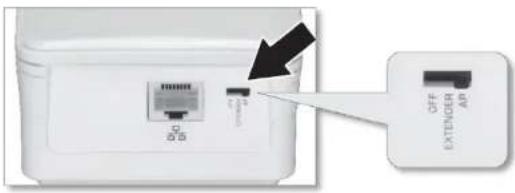
Position the Operation Mode Switch to Off to turn off the wireless. Position the switch to Extender to operate TEW-822DRE in Range Extender mode. Position the switch to AP to work in Access Point mode.

WPS Button + LED Indicator

natural_image
White wireless router with two antennas and a power button (no visible text or symbols)Power Plug Release Button
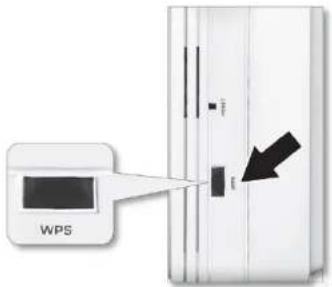
| WPS(Wi-Fi Protected Setup) | Push and release the WPS button to activate WPS copying wireless settings from your router (press 5 sec. in Range Extender mode) or connect to the client (press 1 sec. in Range Extender or AP mode). The LED indicator will start blinking when WPS pairing is activated. |
| Button + LED Indicator |
Reset Button
Resets your repeater. Push and hold this button for 10 seconds with a pin or paper clip to reset configuration to factory default.
Power Plug To exchange different style of power plug. Release Button (This package comes with only one power plug.)
TRENDnet User's Guide TEW-822DRE

LED Indicators
Power The indicator is solid blue when your range extender is powered on. When this light is off, there is no power on your range extender. The light will also blink when WPS is activated. The light will stop blinking and remain solid blue automatically once WPS process is completed.
Network Connect a network cable (Ethernet cable) to your computer for manual configuration.
Wireless The Wireless LED shows the wireless connection between Range Extender and your wireless router.
Blue Light: When it lights with solid blue, the Range Extender established a good wireless connection with your router. When it blinks, it means there are data running through the wireless connection.
- Red Light: When wireless connection is weak, the Wireless LED is in red. The Range Extender can still extend the weak wireless signal in lower speed. It is recommend to relocate your wireless router or Range Extender once there's a chance.
- Off: The Wireless LED will be turned off if there's no wireless connection to your wireless router at all.
TRENDnet User's Guide TEW-822DRE
Application Diagram

TEW-822DRE is a dual band 802.11ac range extender which can extend your wireless router's range and coverage. Furthermore, it can expand signals to both 2.4 GHz and 5 GHz bands to the clients for dual band concurrent connections. Simply plug the TEW-822DRE at a location in between your wireless router and your computer or mobile device to eliminate the dead spot of connection.
TRENDnet User's Guide TEW-822DRE
Range Extender Set Ups
There are two ways to setup your Range Extender: by pushing Wi-Fi Protected Setup (WPS) button or web browser configuration.
WPS Connection
- Plug in the TEW-822DRE to a power outlet nearby your wireless router and position the operation switch to Extender.

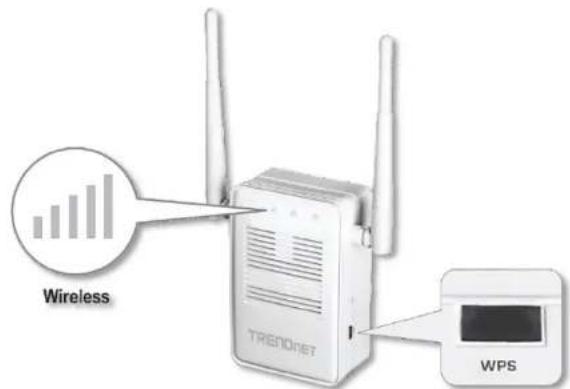
- Press and release the WPS button for 5 seconds until the WPS LED lights. The LED will blink, which means the TEW-822DRE is starting WPS pairing.

- Press and hold the WPS button on the router for 5 seconds to start WPS pairing.

- The WPS will stop blinking and the Wireless LED will lit when the connection is established.
TRENDnet User's Guide TEW-822DRE
- Install the TEW-822DRE in the final location. For maximum performance, install the TEW-822DRE in a location where there is at least 2 bars of connection from your WiFi router to a mobile device.


If the Wireless LED lights in blue, the wireless connection to the router is good. If the Wireless LED lights in red, the wireless connection is weak. Consider to change the extender's location again to have better wireless connection to the router.
TRENDnet User's Guide TEW-822DRE
Web Browser Configuration
- Plug in the TEW-822DRE to a power outlet nearby your wireless router and position the operation switch to Extender.

- Open your computer or mobile device wireless network settings and search for TRENDnet822_2.4G_xxxx pre-encrypted wireless network (The xxxx is a random number. Please find your unique wireless name and pre-set WiFi password from the label comes with the product. If you don't have the label from the package, you can find the same information on the device label.)

natural_image
Illustration of a laptop connected to a wireless network device (no text or symbols present)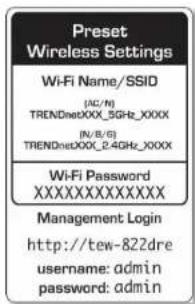
Preset label in the package
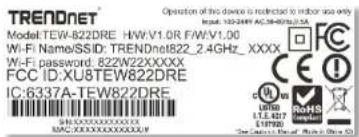
Device label under the device

Press and release the WPS button. (do not hold the button for more than 3 second) or enter the WiFi password printed on the label to fill up the WiFi password.
TRENDnet User's Guide TEW-822DRE

Alternatively, you can connect your computer to the TEW-822DRE with a network cable.
Connect a network cable (not included in the package) from your computer to the TEW-822DRE's network port.

natural_image
Illustration of a laptop connected to a wireless router with two USB cables (no text or symbols)- Open the web browser and type http://tew-822dre or http://192.168.10.100 to access the administration page. (See trouble shooting page if you cannot access the administration page.)
Enter administrator login information. (The default user name is admin and the password is admin.)

- The Setup Wizard is prompting on the screen. Click Next.
TRENDnet User's Guide TEW-822DRE

- Change your administrator password from the factory default setting and then click Next.
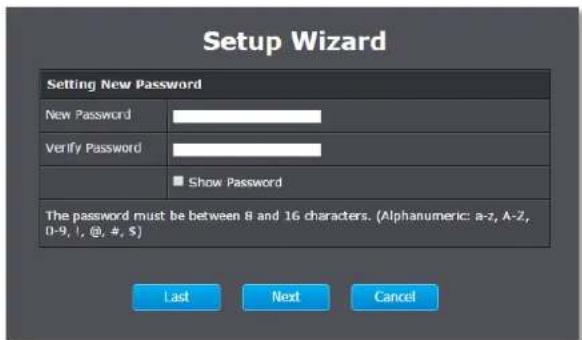
- Choose manual setting to search and select your wireless router manually and then click on Next. (You can choose WPS to initialize the WPS pairing from the web management page here. Please see previous section WPS Connection for more detail.)
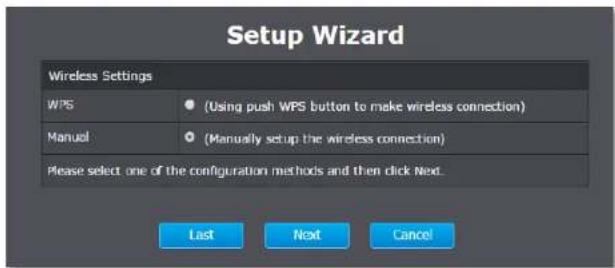
- The TEW-822DRE will start searching for available wireless networks.

Select the wireless router or access point you want to connect with and then click Next. (If you don't find the wireless network you want, click Last to start over the site survey again.)
TRENDnet User's Guide TEW-822DRE
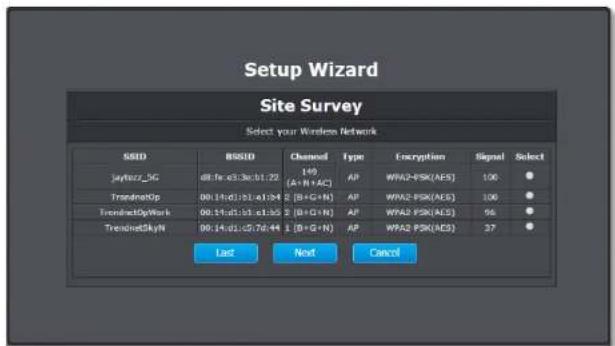
- Enter the WiFi password and then click Next. (When necessary, check on Show Password to make sure the WiFi password you entered is correct.)
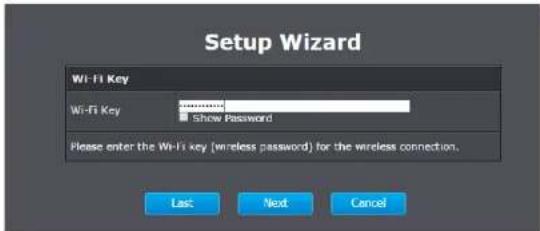
- Choose the extended wireless network name. By default, the TEW-822DRE will have the same wireless name (SSID) to your wireless router. All your devices can seamlessly roaming in between TEW-822DRE and your wireless router.
In the case that you want to specifically connect to TEW-822DRE or your wireless router, you can setup the extended network with a different name.
Click Next after you choose your extended wireless network name.

- Confirm the network setup and then click Next.
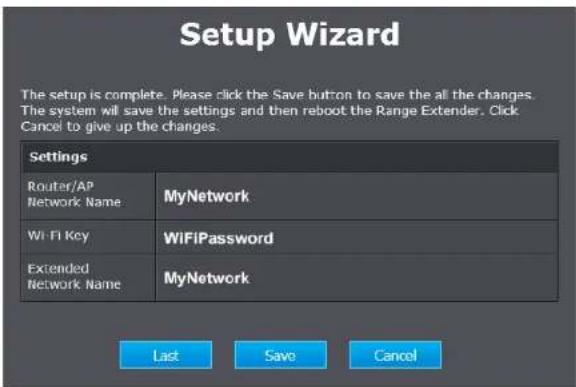
TRENDnet User's Guide TEW-822DRE
- TEW-822DRE will reboot to apply the change. It will take about a minute before TEW-822DRE ready to work.
The settings are saving and taking effect. Please wait 55 seconds.
- Relocate the TEW-822DRE and plug at a location between wireless router and your computer. Check the signal strength from the location you choose to the wireless router. If the signal strength is 2 bars or more. The signal strength is good from the wireless router.
TRENDnet User's Guide TEW-822DRE
Access Point Set Up
The TEW-822DRE comes with pre-set wireless network name and WiFi password. Please find your unique wireless name and pre-set WiFi password from the label comes with the product. If you don't have the label from the package later time, you can find the same information on the device label.)
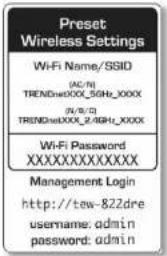
Preset label in the package
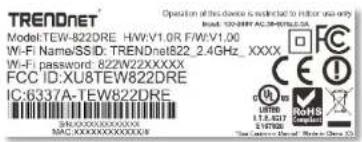
Device label under the device
To start using your TEW-822DRE, just position the operation mode switch to AP. Connect a network cable (not included in the package) home router to the TEW-822DRE's network port. And, then plug in the TEW-822DRE to a power socket. Then the dual band wireless is ready to use.
Connecting to your computer to TEW-822DRE
- Choose the TEW-822DRE wireless name from your computer.

- Press and release the WPS button. (do not hold the button for more than 3 second) or enter the WiFi password printed on the label to fill up the WiFi password.

Login to your TEW-822DRE to customize your wireless name, password, and management login password can add on one more layer of network security and which is recommended.
TRENDnet User's Guide TEW-822DRE
Range Extender Web Management
System Management and Default Settings
The TEW-822DRE has following settings:
| User name: admin | |
| Password: admin | |
| Dafault IP: 192.168.10.100 |
Access the Management page
Select your preferred language in the TEW-822DRE login page.
The TEW-822DRE default IP address is 192.168.10.100. If you are operating in repeater mode. The management IP is default to dynamic and will be assigned by your router.
Accessing TEW-822DRE with 192.168.10.100:
Make sure your computer is on the same 192.168.100.x/255.255.255.0 network. You can setup your computer with a static IP address in this network. For more information on how to setup the static IP address, please see appendix on page 47.
Accessing TEW-822DRE with dynamic IP:
Make sure your computer is also having the dynamic IP from your home router. To find out the exact IP address of TEW-822DRE, you can check the DHCP client list on your router management page.

Accessing TEW-822DRE with product name:
When your computer is on the same network of TEW-822DRE, you can also use the product name to access the management page. Just enter "http://tew-822dre" in your browser.

Multi-Language
Select your preferred language in the TEW-822DRE login page.

TRENDnet User's Guide TEW-822DRE
System Settings
Main - Wizard
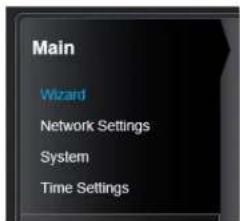
Run the setup wizard again for important setups. If you want to run the setup wizard again in later time, just click the wizard on the main menu of management page and follow through the settings.

Main - Network Settings
Setup your management IP address.

IPv4 Network
Network Choose how you want the management IP to be Address set. Either with dynamic IP or static IP. (Default Assigned with : is set to static IP with 192.168.10.100)
Click Save to save the changes
Dynamic IP
Dynamic IP (DHCP)
IP address : The IPv4 settings are getting from DHCP server automatically and showing here.
TRENDnet User's Guide TEW-822DRE
Static IP
| IPv4 Network | |
| Choose the way to setup your IPv4 access and network range. | |
| Network Address Assigned With | Static IP |
| Static IP Address LAN Connection Type | |
| Enter the IPv4 Address Information. | |
| IP Address | 192.168.10.100 |
| Subnet Mask | 255.255.255.0 |
| Gateway Address | 0.0.0.0 |
| Primary DNS Server | 0.0.0.0 |
| Secondary DNS Server | 0.0.0.0 |
Static IP Address
| IP Address: | Enter the TEW-822DRE management IP address |
| Subnet Mask: | Management IP network range |
| GatewayAddress: | The default route going out of the network |
| Primary DNSServer: | Enter the primary domain name server IP address |
| Secondary DNSServer: | Enter the secondary domain name server IP address |

DHCP Server Settings
| Enable DHCP Server : | Check this box to enable DHCP Server on TEW-822DRE |
| DHCP IP Address Range : | Assign a range of IP addresses to allocate through the access point's DHCP server |
| Always Broadcast : | Check this box to enable the DHCP server |
| Gateway : | The default route going out of the network |
| WINS : | Enter the Windows Internet Name Service server address |
| DNS : | Enter the Domain Name Server address |
| DHCP Lease Time : | Enter the lease time for allocated IP address |
| Dynamic DHCP Client List : | List the clients receiving IP address from TEW-822DRE DHCP server. |
Click Save to save the changes
TRENDnet User's Guide TEW-822DRE
Main - System
Setup TEW-822DRE system name and changing the administrator's password.

Device Name
Device Name: Enter the device name you want to be searched on the network. Changing this device name can change the way to access the TEW-822DRE. For example, if you change the device name to mydevice, you can then access the TEW-822DRE later time with "http://mydevice"
Password
| New password: | Enter the new administrator password here. |
| Verify Password: | Enter the new administrator password again. |
| Show Password: | Check this box when necessary if you want to make sure the password you have entered is correct. |
Click Save Settings to save the changes
TRENDnet User's Guide TEW-822DRE
Main - Time Settings
The Time Setting allows you to setup the schedule control and recording the event log correctly.

Current Time
| Current | Showing the current date and sets in TEW-Date/Time: 822DRE. |
Time Settings
| Enable NTP Server: | Check this box if you want to synchronize TEW-822DRE with a network time server. |
| NTP Server: | Enter the address of the time server. (i.e. time.trendnet.com) |
| Time Zone: | Select the time zone of the country you are currently in. The TEW-822DRE will set its time based on your selection. |
| Enable Daylight Saving: | Check this box if your time zone has daylight savings. |
| Daylight Saving Dates: | Specify the starting date and end date of daylight savings. |
Set the Date and Time Manually
| Date and Time: | You can also set your date and time manually. Select the date and time on the list on click on Copy Your Computer's Time Settings. |
Click Save Settings to save the changes
TRENDnet User's Guide TEW-822DRE
Main - IPv6 (Access Point Mode)
Setup your IPv6 management IP address.
IPv6
IPv6 Address: Choose the way to assign the IPv6 address: link-local, static, or dynamic (auto-configuration).
Link-Local IPv6 Address
By default, the TEW-822DRE is set to link-local only. You can access the TEW-822DRE easily with its link-local IPv6 address.

Static IPv6 Address

IPv6 Address Settings
| IPv6 Address: | Enter the TEW-822DRE management IPv6 address |
| Subnet Prefix Length: | Management IPv6 network range |
| Default Gateway: | The default route going out of the network |
| Primary DNS Server: | Enter the primary domain name server IPv6 address |
| Secondary DNS Server: | Enter the secondary domain name server IPv6 address |
TRENDnet User's Guide TEW-822DRE
Dynamic IPv6 Address
Choose auto-configuration to get IPv6 address from DHCPv6 dynamically.

IPv6 DNS Settings
DNS Server : Choose "Obtain IPv6 DNS Server address automatically" or "Use the following IPv6 DNS server" to specify the way to get domain name service.
Primary DNS Enter the primary domain name server IPv6 Server: address
Secondary DNS Enter the secondary domain name server IPv6 Server: address
Click Save Settings to save the changes
TRENDnet User's Guide TEW-822DRE
Wireless (Range Extender Mode)
Site Survey
When TEW-822DRE is operating in Range Extender mode, you can refresh the wireless router link by searching for new wireless network. Navigate to Wireless and Site Survey to start wireless site survey.
TEW-822DRE will start searching again.

Select the wireless router or access point you want to connect with and then click Next. (If you don't find the wireless network you want, click Last to start over the site survey again.)

Enter the WiFi password and then click Next. (When necessary, check on Show Password to make sure the WiFi password you entered is correct.)

Choose the extended wireless network name. By default, the TEW-822DRE will have the same wireless name (SSID) to your wireless router. All your devices can seamlessly roaming in between TEW-822DRE and your wireless router.
In case that you want to specifically connect to TEW-822DRE or your wireless router, you can setup the extended network to a different name.
Click Next after you choose your extended wireless network name.

TRENDnet User's Guide TEW-822DRE
Confirm the network setup and then click Next.
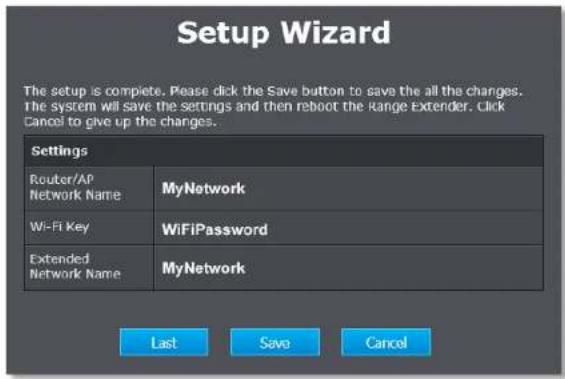
TEW-822DRE will reboot to apply the change. It will take about a minute before TEW-822DRE ready to work.

TRENDnet User's Guide TEW-822DRE
Wireless (Access Point Mode) - Basic
Set the TEW-822DRE wireless basic settings. Choose the appropriate wireless band and setup the connection requirements.

2.4GHz/5GHz Wireless Network Settings
| Enable Wireless : | Check the box to enable the wireless. And then select the schedule between Always or the time schedule you setup. Click on Add New to add new schedule. (For schedule editing, see page 40 Tools (Access Point Mode) - Schedule for more detail.) |
Wireless Network Name: Enter the 2.4GHz Service Set Identifier (SSID). This SSID is human readable and performs as ESSID to setup wireless groups.
802.11 Mode: Select one of the wireless mode to operate. Choosing more connection modes makes your AP compatible to more wireless devices. When you for sure that you are not going to have legacy devices online, you can choose narrower connection mode, which can increase the overall speed since the wireless does not have to wait for legacy device working on slower connection mode.
2.4GHz:

5GHz:

TRENDnet User's Guide TEW-822DRE
Wireless Channel:
Check on Enable Auto Channel Scan to switch wireless channels automatically. Or, uncheck the box to choose the wireless channel manually. Channel selection can be vary by region.
• FCC: 1 -11, 36, 40, 44, 48, 149, 153, 157, 161, 165
• ETSI: 1 - 13, 36, 40, 44, 48
• ETSI (DFS): 52, 56, 60, 64, 100, 104, 108, 112, 116, 132, 136, 140
Due to regulatory requirements, the DFS wireless channels specified cannot be statically assigned, but will be available within the available wireless channels when set to auto channel scan.
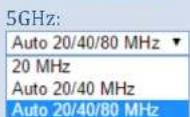
Channel Width:
Select the channel width setting. If there is not many wireless stations in your space, choose wider bandwidth to take advantage of parallel data transmission. When your wireless environment is crowded, choose 20MHz to limit the bandwidth usage and smooth the connection.

Visibility Status :
Choose visible so your wireless device can search and find the TEW-822DRE network name, or invisible to hide the name from network search.
2.4GHz/5GHz Wireless Security Setting
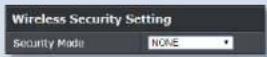
Security Mode:
Choose the way to secure your wireless connection.

None: There is no security on your wireless connection. Adding security on upper network layer is recommended instead of make your network totally opened.
WEP: Basic (Wire Equivalent Privacy). This is a legacy wireless security protocol. Adding security on upper network layer is recommended. Choose the length and type of the

key (password) and then enter the key in WEP key 1 field.


Choose Shared Key or both open and shared key in authentication field.
TRENDnet User's Guide TEW-822DRE
WPA-Personal: WiFi Protected Access is a more robust wireless security mechanism.

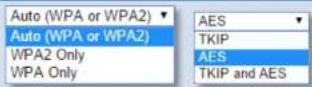
Select the WPA or WPA2 (recommended) or automatic choose WPA and WPA2 mode and cypher type in TKIP or AES (recommended).

And then enter the key in Pre-shared Key field.
WPA-Enterprise: Instead of using pre-shared key saving on the TEW-822DRE, you can authenticate the connection with RADIUS server.
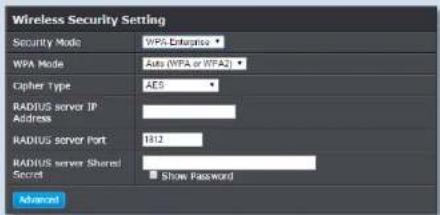
Select the WPA or WPA2 (recommended) or automatic choose WPA and WPA2 mode and cypher type in TKIP or AES (recommended).
And then enter the RADIUS server IP address, port number and shared secret.
Channel Width: Shows the channel width settings.
Channel: Shows the TEW-822DRE 2.4GHz wireless is currently communicating on which channel.
5GHz Wireless
| MAC address: | MAC address of TEW-822DRE 5GHz wireless interface. |
| SSID: | Shows current Service Set Identifier is currently in use. This SSID is human readable and performs as ESSID to setup wireless groups. |
| Security Mode: | Shows which type of security encryption is currently in use for this wireless connection. |
| Channel Width: | Shows the channel width settings. |
| Channel: | Shows the TEW-822DRE 5GHz wireless is currently communicating on which channel. |
Click Save Settings to save the changes
TRENDnet User's Guide TEW-822DRE
Wireless (Access Point Mode) - Advanced
Setting the advanced wireless performance.
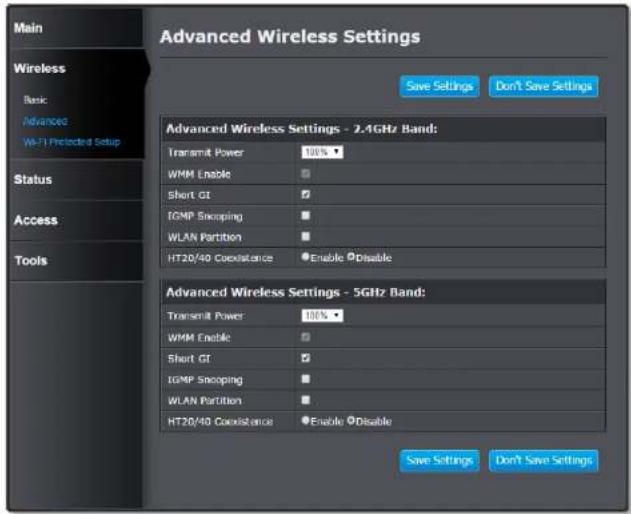
Advanced Wireless Settings
| Transmit Power : | Wireless signal transmission power. Choose the lower number when you have crowed wireless devices. So, the TEW-822DRE has toned down signal to prevent wireless interference. |
| WMM Enable: | Check to enable or disable WMM. This is the Quality of Service (QoS) feature for prioritizing voice and video applications |
| Short GI : | Check this box to enable or disable short guard interval in WiFi negotiation. |
| IGMP Snooping : | Check this box to enable or disable IGMP snooping. |
| WLAN Partition : | If you check this box, wireless clients associated with this SSID cannot communicate to each other directly, even if they are in the same wireless group. |
| HT20/40 Coexistence | Check this box to support 20 MHz and 40 MHz coexisting at the same time. |
Click Save Settings to save the changes
TRENDnet User's Guide TEW-822DRE
Wireless (Access Point Mode) - WPS
WPS is the simplest way to connect a wireless client to the TEW-822DRE. You don't have to select the encryption mode and fill in a long encryption passphrase every time you want to setup a wireless connection. Just press a button on both the wireless client and the TEW-822DRE, and WPS will do the rest for you.
The TEW-822DRE has hardware WPS button on the side of the range extender. It also supports two types of software WPS: WPS via Push Button and WPS via PIN code.
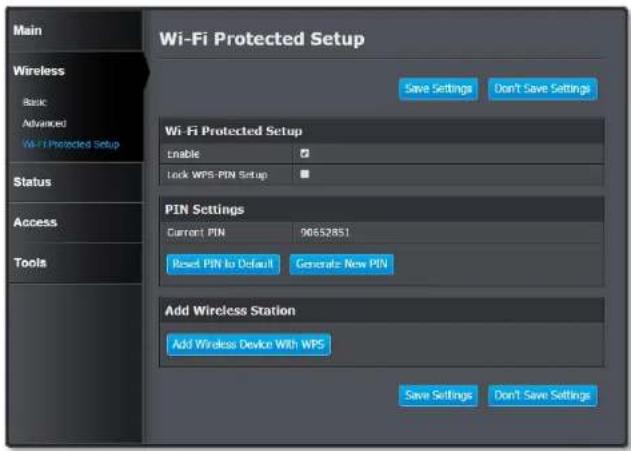
WiFi Protected Setup
Enable: Check this box to enable WPS feature
Lock WPS-PIN Lock/ enable WPS PIN setup Setup :
WPS with Personal Identification Number (PIN): Setup the PIN number of the TEW-822DRE by clicking Generate New PIN, check on Lock WPS-PIN Setup and then click Save Settings to change the PIN. The current PIN will show on the Current PIN. To restore the PIN number to factory default, just click on Reset PIN to Default.
When you setup the PIN number properly, you can enter the PIN number on your wireless client when setup the WPS PIN wireless connection.
PIN Settings
Current PIN: The PIN number currently holds
Reset PIN to Return the PIN number to the factory default. Default :
Generate New Generate a new PIN number randomly PIN :
WPS with soft push button: Click on Add Wireless Device with WPS on this page to start WPS push button pairing. Within 2 minutes, push the WPS button on the wireless adapter or in the utility on the wireless computer to join the WPS pairing.
TRENDnet User's Guide TEW-822DRE
Status - System Information
Lists all the TEW-822DRE basic information.
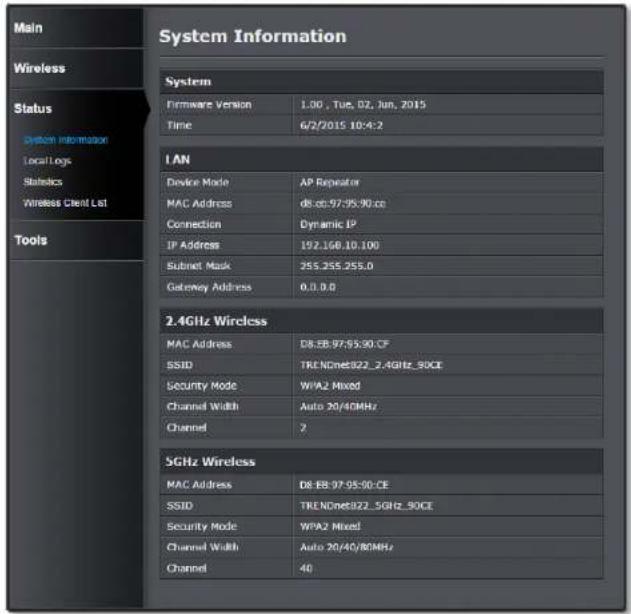
System
| Firmware | Showing the current firmware version TEW- |
| Version: | 822DRE is running. |
| Time: | Showing the current TEW-822DRE system time. |
LAN
| Device Mode: | The TEW-822DRE is running on Range Extender (AP Repeater) mode or Access Point (AP) Mode. |
| MAC Address: | MAC address of the network port. |
| Connection: | How the LAN (management) IP gets its address. Either in dynamic mode or static mode. |
| IP Address: | IP address of the LAN (management) port. |
| Subnet Mask: | Network range of the management IP |
| Gateway Address: | The default router going out from the TEW-822DRE management network. |
2.4GHz Wireless
| MAC address: | MAC address of TEW-822DRE 2.4GHz wireless interface. |
| SSID: | Shows current Service Set Identifier is currently in use. This SSID is human readable and performs as ESSID to setup wireless groups. |
| Security Mode: | Shows which type of security encryption is currently in use for this wireless connection. |
| Channel Width: | Shows the channel width settings. |
TRENDnet User's Guide TEW-822DRE
Channel: Shows the TEW-822DRE 2.4GHz wireless is currently communicating on which channel.
5GHz Wireless
| MAC address: | MAC address of TEW-822DRE 5GHz wireless interface. |
| SSID: | Shows current Service Set Identifier is currently in use. This SSID is human readable and performs as ESSID to setup wireless groups. |
| Security Mode: | Shows which type of security encryption is currently in use for this wireless connection. |
| Channel Width: | Shows the channel width settings. |
| Channel: | Shows the TEW-822DRE 5GHz wireless is currently communicating on which channel. |
Click Save Settings to save the changes
TRENDnet User's Guide TEW-822DRE
Status - Local Logs
All system logs of TEW-822DRE saves locally. Access this page you can quickly and easily browse through or find out the event you are looking for.

Log Options
| Log Options: | Filter the logs listed in the viewer. Select the kind of log you want to list and click on Apply log Options Now. |
Download
| Download | Click Download to download the log file from Logs: TEW-822DRE to your computer. |
Log Details
Click buttons to control the log page display.
- First Page: Click to advance to the first log page
- Last Page: Click to advance to the last log page
• Previous Page: Click to view the previous log page
• Next Page: Click to view the next log page - Clear Log: Click to clear all log entries
- Refresh: Click to refresh log entries
TRENDnet User's Guide TEW-822DRE
Status - Statistics
The traffic statistics accumulate the traffic status. By reviewing these numbers, you can easily identify the network problem with specific traffic pattern.

LAN
Traffic through network port :
- Sent: Sent from network port.
• Received: Received by the network port. - Tx Packets Dropped: How many packets were dropped were delivered from LAN port to other devices.
- Rx Packets Dropped: How many packets are dropped delivering from other devices to the LAN port.
• Collisions: How many collision happened on the Ethernet network.
- Error: How many traffic errors happened over time.
2.4GHz Wireless
Traffic through 2.4GHz wireless network port :
- Sent: Sent from 2.4GHz wireless network port.
• Received: Received by the 2.4GHz wireless network port. - Tx Packets Dropped: How many packets are dropped were delivered from 2.4GHz wireless network port to other devices.
- Rx Packets Dropped: How many packets are dropped were delivered from other devices to the 2.4GHz wireless network port.
• Collisions: How many collision happened on the 2.4GHz wireless network. - Error: How many traffic errors happened over time on 2.4GHz wireless network.
5GHz Wireless
Traffic through 5GHz wireless network port :
• Sent: Sent from 5GHz wireless network port.
- Received: Received by the 5GHz wireless network port.
- Tx Packets Dropped: How many packets are dropped were delivered from 5GHz wireless network port to other devices.
- Rx Packets Dropped: How many packets are dropped were delivered from other devices to the 5GHz wireless network port.
• Collisions: How many collision happened on the 5GHz wireless network.
- Error: How many traffic errors happened over time on 5GHz wireless network.
TRENDnet User's Guide TEW-822DRE
Status - Wireless Client List
List all the wireless clients connecting to TEW-822DRE.

2.4GHz/5GHz Wireless Client List
| Connected Time: | Shows how long this wireless client connected to TEW-822DRE |
| MAC Address: | Shows the Media Access Control number of the wireless client |
Status (Access Point Mode) - IPv6
Lost out the IPv6 settings and status.

IPv6 Status
| IPv6 : | Shows how the IPv6 address is configured |
| IPv6 Address : | Shows the static or dynamic IPv6 address |
| IPv6 Default Gateway : | Shows the default router going out of the IPv6 network |
| LAN IPv6 Link-Local Address : | Shows the Link-Local IPv6 address |
| Primary DNS Address : | Shows the primary IPv6 domain name server IP address. |
| Secondary DNS Address : | Shows the secondary IPv6 domain name server IP address. |
TRENDnet User's Guide TEW-822DRE
Access (Access Point Mode) - MAC Filter
Every network device has a unique, 12-digit MAC (Media Access Control) address. Using MAC filters, you can allow or deny specific computers or mobile devices from using this access point's wireless network. You can setup up to 20 MAC address entries.

MAC Address Filter
| Configure MAC filtering below: | Turn MAC Filtering OFFTurn MAC Filtering OFFTurn MAC Filtering ON and ALLOW computers listed to access the networkTurn MAC Filtering ON and DENY computers listed to access the network |
| Choose the appropriate selection to turn MAC filtering on or off. | |
| MAC Address: | Enter the MAC address of the devices you would like to filter. (e.g. 00:11:22:AA:BB:CC) |
| Schedule: | Select the schedule between Always or the time schedule you setup. Click on Add New to add new schedule. (For schedule editing, see page 40 Tools (Access Point Mode) - Schedule for more detail.) |
| IPv6 Default Gateway: | Shows the default router going out of the IPv6 network |
| LAN IPv6 Link-Local Address: | Shows the Link-Local IPv6 address |
| Primary DNS Address: | Shows the primary IPv6 domain name server IP address. |
| Secondary DNS Address: | Shows the secondary IPv6 domain name server IP address. |
Click Save Settings to save the changes
TRENDnet User's Guide TEW-822DRE
Access (Access Point Mode) - Multiple SSID
You can enable multiple wireless network (SSID), up to 4 in each wireless band, creating different wireless credential for different group of users.

Multiple SSID 2.4GHz/5GHz

Wireless Security
You need to setup the wireless security when you enable a new wireless network. The wireless security settings are all the same. Please reference Wireless (Access Point Mode) - Basic on page 26 for more setting detail.
Click Save Settings to save the changes
TRENDnet User's Guide TEW-822DRE
Access (Access Point Mode) - User Limit
Limit the maximum wireless users on each band. You can set the limit up to 32 client connection.

Maximum Wireless Clients on 2.4GHz/5GHz
| Enable Limit: | Check this box to start limiting the number of connections. |
| Max. Clients: | Set the number between 2 and 32 as the number of wireless clients are limited. |
Tools - Upload Firmware

Click Upload Firmware on the menu to list associated wireless clients. TRENDnet may periodically release firmware upgrades that might add features or fix problems associated with your TRENDnet model and version. To find out if there is a firmware upgrade available for your device, please check your TRENDnet model and version using the link.
http://www.trendnet.com/downloads/
- If a firmware upgrade is available, download the firmware to your Computer.
- Unzip the file to a folder on your computer.
- Log into the Range Extender (default http://tew-822dre)
- Click on Tools and then Upload Firmware.
- Click Browse ... and navigate to the folder on your computer in which the unzipped firmware file (.bin) is.
- Located and select it the firmware file.
- Click Upload.
TRENDnet User's Guide TEW-822DRE
Tools - Backup Settings

| Save System Settings | Click Save to export settings to your computer. |
| Restore System Settings | To restore settings previously saved on your computer, click Choose File to select a configuration file and then click Load to import the previous settings. |
| Restore Factory Default Settings | Click Factory Default to restore settings to factory defaults. |
| System Reboot | Click Reboot to reboot your TEW-822DRE. |
Tools - Ping Test
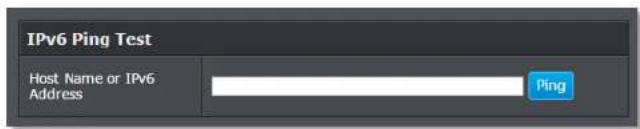
To check your network connection, you can use the PING Test tool from your TEW-822DRE. Enter the IPv4 address you want to ping and click Ping. The result will be showed in the terminal down below.

If you are in Access Point operation mode, you can ping the IPv6 address as well. Enter the IPv6 address you want to ping and click Ping.
TRENDnet User's Guide TEW-822DRE
Tools (Access Point Mode) - Schedule
Together with other controls, you can set up the schedule to enable or disable that feature. Set up daily or weekly schedule for power saving or security reasons.

Add Schedule Rule
| Name: | Name the schedule in a comprehensive way. |
| Days: | Check the days of the week you want to schedule applies to. |
| All Day-24 hrs: | Check this box if you want the schedule working through the day. |
| Time Format: | Select the 12 or 24 hour time format |
| Start time: | The starting hour and minute for this schedule |
| Start time: | The stopping hour and minute for this schedule |
Click Add to add a schedule entry.
Edit a schedule
| Schedule Rules List | ||||
| Name | Day(s) | Time Frame | ||
| OfficeHour | Mon Tue Wed Thu Fri | 12:00 AM-05:00 PM | / | III |
Click on the Edit icon on the schedule you want to edit. The schedule settings will be copied to the fields above. Change your settings and then click on Update.
Delete a schedule
To delete a schedule, click on the Trash icon on the schedule you want to delete.
TRENDnet User's Guide TEW-822DRE
Tools - Email Notification
TEW-822DRE can send out email notification when the system log is full.

Enable
Enable Email Check this box if you want to enable the email Notification: notification.
Email Notification
| From Email Address: | Enter the email address where the email notification is sending from. |
| To Email Address: | Enter the email address to send the logs |
| Email Subject: | Enter the email subject to use when logs are sent |
| SMTP Server Address: | Enter the SMTP server address of the email address used |
| SMTP Server Port: | Enter the SMTP port used on the email address |
| Enable Authentication: | Select this option to authenticate the email address |
| Security Type: | Choose security type between TLS and SSL. |
| Account Name: | Enter the account name used on the email address |
| Password: | Enter the password of the email address used. |
| Verify Password: | Enter the password again for verification. |
| Send Mail Now: | Click this button the send the test email immediately. |
Notification
| Send Notification when the log is full: | Check this box to send log with email notification automatically. |
TRENDnet User's Guide TEW-822DRE
Tools - Remote Logging
To save the system log to remote Syslog Server to real time monitor your TEW-822DRE, you can setup the Syslog Service Settings to send the system log over the network.
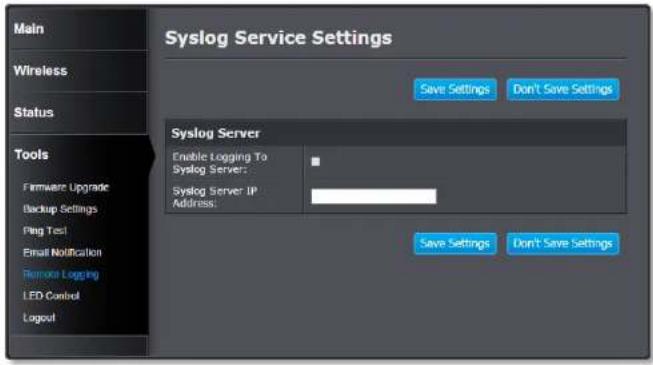
Syslog Server
Enable Logging to Syslog Check this box to start sending logs remotely to Syslog server.
Syslog Server Enter the Syslog Server IP address. IP Address:
Click Save Settings to save the changes
Tools - LED Control
All LED indicators are turned on by default. You can turn them off so they are not create weird lighting at night. Check on the LED Disable and then Save Settings to disable all LEDs.

TRENDnet User's Guide TEW-822DRE
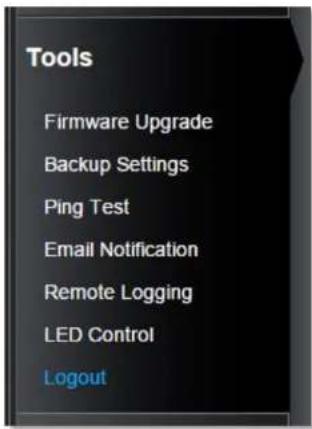
Tools - Logout
Logout from the system management securely.
TRENDnet User's Guide TEW-822DRE
Technical Specifications
| Wireless Modulation: | BPSK, QPSK, 16-QAM, 64-QAM, 256-QAM with OFDM |
| Antenna: | External antenna |
| Frequency: | FCC: 2.412 - 2.462 GHz, 5.180 - 5.240 GHz, 5.745 - 5.825 GHzETSI: 2.412 - 2.472 GHz, 5.180 - 5.580 GHz, 5.660 - 5.700 GHz |
| Wireless Channels: | FCC: 1 -11, 36, 40, 44, 48, 149, 153, 157, 161, 165ETSI: 1 - 13, 36, 40, 44, 48, (52, 56, 60, 64, 100, 104, 108, 112, 116, 132, 136, 140)Due to regulatory requirements, the wireless channels specified cannot be statically assigned, but will be available within the available wireless channels when set to auto. |
| Data Rate: | 802.11ac: up to 867 Mbps (Auto Fallback)802.11a: up to 54 Mbps802.11n: up to 300 Mbps (Auto Fallback)802.11g: up to 54 Mbps802.11b: up to 11 Mbps |
| Output Power: | 802.11a: FCC: 22 dBm (typical), CE: 20 dBm (typical) @ 54 Mbps802.11b: FCC: 20 dBm (typical), CE: 20 dBm (typical) @ 11 Mbps802.11g: FCC: 27 dBm (typical), CE: 20 dBm (typical) @ 54 Mbps802.11n: FCC: 27 dBm (typical), CE: 20 dBm (typical) @ 300 Mbps802.11ac: FCC: 26 dBm (typical), CE: 20 dBm (typical) @ 867 Mbps |
| Receiving Sensitivity: | 802.11a: -65 dBm (typical) @ 54 Mbps802.11b: -83 dBm (typical) @ 11 Mbps802.11g: -65 dBm (typical) @ 54 Mbps |
• 802.11n: -61 dBm (typical) @ 300 Mbps
• 802.11ac: -51 dBm (typical) @ 867 Mbps
Encryption: 64/128-bit WEP, WPA / WPA2-PSK
*Maximum wireless signal rates are referenced from IEEE 802.11 theoretical specifications. Actual data throughput and coverage will vary depending on interference, network traffic, building materials and other conditions.
Troubleshooting
Situation: I typed http://tew-822dre but I am not able to access the unit. What should I do?
Solution:
The host name resolution is good for most systems, including Windows, OS X, and iOS. Please enter the IP address (default: 192.168.10.100) if you experience difficulty in accessing the range extender.
Proceed following steps for correct name resolution.
- Turn the TEW-822DRE's operating mode switch to Extender or AP.
- Reset the device to factory default settings by pushing the reset button for 5 seconds.
- Make sure you have a good wireless connection to the default SSID: TRENDnet822_5GHz_xxxx, TRENDnet822_2.4GHz_xxxx, or connect to the TEW-822DRE using a network cable. The default wireless password is printed on the device label on same side of the power plug.
- Make sure your laptop/PC is not joined to any network domain.
- Open a browser and type http://tew-822dre (You must enter the leading http:// to resolve the text as a host name)
Situation: How do I reset the device to factory default?
Solution:
- Use a pin such as a staple to press and hold the reset button at the bottom of the TEW-822DRE for 5 seconds.
- You can also reset from the management page.
Situation: I entered http://192.168.10.100 but I am not able to access the unit. What should I do?
Solution:
- Turn the TEW-822DRE's operating mode switch to Extender or AP.
- Reset the device to factory default settings by pushing the reset button for 5 seconds.
- Make sure you have a good wireless connection to the default SSID: TRENDnet822_5GHz_xxxx, TRENDnet822_2.4GHz_xxxx, or connect to the TEW-822DRE using a network cable. The default wireless password is printed on the device label on same side of the power plug.
- Make sure your computer has no other network connections. For example, if you access TEW-822DRE through wireless, disconnect your Ethernet cable.
- Open a browser and enter http://192.168.10.100
Situation: How do I make sure my unit is connected to a router or an AP?
Solution:
The LED will turn solid blue when the TEW-822DRE is successfully connected to a router or an AP.
TRENDnet User's Guide TEW-822DRE
Situation: How can I access the TEW-822DRE once it is setup?
Solution:
You can use its host name (http://tew-822dre) or IP address to access the TEW-822DRE. After repeater setup, the TEW-822DRE will get an IP address from your router (DHCP). Check the DHCP client list on your router if you want to access the TEW-822DRE with its IP address.
TRENDnet User's Guide TEW-822DRE
Appendix
How to setup a static IP address on your computer
Note: Before setup, make sure that you have a unique static IP address available which will not cause the network address collision.
Windows 8
- Open the Charms bar by moving the mouse to the top right corner of the screen or press the Windows Key + C and click on Search.

- Type "network" in the search box and click Settings to focus your search.

- Choose View Network Connections

- Click Properties on the selected network adapter.

- Select Internet Protocol Version 4 (TCP/IPv4) and then click Properties.

TRENDnet User's Guide TEW-822DRE
- Click Use the following address and enter the static IP address and related information. For setting up the TRENDNET PRODUCT, you can enter 192.168.10.10 as your IP address, 255.255.255.0 as the Subnet mask. Leave the other fields blank. Click OK to apply the changes.

Windows 7
- Click Control Panel from the Start menu.

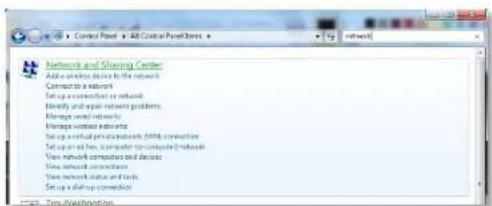
- Type "network" in the search box to focus your selection. Click on Network and Sharing Center
TRENDnet User's Guide TEW-822DRE
- Click Change adapter settings on the left-hand side.
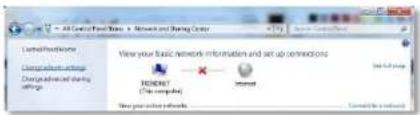
- Click Properties on the selected network adapter.

- Select Internet Protocol Version 4 (TCP/IPv4) and then click Properties
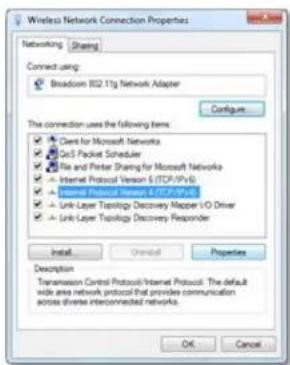
- Click Use the following address and enter the static IP address and related information. For setting up the TRENDNET PRODUCT, you can enter 192.168.10.10 as the IP address, 255.255.255.0 as the Subnet mask. Leave other fields blank. Click OK to apply the changes.

TRENDnet User's Guide TEW-822DRE
OSX
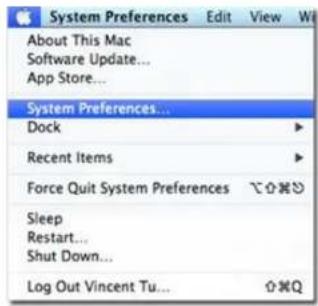
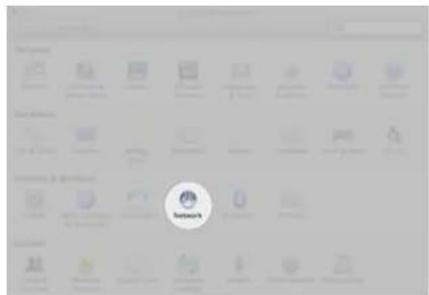
- Click the Apple logo in the top-left corner of your screen. Click on System Preferences... In the Internet and Wireless section, click on Network.
- Select the network card you want to configure on the left banner (e.g. Wi-Fi). Click Advanced.
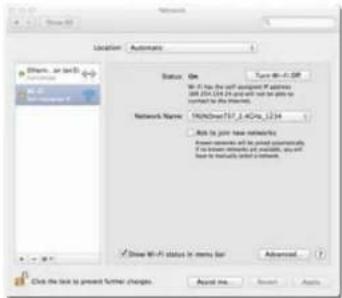
- Choose TCP/IP. In Configure IPv4, select Manually. Input the static IP address, subnet mask, and your router IP address. (In order to setup the TRENDNET PRODUCT, you can put in 192.168.10.10 as the IP address, 255.255.255.0 as the subnet mask and leave router in blank. Click OK to exit advanced setup.

TRENDnet User's Guide TEW-822DRE
4. Click Apply to apply the changes.

Regulations
Federal Communication Commission Interference Statement
This equipment has been tested and found to comply with the limits for a Class B digital device, pursuant to Part 15 of the FCC Rules. These limits are designed to provide reasonable protection against harmful interference in a residential installation. This equipment generates uses and can radiate radio frequency energy and, if not installed and used in accordance with the instructions, may cause harmful interference to radio communications. However, there is no guarantee that interference will not occur in a particular installation. If this equipment does cause harmful interference to radio or television reception, which can be determined by turning the equipment off and on, the user is encouraged to try to correct the interference by one of the following measures:
- Reorient or relocate the receiving antenna.
- Increase the separation between the equipment and receiver.
- Connect the equipment into an outlet on a circuit different from that to which the receiver is connected.
- Consult the dealer or an experienced radio/TV technician for help.
FCC Caution: Any changes or modifications not expressly approved by the party responsible for compliance could void the user's authority to operate this equipment.
This device complies with Part 15 of the FCC Rules. Operation is subject to the following two conditions: (1) This device may not cause harmful interference, and (2) this device must accept any interference received, including interference that may cause undesired operation.

IMPORTANT NOTE:
Operation of this device is restricted to indoor use only.
FCC Radiation Exposure Statement
This equipment complies with FCC radiation exposure limits set forth for an uncontrolled environment. This equipment should be installed and operated with minimum distance 20cm between the radiator & your body.
This transmitter must not be co-located or operating in conjunction with any other antenna or transmitter.
The availability of some specific channels and/or operational frequency bands are country dependent and are firmware programmed at the factory to match the intended destination. The firmware setting is not accessible by the end user.
TRENDnet User's Guide TEW-822DRE
Industry Canada
This device complies with Industry Canada license-exempt RSS standard(s). Operation is subject to the following two conditions: (1) this device may not cause interference, and (2) this device must accept any interference, including interference that may cause undesired operation of the device.
the device for operation in the band 5150–5250 MHz is only for indoor use to reduce the potential for harmful interference to co-channel mobile satellite systems;
Avertissement:
Radiation Exposure Statement:
This equipment complies with IC radiation exposure limits set forth for an uncontrolled environment. This equipment should be installed and operated with minimum distance 20cm between the radiator & your body.
TRENDnet User's Guide TEW-822DRE
Europe - EU Declaration of Conformity
TRENDnet hereby declare that the product is in compliance with the essential requirements and other relevant provisions under our sole responsibility.

Safety
EN 60950-1:2006+A11:2009+A1:2010+A12:2011+A2:2013
IEC 60950-1:2005 (2nd Edition) Am 1:2009
EMC
EN 55022: 2010 + AC: 2011 Class B
EN 55024: 2010
EN 301 489-1 V1.9.2: 09-2011
EN 301 489-17 V2.2.1: 09-2012
Radio Spectrum & Health
EN 300 328 V1.8.1:06-2012
EN 301 893 V1.7.1:06-2012
EN 62311: 2008
Energy Efficiency
Regulation (EC) No. 1275/2008, Regulation, No. 278/2009, No. 801/2013
This product is herewith confirmed to comply with the Directives.
Directives
Low Voltage Directive 2006/95/EC
EMC Directive 2004/108/EC
R&TTE Directive 1999/5/EC
Ecodesign Directive 2009/125/EC
RoHS Directive 2011/65/EU
REACH Regulation (EC) No. 1907/2006
This device is a 2.4 GHz wideband transmission system (transceiver), intended for use in all EU member states and EFTA countries, except in France and Italy where restrictive use applies.
In Italy the end-user should apply for a license at the national spectrum authorities in order to obtain authorization to use the device for setting up outdoor radio links and/or for supplying public access to telecommunications and/or network services.
This device may not be used for setting up outdoor radio links in France and in some areas the RF output power may be limited to 10 mW EIRP in the frequency range of 2454 – 2483.5 MHz. For detailed information the end-user should contact the national spectrum authority in France.
TRENDnet User's Guide TEW-822DRE
| Česky [Czech] | TRENDnet tímto prohlašuje, že tento TEW-822DRE je ve shodě se základními požadavky a dalšími příslušnými ustanoveními směrnice 1999/5/ES, 2006/95/ES a 2009/125/ES. |
| Dansk [Danish] | Undertegnede TRENDnet erklærer herved, at følgende udstyr TEW-822DRE overholder de væsentlige krav og øvrige relevante krav i direktiv 1999/5/EF, 2006/95/EF og 2009/125/EF. |
| Deutsch [German] | Iliermit erklärt TRENDnet, dass sich das Gerät TEW-822DRE in Übereinstimmung mit den grundlegenden Anforderungen und den übrigen einschlägigen Bestimmungen der Richtlinie 1999/5/EG, 2006/95/EG und 2009/125/EG befindet. |
| Eesti [Estonian] | Käesolevaga kinnitab TRENDnet seadme TEW-822DRE vastavust direktiivi 1999/5/ EÜ, 2006/95/ EÜ ja 2009/125/ EÜ põhinöutele ja nimetatud direktiivist tulenevatele teistele asjakohastele sätetele. |
| English | Ihereby, TRENDnet, declares that this TEW-822DRE is in compliance with the essential requirements and other relevant provisions of Directive 1999/5/CE, 2006/95/CE and 2009/125/CE. |
| Español [Spanish] | Por medio de la presente TRENDnet declara que el TEW-822DRE cumple con los requisitos esenciales y cualesquiera otras disposiciones aplicables o exigibles de la Directiva 1999/5/CE, 2006/95/CE y 2009/125/CE. |
| Ελληνυσή [Greek] | ME THN ΠΑΡΟΥΣΑΤRENDnet ΔΗΑΩΝΕΙ ΟΤΙ TEW-822DRE ΣΥΜΜΟΡΦΩΝΕΤΑΙ ΠΡΟΣ ΤΙΣ ΟΥΣΙΩΔΕΙΣ ΑΠΑΙΓΗΣΕΙΣ ΚΑΙ ΤΙΣ ΛΟΙΠΕΣ ΣΧΕΤΙΚΕΣ ΔΙΑΤΑΖΕΙΣ ΤΙΣ ΟΔΗΓΙΑΣ 1999/5/ΕΚ, 2006/95/ΕΚ, 2009/125/ΕΚ και. |
| Français [ˈfrench] | Par la présente TRENDnet déclare que l'apparcil TEW-822DRE est conforme aux exigences essentielles et aux autres dispositions pertinentes de la directive 1999/5/CE, 2006/95/CE et 2009/125/CE. |
| Italiano[Italian] | Con la presente TRENDnet dichiara che questo TEW-822DRE è conforme ai requisiti essenziali ed alle altre disposizioni pertinenti stabilite dalla direttiva 1999/5/CE, 2006/95/CE e 2009/125/CE. |
| Latviski [Latvian] | AršoTRENDnetdeklare, ka TEW-822DRE atbilstDirektīvas 1999/5/EK, 2006/95/EK un 2009/125/EK būtiskajāmprasibām un citiemar to saistitajiemnoteikumiem. |
| Lietuvių [Lithuanian] | Šiuo TRENDnet deklaruoja, kad šis TEW-822DRE atitinka esminius reikalavimus ir kitas 1999/5/EB, 2006/95/EB ir 2009/125/EB Direktyvos nuostatas. |
| Nederlands [Dutch] | Ilierbij verklaart TRENDnet dat het toestel TEW-822DRE in overeenstemming is met de essentiële eisen en de andere |
| relevante bepalingen van richtlijn 1999/5/EG, 2006/95/EG en 2009/125/EG. | |
| Malti [Maltese] | Hawnhekk, TRENDnet, jiddikjara li dan TEW-822DRE jikkonforma mal-htigijiet essenzjali u ma provvedimenti ohrajn relevanti li hemm fid-Dirrettiva 1999/5/KE, 2006/95/KE u 2009/125/KE. |
| Magyar [Hungarian] | Alullírott, TRENDnet nyilatkozom, hogy a TEW-822DRE megfcelci a vonatkozó alapvető követelménycknek és az 1999/5/EK, 2006/95/EK és a 2009/125/EK irányelv egyéb előírásainak. |
| Polski [Polish] | Niniejszym TRENDnet oświadcza, że TEW-822DRE jest zgodny z zasadniczymi wymogami oraz pozostałymi stosownymi postanowieniami Dyrektywy 1999/5/WE, 2006/95/WE i 2009/125/WE. |
| Português [Portuguese] | TRENDnet declara que este TEW-822DRE está conforme com os requisitos essenciais e outras disposições da Directiva 1999/5/CE, 2006/95/CE e 2009/125/CE. |
| Slovensko [Slovenian] | TRENDnet izjavlja, da je ta TEW-822DRE v skladu z bistvenimi zahtevami in ostalimi relevantnimi določili direktive 1999/5/ES, 2006/95/ES in 2009/125/ES. |
| Slovensky [Slovak] | TRENDnettýmtovyhlasuje, że TEW-822DRE splňazákladnépožiadavky a všetkypríslušnéustanovenia Smernice 1999/5/ES, 2006/95/ES a 2009/125/ES. |
| Suomi [Finnish] | TRENDnet vakuuttaa täten että TEW-822DRE tyyppinen laite on direktiivin 1999/5/EY, 2006/95/EY ja 2009/125/EY oleellisten vaatimusten ja sitä koskevien direktiivin muiden ehtojen mukainen. |
| Svenska [Swedish] | Iármed intygar TRENDnet att donna TEW-822DRE står I överensstämmelse med de väsentliga egenskapskrav och övriga relevanta bestämmelser som framgår av direktiv 1999/5/EG, 2006/95/EG och 2009/125/EG. |
RoHS
This product is RoHS compliant.


TRENDnet User's Guide TEW-822DRE
ErP Statement
| Česky [Czech] | Toto sit’ové zařízení je rok Energy Související produkt (ErP ou dopiscm), automaticky přepne do úsporného pohotovostního módu do 10 minut bez datového přenosu síly. Když přístroj nepoužíváte, lze jej ict vypnut pomocí tlačítka napájení, nebo jednoduše odpojte napájecí adapter pro další úspory energie. Sit’ové standby: 4.79WOff Mode: 0,16W |
| Dansk [Danish] | Denne netværksenhed er är Energy Related Produkt (ErP ou ved brev) skifter automatisk til en strömbesparende standby mode Inden for 10 minutter uden datatransmission. Når apparatet ikke er i brug kan det være ict drevet ned ved hjælp afbryderknappen, eller blot afbryde strømforsyningen til yderligere energibesparelser.Networked standby: 4.79 wattSlukket tilstand: 0.16 watt |
| Deutsch [German] | Dieses Netzwerkgerät ist ein Energy Related Product (ErP), das innerhalb von 10 Minuten ohne Datenübertragung automatisch in einen Stromsparmodus umschaltet. Wenn das Gerät nicht verwendet wird, kann es über die Ein-/Austaste heruntergefahren werden, oder ziehen Sie für zusätzliche Stromersparnis das Netzgerät aus der Steckdose.Vernetzt und in Bereitschaft: 4.79 WattAusgeschaltet: 0.16 Watt |
| Eesti [Estonian] | See vörguseade on aasta Energy Related Toode (ERP ou kirjas) Automaatselt lülitub energiasäästurežiimi ooterežiimis mood 10 minuti jooksul ei andmcedastust. Kui scade ei ole kasutuses vöib see olla IKT väljalülitamisel kasutades toitenuppu völihtsalt ühendage toiteadapter täiendava energiasäästu.Vörku ooterežiimis: 4.79WVäljalülitatud olek: 0.16W |
| English | This network device is an Energy Related Product (ErP) that automatically switches to a power saving standby mode within 10 minutes of no data transmission. When the device is not in use it can be powered down using its power button, or simply disconnect the power adapter for additional energy savings.Networked standby mode:4.79 wattsOff mode: 0.16 watts |
| Español [Spanish] | Este dispositivo de red es un producto relacionado con la energia (ErP) que pasa automáticamente a un modo en espera, de ahorro de energia, tras 10 minutos de ausencia de transmisión de datos. Cuando el dispositivo no está en uso, se |
| puede apagar utilizando el botón de alimentación, o simplemente desconectar el adaptador de corriente para optimizar el ahorro de energía.Modo de espera en red: 4.79WModo apagado: 0.16W | |
| Ελληνική[Greek] | Αυτή η συσκευή δικτύου είναι η χρονιά Ενέργειας Σχετικά Προϊόν (ERP ou με επιστολή) μεταβαίνει αυτόματα σε κατάσταση εξοικονόμησης μόδας Μέσα σε 10 λεπτά χωρίς μετάδοση δεδομένων εξουσία. Όταν η συσκευή dev είναι σε χρήση μπορεί να ΤΙΕ κινούνται προς τα κάτω χρησιμοποιώντας το κουμπί τροφοδοσίας, ή απλά αποσυνδέστε το τροφοδοτικό για πρόσθετη εξοικονόμηση ενέργειας.Δικτυωμένη αναμονής: 4.79 wattsΚατάσταση εκτός λειτουργίας: 0.16watts |
| Français[French] | Ce périphérique réseau est un Energy Related Product (ErP) qui passe automatiquement en mode veille, économisant l'énergie, après 10 minutes sans transfert de données. Lorsque le périphérique n'est pas utilisé, il peut être éteint en utilisant le bouton d'alimentation, ou simplement déconnecté en débranchant l'adaptateur secteur pour obtenir davantage d'économies d'énergie.Mode veille en réseau : 4.79WattMode éteint : 0.16Watt |
| Italiano[Italian] | Questo apparato di rete è un Energy Related Product (ErP) il quale commuta automaticamente in una modalità standby entro 10 minuti dall'interruzione della trasmissione di dati. Quando l'apparato non viene utilizado, può essere spento tramite il tasto di accensione, o si può scollegare l'alimentatore, per ottenere un maggior risparmio di energia. Modalità standby in rete: 4.79wattModalità spento: 0.16watt |
| Latviski[Latvian] | Sis tikls ierice ir gads energiju saistitiem ražojumiem (ERP ou ar vēstuli) Automātiski pārslēdzas uz energijas taupīšanas gaidstāves modi laikā 10 minūšu laikā bez datu pārraides. Ja ierice nav izmantota to var IKT powered leju, izmantojot barošanas pogu, vai vienkārši atvienojiet strāvas adapteris papildu energijas ietaupījumu.Networked gaidīšanas: 4.79vatiIzslēgts režīms: 0.16vati |
| Lietuvių[Lithuanian] | Sis tinklas jrenginys metus Energijos susiję produktai (ERP ou laišku) Automatiškai persijungia i energijos taupymo budejimo mados Per 10 minučių be duomenų perdavimo. Kai prietaisas nenaudojamas, jis gali būti ict išjungtas naudojant maitinimo |
TRENDnet User's Guide TEW-822DRE
| mygtuką, arba tiesiog atjunkite maitinimo adapterj sutaupytri dar daugiau energijos.Tinklo budejimo: 4.79WIšjungimo būsena: 0.16W | |
| Nederlands [Dutch] | Dit netwerkapparaat is jaar-energie gerelateerde product (ErP ou per brief) schakelt automatisch naar een energiebesparende stand-by mode Binnen 10 minuten geen gegevensoverdracht.Wanneer het apparaat niet in gebruik kan worden ict uitgeschakeld met behulp van uit-knop, of koppelt gewoon een oplader voor een extra energiebesparing.Networked standby: 4.79wattOff Mode: 0.16watt |
| Malti [Maltese] | Dan il-mezz netwerk huwa sena Energija Prodott Related (ERP ou b’ittra) Awtomatikament świćcijiet għal iffrankar ta ’energija moda standby Fi żmien 10 minuta ta’ l-ebda trażmissjoni tad-data. Meta l-mezz ma jkunx qed jintuża jista ’jigi ICT powered isfel bl-użu buttuna l-energija, jew semplíciment skonnettja l-adapter energija għal iffrankar addizzjonali tal-energija.Standby f’netwerk: 4.79wattsModalità Mitfija: 0.16watts |
| Magyar [Hungarian] | Ez a hálózat a készülék éves energiával kapcsolatos termék (ErP ou levélben), automatikusan átvált egy energiatakarékos készenlėti mód 10 percen belül nincs adatátvitel. Ha a készülék nincs használatban, akkor lehet, IKT áramtalanítani a bekapcsoló gombot, vagy egyszerűen húzza ki a hálózati adaptert a további energia-megtakarítás.Ihálózatba készenlėt: 4.79wattKikapcsolt üzemmód: 0.16watt |
| Polski [Polish] | To urządzenie sieciowe jest rok energetyczna produktu związanego (ErP ou listownie) automatycznie przełącza się na energooszczędny gotowości modę W ciągu 10 minut bez transmisji danych. Kiedy urządzenie nie jest używane, można go ICT wyłączony za pomocą przycisku zasilania, lub po prostu odłączyć zasilacz na dodatkowe oszczędności energii.Networked standby: 4.79watówTryb wyłączenia: 0.16watów |
| Português [Portuguese] | Este dispositivo de rede è um Produto de Consumo de Energia (ErP) que alterna automaticamente para modo de espera com economia de energia após 10 minutos sem transmissão de dados. Quando o dispositivo não está sendo usado pode ser desligado no botão de energia, ou simplesmente desligando o adaptador de corrente para economia de energia adicional. Modo de espera em rede: 4.79watts |
| Modo off: 0.16watts | |
| Slovensko [Slovenian] | Ta mreća naprava je leto Energy Podobni izdelek (ErP ou z dopisom), samodejno preklopí na varčevanje z energíjo v stanju pripravljenosti moda roku 10 minut brez prenosa podatkov. Ko je naprava ni v uporabi, je lahko ict napaja navzdol z gumbom za vklop, ali pa preprosto odklopite napajalnik za dodatne prihranke energije.Networked pripravljenosti: 4.79WNačin izklopa: 0.16W |
| Slovensky [Slovak] | Toto siet'ové zariadenie je rok Energy Súvisiaci produkt (ErP ou listom), automaticky prepne do úsporného pohotovostného módu do 10 minút bez dátového prenosu sily. Ked' prístroj nepoužívate, možno ho ict vypnutý pomocou tlačidla napájania, alebo jednoducho odpojte napájací adaptér pre d'alšie úspory energie.Siet'ové standby: 4,79WOff Mode: 0,16W |
| Suomi [Finnish] | Tämä verkkolaite on vuosi Energy Related Product (ErP ou kirjeitse) Automaattinen vaihto virransäästö valmiustilassa muoti 10 minuutin kuluessa tiedon siirto. Kun laite ei ole käytössä se voidaan ICT sammutettu käyttämällä virtakytkintä, tai yksinkertaisesti irrota virtalähde ylimääräisiä energiasäästöjä.Verkottunut valmiustilassa: 4.79wattiaPois päältä -tila: 0.16 wattia |
| Svenska [Swedish] | Denna nätverksenhet är år Energy relaterad produkt (ErP ou per brev) Växlar automatiskt till ett energisparande vänteläge mode Inom 10 minuter utan dataöverföring. När enheten inte används kan det vara ict avstängd med hjälp av strömbrytaren, eller helt enkelt koppla loss nätadaptern för ytterligare energibesparingar.Networked standby: 4.79wattAvstängd: 0.16watt |
TRENDnet User's Guide TEW-822DRE
Limited Warranty
TRENDnet warrants its products against defects in material and workmanship, under normal use and service, for the following lengths of time from the date of purchase.
• TEW-822DRE - 3 Years Warranty
If a product does not operate as warranted during the applicable warranty period, TRENDnet shall reserve the right, at its expense, to repair or replace the defective product or part and deliver an equivalent product or part to the customer. The repair/replacement unit's warranty continues from the original date of purchase. All products that are replaced become the property of TRENDnet. Replacement products may be new or reconditioned. TRENDnet does not issue refunds or credit. Please contact the point-of-purchase for their return policies.
TRENDnet shall not be responsible for any software, firmware, information, or memory data of customer contained in, stored on, or integrated with any products returned to TRENDnet pursuant to any warranty.
There are no user serviceable parts inside the product. Do not remove or attempt to service the product by any unauthorized service center. This warranty is voided if (i) the product has been modified or repaired by any unauthorized service center, (ii) the product was subject to accident, abuse, or improper use (iii) the product was subject to conditions more severe than those specified in the manual.
Warranty service may be obtained by contacting TRENDnet within the applicable warranty period and providing a copy of the dated proof of the purchase. Upon proper submission of required documentation a Return Material Authorization (RMA) number will be issued. An RMA number is required in order to initiate warranty service support for all TRENDnet products. Products that are sent to TRENDnet for RMA service must have the RMA number marked on the outside of return packages and sent to TRENDnet prepaid, insured and packaged appropriately for safe shipment. Customers shipping from outside of the USA and Canada are responsible for return shipping fees. Customers shipping from outside of the USA are responsible for custom charges, including but not limited to, duty, tax, and other fees.
WARRANTIES EXCLUSIVE: IF THE TRENDNET PRODUCT DOES NOT OPERATE AS WARRANTED ABOVE, THE CUSTOMER'S SOLE REMEDY SHALL BE, AT TRENDNET'S OPTION, REPAIR OR REPLACE. THE FOREGOING WARRANTIES AND REMEDIES ARE EXCLUSIVE AND ARE IN LIEU OF ALL OTHER WARRANTIES, EXPRESSED OR IMPLIED, EITHER IN FACT OR BY OPERATION OF LAW,
STATUTORY OR OTHERWISE, INCLUDING WARRANTIES OF MERCHANTABILITY AND FITNESS FOR A PARTICULAR PURPOSE.
TRENDNET NEITHER ASSUMES NOR AUTHORIZES ANY OTHER PERSON TO ASSUME FOR IT ANY OTHER LIABILITY IN CONNECTION WITH THE SALE, INSTALLATION MAINTENANCE OR USE OF TRENDNET'S PRODUCTS.
TRENDNET SHALL NOT BE LIABLE UNDER THIS WARRANTY IF ITS TESTING AND EXAMINATION DISCLOSE THAT THE ALLEGED DEFECT IN THE PRODUCT DOES NOT EXIST OR WAS CAUSED BY CUSTOMER'S OR ANY THIRD PERSON'S MISUSE, NEGLECT, IMPROPER INSTALLATION OR TESTING, UNAUTHORIZED ATTEMPTS TO REPAIR OR MODIFY, OR ANY OTHER CAUSE BEYOND THE RANGE OF THE INTENDED USE, OR BY ACCIDENT, FIRE, LIGHTNING, OR OTHER HAZARD.
LIMITATION OF LIABILITY: TO THE FULL EXTENT ALLOWED BY LAW TRENDNET ALSO EXCLUDES FOR ITSELF AND ITS SUPPLIERS ANY LIABILITY, WHETHER BASED IN CONTRACT OR TORT (INCLUDING NEGLIGENCE), FOR INCIDENTAL, CONSEQUENTIAL, INDIRECT, SPECIAL, OR PUNITIVE DAMAGES OF ANY KIND, OR FOR LOSS OF REVENUE OR PROFITS, LOSS OF BUSINESS, LOSS OF INFORMATION OR DATE, OR OTHER FINANCIAL LOSS ARISING OUT OF OR IN CONNECTION WITH THE SALE, INSTALLATION, MAINTENANCE, USE, PERFORMANCE, FAILURE, OR INTERRUPTION OF THE POSSIBILITY OF SUCH DAMAGES, AND LIMITS ITS LIABILITY TO REPAIR, REPLACEMENT, OR REFUND OF THE PURCHASE PRICE PAID, AT TRENDNET'S OPTION. THIS DISCLAIMER OF LIABILITY FOR DAMAGES WILL NOT BE AFFECTED IF ANY REMEDY PROVIDED HEREIN SHALL FAIL OF ITS ESSENTIAL PURPOSE.
Governing Law: This Limited Warranty shall be governed by the laws of the state of California.
Some TRENDnet products include software code written by third party developers. These codes are subject to the GNU General Public License ("GPL") or GNU Lesser General Public License ("LGPL").
Go to http://www.trendnet.com/gpl or http://www.trendnet.com Download section and look for the desired TRENDnet product to access to the GPL Code or LGPL Code. These codes are distributed WITHOUT WARRANTY and are subject to the copyrights of the developers. TRENDnet does not provide technical support for these codes. Please go to http://www.gnu.org/licenses/gpl.txt or http://www.gnu.org/licenses/lgpl.txt for specific terms of each license.
July 23, 2015
TEW-822DRE v1.0R User's Guide V1.0
TRENDNET®
Product Warranty Registration
Please take a moment to register your product online. Go to TRENDnet's website at http://www.trendnet.com/register
TRENDnet
20675 Manhattan Place
Torrance, CA 90501. USA
Copyright ©2015. All Rights Reserved. TRENDnet.
- TRENDnet User's Guide TEW-822DRE
- Table of Contents
- Product Overview
- Features
- Easy Setup
- AC1200 Dual Band
- Extreme Coverage
- Gigabit Port
- No Clutter
- Operating Modes
- Encrypted Wireless
- Compatibility
- Targeted Beamforming
- Package Contents
- Network Port
- Operation Mode Switch
- Reset Button
- LED Indicators
- Application Diagram
- Range Extender Set Ups
- WPS Connection
- Web Browser Configuration
- Access Point Set Up
- Connecting to your computer to TEW-822DRE
- Range Extender Web Management
- System Management and Default Settings
- Access the Management page
- Accessing TEW-822DRE with 192.168.10.100:
- Accessing TEW-822DRE with dynamic IP:
- Accessing TEW-822DRE with product name:
- Multi-Language
- System Settings
- Main - Wizard
- Main - Network Settings
- IPv4 Network
- Dynamic IP
- Main - System
- Device Name
- Main - Time Settings
- Main - IPv6 (Access Point Mode)
- Link-Local IPv6 Address
- Dynamic IPv6 Address
- IPv6 DNS Settings
- Wireless (Range Extender Mode)
- Site Survey
- Wireless (Access Point Mode) - Basic
- 2.4GHz/5GHz Wireless Network Settings
- Wireless Channel:
- Channel Width:
- Visibility Status :
- 2.4GHz/5GHz Wireless Security Setting
- Security Mode:
- Wireless (Access Point Mode) - Advanced
- Wireless (Access Point Mode) - WPS
- WiFi Protected Setup
- PIN Settings
- Status - System Information
- Status - Local Logs
- Status - Statistics
- LAN
- 2.4GHz Wireless
- 5GHz Wireless
- Status - Wireless Client List
- Status (Access Point Mode) - IPv6
- Access (Access Point Mode) - MAC Filter
- Access (Access Point Mode) - Multiple SSID
- Multiple SSID 2.4GHz/5GHz
- Wireless Security
- Access (Access Point Mode) - User Limit
- Tools - Upload Firmware
- Tools - Ping Test
- Tools (Access Point Mode) - Schedule
- Delete a schedule
- Tools - Email Notification
- Enable
- Tools - Remote Logging
- Syslog Server
- Tools - LED Control
- Tools - Logout
- Technical Specifications
- Troubleshooting
- Solution:
- Appendix
- How to setup a static IP address on your computer
- Windows 8
- Windows 7
- OSX
- Click Apply to apply the changes.
- Regulations
- Federal Communication Commission Interference Statement
- FCC Radiation Exposure Statement
- Industry Canada
- Avertissement:
- Radiation Exposure Statement:
- Europe - EU Declaration of Conformity
- Safety
- EMC
- Radio Spectrum & Health
- Energy Efficiency
- Directives
- RoHS
- Limited Warranty
- TRENDNET®
- Product Warranty Registration
Brand : TRENDNET
Model : TEW-822DRE
Category : Wi-Fi repeater