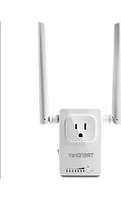
THA-103AC - Wi-Fi repeater TRENDNET - Free user manual and instructions
Find the device manual for free THA-103AC TRENDNET in PDF.


| Product Type | Wi-Fi Repeater / Access Point |
| Brand | TRENDnet |
| Model | THA-103AC |
| Wi-Fi Standards | IEEE 802.11a/b/g/n/ac |
| Frequency Bands | Dual-band (2.4 GHz and 5 GHz) |
| Maximum Speed | 300 Mbps (2.4 GHz) + 867 Mbps (5 GHz) (AC1200) |
| Dimensions (WxDxH) | 4.7 x 3.3 x 1.2 inches (120 x 84 x 30 mm) |
| Weight | 0.5 lbs (227 g) |
| Power Supply | 12V DC, 1A (included adapter) |
| Power Consumption | Max 10W |
| Ports | 1 Gigabit Ethernet port (LAN/WAN) |
| Buttons | WPS/Reset button, Power on/off |
| LED Indicators | Power, LAN, WPS, 2.4G, 5G |
| Antennas | 2 internal antennas |
| Wireless Security | WPA/WPA2-PSK, WEP (64/128-bit) |
| Operating Modes | Repeater, Access Point, WISP Client |
| Management | Web interface, TRENDnet utility |
| Operating Temperature | 0°C to 40°C (32°F to 104°F) |
| Humidity | Max 90% non-condensing |
| Certifications | FCC, CE, IC |
| Maintenance | Clean with dry cloth; keep vents clear |
| Spare Parts & Repairability | No user-serviceable parts; contact support for repairs |
Frequently Asked Questions - THA-103AC TRENDNET
User questions about THA-103AC TRENDNET
0 question about this device. Answer the ones you know or ask your own.
Ask a new question about this device
Download the instructions for your Wi-Fi repeater in PDF format for free! Find your manual THA-103AC - TRENDNET and take your electronic device back in hand. On this page are published all the documents necessary for the use of your device. THA-103AC by TRENDNET.
USER MANUAL THA-103AC TRENDNET
natural_image
White wireless router device with two external antennas and a power outlet (no visible text or symbols)• Home Smart Switch (with Wireless Extender) THA-103AC
- Quick Installation Guide (1)
1. Before You Start
Package Contents
- THA-103AC
- Quick Installation Guide
• CD-ROM (User's Guide)
Minimum Requirements
• Existing Wireless AC or N network
- Mobile device (e.g. Smartphone, Tablet) with Android (version 2.3 or higher) or iOS (version 6.1 or higher)
2. WPS Setup with iOS Device
Note:
- WPS requires an external WPS button on your wireless router or access point in order to connect the THA-103AC switch to your network. If your router does not have a WPS button, or if you prefer to connect to your wireless network using our free app, please skip to the next section, Manual Setup with iOS Device located below.
-
If you have an Android mobile device, refer to Section 4, WPS Setup with Android Device, or Section 5, Manual Setup with Android Device.
-
For the initial installation, plug the THA-103AC into a power outlet near your router or access point. Toggle the power switch down to the "On" position, and wait 30 seconds while the unit boots up.
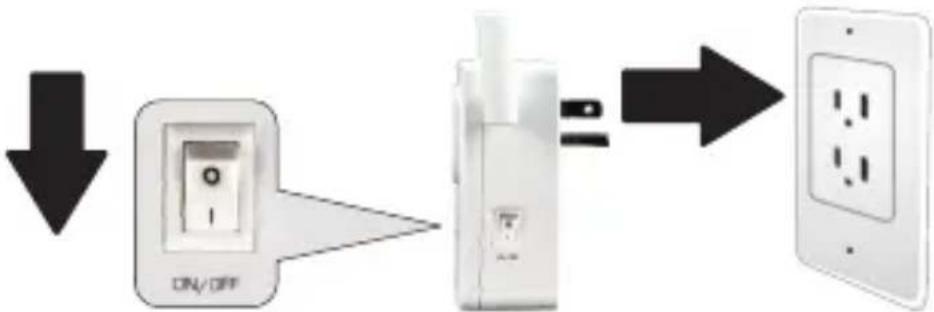
flowchart
graph LR
    A["ON/OFF"] --> B["Power Outlet"]
    B --> C["Indoor Indicators"]
    C --> D["Water Outlet"]
- Press and hold the WPS button on your router for 5 seconds.

- Press and hold the WPS button on the THA-103AC. To connect to a 2.4GHz network, press and hold the button for three seconds and the WPS LED will flash. To connect to a 5GHz network, press and hold the button for seven seconds, the WiFi LED will flash. When the LED turns solid, the unit is connected.

- Enable the WiFi settings on your iOS mobile device, and connect to your home wireless network.
- Go to the Apple App Store, and search for the TRENDnet Smart Home app, then install the app. Or, scan the QR code below to download and install the app.

- Open the TRENDnet Smart Home app.

natural_image
Icon of a house with a leaf inside, labeled 'TRENDnet' below (no other text or symbols)7. Tap the Add (+) icon
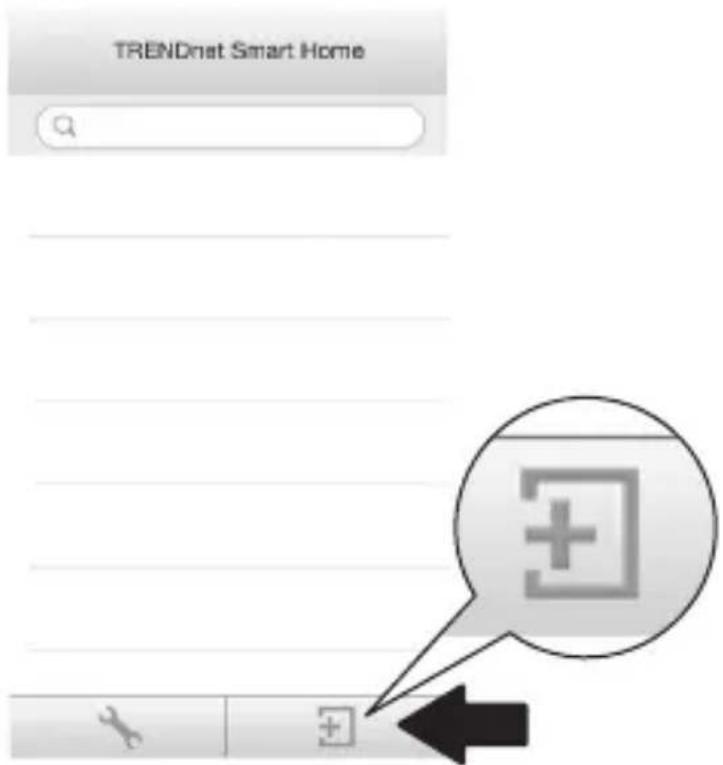
8. Click LAN Search.

- Select the THA-103AC smart switch.
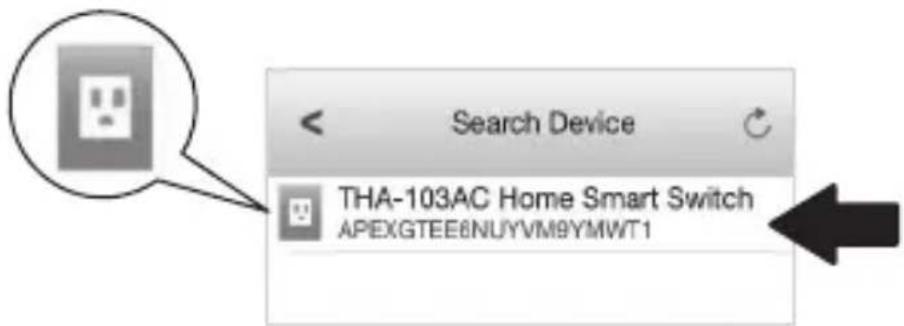
- Enter the default password: admin.

-
Tap Done to save the changes.
-
Tap on the THA-103AC.
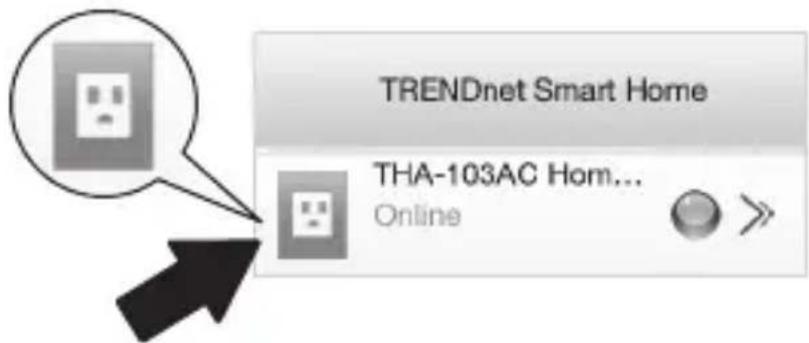
- Tap the power icon to verify the outlet will turn on/off.

-
Wireless extender's setup is also finished. The THA-103AC can be moved to its final location. To project the strongest signal from the built-in wireless extender, put the unit in an area where your mobile device has at minimum three signal bars from your wireless network.
-
Installation is now complete! For detailed configuration information and advanced settings, Please refer to the User's Guide CD-ROM. Visit www.trendnet.com for product updates and online support.
Note:
It is recommended that you change your password to ensure your device is secure. To change the password, open the TRENDnet Smart Home app, and locate your device. Click on the Device Settings icon, then select Advanced Settings. It is also recommended that you change your wireless passwords. To do so, please login to the device's configuration page and adjust your settings under the wireless section.
3. Manual Setup with iOS Mobile Device
Note:
- Manual Setup uses TRENDnet's free app to connect the THA-103AC to your wireless network.
-
If you have an Android mobile device, skip to the next section, WPS Setup with Android Device, or Section 5, Manual Setup with Android Device.
-
To project the strongest signal from the built-in wireless extender, put the THA-103AC in an area where your mobile device has at least three signal bars from your wireless network. Toggle the power switch to the "On" position, and wait 30 seconds while the unit boots up.

flowchart
graph LR
    A["ON/OFF Switch"] --> B["Device Connection"]
    B --> C["Output to Wall-mounted Power Outlet"]
- Go to the Apple App store, and search for the TRENDnet Smart Home app, then install the app. Or, scan the QR code below to download and install the app.

- Enable the Wi-Fi settings on your iOS mobile device, and connect to the THA-103AC.

- Enter the wireless password and tap Join. The default password is password.
- Open the TRENDnet Smart Home app.

natural_image
Icon of a house with a plug inside, labeled 'TRENDnet' below (no other text or symbols)- Tap the Add (+) icon
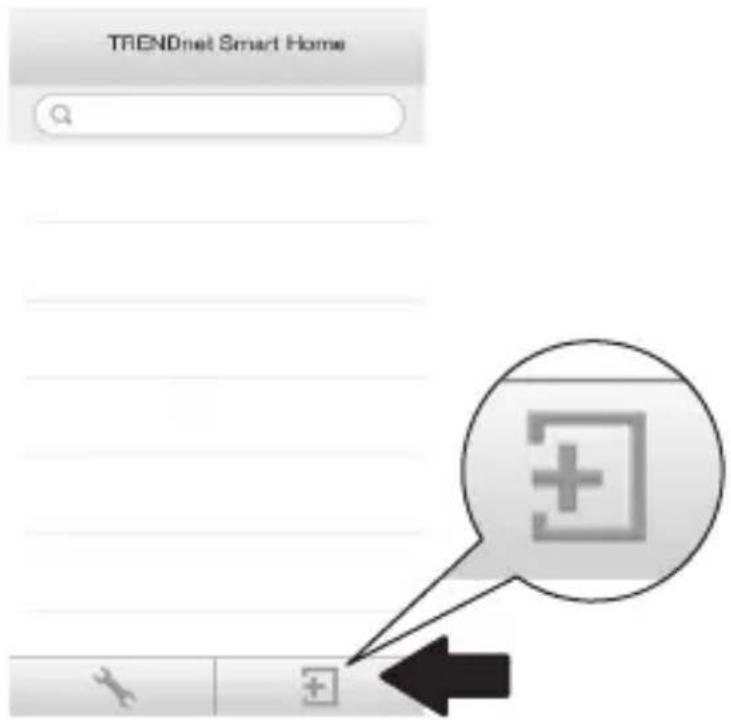
7. Tap LAN Search.

8. Select the THA-103AC smart switch.

9. Enter the default device password: admin
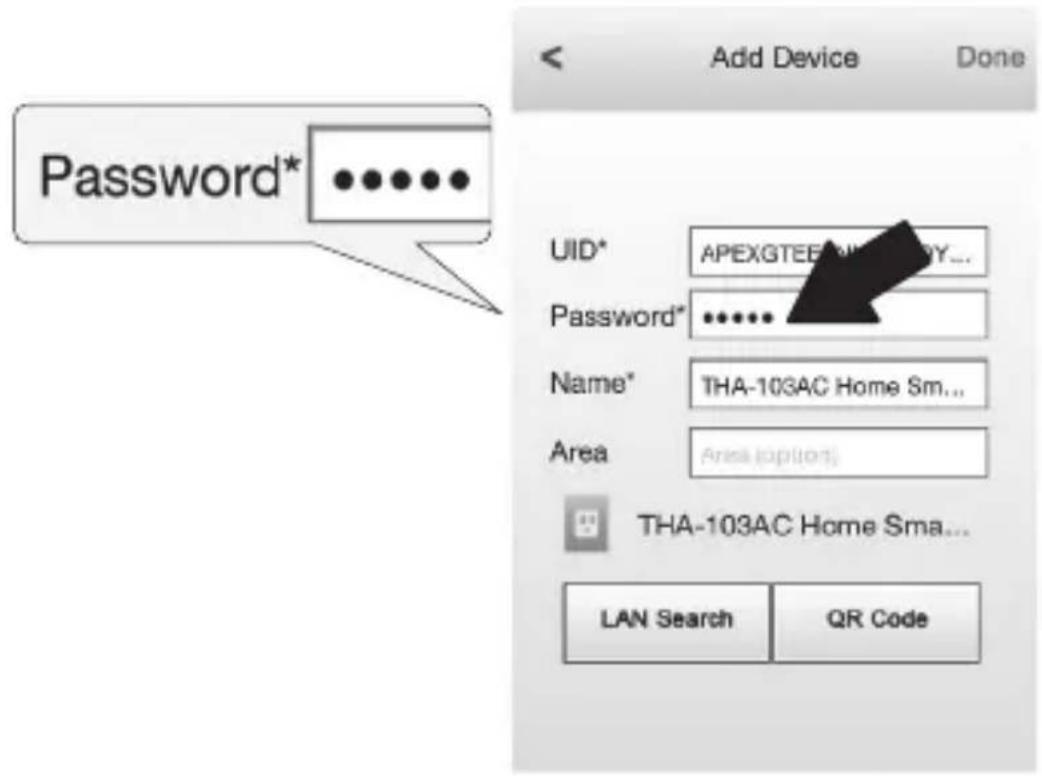
- Tap Done to save your changes.
- Tap the Device Settings icon.

- Tap Advanced Setting.

- Tap WiFi Setting then tap WiFi.

- Select your wireless network. The THA-103AC is capable of extending both 2.4GHz and 5GHz networks. If your router supports dual-band networking, you will have to choose which network to connect with the unit.

- Enter your network's WiFi password and tap OK.

- Close the app.
- Connect your mobile device to your wireless network and re-launch the TRENDnet Smart Home app.
- Tap on the THA-103AC.

- Tap the power icon to verify if the outlet will turn on/off.
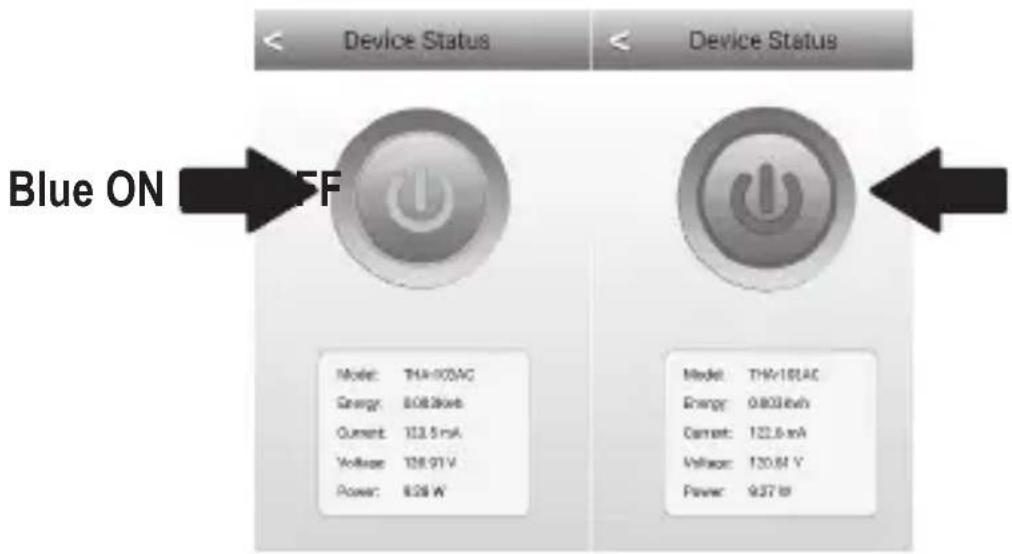
- Installation and wireless extender's setup are now complete! For detailed configuration information and advanced settings, please refer to the User's Guide CD-ROM. Visit www.trendnet.com for product updates and online tech support.
Note:
It is recommended that you change your password to ensure your device is secure. To change the password, open the TRENDnet Smart Home app, and locate your device. Click on the Device Settings icon, then select Advanced Settings. It is also recommended that you change your wireless passwords. To do so, please login to the device's configuration page and adjust your settings under the wireless section.
4. WPS Setup with Android Device
Note:
- WPS requires an external WPS button on your wireless router or access point in order to connect the THA-103AC switch to your network. If your router does not have a WPS button, or if you prefer to connect to your wireless network using our free app, please skip to the next section, Manual Setup with Android Device located below.
-
If you have an iOS mobile device, refer to Section 2, WPS Setup with iOS Mobile Device, or Section 3, Manual Setup with iOS Mobile Device.
-
For the initial installation, plug in the THA-103AC into a power outlet near your router or access point. Toggle the power switch down to the "On" position, and wait 30 seconds while the unit boots up.

flowchart
graph LR
    A["ON/OFF Switch"] --> B["Power Outlet"]
    B --> C["Output"]
- Press and hold the WPS button on your router or access point for 5 seconds.

- Press and hold the WPS button on the THA-103AC. To connect to a 2.4GHz network, press and hold the button for three seconds and the WPS LED will flash. To connect to a 5GHz network, press and hold the button for seven seconds, the WiFi LED will flash. When the LED turns solid, the unit is connected.

- Enable the WiFi settings on your Android mobile device, and connect to your home wireless network.
- Go to the Google Play Store, search for the TRENDnet Smart Home app, and install the app. Or, scan the QR code below to download and install the app.

- Open the TRENDnet Smart Home icon.

natural_image
Icon of a house with a plug inside, labeled 'TRENDnet' below (no other text or symbols)- Tap the Add (+) icon.

- Tap LAN Search.

- Select the THA-103AC smart switch.

- Enter the default password: admin.
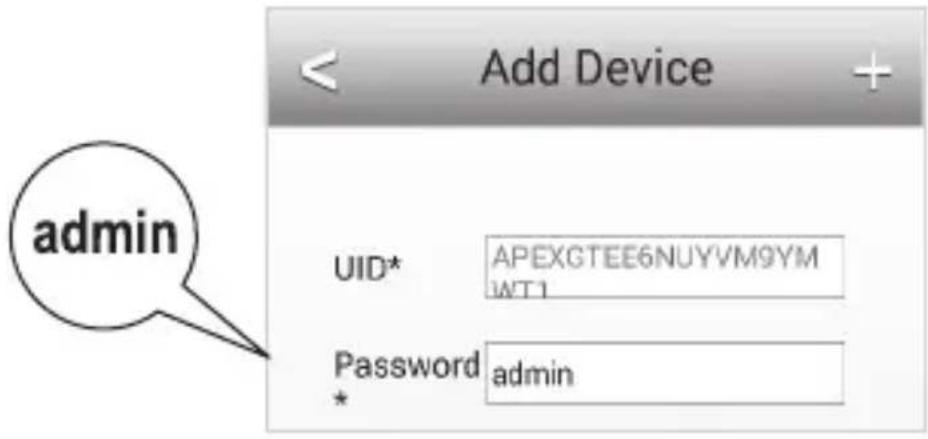
- Press the Add (+) icon.

- Select the THA-103AC smart switch.

- Tap the power icon to verify the outlet will turn on/off.

- Wireless extender's setup is also finished. The THA-103AC can be moved to its final location. To project the strongest signal from the built-in wireless extender, put the unit in an area where your mobile device has at least three signal bars from your wireless network.
- Installation is now complete! For detailed configuration information and advanced settings, please refer to the User's Guide CD-ROM. Visit www.trendnet.com for product updates and online tech support.
Note:
It is recommended that you change your password to ensure your device is secure. To change the password, open the TRENDnet Smart Home app, and locate your device. Click on the Device Settings icon, then select Advanced Settings. It is also recommended that you change your wireless passwords. To do so, please login to the device's configuration page and adjust your settings under the wireless section.
5. Manual Setup with Android Device
Note:
- Manual Wireless Setup uses TRENDnet's free app to connect the THA-103AC to your wireless network.
-
If you have an iOS mobile device, refer to Section 2, WPS Setup with iOS Mobile Device, or Section 3, Manual Setup with iOS Mobile Device.
-
To project the strongest signal from the built-in wireless extender, put the THA-103AC in an area where your mobile device has at least three signal bars from your wireless network. Toggle the power switch to the "On" position, and wait 30 seconds while the unit boots up.
-
Go to the Google Play Store, search for the TRENDnet Smart Home app, and install the app. Or, scan the QR code below to download and install the app.

- Enable the WiFi settings on your Android mobile device, and connect to your THA-103AC.
Wi-Fi networks
THA-103AC_24G_27A0
Connected

- Enter the wireless password and tap OK. The default password is password.
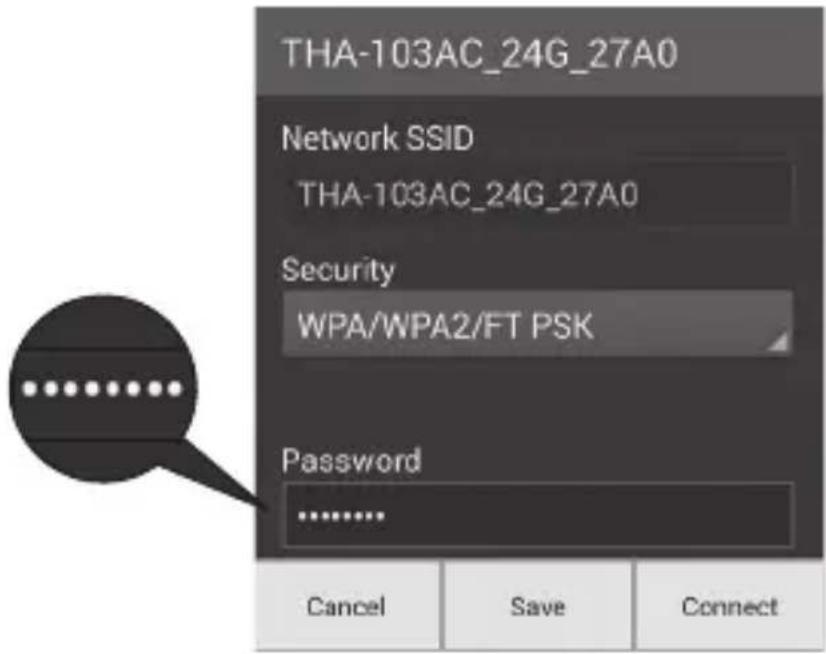
- Open the TRENDnet Smart Home app.

natural_image
Simple icon of a house with a plug symbol inside, no text or numbers present.- Tap the Add (+) icon.

7. Tap LAN Search.

8. Select the THA-103AC smart switch.
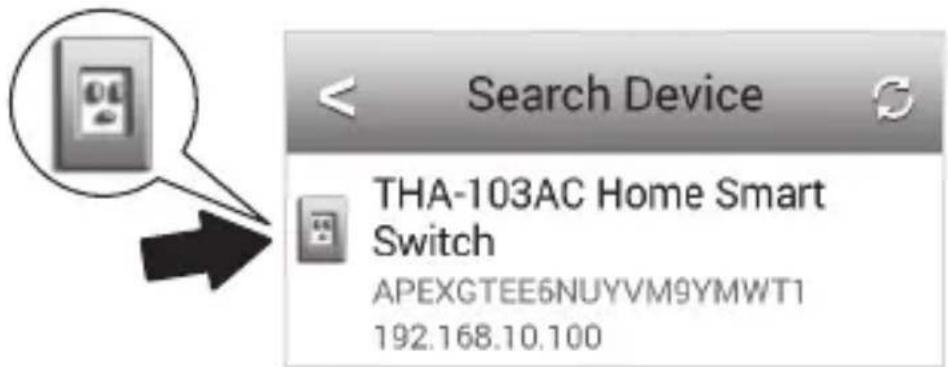
- Enter the default device password: admin
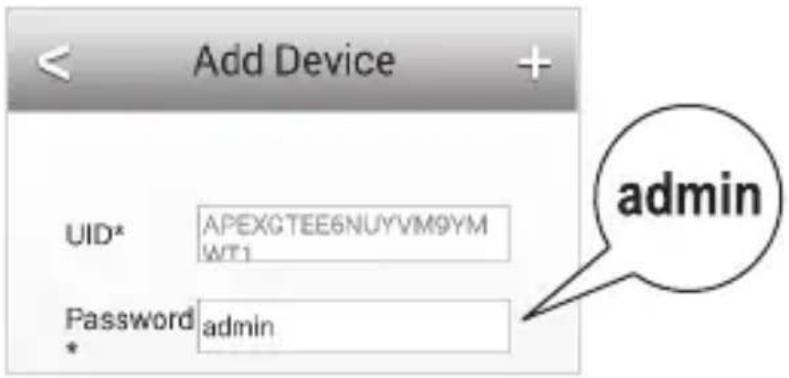
- Tap the Add (+) icon.

- Tap the Right Arrow icon.
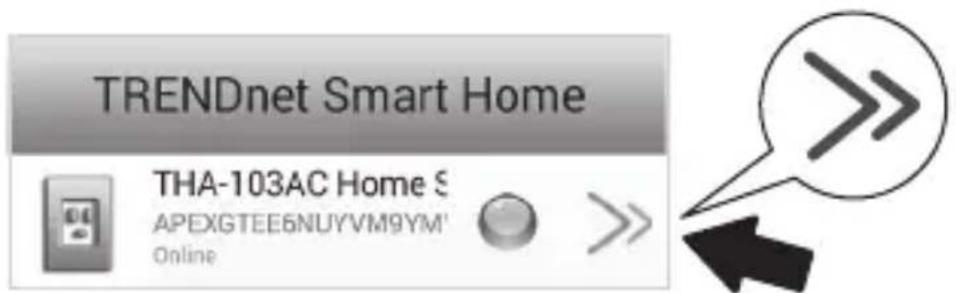
- Tap Advanced.

13. Tap Loading.

- Select your wireless network. The THA-103AC is capable of extending both 2.4GHz and 5GHz networks. If your router supports dual-band networking, you will have to choose which network to connect with the unit.

- Enter your network's WiFi password and tap OK.

- Close the app.
- Connect your mobile device to your wireless network and re-launch the TRENDnet Smart Home app.
- Tap on the THA-103AC.

- Tap the power icon to verify if the outlet will turn on/off.

- Installation and wireless extender's setup are now complete! For detailed configuration information and advanced settings, please refer to the User's Guide CD-ROM. Visit www.trendnet.com for product updates and online tech support.
Note:
It is recommended that you change your password to ensure your device is secure. To change the password, open the TRENDnet Smart Home app, and locate your device. Click on the Device Settings icon, then select Advanced Settings. It is also recommended that you change your wireless passwords. To do so, please login to the device's configuration page and adjust your settings under the wireless section.
Toll Free English Technical Support
US/Canada: 855-373-4741
Hours: Monday-Friday
7:00 AM- 6:00 PM, Pacific Standard Time.
After hours: 866-845-3673
Manufacturer's Name and Address
TRENDnet, Inc.
20675 Manhattan Place
Torrance, CA 90501 USA

Product Information:
Model Number: THA-103AC
Product Name: Home Smart Switch (with AC Wi-Fi Extender)
Trade Name: TRENDnet
TRENDnet hereby declare that the product is in compliance with the essential requirements and other relevant provisions under our sole responsibility.
Safety
EN 60950-1: 2006+A11+A1:2010+A12:2011+A2:2013
EMC
EN 301489-1 V1.9.2:09-2011
EN 55022: 2010 + AC: 2011 Class B
EN 55024: 2010
Radio Spectrum & Health
EN 300 328 V1.8.1:06-2012
EN 62311: 2008
EN 50385 2002
Energy Efficiency
Regulation (EC) No. 1275/2008, No. 278/2009, No. 801/2013
This product is herewith confirmed to comply with the Directives.
Directives:
Low Voltage Directive 2006/95/EC
EMC Directive 2004/108/EC
R&TTE Directive 1999/5/EC
EMF Directive 1999/519/EC
Ecodesign Directive 2009/125/EC
RoHS Directive 2011/65/EU
REACH Regulation (EC) No. 1907/2006
Person responsible for this declaration.
Place of Issue: Torrance, California, USA
Date: November 10, 2014
Name: Sonny Su
Title: Director of Technology
Signature:
Limited Warranty
TRENDnet warrants its products against defects in material and workmanship, under normal use and service, for the following length of time from the date of purchase. Warranty: 3 year limited warranty (When Applicable: 1 year warranty for power adapter, power supply, and cooling fan components.) Visit TRENDnet.com to review the full warranty policy, rights, and restrictions for this product.
Garantie Limitée
This device can be expected to comply with Part 15 of the FCC Rules provided it is assembled in exact accordance with the instructions provided with this kit. Operation is subject to the following conditions:
(1) This device may not cause harmful interference
(2) This device must accept any interference received including interference that may cause undesired operation.

Waste electrical an electronic products must not be disposed of with household waste. Please recycle where facilities exist. Check with your Local Authority or Retailer for recycling advice.
Applies to PoE Products Only: This product is to be connected only to PoE networks without routing to the outside plant.
Note
The Manufacturer is not responsible for any radio or TV interference caused by unauthorized modifications to this equipment. Such modifications could void the user's authority to operate the equipment.
Advertencia
If you have any questions regarding the product installation, please contact our Technical Support.
Toll free US/Canada: 1-866-845-3673
Regional phone numbers available at www.trendnet.com/support
Product Warranty Registration
Please take a moment to register your product online. Go to TRENDnet's website at: http://www.trendnet.com/register
TRENDnet
20675 Manhattan Place, Torrance, CA 90501. USA
Copyright © 2015. All Rights Reserved. TRENDnet.

- • Home Smart Switch (with Wireless Extender) THA-103AC
- Before You Start
- Package Contents
- Minimum Requirements
- WPS Setup with iOS Device
- Note:
- Tap the Add (+) icon
- Click LAN Search.
- Manual Setup with iOS Mobile Device
- Tap LAN Search.
- Select the THA-103AC smart switch.
- Enter the default device password: admin
- WPS Setup with Android Device
- Manual Setup with Android Device
- Tap Loading.
- Manufacturer's Name and Address
- Product Information:
- Safety
- EMC
- Radio Spectrum & Health
- Energy Efficiency
- Directives:
- Limited Warranty
- Garantie Limitée
- Note
- Advertencia
- Product Warranty Registration
- TRENDnet
Brand : TRENDNET
Model : THA-103AC
Category : Wi-Fi repeater