
ST1000SPEXI - Carte réseau/Adaptateur StarTech.com - Free user manual and instructions
Find the device manual for free ST1000SPEXI StarTech.com in PDF.


| Product Type | Network Adapter (Gigabit Ethernet PCIe) |
| Model Number | ST1000SPEXI |
| Interface | PCI Express x1 |
| Ports | 1 x RJ-45 Gigabit Ethernet |
| Data Transfer Rate | 10/100/1000 Mbps |
| Standards | IEEE 802.3, 802.3u, 802.3ab |
| Form Factor | Low Profile / Standard Bracket Included |
| Dimensions | 120 x 68 x 21 mm |
| Weight | 50 g |
| Power Consumption | Typical 2.5 W (from PCIe slot) |
| Operating Temperature | 0°C to 55°C |
| Storage Temperature | -20°C to 70°C |
| Humidity | 10% to 90% non-condensing |
| LED Indicators | Link/Activity |
| Supported Features | Jumbo Frames, VLAN Tagging, Wake-on-LAN, Auto MDI/MDIX |
| Compatible Operating Systems | Windows, Linux, macOS |
| Spare Parts | None (no user-replaceable parts) |
| Repairability | Not designed for repair; replace unit if faulty |
| Care Instructions | Keep dry; clean contacts with isopropyl alcohol |
| Safety | Handle with care; avoid static discharge; install in grounded system |
Frequently Asked Questions - ST1000SPEXI StarTech.com
User questions about ST1000SPEXI StarTech.com
0 question about this device. Answer the ones you know or ask your own.
Ask a new question about this device
Download the instructions for your Carte réseau/Adaptateur in PDF format for free! Find your manual ST1000SPEXI - StarTech.com and take your electronic device back in hand. On this page are published all the documents necessary for the use of your device. ST1000SPEXI by StarTech.com.
USER MANUAL ST1000SPEXI StarTech.com
1-port PCI Express Gigabit Ethernet network card - Intel chip
ST1000SPEXI
- 1 x 1-port PCI Express® network card
- 1 x low-profile bracket
• 1 x instruction manual
System requirements
-
PCI Express enabled computer with an available PCI Express slot (x1, x4, x8, or x16)
• Any of the following operating systems: -
Windows ^ 7 (32 or 64-bit)
• Windows 8 (32 or 64-bit)
• Windows 8.1 (32 or 64-bit)
• Windows Server® 2008 R2
• Windows Server 2012
• Linux® Kernel 2.6.x and later
• Linux Kernel 3.x and later - Microsoft® Hyper-V®
Note: Operating system requirements are subject to change. For the latest requirements, please visit www.startech.com/ST1000SPEXI.
Installation
Install the PCI Express card
WARNING!
PCI Express cards can be severely damaged by static electricity. Make sure that you're properly grounded before you open your computer case or touch your PCI Express card. StarTech.com recommends that you wear an anti-static strap when you install any computer component. If an anti-static strap isn't available, discharge any built-up static electricity by touching a large grounded metal surface (for example, the computer case) for several seconds. Only handle the PCI Express card by its edges and don't touch the gold connectors.
- Turn off your computer and any peripherals that are connected to your computer (for example, printers, external hard drives, and so on).
- Unplug the power cable from the back of your computer.
- Disconnect any peripheral devices that are connected to your computer.
- Remove the cover from your computer case. Consult the documentation that came with your computer for details about how to do this safely.
For the latest information, technical specifications, and support for this product, please visit www.startech.com/ST1000SPEXI.
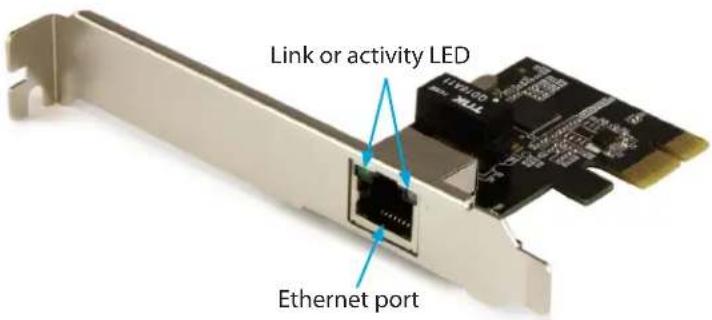
- Locate an open PCI Express slot and remove the corresponding metal plate cover from the back of the computer case. Consult the documentation that came with your computer for details about how to do this safely.
- Gently insert the card into the open PCI Express slot and fasten the bracket to the back of the case.
Note: If you install the card into a small form factor or a low-profile desktop system, it may be necessary to replace the preinstalled standard-profile bracket with the included low-profile (half height) installation bracket.
- Place the cover back onto your computer case.
- Reconnect the power cable to the back of your computer.
- Reconnect all of the peripheral devices that you disconnected in step 3.
- Turn on your computer.
Install the driver on a computer running Windows
- If the Found New Hardware dialog box appears on your screen, close the dialog box or click Cancel.
- To download the latest driver, navigate to www.StarTech.com and enter ST1000SPEXI in the Search field.
- Click the Support tab.
- Download a driver.
- When the download is complete, extract the contents of the compressed file that you downloaded.
- Double-click the appropriate driver for the version of Windows that you're running and follow the on-screen instructions to complete the installation.
Verify that the driver was installed successfully
-
Depending on the version of Windows that you're running, do one of the following:
-
If you're running a version of Windows 7, in the Start menu, right-click Computer. Click Manage. In the Computer Management window, select Device Manager.
-
If you're running Windows 8.1, press the Windows key + X. Click Device Manager.
-
Expand the Network Adapters section. If the driver was installed successfully, the list won't contain any exclamation or question marks next to the devices.
FCC Compliance Statement
This equipment has been tested and found to comply with the limits for a Class B digital device, pursuant to part 15 of the FCC Rules. These limits are designed to provide reasonable protection against harmful interference in a residential installation. This equipment generates, uses and can radiate radio frequency energy and, if not installed and used in accordance with the instructions, may cause harmful interference to radio communications. However, there is no guarantee that interference will not occur in a particular installation. If this equipment does cause harmful interference to radio or television reception, which can be determined by turning the equipment off and on, the user is encouraged to try to correct the interference by one or more of the following measures:
- Reorient or relocate the receiving antenna.
- Increase the separation between the equipment and receiver.
- Connect the equipment into an outlet on a circuit different from that to which the receiver is connected.
- Consult the dealer or an experienced radio/TV technician for help
This device complies with part 15 of the FCC Rules. Operation is subject to the following two conditions: (1) This device may not cause harmful interference, and (2) this device must accept any interference received, including interference that may cause undesired operation. Changes or modifications not expressly approved by StarTech.com could void the user's authority to operate the equipment.
Industry Canada Statement
This Class B digital apparatus complies with Canadian ICES-003.
Use of Trademarks, Registered Trademarks, and other Protected Names and Symbols
This manual may make reference to trademarks, registered trademarks, and other protected names and/or symbols of third-party companies not related in any way to
StarTech.com. Where they occur these references are for illustrative purposes only and do not represent an endorsement of a product or service by StarTech.com, or an endorsement of the product(s) to which this manual applies by the third-party company in question. Regardless of any direct acknowledgement elsewhere in the body of this document, StarTech.com hereby acknowledges that all trademarks, registered trademarks, service marks, and other protected names and/or symbols contained in this manual and related documents are the property of their respective holders.
Technical Support
StarTech.com's lifetime technical support is an integral part of our commitment to provide industry-leading solutions. If you ever need help with your product, visit www.startech.com/support and access our comprehensive selection of online tools, documentation, and downloads. For the latest drivers/software, please visit www.startech.com/downloads
Warranty Information
This product is backed by a two-year warranty.
StarTech.com warrants its products against defects in materials and workmanship for the periods noted, following the initial date of purchase. During this period, the products may be returned for repair, or replacement with equivalent products at our discretion. The warranty covers parts and labor costs only. StarTech.com does not warrant its products from defects or damages arising from misuse, abuse, alteration, or normal wear and tear.
Limitation of Liability
In no event shall the liability of StarTech.com Ltd. and StarTech.com USA LLP (or their officers, directors, employees or agents) for any damages (whether direct or indirect, special, punitive, incidental, consequential, or otherwise), loss of profits, loss of business, or any pecuniary loss, arising out of or related to the use of the product exceed the actual price paid for the product. Some states do not allow the exclusion or limitation of incidental or consequential damages. If such laws apply, the limitations or exclusions contained in this statement may not apply to you.
- 1-port PCI Express Gigabit Ethernet network card - Intel chip
- System requirements
- Installation
- Install the PCI Express card
- WARNING!
- Install the driver on a computer running Windows
- Verify that the driver was installed successfully
- FCC Compliance Statement
- Industry Canada Statement
- Use of Trademarks, Registered Trademarks, and other Protected Names and Symbols
- Technical Support
- Warranty Information
- Limitation of Liability
Brand : StarTech.com
Model : ST1000SPEXI
Category : Carte réseau/Adaptateur