PCI8S950 - Carte réseau/Adaptateur StarTech.com - Free user manual and instructions
Find the device manual for free PCI8S950 StarTech.com in PDF.


User questions about PCI8S950 StarTech.com
0 question about this device. Answer the ones you know or ask your own.
Ask a new question about this device
Download the instructions for your Carte réseau/Adaptateur in PDF format for free! Find your manual PCI8S950 - StarTech.com and take your electronic device back in hand. On this page are published all the documents necessary for the use of your device. PCI8S950 by StarTech.com.
USER MANUAL PCI8S950 StarTech.com
PCI Serial Adapter Card
2/4/8 Port 16950 Serial PCI Card
FCC Compliance Statement
This equipment has been tested and found to comply with the limits for a Class B digital device, pursuant to part 15 of the FCC Rules. These limits are designed to provide reasonable protection against harmful interference in a residential installation. This equipment generates, uses and can radiate radio frequency energy and, if not installed and used in accordance with the instructions, may cause harmful interference to radio communications. However, there is no guarantee that interference will not occur in a particular installation. If this equipment does cause harmful interference to radio or television reception, which can be determined by turning the equipment off and on, the user is encouraged to try to correct the interference by one or more of the following measures:
Reorient or relocate the receiving antenna.
Increase the separation between the equipment and receiver.
Connect the equipment into an outlet on a circuit different from that to which the receiver is connected.
Consult the dealer or an experienced radio/TV technician for help.
Use of Trademarks, Registered Trademarks, and other Protected Names and Symbols
This manual may make reference to trademarks, registered trademarks, and other protected names and/or symbols of third-party companies not related in any way to StarTech.com. Where they occur these references are for illustrative purposes only and do not represent an endorsement of a product or service by StarTech.com, or an endorsement of the product(s) to which this manual applies by the third-party company in question. Regardless of any direct acknowledgement elsewhere in the body of this document, StarTech.com hereby acknowledges that all trademarks, registered trademarks, service marks, and other protected names and/or symbols contained in this manual and related documents are the property of their respective holders.
Table of Contents
Introduction ...... 1
Packaging Contents....1
System Requirements ....1
Installation .... 1
Hardware Installation ....1
Driver Installation 2
Advanced Performance Configuration 4
Maximize data transfer rates ....4
Specifications 5
Technical Support 6
Warranty Information 6
Introduction
Packaging Contents
1 x PCI Serial Card•
1 x User Manual•
1 x Driver CD•
1 x DB9 Breakout cable (PCI4S950 only)•
2 x DB9 Breakout cable (PCI8S950 only)•
1 x DB37 ribbon cable bracket (PCI8S950 only)•
System Requirements
An available 5V PCI slot•
(PCI8S950 only) A second open expansion card slot•
Microsoft Windows® 98SE/2000/XP/Server 2003/Vista
Installation
WARNING! PCI cards, like all computer equipment, can be severely damaged by static electricity. Be sure that you are properly grounded before opening your computer case or touching your PCI card. StarTech.com recommends that you wear an anti-static strap when installing any computer component. If an anti-static strap is unavailable, discharge yourself of any static electricity build-up by touching a large grounded metal surface (such as the computer case) for several seconds. Also be careful to handle the PCI card by its edges and not the gold connectors.
Hardware Installation
Make sure that your system is unplugged and you are grounded.1.
Remove the cover of your system (see your computer's user manual 2. for details, if necessary) and gently turn your computer onto its side.
Locate an empty PCI slot (usually white in colour) and remove the 3. metal plate that covers the rear bracket. You may need a Phillips screwdriver to perform this step. Hang on to the screw! You will need it to secure the card later.
Gently insert the card into the empty slot, making sure it is firmly 4. seated.
Secure the card in place using the screw you removed in Step 3.5.
If you purchased a PCI8S950 (8 port model), connect the ribbon a. cable panel for the second dongle connector to the pins on the card, with the red stripe on the ribbon cable facing Pin 1 (as marked). Remove the screw and metal plate on another available slot. Secure the second dongle connector in place with the screw.
If you purchased a PCI4S950 (4 port model) or PCI8S950 (8 b. port model), connect the port dongle(s) provided to the port on the back of the card (and the additional dongle connector you installed, if applicable).
Put your computer case back on.6.
Connect the large end of the serial cable to the serial port on the 7. back of your computer.
Turn your computer on.8.
Driver Installation
The current software drivers for this product are included on the provided installation CD. If you lose the installation CD or want to update the existing drivers, please visit www.startech.com to download the most current version of the drivers. For advanced configuration instructions, consult the PDF files located in the doc folder on the installation CD. To view these files, you will need Adobe® Reader® which is available as a free download from www.adobe.com.
Windows® 2000/XP
The operating system will automatically detect the new hardware 1. and start the Add New Hardware Wizard. Click Next.
Insert the installation CD that came with the card into your 2. computer's CD-ROM or other compatible optical drive. Choose Search for a suitable driver... (Windows 2000) or Install the software automatically (Windows XP). Click Next.
You may receive a warning that the driver is not digitally signed. 3. Choose OK (Windows 2000) or Continue Anyway (Windows XP) when prompted to complete the installation.
When Windows is done copying files, you will see a message above 4. the System Tray (next to the clock) stating that the card is installed and ready to use.
You may need to repeat the installation for each individual port. After 5. all devices are installed, you may then attach your serial devices.
Windows® 98SE/ME
The operating system will automatically detect the new hardware. 1. Click Next to continue.
Select "Search for the best driver for my device (Recommended)" 2. and click Next.
Insert the driver CD into the CD-ROM drive and select "CD-ROM". 3. Click Next.
When Windows finds the appropriate driver, click 4. Next to begin the installation.
Click 5. Finish to complete the installation. The system will now install the UART ports automatically.
Advanced Performance Configuration (PCI2S950 only)
text_image
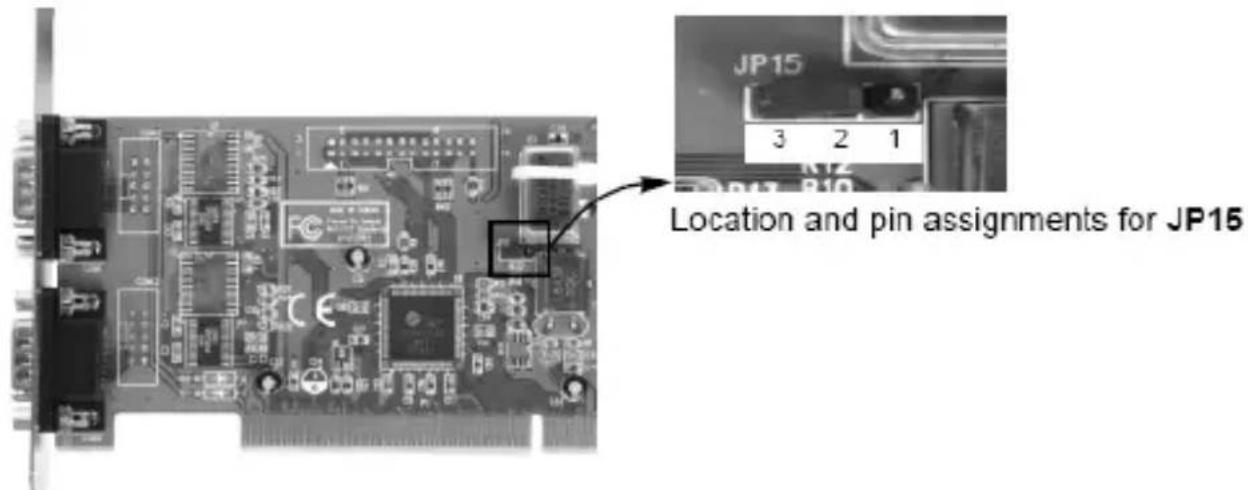
JP15 3 2 1 Location and pin assignments for JP15As an option, you can choose to configure the clock frequency of your card by setting the JP15 jumper pins. You can alter this setting by placing the jumper on the pins according to the following chart:
| Pins Setting |
| 3-2 1.843 MHz |
| 1-2 40.0 MHz |
Maximize data transfer rates
Once installation is complete, you will be able to configure the port(s) provided by the card, as you would any other serial port. To do so, browse through the following path:
Start > Control Panel > System > Hardware (tab) > Device Manager
To maximize the port data transfer capability, right-click on one of the newly installed ports, and select Properties. Once the Properties window opens, click on the Data Rate tab. Here you will see a button labelled Detect Crystal Frequency. Click on the button to automatically detect the port data transfer capability. Repeat this for any other ports for the serial adapter card.
Specifications
| PCI2S950 PCI4S950 PCI8S950 | |||
| Bus Interface | PCI 2.2 (5V) | ||
| Chipset ID | OxfordOX16PCI952 | OxfordOX16PCI954 | OxfordOX16PCI954 |
| Connectors | 2 x DB9 male 4 | x DB9 male 8 x DB9 | |
| Maximum Data Transfer Rate | 460.8 kbps | ||
| Supported Operating Systems | Windows® 98SE/2000/XP/Server 2003/Vista | ||
Technical Support
StarTech.com's lifetime technical support is an integral part of our commitment to provide industry-leading solutions. If you ever need help with your product, visit www.startech.com/support and access our comprehensive selection of online tools, documentation, and downloads.
Warranty Information
This product is backed by a one year warranty.
In addition, StarTech.com warrants its products against defects in materials and workmanship for the periods noted, following the initial date of purchase. During this period, the products may be returned for repair, or replacement with equivalent products at our discretion. The warranty covers parts and labor costs only. StarTech.com does not warrant its products from defects or damages arising from misuse, abuse, alteration, or normal wear and tear.
Limitation of Liability
In no event shall the liability of StarTech.com Ltd. and StarTech.com USA LLP (or their officers, directors, employees or agents) for any damages (whether direct or indirect, special, punitive, incidental, consequential, or otherwise), loss of profits, loss of business, or any pecuniary loss, arising out of or related to the use of the product exceed the actual price paid for the product. Some states do not allow the exclusion or limitation of incidental or consequential damages. If such laws apply, the limitations or exclusions contained in this statement may not apply to you.
StarTech.com Making hard-to-find easy!®
StarTech.com has been making “hard-to-find easy” since 1985, providing high quality solutions to a diverse IT and A/V customer base that spans many channels, including government, education and industrial facilities to name just a few. We offer an unmatched selection of computer parts, cables, A/V products, KVM and Server Management solutions, serving a worldwide market through our locations in the United States, Canada, the United Kingdom and Taiwan.
Visit www.startech.com today for complete information about all our products and to access exclusive interactive tools such as the Cable Finder, Parts Finder and the KVM Reference Guide.