
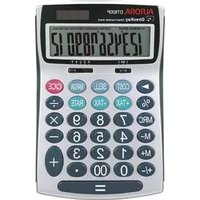
AX-582BL - Calculator AURORA - Free user manual and instructions
Find the device manual for free AX-582BL AURORA in PDF.


| Product Type | Basic Scientific Calculator |
| Brand | Aurora |
| Model | AX-582BL |
| Display Type | 10-digit LCD |
| Power Source | Solar cell with LR54 backup battery |
| Dimensions (H x W x D) | Approx. 145 x 80 x 12 mm |
| Weight | Approx. 100 g (including battery) |
| Key Functions | Basic arithmetic, square root, percentage, memory |
| Additional Functions | Automatic power-off, hard cover |
| Operating Temperature | 0°C to 40°C |
| Storage Temperature | -20°C to 60°C |
| Battery Life | Approx. 2 years under normal use |
| Cleaning Instructions | Wipe with a dry, soft cloth. Do not use solvents. |
| Safety Precautions | Keep away from moisture and extreme temperatures. Replace battery promptly. |
| Warranty | 2 years limited warranty |
| Included Accessories | Hard cover, user manual |
| Languages Supported | English, French, Spanish, German, Italian |
| Compliance | CE, RoHS |
| Spare Parts Availability | Contact authorized service centers for battery replacement |
| Repair Service | Available through local service providers |
Frequently Asked Questions - AX-582BL AURORA
User questions about AX-582BL AURORA
0 question about this device. Answer the ones you know or ask your own.
Ask a new question about this device
Download the instructions for your Calculator in PDF format for free! Find your manual AX-582BL - AURORA and take your electronic device back in hand. On this page are published all the documents necessary for the use of your device. AX-582BL by AURORA.
USER MANUAL AX-582BL AURORA
AURORA OPERATING MANUAL
For use with AX-582
Twin-line scientific calculator.
Printed in China
9220250
Removing and Replacing the Calculator's Cover
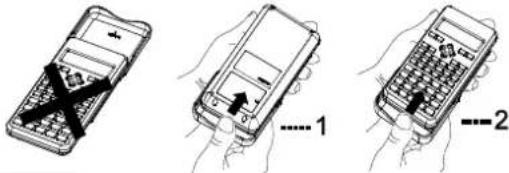
● Always slide the keyboard end of the unit into the cover first. Never slide the display end of the unit into the cover.
- Holding the cover as shown in the illustration, slide the unit out of the cover before use. Picture......1
- Holding the cover as shown in the illustration, slide the unit out of the cover after use. Picture.....2
Precautions
- Don't expose the machine to water, direct sunlight, extremely hot or cold temperatures or dusty environments.
- Don't drop the machine or subject it to heavy impact.
- Use a soft cloth to clean the machine. Do not use detergents.
Two-line Display

The two-line display makes it possible to view both the calculation formula and its result at the same time.
● The upper line shows the calculation formula.
- The lower line shows the result.
Before Starting Calculations ...
■ Modes
| Application | Mode | Mode Indicator | Operation |
| Calculation Mode | |||
| Normal calculations | COMP | — | MODE 1 |
| Standard deviation calculations | SD | SD | MODE 2 |
| Regression calculations | REG | REG | MODE 3 |
| Angle Unit Modes | |||
| Degrees | DEG | D | MODE MODE 1 |
| Radians | RAD | F | MODE MODE 2 |
| Grads | GRA | G | MODE MODE 3 |
| Display Modes | |||
| Exponential notation (canceling FIX and SCI specification) | NORM1 | — | MODE MODE MODE 3 1 |
| NORM2 | — | MODE MODE MODE 3 2 | |
| Number of decimal place specification | FIX | Fix | MODE MODE MODE 1 |
| Number of significant digit specification | SCI | Sci | MODE MODE MODE 2 |
Note!
● Mode indicators appear in the upper part of the display.
- The COMP, SD, and REG modes can be used in combination with the angle unit mode.
- To return the calculation mode and setup to the initial defaults shown below, press SHIFT CLR 2 (MODE) =
Calculation Mode: COMP
Angle Unit: Deg
Exponential Display Format: Norm 1
Fraction Display Format: a %c
Decimal Point Character: Dot
- Be sure to check the current calculation mode (SD, REG, COMP) and angle unit setting (Deg, Rad, Gra) before calculating.
■ MODE Key Operation and Display
| Operation | Display | Instruction | ||
| MODE | COMP1 | SD2 | REG3 | Press 1~3 key to select the status of Normal Calculation, Standard Deviation or Regression. |
| MODE 3 | Lin1 | Log2 | Exp3 | Press 1~3 key to select the status of Linear regression, Logarithmic regression or exponential regression. |
| MODE 3 ▶ | Pwr1 | Inv2 | Quad3 | Press 1~3 key to select the status of Power regression. Inverse regression or Quadratic regression. |
| MODE MODE | Deg1 | Rac2 | Gra3 | Press 1~3 key to select current calculating angle unit: Degrees, radians or grads. |
| MODE MODE MODE | Fix1 | Sci2 | Norm3 | Press 1~3 key to settle No. of Decimal Place specification, No. of significant Digit Specification or Exponential Notation. |
| MODE MODE MODE 1 | Fix 0~9 ? | Press 0~9 to select Decimal Place specification. | ||
| MODE MODE MODE 2 | Sci 0~9 ? | Press 0~9 to select No. of significant digital specification. | ||
| MODE MODE MODE 3 | Norm 1~2 ? | Press 1~2 to select exponential display status and exit Decimal Place Specification and Significant Digital Specification status. | ||
| MODE MODE MODEMODE 1 | ab/c1 | d/c2 | Press 1~2 to select and make sure the display mode when the calculating result is more than 1. | |
| MODE MODE MODEMODE 1 ▶ | Dot1 | Comma2 | Press 1~2 to select the display status of Separator Symbols. | |
■ Input Capacity
- The memory area used for calculation input can hold 79 “steps”. One step is taken up each time you press a number key or arithmetic operator key (+, -, ×, ÷). A SHIFT or ALPHA key operation does not take up a step. so inputting SHIFT 12 takes up only one step.
- You can input up to 79 steps for a single calculation. Whenever you input the 73rd step of any calculation, the cursor changes from " " to "■" to let you know memory is running low. If you need to input more than 79 steps, you should divide your calculation into two or more parts.
- Pressing the Ans key recalls the last result obtained, which you can use in a subsequent calculation. See "Answer Memory" for more information about using the Ans key.
■ Making Corrections During Input
- Use ▶ and ◀ to move the cursor to the location you want.
- Press DEL to delete the number or function at the current cursor position.
- Press SHIFT NS to change to an insert cursor □. Inputting something while the insert cursor is on the display inserts the input at the insert cursor position.
- Pressing SHIFT INS, or = returns to the normal cursor from the insert cursor.
■ Replay Function
- Every time you perform a calculation, the replay function stores the calculation formula and its result in replay memory. Pressing the ▲key displays the formula and result of the calculation you last performed. Pressing ▲again back steps sequentially (new-to-old) through past calculations.
- Pressing the ▶ or ◀ key while a replay memory calculation is on the display changes to the editing screen.
- Pressing the ▶ or ◀ key immediately after you finish a calculation displays the editing screen for that calculation.
- Pressing CA does not clear replay memory, so you can recall the last calculation even after you press CA.
- Replay memory capacity is 128 bytes for storage of both expressions and results.
● Replay memory is cleared by any of the following actions - When you press the ON key.
- When you initialize modes and settings by pressing SHIFT CLR 2 (Mode) =
- When you change from one calculation mode to another.
- When you turn off the calculator
■ Error Locator
- Pressing ▶ or ◀ after an error occurred displays the calculation with the cursor positioned at the location where the error occurred.
■ Multi-statements
A multi-statement is an expression that is made up of two or more smaller expressions, which are joined using a colon ( : ).
Example: To add 2 + 3 and then multiply the result by 4

■ Exponential Display Formats
This calculator can display up to 10 digits. Larger values are automatically displayed using exponential notation. In the case of decimal values, you can select between two formats that determine at what point exponential notation is used.
Pressing MODE MODE MODE 3 1 (or 2 ), press 1 to select Norm 1 or 2 for Norm 2.
- Norm
With Norm 1, exponential notation is automatically used for integer values with more than 10 digits and decimal values with more than two decimal places.
Norm2
With Norm 2, exponential notation is automatically used for integer values with more than 10 digits and decimal values with more than nine decimal places.
● All of the examples in this manual show calculation results using the Norm
1 format.
■ Decimal Point and Separator Symbols
You can use the display setup (Disp) screen to specify the symbols you want for the decimal point and 3-digit separator.
- To change the decimal point and separator symbol setting, press the MODE MODE MODE MODE ▶.
- Press the number key (1 or 2) that corresponds to the setting you want to use.
1 (Dot): Period decimal point, comma separator
2 (Comma): Comma decimal point, period separator
■ Initializing the Calculator
- Perform the following key operation when you want to initialize the calculation mode and setup, and clear replay memory and variables.
$$ \boxed {\text {SHIFT}} \boxed {\text {CLR}} \boxed {3} (\text {All}) = $$
Basic Calculations
■ Arithmetic Calculations
- Use the COMP mode for basic calculations.
- Negative values inside of calculations must be enclosed within parentheses. -1.23 (-) 1.23 )
- It is not necessary to enclose a negative exponent within parentheses. Sin 2.34 × 10^-5 sin 2.34 EXP - \$
Example 1: 3 × (5 × 10^-9) = 1.5 × 10^-9
$$ 3 \boxed {\times} 5 \boxed {E X P} (-) 9 = $$
Example 2: 5 × (9 + 7) = 80
$$ 5 \times (9 + 7) = $$
- You can skip all □operations before =.
$$ \begin{array}{c} \boxed {3 \times 5 E - 9} \ \boxed {5 \times (9 + 7)} \end{array} \begin{array}{c} \boxed {1. 5 _ {- 0}} \ \boxed {8 0.} \end{array} $$
■ Fraction Operations
• Fraction Calculations
- Use the COMP mode for fraction calculations. Values are displayed in decimal format automatically whenever the total number of digits of a fractional value (integer + numerator + denominator + separator marks) exceeds 10.
Example 1: 2 4 7 2 a b/c 3 + 1 a b/c 4 a b/c 5 =
$$ \overline {{3}} ^ {+ 1} \overline {{5}} = 2 \overline {{1 5}} $$
$$ \boxed { \begin{array}{c c c c c} 2 & 3 + 1 & 4 & 5 \ & 2 & 7 & 1 5. \end{array} } $$
• Example 2: 24 = 12
$$ \begin{array}{c} 2 \text {ab / c} 4 = \ 2 _ 4 \ 1 _ 2. \end{array} $$
Example 3: 12 + = 1
$$ 1 \boxed {a ^ {\prime \prime} / c} 2 + 1. 6 = $$
$$ \boxed {1 \mid 2 + 1. 6} \quad \boxed {2. 1} $$
● Results of calculations that mix fraction and decimal values are always decimal.
- Decimal Fraction Conversion
Example 1: (Decimal Fraction)
$$ 2. 7 5 = 2 \frac {3}{4} $$
$$ 2. 7 5 \boxed {=} $$
$$ \boxed { \begin{array}{c c} 2. 7 5 & \ & 2. 7 5 \end{array} } $$
$$ \boxed {a ^ {b} / c} $$
$$ 2. 7 5 \quad 2 _ 3 \rfloor 4. $$
$$ \boxed {S H I F T} \boxed {d / c} $$
$$ \boxed {2. 7 5} \quad \boxed {1 1 \rfloor 4.} $$
Example 2: 12 0.5 (Fraction Decimal)
$$ 1 \boxed {a ^ {b} / c} 2 = $$
$$ \boxed { \begin{array}{c c} 1 \text { 、 } 2 & \text { D } \ & 1 \text { 、 } 2. \end{array} } $$
$$ \mathrm{a} ^ {\mathrm{b}} / \mathrm{c} $$
$$ \boxed { \begin{array}{c c} 1 _ 2 & D \ & 0. 5 \end{array} } $$
$$ \boxed {a ^ {b} / c} $$
$$ \boxed { \begin{array}{c c} 1 \rfloor 2 & \ & 1 \rfloor 2. \end{array} } $$
● Mixed Fraction ↔ Improper Fraction Conversion
$$ \bullet \text { Example: } 1 \frac {2}{3} \leftrightarrow \frac {5}{3} 1 \boxed {a ^ {b} / c} 2 \boxed {a ^ {b} / c} 3 = $$
$$ \boxed { \begin{array}{c} 1 \text { 2 } \text { 3 } \ 1 \text { 2 } \text { 3 }. \end{array} } $$
$$ \boxed {S H I F T} \boxed {d / c} $$
$$ \boxed { \begin{array}{c} 1 \text { 2 } \text { 3 } \ 5 \text { 3 }. \end{array} } $$
$$ \boxed {\text {SHIFT}} \boxed {\mathrm{d/c}} $$
$$ \boxed { \begin{array}{c c c c c} 1 & 2 & 3 \ & & 1 & 2 & 3. \end{array} } $$
- You can use the display setup (Disp) screen to specify the display format when a fraction calculation result is greater than one. Pressing MODE MODE MODE MODE □
- Press the number key (1 or 2) that corresponds to the setting you want to use.
1 (a ^b /c) :Mixed fraction
2 (d/c) :Improper fraction
- An error occurs if you try to input a mixed fraction while the d/c display format is selected.
■ Percentage Calculations
- Use the COMP mode for percentage calculations.
● Example 1: To calculate 12% of 1500 (180)
$$ 1500 \times 12 \% \quad \text{▲} \quad 180. $$
Example 2: To calculate what percentage of 880 is 660 (75%)
$$ 6 6 0 \div 8 8 0 \text {SHIFT} \% $$
● Example 3: To add 15% onto 2500 (2875)
$$ 2500 \times 15 \text{ $HIFT } \% + $$
● Example 4: To discount 3500 by 25% (2625)
$$ 3500 \times 25 \text{ $HIFT } $$
$$ 660 \div 880 \% \quad 75. $$
$$ 2500\times 15\% + \begin{array}{c}\text{D}\ \text{▲}\ 2,875. \end{array} $$
5: If 300 grams are added to a test sample originally weighing 500 that is the percentage increase in weight? (160%)
$$ 300 + 500 \text{SHIFT} $$
Example 6: If the temperature changes from 4 300+500% rcentage did it rise? How about to 48°C? (15%, 20%)
$$ 46 - 40 \text{ $HIFT }\% $$
$$ \boxed {\triangleleft} \boxed {\triangleleft} \boxed {\triangleleft} \boxed {\triangleleft} \boxed {\triangleleft} 8 = $$
$$ 3500\times 25\% - \begin{array}{c}\blacklozenge \ \blacktriangle \ 2,625. \end{array} $$
sample originally weighing 500 ght? (160%)
300+500% 160. rcentage did
$$ 46 - 40 \% \quad 15. $$
$$ 48 - 40 \% \quad 20. $$
■ Degrees, Minutes, Seconds Calculations
- You can perform sexagesimal calculations using degrees (hours), minutes, and seconds, and convert between sexagesimal and decimal values.
- Example 1: To convert the decimal value 2.258 to a sexagesimal value and then back to a decimal value.
$$ 2. 2 5 8 \text { ≡ } $$
$$ ⓓ 1 ⓝ $$
$$ \boxed {1} $$
$$ \begin{array}{l} \begin{array}{c c} \hline 2. 2 5 8 & \ & 2. 2 5 8 \end{array} \ 2. 2 5 8 \quad 2 ^ {\prime} 1 5 ^ {\prime} 2 8. 8 \ \begin{array}{c c} \hline 2. 2 5 8 & \mathbf {D} \ & 2. 2 5 8 \end{array} \ \end{array} $$
● Example 2: To perform the following calculation:
$$ 1 2 ^ {\circ} 3 4 ^ {\prime} 5 6 ^ {\prime \prime} \times 3. 4 5 $$
$$ 1 2 \boxed {\prime \prime} 3 4 \boxed {\prime \prime} 5 6 \boxed {\prime \prime} \times 3. 4 5 = $$
$$ \begin{array}{c} 1 2 ^ {\prime} 3 4 ^ {\prime} 5 6 ^ {\prime \times 3}. \ 4 3 ^ {\prime} 2 4 ^ {\prime} 3 1. 2 \end{array} $$
■ FIX, SCI, RND
Example 1: 200 ÷ 7 × 14 =
$$ 2 0 0 \div 7 \times 1 4 = $$
$$ \boxed {\text { MODE MODE MODE }} \boxed {3} $$
$$ 2 0 0 \div 7 \times 1 4 ^ {2} \quad 4 0 0. $$
(Internal calculation
$$ 2 0 0 \div 7 = $$
$$ \boxed { \begin{array}{c} 2 0 0 \div 7 \times 1 4 ^ {\text {FIX}} \ 4 0 0. 0 0 0 \end{array} } $$
$$ 2 0 0 \div 7 \quad \begin{array}{c} D \ \text { FIX } \ 2 8. 5 7 1 \end{array} $$
continues using 12 digits.)
$$ \boxed {\times} 1 4 = $$
$$ \text { Ans } \times 1 4 \quad \text { FIX } 4 0 0. 0 0 0 $$
The following performs the same calculation using the specified number of decimal places.
$$ 2 0 0 \div 7 = $$
(Internal rounding)
$$ \text { SHIFTRound } $$
$$ \boxed {x} 1 4 \boxed {=} $$
$$ 2 0 0 \div 7 \quad \begin{array}{c} D \ F I X \ 2 8. 5 7 1 \end{array} $$
$$ 2 0 0 \div 7 \quad \text { D FIX } 2 8. 5 7 1 $$
$$ \text { Ans } \times 1 4 \quad \begin{array}{c} \text { FIX } \ 3 9 9. 9 9 4 \end{array} $$
- Press MODE MODE MODE 3 1 to clear the Fix specification.
Example 2: 1 ÷ 3 , displaying result with two significant digits (Sci 2).
$$ \begin{array}{c} \text {MODE} \text {MODE} \text {MODE} 2 \ 1 + 3 = \square \end{array} $$
$$ 1 \div 3 \quad \begin{array}{c} \text { SCI } \ 3. 3 _ {\mathrm{ic}} ^ {- 0 1} \end{array} $$
- Press MODE MODE MODE 3 1 to clear the Sci specification.
Memory Calculations
■ Answer Memory
- Whenever you press = after inputting values or an expression, the calculated result automatically updates Answer Memory contents by storing the result.
- In addition to ☐ Answer Memory contents are also updated with result whenever you press SHIFT %, M+, SHIFT M- or SHIFT STO followed by a letter (A through F, or M, X, or Y).
- You can recall Answer Memory contents by pressing Ans.
- Answer Memory can store up to 12 digits for the mantissa and two digits for the exponent.
- Answer Memory contents are not updated if the operation performed by any of the above key operations results in an error.
■ Consecutive Calculations
- You can use the calculation result that is currently on the display (and also stored in Answer Memory) as the first value of your next calculation. Noted that pressing an operator key while a result is displayed causes the displayed value to change to Ans, indicating it is the value that is currently stored in Answer Memory.
- The result of a calculation can also be used with a subsequent Type A function (x^2, x^3, x^-1, x|), +, -, ^(x^), , x, ÷, nPr, nCr and ^ .
■ Independent Memory
- Values can be input directly into memory, added to memory, or subtracted from memory. Independent memory is convenient for calculating cumulative totals.
- Independent memory uses the same memory area as variable M.
● To clear independent memory (M), input 0 SHIFT \$TOM (M+).
Example:
$$ 2 3 + 9 = 3 2 \quad 2 3 + 9 \text { SHIFT STO M } $$
$$ \begin{array}{c}\text {M}\2 3 + 9 \rightarrow \text {M}\\hline\end{array}\quad\begin{array}{c}\text {D}\\text {▲}\3 2.\end{array} $$
$$ \begin{array}{c} \text {M} \ 5 3 - 6 M + \end{array} \quad \begin{array}{c} \text {J} \ \text {▲} \ 4 7. \end{array} $$
53-6=47
53 - 6 M+
-) 45×2 = 90
45 × 2 SHIFT M-
| 45×2M- | 90. |
(Total) -11
RCL M
| M=M | B▲ | |
| -11. |
■ Variables
- There are nine variables (A through F, M, X and Y), which can be used to store data, constants, results, and other values.
- Use the following operation to delete data assigned to a particular variable: [0] SHIFT STO A. This operation deletes the data assigned to variable A.
- Perform the following key operation when you want to clear the values assigned to all of the variables.
SHIFT CLR 1 (Mcl)
Example: 193.2 ÷ 23 = 8.4
193.2 ÷ 28 = 6.9 193.2 SHIFT STO A + 23 =
| Ans÷23 | D. |
| 8.4 |
ALPHA A ÷ 28
| A÷28 | P |
| 6.9 |
Scientific Function Calculations
- Use the COMP mode for Scientific Function calculations.
● Certain types of calculations may take a long time to complete.
● Wait for the result to appear on the display before starting the next calculation.
● n = 3.14159265359
■ Trigonometric/Inverse Trigonometric Functions
- To change the default angle unit (degrees, radians, grads), press the MODE MODE Press the number key (1, 2 or 3) that corresponds to the angle unit you want to use.
(90' = π/2 radians = 100 grads)
Example 1: sin63°52'41" = 0.897859012
| Sin 63 | 52 | 41 | = |
Example 2: cos ( rad) = 0.5
Cos (\$SHIFT π -3) ≠
| MODE | MODE 2 | → (R) |
| Cos (π÷3) | ▲0.5 | |
Example 3: ^-1220.25 (rad) (= (rad + 4)
| SHIFT | MODE | MODE | 2 | →(R) |
| ( 2 ÷ 2 ) | = | Ans ÷ | SHIFT |
| Ans+π | 0.25 |
Example 4: ^-10.741 = 36.53844577^
SHIFT tan 0.741
| MODE | MODE | 1 | → | (D) |
| tan-1 0.74136.53844577 |
■ Hyperbolic/Inverse Hyperbolic Functions
Example 1: sinh 3.6 = 18.28545536
hyp sin 3.6 =
Example 2: sinh-1 30 = 4.094622224
hyp SHIFT sin 30 =
| sinh 3.6 | ▲9 |
| 18.28545536 | |
| sinh-1 304.094622224 |
■ Common and Natural Logarithms/ Antilogarithms
Example 1: log 1.23=0.089905111
log 1.23 =
Example 2: In 90 (= log .90) = 4.49980967
In 90
Ine = 1 In ALPHA e =
Example 3: e^10 = 22026.46579
SHIFT e ^x 10 =
Example 4: 10^1.5 = 31.6227766
SHIFT 10 ^x 1.5 =
Example 5: 2^4 = 16
2 4
■ Square Roots, Cube Roots, Roots, Squares, Cubes, Reciprocals, Factorials, Random Numbers, , and Permutation/ Combination
Example 1: 95
√2 + √3 × √5 =
| √2+√3×√5 5.287196909 |
Example 2: [3]27! = -1.290024053
SHIFT √ 5 + \$HIFT √ ( - ) 27 □=
| ^3 5+^3 (-27) - 1.290024053 |
Example 3: [7]123 ( -123^7 ) =1.988647795
7 SHIFT √ 123 =
| 7x√1231.988647795 |
Example 4: 123 + 30^2 = 1023
123 + 30
Example 5: 12 =1728
12
| 123+30 ^2 | 1,023. |
Example 6: 113-14=12
3 x^3 4 ) x^1 = x^1
| 12^3 | ▲ D1,728. |
Example 7: 8!= 40320
8 \$SHIFT X! =
| (3^-1 - 4^-1)^-1 | 212. |
| 8! | ▲ | D |
| 40,320. | ||
● Example 8: To generate a random number between 0.000 and 0.999
SHIFT Ran# =
| Ran # | 0.96 |
(The above value is a sample only. Results differ each time.)
Example 9: 3 = 9.424777961
3 \$SHIFT π =
| 3π | ▲ | D |
| 9.424777961 | ||
- Example 10: To determine how many different 4-digit values can be produced using the numbers 1 through 7 Numbers cannot be duplicated within the same 4-digit value (1234 is allowed, but 1123 is not). (840)
7 SHIFT nPr 4 =
| 7P4 | ▲ | D |
| 840. |
- Example 11: To determine how many different 4-member groups can be organized in a group of 10 individuals (210)
10 nCr 4 =
| 10C4 | ▲2 |
| 210. |
■ Angle Unit Conversion
- Press SHIFT DRG▶ to display the following menu.
| D | R | G |
| 1 | 2 | 3 |
- Pressing 1, 2 or 3 converts the displayed value to the corresponding angle unit.
● Example: To convert 4.25 radians to degrees.
MODE MODE →
4.25 SHIFT DRG▶ 2(R) =
| 4.25 |
| 243.5070629 |
■ Coordinate Conversion (Pol (x, y), Rec (r, 0))
● Calculation results are automatically assigned to variables E and F.
- Example 1: To convert polar coordinates (r = 2,θ=60°) to rectangular coordinates(x, y) (Deg).
x = 1
SHIFT Rec (2
60
| Rec(2,60) | 1. |
y=1.732050808
RCL F
| F= | ▲ | D |
| 1.732050808 | ||
- Press RCL E to display the value of x, or RCL F to display the value of y. - Example 2: To convert rectangular coordinates (1, √3) to polar coordinates(r, θ) (Rad).
r=2
Pol(1, √3) =
| Pol(1,√3) | ▲32. |
θ=1.047197551
RCL F
| F= | ▲ | ■ |
| 1.047197551 | ||
- Press RCL E to display the value of r or RCL F to display the value of θ.
■ Engineering Notation Calculations
● Example 1: To convert 56,088 meters to kilometers
56088 = ENG
| 56088 | ▲ | 9 |
| 56.088 _x10 | 03 |
● Example 2: To convert 0.08125 grams to milligrams
0.08125 = ENG
| 0.08125 | 81.25 _+10 ^-03 |
Statistical Calculations
■ Standard Deviation
- Press MODE 2 to enter the SD Mode for statistical calculations using standard deviation
● Always start data input with SHIFT CLR 1 (Scl) = to clear statistical memory.
- Input data using the key sequence shown below.
(x - data) [DT]
- Input data is used to calculate values for n, x , x^2 , , x on and x on -1, which you can recall using the key operations noted nearby.
| To recall this type of value: | Perform this key operation: |
| x^2 | SHIFT-SUM ☐ |
| x | SHIFT-SUM ☐ |
| n | SHIFT-SUM ☐ |
| SHIFT-VAR ☐ | |
| xon | SHIFT-VAR ☐ |
| xon-1 | SHIFT-VAR ☐ |
- Example: To calculate x_on - 1 , x_on , , n, x and x^2 for the following data: 55, 54, 51, 55, 53, 53, 54, 52. In the SD Mode:
SHIFT CLR □(Scl) = (Stat clear)
55 DT
| n= | SD | D |
| 1. |
Each time you press DT to register your input, the number of data input up to that point is indicated on the display (n value).
Sample Standard Deviation (xon-1) =1.407885953
SHIFT S-VAR3 =
| xσn-1 | SD | D |
| 1.407885953 | ||
Population Standard Deviation (xσn) = 1.316956719
SHIFT S-VAR2 =
| xan | SD | |
| 1.316956719 | ||
Arithmetic Mean ( ) = 53.375
| SHIFT | S-VAR | 1 | = |
| SD | D | |
| 53.375 |
Number of Data (n) = 8
SHIFT S-SUM3 =
| n | SD | D |
| 8. |
Sum of Values (Σx) = 427
SHIFT \$SUM2 =
| Σx | SD | D |
| 427. |
Sum of Squares of Values ( x^2) = 22805
SHIFT \$-SUM 1 =
| x^2 | SD | ≥slant |
| 22,805. |
Data Input Precautions
- DT|DT|inputs the same data twice.
- You can also input multiple entries of the same data using SHIFT: . To input the data 110 ten times, for example, press
110 [SHIFT] ; 10 [DT]. - You can perform the above key operations in any order, and not necessarily that shown above.
- While inputting data or after inputting data, you can use the ▲ and ▼ keys to scroll through data you have input. If you input multiple entries of the same data using SHIFT to specify the data frequency (number of data items) as described above, scrolling through data shows both the data item and a separate screen for the data frequency (Freq). You can then edit the displayed data, if you want. Input the new value and then press the |= key to replace the old value with the new one.
- Pressing the DT key instead of = after changing a value on the display registers the value you input as a new data item, and leaves the old value as it is.
- You can delete a data value displayed using ▲ and ▼ by pressing SHIFT CL. Deleting a data value causes all values following it to be shifted up.
- Data values you registered are normally stored in calculator memory. The message "Data Full" appears and you will not be able to input any more data if there is no memory left for data storage. If this happens, press the =key to display the screen shown below.
Edit OFF ESC 1 2
Press 2 to exit data input without registering the value you just input. Press 1 if you want to register the value you just input, without saving it in memory. If you do this, however, you will not be able to display or edit any of the data you have input.
- To delete data you have just input, press SHIFT CL.
■ Regression Calculations
- Press MODE 3 to enter the REG Mode and then select one of the following regression types (1, 2 or 3).
1 (Lin) : Linear regression
21 (Log) : Logarithmic regression
3 (Exp) : Exponential regression
1(Pwr): Power regression
2 (Inv) : Inverse regression
3 (Quad): Quadratic regression
● Always start data input with SHIFT CLR 1 (Scl) = to clear statistical memory.
- Input data using the key sequence shown below.
-data>,
- The values produced by a regression calculation depend on the values input, and results can be recalled using the key operations shown in the table below.
| To recall this type of value: | Perform this key operation: |
| x^2 | SHIFT S-SUM 1 |
| x | SHIFT S-SUM 2 |
| n | SHIFT S-SUM 3 |
| y^2 | SHIFT S-SUM 1 |
| y | SHIFT S-SUM 2 |
| xy | SHIFT S-SUM 3 |
| x^3 | SHIFT S-SUM 1 |
| x^3y | SHIFT S-SUM 2 |
| x^4 | SHIFT S-SUM 3 |
| SHIFT S-VAR 1 | |
| xσn | SHIFT S-VAR 2 |
| xσn-1 | SHIFT S-VAR 3 |
| SHIFT S-VAR 1 | |
| yσn | SHIFT S-VAR 2 |
| yσn-1 | SHIFT S-VAR 3 |
| Regression coefficient A | SHIFT S-VAR 1 |
| Regression coefficient B | SHIFT -VAR ▶ ▶ ▶ |
| Regression calculation other than quadratic regression | |
| Correlation coefficient r | SHIFT S-VAR ▶ ▶ ▶ |
| \hat{x} | SHIFT S-VAR ▶ ▶ ▶ 1 |
| \hat{y}$ | SHIFT S-VAR ▶ ▶ ▶ 2 |
- The following table shows the key operations you should use to recall results in the case of quadratic regression.
| To recall this type of value: | Perform this key operation: |
| Regression coefficient C | SHIFT -VAR ▶ ▶ 3 |
| \hat{x}1 | SHIFT-VAR ▶ ▶ ▶ □ |
| 2 | SHIFT -VAR ▶ ▶ ▶ 2 |
| \hat{y} | SHIFT-VAR ▶ ▶ ▶ 3 |
- The values in the above tables can be used inside of expressions the same way you use variables.
- Linear Regression
The regression formula for linear regression is: y = A + Bx .
● Example: Atmospheric Pressure vs. Temperature
| Temperature | Atmospheric Pressure |
| 10°C | 1003hPa |
| 15°C | 1005hPa |
| 20°C | 1010hPa |
| 25°C | 1011hPa |
| 30°C | 1014hPa |
Perform linear regression to determine the regression formula terms and correlation coefficient for the data nearby. Next, use the regression formula to estimate atmospheric pressure at 18^ C and temperature at 1000 hPa. Finally, calculate the coefficient of
determination r^2 and sample covariance ( xy - n * * -1)
In the REG Mode:
MODE 3 (Lin)
SHIFT CLR □(Scl) = (Stat clear)
10 □1003 DT
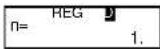
Each time you press DT to register your input, the number of data input up to that point is indicated on the display (n value).
15 □1005 DT 20 □1010 DT
25 □ 1011 DT 30 □ 1014 DT

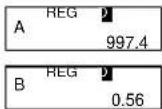
Regression Coefficient A=997.4
SHIFT S-VAR ▶ ▶ 1 =
Regression Coefficient B=0.56
SHIFT S-VAR ▶ ▶ 2 =
Correlation Coefficient r = 0.982607368
SHIFT S-VAR ▶ ▶ 3 =
Atmospheric Pressure at 18°C =1007.48
Temperature at 1000 hPa =4.642857143
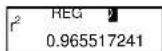
Coefficient of Determination =0.965517241
SHIFT S-VAR ▶ 3 x ^2 =
Sample Covariance =35
( \HIFT \-SUM ▶ 3 - | \HIFT \-SUM 8 × \$HIFT S VAR 1 ×
SHIFT S-VAR ▶ 1 ) ÷ ( SHIFT \$-SUM 8 -□ 1 ) ≠ □

● Logarithmic, Exponential, Power, and Inverse Regression
- Use the same key operations as linear regression to recall results for these types of regression.
● The following shows the regression formulas for each type of regression.
| Logarithmic Regression | y = A + B · x |
| Exponential Regression | y = A · e^Bx ( y = A + Bx) |
| Power Regression | y = A · x^B ( y = A + B x) |
| Inverse Regression | y = A + B · ^1 / x |
• Quadratic Regression
- The regression formula for quadratic regression is: y = A + Bx + Cx^2
Example
| xi | yi |
| 29 | 1.6 |
| 50 | 23.5 |
| 74 | 38.0 |
| 103 | 46.4 |
| 118 | 48.0 |
Perform quadratic regression to determine the regression formula terms for the data nearby. Next, use the regression formula to estimate the values for (estimated value of y) for xi=16 and (estimated value of x) for yi=20
In the REG Mode:
MODE 3 ▶ 3 (Quad)
SHIFT CLR 1 (Scl) = (Stat clear)
| 29 | 1.6 | DT | 50 | 23.5 | DT | 74 | 38.0 | DT |
| 103 | 46.4 | DT | 118 | 48.0 | DT |
Regression Coefficient A=-35.59856934

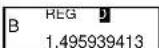
Regression Coefficient B=1.495939413

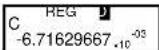
Regression Coefficient C= -6.71629667×10 ^-3

when xi is 16 = -13.38291067

1 when yi is 20 =47.14556728

2 when yi is 20 =175.5872105

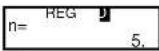



Data Input Precautions
- DT DT inputs the same data twice.
- You can also input multiple entries of the same data using SHIFT; To input the data "20 and 30" five times, press 20 □30[SHIFT] :5 DT.
- The above results can be obtained in any order, and not necessarily that shown above.
- Precautions when editing data input for standard deviation also apply for regression calculations.
Technical Information
■ When you have a problem......
If calculation results are not what you expect or if an error occurs, perform the following steps.
-
Press SHIFT CLR 2 (Mode) = to initialize all modes and settings.
-
Check the formula you are working with to confirm it is correct.
-
Enter the correct mode and try performing the calculation again.
If the above steps do not correct the problem, press the ON key. The calculator performs a self-check operation and deletes all data stored in memory if any abnormality is detected. Make sure you always keep written copies of all important data.
■ Error Messages
The calculator is locked up while an error message is on the display. Press CA to clear the error, or press ▼ or ▶ to display the calculation and correct the problem. See "Error Locator" for details.
■ Math ERROR
- Causes
● Calculation result is outside the allowable calculation range.
- An attempt to perform a function calculation using a value that exceeds the allowable input range.
● An attempt to perform an illogical operation (divided by zero, etc.)
Action
- Check your input values and make sure they are all within the allowable ranges. Pay special attention to values in any memory areas you are using.
■ Stack ERROR
- Causes
● The capacity of the numeric stack or operator stack is exceeded.
- Action
- Simplify the calculation. The numeric stack has 10 levels and the operator stack has 24 levels.
- Divide your calculation into two or more separate parts.
■ Syntax ERROR
- Cause
- An attempt to perform an illegal mathematical operation.
Action
- Press ▶ or ▶ to display the calculation with the cursor located at the location of the error and make required corrections.
■ Order of Operations
Calculations are performed in the following order of precedence.
1 Coordinate transformation: Pol (x, y), Rec (r, θ)
② Type A functions:
With these functions, the value is entered and then the function key is
pressed.
$$ x ^ {3}, x ^ {2}, x ^ {- 1}, x! \quad \text { o r } \tag {1.1} $$
$$ x, x 1, x 2, \hat {y} $$
Angle unit conversions
③ Powers and roots: ^w (x ^y ) .*√
④ a/c
⑤ Abbreviated multiplication format in front of π, e (natural logarithm base), memory name, or variable name: 2π, 5A, π A etc.
⑥ Type B functions:
With these functions, the function key is pressed and then the value is entered.
10^x , [3]10^x , , , , ^-1, ^-1, ^-1, , , , ^-1, ^-1, ^-1 , (-)
⑦ Abbreviated multiplication format in front of Type B functions: 2√3, Alog2 etc.
Permutation and combination: nPr, nCr
⑨ ×, ÷
⑩ +,-
- Operations of the same precedence are performed from right to left. e^ 120 e^ (120)
● Other operations are performed from left to right.
● Operations enclosed in parentheses are performed first.
■ Stacks
This calculator uses memory areas, called "stacks," to temporarily store values (numeric stack) and commands (command stack) according to their precedence during calculations. The numeric stack has 10 levels and the command stack has 24 levels. A stack error (Stack ERROR) occurs whenever you try to perform a calculation that is so complex that the capacity of a stack is exceeded.
Example:
$$ 2 \times ((3 + 4 \times (5 + 4) \div 3) \div 5) + 8 = $$
$$ 1 \quad ② \quad ③ \quad ④ \quad ⑤ $$
$$ \boxed {1} \boxed {2} \boxed {3} \quad \boxed {4} \quad \boxed {5} \boxed {6} \quad \boxed {7} $$
Numeric Stack
| 1 | 2 |
| 2 | 3 |
| 3 | 4 |
| 4 | 5 |
| 5 | 4 |
| | |
Command Stack
| 1 | × |
| 2 | ( |
| 3 | ( |
| 4 | + |
| 5 | × |
| 6 | ( |
| 7 | + |
- Calculations are performed in sequence according to "Order of Operations". Commands and values are deleted from the stack as the calculation is performed.
■ Input Ranges
Internal digits: 12
Accuracy ^* : As a rule, accuracy is ±1 at the 10th digit.
| Functions | Input Range | |
| sinx | DEG | 0 < |x| < 10 × 10^11 |
| RAD | 0 < |x| < 1.745329252 × 10^10 | |
| GRA | 0 < |x| < 1.111111112 × 10^12 | |
| cosx | DEG | 0 < |x| < 10 × 10^11 |
| RAD | 0 < |x| < 1.745329252 × 10^10 | |
| GRA | 0 < |x| < 1.111111112 × 110^12 | |
| tanx | DEG | Same as sinx, except when | x| = ( 2n - 1) × 90 |
| RAD | Same as sinx, except when | x| = ( 2n - 1) × /2 | |
| GRA | Same as sinx, except when | x| = ( 2n - 1) × 100 | |
| sin'x | 0 ≤ |x| ≤ 1 | |
| cos'x | ||
| tan'x | 0 ≤ |x| ≤ 9.999999999 × 10^99 | |
| sinhx | 0 ≤ |x| ≤ 230.2585092 | |
| coshx | ||
| sinh'x | 0 ≤ |x| ≤ 4.999999999 × 10^99 | |
| cosh'x | ||
| tanhx | 0 ≤ |x| ≤ 9.999999999 × 10^99 | |
| tanh'x | 0 ≤ |x| ≤ 9.999999999 × 10^-1 | |
| Log x/lnx | 0 < x | |
| 10^x | - 9.999999999 × 10^99 ≤ x ≤ 99.99999999 | |
| e^x | - 9.999999999 × 10^99 ≤ x ≤ 230.2585092 | |
| 0 ≤ x < 1 × 10^100 | ||
| x^2 | | x| < 1 × 10^53 | |
| 1/x | | x| < 1 × 10^130 x 0 | |
| | x| < 1 × 10^130 | ||
| x! | 0 ≤ x ≤ 69( x is an integer ) | |
| nPr | 0 ≤ n < 10 × 10^99,r ≤ n( n,r are integers ) 1 ≤ n!/(n-r)! ≤ 9.999999999 × 10^99 | |
| nCr | 0 ≤ n < 10 × 10^99,r ≤ n( n,r are integers ) 1 ≤ n!/(n-r)! ≤ 9.999999999 × 10^99 | |
| Pol (x,y) | | x| ,| y| ≤ 9.999999999 × 10^99 ( x^2 + y^2) ≤ 9.999999999 × 10^99 | |
| Rec (r,θ) | 0 ≤ r ≤ 9.999999999 × 10^99 θ: Same as sinx | |
| 。,, | | a| ,b,c < 1 × 10^130 0 ≤ b,c | |
| ← 。,, | | x| < 1 × 10^100 Decimal Sexagesimal Conversions 0^ 0^ 0^ ≤ | x| ≤ 999999^ 59^ 59^ | |
| ^ (x^y) | x > 0: -1 × 10^100 < y x < 100 x = 0:y > 0 x < 0:y = n,1(n is an integer)2u+12 However: -1 × 10^100 < y |x| < 100 | |
| [3]y | y > 0:x 0 -1 × 10^100 < 1/x |y| < 100 y = 0:x > 0 y < 0:x = 2n + 1,1nn 0,n is an integer) However: -1 × 10^100 < 1/x |y| < 100 | |
| a^b/c | Total of integer, numerator, and denominator must be 10 digits or less (including division marks). | |
| SD(REG) | |x| < 1 × 10^60 xon,yon,, |y| < 1 × 10^50 A,B,r:n 0 |n| < 1 × 10^100 xon-1,yon-1:n 0,1 | |
* For a single calculation, calculation error is ±1 at the 10th digit. (In the case of exponential display, calculation error is ±1 at the last significant digit.) Errors are cumulative in the case of consecutive calculations, which can also cause them to become large. (This is also true of internal consecutive calculations that are performed in the case of ((x^y), [3]y, x^l, [3]n, nPr, nCr etc.)
In the vicinity of a function's singular point and point of inflection, errors are cumulative and may become large.
Replacing the Battery
Dim figures on the display of the calculator indicate that battery power is low. Continued use of the calculator when the battery is low can result in improper operation. Replace the battery as soon as possible when display figures become dim.
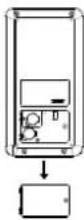
- Press SHIFT OFF to turn off power.
- Remove the screw from the battery cover.
- Open the battery cover.
- Take out the old battery.
- Place the new battery into the machine with positive pole upward.
- Close the battery cover.
- Replace the screw.
- Pressing On key to turn on the power.
Power off Automatically:
When no key is pressed for 6 minutes under Power On situation, calculator will be powered off automatically. Press ON to turn on the machine again.
Specifications
Power Supply : LR44*2 (3.0V)
Power Consumption : 0.003W
Usable temperature: 0-40°C
Size : L153×W80×H14 mm
Weight : 87 g (hard cover is not included)
Producer
Aurora Electronics (UK) LTD.
Unit 1 & 2 Shires Industrial Estate
Lichfield, Staffordshire, WS14 9AZ, U.K.

- AURORA OPERATING MANUAL
- For use with AX-582
- Twin-line scientific calculator.
- Removing and Replacing the Calculator's Cover
- Precautions
- Two-line Display
- Note!
- ■ MODE Key Operation and Display
- ■ Input Capacity
- ■ Making Corrections During Input
- ■ Replay Function
- ■ Error Locator
- ■ Multi-statements
- ■ Exponential Display Formats
- ■ Decimal Point and Separator Symbols
- ■ Initializing the Calculator
- Basic Calculations
- ■ Arithmetic Calculations
- ■ Fraction Operations
- - Decimal ↔ Fraction Conversion
- ● Mixed Fraction ↔ Improper Fraction Conversion
- ■ Percentage Calculations
- ■ Degrees, Minutes, Seconds Calculations
- ■ FIX, SCI, RND
- Memory Calculations
- ■ Answer Memory
- ■ Consecutive Calculations
- ■ Independent Memory
- ■ Variables
- Scientific Function Calculations
- ■ Trigonometric/Inverse Trigonometric Functions
- ■ Hyperbolic/Inverse Hyperbolic Functions
- ■ Common and Natural Logarithms/ Antilogarithms
- ■ Square Roots, Cube Roots, Roots, Squares, Cubes, Reciprocals, Factorials, Random Numbers, , and Permutation/ Combination
- ■ Angle Unit Conversion
- ■ Coordinate Conversion (Pol (x, y), Rec (r, 0))
- ■ Engineering Notation Calculations
- Statistical Calculations
- ■ Standard Deviation
- Data Input Precautions
- ■ Regression Calculations
- - Linear Regression
- • Quadratic Regression
- Technical Information
- Replacing the Battery
- Power off Automatically:
- Specifications
- Producer
Brand : AURORA
Model : AX-582BL
Category : Calculator