
NETRS232485 - Server StarTech.com - Free user manual and instructions
Find the device manual for free NETRS232485 StarTech.com in PDF.


| Product Type | Serial Device Server |
| Model | NETRS232485 |
| Brand | StarTech.com |
| Interfaces | RS-232, RS-485 |
| Network Interface | Ethernet (10/100 Mbps) |
| Serial Ports | 1 x DB9 Male |
| Data Rate | Up to 230.4 kbps |
| Protocol Support | TCP, UDP, Telnet, SSH |
| Power Supply | 5V DC, 2A |
| Power Connector | Barrel Jack (2.1mm) |
| Dimensions (L x W x H) | 5.1 x 3.1 x 1.2 in (13 x 7.9 x 3 cm) |
| Weight | 3.5 oz (100 g) |
| Operating Temperature | 32°F to 122°F (0°C to 50°C) |
| Storage Temperature | -4°F to 158°F (-20°C to 70°C) |
| Humidity | 10% to 90% (non-condensing) |
| LED Indicators | Power, Link/Activity, Serial Tx/Rx |
| Mounting | Desktop or Wall-mountable |
| Included Accessories | Power Adapter, Quick Start Guide, CD with Manual |
| Regulatory Compliance | FCC, CE, RoHS |
| Warranty | 2 Years |
| Spare Parts Availability | Contact StarTech.com support |
| Repair Service | Authorized service centers; check website for details |
| Cleaning Instructions | Use a dry, soft cloth; no liquids |
| Safety Precautions | Use only provided power adapter; keep away from moisture |
Frequently Asked Questions - NETRS232485 StarTech.com
User questions about NETRS232485 StarTech.com
0 question about this device. Answer the ones you know or ask your own.
Ask a new question about this device
Download the instructions for your Server in PDF format for free! Find your manual NETRS232485 - StarTech.com and take your electronic device back in hand. On this page are published all the documents necessary for the use of your device. NETRS232485 by StarTech.com.
USER MANUAL NETRS232485 StarTech.com
Industrial 1 Port RS232/422/485 to Dual Ethernet Serial Device Server
NETRS232485
natural_image
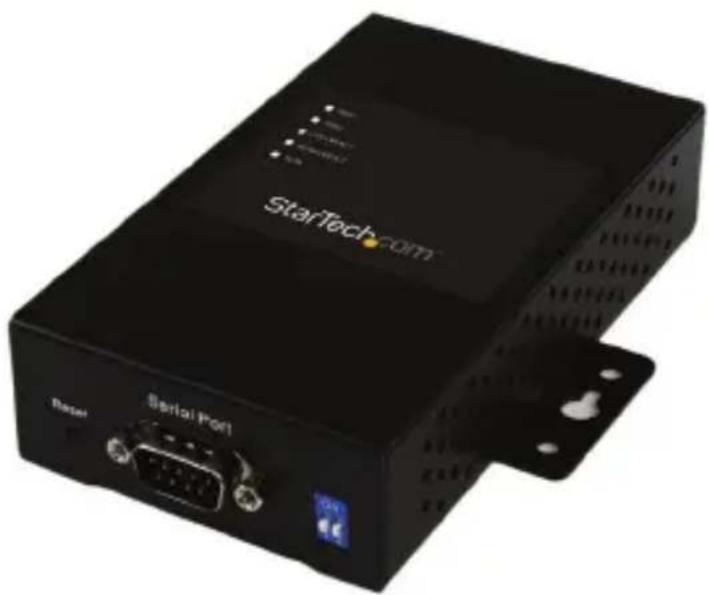
Black StarTech.com serial port device with I/O port and external ports (no visible text or symbols on body)*actual product may vary from photos
For the most up-to-date information, please visit: www.startech.com
FCC Compliance Statement
This equipment has been tested and found to comply with the limits for a Class A digital device, pursuant to part 15 of the FCC Rules. These limits are designed to provide reasonable protection against harmful interference in a residential installation. This equipment generates, uses and can radiate radio frequency energy and, if not installed and used in accordance with the instructions, may cause harmful interference to radio communications. However, there is no guarantee that interference will not occur in a particular installation. If this equipment does cause harmful interference to radio or television reception, which can be determined by turning the equipment off and on, the user is encouraged to try to correct the interference by one or more of the following measures:
• Reorient or relocate the receiving antenna.
- Increase the separation between the equipment and receiver.
- Connect the equipment into an outlet on a circuit different from that to which the receiver is connected.
- Consult the dealer or an experienced radio/TV technician for help.
This device complies with part 15 of the FCC Rules. Operation is subject to the following two conditions: (1) This device may not cause harmful interference, and (2) this device must accept any interference received, including interference that may cause undesired operation.
Changes or modifications not expressly approved by StarTech.com could void the user's authority to operate the equipment.
Use of Trademarks, Registered Trademarks, and other Protected Names and Symbols
This manual may make reference to trademarks, registered trademarks, and other protected names and/or symbols of third-party companies not related in any way to StarTech.com. Where they occur these references are for illustrative purposes only and do not represent an endorsement of a product or service by StarTech.com, or an endorsement of the product(s) to which this manual applies by the third-party company in question. Regardless of any direct acknowledgement elsewhere in the body of this document, StarTech.com hereby acknowledges that all trademarks, registered trademarks, service marks, and other protected names and/or symbols contained in this manual and related documents are the property of their respective holders.
Table of Contents
Product Diagram....1
Front View .... 1
Side 1 .... 1
Side 2....1
Introduction......2
Packaging Contents 2
System Requirements....2
DB-9 Connector Pinout ....3
DIP Switch Configuration....3
Installation 4
Hardware Installation ....4
Software Installation....4
Operation 5
Using the DS-Tool....5
Using the Logging Feature....6
Specifications....8
Technical Support 9
Warranty Information......9
Product Diagram
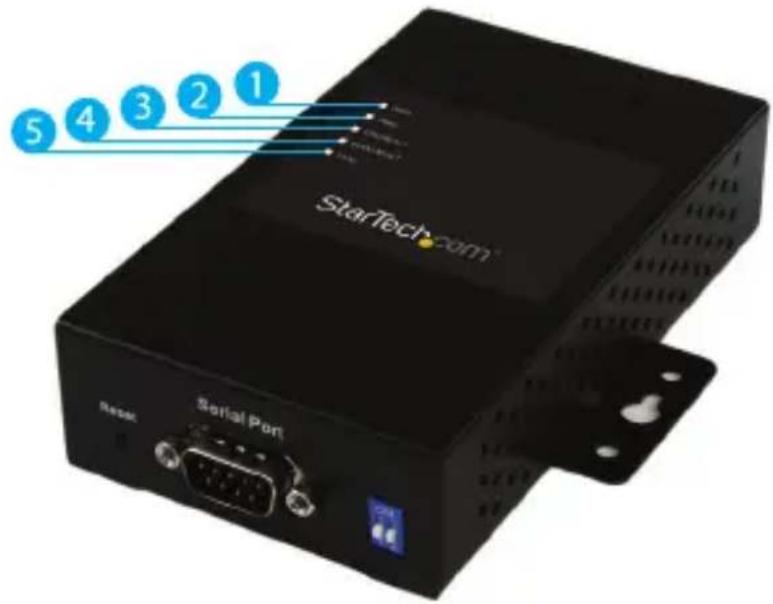
Front View
- LED for PWR1
- LED for PWR2
- LED for Ethernet Port 1
- LED for Ethernet Port 2
- LED for Serial Port
Side 1
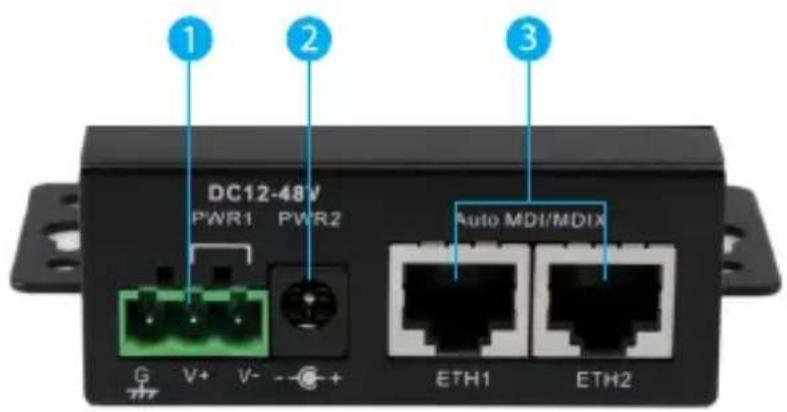
- Terminal Block PWR1 (12\~48V DC)
- Power Jack PWR2 (12\~48V DC)
- 2x Ports RJ45 10/100
Side 2
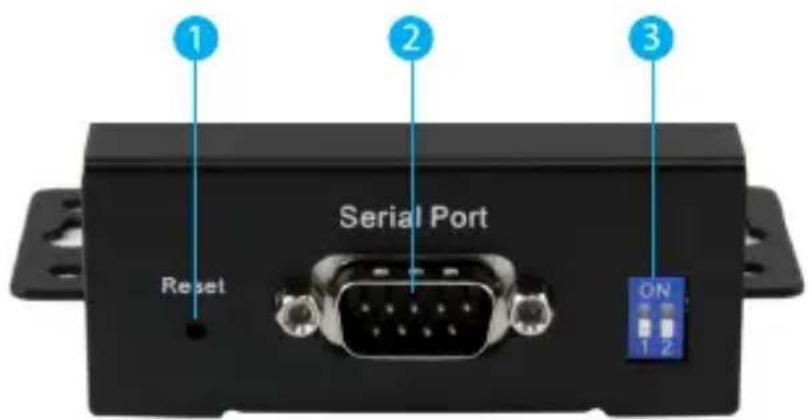
- Reset Button
- DB-9 Serial Port
- DIP Switch
Introduction
Packaging Contents
• 1x Serial over IP Device Server
- 1x DIN-Rail Kit
- 1x Wall-Mount Kit
- 1x Software CD
• 1x Installation Guide
System Requirements
- Windows® 8 (32/64bit), 7 (32/64), Vista(32/64), XP(32/64), 2000, Windows® Server 2012, 2008 R2, 2003(32/64).
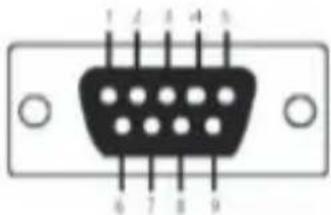
DB-9 Connector Pinout
natural_image
Diagram of a 16-pin D-sub connector (no text or symbols)| Pin # | RS 232 | RS 422 | RS 485( 4 wire ) | RS 485( 2 wire ) |
| 1 | DCD | RXD - | RXD - | |
| 2 | RXD | RXD + | RXD + | |
| 3 | TXD | TXD + | TXD + | DATA + |
| 4 | DTR | TXD - | TXD - | DATA - |
| 5 | GND | GND | GND | GND |
| 6 | DSR | |||
| 7 | RTS | |||
| 8 | CTS | |||
| 9 | RI | |||
| RS 232 mod act as DTE | ||||
DIP Switch Configuration
DIP 1 DIP 2 Termination Configuration
ON ON Termination for long distance 4-wire RS485/422
ON OFF Reserved
OFF ON Termination for long distance 2-wire RS485
OFF OFF No termination for RS485/ 422 (short distance)
Installation
Hardware Installation
The server can be installed on a DIN rail or it can be wall-mounted.
Installation on a DIN-Rail:
- Tilt the unit, making sure that the metal spring located at the back is positioned on top of the DIN rail.
- Push the unit towards the rail until a "click" sound is heard.
Installation on a Wall:
- Remove the DIN-rail kit, if it is installed on the unit.
- Install the wall-mount panel included using the 3 screws found in the package.
- Mount the unit on the wall using the appropriate hardware for the surface you are mounting to.
Software Installation
- Insert the provided CD into your DVD/CD-ROM drive.
- Browse to the folder fscommand\Utility\DS-Tool and execute the installer Startech V1.0 xxxxxxxx.
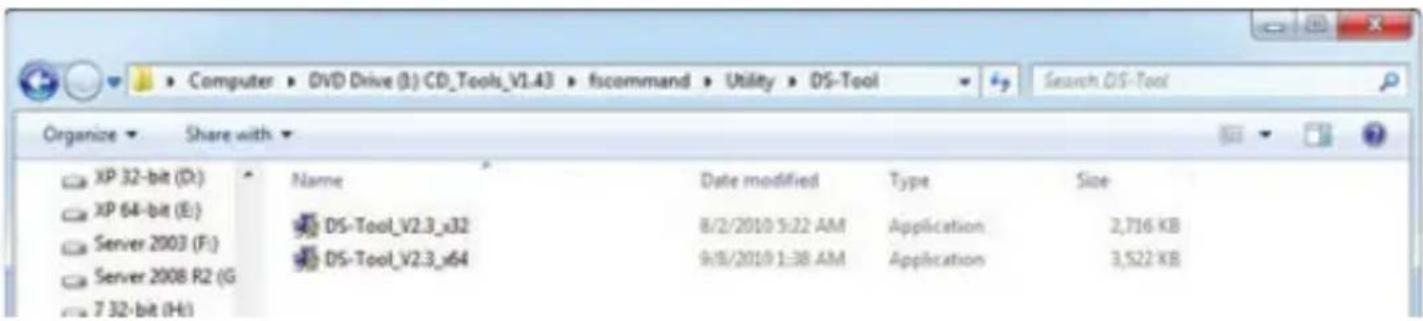
- Follow the on-screen instructions to complete the installation.
Operation Using the DS-Tool
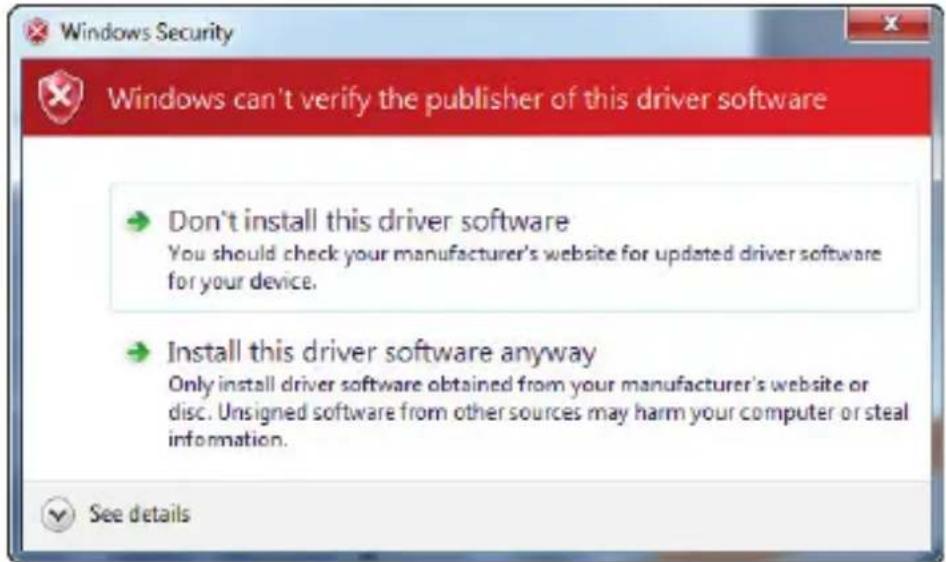
- Start the DS-Tool, and click Install this driver software anyway.
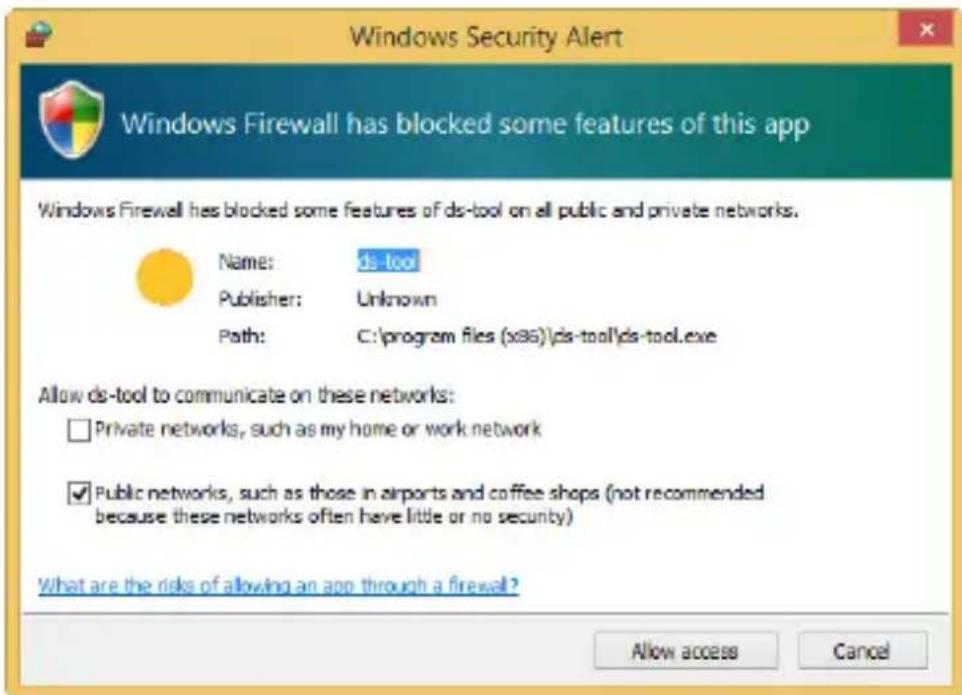
- Allow access to the DS-Tool on the Windows Firewall.
-
Once the utility opens, click the Broadcast button to detect the device server. The default IP address of the device is 192.168.10.2.
-
Once detected, click the checkbox beside the device you would like to configure, and then click the Add button to configure your desired IP settings (Static/DHCP).
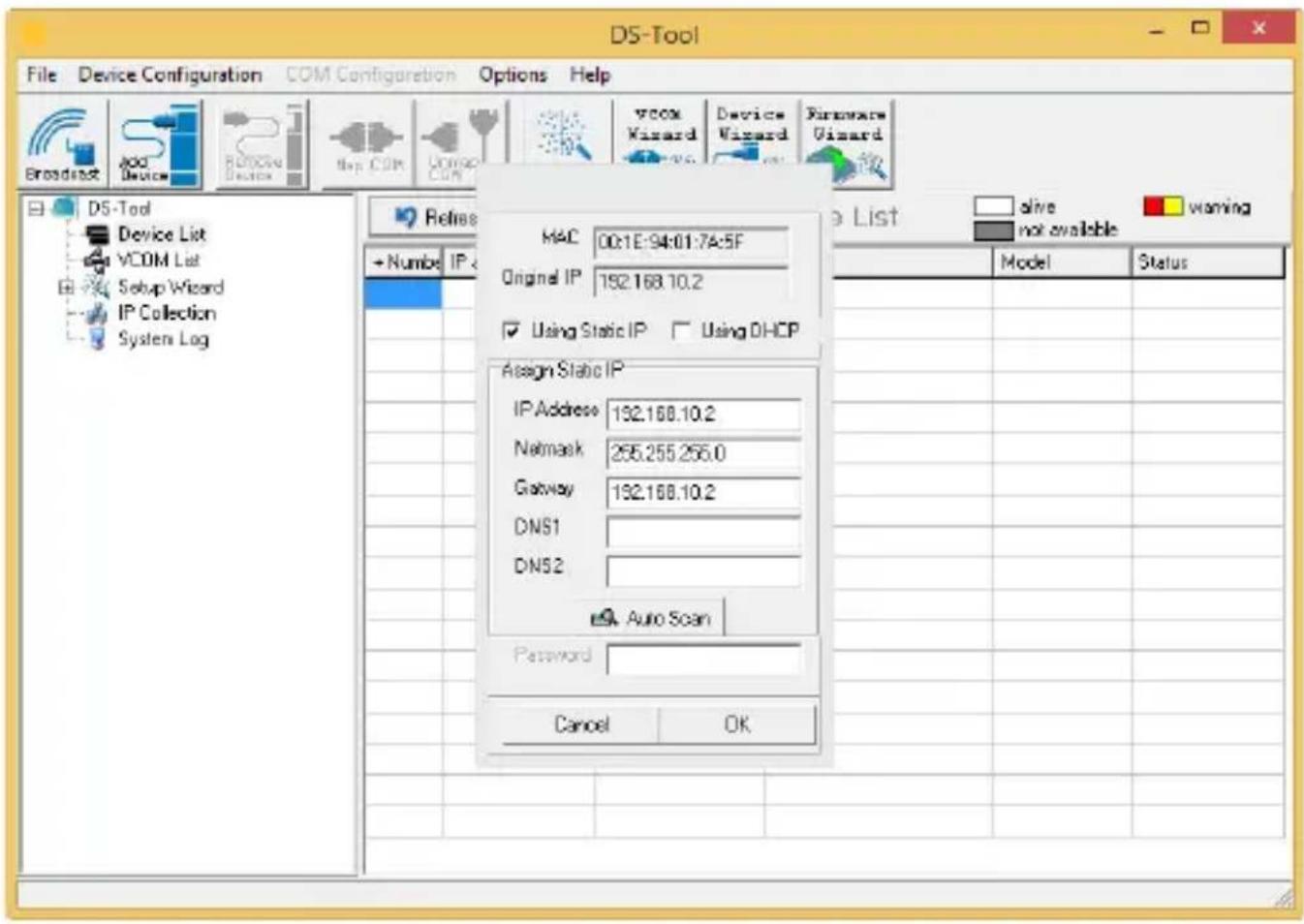
To add a virtual COM port, please use the VCOM Wizard and follow the steps.
Using the Logging Feature
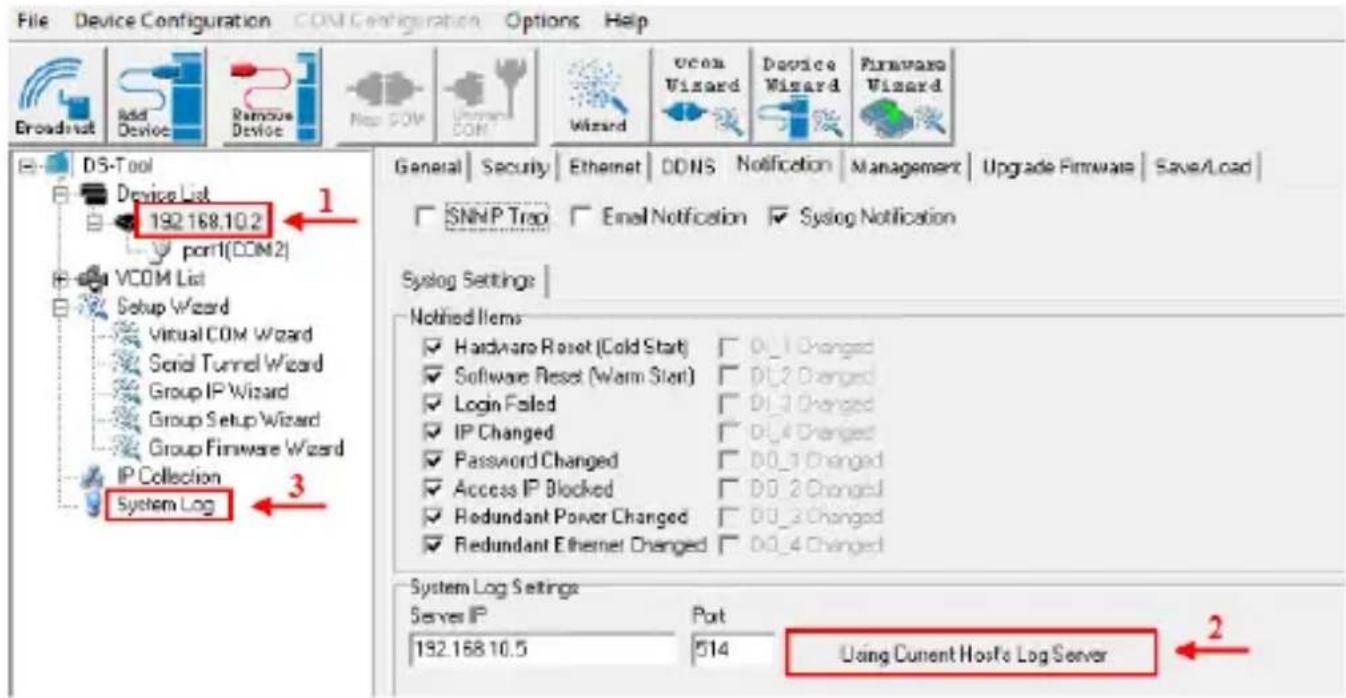
To use the device server's Logging Feature within the DS-Tool, follow the steps below:
- In the navigation menu on the left side of the window, under Device List, click the IP address for the applicable connected device.
- To use the current machine for logging, under System Log Settings, click Using Current Host's Log Server.
- In the navigation menu on the left side of the window, click System Log.
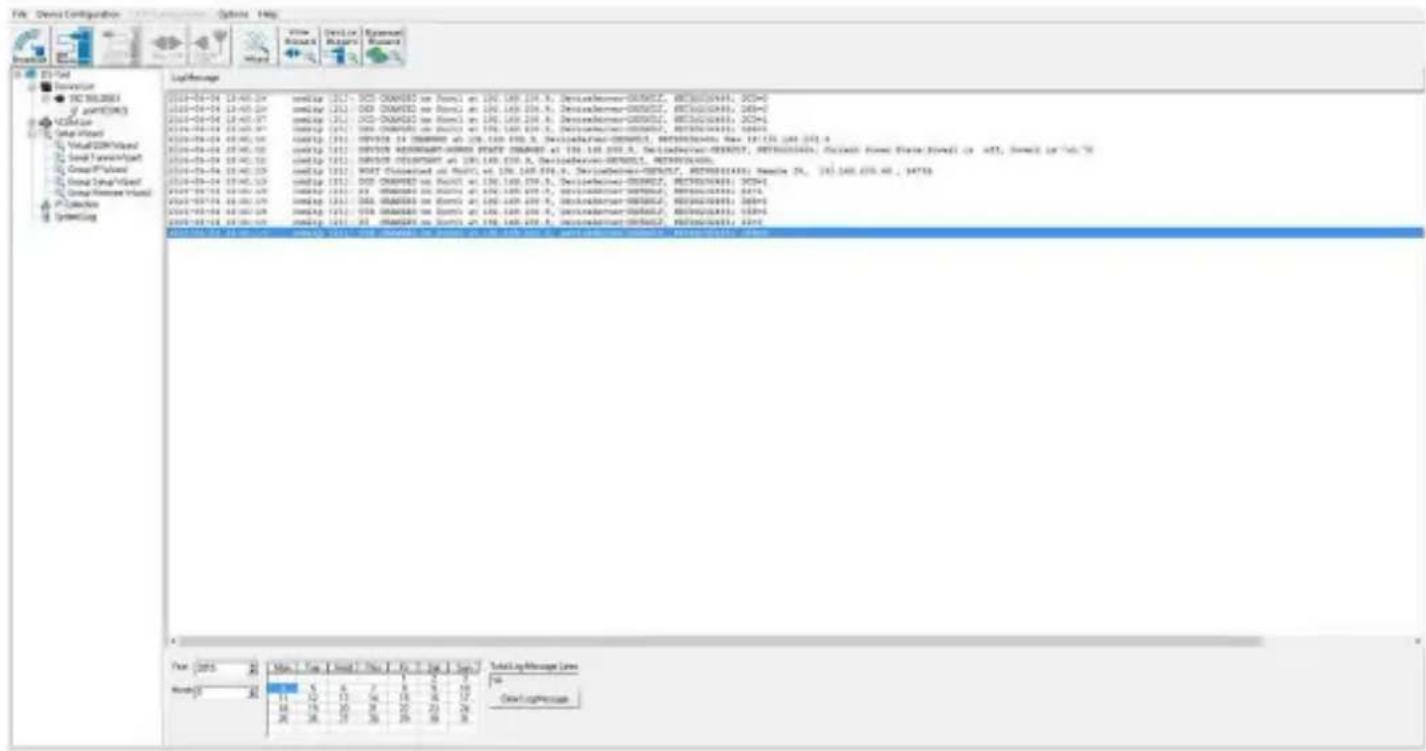
- The log data is displayed in the DS-Tool, under Log Message.
Specifications
| Interface Serial | |
| Ports 1 | |
| Supported Protocols | IICMP, IP, TCP, UDP, DHCP, BOOTP, ARP/RARP, DNS, SNMP MIB II, HTTPS, SSH |
| Connectors | 1x DB-9 male,2x RJ-451x DC Power1x 3pin Terminal Block |
| LED Indicator(s) 2x Ethernet Link, PWR1,PWR2, Serial | |
| Supported Serial Protocols RS232/422/485 | |
| Ethernet Link Speed 10/100 Mbps | |
| Maximum Baud Rate 460.8 Kbps | |
| Power Input | Terminal Block: 12 ~ 48VDC in 3-pin12 ~ 48VDC, center positive, power jack plug |
| Enclosure Material Metal | |
| Operating Temperature -40 to 70°C (-40 to 158°F) | |
| Storage Temperature -40 to 85°C (-40 to 185°F) | |
| Humidity 5% to 95% Non-condensing | |
| Dimensions 124mm x 73mm x 30mm | |
| Weight 327 g | |
| Compatible Operating Systems | Windows® 8 (32/64bit), 7 (32/64), Vista(32/64), XP(32/64), 2000,Windows® Server 2012, 2008 R2, 2003(32/64) |
Technical Support
StarTech.com's lifetime technical support is an integral part of our commitment to provide industry-leading solutions. If you ever need help with your product, visit www.startech.com/support and access our comprehensive selection of online tools, documentation, and downloads.
For the latest drivers/software, please visit www.startech.com/downloads
Warranty Information
This product is backed by a five-year warranty.
In addition, StarTech.com warrants its products against defects in materials and workmanship for the periods noted, following the initial date of purchase. During this period, the products may be returned for repair, or replacement with equivalent products at our discretion. The warranty covers parts and labor costs only. StarTech.com does not warrant its products from defects or damages arising from misuse, abuse, alteration, or normal wear and tear.
Limitation of Liability
In no event shall the liability of StarTech.com Ltd. and StarTech.com USA LLP (or their officers, directors, employees or agents) for any damages (whether direct or indirect, special, punitive, incidental, consequential, or otherwise), loss of profits, loss of business, or any pecuniary loss, arising out of or related to the use of the product exceed the actual price paid for the product. Some states do not allow the exclusion or limitation of incidental or consequential damages. If such laws apply, the limitations or exclusions contained in this statement may not apply to you.
Hard-to-find made easy. At StarTech.com, that isn't a slogan. It's a promise.
StarTech.com is your one-stop source for every connectivity part you need. From the latest technology to legacy products — and all the parts that bridge the old and new — we can help you find the parts that connect your solutions.
We make it easy to locate the parts, and we quickly deliver them wherever they need to go. Just talk to one of our tech advisors or visit our website. You'll be connected to the products you need in no time.
Visit www.startech.com for complete information on all StarTech.com products and to access exclusive resources and time-saving tools.
StarTech.com is an ISO 9001 Registered manufacturer of connectivity and technology parts. StarTech.com was founded in 1985 and has operations in the United States, Canada, the United Kingdom and Taiwan servicing a worldwide market.
- Industrial 1 Port RS232/422/485 to Dual Ethernet Serial Device Server
- FCC Compliance Statement
- Use of Trademarks, Registered Trademarks, and other Protected Names and Symbols
- Table of Contents
- Product Diagram....1
- Introduction......2
- DB-9 Connector Pinout ....3
- DIP Switch Configuration....3
- Installation 4
- Operation 5
- Specifications....8
- Technical Support 9
- Warranty Information......9
- Product Diagram
- Front View
- Side 1
- Side 2
- Introduction
- Packaging Contents
- System Requirements
- DB-9 Connector Pinout
- DIP Switch Configuration
- DIP 1 DIP 2 Termination Configuration
- Installation
- Hardware Installation
- Installation on a DIN-Rail:
- Installation on a Wall:
- Software Installation
- Operation Using the DS-Tool
- Using the Logging Feature
- Technical Support
- Warranty Information
- Limitation of Liability
Brand : StarTech.com
Model : NETRS232485
Category : Server