
Isis - Mp3 player Sunstech - Free user manual and instructions
Find the device manual for free Isis Sunstech in PDF.


| Product Type | Digital MP3 Player |
| Brand | Sunstech |
| Model | Isis |
| Color | Black/White (depending on version) |
| Display | 1.5-inch LCD screen |
| Internal Storage | 8GB |
| Expandable Storage | microSD card up to 32GB |
| Audio Formats Supported | MP3, WMA, WAV |
| FM Radio | Yes |
| Voice Recording | Yes (via built-in microphone) |
| Battery Type | Lithium-ion rechargeable (3.7V, 300mAh) |
| Playback Time | Up to 10 hours (audio) |
| Charging | USB (2.0) via computer or USB charger |
| Connectivity | USB 2.0, 3.5mm headphone jack |
| Dimensions | 70 x 30 x 15 mm (approx.) |
| Weight | ~30 g |
| Material | Plastic casing |
| Included Accessories | Earphones, USB cable, user manual |
| Maintenance | Clean with a soft dry cloth; avoid liquids |
| Safety Precautions | Do not expose to water; use only approved charger; avoid extreme temperatures |
| Spare Parts Availability | Battery, earphones, USB cable available via Sunstech service |
| Repairability | Battery replacement by authorized service center only |
| General Information | Portable music player with FM radio and voice recording |
Frequently Asked Questions - Isis Sunstech
User questions about Isis Sunstech
0 question about this device. Answer the ones you know or ask your own.
Ask a new question about this device
Download the instructions for your Mp3 player in PDF format for free! Find your manual Isis - Sunstech and take your electronic device back in hand. On this page are published all the documents necessary for the use of your device. Isis by Sunstech.
USER MANUAL Isis Sunstech
natural_image
Black Sunstech mobile phone with a satellite dish displaying a landscape photo under a canopy (no visible text or symbols on the device body)MANUAL DE USUARIO
Contenidos
Signal Receiving Parameters
ISIS | Portable Digital TV Player

natural_image
Black Sunstech mobile device with a mounted antenna, displaying its screen showing a landscape photo (no visible text or symbols on the device body beyond branding)User's manual
Contents
1 Introduction ...... 2
1.1 Prologue ....2
1.2 Features ...... 2
2 Hardware Instructions....3
2.1 Appearance Chart....3
3 Menu operating instructions....4
3.1 TV 4
3.1.1 Channel....5
3.1.2 Program Guide....5
3.1.3 Search Channel....5
3.1.4 TV Settings....6
3.2 Music....8
3.3 Video 9
3.4 Photo 10
3.5 E-Book 11
3.6 Tools....12
3.6.1 Stopwatch....13
3.6.2 Calendar 13
3.7 Game 14
3.8 Record 14
3.9 Explorer....14
3.10 Settings....15
3.10.1 Display Setting....16
3.10.2 System Setting....16
3.10.3 Desktop Wallpaper....16
3.10.4 Date and Time 17
3.10.5 Language....17
3.10.6 System Information....17
3.10.7 Auto Shutdown Time....18
4 Trouble shooting....19
5 Technique parameter....19
Statement: Our company reserve the right to modify the product which is described in manual, the manual is only for reference, please make the object as the standard.
1 Introduction
1.1 Prologue
This product portable TV player uses by 4.3-inch LCD, with MP3, MP4 and digital television and other functions, also has e-book, calendar, picture browsing, audio and video files play back and other entertainment functions. It supports DVB-T digital television signals standards. It is very small and easy to carry, and the capability of received signal is very stronger.
1.2 Features
➢ Support TV play, support DVB-T standards;
➢ Support AVI, WMV, MP4 video format.
4.3" True color LCD display;
➢ Support MP3, WMA audio format;
Game support;
➢ Support e-book (txt format);
➢ Support JPG, BMP, GIF picture browsing;
➢ Support English、Spanish and other OSD languages;
▶ Support record function;
➢ Support TF port;
▶ Support USB 2.0;
➢ Support firmware upgrade;
2 Hardware Instructions
2.1 Appearance Chart

① Earphone jack
② 5V
③ Menu
4 MIC/reset
5 IR
6 TF port
⑦ MINI USB port
8 Power
9 OK/Pause
10 VOL+/- (as direction key under having menu state)
11 Sucker antenna jack
12 Rod antenna
13 Esc
14 CH+/- (as direction key under having menu state)
3 Menu operating instructions
To switch the device on, set key ON/OFF in ON position. Then, press the key OK/Pause for some seconds. Once logo SUNSTECH appears on display, if the device is connected to the power, charge icon will appear. To operate with this device, press ESC key.
3.1 TV
In main menu, press direction key to select TV, press menu key to enter TV menu, if there has program, it will enter playing interface, press CH+/- key to switch to other program, press VOL+/- to adjust volume, keep pressing volume for 2 sec., Mute key will be activated. press menu key to display toolbar, press direction key to select, the function as following:
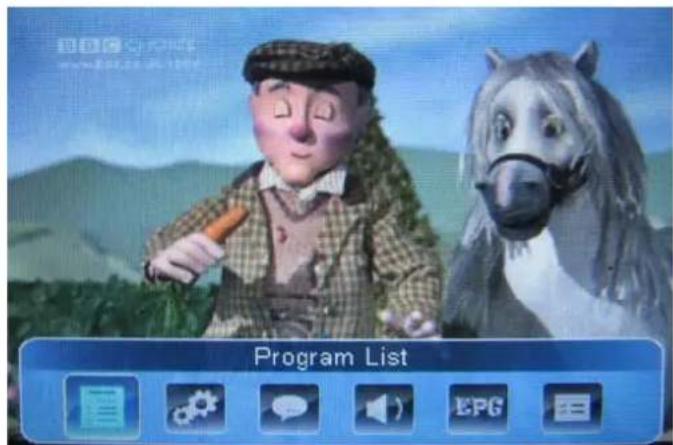
: Program list
: Channel、Program guide、Search channel、TV settings
: Display or disable subtitle
: Audio list
EFG : Electron program guide
: Program information
Note: If the broadcasting is in 4:3 format, the player will show it in that format. If you want to see that program in 16:9 format (full screen), you should keep press key "M" for 2-3sec.
3.1.1 Channel
In playing interface, it will appear program list if you select from toolbar, press direction key to choose program which you want to watch, press ok key to switch to the program which you select, press esc key to return playing window.

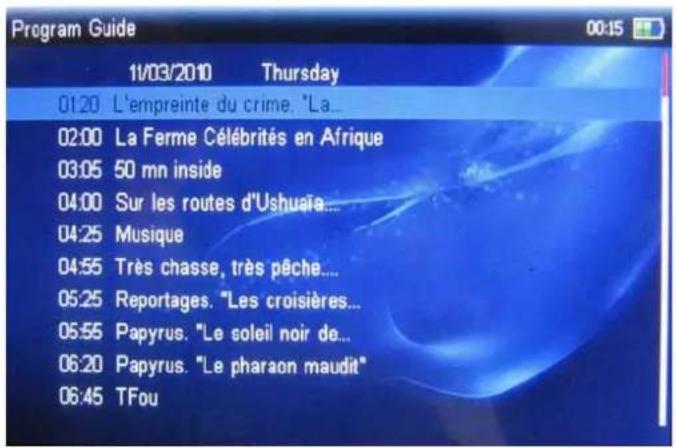
3.1.2 Program Guide
In EPG interface, you can view program guide information, press direction key to select date which you want to view.
There are two search modes are auto search and manual search, press direction key to select, press esc key to return.

Auto search
Press direction key to select "Auto Scan", press ok key to search automatically.
When search finish, it will show channel list.

◆ Manual search
Press direction key to select "Manual Scan", in manual scan interface, you can select channel from channel list, it will show the channel information which you select (area、frequency、bandwidth), press ok key to search.

3.1.4 TV Settings
In TV settings interface (in "configuration" menu), it include three options are area setting、time zone setting and daylight saving time, press direction key to select, press esc key to return.

3.1.4.1 Area Setting
In area setting interface, it include six areas are Europe、Australia、Korea、Taiwan、France、Brazil, press direction key to select, press ok key to confirm.

3.1.4.2 Time Zone Setting
In time zone setting interface, press direction key to select, press ok key to confirm.

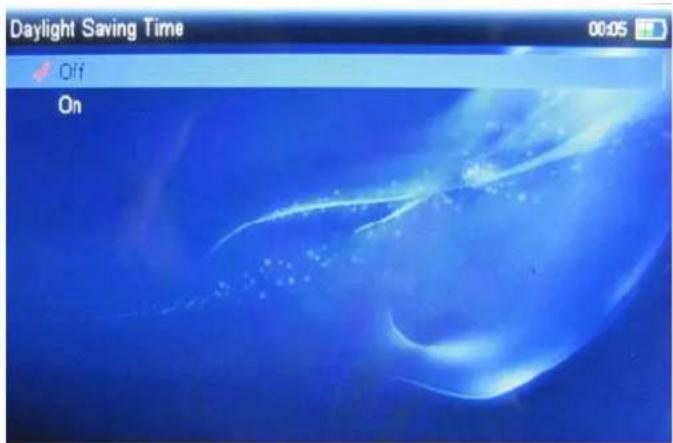
3.1.4.3 Daylight Saving Time
In daylight saving time interface, there are two options, on and off, press direction key to select, press ok key to confirm.
3.2 Music
In main menu, press direction key to select Music, press menu key to enter Music menu, press esc key to return.
The option as following:
All Music: music list, if you want to add music to favorite, please press menu key, select "add to favorite" to add, select "e
➢ Artist/Album/Genre: sort by music information attribute;
My Favorite: favorite music list;
Record: recording file list;
Directory: directory list, at this point, press menu key to enter disk select interface (if TF card inserted); press menu key to enter explorer select interface (if TF card not inserted). In explorer select interface, press direction key to select music, press menu key to enter music menu, in music menu, press direction key to select file, press ok key to enter playing interface. If you want to delete file, please press menu key, select "Delete File" to delete, select "exit" to exit.
Update MediaLib: refurbish medialib;
➢ Hold Recollection: record playing position last time.
In playing interface, press VOL+/- key to adjust volume, press CH+/- key to switch music, hold down CH+key to backward music, hold down CH- key to forward music, press OK/Pause key to switch between play and pause. During the playing, press menu key to enter setting menu, you can set music playing mode:
Repeat Mode: once, repeat, all, all repeat, intro;
Play Mode: in order, shuffle;
MSEQ: 3D、Bass、LEQ;
EQ Sel: Normal、MSEQ、Rock、Pop、Classic、Bass、Jazz、User EQ;

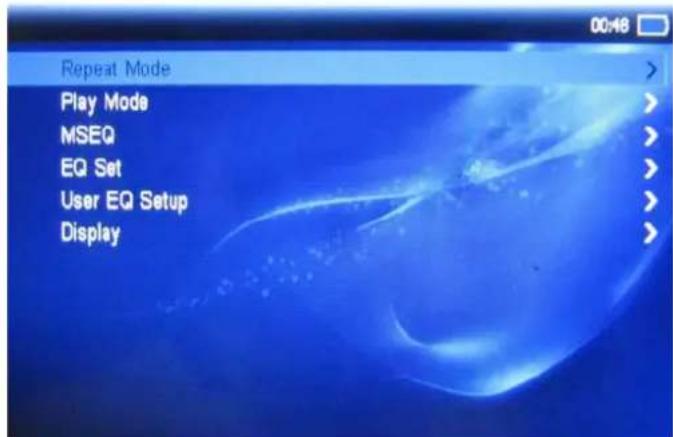
User EQ Setup: To set EQ, With CH+/- keys, move from one EQ to another (marked in blue color). With volume key, fit them up to the desire mode. Then, move til "Yes" to confirm the adjustment.
➢ Display: ID3、Lyric、Freq Chart、Closed.
3.3 Video
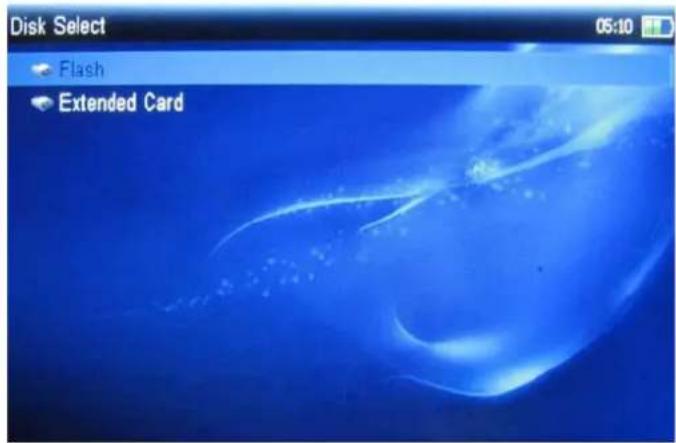
In main menu, press direction key to select video, at this point, press menu key to enter disk select interface (if TF card inserted); press menu key to enter explorer select interface (if TF card not inserted).
In disk select interface, press VOL+/- key to select the disk, press menu key to enter explorer select interface.

In explorer select interface, press direction key to select video, press menu key to enter video menu, press esc key to return.
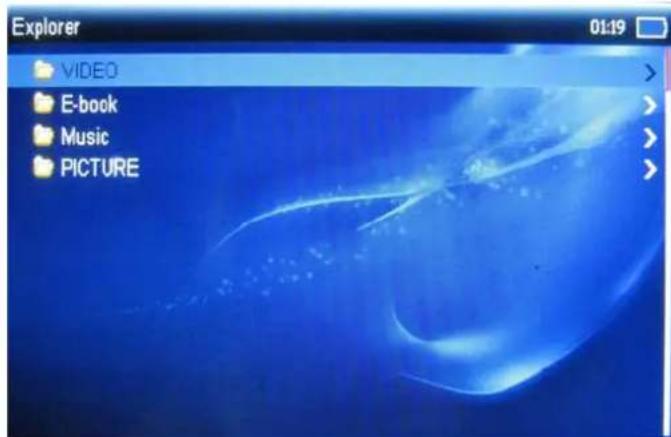
In video menu, press direction key to select file, press ok key to enter playing interface. If you want to delete file, please press menu key, select "Delete File" to delete, select "exit" to exit.
In playing interface, press VOL+/- to adjust volume, press CH+/- key to switch video, hold down CH+ key to backward video, hold down CH- key to forward video, press ok key to switch between play and pause, press menu key to enter setting menu, you can set video play mode:
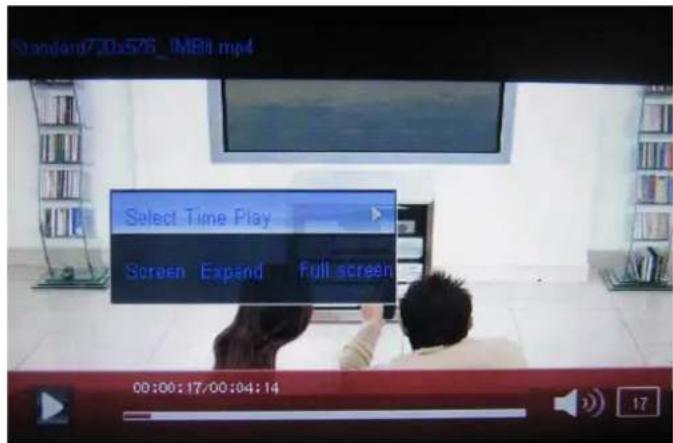
Select Time Play: press menu key to enter time setting interface, press CH+/- key to switch between hour and minute, press VOL+/- key to set time;
Screen Expand: It include two options are normal and full screen, press menu key to select.
3.4 Photo
In main menu, press direction key to select photo, at this point, press menu key to enter disk select interface (if TF card inserted); press menu key to enter explorer select interface (if TF card not inserted).
In disk select interface, press VOL+/- key to select the disk, press menu key to enter explorer select interface.
In explorer select interface, press direction key to select picture, press menu key to enter photo menu, press esc key to return.

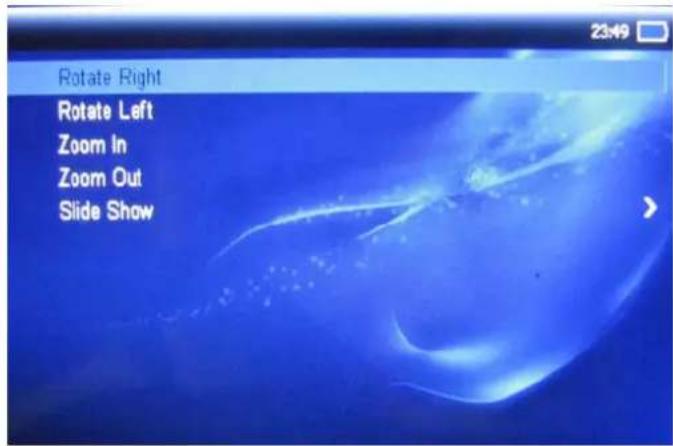
Press "M" key to enter into the following sub-menu:
- Rotate right
- Rotate left
- Zoom In
- Zomm Out
- Slide Show: Turn Off, 3 sec., 5 sec...
In photo menu, press direction key to select picture which you want to view, press ok key to enter playing
interface.
In playing interface, press direction key to switch picture, press menu key to enter setting menu, you can set picture play mode.
3.5 E-Book
In main menu, press direction key to select e-book, at this point, press menu key to enter disk select interface (if TF card inserted); press menu key to enter explorer select interface (if TF card not inserted).
In disk select interface, press VOL+/- key to select the disk, press menu key to enter explorer select interface.
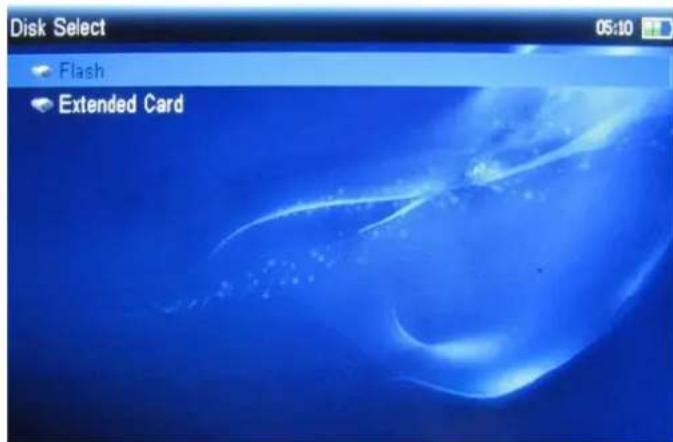
In explorer select interface, press direction key to select e-book, press menu key to enter e-book menu, press esc key to return.

In e-book menu, press direction key to select e-book which you want to view, press ok key to enter playing interface.
In e-book menu, if you want to delete file, press direction key to select file, please press menu key, select "Delete File" to delete, select "exit" to exit.
In playing interface, press menu key to enter setting menu, you can set e-book play mode:
Page Jump: set page number which you want to jump, press ok key to jump to the page;
Save Mark: to save mark, you can save eight marks;
Load Mark: jump to the page which is saved mark;
➢ Delete Mark: to delete mark;
Font Size: small、middle、big;
Browser Mode: auto mode, manual mode;
Style: set font color and background.

3.6 Tools
In main menu, press direction key to select tools, press menu key to enter tools menu, press esc key to return.
In tools menu, it include two options are stopwatch and calendar.
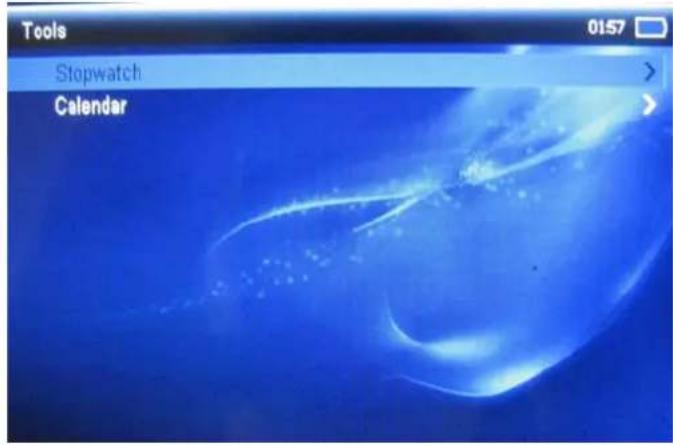
3.6.1 Stopwatch
Press ok key to start time, press again to stop time.

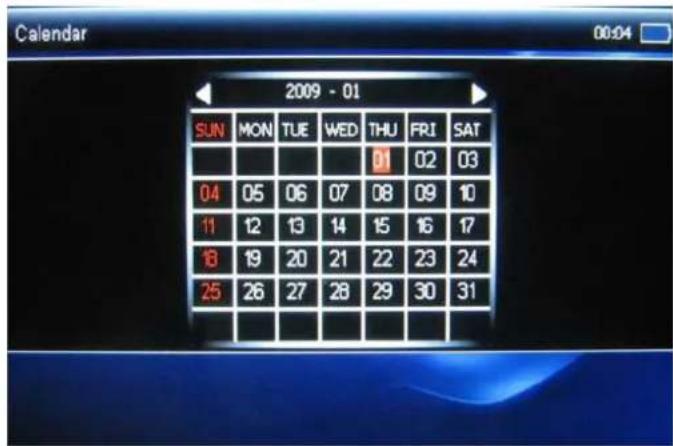
3.6.2 Calendar
Press menu key to switch between year, month, day, press direction key to select.
3.7 Game
In main menu, press direction key to select game, press menu key to enter game menu, press esc key to return.
The system provides two games: slide and tetris.

3.8 Record
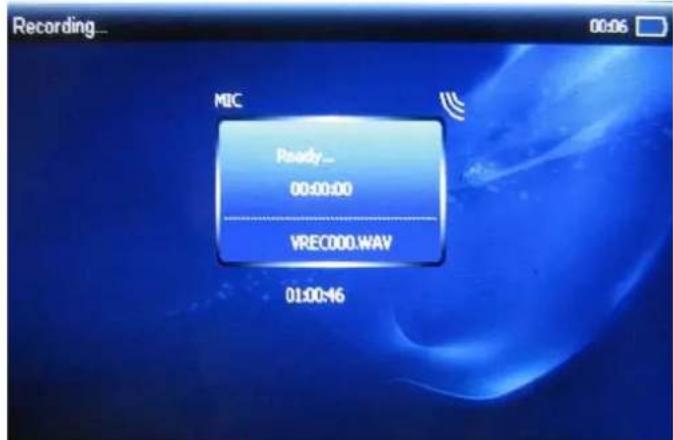
In main menu, press direction key to select record, press menu key to enter record menu, press esc key to return.
In recording interface, press ok key to start recording, press again to pause recording.
It will appear a message box when you exit, select "yes" to save recording file, select "no" to cancel.
3.9 Explorer
In main menu, press direction key to select explorer, at this point, press menu key to enter disk selectinterface (if TF card inserted) ; press menu key to enter explorer select interface (if TF card not inserted).
In disk select interface, press VOL+/- key to select the disk, press menu key to enter explorer select interface.

In explorer select interface, press direction key to select file, press menu key to enter music / video / picture / e-book / music / record menu, press esc key to return.

In music / video / picture / e-book / music / record menu, you can browse、play、delete file.
3.10 Settings
In main menu, press direction key to select settings, press menu key to enter settings menu, press esc key to return.

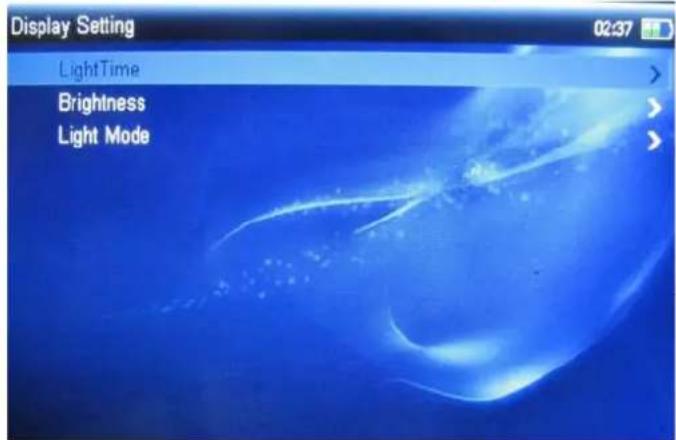
3.10.1 Display Setting
You can set display mode:
LightTime: to set light display time;
➢ Brightness: to set brightness;
Light Mode: to set light display mode, it include two options are all dark and penumbra.
3.10.2 System Setting
In system setting menu, it include two options are upgrade and restorable:
▶ Upgrade: to upgrade software;
Restorable: to restore to default setting.

3.10.3 Desktop Wallpaper
To set desktop wallpaper, press direction key to select, press ok key to confirm.

3.10.4 Date and Time
To set date and time:
Set Time: press CH+/- key to switch between hour and minute, press VOL+/- to set time;
Set Date: press CH+/- key to switch between year, month, day, press VOL+/- to set date.

3.10.5 Language
To set menu and code page language:
Menu: English、Spanish and other languages;
Code Page: English, Spanish, German French and other languages.

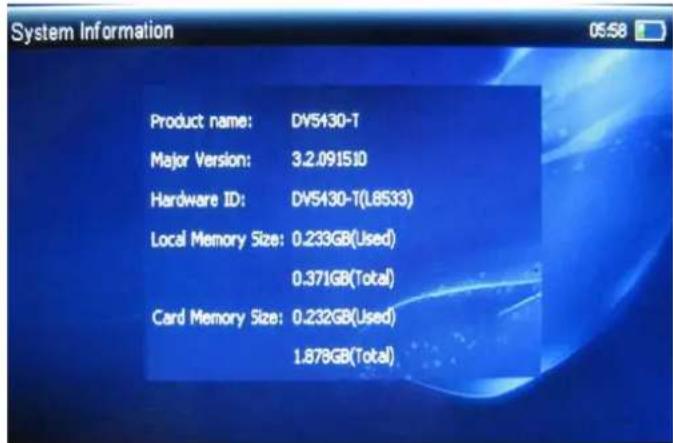
3.10.6 System Information
To view system information.
3.10.7 Auto Shutdown Time
To set auto shutdown time.

4 Trouble shooting
1) How to do if not receive signal?
Check whether has DVB-T signal in locus.
2) How to do if not power on?
Press reset key to try it again.
5 Technique parameter
Signal Receiving Parameters
| Test item unit Technical requirements | ||
| Receive frequency Range MHz | 450 ~ 950 MHz | |
| RF input level dBm | (64QAM)-79.3 ~ -10 | |
| (16QAM)-83 ~ -10 | ||
| Input impedance | Ω | 50 |
| bandwidth | M | 8 |
| Operating temperature | °C | MAX:45 |
| MIN:0 | ||
| Mobile performance KM/H | MAX:120 | |
DC parameter
| Type | Conditions | Min | Typical | Max | Unit | Ripple requirements | The current Value of Normal working |
| V5 | 5V | 4.90 | 5 | 5.1 | V ≤slant 30mV | 350mA |
Hardware parameter
| Item | Number | Description |
| main chip 1 Rock-chip,2710B-M | ||
| FLASH ROM 1 NandFlash | ||
| DVB-T NIM | 1 | SDMC, support DVB-T |
| screen | 1 | 4.3 inch |
| batteries 1 1600m | AH, play TV 3 hours max | |
Physical parameter
| Dimension | 143mm(length)×75mm(width)×18mm(height) |
| Weight | About |
185g

natural_image
Abstract blue gradient background with curved white lines and oval shapes (no text or symbols)
natural_image
Abstract blue pattern with diagonal striped and oval shapes, no text or symbols present
- Contenidos
- ISIS | Portable Digital TV Player
- Contents
- Introduction ...... 2
- Hardware Instructions....3
- Menu operating instructions....4
- Trouble shooting....19
- Technique parameter....19
- Introduction
- Prologue
- Features
- Hardware Instructions
- Appearance Chart
- Menu operating instructions
- TV
- Channel
- Program Guide
- Auto search
- ◆ Manual search
- TV Settings
- Area Setting
- Time Zone Setting
- Daylight Saving Time
- Music
- Video
- Photo
- E-Book
- Tools
- Stopwatch
- Calendar
- Game
- Record
- Explorer
- Settings
- Display Setting
- System Setting
- Desktop Wallpaper
- Date and Time
- To set date and time:
- Language
- System Information
- Auto Shutdown Time
- Trouble shooting
- 1) How to do if not receive signal?
- 2) How to do if not power on?
- Technique parameter
Brand : Sunstech
Model : Isis
Category : Mp3 player