
DB179RGMP - Car stereo CLARION - Free user manual and instructions
Find the device manual for free DB179RGMP CLARION in PDF.


| Product type | Car radio |
| Brand | CLARION |
| Model | DB179RGMP |
| Dimensions (standard) | 1 DIN (178 x 50 x 155 mm) |
| Weight | Approximately 1.2 kg |
| Power supply | 12 V DC, negative ground |
| Maximum output power | 4 x 50 W (max) |
| RMS output power | 4 x 20 W (RMS) |
| Supported audio formats | CD, CD-R/RW, MP3, WMA |
| Connectivity | USB input, AUX input (3.5 mm mini-jack), iPod/iPhone input |
| Radio | FM/AM (RDS), 30 presets |
| Additional features | 7-band graphic equalizer, clock, detachable display, remote control included |
| Display | Backlit LCD display |
| Care and cleaning | Clean the exterior with a soft dry cloth. Do not use solvents. |
| Security | Detachable front panel to deter theft |
| Repairability | Spare parts available via CLARION after-sales service |
Frequently Asked Questions - DB179RGMP CLARION
User questions about DB179RGMP CLARION
0 question about this device. Answer the ones you know or ask your own.
Ask a new question about this device
Download the instructions for your Car stereo in PDF format for free! Find your manual DB179RGMP - CLARION and take your electronic device back in hand. On this page are published all the documents necessary for the use of your device. DB179RGMP by CLARION.
USER MANUAL DB179RGMP CLARION
Thank you for purchasing this Clarion product.
* Please read this owner's manual in its entirety before operating this equipment.
* After reading this manual, be sure to keep it in a handy place (e.g., glove compartment).
* Check the contents of the enclosed warranty card and keep it carefully with this manual.





CAUTIONS:
This appliance contains a laser system and is classified as a "CLASS 1 LASER PRODUCT". To use this model properly, read this Owner's Manual carefully and keep this manual for your future reference. In case of any trouble with this player, please contact your nearest "AUTHORIZED service station". To prevent direct exposure to the laser beam, do not try to open the enclosure.
!CAUTION
USE OF CONTROLS OR ADJUSTMENTS OR PERFORMANCE OF PROCEDURES OTHER THAN THOSE SPECIFIED IN THE OWNER'S MANUAL MAY RESULT IN HAZARDOUS RADIATION EXPOSURE.
ADVARSEL.
Contents
- PRECAUTIONS 3
Handling Compact Discs....4
- CONTROLS 5
MAIN UNIT 5
- NOMENCLATURE 6
Names of the Buttons and Their Functions....6
Display Items 7
LCD Screen 7
-
DCP (Detachable Control Panel) 8
-
OPERATIONS ...... 9
Basic Operations 9
Radio Mode Operations 12
RDS Operations....13
CD/MP3/WMA Mode Operations 15
-
OTHER OPERATIONS ...... 21
-
TROUBLESHOOTING 24
-
ERROR DISPLAYS 25
-
SPECIFICATIONS 26
1. PRECAUTIONS
-
When the inside of the car is very cold and the player is used soon after switching on the heater moisture may form on the disc or the optical parts of the player and proper playback may not be possible. If moisture forms on the disc, wipe it off with a soft cloth. If moisture forms on the optical parts of the player, do not use the player for about one hour. The condensation will disappear naturally allowing normal operation.
-
Driving on extremely bumpy roads which cause severe vibration may cause the sound to skip.
- This unit uses a precision mechanism. Even in the event that trouble arises, never open the case, disassemble the unit, or lubricate the rotating parts.
INFORMATION FOR USERS:
CHANGES OR MODIFICATIONS TO THIS PRODUCT NOT APPROVED BY THE MANUFACTURER WILL VOID THE WARRANTY.
This unit has been designed specifically for playback of compact discs bearing the mark. No other discs can be played.
To remove the compact disc from its storage case, press down on the center of the case and lift the disc out, holding it carefully by the edges.
Removing the disc
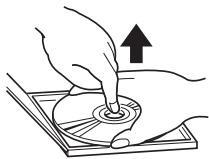
natural_image
Illustration of hands using a tool to press or install a circular component, with an upward arrow indicating motion (no text or symbols present)Proper way to hold the compact disc
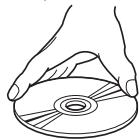
natural_image
Line drawing of hands holding a CD or DVD disc (no text or symbols)Always handle the compact disc by the edges. Never touch the surface.
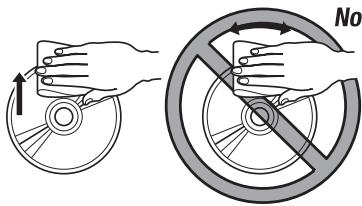
To remove fingermarks and dust, use a soft cloth, and wipe in a straight line from the center of the compact disc to the circumference.
New discs may have some roughness around the edges. The unit may not work or the sound may skip if such discs are used. Use a ball-point pen, etc. to remove roughness from the edge of the disc.
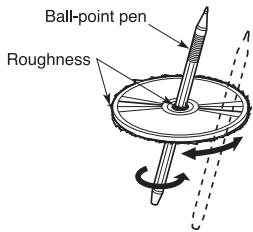
Note on compact discs
Never stick labels on the surface of the compact disc or mark the surface with a pencil or pen.
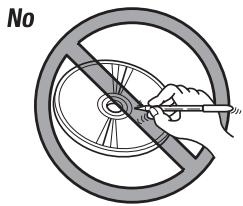
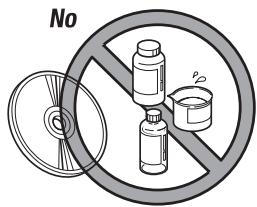
Do not use any solvents such as commercially available cleaners, anti-static spray, or thinner to clean compact discs.
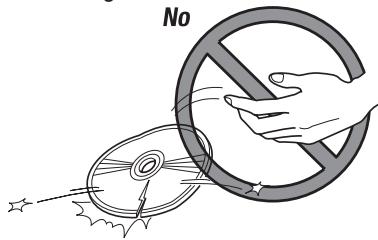
Do not use compact discs that have large scratches, are misshapen, or cracked, etc. Use of such discs will cause misoperation or damage.
Do not expose compact discs to direct sunlight or any heat source.
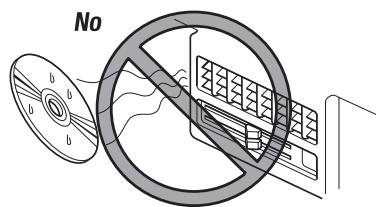
Note:
- Do not use commercially available CD protection sheets or discs equipped with stabilizers, etc. These may get caught in the internal mechanism and damage the disc.
Be sure to unfold and read the next page. / Veuillez déplier et vous référer à la page suivante. Bitte ausbreiten und die nächste Seite lesen. / Assicurarsi di aprire e leggere la pagina successiva. Volgende pagina uitvouwen en doorlezen a.u.b. / Cerciórese de desplegar y de leer la página siguiente. Glôm inte att vika ut och läsa nästa sida. / Não deixe de abrir e ler a próxima página.

2. CONTROLS / LES COMMANDES / REGLER / CONTROLLI / REGELAARS / CONTROLES / KONTROLLER / CONTROLOS
MAIN UNIT / APPAREIL PRINCIPAL / HAUPTGERÄT
/ APPARECCHIO PRINCIPALE / HOOFDTOESTEL
/ UNIDAD PRINCIPAL / HUVUDENHET / UNIDADE PRINCIPAL
![[DIRECT] [RDM] [SCN] [RELEASE] [RPT] [SD] [▲] [D] [♪] [TA] [I◄◄] [DIRECT] [► II] [► I] [DN] [SRC] 2 RPT 3 RDM 4 5 6 7 8 9 10 11 12 13 14 15 16 17 18 19 20 21 22 23 24 25 26 27 28 29 30 31 32 33 34 35 36 37 38 39 40 41 42 43 44 45 46 47 48 49 50 51 52 53 54 55 56 57 58 59 60 61 62 63 64 65 66 67 68 69 70 71 72 73 74 75 76 77 78 79 80 81 82 83 84 85 86 87 88 89 90 91 92 93 94 95 96 97 98 99 100 CD SLOT [SRC] [ROTARY] clarion RD-S 10000000000000000000000000000000000000000000000000000000000000000000000000000000000000000000000000000 1AUX 1BUX 1CUX 1DUX 1EUX 1FUX 1GUX 1HUX 1IUX 1JUX 1KUX 1LUX 1MUX 1NUX 2OUX 2PUX 2QUX 2RUX 2UUX 2VUX 2WUX 2XUX 3AUX 3BUX 3CUX 3DUX 3EUX 3FUX 3GUX 3HUX 3IUX 3JUX 3KUX 3LUX 3MUX 3NUX 3OUX 3PUX 3QUX 3RUX 3UUX 3VUX 3WUX 3XUX 3YUX 3ZUX 3AUX 3BUX 3CUX 3DUX 3EUX 3FUX 3GUX 3HUX 3IUX 3JUX 3KUX 3LUX 3MUX 3NUX 3OUX 3PUX 3QUX 3RUX 3UUX 3VUX 3WUX 3XUX 3YUX 3ZUX](/content/2025/01/95901/images/8a3cb05af1e961aa950ee73a8523eb55eba04b9d17f4c418961e7859fa8bd06a.jpg)
Note: Be sure to unfold this page and refer to the front diagrams as you read each chapter.
- Be sure to read this chapter referring to the front diagrams of chapter "2. CONTROLS" on page 5 (unfold).
Names of the Buttons and Their Functions
[RELEASE] button
- Press the [RELEASE] button to unlock the detachable panel.
[▲] button
- Eject a CD when it is loaded in the unit.
[D] button
- During Radio RDS mode, switch the display indication in the following order:
Main Display → Clock Display → Main Display... - During CD/AUX mode, switch the display indication (Main Display, Clock Display).
- During MP3/WMA mode, switch the display indication in the following order:
Track No./Play Time → Folder No./Play Time → Track Name → Folder Name → Title Tag → Album Tag → Artist Tag → Clock Display → Track No./Play Time... - Press and hold the button for 1 second or longer to enter the Adjustment mode.
[♪] button
- Use the button to enter to the Sound mode. (Z-Enhancer, Bass, Treble, Balance, Fader).
- Press and hold for 1 second or longer to turn on or off the M-B EX mode.
[TA] button
- Use the button to set the TA (Traffic Announcement) standby mode.
[DIRECT] buttons
- Store a station into memory or recall it directly while in the Radio mode.
[SCN] button
- Perform scan play for 10 seconds of each track while in the CD/MP3/WMA mode.
- Press and hold the button for 1 second or longer to perform all scan play while in the MP3/WMA mode.
[RPT] button
- Repeat play while in the CD/MP3/WMA mode.
- Press and hold the button for 1 second or longer to perform all repeat play while in the MP3/WMA mode.
[RDM] button
- Perform random play while in the CD/MP3/WMA mode.
- Press and hold the button for 1 second or longer to perform all random play while in the MP3/WMA mode.
[UP], [DN] buttons
- Select the folder (MP3/WMA disc only).
[◀◀], [▶▶▶] buttons
- Seek a station while in the Radio mode or select a track when listening to a CD. These buttons are used to make various settings.
- Press and hold the button for 1 second or longer to enter the fast-forward or fast-backward in CD/MP3/WMA mode.
[▶II] button
- Perform preset scan while in the Radio mode. Press and hold the button for 2 seconds or longer to perform auto store.
- Play or pause a track while in the CD/MP3/WMA mode.
- Perform second level adjustment or selection.
[SRC] button
- Press the button to turn on the power.
Press and hold the button for 1 second or longer to turn off the power. - Switch the Operation mode among the Radio mode, CD/MP3/WMA mode and AUX mode.
[BND] button
- Switch the band, or seek tuning or manual tuning while in the Radio mode.
- Play the first track while in the CD/MP3/WMA mode.
- Press and hold the button for 1 second or longer to select CD-DA or MP3/WMA on a Multisession disc.
[ROTARY] knob
- Adjust the volume by turning the knob clockwise or counterclockwise.
- Use the knob to perform various settings.
[CD SLOT]
- CD insertion slot.
[AUX] input
- Auxiliary jack insertion.
Display Items
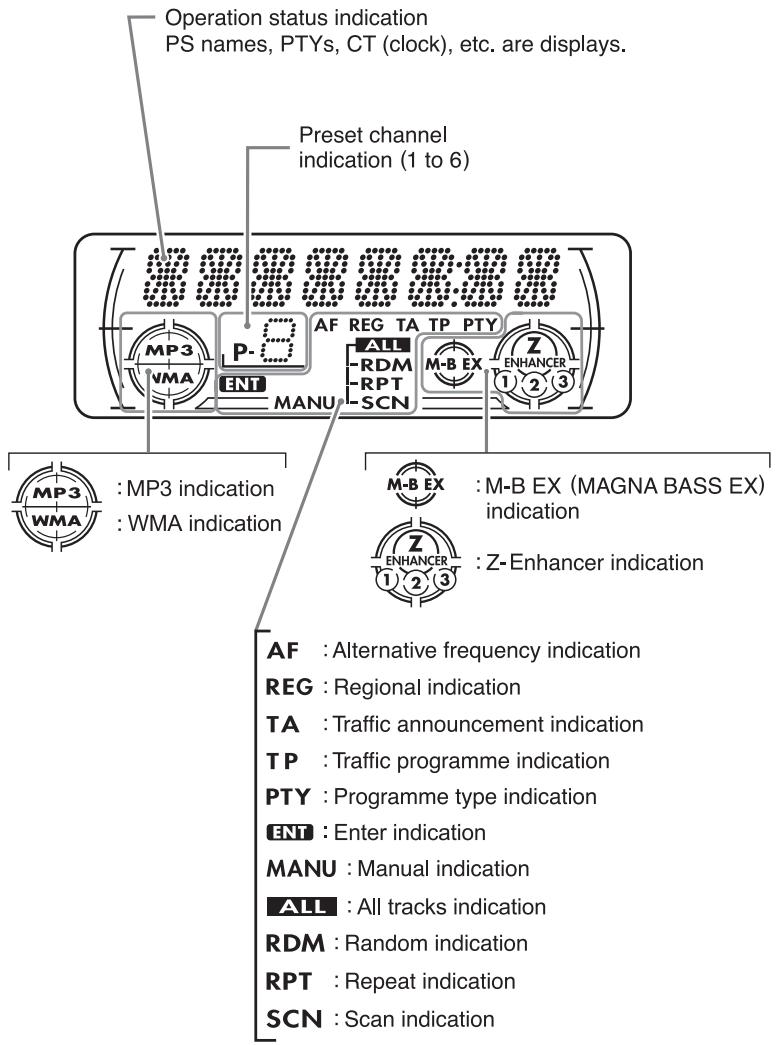
LCD Screen
In extreme cold, the screen movement may slow down and the screen may darken, but this is normal.
The screen will recover when it returns to normal temperature.
4. DCP (Detachable Control Panel)
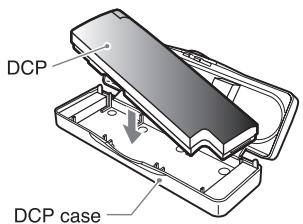
The control panel can be detached to prevent theft. When detaching the control panel, store it in the DCP (Detachable Control Panel) case to prevent scratches.
We recommend taking the DCP with you when leaving the car.
Removing the DCP
- Press the [SRC] button for 1 second or longer to switch off the power.
- Press in the [RELEASE] button.
![[RELEASE] button * The DCP is unlocked](/content/2025/01/95901/images/5efaf198d14b9310f3a137ab565904208bd1cf6996a525f1559d33dab115f562.jpg)
- Remove the DCP.
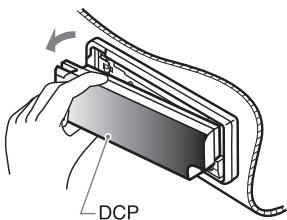
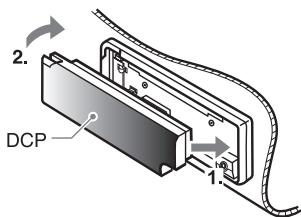
Attaching the DCP
- Insert the right side of the DCP into the main unit.
- Insert the left side of the DCP to attach into the main unit.
Storing the DCP in the DCP case
Hold the DCP, in the orientation as shown in the figure below, and put it into the supplied DCP case. (Ensure the DCP is in the correct orientation.)
CAUTION
- The DCP can easily be damaged by impact. After removing it, be careful not to drop it or subject it to strong shocks.
- When the Release button is pressed and the DCP is unlocked, the car's vibrations may cause it to fall. To prevent damage to the DCP, always store it in its case after detaching it. (See figure above.)
- The connector connecting the main unit and the DCP is an extremely important part. Be careful not to damage it by pressing on it with fingernails, pens, screwdrivers, etc.
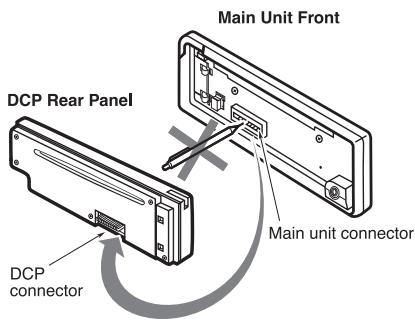
Note:
- If the DCP connector is dirty, wipe off the dirt with a soft, dry cloth only.
5. OPERATIONS
Basic Operations
Note: Be sure to read this chapter referring to the front diagrams of chapter "2. CONTROLS" on page 5 (unfold).
CAUTION
Be sure to lower the volume before switching off the unit power or the ignition key. The unit remembers its last volume setting. If you switch the power off with the volume up, when you switch the power back on, the sudden loud volume may hurt your hearing and damage the unit.
Turning on/off the power
Note:
- Be careful about using this unit for a long time without running the engine. If you drain the car's battery too much, you may not be able to start the engine and this can reduce the service life of the battery.
- Press the [SRC] button.
- The illumination and display on the unit light up. The unit automatically remembers its last Operation mode and will automatically switch to display that mode.
- Press and hold the [SRC] button for 1 second or longer to turn off the power for the unit.
Selecting a mode
- Press the [SRC] button to change the Operation mode.
- Each time you press the [SRC] button, the Operation mode changes in the following order:
Radio mode → CD/MP3/WMA mode → AUX mode → Radio mode...
Note:
- If the CD mode is selected when no disc is inserted, the display shows "NO DISC".
Switching the display
Press the [D] button to select the desired display.
Each time you press the [D] button, the display switches in the following order:
- Radio mode
Main Display → Clock Display →
Main Display...
- CD mode
Main Display (Track No., Play Time) →
Clock Display → Main Display...
● MP3/WMA mode
Main-1 Display (Track No., Play Time)→
Main-2 Display (Folder No., Play Time) →
Track → Folder → Title → Album → Artist →
Clock Display → Main-1 Display...
- AUX mode
Main Display → Clock Display → Main Display...
* Once selected, the preferred display becomes the display default. When a function adjustment such as volume is made, the screen will momentarily switch to that function's display, then revert back to the preferred display several seconds after the adjustment.
Adjusting the volume
Turning the [ROTARY] knob clockwise increases the volume; turning it counterclockwise decreases the volume. "VOL XX" will be displayed where "XX" is the volume level from 0 (minimum) to 33 (maximum).
* The factory default setting for volume is "VOL 13".
Sound mode adjustments
- Press the [♪] button to enter the Sound Adjustment mode.
- Press the [I◄◄, ►►I] button to select the "item name".
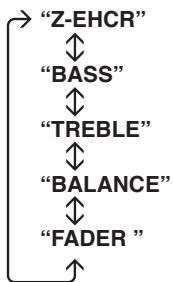
flowchart
graph TD
    A["Z-EHCR"] --> B["BASS"]
    B --> C["TREBLE"]
    C --> D["BALANCE"]
    D --> E["FADER"]
    E --> F["↑"]
- Turning the [ROTARY] knob to adjust the selected Sound mode.
Z-EHCR :
Selection type : OFF↔ B-BOOST↔
IMPACT ↔ EXCITE ↔ OFF...
BASS :
Adjustment range : -7 to +7
TREBLE :
Adjustment range : -7 to +7
BALANCE :
Adjustment range : LEFT 12 to RIGHT 12
FADER :
Adjustment range : FRONT 12 to REAR 12
Notes:
- If no operation is performed for more than 10 seconds, the Audio mode is cancelled and returns to the previous mode.
- Bass and Treble can only be adjusted when the "Z-EHCR" is off.
Setting the Z-Enhancer
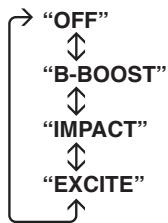
This unit is provided with 3 types of sound tone effects stored in memory. Select the one you prefer.
2-1. Press the [I◄◄, ►►I] button and select "Z-EHCR".
3-1. Turning the [ROTARY] knob to change to the following sound tone effect.
flowchart
graph TD
    A["OFF"] --> B["B-BOOST"]
    B --> C["IMPACT"]
    C --> D["EXCITE"]
    D --> E
- OFF : no sound effect
• B-BOOST : bass emphasized

indicator lights in the display)
- IMPACT : bass and treble emphasized

indicator lights in the display)
- EXCITE : bass and treble emphasized mid de-emphasized

indicator lights in the display)
Note:
- The factory default setting is "OFF".
Adjusting the bass
2-1. Press the [◀◀, ▶▶▶] button and select "BASS".
3-1. Turning the [ROTARY] knob clockwise emphasizes the bass; turning it counterclockwise attenuates the bass.
"BASS XX" will be displayed where "XX" is the value from -7 to +7.
Note:
- The factory default setting is "BASS 0".
Adjusting the treble
2-1. Press the [I◄◄, ►►I] button and select "TREBLE".
3-1. Turning the [ROTARY] knob clockwise emphasizes the bass; turning it counterclockwise attenuates the bass.
"TREB XX" will be displayed where "XX" is the value from -7 to +7.
Note:
- The factory default setting is "TREB 0".
Adjusting the balance
2-1. Press the [ ◀◀◀ , ▶▶▶] button and select "BALANCE".
3-1. Turning the [ROTARY] knob clockwise emphasizes the sound from the right speaker; turning it counterclockwise emphasizes the sound from the left speaker.
The display changes as follows:
"RIGHT XX" will be displayed where "XX" is the value from 1 to 12.
"LEFT XX" will be displayed where "XX" is the value from 1 to 12.
Notes:
- When Balance is 0, “CENTER” will be displayed instead.
- The factory default setting is "CENTER".
Adjusting the fader
2-1. Press the [◀◀, ▶▶▶] button and select "FADER".
3-1. Turning the [ROTARY] knob clockwise emphasizes the sound from the front speakers; turning it counterclockwise emphasizes the sound from the rear speakers.
The display changes as follows:
"FRONT XX" will be displayed where "XX" is the value from 1 to 12.
"REAR XX" will be displayed where "XX" is the value from 1 to 12.
Notes:
- When Fader is 0, “CENTER” will be displayed instead.
- The factory default setting is "CENTER".
Adjusting MAGNA BASS EX
The MAGNA BASS EX does not adjust the low sound area like the normal sound adjustment function, but emphasizes the deep bass sound area to provide you with a dynamic sound.
- Press and hold the [♪] button for 1 second or longer to turn on the MAGNA BASS EX effect.

indicator lights in the display.
- Press and hold the [♪] button for 1 second or longer to turn off the MAGNA BASS EX effect.

indicator goes off from the display.
Note:
- The factory default setting is "OFF".
CT (Clock Time) function
The CT function receives CT data sent from an RDS station and displays the time. Press the [D] button to switch to the CT display.
* If a CT data is not being received, "CT--:--" appears in the display.
Note:
- CT data is not transmitted in some countries and by some broadcast stations. Also, in some areas, the CT display may not accurate.
AUX function
This system has an external jack input in the front panel where you can listen to sounds and music from external devices connected to this unit.
- Connect the external music player to the [AUX] input.
- Press the [SRC] button and select the AUX mode to activate the AUX function.
Notes:
- Use only the 3.5mm stereo jack for the AUX jack input.
- Volume can be adjusted through the unit. If you face difficulties of hearing sound even after volume has been adjusted, please refer section “Selecting AUX IN sensitivity” on page 23 for details.
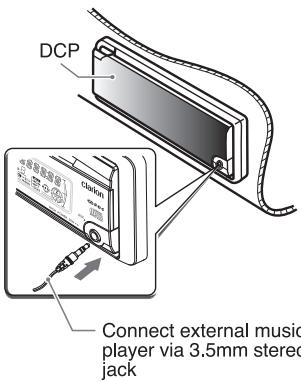
Connect external music player via 3.5mm stereo jack
Listening to the radio
- Press the [SRC] button and select the Radio mode, then the radio will be on.
- To select a preset band, press the [BND] button, and then select one of the preset bands such as FM1, FM2, FM3 or AM (MW/LW).
Every time the [BND] button is pressed, the band switches in the following order: - Press the [ ◀◀◀ , ▶▶▶] button to tune in the desired station.
$$ \mathrm{F} 1 \rightarrow \mathrm{F} 2 \rightarrow \mathrm{F} 3 \rightarrow \mathrm{AM} (\mathrm{MW} / \mathrm{LW}) \rightarrow \mathrm{F} 1 \dots $$
Seek tuning
There are 2 types of seek tuning: DX SEEK and LOCAL SEEK.
DX SEEK can automatically tune in to receivable broadcast stations; LOCAL SEEK can tune in to only broadcast stations with a good reception sensitivity.
- Press the [BND] button and select the desired band (FM or AM (MW, LW)).
* If "MANU" is lit in the display, press and hold the [BND] button for 1 second or longer.
"MANU" in the display goes off and seek tuning is now available.
* If “TA” is lit in the display, TP stations are automatically sought.
- Press the [I◄◄, ►►I] button to start automatic station tuning.
- DX SEEK
When the [▶▶] button is pressed, search will be performing in the direction of higher frequencies. When the [◀◀] button is pressed, search will be performed in the direction of lower frequencies.
* When seek tuning starts, "DX" appears in the display.
- LOCAL SEEK
If the button is pressed and held in position for 1 second or longer, local seek tuning will be enabled. Broadcast stations with good reception sensitivity are selected.
* When local seeking starts, "LO" appears in the display.
Manual tuning
There are 2 ways available: Quick tuning and step tuning.
When you are in the step Tuning mode, the frequency changes one step at a time. In the quick Tuning mode, you can quickly tune the desired frequency.
-
Press the [BND] button and select the desired band (FM or AM (MW/LW)).
* If "MANU" is not lit in the display, press and hold the [BND] button for 1 second or longer.
"MANU" is lit in the display and manual tuning is now available. -
Tune into a station.
- Quick tuning:
Press and hold the [ ◀◀◀ ,▶▶▶] button for 1 second or longer to begin station tuning.
- Step tuning:
Press the [I◄◄, ►►I] button to perform manual tuning.
* If no operation is performed for more than 7 seconds, manual tuning is cancelled and the display returns to the previous mode.
Preset memory function
Preset memory function can store up to 24 stations:
Six stations for each of FM1, FM2, FM3 and AM (MW/LW).
Manual memory function
- Press the [BND] button and to select a band you want to store in the memory.
- Press the [I◄◄, ►►I] button to tune into a desired station.
- Press and hold one of the [DIRECT] buttons for 2 seconds or longer to store the current station into preset memory.
Auto store
Auto store is a function for storing up to 6 stations that are automatically tuned in sequentially. If 6 receivable stations cannot be received, a previously stored station remains un-overwritten at the memory position.
- Press the [BND] button and select the desired band (FM or AM (MW/LW)).
- Press and hold the [▶III] button for 2 seconds or longer. The stations with good reception are stored automatically to the preset channels.
"A-STORE" will be displayed.
* If auto store is performed in the FM bands, the stations are stored in FM3 even if FM1 or FM2 was chosen for storing stations.
Preset scan
Preset scan receives the stations stored in preset memory in order. This function is useful when searching for a desired station in memory.
- Press the [▶III] button.
- When a desired station is tuned in, press the [▶■] button again to continue receiving that station.
“P-SCN” will be displayed and “SCN” indicator lights in the display.
Note:
- Be careful not to press and hold the [▶III] button for 2 seconds or longer, otherwise the auto store function is engaged and the unit starts storing stations.
Recalling a preset station
A total of 24 preset positions (6-FM1, 6-FM2, 6-FM3, 6-AM) exists to store individual radio stations in memory. Pressing the corresponding [DIRECT] button recalls the stored radio frequency automatically.
- Press the [BND] button and select the desired band (FM or AM (MW/LW)).
- Press the corresponding [DIRECT] button to recall the stored station.
RDS Operations
RDS (Radio Data System)
This unit has a built-in RDS decoder system that supports broadcast stations transmitting RDS data.
This system can display the name of the broadcast station being received (PS) and can automatically switch to the broadcast station with the best reception as you move long distances (AF switching).
Also, if a traffic announcement or programme type is broadcast from an RDS station, no matter what mode you are in, this broadcast is received. Additionally, if EON information is received, this information enables automatic switching of other preset stations on the same network and interruption of the station being received with traffic information from other stations (TP). This function is not available in some areas.
When using the RDS function, always set the radio to FM mode.
• AF : Alternative Frequency
• PS : Programme Service Name
- PTY : Programme Type
• EON : Enhanced Other Network
- TP : Traffic Programme
* RDS interrupt does not function during AM radio reception.
* When set receives RDS signal, and can read PS data, PS appears in the display.
TA (Traffic Announcement)
In the TA standby mode, when a traffic announcement broadcast starts, the traffic announcement broadcast is received as top priority regardless of the function mode so you can listen to it. Traffic programme (TP) automatic tuning is also possible.
* This function can only be used when “TP” is lit in the display. When “TP” is lit, this means that the RDS broadcast station being received has traffic announcement programmes.
- Setting the TA standby mode
If you press the [TA] button when only "TP" is lit in the display, "TP" and "TA" light in the display and the unit is set into the TA standby mode until a traffic announcement is broadcast. When a traffic announcement broadcast starts, "TRA INFO" appears in the display. If you press the [TA] button while a traffic announcement broadcast is being received, the traffic announcement broadcast reception is cancelled and the unit goes into the TA standby mode.
- Cancelling the TA standby mode
As “TP” and “TA” lit in the display, press the [TA] button. The “TA” in the display goes off and the TA standby mode is cancelled.
* If "TP" is not lit, pressing the [TA] button searches for a TP station.
- Searching for a TP station
When "TP" is not lit, if you press the [TA] button, "TA" in the display lights and the unit automatically receives a TP station.
Note:
- If a TP station is not received, the unit continues the search operation. Pressing [TA] button again goes off "TA" in the display and stops TP station searching.
Auto store function for TP stations
You can automatically store up to 6 TP stations into preset memory. If the number of TP can be received less than 6, broadcast stations already stored in memory and left without being overwritten.
As “TA” lit in the display, press and hold the [▶II] button for 2 seconds or longer. The TP stations with the good reception sensitivity are stored into preset memory.
* Even if you select FM1 or FM2, a TP station is stored into memory for FM3.
Emergency broadcast
If an emergency broadcast is received, all the Function mode operations are stopped.
"ALARM" appears in the display and the emergency broadcast can be heard.
● Cancelling an emergency broadcast
If you press the [SRC] button, emergency broadcast reception is cancelled.
Volume setting of TA, emergency broadcast (ALARM) and PTY
The volume for TA, ALARM and PTY interrupts can be set during TA, ALARM or PTY interrupt.
* The factory default setting for this volume is "VOL 15".
During a TA, ALARM or PTY interrupt, turn the [ROTARY] knob to set the volume to the desired level (0 to 33).
* When the TA, ALARM or PTY interrupt ends, the volume returns to the level it had before the interrupt.
RDS Mode adjustment
RDS Mode is one of the Adjustment mode. Please refer chapter "6. OTHER OPERATIONS" on page 21 for details.
What is MP3?
MP3 is an audio compression method and classified into audio layer 3 of MPEG standards. This audio compression method has penetrated into PC users and become a standard format. This MP3 features the original audio data compression to about 12 percent of its initial size with a high quality sound. This means that about 10 music CDs can be recorded on a CD-R disc or CD-RW disc to allow a long listening time without having to change CDs.
What is WMA?
WMA is the abbreviation of Windows Media Audio, an audio file format developed by Microsoft Corporation.
Notes:
- WMA file with DRM (Digital Rights Management) will be skipped from being playback and jump to the next track.
- Windows Media™, and the Windows® logo are trademarks, or registered trademarks of Microsoft Corporation in the United States and/or other countries.
● To disable DRM (Digital Rights Management):
- When using Windows Media Player 9, click on TOOL → OPTIONS → MUSIC RECORD tab, then under Recording settings, unclick the check box for RECORD PROTECTED MUSIC. Then, reconstruct files.
- When using Windows Media Player 10/11, click on TOOL → OPTIONS → RIP MUSIC tab, then under Rip settings, unclick the check box for COPY PROTECT MUSIC. Then, reconstruct files.
Note:
- Personally constructed WMA files are used at your own responsibility.
- Usable sampling rates and bit rates:
● Precautions when creating MP3/WMA disc
| MP3 | |
| Decode Format | MPEG 1, 2 and 2.5 - Layer 3 |
| Sampling Rate (kHz) | MPEG-1 : 32, 44.1, 48MPEG-2 : 16, 22.05, 24MPEG-2.5 : 8, 11.025, 12 |
| Bit-rate (kbps) | MPEG-1 : 32 - 320MPEG-2 : 8 - 160MPEG-2.5 : 8 - 160VBR |
| WMA | |
| Sampling rate (kHz) | 48, 44.1, 32 |
| Bit-rate (kbps) | 32 - 192 |
Folder Level Limit : 8 Level
Max. Folder Support : 128
Max. Files Support : 254
Folder Name : Max. 28 Characters
File Name : Max. 28 Characters
- File extensions
- Always add a file extension “.MP3” or “.WMA” to MP3 or WMA file by using single character letters. If you add a file extension other than specified or forget to add the file extension, the file cannot be played.
● Logical format (File system)
- When writing MP3/WMA file on a CD-R disc or CD-RW disc, please select "ISO9660 level 1, 2 or JOLIET or Romeo" as the writing software format. Normal play may not be possible if the disc is recorded on another format.
- The folder name and file name can be displayed as the title during MP3/WMA play but the title must be within 28 single byte alphabetical letters and numerals (including an extension) respectively.
- Do not affix a name to a file inside a folder having the same name.
- Folder structure
- A disc with a folder having more than 8 hierarchical levels will be impossible.
● Number of files or folders
- Up to 254 files can be recognized per folder. Up to 254 files can be played.
- Tracks are played in the order that they were recorded onto a disc. (Tracks might not always be played in the order displayed on the PC.)
- Some noise may occur depending on the type of encoder software used while recording.
CD-DA/MP3/WMA selection on multi-session CD
- If a multi-session CD which contains CD-DA and MP3/WMA files is being inserted, user can select either CD-DA or MP3/WMA files to be played.
- Default setting for files to be played on multi-session CD is CD-DA files.
- Press the [BND] button for more than 1 second will toggle between selection of CD-DA and MP3/WMA files to be played.
- When CD-DA type is selected, display will show "M-SESS" then "CD". When MP3/WMA type is selected, display will show "M-SESS" then "MP3".
- CD-DA/MP3/WMA selection function can only be performed in CD/MP3/WMA mode. It will only activate after re-insert CD. For example, current setting is CD-DA type. Press [BND] button for more than 1 second to set MP3/WMA type. User has to eject CD and re-insert again as to play MP3/WMA files.
- Types of recording that can be played are as follows.
| SettingDisc | Set to CD | Set to MP3/WMA |
| Mixed with CD-DA and MP3/WMA type tracks | Play CD-DA | Play MP3/WMA |
| CD-DA type track only | Play CD-DA | Play CD-DA |
| MP3/WMA type track only | Play MP3/WMA | Play MP3/WMA |
- When a Mixed mode CD is loaded and CD is set, the track to be played first is MP3/WMA file data and no sound is heard.
Note:
- When playing a CCCD (Copy Control CD), set the setting to CD type. When this is set to MP3/WMA type, the CD cannot be played normally in some cases.
CAUTION
- Do not try to put your hand or fingers in the disc insertion slot. Also never insert foreign objects into the slot.
- Do not insert discs where adhesive comes out from cellophane tape or a rental CD label, or discs with marks where cellophane tape or rental CD labels were removed. It may be impossible to extract these discs from the unit and they may cause the unit to break down.
- This unit is designed for play of 12cm compact disc only. Do not attempt to use 8cm CD singles in this unit, either with or without an adaptor, as damage to the player and/or disc can occur. Such damage will not be covered by the warranty on this product.
Backup eject function
Pressing the [ ▲ ] button ejects the disc even if the power to the unit was not turned on. Remove the disc after it is ejected.
Notes:
- If you force a CD into before auto reloading, this can damage the CD.
- If a CD (12 cm) is left in the ejected position for 15 seconds, the CD is automatically reloaded (Auto reload).
Listening to a disc already loaded in the unit
Press the [SRC] button to select the CD/MP3/WMA mode. "CD/MP3" will be displayed.
When the unit enters CD/MP3/WMA mode, play starts automatically.
Radio → CD/MP3/WMA → AUX → Radio...
Note:
- The default display is Main Display (Track No./Play Time).
Loading a CD
Insert a CD into the center of the CD SLOT with the labeled side facing up. "LOADING" appears in the display, the CD plays automatically after loading.
Notes:
- When the unit enters the CD/MP3/WMA mode, "FILERREAD" will be displayed to check the disc type and its contents.
- If the inserted disc is a CD-DA format, "CD" will be displayed for a while. However, if the inserted disc is a MP3/WMA format, "MP3" will be displayed for a while. MP3/WMA indicator will be lit on according to type of file detected.

indicator will be lit on if MP3 file is detected.

indicator will be lit on if WMA file is detected. Then, the first track will be played automatically.
- If the CD is not inserted easily, there may be another CD in the mechanism or the unit may require service.
- Discs not bearing the WISU DIGITAL AUDIO mark cannot be played by this unit.
- Some CDs recorded in CD-R/CD-RW mode may not be usable.
Ejecting the CD
Press the [▲] button, then the CD will be ejected.
Notes:
- If there is no disc loaded, the indication "NO DISC" appears in the display and return to Radio mode after 4 seconds.
- If the CD is not removed after ejecting, CD will be automatically reloaded after 15 seconds and this will not automatically switch to CD/MP3/WMA mode.
Pausing play
- Press the [▶II] button to pause play. "PAUSE" appears in the display.
- To resume CD play, press the [▶III] button again.
Display selection
- You can choose the display type for CD-DA or MP3/WMA disc by pressing the [D] button.
To select the next type, press the [D] button again.
The arrangement is shown below.
CD-DA disc
Main-1 Display (Track No., Play Time) → Clock Display → Main-1 Display...
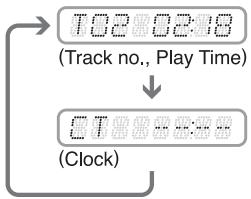
flowchart
graph TD
    A["Track no., Play Time"] --> B["Clock"]
● MP3/WMA disc
Main-1 Display (Track No., Play Time) → Main-2 Display (Folder No., Play Time) → Track → Folder → Title Tag → Album Tag → Artist Tag → Clock Display → Main-1 Display...
where Track, Folder, Title Tag, Album Tag and Artist Tag are called Title Display.
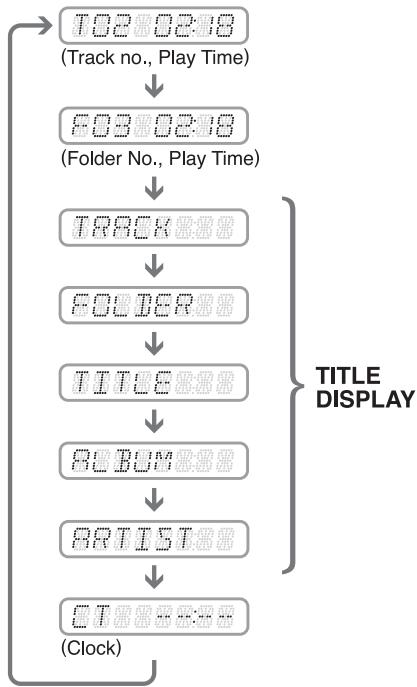
flowchart
graph TD
    A["10280238 (Track no., Play Time)"] --> B["80380238 (Folder No., Play Time)"]
    B --> C["1880888"]
    C --> D["6088888"]
    D --> E["TITU8888"]
    E --> F["8088888"]
    F --> G["8RT1588"]
    G --> H["CT088888 (Clock)"]
    style A fill:#f9f,stroke:#333
    style H fill:#f9f,stroke:#333
Note:
- Each of the items in Title Display will display "TRACK", "FOLDER", "TITLE", "ALBUM" or "ARTIST" respectively for 2 seconds before showing related title information.
Title display
- There are 5 types of display for the Title Display.
The arrangement is shown below.
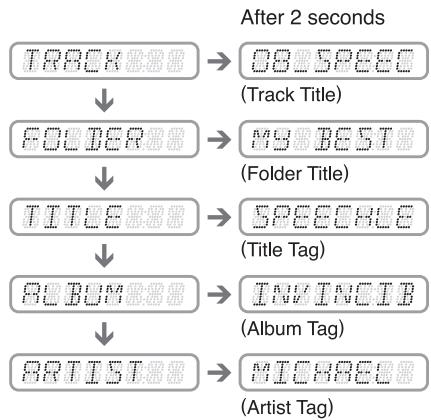
flowchart
graph TD
    A["TRACK"] --> B["08:56:50"]
    B --> C["Track Title"]
    A --> D["FOLDER"]
    D --> E["MY:BEST"]
    E --> F["Folder Title"]
    A --> G["TITLE"]
    G --> H["SPEEC:88E"]
    H --> I["Title Tag"]
    A --> J["REBUM"]
    J --> K["INV:INC:IB"]
    K --> L["Album Tag"]
    A --> M["BETIST"]
    M --> N["MIC:88:88"]
    N --> O["Artist Tag"]
- If a MP3/WMA file does not support for ID3 TAG or the file is encoded with ID3 TAG header that does not consist of any TAG information, the display will show "NO TITLE".
Notes:
- The folder name will be displayed as "ROOT" which the file allocates in the root folder.
- For MP3, it supports ID3 Tags V2.4/2.3/2.2/1.1/1.0.
- The MP3 player decodes each file ID3 TAG ver 2 by default, if ID3 TAG ver 2 is unavailable, ID3 TAG ver 1 will be decoded.
- UNICODE ID3 (Chinese, Japanese and etc) is not supported. Only ASCII characters can be displayed in Tags.
- If ID3 has Japanese or Chinese character, “*” will be displayed as substitution.
Selecting a track
- Track-up
- Press the [▶▶▶] button to move to the beginning of the next track.
- Each time the [▶▶▶] button is pressed, playback proceeds to another track in the advancing direction.
- Track-down
- Press the [◀◀] button to move the beginning of the current track.
- Press the [◀◀] button twice to move to the beginning of the previous track.
Fast-forward/fast-backward
- Fast-forward
Press and hold the [▶▶▶] button for 1 second or longer.
- Fast-backward
Press and hold the [◀◀] button for 1 second or longer.
* For Audio CD mode pressing the [ ◀◀◀, ▶▶▶] button for 1 second or longer will move forward or backward 5 times faster than normal play, and pressing it for 3 seconds or longer will do the operation 30 times faster.
* For MP3/WMA mode pressing the [I◄◄,►►] button for 1 second or longer will move forward or backward 5 times faster than normal play, and pressing it for 3 seconds or longer will do the operation 10 times faster.
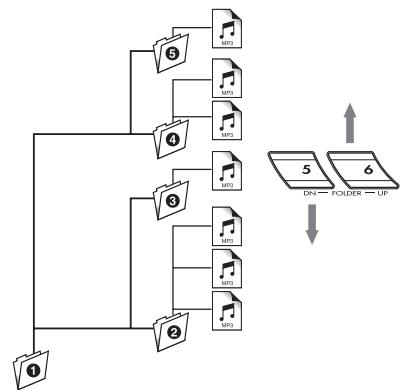
MP3/WMA playing order
When selected for play folder up down functions, files and folders are accessed in the order in which they were written by the CD-ROM writer. Because of this, the order in which they are expected to be played may not match the order in which they are actually played. You may be able to set the order in which MP3/WMA are to be played by writing them onto a medium such as a CD-R with their file names beginning with play sequence numbers such as "01" to "99", depending on your CD writer.
For example, a medium with the following folder/file hierarchy is shown below.
Example of a medium's folder/file hierarchy
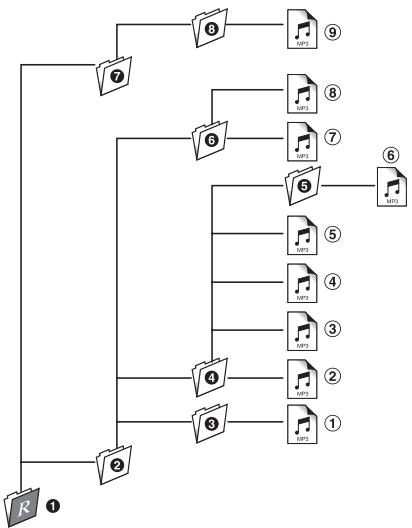
flowchart
graph TD
    A["1"] --> B["2"]
    B --> C["3"]
    C --> D["4"]
    D --> E["5"]
    E --> F["6"]
    F --> G["7"]
    G --> H["8"]
    H --> I["9"]
    style A fill:#f9f,stroke:#333
    style B fill:#f9f,stroke:#333
    style C fill:#f9f,stroke:#333
    style D fill:#f9f,stroke:#333
    style E fill:#f9f,stroke:#333
    style F fill:#f9f,stroke:#333
    style G fill:#f9f,stroke:#333
    style H fill:#f9f,stroke:#333
Level 1
Level 2
Level 3
Level 4

Root

Folder

File
Folder select
This function allows you to select a folder containing MP3/WMA files and start playing from the first track in the folder.
- Press the [DN] or the [UP] button.
Press the [DN] button to move the previous folder. Press the [UP] button to move the next folder.
flowchart
graph TD
    A["1"] --> B["2"]
    B --> C["3"]
    C --> D["4"]
    D --> E["5"]
    E --> F["6"]
    F --> G["DN — FOLDER — UP"]
    style A fill:#f9f,stroke:#333
    style B fill:#ccf,stroke:#333
    style C fill:#cfc,stroke:#333
    style D fill:#fcc,stroke:#333
    style E fill:#cff,stroke:#333
    style F fill:#ffc,stroke:#333
    style G fill:#fcf,stroke:#333
Root folder
* Press the [UP] button while in the final folder to shift to the first folder.
* Folder without an MP3/WMA file is not selectable.
* Folder name will be displayed for a while.
- Press the [◀◀,▶▶] button to select a track.
Top function
The top function resets the CD player to the first track of the disc. Press the [BND] button to play the first track (Track No. 1) on the disc.
* In case of MP3/WMA, the first track of a folder being played will be returned.
Other various play functions
- Scan play
CD-DA:
This function allows you to locate and play the first 10 seconds of all the tracks recorded on a disc.
MP3/WMA:
This function allows you to locate and play the first 10 seconds of all the tracks in all the folders.
- Press the [SCN] button to perform scan play. "TRK SCN" appears in the display while the "SCN" indicator lights in the display.
* Scan play starts from the next track after the track currently being played.
* Scan play will proceed to next folder after all the tracks in the current folder have been scanned.
- All scan play
MP3/WMA:
This function allows you to locate and play the first 10 seconds of the first track of all the folders on an MP3/WMA disc.
- Press and hold the [SCN] button for 1 second or longer to perform folder scan play.
"ALL SCN" appears in the display while the "ALL" and "SCN" indicators light in the display.
* All scan play starts from the first track of next folder after the track currently being played.
- Repeat play
CD-DA, MP3/WMA:
This function allows you to play the current track repeatedly.
- Press the [RPT] button to perform repeat play.
"TRK RPT" appears in the display while the "RPT" indicator lights in the display.
● All repeat play
MP3/WMA:
This function allows you to play all tracks in the MP3/WMA folder repeatedly.
- Press and hold the [RPT] button for 1 second or longer to perform folder repeat play.
"ALL RPT" appears in the display while the "ALL" and "RPT" indicators light in the display.
- Random play
CD-DA:
This function allows you to play all tracks recorded on a disc in a random order.
MP3/WMA:
This function allows you to play all tracks of current folder in a random order.
- Press the [RDM] button to perform random play.
"TRK RDM" appears in the display while the "RDM" indicator lights in the display.
* Random play will proceed to next folder after all the tracks in the current folder have been played.
● All random play
MP3/WMA :
This function allows you to play all the tracks of all the folders recorded on an MP3/WMA disc in a random order.
- Press and hold the [RDM] button for 1 second or longer to perform folder random play.
"ALL RDM" appears in the display while the "ALL" and "RDM" indicators light in the display.
- To cancel play
- Press the operating button previously selected.
6. OTHER OPERATIONS
Adjustment Mode
-
Press and hold the [D] button for more than 1 second to switch to the adjustment selection display.
-
Press the [I◄◄,►►I] button to select the "item name".
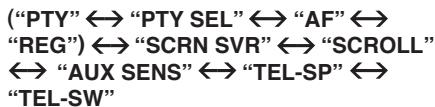
* Some of the items will have ENT indicator light on, the [▶II] button must be pressed to display the setting value.
- Turn the [ROTARY] knob to select the "desired setting value".
* After completing settings, press the [D] button to return to the previous mode.
Notes:
- Items in bracket (PTY, PTY SEL, AF and REG) are called RDS mode adjustment. It will only available for selection during Radio mode.
- "PTY-SEL" only available when "PTY ON".
- "REG" only available when "AF ON".
● PTY
This function enables you to listen to a broadcast of the selected programme type even if the unit is on a Function mode other than radio.
* Some countries do not yet have PTY broadcast.
* In the TA standby mode, a TP station has priority over a PTY broadcast station.
* The factory default setting is "OFF".
2-1. Select "PTY".
3-1. Turn the [ROTARY] knob to select "ON" or "OFF".
• ON:
“PTY” in the display lights and PTY Standby mode is turned on. When the selected PTY broadcast starts, the PTY item name appears in the display.
• OFF:
"PTY" in the display goes off and PTY Standby mode is cancelled.
- Cancelling a PTY interrupt broadcast
Press the [SRC] button during the PTY interrupt broadcast, the PTY interrupt is cancelled and the unit returns to PTY Standby mode.
- Selecting PTY
2-1. Select "PTY SEL".
2-2. Press the [▶III] button.
3-1. Turn the [ROTARY] knob to select the desired PTY.
There are 29 types of PTY below can be selected.
| PTY item | |
| ENGLISH | Contents |
| News | News |
| Affairs | Today's events |
| Info | Information |
| Sport | Sports |
| Educate | Education |
| Drama | Drama |
| Culture | Culture |
| Science | Science |
| Varied | Variety |
| Pop M | Pop music |
| Rock M | Rock music |
| Easy M | Easy music |
| Light M | Light music |
| Classics | Classics |
| Other M | Other music |
| Weather | Weather |
| Finance | Finance |
| Children | For children |
| Social | Social |
| Religion | Religion |
| Phone In | Phone in |
| Travel | Travel |
| Leisure | Leisure |
| Jazz | Jazz |
| Country | Country |
| Nation M | Nation music |
| Oldies | Oldies |
| Folk M | Folk music |
| Document | Documentaries |
* The PTY Selection mode is cancelled automatically 7 seconds after a PTY is selected.
PTY seek
2-1. Select "PTY SEL".
2-2. Press the [▶ III] button.
3-1. Press the [▶▶] button to search for a PTY broadcast in the direction of higher frequencies; press the [◀◀] button to search in the direction of lower frequencies.
* If no station with the selected PTY broadcast can be received, the unit returns to the previous receiving station.
- AF function
The AF function switches to a different frequency on the same network in order to maintain optimum reception.
* The factory default setting is "ON".
2-1. Select "AF".
3-1. Turn the [ROTARY] knob to select "ON" or "OFF".
• ON:
"AF" in the display lights and AF function turns on.
• OFF:
"AF" in the display goes off and AF function turns off.
* If the reception of the current broadcast station deteriorates, “SEARCH” appears in the display and the radio searches for the same programme on another frequency.
● REG (Regional programme) function
When the REG function is ON, the optimum regional station can be received. When this function is OFF, if the regional station area switches as you drive, a regional station for that region is received.
* The factory default setting is "OFF".
Notes:
- This function is disabled when a national station such as BBC R2 is being received.
- The REG function ON/OFF setting is valid when the AF function is ON.
2-1. Select "REG".
3-1. Turn the [ROTARY] knob to select "ON" or "OFF".
• ON:
“REG” in the display lights and REG function turns on.
• OFF:
"REG" in the display goes off and REG function turns off.
Manually tuning a regional station in the same network
- This function is valid when the AF function is ON and the REG function is OFF.
Note:
- This function can be used when a regional broadcast of the same network is received.
-
Press any one of the [DIRECT] buttons to call out the regional station.
-
If the reception condition of the called out station is bad, press the [DIRECT] button of the same number. The unit receives a local station on the same network.
● Turning the screen saver function on or off
This unit is provided with the screen saver function which allows you to show screen saver in the operation status indication area of the display. You can turn on and off this function.
If the button operation is performed with the screen saver function on, the operation display corresponding to the button operation is shown for about 30 seconds and the display returns to the screen saver display.
* The factory default setting is "ON".
2-1. Select "SCRN SVR".
3-1. Turn the [ROTARY] knob to select "ON" or "OFF".
• ON:
Screen saver is enabled.
• OFF:
Screen saver is disabled.
- Setting the method for title scroll
Set auto scroll function for MP3/WMA title.
* The factory default setting is "ON".
2-1. Select "SCROLL".
3-1. Turn the [ROTARY] knob to select "ON" or "OFF".
• ON:
To scroll automatically.
• OFF:
To scroll just 1 time when the title was changed.
- Selecting AUX IN sensitivity
Make the following settings to select the sensitivity when sounds from external devices connected to this unit are difficult to hear even after adjusting the volume.
* The factory default setting is "MID".
2-1. Select "AUX SENS".
3-1. Turn the [ROTARY] knob to select "LOW", "MID" or "HIGH".
Note:
- For telephone interrupt, AUX SENS is always "MID".
- Setting the car speaker output for the cellular phone
* The factory default setting is "RIGHT".
* To output the telephone calls, set the cellular phone interrupt to ON.
2-1. Select "TEL-SP".
3-1. Turn the [ROTARY] knob to select "RIGHT" or "LEFT".
- "RIGHT"
Telephone calls can be heard on the front right speaker connected to this unit.
- "LEFT"
Telephone calls can be heard on the front left speaker connected to this unit.
● Cellular phone interrupt setting
If you connect this unit and your cellular phone with a separately sold unit, you can listen to your telephone calls on your car speakers.
* The factory default setting is "OFF".
2-1. Select "TEL-SW".
3-1. Turn the [ROTARY] knob to select the setting.
Each time you turn the [ROTARY] knob, the setting changes in the following order:
OFF ↔ ON ↔ MUTE.
- OFF:
This unit continues normal operation even when the cellular phone is used.
• ON:
You can listen to your telephone calls from the speakers connected to this unit.
- MUTE:
The sound from this unit is muted during telephone calls.
Notes:
- This unit requires hands-free kit that supports [AUX] input as a source of cellular phone audio input. Please consult your local authorized Clarion dealer for more information on the handsfree kit offered.
- If connecting a hands-free kit, please ensure the setting is ON to receive the telephone audio through the system.
- When listening to your calls on your car speakers, you can adjust the volume by turning the [ROTARY] knob, it will be memorized as new telephone volume.
- The factory default setting for this volume is "VOL 15".
- This unit requires special wiring to mute the audio signal automatically when a cellular telephone rings in the car.
- This function is not compatible with all cellular telephones. Please contact your local authorized Clarion dealer for information on proper installation and compatibility.
7. TROUBLESHOOTING
| Problem | Cause | Measure | |
| General | Power does not turn on. (No sound is produced) | Fuse is blown. | Replace with a fuse of the same amperage. If the fuse blows again, consult your store of purchase. |
| Incorrect wiring. | Consult your store of purchase. | ||
| No sound output when operating the unit with amplifiers or power antenna attached. | Power antenna lead is shorted to ground or excessive current is required for remote-on the amplifiers or power antenna. | 1. Turn the unit off.2. Remove all wires attached to the power antenna lead. Check each wire for a possible short to ground using an ohm meter.3. Turn the unit back on.4. Reconnect each amplifier remote wire to the power antenna lead one by one. If the amplifiers turn off before all wires are attached, use an external relay to provide remote-on voltage (excessive current required). | |
| Nothing happens when button are pressed. Display is not accurate. | The microprocessor has malfunctioned due to noise, etc. | Turn off the power, then press the [RELEASE] button and remove the DCP.Press the reset button for about 2 seconds with a thin rod.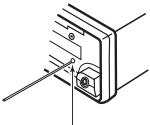 Reset button Reset button | |
| DCP or main unit connectors are dirty. | Wipe the dirt off with a soft cloth moistened with cleaning alcohol. | ||
| No sound heard. | The speaker protection circuit is operating. | 1. Turn down sound volume. Function can also be restored by turning the power off and on again. (Speaker volume is reduced automatically when the speaker protection circuit operates).2. If the sound is muted again, consult our service department. | |
| CD/MP3/WMA | No sound heard. | MP3/WMA files are absent in a disc. | Write MP3/WMA files onto the disc properly. |
| Files are not recognized as an MP3/WMA file. | Use MP3/WMA files encoded properly. | ||
| File system is not correct. | Use ISO9660 level 1, 2 or JOLIET or Romeo file system. | ||
| Sound skips or is noisy. | Disc is dirty. | Clean the disc with a soft cloth. | |
| Disc is heavily scratched or warped. | Replace with a disc with no scratches. | ||
| Sound is cut or skipped. Noise is generated or noise is mixed with sound. | MP3/WMA files are not encoded properly. | Use MP3/WMA files encoded properly. | |
| Sound is bad directly after power is turned on. | Water droplets may form on the internal lens when the car is parked in a humid place. | Let dry for about 1 hour with the power on. | |
| Wrong filename. | File system is not correct. | Use ISO9660 level 1, 2 or JOLIET or Romeo file system. |
8. ERROR DISPLAYS
| Error Display | Cause | Measure | |
| CD/MP3/WMA | ERROR 2 | A DISC is caught inside the CD deck and is not ejected. | This is a failure of CD deck's mechanism and consult your store of purchase. |
| ERROR 3 | A DISC cannot be played due to scratches,etc. | Replace with a non-scratched, non-warped-disc. | |
| ERROR 6 | A DISC is loaded upside-down inside the CD deck and does not play. | Eject the disc then reload it properly. |
9. SPECIFICATIONS
FM tuner
Frequency Range: 87.5 MHz to 108 MHz
Usable Sensitivity: 11 dBf
50 dB Quieting Sensitivity: 17 dBf
Alternate Channel Selectivity: 75 dB
Stereo Separation (1 kHz): 35 dB
Frequency Response ( ±3 dB): 30 Hz to 15 kHz
AM tuner
Frequency Range:
MW 531 kHz to 1602 kHz
LW 153 kHz to 279 kHz
Usable Sensitivity: 25 μV
CD player
System: Compact disc audio system
Usable Discs: Compact disc
Frequency Response: 10 Hz to 20 kHz ( ± 3 dB)
Signal-to-Noise Ratio: 85 dB (1 kHz) IHF-A
Dynamic Range: 87 dB (1 kHz)
Harmonic Distortion: 0.01%
Audio
Maximum Power Output: 200 W (50 W X 4 ch)
Power Output: 4 X 25 W (DIN 45324, +B=14.4 V)
Bass Control Action (100 Hz): ±14 dB
Treble Control Action (10 kHz): ±14 dB
Line Output (with A/C 1 kHz, 10 kΩ): 1.8 V
General
Power Supply Voltage:
14.4 V DC (10.8 V to 15.6 V allowable), negative ground
Current Consumption: Less than 15 A
Speaker Impedance: 4 Ω (4 Ω to 8 Ω allowable)
Weight: 2.42 lb. (1.1 kg)
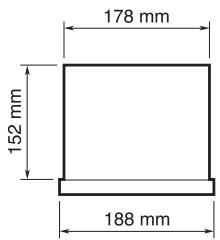
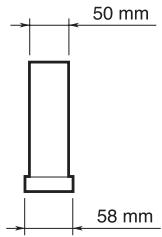
Dimensions:
178 mm Width X 50 mm Height X 152 mm
Depth
Notes:
- Specifications comply with JEITA Standards.
- Specifications and design are subject to change without notice for further improvement.
- Please make sure when connecting external power amplifier, that you properly, to the car chassis, ground the amplifier.
- If this is not done, severe damage to the source unit may happen.
clarion
CE DECLARATION OF CONFORMITY
we Clarion Europa GmbH
(supplier's name)
Hessenring 19-21, 64546 Mörfelden-Walldorf, GERMANY
(address)
declare under our sole responsibility that the product
CAR RADIO with CD PLAYER
MODEL: DB178RMP, DB179RMP, DB179RGMP
Product code:PE2934,PE2935 (differ:trim & illumination)
TYPE: 1042998
(name, type or model, possibly sources and numbers of items)
to which this declaration relates is in conformity with the following
standard(s) or other normative document(s)
EN 55013:2001 + A1, EN 55020:2002 + A1,
(title and/or number and date of issue of the standard(s) or other normative document(s))
(if applicable) following the provisions of _89/336/EEC_ Directive.
And following the provisions of 2004/104/EC Directive,
according to paragraph 3.2.9 of Annex I,
meets the limits defined in paragraph 6.5, 6.6, 6.8 and 6.9 of Annex I
(supplier's comment)
Susan Yauhawz
Mörfelden-Walldorf GERMANY
9 JAN 2007
(Place and date of issue)
Susumu Yamakawa
President
(name and signature or equivalent
marking of authorized person)
RefNo 07RCJA001M3 D.F.DQC06A192,172
clarion
TEL :+49-6105-977-0
FAX :+49-6105-977-399