
Deco XE70 Pro - Network TP-LINK - Free user manual and instructions
Find the device manual for free Deco XE70 Pro TP-LINK in PDF.


| Product Type | Whole Home Mesh Wi-Fi 6E System |
| Model | Deco XE70 Pro |
| Wireless Standard | AXE4900 (Wi-Fi 6E, Tri-Band) |
| Frequency Bands | 2.4 GHz, 5 GHz, 6 GHz |
| Ethernet Ports | 1× 2.5 Gigabit Port + 2× Gigabit Ports per unit |
| LED Indicator | Multi-color LED (pulse/solid for status) |
| Power Supply | 12V DC, 2A (adapter included) |
| Operating Temperature | 0°C to 40°C (32°F to 104°F) |
| Dimensions (per unit) | Approx. 110 × 110 × 38 mm |
| Weight (per unit) | Approx. 180 g |
| Mesh Technology | Whole home mesh with seamless roaming (802.11k/v/r) |
| Setup | Via TP-Link Deco app (iOS/Android) |
| Security | WPA3, SPI firewall, IoT network support |
| Parental Controls | Via Deco app: profiles, content filtering, time limits |
| Compatibility | Wi-Fi 6E clients; backward compatible with Wi-Fi 6/5/4 |
| Reset Button | Press for 1 second to factory reset |
| Certifications | FCC, ISED, CE, RoHS |
| Warranty | Limited hardware warranty (check TP-Link website) |
Frequently Asked Questions - Deco XE70 Pro TP-LINK
User questions about Deco XE70 Pro TP-LINK
0 question about this device. Answer the ones you know or ask your own.
Ask a new question about this device
Download the instructions for your Network in PDF format for free! Find your manual Deco XE70 Pro - TP-LINK and take your electronic device back in hand. On this page are published all the documents necessary for the use of your device. Deco XE70 Pro by TP-LINK.
USER MANUAL Deco XE70 Pro TP-LINK
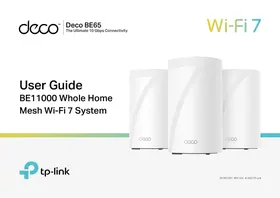
natural_image
Three white circular devices labeled 'deco 6E' on a blue background, no additional text or symbols visible.
tp-link
1910013602 RFV3.6.0 ©2024 TP-Link
Contents
About This Guide 1
Appearance 2
Set Up Your Deco 3
Troubleshooting 7
Authentication 8
About This Guide
This guide provides a brief introduction to AXE4900 Whole Home Mesh Wi-Fi 6E System and regulatory information.
Features available in Deco may vary by model and software version. Deco availability may also vary by region or ISP. All images, steps, and descriptions in this guide are only examples and may not reflect your actual Deco experience.
Conventions
In this guide, the following conventions are used:
| Convention | Description |
| Deco | Stands for Deco Whole Home Mesh Wi-Fi System/Unit. |
| Underline | Hyperlinks are in teal and underlined. You can click to redirect to a website or a specific section. |
| Teal | Key information appears in teal, including management page text such as menus, items, buttons and so on. |
| Note: | Ignoring this type of note might result in a malfunction or damage to the device. |
| Tips: | Indicates important information that helps you make better use of your device. |
More Info
- Specific product information can be found on the product page at https://www.tp-link.com.
- A Technical Community is provided for you to discuss our products at https://community.tp-link.com.
- Our Technical Support contact information can be found at the Help center of the Deco app and the Contact Technical Support page at https://www.tp-link.com/support.
Speed/Coverage/Device Quantity Disclaimer
Maximum wireless signal rates are the physical rates derived from IEEE Standard 802.11 specifications. Actual wireless data throughput and wireless coverage, and quantity of connected devices are not guaranteed and will vary as a result of network conditions, client limitations, and environmental factors, including building materials, obstacles, volume and density of traffic, and client location.
MU-MIMO Disclaimer
Use of MU-MIMO requires clients to also support MU-MIMO.
IoT Compatibility Disclaimer
IoT compatibility refers only to smart devices that can be controlled via the Deco app. Other wireless devices can still connect to Deco for normal Wi-Fi use.
Seamless Roaming Disclaimer
Clients need to support 802.11 k/v/r and may require additional set up. Performance may vary depending on the client device.
Appearance
Each Deco has an LED that changes color according to its status, three RJ-45 Ethernet ports, a power slot, and a Reset button.
See the explanation below:
Tip: The product label can be found at the bottom of the product.

1 Gigabit Ethernet Port:
For connecting Deco to your modem, the Ethernet outlet, or for other internet services.
2.5 Gigabit Ethernet Port:
For connecting Deco to your modem, the Ethernet outlet, or for other internet services.
Power Slot:
For connecting Deco to the power socket via the provided power adapter.
Reset Button:
Press for 1 second and release to reset Deco to factory default settings. The light changing from pulsing yellow to solid yellow indicates a successful reset.
Set Up Your Deco
First let's start by setting up the Deco network. Get the TP-Link Deco app for iOS or Android, then follow the app to walk through the setup.
1. Get the Deco app
Scan the QR code below or go to Google Play or the App Store to download the Deco app. Install the app on your Android or iOS smartphone or tablet.

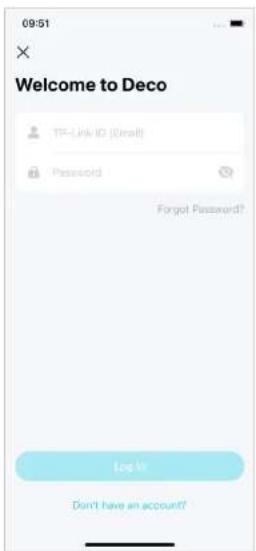
2. Log in or sign up with TP-Link ID
Open the app and log in with your TP-Link ID. If you don't have a TP-Link ID, create one first.
Note: If you forgot your login password, tap Forgot Password? The app will help you reset your password.
3. Select your Deco model
Search for and select your Deco model. If you have more than one Deco model, tap the question below the search box to check how to maximize the overall network.

4. Scan your Deco's product label
Scan the QR code on the product label at the bottom of your Deco for a quicker setup. You can also set it up manually.

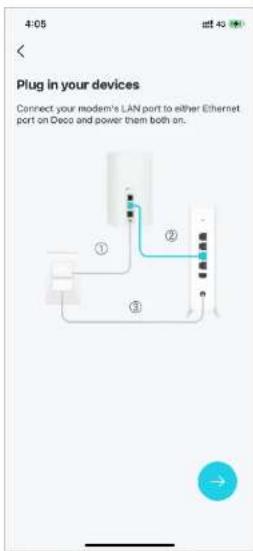
5. Plug in your Deco
Power off your modem. Connect your Deco to the modem and power them both on.
If you don't have a modem, connect your Deco directly to the Ethernet outlet.
6. Wait until Deco's LED pulses blue
Wait until your Deco's LED pulses blue, then your phone/tablet will connect to the Deco's default Wi-Fi automatically.

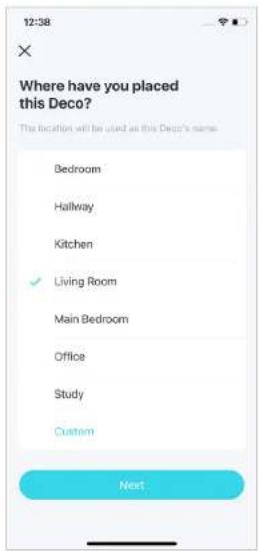
7. Specify your Deco's location
Select or custom a location for your Deco. The location will be used as the name of your Deco.
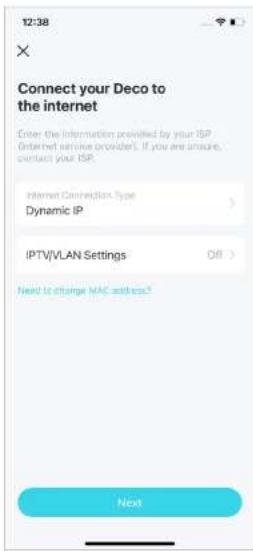
8. Connect your Deco to the internet
Select the internet connection type and enter the information. If you are not sure, contact your internet service provider.
9. Create your Wi-Fi network
Set a network name and a password. These will be the name and password you use to connect your devices to Wi-Fi.

10. Create your 6GHz Wi-Fi network
Set a network name and a password. These will be the name and password you use to connect your devices to the 6GHz Wi-Fi.

11. Connect to your Wi-Fi network
Connect your phone/tablet to the Deco's Wi-Fi.

12. Setup complete
Your Deco network is now up. You can connect your devices to the Deco network. Plug in the other included Decos, and they will automatically join the network within 2 minutes.

Troubleshooting
Solutions to common problems during setup or use are provided here for reference. Follow the steps and the provided link below to diagnose and solve problems you might experience with your Deco.
If problems still exist, contact us: https://www.tp-link.com/support
Q1. What should I do if I fail to configure the main Deco and get stuck on "We couldn't find Deco"?
Refer to the guide https://www.tp-link.com/support/faq/2239/ or follow the video https://youtu.be/2HYuEYS9XJM
Q2. What should I do if I fail to configure the satellite Deco and get stuck on "We couldn't find another Deco"?
Refer to the guide https://www.tp-link.com/support/faq/1447/ or follow the video https://youtu.be/iVgDzoo16T4
Q3. What should I do if I fail to configure the main Deco and get stuck on "Testing Internet Connection"?
Refer to the guide https://www.tp-link.com/support/faq/2239/
Refer to the video https://youtu.be/OSUrGdWH-i0
Q4. What should I do if my wireless devices cannot connect to Deco?
Refer to the guide https://www.tp-link.com/support/faq/2718/
Q5. What should I do if Deco suddenly lost internet access?
Refer to the guide https://www.tp-link.com/support/faq/2428/
Q6. How can I find a suitable spot for my Deco?
Refer to the guide https://www.tp-link.com//support/faq/1446/
Q7. What can I do if the Deco app isn't working properly?
Refer to the guide https://www.tp-link.com/support/faq/1456/
Authentication
FCC Compliance Information Statement

Product Name: AXE4900 Whole Home Mesh Wi-Fi 6E System
Model Number: Deco XE70 Pro
| Component Name Model | |
| I.T.E Power Supply | T120200-2B4 |
Responsible party:
TP-Link USA Corporation
Address: 10 Mauchly, Irvine, CA 92618
Website: http://www.tp-link.com/us/
Tel: +1 626 333 0234
This equipment has been tested and found to comply with the limits for a Class B digital device, pursuant to part 15 of the FCC Rules. These limits are designed to provide reasonable protection against harmful interference in a residential installation. This equipment generates, uses and can radiate radio frequency energy and, if not installed and used in accordance with the instructions, may cause harmful interference to radio communications. However, there is no guarantee that interference will not occur in a particular installation. If this equipment does cause harmful interference to radio or television reception, which can be determined by turning the equipment off and on, the user is encouraged to try to correct the interference by one or more of the following measures:
- Reorient or relocate the receiving antenna.
- Increase the separation between the equipment and receiver.
- Connect the equipment into an outlet on a circuit different from that to which the receiver is connected.
- Consult the dealer or an experienced radio/ TV technician for help.
This device complies with part 15 of the FCC Rules. Operation is subject to the following two conditions:
- This device may not cause harmful interference.
- This device must accept any interference received, including interference that may cause undesired operation.
Any changes or modifications not expressly approved by the party responsible for compliance could void the user's authority to operate the equipment.
Note: The manufacturer is not responsible for any radio or TV interference caused by unauthorized modifications to this equipment. Such modifications could void the user's authority to operate the equipment.
FCC RF Radiation Exposure Statement
This equipment complies with FCC RF radiation exposure limits set forth for an uncontrolled environment. This device and its antenna must not be co-located or operating in conjunction with any other antenna or transmitter.
To comply with FCC RF exposure compliance requirements, this grant is applicable to only Mobile Configurations. The antennas used for this transmitter must be installed to provide a separation distance of at least 20 cm from all persons and must not be co-located or operating in conjunction with any other antenna or transmitter.
FCC regulations restrict operation of this device to indoor use only. The operation of this device is prohibited on oil platforms, cars, trains, boats, and aircraft, except that operation of this device is permitted in large aircraft while flying above 10000 feet. Operation of transmitters in the 5.925-6.425GHz band is prohibited for control of or communications with unmanned aircraft systems.
We, TP-Link USA Corporation, has determined that the equipment shown as above has been shown to comply with the applicable technical standards, FCC part 15. There is no unauthorized change is made in the equipment and the equipment is properly maintained and operated.
Issue Date: 2024-01-25
FCC Compliance Information Statement

Product Name: I.T.E POWER SUPPLY
Model Number: T120200-2B4
Responsible party:
TP-Link USA Corporation
Address: 10 Mauchly, Irvine, CA 92618
Website: http://www.tp-link.com/us/
Tel: +1 626 333 0234
This equipment has been tested and found to comply with the limits for a Class B digital device, pursuant to part 15 of the FCC Rules. These limits are designed to provide reasonable protection against harmful interference in a residential installation. This equipment generates, uses and can radiate radio frequency energy and, if not installed and used in accordance with the instructions, may cause harmful interference to radio communications. However, there is no guarantee that interference will not occur in a particular installation. If this equipment does cause harmful interference to radio or television reception, which can be determined by turning the equipment off and on, the user is encouraged to try to correct the interference by one or more of the following measures:
- Reorient or relocate the receiving antenna.
- Increase the separation between the equipment and receiver.
- Connect the equipment into an outlet on a circuit different from that to which the receiver is connected.
- Consult the dealer or an experienced radio/ TV technician for help.
This device complies with part 15 of the FCC Rules. Operation is subject to the following two conditions:
- This device may not cause harmful interference.
- This device must accept any interference received, including interference that may cause undesired operation.
Any changes or modifications not expressly approved by the party responsible for compliance could void the user's authority to operate the equipment.
We, TP-Link USA Corporation, has determined that the equipment shown as above has been shown to comply with the applicable technical standards, FCC part 15. There is no unauthorized change is made in the equipment and the equipment is properly maintained and operated.
Issue Date: 2024-01-25
Canadian Compliance Statement
This device complies with Industry Canada license-exempt RSS standard(s). Operation is subject to the following two conditions:
- This device may not cause interference.
- This device must accept any interference, including interference that may cause undesired operation of the device.
The device for operation in the band 5150–5250 MHz is only for indoor use to reduce the potential for harmful interference to co-channel mobile satellite systems;
DFS (Dynamic Frequency Selection) products that operate in the bands 5250-5350 MHz.
Avertissement:
Radiation Exposure Statement:
This equipment complies with IC radiation exposure limits set forth for an uncontrolled environment. This equipment should be installed and operated with minimum distance 20cm between the radiator & your body.
ISED regulations restrict operation of this device to indoor use only. The operation of this device is prohibited on oil platforms, cars, trains, boats, and aircraft, except that operation of this device is permitted in large aircraft while flying above 10000 feet. Operation of transmitters in the 5.925-7.125 GHz band is prohibited for control of or communications with unmanned aircraft systems.
Industry Canada Statement
CAN ICES-3 (B)/NMB-3(B)

Korea Warning Statements:
Note 1: "Exceeding 0.1 wt %" and "exceeding 0.01 wt %" indicate that the percentage content of the restricted substance exceeds the reference percentage value of presence condition.
Note 2: "○" indicates that the percentage content of the restricted substance does not exceed the percentage of reference value of presence. 備考3. “一”系指該項限用物質為排除項目。
Note 3: The " - " indicates that the restricted substance corresponds to the exemption.

- Keep the device away from water, fire, humidity or hot environments.
- Do not attempt to disassemble, repair, or modify the device. If you need service, please contact us.
- Do not use damaged charger or USB cable to charge the device.
- Do not use any other chargers than those recommended.
- Do not use the device where wireless devices are not allowed.
- Adapter shall be installed near the equipment and shall be easily accessible.
- Use only power supplies which are provided by manufacturer and in the original packing of this product. If you have any questions, please don't hesitate to contact us.
- Operating Temperature: 0^ 40^ (32°F\~104°F)
- This product uses radios and other components that emit electromagnetic fields. Electromagnetic fields and magnets may interfere with pacemakers and other implanted medical devices. Always keep the product and its power adapter more than 15 cm (6 inches) away from any pacemakers or other implanted medical devices. If you suspect your product is interfering with your pacemaker or any other implanted medical device, turn off your product and consult your physician for information specific to your medical device.
Please read and follow the above safety information when operating the device. We cannot guarantee that no accidents or damage will occur due to improper use of the device. Please use this product with care and operate at your own risk.
Explanation of the symbols on the product label
Symbols may vary from products.
Note: The product label can be found at the bottom of the product and its I.T.E. power supply.
| Symbol Explanation | |
| Class II equipment | |
| Class II equipment with functional earthing | |
| ~ | Alternating current |
| --- | DC voltage |
| Polarity of output terminals | |
| Indoor use only | |
| Dangerous voltage | |
| Caution, risk of electric shock | |
| VI | Energy efficiency Marking |
| Protective earth | |
| Earth | |
| Frame or chassis | |
| Functional earthing | |
| Caution, hot surface | |
| Caution | |
| Operator's manual | |
| Stand-by | |
| "ON"/"OFF" (push-push) | |
| Fuse | |
| Fuse is used in neutral N | |
 | RECYCLINGThis product bears the selective sorting symbol for Waste electrical and electronic equipment (WEEE). This means that this product must be handled pursuant to European directive 2012/19/EU in order to be recycled or dismantled to minimize its impact on the environment.User has the choice to give his product to a competent recycling organization or to the retailer when he buys a new electrical or electronic equipment. |
 | Caution, avoid listening at high volume levels for long periods |
| [247C] | Disconnection, all power plugs |
| m Switch of mini-gap construction | |
| μ | Switch of micro-gap construction (for US version)Switch of micro-gap / micro-disconnection construction (for other versions except US) |
| ε Switch without contact gap (Semiconductor switching device) | |
- Contents
- About This Guide
- Conventions
- More Info
- Speed/Coverage/Device Quantity Disclaimer
- MU-MIMO Disclaimer
- IoT Compatibility Disclaimer
- Seamless Roaming Disclaimer
- Appearance
- Gigabit Ethernet Port:
- Gigabit Ethernet Port:
- Reset Button:
- Set Up Your Deco
- Get the Deco app
- Log in or sign up with TP-Link ID
- Select your Deco model
- Scan your Deco's product label
- Plug in your Deco
- Wait until Deco's LED pulses blue
- Specify your Deco's location
- Connect your Deco to the internet
- Create your Wi-Fi network
- Create your 6GHz Wi-Fi network
- Connect to your Wi-Fi network
- Setup complete
- Troubleshooting
- Authentication
- Responsible party:
- TP-Link USA Corporation
- FCC RF Radiation Exposure Statement
- Canadian Compliance Statement
- Avertissement:
- Radiation Exposure Statement:
- Industry Canada Statement
- Korea Warning Statements:
- Explanation of the symbols on the product label
Brand : TP-LINK
Model : Deco XE70 Pro
Category : Network