Plasma Pro 600S-P - Humidifier Levoit - Free user manual and instructions
Find the device manual for free Plasma Pro 600S-P Levoit in PDF.


| Product Type | Ultrasonic Cool Mist Humidifier with Plasma Sterilization |
| Model | Plasma Pro 600S-P |
| Brand | Levoit |
| Voltage | 120V (US) / 220-240V (EU) (check manual for region) |
| Power Consumption | 25W |
| Water Tank Capacity | 6 Liters (1.6 gallons) |
| Mist Output | Up to 500 ml/h |
| Coverage Area | Up to 753 sq ft (70 m²) |
| Noise Level | ≤ 28 dB (on low setting) |
| Dimensions (L x W x H) | 9.8 x 7.5 x 13.4 inches (25 x 19 x 34 cm) |
| Weight | 4.4 lbs (2.0 kg) |
| Mist Settings | Adjustable from low to high |
| Humidity Control | Built-in humidistat with auto mode (set desired RH) |
| Auto Shut-Off | When water tank is empty |
| Additional Features | Plasma ion generator for sterilization, remote control, sleep mode, nightlight |
| Filter Type | No replaceable filter (ultrasonic); includes demineralization cartridge (optional) |
| Water Type Recommended | Distilled or demineralized water to reduce white dust |
| Cleaning Instructions | Clean tank and transducer weekly with vinegar solution; descale monthly |
| Safety Certifications | ETL listed, CE, RoHS |
| Warranty | 2-year limited warranty |
Frequently Asked Questions - Plasma Pro 600S-P Levoit
User questions about Plasma Pro 600S-P Levoit
0 question about this device. Answer the ones you know or ask your own.
Ask a new question about this device
Download the instructions for your Humidifier in PDF format for free! Find your manual Plasma Pro 600S-P - Levoit and take your electronic device back in hand. On this page are published all the documents necessary for the use of your device. Plasma Pro 600S-P by Levoit.
USER MANUAL Plasma Pro 600S-P Levoit
natural_image
White Lévoit smart speaker with ventilation grille and control buttons (no readable text beyond brand name)Table of Contents
Package Contents 2
Specifications 2
Safety Information 3
Getting to Know Your 6
Smart Humidifier
Controls & Indicators 8
Getting Started 10
VeSync App Setup 12
Using Your 12
Smart Humidifier
Using Your Sensor 13
VeSync App Functions 15
Care & Maintenance 16
Troubleshooting 21
Warranty Information 25
Customer Support 27
Package Contents
1 x Smart Evaporative Humidifier
1 x Wick Filter (Pre-Installed)
1 x Air Filter (Pre-Installed)
1 x Humidity Sensor
1 x AC Power Adapter
1 x User Manual
1 x Quick Start Guide
Note: To access additional smart humidifier functions, download the free VeSync app (see page 12).
Specifications
| Model Smart HumidifierLEH-B381S-WNASensorLSR-B0201EH-WNA | |
| Power Supply 24V | 1.5A |
| Rated Power 19W | |
| Water Tank Capacity | 1 gal / 3.8 L |
| Max Mist Output | 280 mL/h ±15% |
| Max Runtime Sleep Mode Fan Speed:Up to 36 hrLow Fan Speed:Up to 24 hrHigh Fan Speed:Up to 11 hrNote:The humidifier may run for a longer or shorter time depending on the environmental temperature and humidity. | |
| Noise Level* Sleep | Fan Mode: < 26dBLow Fan Mode: < 30dBHigh Fan Mode: < 45dB*Noise test conditions:4.9 ft / 1.5 m away from humidifier. |
| Effective Range 219 ft ^2 / 20 m ^2 | |
| Dimensions 9.3 x 9.3 x 14.8 in23.6 x 23.6 x 37.7 cm | |
| Weight 6 lb / 2.73 kg | |
| Noise Level 22-50dB | |
| Power Adapter Input: 100-240V~50/60Hz, 1.0A MaxOutput: 24V= 1.5A | |
READ AND SAVE THESE INSTRUCTIONS
Safety Information
To reduce the risk of fire, electric shock, or other injury, follow all instructions and safety guidelines.
GENERAL SAFETY
- Only use your humidifier as described in this manual.
- Do not use without removing the plastic wrap from the air filter in the bottom of the humidifier. If the humidifier cannot intake air, it will result in the inability to humidify.
- Do not use your humidifier outdoors.
- Do not use your humidifier outdoors.
- Keep your humidifier away from water, and wet or damp areas. Never place in water or liquid.
- Do not use in excessively humid areas.
- Keep your humidifier away from heat sources.
- Do not use where combustible gases, vapors, metallic dust, aerosol (spray) products, or fumes from industrial oil are present.
- Keep 5 ft / 1.5 m away from where oxygen is being administered.
- Children should be supervised to ensure that they do not play with the humidifier.
- Do not allow children to play with the plastic packaging. Immediately discard the plastic after unwrapping the wick and air filters.
- Do not place anything into any opening on the humidifier.
-
Children should be supervised to ensure they do not insert fingers or objects into the vent openings.
-
Do not sit or place heavy objects on the humidifier.
- Do not add essential oils, supplemental water treatment liquids, or water filters into the water tank. This will damage the humidifier and cause leaks.
• Always unplug your humidifier before servicing (such as changing the filter). - Do not use your humidifier if it is damaged or not working correctly, or if the cord or plug is damaged. Do not try to repair it yourself. Contact Customer Support (see page 27).
- WARNING: To reduce the risk of fire or electric shock, do not use this humidifier with any solid-state speed controls (such as a dimmer switch).
- Children should not clean or perform maintenance on the humidifier without supervision.
- This humidifier is not to be used by persons (including children) with reduced physical, sensory, or mental capacities, or lack of experience and knowledge, unless they have been given supervision or instruction concerning the use of the appliance by a person responsible for their safety.
- Not for commercial use. Household use only.
Safety Information (cont.)
POWER ADAPTER & CORD
- Keep the humidifier near the outlet it is plugged into.
- Your humidifier's adapter has a polarized plug (one prong is wider than the other), which fits into a polarized outlet only one way. This is a safety feature to reduce the risk of electric shock. If the plug does not fit, reverse the plug. If it still does not fit, do not use the plug in that outlet. Do not bypass this safety feature.
- Never place the adapter near any heat source.
- Do not handle the power adapter or plug with wet hands. Keep the plug and power adapter away from liquids.
- Do not cover the cord with a rug, carpet, or other covering. Do not place the cord under furniture or appliances.
- Keep the cord out of areas where people walk often. Place the cord where it will not be tripped over.
- This humidifier is only to be used with the power supply adapter provided with the humidifier.
- If the power adapter is damaged, it must be replaced by Arovast Corporation or similarly qualified persons in order to avoid an electric or fire hazard. Please contact Customer Support (see page 27).
- This humidifier's power adapter uses standard North American 120V, 60Hz outlets. If using outside the US or Canada, check for compatibility.
- Unplugging the power adapter will temporarily disconnect the humidifier from VeSync and other third-party apps.
ELECTROMAGNETIC FIELDS (EMF)
This humidifier complies with all standards regarding electromagnetic fields (EMF). If handled properly and according to the instructions in this user manual, the appliance is safe to use based on scientific evidence available today.


natural_image
Black circular icon with white human and child silhouettes, no text or symbols presentWARNING
INGESTION HAZARD:
This product contains a button cell or coin battery.
WARNING: CHEMICAL BURN HAZARD
- DEATH or serious injury can occur if ingested;
- A swallowed button cell or coin battery can cause Internal Chemical Burns in as little as 2 hours;
- KEEP new and used batteries OUT OF REACH of CHILDREN;
- Seek immediate medical attention if a battery is suspected to be swallowed or inserted inside any part of the body;
- Remove and immediately recycle or dispose of used batteries according to local regulations and keep away from
Safety Information (cont.)
children. DO NOT dispose of batteries in household trash or incinerate;
- Even used batteries may cause severe injury or death;
- Call a local poison control center for treatment information;
- Only use with a 3V CR2025 battery;
• Non-rechargeable batteries are not to be recharged; - Do not force discharge, recharge, disassemble, heat above (manufacturer's specified temperature rating) or incinerate. Doing so may result in injury due to venting, leakage or explosion resulting in chemical burns;
- Ensure the batteries are installed correctly according to polarity (+ and -);
- Do not mix old and new batteries, different brands, or types of batteries, such as alkaline, carbon-zinc, or rechargeable batteries;
- Remove and immediately recycle or dispose of batteries from equipment not used for an extended period of time according to local regulations;
- Always completely secure the battery compartment. If the battery compartment does not close securely, stop using the product, remove the batteries, and keep them away from children;
- Place sticky tape around both sides of the battery and dispose of it immediately in an outdoor trashcan or recycle it safely;
- Store spare batteries securely;
• Empty recycling units on a regular basis;
- Use non-transparent containers to keep the batteries out of view.
Unfortunately, it is not obvious when a button or coin battery is stuck in a child's esophagus (food pipe). The child might:
- Cough, gag, or drool a lot;
• Appear to have a stomach upset or a virus; - Be sick;
- Point to their throat or stomach;
- Have pain in their abdomen, chest, or throat;
- Be tired or lethargic;
- Be quieter or more clingy than usual or otherwise "not themselves";
- Lose their appetite or have a reduced appetite;
- Not want to eat solid food / be unable to eat solid food.
These sorts of symptoms vary or fluctuate, with the pain increasing and then subsiding.
A specific symptom to button and coin battery ingestion is vomiting fresh (bright red) blood. If a child does this, seek immediate medical help.
The lack of clear symptoms is why it is important to be cautious with "flat" or spare button or coin batteries in the home and the products that contain them. Be aware that even used button or coin batteries may cause injury.
Call the National Battery Ingestion Hotline at 1-800-498-866 for treatment information.
SAVE THESE INSTRUCTIONS
Getting to Know Your Smart Humidifier
HUMIDIFIER
A. Tank Lid
B. Water Tank
C. Air Outlet Frame
D. Air Inlet Frame
E. Control Panel
F. Motor Frame
G. Night Light
H. Wick Filter
I. Wick Cover
J. Wick Frame
K. Floats
L. Air Filter
M. Power Adapter Input
N. Power Adapter
O. Humidity Sensor
0
text_image
levot 88.0% 88.0%N
E
natural_image
Pure electrical circuit lines without any symbols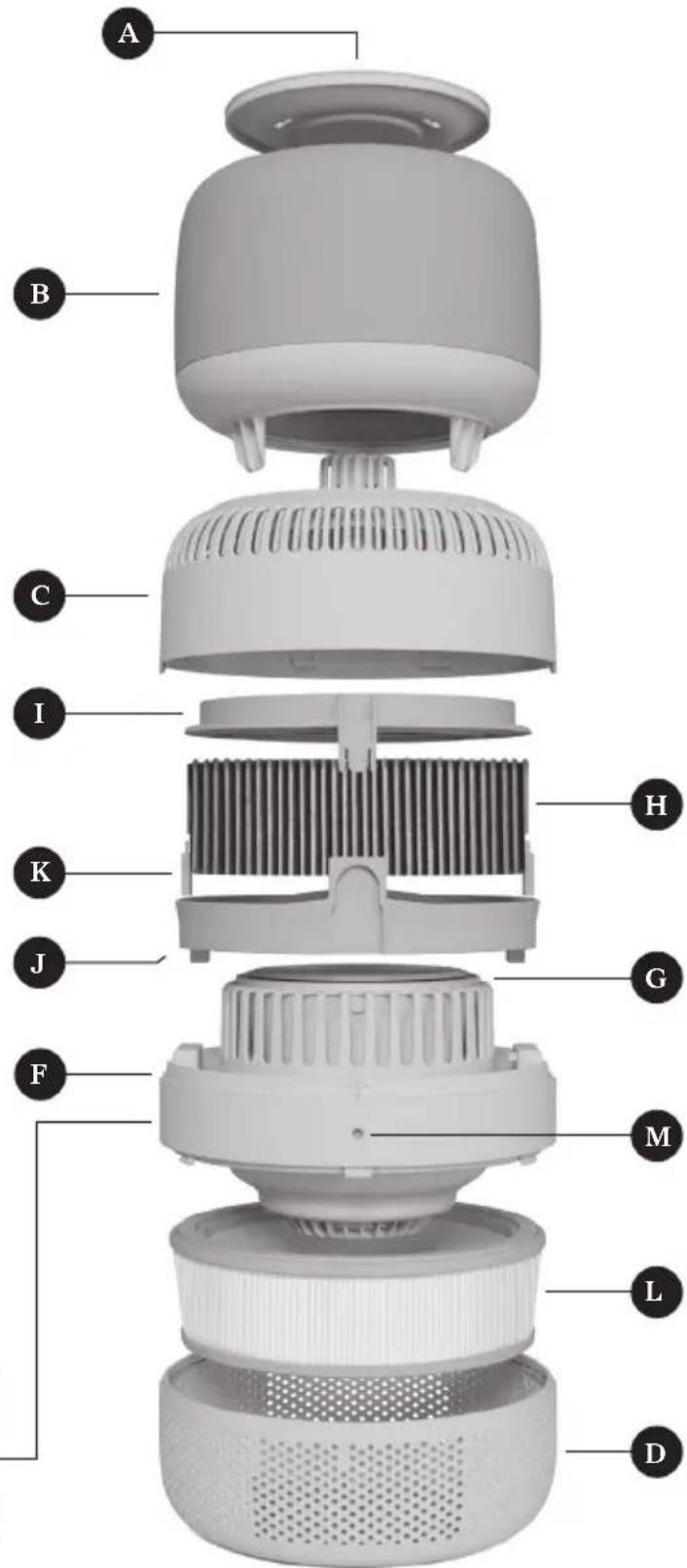
text_image
A B C I H K J G F M L DGetting to Know Your Smart Humidifier (cont.)
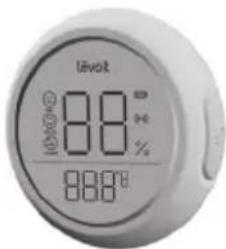
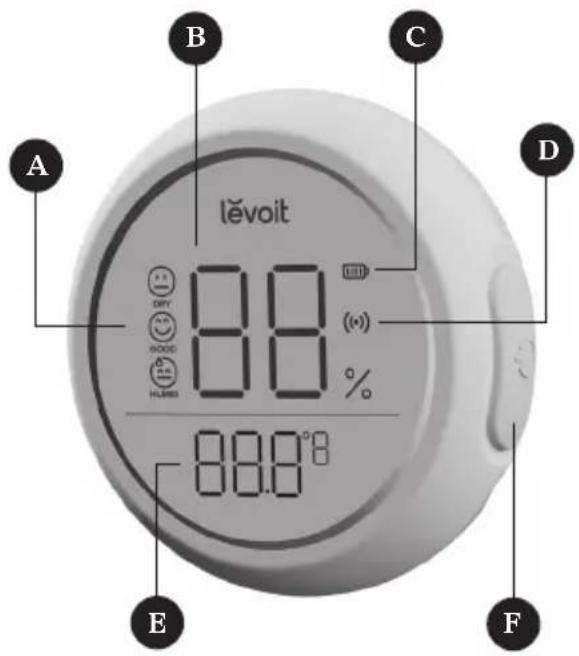
SENSOR
A. Humidity Comfort Level
B. Relative Humidity
C. Battery Level
D. Connectivity Signal
E. Temperature
F. Screen Backlight On/Off Button
text_image
A B C D lěvoit 88.0% 88.0° E FCONTROL PANEL
flowchart
graph TD
    A["A"] --> D["O"]
    B["B"] --> E["O"]
    C["C"] --> F["O"]
    H["H"] --> G["O"]
    G --> H
    G --> I["G"]
    I --> J["O"]
    D --> K["O"]
    E --> L["O"]
    F --> M["O"]
    G --> N["O"]
    K --> O["O"]
    L --> P["O"]
    M --> Q["O"]
    N --> R["O"]
    O --> S["O"]
    P --> T["O"]
    Q --> U["O"]
    R --> V["O"]
    S --> W["O"]
    T --> X["O"]
    U --> Y["O"]
    V --> Z["O"]
    W --> AA["O"]
    X --> AB["O"]
    Y --> AC["O"]
    Z --> AD["O"]
    AA --> AE["O"]
    AB --> AF["O"]
    AC --> AG["O"]
    AD --> AH["O"]
    AE --> AI["O"]
    AF --> AJ["O"]
    AG --> AK["O"]
    AH --> AL["O"]
    AI --> AM["O"]
    AJ --> AN["O"]
    AK --> AO["O"]
    AL --> AP["O"]
    AM --> AQ["O"]
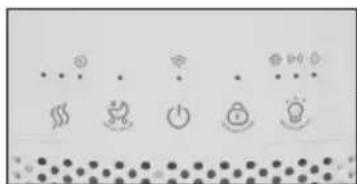
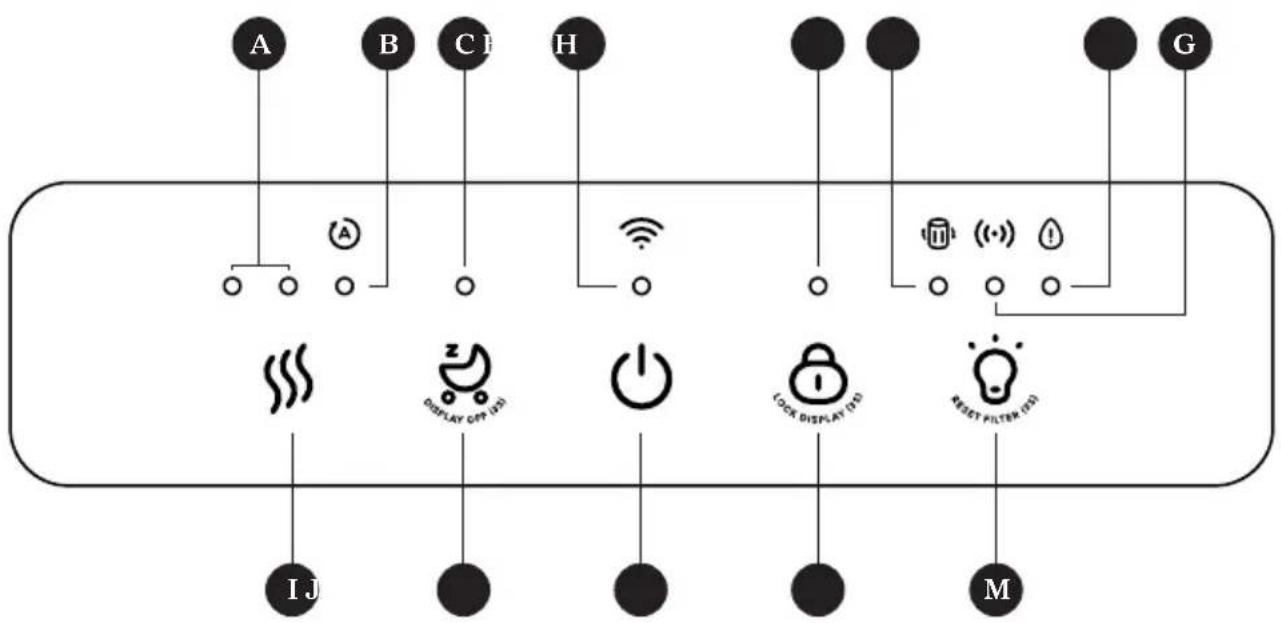
A. Fan Speed Indicators
B. Auto Mode Indicator
C. Baby Sleep Mode Indicator
D. Wi-Fi Indicator
E. Safety Lock Indicator
F. Check Filter Indicator
G. Sensor Connection Indicator
H. No Water Indicator
I. Humidify / Dry Mode Button
J. Baby Sleep Mode Button
K. On/Off Button
L. Safety Lock Button
M. Night Light / Reset Filter Button
Controls

Humidify / Dry Mode Button
During humidification:
- Tap repeatedly to cycle through fan speeds: low, high, and Auto Mode (see page 14).
• The Fan Speed Indicators will light up white.
During Dry Mode (see page 14):
- The Fan Speed Indicators will light up orange during Dry Mode.
- Tap repeatedly to cycle through Dry Mode fan speeds: low, high, and turbo.
- You can also turn Auto Dry Mode on/off in the VeSync app.

Safety Lock Button
When selected, all buttons (except 📄 will be locked and cannot be selected.
- Press and hold for 3 seconds to turn Safety Lock on/off. Will light up when locked.
- You can also turn Safety Lock on/off in the VeSync app.

Baby Sleep Mode Button
- Tap to turn Baby Sleep Mode on (see page 14).
• After 3 seconds, all indicator lights will turn off.
• To turn Baby Sleep Mode off, tap 🎨 to wake up the control panel, then tap 🌐

On/Off Button
- Tap to turn the humidifier on/off.
- Press and hold for 5 seconds to pair with the VeSync app. See the in-app instructions for more information.
- Press and hold for 15 seconds to reset the humidifier. This will restore the humidifier's default settings and disconnect it from Wi-Fi® and the VeSync app (see page 12).

Night Light / Reset Filter Button
- Tap to turn Night Light on/off (see page 15).
- Press and hold for 3 seconds to reset the Check Filter Indicator after replacing the filter(s).
Indicators

Fan Speed Indicators
• Lights up white when in humidification mode.
• Lights up orange when in Dry Mode.

Auto Mode Indicator
• Lights up white when in Auto mode.
Note: You must connect the humidity sensor to use Auto Mode.
• Lights up orange when in Dry Mode to indicate turbo fan speed.

Baby Sleep Mode Indicator
• Lights up when Baby Sleep Mode is on.

Wi-Fi Indicator
- Blinks blue while pairing to the VeSync app and stays solid once successfully connected.

Safety Lock Indicator
- Lights up when Safety Lock is on.
- Press and hold for 3 seconds to reset the Check Filter Indicator after replacing the filter(s).

Check Filter Indicator
- Lights up red when the air filter or wick filter should be checked. To see which filter needs to be replaced, check in the VeSync app.
- Press and hold for 3 seconds to reset after replacing a filter.

Sensor Indicator
- When the sensor does not successfully connect, the indicator lights up red.
- When the sensor successfully connects, the indicator light will turn off.

No Water Indicator
- Lights up red when:
• There is a water shortage in the tank.
• The wick filter is not detected.
• The humidifier detects an error.
Getting Started
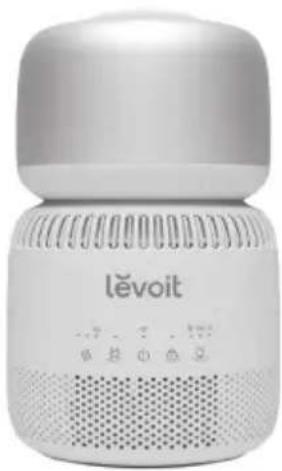
- Remove the humidifier from the box and its packaging.
natural_image
White Lěvoit brand air conditioner with speaker grille and control buttons (no visible text beyond brand name)Figure 1.1
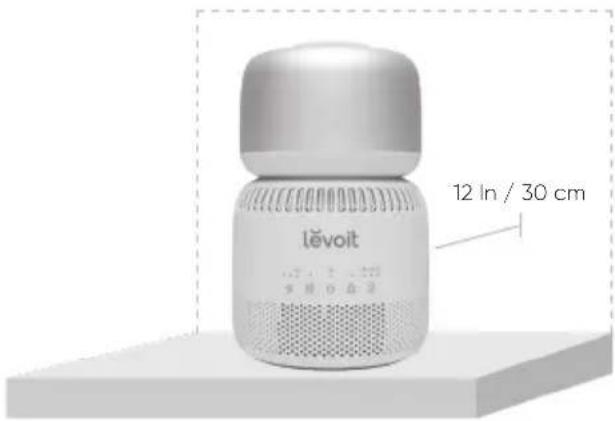
- Place the humidifier on a hard, flat location at least 12 inches / 30 cm away from any walls to ensure the air inlet works properly.
text_image
12 In / 30 cm LévoitFigure 1.2
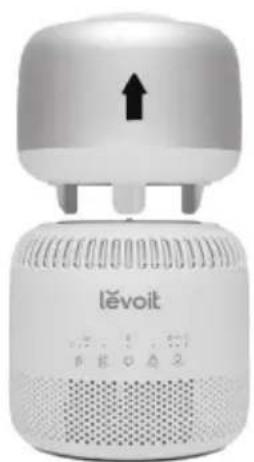
- Carefully lift off the water tank. Bring the water tank to the kitchen or bathroom sink.
natural_image
White Lévoit brand air conditioner with speaker grille and indicator lights (no visible text or symbols on device body)Figure 1.3
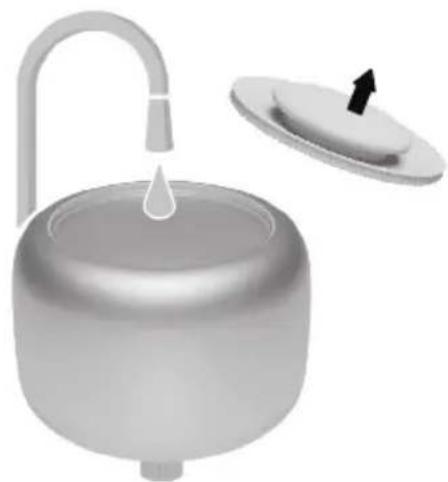
- Remove the tank lid and add water to the water tank. Do not fill past the "Max" line or water may overflow.
natural_image
Illustration of a water dispenser with a drop funnel and lid, no text or symbols presentFigure 1.4
Note: Make sure the water tank is clean before filling.
Getting Started (cont.)
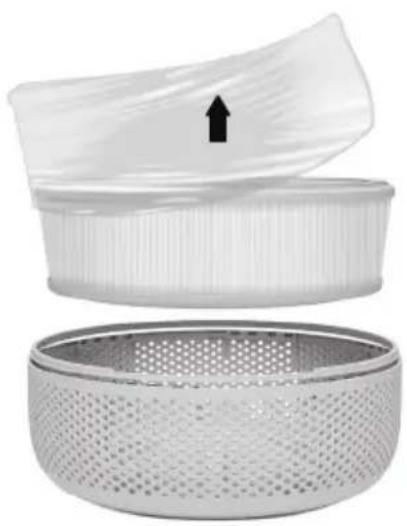
- Discard the plastic packaging from the air filter in the bottom of the humidifier.
natural_image
Two views of a plastic bag with a perforated interior and an upward arrow indicating the top part (no text or symbols)Figure 1.5 Figure 1.6
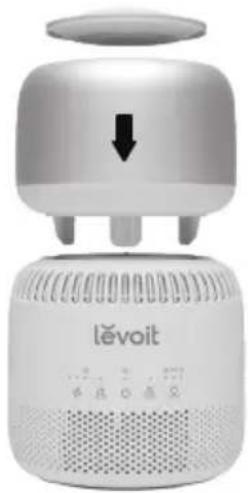
- Replace the tank lid and place the water tank back on the humidifier.
natural_image
White Lévoit portable air conditioner with a speaker grille and control panel (no visible text or symbols on the device body)Note:
- Do not fill with hot water.
- Do not add essential oils to the humidifier.
-
Do not use water treatment liquids or third-party water filters in this humidifier.
-
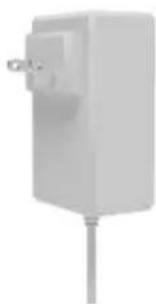
Plug in the power adapter and you're ready to begin humidifying.
natural_image
Exterior view of a white industrial electrical outlet with a cable (no text or symbols visible)Figure 1.7
VeSync App Setup
Note:
- Due to ongoing updates and improvements, the VeSync app may be slightly different than shown in the manual. In case of any differences, follow the in-app instructions.
- Requires device to run app, Wi-Fi® or mobile data, and iOS version 12 or Android version 6 (or above). Standard data and messaging rates may apply. Registration is required.
- To download the VeSync app, scan the QR code or search "VeSync" in the Apple App Store ^® or Google Play Store.

text_image
veSyncNote: For Android™ users, choose "Allow" to use VeSync.
- Open the VeSync app. If you already have an account, tap Log In. To create a new account, tap Sign Up.
Note: You must create your own VeSync account to use third-party services and products. These will not work with a guest account. With a VeSync account, you can also allow your family and friends to control your smart humidifier.
- Follow the in-app instructions to set up your smart humidifier.
Note:
- You can use the VeSync app to connect your smart humidifier to Amazon Alexa or Google Assistant™. Follow the in-app instructions to connect VeSync to your voice assistant.
- Your phone must have Location turned on while your phone is connecting to your smart humidifier. This is required to establish the Bluetooth® connection. You can turn Location off after your smart humidifier is finished connecting to the VeSync app.
WI-FI CONNECTION:
- To disconnect Wi-Fi, press and hold ⏻ for 15 seconds until the Wi-Fi® indicator turns off. This will restore the smart humidifier's default settings and disconnect it from the VeSync app.
- To reconnect, please follow the instructions in the VeSync app for adding a device.
Using Your Smart Humidifier
Note: Using the VeSync app allows you to control your smart humidifier remotely and access additional functions and features (see page 15).
-
Plug in the humidifier. The indicators on the display will light up for 1 second, then turn off.
-
Tap ⏻ to turn your humidifier on. The humidifier will start evaporating water.
Note:
- This humidifier uses evaporative technology, so the water vapor is invisible.
-
During first use, the humidifier may take 10–25 seconds to start evaporating water.
-
Tap repeatedly to cycle through fan speed settings: low, high, and Auto Mode.
Note: You must connect the sensor to use Auto Mode (see Using Your Sensor, page 13).
-
When your room has reached your target humidity level, turn the humidifier to a lower setting, or turn it off.
-
Tap ⏻ to turn your humidifier off.
-
Dry Mode will start (see page 14).
Note: The Fan Speed Indicators will change from white to orange.
- The humidifier will automatically turn off once Dry Mode is complete. If you want to turn off the humidifier without using Dry Mode, tap 🏠 again.
Using Your Sensor
The humidity sensor pairs with your humidifier and allows the use of Auto Mode.
- Press once to light up the screen's backlight.
- Press three times to switch the temperature unit from Fahrenheit to Celsius.
- Do not use the sensor in temperatures above 113°F / 45°C.
CONNECTING THE SENSOR TO THE HUMIDIFIER:
- Turn on your humidifier.
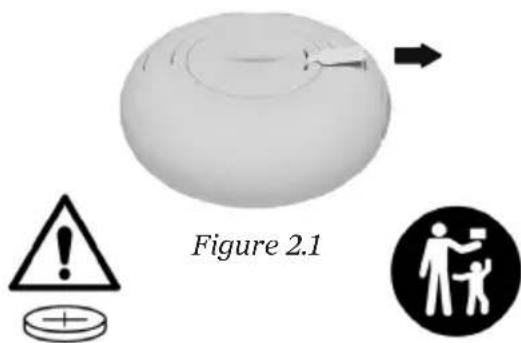
- Remove the insulation strip from the battery cover. The sensor will automatically connect to the humidifier.
text_image
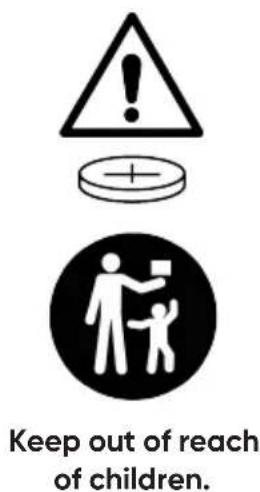
Figure 2.1This product contains a button battery. Please ensure to keep out of reach of children.
- To check if the sensor connected successfully, press the sensor's twice. (●) in the humidifier will blink twice to indicate the connection is successful.
IF THE SENSOR IS HAVING A PROBLEM AUTOMATICALLY CONNECTING TO THE HUMIDIFIER:
- Press and hold and for 3 seconds to enter pairing mode. The humidity sensor will blink rapidly.
Using Your Sensor (cont.)
- Press and hold ⏻ on the sensor for 3 seconds to pair it to the humidifier. (⋯) on the humidifier will blink twice to indicate the connection is successful.
AUTO MODE
Auto Mode uses the humidifier's sensor to detect humidity and automatically adjusts Auto Mode's fan speed to maintain a target humidity level. The default target humidity for Auto Mode is 50%.
Note:
- You must connect the sensor to the humidifier to use Auto Mode.
-
You can use the VeSync app to turn on/off Auto Mode.
-
Tap to cycle to Auto Mode.
Note: lights up white when the sensor is connected and the humidifier is in Auto Mode.
- The sensor will continuously detect the humidity level in the room and start and stop according to the following table:
| Phase Target Humidity Fan Speed | ||
| Phase I > | 10% of current humidity | High |
| Phase II ≤ | 10% of current humidity | Low |
| Phase III ≤ | 0% of current humidity | Off |
Note: The default fan speed and target humidity can be adjusted in the VeSync app.
BABY SLEEP MODE
Baby Sleep Mode changes the humidifier's fan speed setting to low and turns off the display, making it ideal for sleep.
- Tap to turn Baby Sleep Mode on.
Note:
- When Baby Sleep Mode is on, you can tap any button to wake up the display. If no other button is pressed after waking up the display, the display will turn off again after 3 seconds.
-
You can turn Baby Sleep Mode on/off in the VeSync app.
-
To turn Baby Sleep Mode off, tap to wake up the control panel, then tap
DRY MODE
Dry Mode uses low, high, and turbo fan speeds to dry out the wick filter. This helps extend the life of the wick filter by preventing moisture buildup and mold.
While in Dry Mode (Fan Speed Indicators are orange), tap repeatedly to cycle through drying settings: low, high, and turbo.
- Low: fan runs for 120 minutes.
• High: fan runs for 70 minutes.
• Turbo: fan runs for 55 minutes.
Note:
- Dry Mode is enabled by default. You can disable Dry Mode in the VeSync app.
- If enabled, the humidifier will automatically go into Dry Mode after humidification and before the humidifier turns off.
Using Your Sensor (cont.)
AUTOMATIC SHUTOFF
No Water: lights up when there is not enough water detected in the water tank. The humidifier will continue to operate for a period based on the fan speed, then shut off.
Wick Frame Lifted: During humidification and Baby Sleep Mode, ⚠ will light up when the wick frame/filter is lifted. Humidification will stop and the fan motor will shut off.
Wick Frame Not Detected: During startup, if the wick frame/filter is not detected, the humidifier will not run and ⚠️ will light up.
NIGHT LIGHT
The night light can be used with or without humidification to create a peaceful atmosphere.
- To turn on/off, tap You can also turn the night light on/off, adjust its color and brightness, and switch from night light to breathing lamp in the VeSync app.
VeSync App Functions
The VeSync app allows you to access additional smart functions, including those listed below.
REMOTE CONTROL FROM YOUR PHONE
- Turn the humidifier on/off.
• Cycle through fan speed levels. - Turn Auto Mode on/off and set target humidity level.
-
Turn Safety Lock on/off.
-
Turn Baby Sleep Mode on/off.
- Turn Night Light on/off, adjust its color temperature, brightness, and mode.
- Set timers.
• Monitor humidity levels. - Manage filter life.
IMPORTANT TIPS
Your humidifier must have the correct level of water in the water tank to work properly. If there is too much water in the tank, the humidifier cannot evaporate water.
- Never pour water directly into the wick frame. Only add water to the water tank. The humidifier will automatically release the correct amount of water into the base.
- Do not place the humidifier on an inclined surface.
- Avoid moving or shaking the humidifier while in use.
- Before moving the humidifier, turn it off, unplug it, and remove the water tank and empty any excess water.
Care & Maintenance
CLEANING THE WATER TANK
If you're using your humidifier daily, you should clean the water tank at least once a week and when you're ready to store it. This is to avoid mold and bacteria growth.
- Turn off the humidifier and unplug the power adapter.
- Remove the water tank.
-
Remove the tank cover and pour out any water from the tank.
-
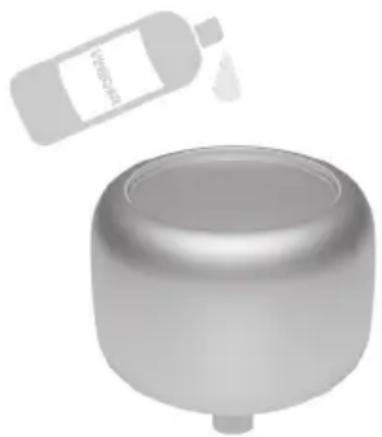
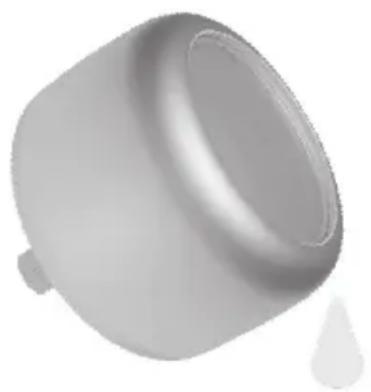
Fill the water tank with 3 US cups / 710 mL of distilled white vinegar and swish the vinegar around the tank.
natural_image
3D rendered image of a cylindrical container with a small bottle above it (no text or symbols visible)Figure 3.1
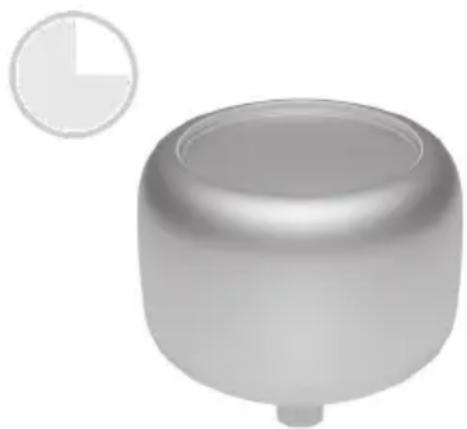
- Let the water tank soak for 15–20 minutes so the vinegar can loosen scale (mineral buildup).
natural_image
3D rendered image of a cylindrical mechanical component with a small circular inset showing a sector (no text or symbols)Figure 3.2
-
Pour out the vinegar.
-
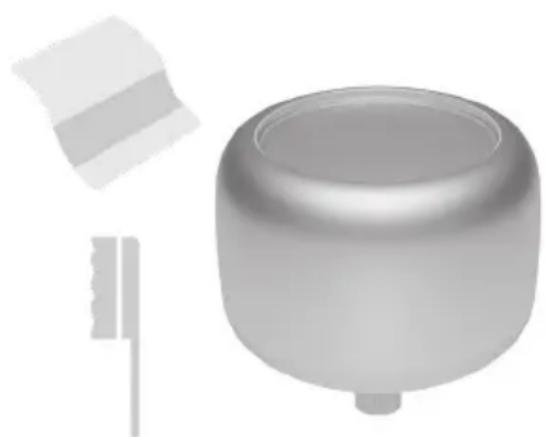
Use a soft cloth or cleaning brush to remove any scale buildup.
natural_image
3D rendered image of a gray cylindrical object with a small droplet attached (no text or symbols)Figure 3.3
natural_image
3D rendered image of a mechanical component with two side profiles (no text or symbols)Figure 3.4
Care & Maintenance (cont.)
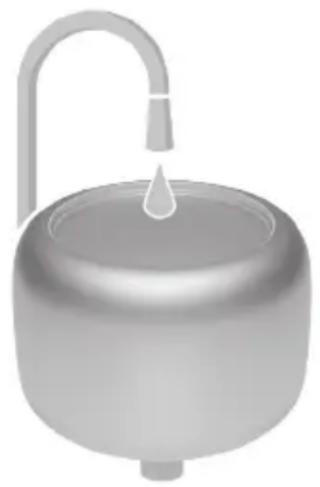
- Rinse the water tank until any vinegar smell is completely gone.
natural_image
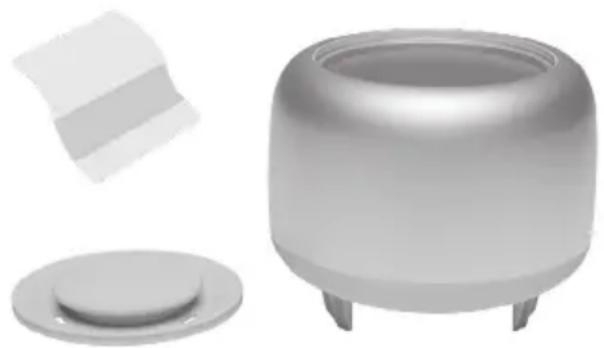
Illustration of a water dispenser with a drop and handle (no text or symbols)- Dry all parts with a clean cloth. Make sure all parts are completely dry before reassembling or storing.
natural_image
3D render of a metallic cylindrical device with lid and base, accompanied by a small rectangular object (no text or symbols visible)Figure 3.6 Figure 3.5
Note:
- All maintenance should be done on a water-resistant surface, such as a kitchen counter.
- The water tank and wick frame are dishwasher-safe, but the water temperature should not exceed 160°F.
- If you're not using the humidifier for 1 week or longer, do not leave water inside. Clean and dry the humidifier then store it.
Care & Maintenance (cont.)
CLEANING THE WICK FRAME & FLOATS
We recommend descaling the wick frame once a week to prevent the formation of scale, which can affect the operation of your humidifier. Your water quality will ultimately dictate the cleaning frequency. For example, if you have very hard water (high in minerals), you may need to clean the wick frame more frequently.
-
Turn off the humidifier and unplug the power adapter.
-
Remove the water tank.
-
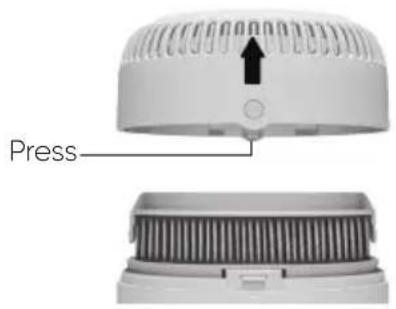
Remove the air outlet frame by pressing the buttons on each side, then lifting.
text_image
PressFigure 4.1
-
Carefully lift off the wick frame, making sure not to spill any water. Pour out any excess water from the frame.
-
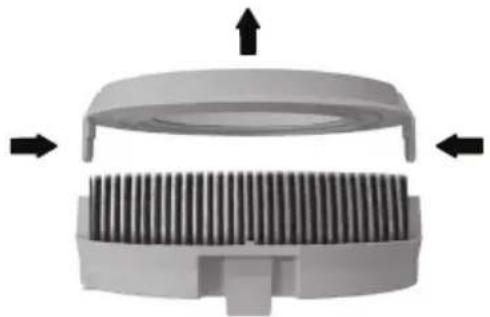
Detach the wick cover from the wick frame by pushing in the tabs on both sides, then lifting.
Note: When disassembling, remove one side of the wick cover first, then the other side.
natural_image
3D diagram of a mechanical component with internal grooves and directional arrows (no text or symbols)Figure 4.2
-
Remove the wick filter.
-
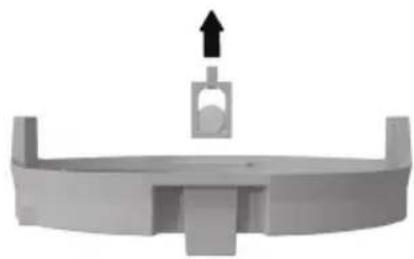
Remove the floats on the sides of the wick frame by pushing the tab out, then lifting to remove.
natural_image
3D rendered mechanical component with a central bracket and upward arrow indicator (no text or symbols)Figure 4.3
- Place the floats, wick cover, and wick frame in a container. Fill the container with a solution of 50% water and 50% vinegar. Make sure the parts are submerged and let them soak for 15–20 minutes.
- Discard the water-vinegar solution. Use a soft cloth or cleaning brush to remove scale from all parts.
- Rinse all parts until any vinegar smell is completely gone.
- Place the floats back in the wick frame and reassemble the humidifier in reverse order.
Note:
- The wick frame and floats are dishwasher-safe, but the water temperature should not exceed 160^ F .
• Make sure the floats are properly installed in the wick frame or the humidifier will not function properly. - If you notice the floats are clogged with scale, make sure to clean them immediately or it may affect the operation of your humidifier.
Care & Maintenance (cont.)
REPLACING THE WICK FILTER
We recommend changing your wick filter every 3 months, but your water quality will ultimately dictate your wick filter's replacement frequency. For example, if you have very hard water (high in minerals) or excessive impurities, you may need to replace your wick filter more frequently.
- Turn off the humidifier and unplug the power adapter.
- Remove the water tank.
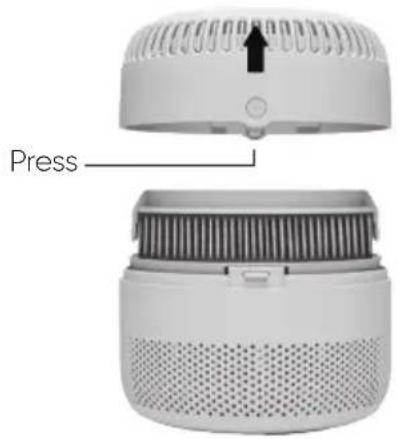
- Remove the air outlet frame by pressing the buttons on each side then lifting.
text_image
PressFigure 5.1
-
Carefully lift off the wick frame, making sure not to spill any water. Pour out any excess water from the frame.
-
Detach the wick cover from the wick frame by pushing in the tabs on both sides, then lifting.
Note: When disassembling, remove one side of the wick cover first, then the other side.
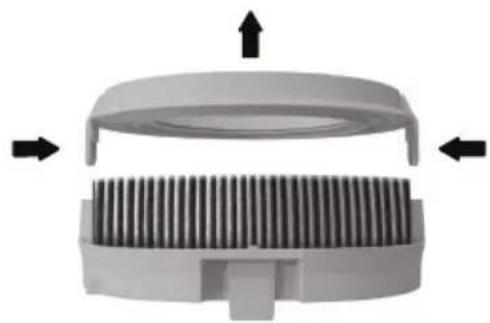
natural_image
3D diagram of a mechanical component with arrows indicating direction (no text or symbols)Figure 5.2
- Take out the wick filter and discard.
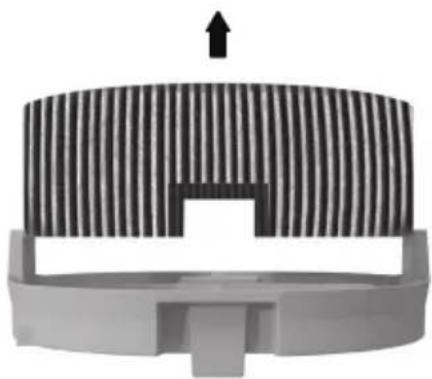
natural_image
3D rendering of a mechanical component with striped top and central cutout, no visible text or symbolsFigure 5.3
- Place a new wick filter in the wick frame and reassemble in reverse order.
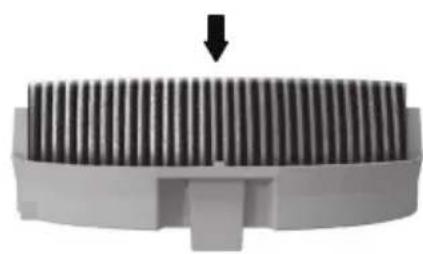
natural_image
3D rendering of a mechanical component with a downward arrow indicating force or direction (no text or symbols)Figure 5.4
Care & Maintenance (cont.)
REPLACING THE AIR FILTER
The air filter can last as long as 3 months depending on environmental conditions. Will light up as a reminder to check the filter. If your humidification performance is poor, you may need to change the filter.
- Turn off the humidifier.
-
Rotate the motor frame with both hands and lift to remove from the air inlet frame.
-
Remove the air filter and discard.
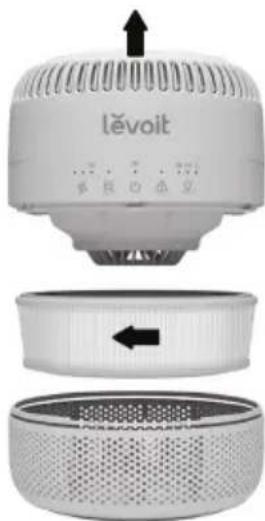
natural_image
Product diagram of a Lévoit air conditioner unit showing top, front, and side views with no visible text or symbols.- Place a new air filter in the air outlet inlet frame and reassemble in reverse order.
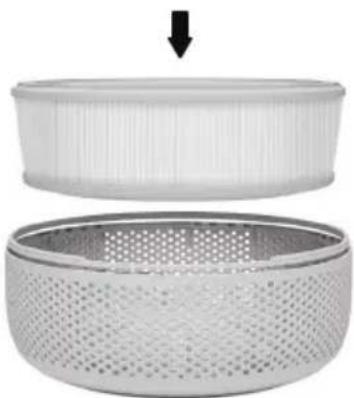
natural_image
Two views of a perforated metal bowl with a lid, showing internal structure and an arrow indicating downward motion (no text or symbols)Figure 6.2 Figure 6.1
REPLACING THE SENSOR'S BATTERY
- Use a coin to turn the battery cover counterclockwise.
- Remove the old battery.
- Replace with a new 3V CR2477 battery. Make sure the polarities match.
- Replace the battery cover.
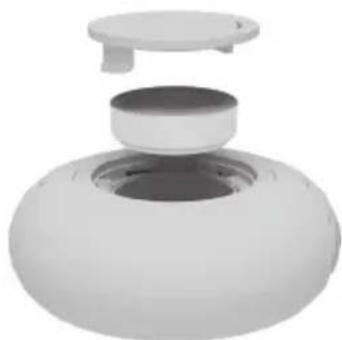
natural_image
White spherical device with a lid and central button, resembling a smart speaker or digital device (no text or symbols visible)Figure 7.1
text_image
Keep out of reach of children.Care & Maintenance (cont.)
STORING
Follow the cleaning instructions and allow all parts to dry completely before storing. Store in a cool, dry location.
- Use Dry Mode to dry the wick filter.
-
Turn off the humidifier and unplug the power adapter from the outlet. Unplug the power adapter from the humidifier.
-
Remove any leftover water from the water tank and wick frame, then dry thoroughly.
- Place the water tank back on the humidifier.
- Place the humidifier in the storage bag.
Troubleshooting
| Problem Possible Solution | |
| How can I tell if my humidifier is working? | You should hear the quiet sound of the fan and feel a cool breeze coming from the air outlet. The water vapor from the device will not be visible. |
| The $will be lit up white. | |
| How do I know if I turned off my humidifier? | All display lights stay off when you tap any button other than ⏻ |
| Humidifier doesn't turn on or turns off unexpectedly. | Plug the humidifier into a working outlet and turn it on. |
| Add tap water to the water tank. | |
| Air doesn't seem to be humid. | Turn the fan speed to a higher setting. |
| Check to see if the plastic packaging has been removed from the air filter in the bottom of the humidifier. | |
| Clean the humidifier (see Care & Maintenance, page 16). | |
| Make sure the humidifier is on a level surface. | |
| The floats on the wick frame may be clogged with scale. Clean the floats Customer Support (see page 27). | |
| Clean or replace the filters (see page 18). For information on additional replacements, contact Customer Support (see page 27). | |
| Humidifier uses water too quickly. | The humidifier uses up water based on the environmental temperature and humidity. If your environment is cold and/or dry, the humidifier will run out of water faster. |
| Humidifier produces an unusual smell. | If the humidifier is new, unplug and rinse all parts, then place in a cool, dry place for 12 hours. |
| Clean the humidifier (see Care & Maintenance, page 16). | |
| Humidifier makes a loud or unusual noise. | Set fan speed to a lower setting. |
| The humidifier may be malfunctioning. Stop using the humidifier and contact Customer Support (see page 27). | |
| Water visibly leaks from the humidifier. | Avoid running the humidifier in a room with over 60% relative humidity. |
| Do not shake the humidifier. | |
| Make sure to place the humidifier on a flat, level surface. | |
| Check the water tank for leaks. If there are leaks, contact Customer Support (see page 27). | |
| The area around the humidifier is damp or wet from condensation. | Humidity may be too high. Turn down the fan speed, turn off the humidifier, or open a door or window to the room. |
| Open a window to ensure proper airflow for the humidifier, or move the humidifier to a more well-ventilated room. | |
| Make sure the water tank is properly in place (see Getting Started, page 10). | |
| When replacing the water tank, wipe off excess water from the water tank. | |
| Mold grows inside the humidifier. | Clean the water tank regularly (see Care & Maintenance, page 16). |
| Lights up. | Fill the water tank. |
| Make sure all parts are installed correctly (see Replacing the Wick Filter, page 19). | |
| Display shows an incorrect humidity percentage. | If the humidifier is placed within 12 inches / 30 cm of a wall or in a corner, the sensor cannot provide a proper reading for the relative humidity in the room. |
| The sensor will give an improper reading if it is exposed to dust. Avoid using the humidifier in dusty rooms. | |
| The humidity level isn't changing in my room. | Use a higher fan speed setting. |
| Depending on your environment, the humidifier may take longer to humidify your air. | |
If your problem is not listed, please contact Customer Support (see page 27).
Vesync App Troubleshooting
WHY ISN'T MY HUMIDIFIER CONNECTING TO THE VESYNC APP?
- Make sure your phone has Bluetooth ^® turned on and is not currently connected to another Bluetooth ^® device.
- During the setup process, you must be on a secure 2.4GHz Wi-Fi network. Confirm that the network is working correctly.
- Make sure the Wi-Fi password you entered is correct.
- Make sure your humidifier and phone are within 30 ft / 10 m of each other.
- Reset the humidifier by pressing and holding ⏻ for 15 seconds, then try connecting again.
- Make sure the humidifier is plugged in. The humidifier may appear to be offline if it is unplugged, or if the outlet does not have power.
- Refresh the VeSync menu by swiping down on the screen.
- Make sure your router is connected to the internet and your phone's network connection is working.
- Reset the humidifier using one of these options:
A. Delete the humidifier from the VeSync app. Swipe left (iOS ^® ) or press and hold (Android), then tap Delete. Reconfigure the humidifier with the VeSync app.
B. Press and hold for 15 seconds.
Reconfigure the humidifier with the VeSync app.
Note: Power outages, internet outages, or changing Wi-Fi routers may cause your humidifier to go offline.
THE VESYNC APP IS DISPLAYING AN INCORRECT HUMIDITY PERCENTAGE WHILE THE HUMIDIFIER IS TURNED ON.
- If the sensor is placed within 12 inches / 30 cm of a wall or in a corner, it cannot provide a proper reading for the relative humidity in the room.
- The sensor will give an improper reading if it is exposed to dust. Avoid using the humidifier in dusty rooms.
If your problem is not listed, please contact Customer Support (see page 27).
Federal Communication Commission Interference Statement – Part 15
This device complies with Part 15 of the FCC Rules. Operation is subject to the following two conditions:
- This device may not cause harmful interference, and
- This device must accept any interference received, including interference that may cause undesired operation.
NOTE: This equipment has been tested and found to comply with the limits for a Class B digital device, pursuant to Part 15 of the FCC Rules. These limits are designed to provide reasonable protection against harmful interference in a residential installation. This equipment generates, uses and can radiate radio frequency energy and, if not installed and used in accordance with the instructions, may cause harmful interference to radio communications. However, there is no guarantee that interference will not occur in a particular installation. If this equipment does cause harmful interference to radio or television reception, which can be determined by turning the equipment off and on, the user is encouraged to try to correct the interference by one or more of the following measures:
- Reorient or relocate the receiving antenna.
- Increase the separation between the equipment and receiver.
- Connect the equipment into an outlet on a circuit different from that to which the receiver is connected.
- Consult the dealer or an experienced radio/TV technician for help.
FCC Caution: Any changes or modifications not expressly approved by the party responsible for compliance could void the user's authority to operate this equipment.
FCC Radiation Exposure Statement
This equipment complies with FCC radiation exposure limits set forth for an uncontrolled environment. End users must follow the specific operating instructions for satisfying RF exposure compliance. To maintain compliance with FCC RF exposure compliance requirements, please follow operation instructions as documented in this manual. This transmitter must not be co-located or operating in conjunction with any other antenna or transmitter. This equipment should be installed and operated with a minimum distance of 20 cm between the radiator and your body. The availability of some specific channels and/or operational frequency bands are country dependent and are firmware programmed at the factory to match the intended destination. The firmware setting is not accessible by the end user.
FCC SDOC Supplier's Declaration Of Conformity
Arovast Corporation hereby declares that this equipment is in compliance with the FCC Part 15 Subpart B. The declaration of conformity may be consulted in the support section of our website, accessible from www.levoit.com
Warranty Information
| Product Levoit Sprout | Evaporative Humidifier & Sensor |
| Model LEH-B381S-WNA | LSR-B0201EH-WNA |
| For your own reference, we strongly recommend that you record your order ID and date of purchase. | |
| Date of Purchase | |
| Order ID | |
Levoit Limited Product Warranty
Register your products at https://warranty.levoit.com/warranty to stay up to date with important product information such as product updates, limited warranties, usage and maintenance recommendations, and notifications concerning safety warnings or product recalls. Registration is not required to claim your limited warranty.
Two (2) Year Limited Consumer Product Warranty
Arovast Corporation ("Arovast") warrants that the product shall be free from defects in material and workmanship for a period of 2 years from the date of original purchase ("Limited Warranty Period"), provided the product was used in accordance with its use and care instructions (e.g., in the intended environment and under normal circumstances).
Your Limited Warranty Benefits
During the Limited Warranty Period and subject to this limited Warranty Policy, Arovast will, in its sole and exclusive discretion, either (i) refund the purchase price if the purchase was made directly from the online Levoit store, (ii) repair any defects in material or workmanship, (iii) replace the product with another product of equal or greater value, or (iv) provide store credit in the amount of the purchase price.
Who Is Covered?
This limited warranty extends only to the original consumer purchaser of the product and is not transferable to any subsequent owner of the product, regardless of whether
the product transferred ownership during the specified term of the limited warranty. The original consumer purchaser must provide verification of the defect or malfunction and proof of the date of purchase to claim the Limited Warranty Benefits.
Be Aware of Unauthorized Dealers or Sellers
This limited warranty does not extend to products purchased from unauthorized dealers or sellers. Arovast's limited warranty only extends to products purchased from authorized dealers or sellers that are subject to Arovast's quality controls and have agreed to follow its quality controls. Please be aware, products purchased from an unauthorized website or dealer may be counterfeit, used, defective, or may not be designed for use in your country. You can protect yourself and your products by making sure you only purchase from Arovast or its authorized dealers.
If you have any questions about a specific seller, or if you think you may have purchased your product from an unauthorized seller, please contact our Customer Support Team via support@levoit.com.
What's Not Covered?
- Normal wear and tear, including parts that might wear out over time (e.g., batteries, filters, cleaning brush, essential oil pads, etc.).
- If the proof-of-purchase has been altered in any way or is made illegible.
- If the model number, serial number or production date code on the product has been altered, removed or made illegible.
- If the product has been modified from its original condition.
- If the product has not been used in accordance with directions and instructions in the user manual.
- Damages caused by connecting peripherals, additional equipment or accessories other than those recommended in the user manual.
- Damages or defects caused by accident, abuse, misuse, or improper or inadequate maintenance.
• Damages or defects caused by service or repair of the product performed by an
unauthorized service provider or by anyone other than Arovast.
- Damages or defects occurring during commercial use, rental use, or any use for which the product is not intended.
- If the unit has been damaged, including but not limited to damage by animals, lightning, abnormal voltage, fire, natural disaster, transportation, dishwasher, or water (unless the user manual expressly states that the product is dishwasher-safe).
- Incidental and consequential damages.
- Damages or defects exceeding the cost of the product.
Claiming Your Limited Warranty Service in 5 Simple Steps:
- Make sure your product is within the specified limited warranty period.
- Make sure you have a copy of the invoice and order ID or proof-of-purchase.
- Make sure you have your product. DO NOT dispose of your product before contacting us.
- Contact our Customer Support Team via support@levoit.com
- Once our Customer Support Team has approved your request, please return the product with a copy of the invoice and order ID.
Sole and Exclusive Remedy
THE FOREGOING LIMITED WARRANTY CONSTITUTES AROVAST CORPORATION'S EXCLUSIVE LIABILITY, AND YOUR SOLE AND EXCLUSIVE REMEDY, FOR ANY BREACH OF ANY WARRANTY OR OTHER NONCONFORMITY OF THE PRODUCT COVERED BY THIS LIMITED PRODUCT WARRANTY STATEMENT. THIS LIMITED WARRANTY IS EXCLUSIVE, AND IN LIEU OF ALL OTHER WARRANTIES. NO EMPLOYEE OF AROVAST CORPORATION OR ANY OTHER PARTY IS AUTHORIZED TO MAKE ANY WARRANTY IN ADDITION TO THE LIMITED WARRANTY IN THIS LIMITED PRODUCT WARRANTY STATEMENT.
Disclaimer of Limited Warranties
TO THE FULLEST EXTENT PROVIDED BY APPLICABLE LAW, EXCEPT AS WARRANTED IN THIS LIMITED PRODUCT WARRANTY POLICY, AROVAST CORPORATION PROVIDES THE PRODUCTS YOU PURCHASE FROM AROVAST CORPORATION "AS IS" AND AROVAST CORPORATION HEREBY DISCLAIMS ALL WARRANTIES OF ANY KIND, WHETHER EXPRESS OR IMPLIED, STATUTORY, OR OTHERWISE, INCLUDING BUT NOT LIMITED TO ANY WARRANTIES OF MERCHANTABILITY, NON- INFRINGEMENT, AND FITNESS FOR PARTICULAR PURPOSE.
Limitations of Liability
TO THE FULLEST EXTENT PROVIDED BY APPLICABLE LAW, IN NO EVENT WILL AROVAST CORPORATION, ITS AFFILIATES, OR THEIR LICENSORS, SERVICE PROVIDERS, EMPLOYEES, AGENTS, OFFICERS, OR DIRECTORS BE LIABLE FOR:
(a) DAMAGES OF ANY KIND ARISING OUT OF OR IN CONNECTION WITH PRODUCTS PURCHASED FROM AROVAST CORPORATION IN EXCESS OF THE PURCHASE PRICE PAID BY THE PURCHASER FOR SUCH PRODUCTS, OR
(b) INDIRECT, SPECIAL, INCIDENTAL, CONSEQUENTIAL, OR PUNITIVE DAMAGES EVEN IF AROVAST CORPORATION OR ONE OF ITS SUPPLIERS HAS BEEN ADVISED OF THE POSSIBILITY OR LIKELIHOOD OF SUCH DAMAGES.
AND REGARDLESS OF WHETHER CAUSED BY TORT (INCLUDING NEGLIGENCE), BREACH OF CONTRACT, OR OTHERWISE. OUR LIABILITY SHALL UNDER NO CIRCUMSTANCES EXCEED THE ACTUAL AMOUNT PAID BY YOU FOR THE DEFECTIVE PRODUCT, NOR SHALL WE UNDER ANY CIRCUMSTANCES BE LIABLE FOR ANY CONSEQUENTIAL, INCIDENTAL, SPECIAL OR PUNITIVE DAMAGES OR LOSSES, WHETHER DIRECT OR INDIRECT.
EXCEPT AS COVERED BY THIS LIMITED PRODUCT WARRANTY STATEMENT, AROVAST CORPORATION SHALL NOT BE LIABLE FOR COSTS ASSOCIATED WITH THE REPLACEMENT OR REPAIR OF PRODUCTS PURCHASED FROM IT, INCLUDING, BUT NOT LIMITED TO, LABOR, INSTALLATION, OR OTHER COSTS INCURRED
Warranty Information (cont.)
BY THE USER AND, IN PARTICULAR, ANY COSTS RELATING TO THE REMOVAL OR REPLACEMENT OF ANY PRODUCT.
OTHER RIGHTS YOU MAY HAVE
SOME JURISDICTIONS DO NOT ALLOW FOR: (1) EXCLUSION OF IMPLIED WARRANTIES; (2) LIMITATION ON THE DURATION OF IMPLIED WARRANTIES; AND/OR (3) EXCLUSION OR LIMITATION OF INCIDENTAL OR CONSEQUENTIAL DAMAGES; SO THE DISCLAIMERS IN THIS POLICY MAY NOT APPLY TO YOU. IN THESE JURISDICTIONS YOU HAVE ONLY THE IMPLIED WARRANTIES THAT ARE EXPRESSLY REQUIRED TO BE PROVIDED IN ACCORDANCE WITH APPLICABLE LAW. THE LIMITATIONS OF WARRANTIES, LIABILITY, AND REMEDIES APPLY TO THE MAXIMUM EXTENT PERMITTED BY LAW.
ALTHOUGH THIS LIMITED WARRANTY GIVES YOU SPECIFIC LEGAL RIGHTS, YOU MAY HAVE OTHER RIGHTS IN YOUR JURISDICTION. THIS STATEMENT OF LIMITED WARRANTY IS SUBJECT TO APPLICABLE LAWS THAT APPLY TO YOU AND THE PRODUCT. PLEASE REVIEW THE LAWS IN YOUR JURISDICTION TO UNDERSTAND YOUR RIGHTS FULLY.
CHANGES TO THIS POLICY
We may change the terms and availability of this limited warranty at our discretion, but any changes will not be retroactive.
This warranty is made by:
AROVAST CORPORATION
1775 Flight Way, Suite 150
Tustin, CA 92782
USA
Customer Support
If you have any questions or concerns about your new product, please contact our helpful Customer Support Team.
Arovast Corporation
1775 Flight Way, Suite 150
Tustin, CA 92782
USA
Email: support@levoit.com
Toll-Free: 1-888-726-8520
SUPPORT HOURS
Mon–Fri, 9:00 am–5:00 pm PST/PDT
Please have your order invoice and order ID ready before contacting Customer Support.
Attributions
Amazon, Alexa, and all related logos are trademarks of Amazon.com, Inc. or its affiliates. Google, Android, and Google Play are trademarks of Google LLC.
App Store ^® is a trademark of Apple Inc.
Wi-Fi ^® is a registered trademark of Wi-Fi Alliance ^® .
iOS is a registered trademark of Cisco Systems, Inc. and/or its affiliates in the United States and certain other countries.