
Smartphone Photo Printer - Audio/video converter Sharper Image - Free user manual and instructions
Find the device manual for free Smartphone Photo Printer Sharper Image in PDF.


| Product Type | Smartphone Photo Printer |
| Brand | Sharper Image |
| Dimensions (W x D x H) | 200 x 150 x 60 mm |
| Weight | 0.5 kg |
| Power Supply | 5V DC via USB cable (included) |
| Battery Type | Rechargeable Li-ion, 800 mAh |
| Connectivity | Bluetooth 4.0, Wi-Fi 802.11 b/g/n |
| Print Technology | ZINK (Zero Ink) with embedded color crystals |
| Print Resolution | 300 x 300 dpi |
| Paper Size | 2 x 3 inches (ZINK photo paper) |
| Supported Media Types | ZINK sticky-backed photo paper |
| Compatible Operating Systems | iOS 10+ and Android 5.0+ |
| Mobile App | Sharper Image Print (free from app store) |
| Functions | Print photos, edit with filters, borders, text |
| Package Contents | Printer, USB charging cable, 5 sheets of ZINK paper, quick start guide |
| Charging Time | Approximately 2 hours |
| Print Speed | Approximately 60 seconds per print |
| Paper Capacity | 10 sheets (in tray) |
| Maintenance | Clean exterior with a soft, dry cloth; avoid liquids |
| Safety Precautions | Do not expose to water or high humidity; use only included charger |
| Spare Parts Availability | ZINK paper packs, USB cables, and replacement batteries available online |
| Repairability Index | 8 / 10 (user-replaceable battery and paper roller) |
| Warranty | 1 year limited warranty |
Frequently Asked Questions - Smartphone Photo Printer Sharper Image
User questions about Smartphone Photo Printer Sharper Image
0 question about this device. Answer the ones you know or ask your own.
Ask a new question about this device
Download the instructions for your Audio/video converter in PDF format for free! Find your manual Smartphone Photo Printer - Sharper Image and take your electronic device back in hand. On this page are published all the documents necessary for the use of your device. Smartphone Photo Printer by Sharper Image.
USER MANUAL Smartphone Photo Printer Sharper Image
natural_image
Exterior view of a modern printer with paper feed and paper tray (no visible text or symbols)Thank you for purchasing the Sharper Image 4x6 Smartphone Photo Printer. Please take a moment to read this guide and store it for future reference.
SAFETY PRECAUTIONS
- Use only recommended power sources.
- Do not attempt to disassemble, alter, or apply heat to the product.
- Avoid dropping or subjecting the product to severe impacts.
- Do not touch the interior of the product if it has been dropped or otherwise damaged.
Do not use, place, or store the product in the following: Places with direct sunlight, places with a temperature higher than 40ircC [104°F], places with high humidity or dust, and places with strong vibrations. - Stop using the product immediately if it emits smoke, a strange smell, or otherwise behaves abnormally.
- Do not use organic solvents such as alcohol, benzene, or thinner to clean the product.
- Do not let the product come into contact with water or other liquids.
- Do not allow liquids or foreign objects to enter the product.
- Do not handle the power cord with wet hands.
- Keep out of reach of children.
- Keep the printer in a safe area to avoid people tripping over the power cord.
- Please stay at least 7.9 inches away from the printer when in use.
- Unplug the power cord when the product is not in use.
- Unplug the power cord periodically, and using a dry cloth, wipe away any dust or dirt that has collected on the plug, the exterior of the power outlet, and the surrounding area.
- Do not stick your hand or objects into the printer interior.
- Do not place heavy objects on top of the product.
Do not touch the paper while it is printing.
- Do not pull out the paper while it is printing.
- Do not place anything on top of the printer while it is in use.
- Use the latest app for optimal results. You may download the latest app through Google Play or Apple App Store.
- Never reuse paper. Reusing paper may cause paper jams or cause the ink sheet to adhere to the paper causing printer damage.
- Do not reuse ink cartridges.
- Do not unplug the printer while it is printing.

PACKAGE CONTENTS
Before use, make sure the following items are included in the package:
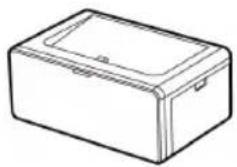
natural_image
Line drawing of a rectangular electronic device casing (no text or symbols)Photo Printer Dock

Paper Cassette

Power Adapter

Power Cord
* Specifications or design may change without notice for product optimization.
CONSUMABLE [SEPARATE PURCHASE]
Before printing, purchase an Ink Cartridge/Paper Set
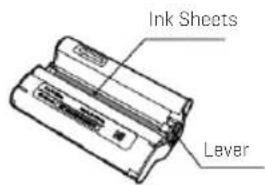
Ink Cartridge
![Sharper Image Smartphone Photo Printer - CONSUMABLE [SEPARATE PURCHASE] - 2](/content/2026/05/958364/images/c836d676a3a639cdc60fdf871ddfc981212bd0dab26d8bf08647db4856c107e3.jpg)
Photo Paper
CONSUMABLE SET
| Model | Print Size | Paper Type | Print Sheets |
| PHC-40 | 4 x 6 inch(100x150 mm) | Print Paper | 40 Sheets |
*Ink cartridge and paper are sold as a set.
IDENTIFICATION OF PARTS
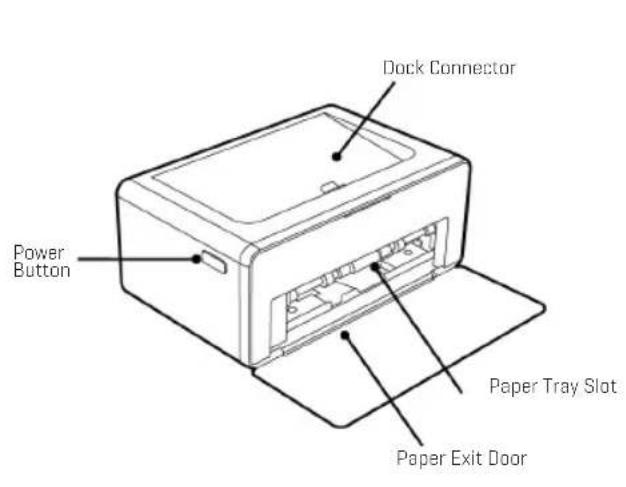

INSTALLING PHOTO PRINTER DECK
![MINIMUM 5CM [2 IN.] MINIMUM 20CM [8 IN.] MINIMUM 5CM [2 IN.] MINIMUM 5CM [2 IN.]](/content/2026/05/958364/images/a731aec1e4b68a5762b247372c990fa950433d57a69ce74eb0cd1164ce38c134.jpg)
Choose the right place to put the 4x6 Smartphone Photo Printer. Place the printer on a table or other flat, stable surface. Do not place the printer on an unstable or tilted surface.
- Leave a minimum of 5 cm (2 in.) of open space around the printer.
- Leave a minimum of 20 cm [8 in] in front of the printer.
- Make sure the power cord is not interfering with the area where the paper comes in and out.
- Avoid using the printer in dusty areas. It may damage the printer or cause a malfunction.
INSERTING CARTRIDGE
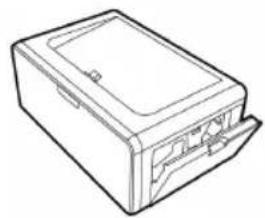
natural_image
Line drawing of a rectangular electronic device with a lid and ports (no text or symbols)- Open the cartridge cover.

natural_image
Technical line drawing of a rectangular electronic device with internal components (no text or symbols)- Insert the cartridge using the arrow specified until you hear a clicking sound.

natural_image
Line drawing of an office interior with a desk and computer (no text or symbols)-
Press down and pull out the lever to replace used cartridges.
-
When inserting the cartridge, do not touch the ink sheet with your hands.
- Do not reuse used cartridges. This could result in a product malfunction.
INSERTING PAPER CASSETTE

natural_image
Line drawing of a mechanical component with a folded sheet or plate (no text or symbols)- Open the cassette cover.

natural_image
Line drawing of a closed open box with a lid placed on top (no text or symbols)- Insert paper facing shiny side up. You can insert up to 20 sheets. Inserting over 21 sheets may cause a malfunction. Avoid touching the coated paper with your hands as it may affect the photo quality.

natural_image
Line drawing of a box with an open lid and arrow indicating direction (no text or symbols)- Open the printer's cassette cover.
natural_image
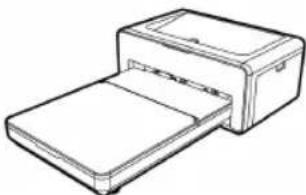
Line drawing of a printer with a rectangular base and paper holder (no text or symbols)- Insert the cassette until it clicks into place.
-10--11-
- iPhone, iPad and iPod

natural_image
Line drawing of a hand holding a smartphone (no text or symbols)SI SMARTPHONE PRINTER

- Visit the App Store via your device.
- Search for "SI Smartphone Printer."
-
Install the application.
-
Android Phones and Tablets

natural_image
Line drawing of a hand holding a smartphone (no text or symbols)SI SMARTPHONE PRINTER

- Go to the Play Store via your device.
- Search for "SI Smartphone Printer."
- Install the application.
PRINTING PHOTOS USING BLUETOOTH

- Turn on the printer by pressing the power button on the top left corner. Turn Bluetooth on in your smartphone.

- Go to Bluetooth setting in your smart phone and find "SI-XXXX". Printer name [XXXX] is variable [4 characters].

- App launch.

- Choose a photo. To start printing, push the print button in the App.
* You can find your printer Model No. on the label at the bottom of printer.
PRINTING SMARTPHONE CASE VIA APP

Select "Phone Case Print" and follow the guide in APP.

Select the photo in your phone gallery.

natural_image
Diagram of a smartphone mounted on a stand with a separate view showing the same device (no text or symbols present)Phone Case Print
CHARGE YOUR DEVICE
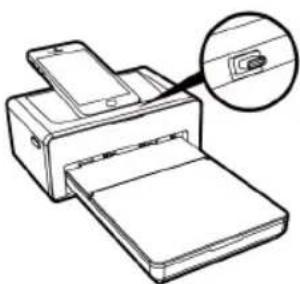
- Using the dock
Docking to the printer will charge your device.
natural_image
Line drawing of a printer with an inset showing a close-up of the paper (no text or symbols present)POWER AND LED STATUS INDICATORS

| STATUS | LED |
| Power On | Red LED Blinking for 10 seconds then White LED |
| Power Off [2 Seconds] | NONE |
| Printing | White LED Blinking |
| Firmware Update | RED LED Blinking |
| No Cartridge/Firmware Updating | Red LED Blinking for 10 seconds then White LED |
| No Cassette/Removing Cassette | Red LED Blinking for 10 seconds then White LED |
| No Paper | Red LED Blinking for 10 seconds then White LED |
| Error [Paper Jam, etc] | Red LED Blinking for 10 seconds then White LED |
| Loading, Cooling | White LED Blinking |
TROUBLESHOOTING
| INDICATION | SOLUTION |
| Paper Jam | - Turn the printer off and on. The printer will automatically eject the paper. If problem is not solved, please contact Customer Support. |
| Low Resolution | - The resolution of the original photo may affect print quality. We recommend photo with 1280x2448 pixels and above. |
| Printer Not Printing | - Turn the printer off and on.- Check if the cartridge is inserted properly.- The printer will not print once it reaches a certain temperature. This is not a malfunction. Please wait until the printer cools down. |
PRODUCT SPECIFICATION
| Model | PD-460 |
| Connectivity | BLUETOOTH |
| Docking | C-Type Lightning Dock |
| Print Size | 4 x 6 inch [100 x 148mm] |
| Supported Image Format | JPEG [Baseline], PNG |
| Cartridge | ICRG-40, ICRG-80, ICRG-120 |
| Optimal Printing Conditions | Temperature: 15-35C / Humidity: Below 70% RH [35C] |
| Printing Type | Dye Sublimation Thermal Transfer |
| Power | DC 24V 2.5A |
| Printer Size | 168.5 x 103.2 x 68.5mm |
| Supported Devices | Android Ver 4.0 and above / iOS Ver 6.0 and above |
FCC REQUIREMENTS PART 15
Caution: Any changes or modifications in construction of this device which are not expressly approved by the responsible for compliance could void the user's authority to operate the product.
NOTE: This device complies with Part 15 of the FCC Rules. Operation is subject to the following two conditions:
- This device may not cause harmful interface.
- This device must accept any interference received, including interference that may cause undesired operation.
This equipment has been tested and found to comply with the limits for a Class B Digital Device, pursuant to Part 15 of the FCC Rules. These limits are designed to this equipment generate, uses, and can radiate radio frequency energy and, if not installed and used in accordance with the instructions, may cause harmful interference to radio communications.
However, there is no guarantee that interference will not occur in a particular installation. If this equipment does cause harmful interference to radio or television reception, which can be determined by turning the radio or television off and on, the user is encouraged to try to correct interference by one or more of the following measures.
- Reorient or relocate the receiving antenna.
- Increase the separation between the equipment and receiver.
- Connect the equipment into an outlet on another circuit.
- Consult the dealer or an experienced radio/TV technician for help.
WARRANTY / CUSTOMER SERVICE
Sharper Image branded items purchased from Sharperlimage.com include a 1-year limited replacement warranty. If you have any questions not covered in this guide, please call our Customer Service department at 1 (877) 210-34/49. Customer Service agents are available Monday through Friday, 9:00 a.m. to 6:00 p.m. ET.
SHARPER IMAGE
The SHARPER IMAGE ® name and logo are registered trademarks.
©Sharper Image. All Rights Reserved.

Brand : Sharper Image
Model : Smartphone Photo Printer
Category : Audio/video converter