
PL200-H - Water pump Global Water - Free user manual and instructions
Find the device manual for free PL200-H Global Water in PDF.


| Product Type | Water Pressure Data Logger |
| Brand | Global Water |
| Model | PL200-H |
| Power Supply | One 3.6V, 2.4Ah AA-size Lithium Battery |
| Operating Temperature | -40°C to +85°C |
| Pressure Range | 0-200 psi (gauge), 300 psi overpressure |
| Accuracy | ±1% full scale |
| Analog Resolution | 12-bit, 4096 steps |
| Storage Capacity | 81,759 recordings (pressure + battery voltage) with timestamp |
| Communication Port | USB Type B (virtual COM port) |
| Supported Baud Rates | 9600, 19200, 28800, 38400, 57600, 115200 (auto-detect) |
| Thread Size (PL200-H-1) | 2.5" BSP Male |
| Thread Size (PL200-H-2) | 2.5" NHT Female |
| Sample Modes | Fixed Interval (1 sec to >1 year), High Speed (10/sec), Logarithmic, Exception (deviation-based) |
| Sensor Warm-up Time | 0 sec (50 ms actual) |
| Battery Voltage Monitor | Yes (included in recordings) |
| Compatible Software | Global Logger II (Windows 98, ME, 2000, XP, Vista, 7) |
| Warranty | 1 year from shipment (defects in material/workmanship) |
| Maintenance | Battery replacement every 6-12 months; no other user-serviceable parts |
| Installation Caution | Use spanner wrench, avoid mechanical shock and twisting |
Frequently Asked Questions - PL200-H Global Water
User questions about PL200-H Global Water
0 question about this device. Answer the ones you know or ask your own.
Ask a new question about this device
Download the instructions for your Water pump in PDF format for free! Find your manual PL200-H - Global Water and take your electronic device back in hand. On this page are published all the documents necessary for the use of your device. PL200-H by Global Water.
USER MANUAL PL200-H Global Water
PL200-H Hydrant Pressure Logger

natural_image
Simple black-and-white icon with a stylized wavy line inside a rounded square (no text or symbols)Global Water
Instrumentation, Inc.
151 Graham Road
P.O. Box 9010
College Station, TX 77842-9010
T: 800-876-1172
Int'l: (979) 690-5560, Fax: (979) 690-0440
E-mail : globalw@globalw.com

Global Water
800-876-1172 • globalw.com
Congratulations on your purchase of a Global Water PL200-H-1 Fire Hydrant Pressure Data Logger. This instrument has been quality tested and approved for providing accurate and reliable measurements. We are confident that you will find the logger to be a valuable asset to your applications. Should you require assistance, our technical staff will be happy to help.
Table of Contents
VIII. Connecting to the Software □ □ 9
IX. Main Screen □ □ □ □ □ 10
X. On-Line Help Files □ □ □ □ 14
a. Your Data Logger was carefully inspected and certified by our Quality Assurance Team before shipping. If any damage has occurred during shipping; please notify Global Water Instrumentation, Inc. and file a claim with the carrier involved.
III. Warranty:
a. Global Water Instrumentation, Inc. warrants that its products are free from defects in material and workmanship under normal use and service for a period of one year from date of shipment from factory. Global Water's obligations under this warranty are limited to, at Global Water's option: (I) replacing or (II) repairing; any products determined to be defective. In no case shall Global Water's liability exceed the products original purchase price. This warranty does not apply to any equipment that has been repaired or altered, except by Global Water Instrumentation, Inc., or which has been subject to misuse, negligence or accident. It is expressly agreed that this warranty will be in lieu of all warranties of fitness and in lieu of the warranty of merchantability.
b. The warranty begins on the date of your invoice.

Global Water
800-876-1172 • globalw.com
IV. Specification:
Power Supply: One 3.6 Volt, 2.4Ahr, AA Size Lithium Battery Global Water Part number 01-678 or from mouser.com, part number 667-TL5903S
Operating Temperature Industrial, -40°C to +85°C
Pressure Sensor: 0-200 psi gauge type sensor
300 psi over-pressure
Accuracy, +/- 1%, full scale
Battery voltage monitor
Analog Resolution: 12-Bit, 4096 Steps
Sensor Warm-up Time: 0 Seconds (50mS Actual)
Sample Modes: Fixed Interval: Programmable from 1 Sec. to >1 Year High Speed: 10 Samples per second Logarithmic Sample Rate (Approximation) Exception (Log only on deviation from previous reading)
Storage Capacity: 81,759 Recordings of water pressure and battery voltage with date/time stamp
Communication Ports: USB Type B Selectable Baud Rates: Auto detect or fixed rates at 9600, 19200, 28800, 38400, 57600, 115200 57.6K Baud is recommended
Thread Size: PL200-H-1: 2.5" BSP Male PL200-H-2: 2.5" NHT Female
Spanner Wrench: Optional, 95-100mm Part Number 01-827
Optional Adaptors: 2.5" BSP Female to 2.5" NHT Female Part Number 01-826 Call for other available adaptors

Global Water
800-876-1172 • globalw.com
V. System Requirements:
Desktop or Laptop computer with:
1) Windows 98, ME, 2000, XP Vista or Windows 7 Operating Systems
2) CDROM Drive
3) USB Port
Note that the software described here is for running on desktop and laptop computers only. Software for many popular Handheld PDA devices is also provided by Global Water. Special cables may be required.
VI. Accessing the USB Port
Remove the thumbscrew from the center of the cover and lift off, the USB port is located inside.

VII. Software Installation:
Global Logger Installation: This software is for use on Windows based desktop and laptop
computers only. Insert the software installation CD and run the Setup program. This will install the Global Logger application in the Program Files folder and automatically put the Global Logger II icon on the desktop.
USB Driver Installation: With the installation CD in the CDROM drive and DC power applied to the logger, plug the USB cable into the data logger to open the ADD New Hardware Wizard. The menus that follow will look different for different operation systems but the procedure is the same. Do not allow the Hardware Wizard to automatically search for the driver. Instead, specify the location (CDROM). If a generic driver gets, or has been previously installed, it must be uninstalled before proceeding by using the Add or Remove Programs section of the Control Panel. Instead, click the Search External Media box or Specify a Location box and install the driver from the CDROM. Running the Setup program that installs the Global Logger software also installs a folder with the driver in it. This location can also be specified if the CDROM is not available; although, it is recommended that the driver be installed at the same time the Global Logger is installed.

Global Water
800-876-1172 • globalw.com
The following menus apply to the Windows XP operating system.
1) Do not let Windows search for software. Click "No, not at this time" when asked if Windows Update can search for software.
Click Next.

2) Do not let Windows automatically install the software. Click "Install from a specific location".
Click Next.

3) Specify the location of the driver. Make sure the Global Logger CDROM is in the CD drive and click "Search removable media" only.
Click Next.


Global Water
800-876-1172 • globalw.com
4) The Hardware Wizard searches for the driver.
If Windows advises that the software is not certified, click: "Continue Anyway".
This only means that Microsoft has not licensed the software. Second party software is allowed and no harm will come to your computer.
5) The first half of the installation is complete. The Hardware Wizard must make two passes.
Click Finish.


6) Two drivers might be required so the Hardware Wizard may repeat the same process again. As before; a: do not let the Windows Update do a search, b: tell Windows to search from a specific location instead of automatically installing software, c: tell Windows to search from removable media (CDROM).
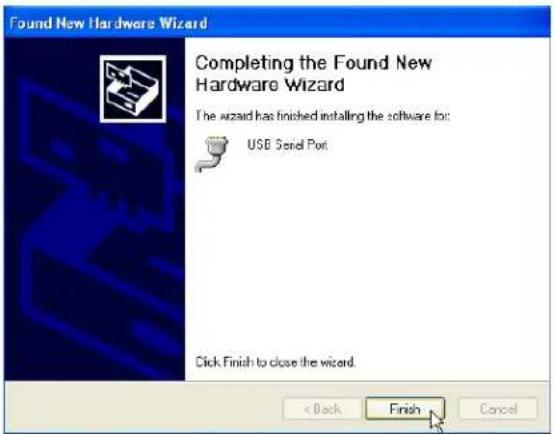
7) The installation is complete.
Click Finish.

Global Water
800-876-1172 • globalw.com
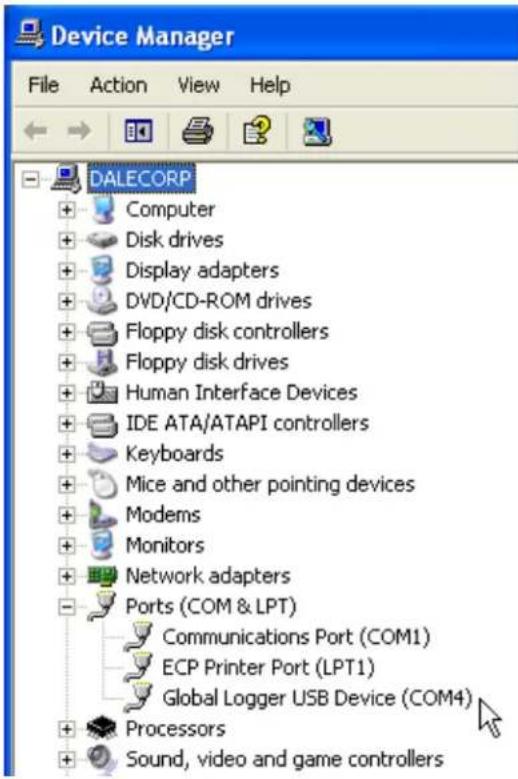
8) To confirm the installation, look in the Device Manager and find the USB Serial Port. The COM setting following that will show the virtual COM port that has been automatically assigned to the driver. As you will see in the following sections, this COM port will be automatically detected by the Global Logger software so it is not necessary to note which port is being used by the driver.

Global Water
800-876-1172 • globalw.com
VIII. Connecting to the Software:
Important: This data logger supports an Auto Baud Rate Mode which automatically detects the communication speed. However; this communication software also supports loggers which may be programmed in a Fixed Baud Rate Mode. This is useful in telemetry applications, particularly when using Global Water data loggers with our Global Access radio modem software. The upcoming discussion assumes that the logger is programmed in auto detect mode. If you cannot connect to the logger and suspect that the logger may be using a fixed rate mode; try each connection speed separately, especially 38400 which is required when using the Global Access software. Direct connection is made through the USB port.
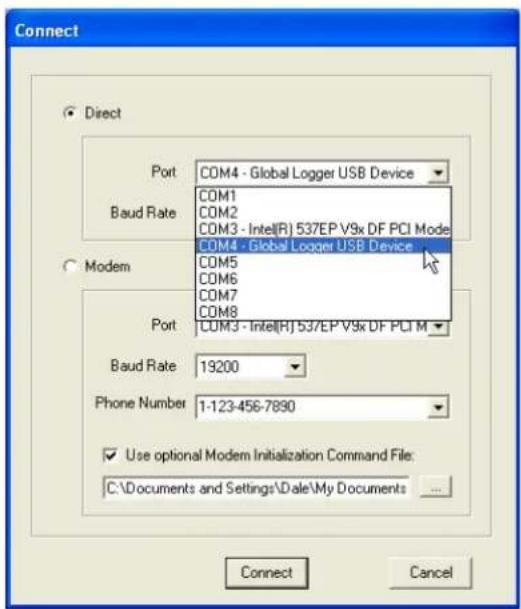

To connect to the logger, click the "Direct" option and from the "Port" menu, select the USB serial port at the COM port the driver was assigned, which is automatically shown in the list as "Global Logger USB Device".
Next, select the desired baud rate from the "Baud Rate" menu. Generally, the recommended rate of 57.6K baud is used although; long cables or other factors may require a slower setting. Click "Connect" to make the connection. If a connection is not made, an error message will appear. Check the battery, communication cable, driver installation and COM port settings.

Global Water
800-876-1172 • globalw.com
IX. Main Screen:
The main screen is where the status and option menus are accessed. The data logger will continue to log at normal intervals while connected to the Global Logger software. While connected, the logger will draw an addition current from the power supply of 5-10mA so it is advised that, if you plan to not access the logger for extended periods of time, you disconnect to increase battery life. Interface cables may remain connected. To disconnect, click on the “Disconnect” button. This label on this button will change to “Connect” and clicking on it will return you to the connection screen as previously discussed.

bar
| Stage | Pulse Channel 1 | Pulse Channel 2 | Alarm 1 | Alarm 2 | |---|---|---|---|---| | 1 | 200.0 | 0.0 | 0.0 | 0.0 | | 2 | 89.0 | 0.0 | 0.0 | 0.0 | | 3 | 89.0 | 24.0 | 0.0 | 0.0 | | 4 | 18.5 | 0.0 | 0.0 | 0.0 | | 5 | 18.5 | 0.0 | 0.0 | 0.0 | | 6 | 18.5 | 0.0 | 0.0 | 0.0 | | 7 | 18.6 | 0.0 | 0.0 | 0.0 | | 8 | 18.6 | 0.0 | 0.0 | 0.0 | | Sample Continuously: 200.0, Disconnect: 24.0, Get Sample: 24.0, Get History: 24.0, Clear History: 24.0, Sync Time: 24.0, Setup: 24.0; PSI: 89.0; Pulse Channel 1: Pulse Channel 2: Alarm 1: Alarm 2: Time: 6/29/06, Interval: 6/29/06, Warmup: 6/29/06, Records: 81759, Logging State: Logging: Comm Status: Connected; Logger Name: Global Water GHT Logger; Logger Time: 6/29/06, Interval: 1 hour, Warmup: 0 sec, Records: 81759; Logging State: Logging; Sample Continuous; Disconnect; Get Sample; Get History; Clear History; Sync Time; Setup; Pulse Channel 1; Pulse Channel 2; Alarm 1; Alarm 2: Time: 12:00:00 AM; 12:00:00 AMTool Bar: The tool bar at the top of the screen has 3 options; File, Action and Help. In this screen, the File option is used to exit the program only. Action allows a menu driven interface to the various functions and displays the hot-keys, which can be used for fast access. In the Help menu; Help allows you to view the on-line help files (see section X), Selecting About shows contact information and revision information for the Global Logger software and Firmware Version displays the data logger's revision number.

Global Water
800-876-1172 • globalw.com


COM Status: This reads "Connected" in green or "Not Connected" in red, depending on the current connection status.
Logger Name: The logger name is a user defined name associated with a particular logger to identify one from another. It is programmed in the Setup menu as described later and is limited to 32 characters.
Logger Time: The time and date displayed is that of the real-time clock in the logger. It is only updated upon initial connection and certain functions that cause data to be read from the logger. These include Sample Continuously, Get Sample, Sync Time and Setup whose functions are to be described later.
Interval: This field displays the logging mode. "Fast" indicates high-speed mode and "Logarithmic" is shown in logarithmic mode. If the logger is in the normal fixed interval sampling mode, the time between samples will be displayed. These modes are to be described later.
Warmup: This displays the sensor warm-up time, generally 3 seconds.
Records: This field indicates the number of data recordings in memory.
Logging State: This shows whether the data logger is currently logging or waiting to be started or stopped by the alarm timers. These features are described in detail later.

Global Water
800-876-1172 • globalw.com
Sample Continuously: Clicking this check box causes the Global Logger software to take and display a real-time reading once per second until stopped by clicking it again, as well as update the rest of the fields on the screen. These data readings are not stored in the historical record and do not affect the normal recording of the logger. The initial reading has a sensor warm-up time of 50mS and the sensor is left powered up until this feature is turned off.
Get Sample: Clicking this button causes the Global Logger software to take and display a single reading as well as update the rest of the fields on the screen. This data reading is not stored in the historical record and does not affect the normal recording of the logger.
Get History: This button starts the download of all the historical data stored in the logger memory. Oldest data is collected first and Clicking "Stop" halts the process. This function is described in detail later.
Clear History: This resets the number of recordings in memory to zero. The user is warned first and must confirm the action before the memory is cleared.

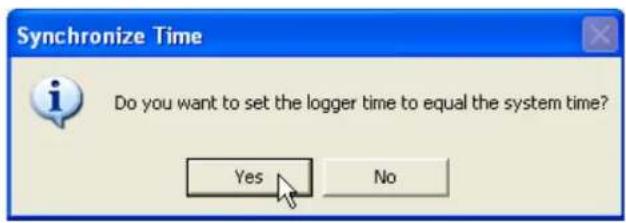
Sync Time: This button causes the data logger's internal clock to be set to the system time of the computer it is connected to. The user is warned first and must confirm the action before the time is set.
Setup: Clicking this button enters the setup screen where the user can change and program all parameters into the data logger. This function is described in detail later.
Bar Graphs: The bar graphs show a visual representation of the most recent data reading taken by using the Sample Continuously or Get Sample functions. The upper and lower limits of the display are defined by the user as discussed in detail later.

Global Water
800-876-1172 • globalw.com
Numerical Reading: The numerical reading at the bottom of the bar graph shows the actual data reading and is updated at the same time as the bar graph.
Successive numerical readings taken by using Sample Continuously or Get Sample are shown in a list below the bar, up to 5.
Alarm 1: This field shows the time that the logger is set to start logging. The start alarm is a 24-hour timer which will initiate logging, when enabled, at the next occurrence of that time.
Alarm 2: This field shows the time that the logger is set to stop logging. The stop alarm is a 24-hour timer which will halt logging, when enabled, at the next occurrence of that time after the logger has started recording. If the Alarm 1 timer is set to initiate logging, the Alarm 2 timer will halt logging at the next occurrence of the Alarm 2 time after the logger has been started by Alarm 1. If the Alarm 1 timer is not enabled, the Alarm 2 timer will halt the logger on the next occurrence of that time.
Note: The alarm start and stop cycle is a one time occurrence. Once stopped by the Alarm 2 timer, the logger will not resume logging again until the logger is reprogrammed. Reprogramming the logger with the timers enabled will restart the alarm cycle. Reprogramming the logger with the timers disabled will return the logger to a normal logging state
Use care when programming the alarm times. If left enabled, changing and reprogramming any of the setup parameters will restart the alarm timers and could cause the logger to stop recording.
Using the Alarm 2 Stop Timer can significantly increase battery life, especially when using fast sampling speeds. See section XVIII for more information on battery life.

Global Water
800-876-1172 • globalw.com
X. On-Line Help Files:
Clicking on Help displays the on-line help files which contain all of the information contained in this manual. There are 3 ways to access the information. The first tab is Contents which accesses the table of contents for the manual. Clicking on any of the topics opens up the
body of text on that subject. Within each body of text is a discussion of that subject and links to related topics underlined in blue. Clicking on the link will bring up a new window with specific information on that topic. In this case, Sensor Warm-up time in the General Setup menu.

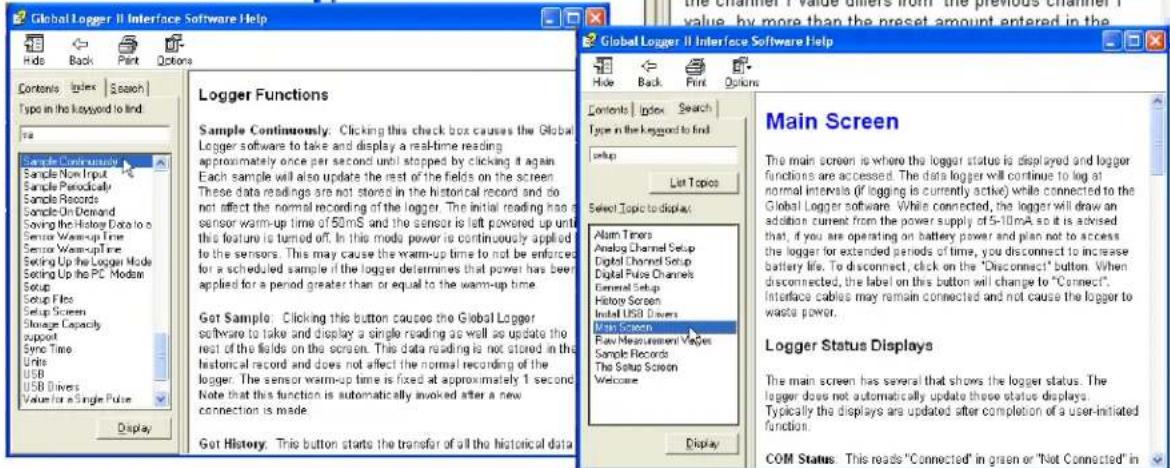
Click the Index tab to find a listing of topics. Type letters into the keyword field and the program automatically sorts the topics alphabetically. To find relevant topics based on a keyword, click the Search tab. Type in a keyword and click List Topics. When the desired topic is found, double-click on it or click Display at the bottom of the screen to show information on that subject.

Global Water
800-876-1172 • globalw.com
XI. Get History:
Clicking the Get History button begins the downloading of the historical data into an information screen. This screen allows the viewing of the recorded data and also provides a path to export the data to an Excel compatible file (.CSV file). Note that the logger continues to log as data is downloaded. Thus, more data points may be downloaded than originally indicated.
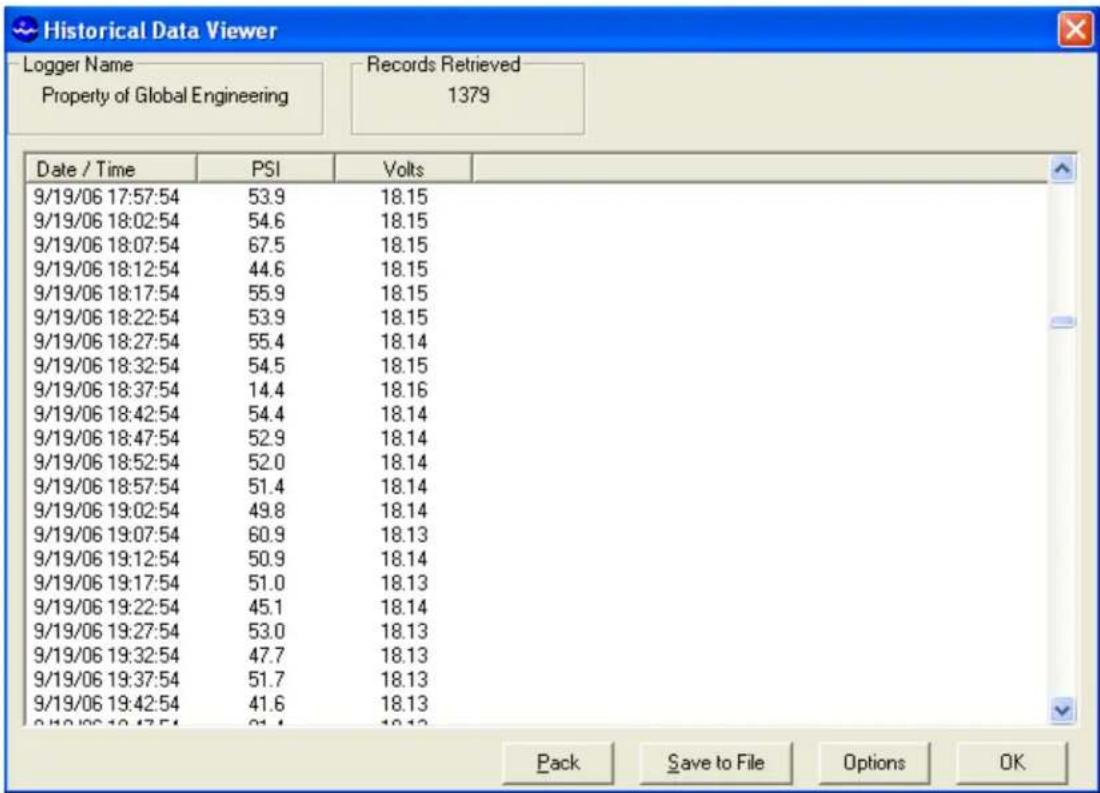
At the top of the screen is shown the name assigned to the logger and the number of recordings that have been retrieved. At the bottom of the screen are three buttons, Pack, Save to File and OK.
Pack: The Pack function removes recordings that are identical to the previous ones. All the channels must be the same as the row above for it to be removed. If even a single channel has data that differs from the previous sample, the row will not be removed. This function works best when a single channel is being recorded and allows only the data showing changing conditions to be viewed.

Global Water
800-876-1172 • globalw.com
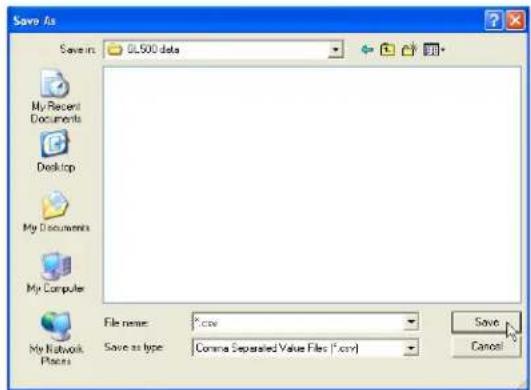
Save to File: Clicking this button allows the data to be exported to an Excel compatible .CSV file. Specify the path and the file name and click the Save button
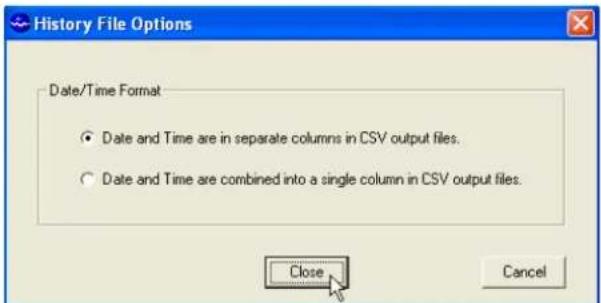
Options: This opens a menu which Allows you to select if you want the Time and date in the time stamp to Be in one column or two in the saved .CSV file. Click Close to return.
OK: Clicking the OK button returns you to the main screen.
XII. Setup Menus:
Clicking the Setup button enters the setup menu which is composed of three sections, Analog, Digital and General; with the digital screen not being supported by the PL200H logger. The first screen to appear is General Setup. At the top of the setup screen is a toolbar with three options, File, Action and Help.
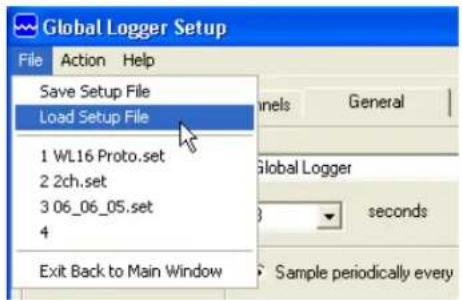
File: The File option allows you to exit the setup screen but most importantly, it allows all of the configuration information for the logger to be saved to a file or restored from a file. Select "Load Setup File" to restore a configuration from a file that has been previously saved or "Save Setup File" to save the current setup and calibration information. The last 4 files are shown for convenience. Setup files have a .SET extension. It is advised that after you calibrate and configure the logger, you save the configuration to a file as a backup precaution before exiting the setup
menu.


Global Water
800-876-1172 • globalw.com
Action: The Action menu has two options, "Program Settings" and "Initialize to Default Values". Program settings will reprogram the data logger with all the setup and calibration information and works the same as the Program Settings Button at
the bottom of the screen. Initialize will restore all of the analog, digital and general setup information fields to default values. Only the setup menus are changed, the data logger must still be programmed with the new default values. A warning message will appear before this action is taken.

Help: The Help menu provides access to the on-line help files and Global Water contact information as described previously.
XIII. General Setup:
In the General Setup menu, the logger name, sensor warm-up time, logging mode, logging interval and alarm times are entered.


Global Water
800-876-1172 • globalw.com
Name: The logger is a user definable name to identify the logger. Up to 32 characters are allowed however, a continuous string of characters of more than 16 with no spaces may not be displayed correctly. Click on the field to enter information.
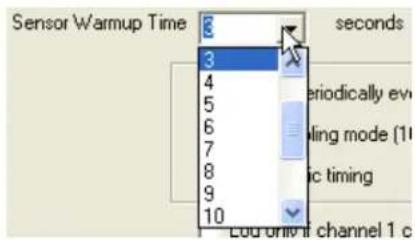
Sensor Warm-up Time: To conserve battery life, the sensor does not normally have power applied to it. Before taking a reading, the logger powers up the sensor for the sensor warm-up time, and then removes power from them again. A warm-up time of 0 seconds is recommended. Click on the field to enter or select the time in seconds from the pull-down menu.

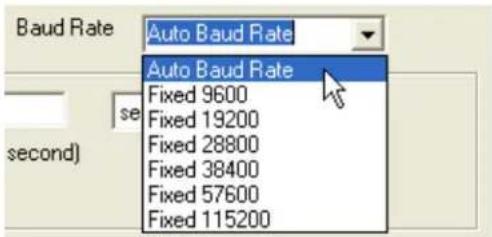
Baud Rate: Leave this set to Auto Baud Rate. Only change this to a fixed baud rate if planning to use this logger in a telemetry application, such as using Global Water's Global Access radio modem software. Once programmed in a fixed rate mode,
you must set the baud rate in the opening connection menu of the Global Logger II software to this speed, or the logger will not communicate.
Sample Periodically: Sampling at regular intervals is the most common recording mode. Click the Sample Periodically option, select the units from the pull-down menu and click the numerical field to enter the number of those units up to 65,535.
Fast Sampling Mode: In Fast mode, the sample rate is fixed at 10 times per second. The time stamp will not read fractions of a second so there will be 10 samples per time stamp. Click the Fast mode option to select this feature.

Global Water
800-876-1172 • globalw.com
Logarithmic Timing: Typically used in groundwater pump studies, this mode speeds up the sample rate over time. Click the “Logarithmic” option to select this mode. This is a logarithmic approximation that steps up the sample rate:
a. 10 times per second for 20 seconds, 200 samples
b. 1 second interval for 100 seconds, 100 samples
c. 10 second interval for 10 minutes, 60 samples
d. 1 minute interval for 60 minutes, 60 samples
e. 10 minute interval for 10 hours, 60 samples
f. 1 hour interval for 48 hours, 48 samples
g. 1 day interval until memory s full
Log Upon Deviation: Clicking the "Log only if Channel 1 change exceeds +/-" box causes the logger to record the current reading in memory only if it exceeds the previously reading by the preset amount entered in the numeric field. This logging exception applies to channel 1 only and the deviation is measured in Raw Data units where the approximate raw data range is from 0-65535, corresponding to 0-20mA.
√ Log only if channel 1 change exceeds +/- 1638 raw units
√ Wrap records at end of storage
To find the actual number of raw data units per engineering unit, use the calibration numbers in the Analog Setup screen for channel 1 as follows: Raw Data Units per Engineering Unit = (High Raw - Low Raw) / (High EU - Low EU). For example: The PL500G has a High EU of 100, a Low EU of zero, a High Raw of 34874 and a Low Raw of 7846. (34874-7846) / (100-0) = 270.3 raw data units per psi. Thus, if you want to log only when a reading exceeds the previous on by 10 psi, set the deviation to 2703. Click the numeric field to enter the desired range.
Wrap records: If the “Wrap records at End of Storage” box is checked, once the memory is full, the oldest data points will be replaced with the newest. Thus, the memory block represents only the newest. If this feature is not checked, the logger will halt recording once the memory is full.

Global Water
800-876-1172 • globalw.com
Sample-On-Demand: This feature is not supported by the PL200H data logger.
Alarm Times: Check the box associated with each alarm to enable that feature and enter the desired start or stop time. The logger will start at the next

occurrence of the Alarm 1 time and stop at the next occurrence of the Alarm 2 time after the Alarm 1 timer has expired. Either or both alarms can be enabled.
Important:
These timers are a one time event; the logger will not restart on the next occurrence of the Start timer unless the logger is reprogrammed with these settings.
Use care when programming the alarm times. If left enabled, changing and reprogramming any of the setup parameters will restart the alarm timers and could cause the logger to stop recording and the loss of important data.
Using the Alarm 2 Stop Timer can significantly increase battery life, especially when using short sample intervals. See section XVIII for more information on battery life.

Global Water
800-876-1172 • globalw.com
Analog Setup:
The Analog Setup screen sets the engineering units and calibration numbers for each of the analog channels, the endpoints of the bar graphs in the main screen and which of the analog channels are enabled. These channels are calibrated in the same way so a single channel will be discussed. It is important to note here that the information stored in the data logger's memory is just the sensors output level before it is adjusted by the following calibration parameters. These parameters are used to adjust the stored data for display and storage purposes only, at the time the data is downloaded. If they are changed, the same stored data can be downloaded again and the data will be scaled differently according to the new settings.

The PL200H Logger comes factory calibrated but you may want to re-calibrate on occasion. The pressure sensor is designed to measure over the range of 0-200 psi but it can be calibrated at lower pressures. The screen above shows channel one calibrated at 100 psi but set to display up to 200 psi on the main screen.

Global Water
800-876-1172 • globalw.com
Enable: If the "Enable" box at the top of a column is checked, data for that channel will be shown in the historical record and be available for export to Excel. The data for all the analog channels is always being recorded whether the channel is enabled or not.
Units: This field shows the units that will appear at the top of the data column for that channel in the historical record as well as the display of data in the main screen. Click on the field to enter the unit or select from a predefined list. Note that psi is not included in this list.

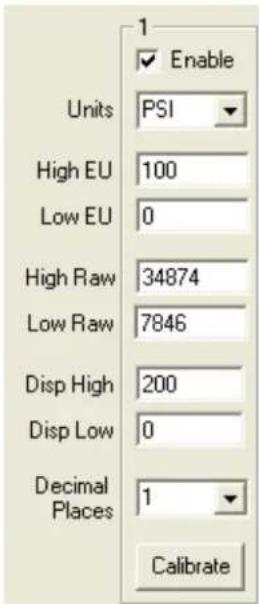
High EU: The High EU field is the engineering unit where the highest output from the sensor is achieved during the calibration process, in this case a pressure of 100 psi.
Low EU: The Low EU field is the engineering unit where the lowest output from the sensor is achieved during the calibration process, in this case a pressure of zero.
High Raw: This is the raw data value as measured by the data logger that corresponds to the High EU value and is automatically set by the calibration process. In this case, the raw data value returned by the logger at a pressure of 100 psi.
Low Raw: This is the raw data value as measured by the logger that corresponds to the Low EU value and is automatically set by the calibration process. In this case, the raw data value returned by zero pressure.
Disp High: This field sets the upper limit of the bar graph displayed in the main screen and provides a way of scaling the graph beyond the upper limit used to calibrate the logger. In this example, the upper calibration point was a pressure of 100 psi but the maximum range of the sensor is 200 psi.
Disp Low: This field sets the lower limit of the bar graph displayed in the main screen and provides a way of scaling the graph beyond the lower limit used to calibrate the logger. In this example, the lower calibration point was at zero psi.

Global Water
800-876-1172 • globalw.com
Decimal Places: From the pull-down menu, select the number of decimal places to the right of the decimal point that should appear in the historical data and in the numerical data field at the bottom of the bar graph.
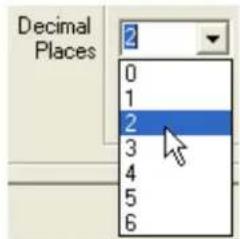
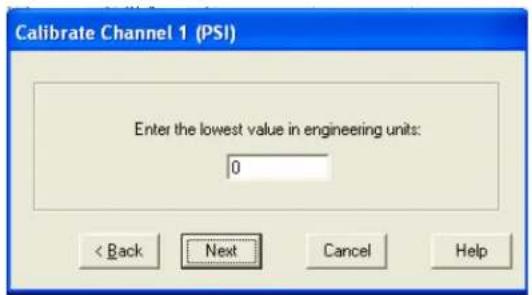
Calibrate: The "Calibrate" button provides a simple 4-step process for calibrating the logger to a particular sensor. Click the Calibrate button and follow the menu instructions.
Click on the High EU field and enter the high engineering unit that will be used to calibrate the logger, not the highest reading the sensor can output. In this example, a pressure of 100 psi is used to calibrate the logger, even though the sensor can measure up to 200 psi. Click Next.
Place the sensor in the condition that will cause it to output the level corresponding to the high EU entered in the previous menu. Wait for the data reading to stabilize. Click Next.
Click on the Low EU field and enter the low engineering unit that will be used to calibrate the logger, not necessarily the lowest reading the sensor can output. In this example, the value is zero psi. Click Next.
Place the sensor in the condition that will cause it to output the level corresponding to the low EU entered in the previous menu. Wait for the data reading to stabilize. Click Next to complete the calibration.




Global Water
800-876-1172 • globalw.com
XIV. Programming
Program Settings: The Program Settings button at the bottom of the setup menus will cause all the setup and calibration information to be programmed into the data
logger. A warning will appear requiring the use to confirm the action. Click Yes to program the logger and No to cancel the operation.
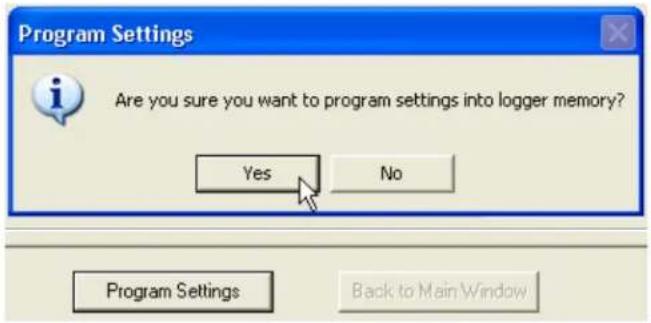
Back to Main Window: The Back to Main Menu button exits back to the main
screen. If no settings have changed, Exit will occur immediately. If settings have changed but not saved yet, a message will appear that asks the user if they would like to save them now. If the settings have changed but not yet programmed into the logger, another message will be shown asking if the logger should be reprogrammed. These layers of protection are designed to prevent the user from unintentionally changing settings or forgetting to save the configuration file. Should the settings accidentally be changed, a saved configuration file can be loaded and used to restore the original settings.


Global Water
800-876-1172 • globalw.com
XV. Installing the Data logger
The data logger is an electronic device and sensitive to excessive mechanical abuse. Do not drop the logger or otherwise subject it to mechanical shock. The assembly can be heavy and could do significant damage to the logger
housing if handled improperly.
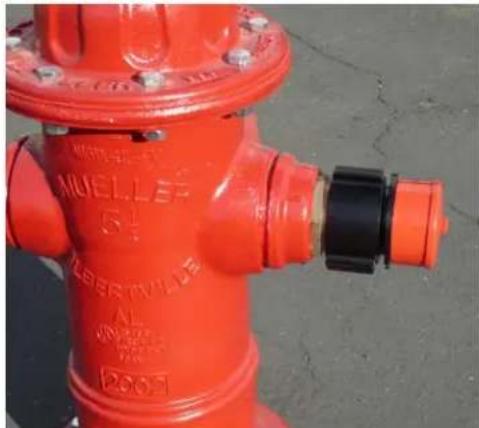
Do not hammer the prongs to tighten the logger onto the hydrant, only use a spanner wrench of appropriate size and turn the logger carefully as it is tighten or is removed. Do not twist the logger housing. Picture shows optional 2.5"NHT adaptor
natural_image
Close-up of a red fire hydrant valve with engraved markings (no readable text beyond branding)XVI. Battery Replacement:
Except for the battery, there are no user-serviceable parts inside the PL200H Data Logger. Global Water recommends checking the batteries every 6 to 12 months, or when the battery voltage monitor shows a low voltage condition of 3.4 volts or less.

natural_image
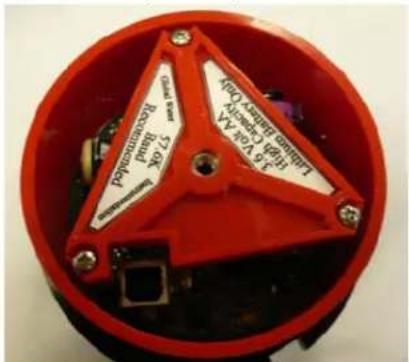
Interior view of a red bucket containing electronic components including batteries, circuit boards, and connectors (no visible text or symbols)To change the battery; turn the thumbscrew in the center of the top cover counterclockwise and remove it. Remove the 3 screws holding down the crossbar. Replace the battery with a 3.6 volt AA size lithium battery only, AA size batteries commonly used in consumer electronics only produce 1.5 volts and will not operate the data logger. Be careful to observe the polarity, align the battery as shown. The high capacity battery described in the specifications section is recommended. Replace the crossbar, making sure that the cutout on one side is properly aligned with the USB port.

Global Water
800-876-1172 • globalw.com
XVII. Battery Life
The 3.6 volt lithium battery may last 2-3 years, depending on use; however, higher sample rates can reduce battery life significantly. It is impossible to accurately predict the battery life for all types of usage and conditions, such as sample rate and ambient temperature; however a general assumption is that a new battery will last about 1-2 years based on continuous use at sample rates of 1 minute or greater, and normal ambient temperatures of at least 32irc F.
One of the best features of the PL300H Hydrant Logger is the 10 times per second sample rate. This feature allows you to capture detailed data from pressure waves cased by water hammer and other affects, but it also consumes the most power. Under normal conditions, this feature will deplete the battery in about one week if left turned on.
You can increase the battery life significantly when using the high sample rate mode by utilizing the alarm start and stop timers, as described on page 13. In high speed mode, the memory will hold 81,759 data points or 2 hours and 16 minutes of data; which usually makes it impractical to keep the logger running any longer than that. Use the alarm start and stop timers to record data and fill memory only when data needs to be collected. How the memory wrap-around feature described on page 19 is set determines whether the first 81,759 accumulated data points are stored or the most recent ones. With wrap-around turned off, the logger will continue to take readings and consume power, the data is just not stored in memory once it is full. Thus, turning memory wrap-around off will not save power.

Global Water
800-876-1172 • globalw.com
XVIII. Troubleshooting:
Issue: Logger is reading incorrectly.
a. Verify the battery has enough voltage. To operate properly, the logger must have about 3.3 volts or more. If the battery voltage monitor is reading less than 3.3 volts or seems incorrect, check the batteries with a voltmeter or replace them. Battery voltages less than 3.4 volts indicate that the batteries need replacing soon.
b. Check the logger and sensor calibration numbers in the Setup Menu. Recalibrate the logger if necessary. As a precaution, save the setup file first as described in section XII.
Issue: Cannot communicate with the logger.
a. Verify that a fresh battery is installed.
b. Check the communication cable.
c. Use the Device Manager to confirm that the driver is loaded and the correct virtual COM port is selected in the connection menu of the Global Logger software. Check the Device Manager in your operating system and confirm that the USB COM port is not being used by another device.
d. Try reducing the baud rate in the connection screen of the Global Logger software. Try each baud rate setting in case the logger has been programmed in Fixed Baud Rate mode.
Issue: Logger is not recording.
a. Check if the Alarm 2 Stop Timer is set. The status of the logger can be seen in the top right corner of the Global Logger II main screen. If it says Stopped by Alarm 2, you must reprogram the logger.
b. Check the Memory Wrap-Around feature. If this setting is off and the logger's memory is full, no further logging will occur until the feature is turned on or the memory is erased.
c. Check the battery for proper voltage.

Global Water
800-876-1172 • globalw.com
XIX. Technical Support:
Call Global Water for tech support: 800-876-1172 or (979) 690-5560
(many problems can be solved over the phone). Fax: (979) 690-0440 or
Email: globalw@globalw.com.
When calling for tech support, have the following information ready:
- Model #.
- Unit serial number.
- P.O.# the equipment was purchased on.
- Our sales number or the invoice number.
- Repair instructions and/or specific problems relating to the product.
Be prepared to describe the problem you are experiencing including specific details of the application, installation, and any additional pertinent information.
In the event that the equipment needs to be returned to the factory for any reason, please call to obtain a RMA# (Return Material Authorization). Do not return items without a RMA# displayed on the outside of the package. Include a written statement describing the problems.
Send the package with shipping prepaid to our factory address. Insure your shipment; Global Water's warranty does not cover damage incurred during transit.
- PL200-H Hydrant Pressure Logger
- Global Water
- 800-876-1172 • globalw.com
- Table of Contents
- Warranty:
- Specification:
- System Requirements:
- Desktop or Laptop computer with:
- Accessing the USB Port
- Software Installation:
- If Windows advises that the software is not certified, click: "Continue Anyway".
- Connecting to the Software:
- Main Screen:
- On-Line Help Files:
- Get History:
- Setup Menus:
- General Setup:
- Important:
- Analog Setup:
- Programming
- Installing the Data logger
- Battery Replacement:
- Battery Life
- Troubleshooting:
- Technical Support:
Brand : Global Water
Model : PL200-H
Category : Water pump