
AFTWS-0824 - Smartwatch Bauhn - Free user manual and instructions
Find the device manual for free AFTWS-0824 Bauhn in PDF.


| Product Type | Smartwatch |
| Brand | Bauhn |
| Model | AFTWS-0824 |
| Display Type | 1.4-inch TFT LCD touchscreen |
| Dimensions | 42mm x 36mm x 10mm (case only) |
| Weight | Approximately 50g (including strap) |
| Battery Type | Rechargeable lithium-ion, 300 mAh |
| Charging Method | Magnetic USB charging cable |
| Battery Life | Up to 7 days (typical usage) |
| Water Resistance | IP67 (sweat, rain, hand washing) |
| Connectivity | Bluetooth 5.0 |
| Compatibility | iOS 10+ / Android 6.0+ |
| Main Functions | Step counter, heart rate monitoring, sleep tracking, call/message notifications, music control, sedentary reminder, stopwatch, alarm |
| Sensors | Accelerometer, optical heart rate sensor |
| Strap Material | Silicone (replaceable) |
| Strap Width | 22mm |
| Care Instructions | Clean with a soft dry cloth; avoid contact with chemicals |
| Safety Precautions | Do not expose to extreme heat or water pressure; consult doctor if you have a pacemaker |
| Spare Parts Availability | Contact Bauhn customer service for replacement straps and chargers |
| Repairability | Non-user-serviceable; seek professional repair |
| General Information | Supports activity recording, notification sync via companion app (VeryFitPro) |
Frequently Asked Questions - AFTWS-0824 Bauhn
User questions about AFTWS-0824 Bauhn
0 question about this device. Answer the ones you know or ask your own.
Ask a new question about this device
Download the instructions for your Smartwatch in PDF format for free! Find your manual AFTWS-0824 - Bauhn and take your electronic device back in hand. On this page are published all the documents necessary for the use of your device. AFTWS-0824 by Bauhn.
USER MANUAL AFTWS-0824 Bauhn
Should you for any reason need to return this
product for a warranty claim, make sure to
include all accessories with the proc
Product does not work?
If you encounter problems with this product, or
if it fails to perform to your expectations, make
sure to contact our After Sales support Centre on 1300.002.534
or you see it?
AFTER
AFTER SALES SUPPORT 客服 1300 002 534
lerqiu. http://appie/
Model: JFTH85.08241 act Code: T76294 08/2024
Pedometer (Daily Exercise)
On the main menu, tap on the menu to enter.
the Pedometer interface. The watch will track
the number of steps taken, calories burnt and
distance traveled. If your exercise goal is set
on the app, the watch will display the actual vs goal ratio. Swins up on the screen to share you
goarratio: swipe up on the screen to check you record in detail. The watch will automatically
synchronise the data with the GloryFit app.
Alarm
You can set alarms on the app. Select "Device"
"App" then tap "Save." When the set time is up
the watch will alert. You can set up to 3 alarms.
Messa
After your smart phone is connected to the
watch, you can view new messages and other
app notifications on the watch. The latest 8
notifications will be displayed on the watch. You
smart phone is "SMS reminder" must be set to on. You can set which app notifications to receive
under "App reminder" on the GloryFit app.
NOTE: Under "permission settings" on the
GloryFit app, enable the messages to run in the
background.
Heart Rate
On the main menu, tap on the menu to
measure your heart rate. Set measurement
intervals and view more detailed data on the
GloryFit app.
When using following:
- The smart
- The smart mask has good contact with your wrist.
• Check that the
no dirt or debris covering it.
- You can turn the heart rate monitor off within the one, Select ID:
on within the app. Select "Device" > "Heart rate monitoring". Battery life wi
reduced when this function go.
NOTE: The results and measurements of heart
rate data cannot be used for medical reference
and should b
[Non-Text]
14
Sedentary Reminder
Set reminders to notify you to be active.
Set the reminder times on the GloryFit app
and the watch will alert you on the set time
Remote Camera
On the GloryFit app, go to Device and set "Take
picture" to on. You can now use the watch as a
camera remote for your smart phone. Once the
smart phon
the watch to a photo.
Watch Face and Menu Theme
You can change the watch face and menu theme
(grid mode or list mode) of the watch interface.
On the main screen, press and hold the touch screen as top the screen on the settings m
for the watch face selection page. Swipe left
right for different options, then tap the touch
screen again to confirm selection.
[Non-Text]
tap the find phone icon and your smart phone will
15 16 1 Ping or vibrate
Settings
•
On the main menu, tap on the listen to enter the settings menu to change the below.
- Watch face & Theme
• Sound & vibration
• QR Code
• System (Reboot, Off and Reset)
• Inf
[Non-Text]
Function (Toolbox)
On the main menu, tap on the icon to enter
the function menu to access the below:
• Find Phone
- Flashlight
- Remote Camera
• Sto
[Non-Text]
Specifications
(二) 本次股东大会的召集和召开程序
Display 1.85", 240 x 280 pixels
Ingress protection IP67
inglass protection for
Charging time 2 hrs (approx.)
Chasing base
Charging base 5V=180mAh
mpc
The Ground Truth image displays a single, solid horizontal line. According to Rule 2 (UNDERSCORE & LINE RULES), this is a stylistic or background line, not a placeholder underscore. Therefore, the OCR result must ignore it and output nothing or only meaningful text. The provided OCR content is "____", which consists of four underscores. This is an incorrect interpretation of the line as a placeholder, violating the rule that stylistic lines must be ignored. The OCR has hallucinated placeholder underscores where none should exist in the GT. Hence, the OCR result is inconsistent with the Ground Truth.
广力云智慧零售收银系统
[Non-Text]
Wei
-
Dimensions (mm) 39 (W) x 2 (D)
(No text)
The Bluetooth ® word mark and logos are registered
trademarks owned by Bluetooth 5kJ, Inc. and any use of such marks by Handys (IP) Holdings Pty Ltd is under
License. Other trademarks and trade names are those of
their respective owners.
18 19 20

BAUHN
The product is guaranteed to be free from defects in
workmanship and parts for a period of 12 months from the date of purchase. Defects that occur within this warranty.
period, under normal use and care, will be repaired,
replaced or refunded at our discretion, solely at our option with no charge for parts and labour. The benefits
spoon with no charge for pants and labor. The benefits conferred by this warranty are in addition to all rights and
remedies in respect of the product that the consumer
that under the competition and Consumer Act 2015 and similar state and territory laws.
Our goods come with guarantees that cannot be
excluded under the Australian Consumer Law. You are
entitled to a replacement or refund for a major failure and to compensation for any other reasonably foreseeable
as compensation for any other reasonably unremovable loss or damage. You are also entitled to have the goods
repaired or replaced if the goods fail to be of acceptable quality and the failure claims not meant to a price (a) on
Quality and the future does not amount to a major future.
Repair and Refurbished Goods or Parts Notice
Unfortunately, sometimes faulty products are manufactured,
which needs to be returned to the supplier for repair.
Please be aware that if your product is capable of retaining user-generated data such as files stored on a computer.
hard drive, telephone numbers stored on a mobile
telephone, songs stored on a portable media player, games saved on a game series on files stored on a USB memory.
stick] during the process of rep
stored data may be lost. We recommend you save this data
with review prior to sending the product for repair.
You should also be aware that rather than repairing goods, we may replace them with refublished goods of the same
type or use refurbished parts in the repair process.
Please be assured though, refurbished parts or
replacements are only used where they meet ALDI's
stringent quality specifications.
If at any time you feel your repair is being handled unsatisfactorily, you may escalate your complaint.
Please telephone us on 1300 002 534 or write to us at:
Tempo (Ausl) Pty Ltd ABN 70 106 100 252
PO BOX 6097, North Sydney, NSW,2059, Australia
Telephone: 1300 002 534 (Aust) - Fax: (02)6977 5163 Tempo Help Desk: 1300 002 534 (Aust)
(Operating Hours: Mon-Fri 8:30am-6pm; Sat Ram-6pm EST)
BAUHN
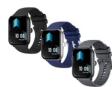
Smart Watch
Interchangeable
User Guide
User Guide
27
34 Product Co
m = 311
[Non-Text]
Parts of the watch

First Time Use
Charge your watch before using for the first time, you will need to charge it for about 3 hours.
Charging steps:
-
Align the charging pins on the back of the watch to the charging pins on the charging cable. It will snap into position once correctly aligned.
-
Connect the charging cable to a USB charging adaptor (not included) or a USB port on your computer.

- Once fully charged, unplug the charging
cable from the charger.
To keep the charging pins clean, please use a soft cloth and partly clean the charging pins.
Note: If the Smart watch is extremely low on
power when you begin charging it, the screen display may be black from to 2 minutes before
display may be blank for up to 2 minutes below the charging image appears.
- 2017
GloryFit App
Search for the GloryFit app in the
app store to download, or a
C2K code below for installat
For Android For iOS

[QR CODE]
[Unreadable]
[Unreadable]
[QR CODE]
0175.0%
Google Play
Google Play and the Game
Google Italy and the Quojo Apple, the Apple logo, iP
registered in the U.S. and service mark of Apple Inc.
(二)
Turn on the Watch
power when you begin charging it, the screen display may be black from to 2 minutes before
display may be blank for up to 2 minutes below the charging image appears.
- 2017
GloryFit App
Search for the GloryFit app in the
app store to download, or a
C2K code below for installat
Turn on the Watch
Once the watch is fully charged, press and hold
the side button for 3 seconds to turn on the
watch. To turn off the watch, press the side button to turn on the camera, then press and hold the
to turn on the screen, then press and hold the side button for 3 seconds.
Connect to the App
Connect to the App Over the GluEner G
Open the GloryFit app. Once the app is open, follows Device > Select Device > Select "AETM5"
(1) Allow: CARD or > Select Device > Select. At TW3-0624-5" from the list. The smart watch will connect
to the app. On iOS devices, you may need to tap
on "Pair" on a pop up window.
NOTE: If the connected watch has been reset, please behind the watch in the one before.
please关闭该网站在的 apps before reconnecting or select the device from the list in
the app directly to reconnect.
Once connected, the shortcut menu on the watch
will display 📄 To ensure stability of the watch
connection, tap "Me", select "Permission settings"
on the GloryFit app, then select "Background Activity Permissions" to allow the app to run in
Heating Permissions" to show the app to run in the background. This setting may not apply to
your phone model or version, please find out the
Disconnect from the App
Open the GloryFit app. Select "Device", tap
the connected device then tap "Unbind" to
disconnect the watch. On iOS devices, you will
also held to open the settings menu on your iPhone. Go to Bluetooth settings, tan o
on your 1 here! do to scratch-in settings, tap on the "i" icon on the right side of "AFTWS-0824-1
and then tap 'Forget This Device' to finish
disconnecting.
Turn On the Screen
To turn on the screen. ®
We thank the screen, raise your arm if you're wearing the watch, or press the side button.
Press the button again to turn off the screen.
Raising your arm too quickly or slowly may not
turn the screen on. NOTE: You will need to turn on the "Raise hand
NOTE: You will need to turn on the "noise mark" to activate display" function on the GloryFit app
for the function to work.
[Non-Text]
[Non-Text]
[Non-Text]
[Non-Text]
Functions On the Home Screen
- Swipe up for the notifications scre
- Swipe down for the shortcut men
- Swipe right to access the quick m
- Weather and recently run function
- Swipe left to access sports data, p call, heart rate, and sleep monitor
- Press the side button to access m
- Press and hold the watch face for
seconds to change the interface,
left/right to switch and tap to con
Functions in any Screen
• Swine right or press the sic
to the previous screen or
- Tap on any icon to get into the sub
Applications
Applications
Please allow permission and enable the notification settings on the respective
notification settings on the respective phone application
photo organization:
[Non-Text]
Sports (Training)
On the main menu, tap on the
the multi-sport screen. There are 24 sport modes
for you to choose from.
When you want to pause/stop the activity, swipe
right to display the pause/stop icon. Tap the icon
to pause/stop.
You can also start the activity on the GloryFit app
on your smart phone and it will sync data to the watch.
700
GPS connection: select the icon on the Oiondlit app to enter the Sports menu. Select
to try it app to enter the sports mental defense, the sport mode or you can tap "+" to add
desired sport mode.
Tap "GO" on the screen and select OK to
confirm GPS access. The sport mode will start on
the app and watch and synchronise.
Tap the 📋 icon to display the GPS map. Tap
the ✗ icon to return to the sport menu. Tap the
pause icon to pause the sport and tap and hold
the stop icon to stop the sport. The GPS exercise data will be saved.
NOTE: The smart watch will only save data if the distance is more than 700 steps in duration.
the distance is more than 200 steps in duration GPS function must be turned on mobile and be
connected to the mobile network.
Bluetooth Calls
On the main menu, tap on the menu to enter
the Bluetooth call menu where you can view
contacts, call history and the dialer.
This function will automatically turn off to save
battery power. You will be prompted to confirm that you wish
to turn on the Bluetooth call function before
using it.
NOTE: Your smart phones Bluetooth must be
paired to "AFTWS-0824-S" to use the function
On the watch home screen, swipe down for
the shortcut menu, and turn on the Call/Audio bands free mode.
Please ensure the shortcut menu shows.
Full Operation
Call Operation
After your smart phone is connected to the
watch, you can directly answer/reject incoming talk through the watch.
To answer an incoming call, tap the
To reject the call, tap the icon. During
call, tap the icon to mute/unmute. T
icon and simple updown to adjust the v
Bluetooth Music Playback
• On the main menu, tap the
the Bluetooth music playback menu.
- Open the music app on your smart phone - Tap play/pause icon to play/pause music
- Tap play/pause icon to play/pause music. - Tap previous/next icon to play the previo
next song.
- Tap the volume icon to increase/decre
the volume
NOTE: On the watch home screen, swipe down
for the shortcut menu, and turn on the Call/Audio band-free mode. Now you can hear the music
hands-free mode. Now you can hear the music from the watch's speaker.
The battery life will get shorter when this function
is enabled.
Voice Assistant
On the main menu, tap on the icon to launch
the voice assistant function of the connected smart phone
Sleep Monitor
The watch has a dedicated built-in sleep
monitor that automatically activates and records
your sleep details when you fall asleep (you must be using the watch diving the sleep
must be wearing the watch during the sleep duration for the function to work). Whether you
are taking an afternoon nap or a nights sleep,
the sleep monitor will automatically activate at
any time of the day.
On the main way, we do
On the main menu, tap on the icon to understand the Sleep interface and view the Sleep summary.
the sleep interface and view the sleep summary where you can see information on your total
sleep, deep sleep and light sleep. You can view
more detailed records on the GloryFit app as
the data on the watch will be synchronised to
the app.
The watch will record your daily, weekly and
monthly sleep data and generate reports
accordingly.
NOTE: If the sleep duration is less than 3 hours,
the data will be not recorded.
6
11

Brand : Bauhn
Model : AFTWS-0824
Category : Smartwatch