
USB-C HD 101 - Audio/video converter Extron - Free user manual and instructions
Find the device manual for free USB-C HD 101 Extron in PDF.


| Product Type | USB-C to HDMI Audio/Video Converter |
| Input | USB-C (supports DisplayPort Alt Mode) |
| Output | HDMI |
| Maximum Video Resolution | 4K @ 60 Hz, 4:4:4, up to 18 Gbps |
| HDCP Compliance | HDCP 2.3 and 1.4 pass-through |
| Power Delivery | Up to 60 W charging to USB-C source |
| Power Supply | Internal, 100-240 VAC, 50/60 Hz, 1.4 A max, Extron Everlast™ |
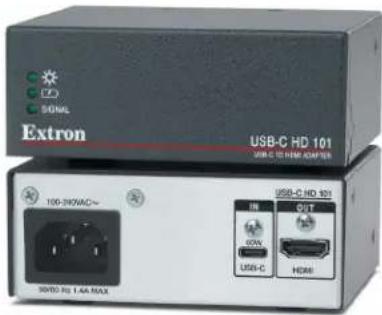
| LED Indicators | Power (green), Power Delivery (green), Signal (green) |
| Dimensions (Width x Height x Depth) | 4.4 in (11.2 cm) x 1.7 in (4.3 cm) x 3.0 in (7.6 cm) |
| Weight | 0.5 lb (0.23 kg) |
| Mounting | 1/4 rack wide, 1U high; includes ZipClip 200 and LockIt™ brackets |
| Cable Management | LockIt™ lacing brackets for strain relief |
| Compliance | FCC Class A, UL rack mounting guidelines |
| Operating Temperature | Up to +122°F (+50°C) |
| EDID Pass-Through | Passes EDID from HDMI display to source |
Frequently Asked Questions - USB-C HD 101 Extron
User questions about USB-C HD 101 Extron
0 question about this device. Answer the ones you know or ask your own.
Ask a new question about this device
Download the instructions for your Audio/video converter in PDF format for free! Find your manual USB-C HD 101 - Extron and take your electronic device back in hand. On this page are published all the documents necessary for the use of your device. USB-C HD 101 by Extron.
USER MANUAL USB-C HD 101 Extron
The Extron USB-C HD 101 is a USB-C to HDMI interface that provides up to 60 watts of charging power to the USB-C source device. It supports USB-C Alt Mode video resolutions up to 4K/60 with HDCP 2.3 for use by any AV device equipped with an HDMI input.
FCC Class A Notice
This equipment has been tested and found to comply with the limits for a Class A digital device, pursuant to part 15 of the FCC rules. The Class A
limits provide reasonable protection against harmful interference when the equipment is operated in a commercial environment. This equipment generates, uses, and can radiate radio frequency energy and, if not installed and used in accordance with the instruction manual, may cause harmful interference to radio communications. Operation of this equipment in a residential area is likely to cause interference. This interference must be corrected at the expense of the user.
NOTE: For more information on safety guidelines, regulatory compliances, EMI/EMF compatibility, accessibility, and related topics, see the "Extron Safety and Regulatory Compliance Guide" on the Extron website.
Features
- Provides interface between USB-C ^® equipped sources that support DisplayPort Alt Mode and HDMI displays and peripherals
• Power Delivery — Provides up to 60 watts of charging power to the USB-C source
• Supports computer and video resolutions up to 4K/60 @ 4:4:4 with data rates up to 18 Gbps - HDCP compliant — HDCP 2.3 and HDCP 1.4 pass through
- Extron Everlast™ Power Supply — Comes equipped with an energy efficient 100-240 VAC, 50 to 60 Hz, internal universal power supply.
• Passes EDID information from HDMI display to the source - LED indicators for power, power delivery, and signal presence — Provides visual indication of system status for real-time feedback and monitoring of key performance parameters
- Two-piece 1/4 rack wide, 1U high, and 3 inch deep rack-mountable enclosure.
- Includes ZipClip 200 ^® mounting accessory
- Includes LockIt ^ HDMI cable lacing brackets
Application Diagram
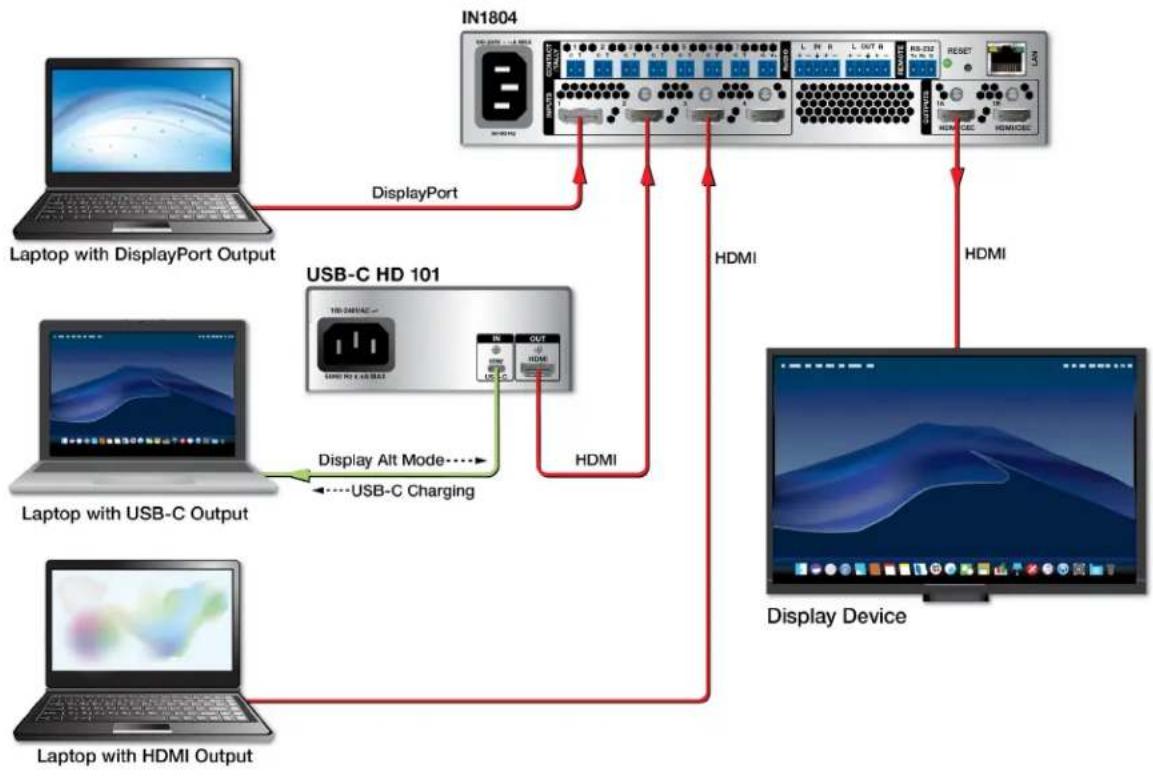
flowchart
graph TD
    A["Laptop with DisplayPort Output"] -->|DisplayPort| B["IN1804"]
    C["Laptop with USB-C Output"] -->|Display Alt Mode....USB-C Charging| D["USB-C HD 101"]
    E["Laptop with HDMI Output"] -->|Display Alt Mode....USB-C Charging| D
    B -->|HDMI| F["Display Device"]
    D -->|HDMI| F
    B -->|HDMI| G["RESET"]
    D -->|HDMI| G
    style A fill:#f9f,stroke:#333
    style C fill:#f9f,stroke:#333
    style E fill:#f9f,stroke:#333
    style B fill:#ccf,stroke:#333
    style D fill:#ccf,stroke:#333
    style F fill:#ccf,stroke:#333
    style G fill:#ccf,stroke:#333
Figure 1. USB-C HD 101 Application Diagram
UL Rack Mounting Guidelines
The following Underwriters Laboratories (UL) guidelines pertain to the safe installation in a rack:
- Elevated operating ambient temperature — If installed in a closed or multi-unit rack assembly, the operating ambient temperature of the rack environment may be greater than room ambient temperature. Therefore, install in an environment compatible with the maximum ambient temperature (Tma = +122 °F, +50 °C) specified by Extron.
- Reduced air flow — Install the equipment in a rack so that the amount of air flow required for safe operation of the equipment is not compromised.
- Mechanical loading — Mount the equipment in the rack so that a hazardous condition is not achieved due to uneven mechanical loading.
- Circuit overloading — Connect the equipment to the supply circuit and consider the effect the circuit overloading might have on an overcurrent protection and supply wiring. Appropriate consideration of equipment nameplate ratings should be used when addressing this concern.
- Reliable earthing (grounding) — Maintain reliable grounding of rack-mounted equipment. Pay particular attention to supply connections other than direct connections to the branch circuit (such as use of power strips).
LED Indicators and Rear Cabling
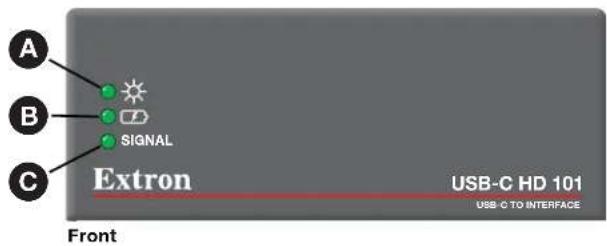
Figure 2. USB-C HD 101 - LED Indicators
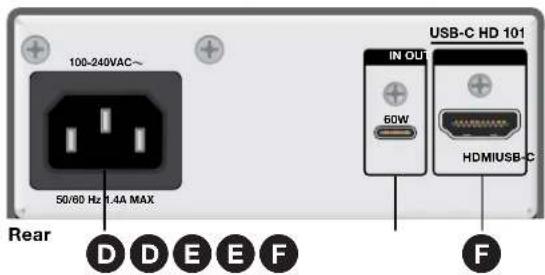
Figure 3. USB-C HD 101 - Rear Panel Ports
A Power LED — Indicates power to the unit.
Power Delivery LED — Indicates power delivery from the USB-C input (E) to the USB-C source device.
C SIGNAL LED — Indicates signal detection from the USB-C input.
D AC Power Input — Connect the AC Power Cord to the AC Power input.
ATTENTION:
USB-C Input — Connect a USB-C source device to the USB-C input.
NOTE: The USB-C port provides up to 60W of power to a connected source device. Some USB-C sources may not be able to be powered via USB-C. Check the specific source specification or manual for more information. If the source requires greater than 60W of power, the source may still be able to be powered, may not power, or may charge slowly.
F HDMI Output — Connect an HDMI output device to the HDMI output.
NOTE: Extron recommends using HDMI Pro Series cables for 4K/UHD signals.
ZipClip 200 and ZipCaddy 200 Mounting Installation
- Mount the USB-C HD 101 to the ZipCaddy 200. Two screws attach the plate to the bottom of the unit. The mounting holes on the USB-C align with the mounting holes on the plate.
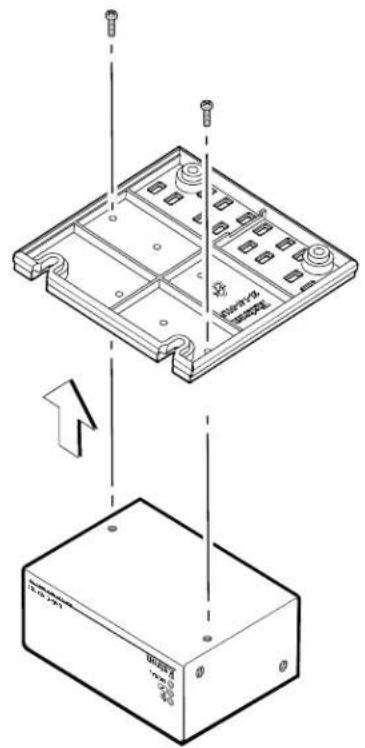
Figure 4. Mounting USB-C HD 101
- Use LockIt Lacing Brackets to secure the cables to the USB-C HD 101 unit and provide strain relief.
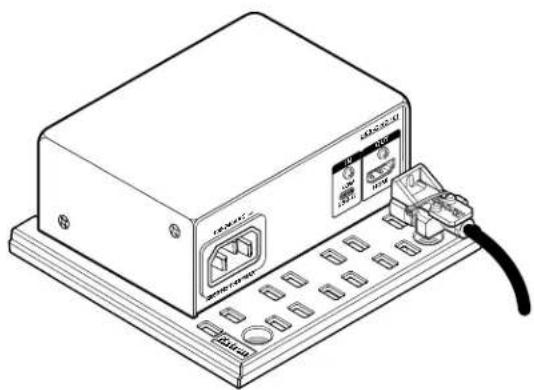
natural_image
Line drawing of a device with labeled ports and connectors (no text or symbols present)Figure 5. Securing Cables
- The ZipClip 200 can attach to an under-desk mounting surface or to a rack rail using the four included mounting screws.
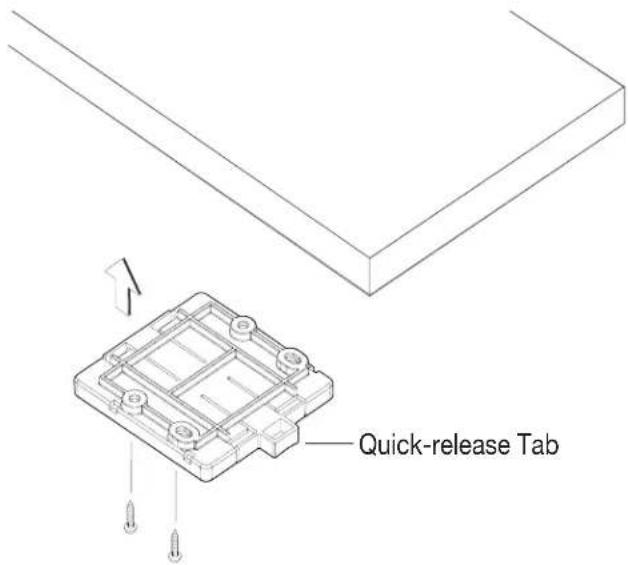
Figure 6. Under-desk Mounting
The caddy-mounted USB-C HD 101 can now be quickly and conveniently attached and detached from the mounting location, via the quick-release tab.
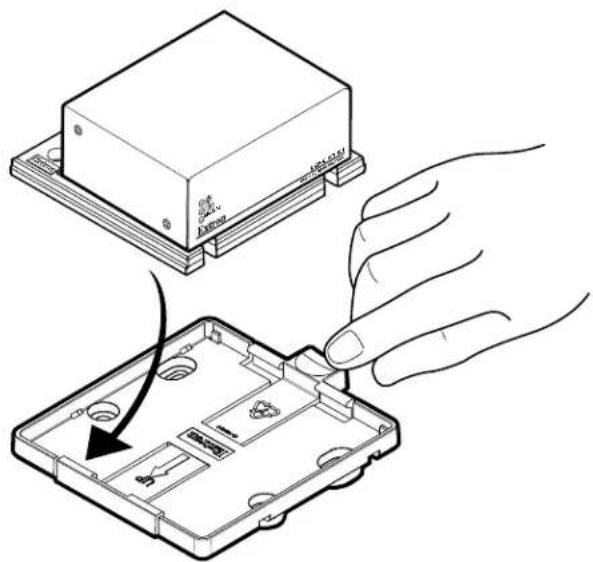
Figure 7. Easy Attach and Release
LockIt Lacing Bracket
Use the LockIt Lacing Bracket to securely fasten both the USB-C and HDMI cables to the device as follows:
① Plug the cable into the rear panel port.
② Loosen the connection mounting screw from the panel, enough to allow the LockIt lacing bracket to be placed over it. The screw does not need to be removed.
③ Place the LockIt lacing bracket on the screw and against the connector. Then, tighten the screw to secure the bracket.
ATTENTION:
Figure 8. Lockit Bracket Installation
4 Loosely place the included tie wrap around the connector and the LockIt lacing bracket as shown.
⑤ While holding the connector securely against the lacing bracket, use pliers or similar tool to tighten the tie wrap. Then, remove any excess length.
Specifications
Product specifications are available on the Extron website, www.extron.com.
For information on safety guidelines, regulatory compliances, EMI/EMF compatibility, accessibility, and related topics, see the Extron Safety and Regulatory Compliance Guide on the Extron website.
Brand : Extron
Model : USB-C HD 101
Category : Audio/video converter