
CK11 Pro - Audio player COWON - Free user manual and instructions
Find the device manual for free CK11 Pro COWON in PDF.


| Product Type | Portable Audio Player |
| Model | CK11 Pro |
| Brand | Cowon |
| Dimensions | Approx. 100 x 50 x 10 mm |
| Weight | Approx. 95 g |
| Power Source | Built-in rechargeable Li-ion battery, 5V USB charging |
| Battery Life | Up to 10 hours of music playback |
| Display | 2.4-inch color TFT LCD |
| Storage | 8 GB internal memory, expandable via microSD card (up to 128 GB) |
| Audio Formats Supported | MP3, WMA, FLAC, APE, WAV, OGG |
| Playback Modes | Normal, Repeat, Shuffle, Intro |
| Additional Features | FM radio, voice recording, equalizer presets, playlist support |
| Connectivity | USB 2.0, Bluetooth 4.0 (audio streaming) |
| Audio Output | 3.5 mm headphone jack |
| Maintenance | Clean with a soft, dry cloth. Avoid liquid and abrasive cleaners. |
| Safety Precautions | Do not expose to water, extreme heat, or drop. Keep away from magnetic fields. |
| Spare Parts & Repairability | Battery replacement possible by qualified technician. Screen repair available. Contact Cowon support. |
| General Information | Supports multiple languages, firmware upgradable via USB. |
Frequently Asked Questions - CK11 Pro COWON
User questions about CK11 Pro COWON
0 question about this device. Answer the ones you know or ask your own.
Ask a new question about this device
Download the instructions for your Audio player in PDF format for free! Find your manual CK11 Pro - COWON and take your electronic device back in hand. On this page are published all the documents necessary for the use of your device. CK11 Pro by COWON.
USER MANUAL CK11 Pro COWON
* Actual package contents may differ from the above images.
* M-size eartips are attached to the earphones.
+ Before you start \_ Wearing


* For charging please remove the protective film from the earphone charging terminal.
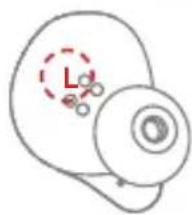
natural_image
Simple line drawing of a mechanical component with a dashed red circle and circular features (no text or symbols)
natural_image
Simple line drawing of a mechanical component with a dashed circle labeled 'R' and two small circular features (no text or symbols beyond the label)* Check the L and R marks on the earphones and put them in the correct ears.


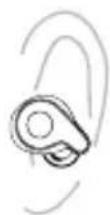
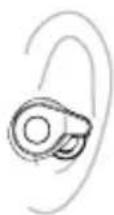

* Wear them in a proper way by twisting and rotating the eartips to fit in your ears.
+ Before you start \_ Names of Parts and Functions
COWON CK11 Pro Charging Cradle

Multi-Function Button (L)
Power / Call / Pairing / Play /
Volume Down / Previous Track
Power / Call / Pairing / Play / Volume Up / Next Track

+ Before you start \_ Charging
Charging the Earphones

flowchart
graph TD
    A["Top Left Component"] --> B["Control Panel"]
    C["Top Right Component"] --> B
    D["Bottom Left Component"] --> B
    E["Bottom Right Component"] --> B
    B --> F["Down Arrow 1"]
    B --> G["Down Arrow 2"]
Put the earphones in the charging cradle to start charging them automatically.

* Make sure that the earphone is properly positioned in the fixing groove of the charging cradle and check if the earphone LED is on.

natural_image
Line drawing of a wireless earbuds with display screen (no text or symbols)The earphone battery indicates 4 levels of charging.

+ Before you start \_ Charging
Charging the Charging Cradle

natural_image
Pure electrical circuit lines without any symbolsPut the USB cable in the USB-C port and connect it to the power adapter to start charging.
Charging Cradle Battery Level 0% → 100%

natural_image
Pure diagram of a digital display panel without any text or symbolsThe level of battery charge in the charging cradle goes from 0 to 100%.
Charging : 0\~99%
Charging Complete : 100%

natural_image
Simple line drawing of a rectangular block resting on a circular base (no text or symbols)You can charge CK11 Pro simply by placing the charging cradle on the wireless charging pad without connecting the cable to the charging cradle.
* Please charge the charging cradle periodically.
* For a more accurate battery reading, be sure to fully charge the cradle to 100%.
* Please place the charging cradle on the wireless charging pad and check if the earphone LED is on.
* The wireless charging pad is not included.
+ Before you start \_ Charging
Charging the Smartphone (Use the Cradle as a Power Bank)

Put the USB cable in the USB-A port and connect it to the smartphone to use the cradle as a power bank.

While charging the smartphone, the battery level in the charging cradle goes down from 100 to 0%.
* The cradle limits the output current to 1.5A. When the battery level is too low, it may not be possible to charge a smartphone that supports fast charging.
+ Using the Product \_ Auto Power On · Off
1 Auto power-on

natural_image
Illustration of an open wireless earbuds with a blue arrow indicating rotation (no text or symbols)Opening the lid of the charging cradle turns on the earphones automatically. (The blue LED flashes three times)
Auto power-off
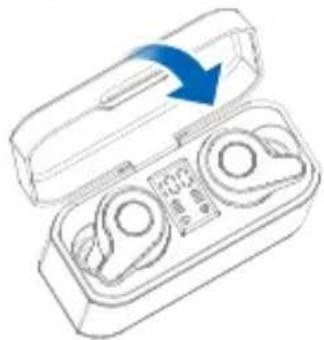
natural_image
Line drawing of an open wireless earbuds with a blue arrow indicating direction (no text or symbols)Closing the lid of the charging cradle turns off the earphones automatically. (The red LED flashes three times)
Manual Power On / Off
* Press the button on the earphone for 3 seconds to turn it on when the power is off. (The blue LED flashes three times)
* Press the button on the earphone for 3 seconds to turn it off when the power is on. (The red LED flashes three times)
+ Using the Product \_ Pairing & Connection
12

natural_image
Illustration of an open cylindrical device with two circular components and a blue arrow indicating direction (no text or symbols))


CK11 Pro Bluetooth
| Open the charging cradle lid Turn on Bluetooth Connect | |||
| Description | Opening the charging cradle lid turns on the earphones automatically, and they are ready to proceed to the pairing step. | Turn on Bluetooth on your smartphone or Bluetooth-capable device. | Select 'CK11 Pro Bluetooth' from the list of detected devices to pair and connect automatically. |
| Voice Prompts | "Power On" | "Pairing" "Connected" | |
| LED | ×3Blue | Blue Red | ×1Blue |
* The CK11 Pro supports: Dual mode (Stereo) to use the left and right earphones together and Single mode (Mono) to use them separately.
* Remove both the left and right earphones from the charging cradle for use in Dual Mode, or only remove one earphone for use in Single mode.
* Putting one earphone in the charging cradle while in Dual mode does not disconnect the other earphone in use.
* After the initial pairing, opening the charging cradle lid automatically connects the earphones to the most recently connected device.
+ Using the Product \_Listening to Music · Calling · Volume Control
 Left Right Left Right |  | |||
 ×1 ×1 |  Play · Pause Play · Pause |  Answering a call) Answering a call) |  Play · Pause Play · Pause |  Answering a call 1) Answering a call 1) |
 ×2 ×2 |  Volume Down2) Volume Down2) |  Rejecting a call Rejecting a call |  Volume Up2) Volume Up2) |  Rejecting a call Rejecting a call |
 ×3 ×3 |  Voice Recognition3) Voice Recognition3) |  Voice Recognition 3) Voice Recognition 3) | ||
 2sec 2sec |  Previous Track4) Previous Track4) |  Next Track4) Next Track4) | ||
 5sec 5sec |  Power On · Off 5) Power On · Off 5) |  Power On · Off5) Power On · Off5) | ||
1) In Dual mode, the microphone of the earphone removed from the cradle first will be enabled. Removing L and R earphones from the cradle at the same time enables the "R" microphone.
In Single Mode, each earphone will output sound with both microphones enabled for use.
2) Use the Volume Down function with the L earphone and Volume Up function with the R earphone. (In Single mode, only the functions on the earphone currently in use are available.)
3) Press and hold the multifunction button for 3 times to launch the voice recognition feature of your smartphone or tablet, (Android OS : Google Assistant / iOS : Siri / Window OS : Cortana - Except during calls)
4) Use the L earphone to go to the previous track and the R earphone to go to the next track. (In Single mode, only the functions on the earphone currently in use are available.)
* By using the CK11 Pro in Single Mode, you can alternate between charging the left and right earphones for extended use, (Audio books, Podcasts, etc.)
* Since Single Mode uses only one earphone, you can stay aware of environmental sounds and use the device more safely when walking or bicycling.
* Keep the product and a mobile phone within 1 meter when pairing.
* If passkey input is required, enter a password or a PIN No.'0000'.
* When the CK11 Pro is off, press and hold the multifunction button for 8 seconds to enter pairing mode.
- Voice Prompts
| Status Voice Prompts | |
| Power On |  "Power On" "Power On" |
| Power Off | [XHKS] "Power Off" |
| Pairing "Pairing" | |
| Bluetooth Connection "Connected" | |
| Incoming call "Incoming call" * | |
| Disconnected "Disconnected" | |
| Low Battery "Battery Low" | |
- Specification
| Bluetooth Version V5.0 | |
| Bluetooth Profiles HSP / HFP / A2DP / AVRCP | |
| Standby Time Up to 130 hours | |
| Music-Playing Time | Single Mode : About 11 hoursDual Mode : About 11 hours |
| Charging Time | Earphones : About 1.5 hours *Charging Cradle :About 3 hours (Wired Charging)About 6.5 hours (Wireless Charging) |
| Earphone Battery 3.7V / 85mAh | |
| Charging Cradle Battery | Input : USB-C, 5V~ 1AOutput : USB-A, 5V~ 1AWireless Charging : 5V~ 0.5ACapacity : 2600mAh |
| Operating Distance Up to 10m (Free space) | |
| Weight | Earphones : 5.4g x 2Charging Cradle : 96g |
* For iPhone, user ringtone will be applied.
* Number of available CK11 Pro charges using charging cradle (2600mAh) : About 10 times (with fully charged charging cradle)
+ Precautions \_ Reset to Dual Mode (When the L and R unist are not connecting to each other)
* Use the following method for troubleshooting purposes only, not during normal operation when the left and right earphones are not connected.
* Refer to page 'Pairing & Connection' when connecting the product to a smart device for the first time.
* If the L and R units only connect in single mode during normal dual-mode operation, reset to dual mode by following the instructions below.
* If it fails to reset, start again from Step ②.
1
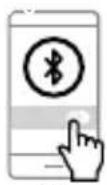
Off
-

-

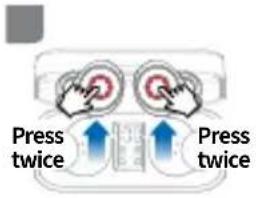
| Delete connected device & Turn off Bluetooth | Remove earphones & Press the button twice | Check purple LED Turn on Bluetooth Connection | ||
| Delete the [CK11 Pro Bluetooth] device registered on your smartphone or other Bluetooth device and turn off Bluetooth. | Remove the left and right earphones from the cradle and immediately press and release the buttons twice simultaneously. | The LEDs on the left and right earphones turn purple, and the earphones switch to the pairing mode. | Turn on Bluetooth on your smartphone or other Bluetooth device. | Select [CK11 Pro Bluetooth] from the detected devices to complete pairing and automatically connect. |
DIGITAL PRIDE.
©WON
- + Before you start \_ Wearing
- + Before you start \_ Names of Parts and Functions
- + Before you start \_ Charging
- Charging the Earphones
- Charging the Charging Cradle
- + Using the Product \_ Auto Power On · Off
- Manual Power On / Off
- + Using the Product \_ Pairing & Connection
- + Using the Product \_Listening to Music · Calling · Volume Control
- + Precautions \_ Reset to Dual Mode (When the L and R unist are not connecting to each other)
Brand : COWON
Model : CK11 Pro
Category : Audio player