
Key Largo 980 - Car radio BLAUPUNKT - Free user manual and instructions
Find the device manual for free Key Largo 980 BLAUPUNKT in PDF.


| Product Type | Car Stereo / Multimedia Receiver |
| Brand | Blaupunkt |
| Model | Key Largo 980 |
| Operating System | Android 9.0 |
| Display | Capacitive touchscreen |
| Radio Bands | FM 87.5–108.0 MHz, AM 522–1620 kHz |
| RDS | Yes (AF, TA, PTY) |
| USB Playback | Audio (MP3/WMA/FLAC/APE), Video, Image |
| Bluetooth | Hands-free calling, audio streaming (A2DP, AVRCP) |
| PhoneLink / EasyConnection | Android & iOS screen mirroring via USB or Wi-Fi |
| AUX Input | Rear RCA (audio/video) |
| Reverse Camera Input | Yes (auto display on reverse gear) |
| Steering Wheel Control | Programmable (SW Learning) |
| Equalizer | 7-band graphic EQ with presets (Classical, Jazz, Pop, Rock, etc.) |
| Time Alignment | Individual speaker delay adjustment |
| Fader/Balance | Adjustable via graphical interface |
| Power Supply | DC 10.5V–16V (negative ground) |
| Microphone | External Bluetooth microphone included |
| GPS Antenna | Included |
| Warranty | 2 years (registration required within 15 days) |
| Cleaning | Dry or slightly moistened cloth; no solvents |
| Safety | Video playback only with handbrake engaged; do not use while driving |
Frequently Asked Questions - Key Largo 980 BLAUPUNKT
User questions about Key Largo 980 BLAUPUNKT
0 question about this device. Answer the ones you know or ask your own.
Ask a new question about this device
Download the instructions for your Car radio in PDF format for free! Find your manual Key Largo 980 - BLAUPUNKT and take your electronic device back in hand. On this page are published all the documents necessary for the use of your device. Key Largo 980 by BLAUPUNKT.
USER MANUAL Key Largo 980 BLAUPUNKT
Enjoy it.
Operating instructions
NOTE: Please do not watch videos or use other Apps while the vehicle is in motion. Doing so, is a safety violation. To watch videos or use Apps, please ensure that the vehicle is in parked mode with handbrake activated. Please check compatibility Of the device with your mobile phone before purchase. New phone software versions in the future may or may not be compatible with the device. In-Warranty replacement will not be applicable for non compatibility Of the mobile phone with the device.
Panel Introduction
Head unit features a brilliant capacitive display with a high-end tuner and runs on Android OS version 9.0.

- Microphone
- Reset button Restore to default factory settings of the device. Caution, All personal setting will be erased!
- POWER/MUTE button
Short press: Turn ON device; In operation: Mute audio Source; Long press: Turn OFF device
- HOME button
Short press: Go to Source menu Long press: Open Apps in background
- BACK button Press to return to previous menu
- Press this button to increase audio volume
- Press this button to decrease audio volume
Contents
| Safety notes | 04 |
| Symbols used | 04 |
| General Warning | 04 |
| Road safety | 05 |
| Instructions to read this User Manual | 05 |
| Declaration of conformity | 05 |
| Cleaning notes | 05 |
| Disposal notes | 05 |
| Scope of delivery | 05 |
| Placing the device in operation | 06 |
| Switching ON/OFF with the POWER button | 06 |
| Volume | 06 |
| Main menu(Home) | 06 |
| Radio mode | 06 |
| Start radio mode | 06 |
| Select memory bank | 06 |
| Tuning into station manually | 06 |
| Starting station seek tuning | 06 |
| Storing stations manually | 07 |
| Storing stations automatically | 07 |
| Adjusting the seek tuning sensitivity | 07 |
| Switching RDS on/off | 07 |
| Sound Settings | 08 |
| Equalizer | 08 |
| Time Alignment | 08 |
| Volume distribution (Fader/Balance) | 08 |
| USB media playback | 09 |
| USB data carrier | 09 |
| Audio playback from USB | 09 |
| Video playback from USB | 10 |
| Image playback from USB | 10 |
| Bluetooth mode | 11 |
| Starting Bluetooth mode | 11 |
| Registering Bluetooth devices | 11 |
| Telephone mode | 11 |
| Dialing | 11 |
| Answer a call | 11 |
| Audio playback via Bluetooth streaming | 12 |
| EasyConnection / Phonelink | 12 |
| Entering connection prompt | 12 |
| AUX IN | 13 |
| Camera Input | 13 |
| Steering wheel control(SWC) | 13 |
| File Manager | 13 |
| Car Settings | 14 |
| General | 14 |
| Navi software setting | 14 |
| Brightness | 14 |
| Radio Region | 14 |
| Default setting | 14 |
| Key Light | 15 |
| Whitelist setting | 15 |
| Desktop setting | 15 |
| System Settings | 15 |
| Useful information | 15 |
| Service | 15 |
| Connection diagram | 16 |
| Troubleshooting | 17 |
| Appendix | 18 |
| Multimedia Support List | 18 |
Safety notes
Safety notes
The car sound system was manufactured according to recommended and established safety guidelines in a state of the art facility. Even so, dangers may occur if you do not observe the safety notes in the instruction manual.
These instructions are intended to familiarise you with important functions.
- For best results, please read the user manual carefully and completely before using the car audio system.
• Always keep the user manual accessible to all users. - Always handover the car audio system to any third party along with these instructions.
- In addition, observe the instructions of the devices used in combination with this car audio system.
Symbols used
Below are the symbols used in this user manual, please go through them carefully:

warns about possibilities of any injuries that might occur.

Warts about damages to the DVD/CD drive (No applicable to all Series 900 Model)

Warns about high volume
√ Identifies a sequencing step
√ Identifies a listing
General Warning
To avoid any injury or damage to yourself, your car and others, please make sure to do as following. Observe the following note to protect yourself against injuries:
- Do not modify or open the device. Do not do any unauthorised modification to the device. In case you need any assistance, please visit the nearest service centre. The device should be opened by an authorised person only.
- Use as directed: this car audio system is intended for installation and operation in a vehicle with 12V (negative ground) vehicle voltage system. Observe the output limits of the device. Only an authorised specialist should perform repairs and installation, if necessary.
- Installation Instructions: You may only install the car audio system yourself if you are experienced in installing car audios systems, and are very familiar with the electrical system of the vehicle. For this purpose, observe the connection diagram at the end of these instructions. For self-installation make sure you have the right tools available to complete the install
- Use your device in such a way that you can always safely control your vehicle. In case of doubt, stop at a suitable location and operate your device while the vehicle is parked. As the driver, you must not use the applications that will distract you from traffic (depending on the scope of functions of the device, e.g. viewing videos, searching for a destination) (Navigation equipped radios and other downloaded applications)
- Follow driving recommendations during the route guidance only if you are not violating any traffic regulations: Traffic signs and traffic regulations always have priority over navigation device direction and operating prompts.
- Always listen at moderate volume to protect your hearing and to be able to hear warning signals (e.g. police sirens and other external alerts while driving). During mute phases (e.g. when changing the audio source), changing the volume is not advisable. Do not increase the volume during this mute phase.
Road safety
Observe the following notes about road safety:
To avoid any injury or damage to yourself, your car and others, please make sure to do as following. Observe the following note to protect yourself against injuries:
- Before using this unit, please read all related instructions carefully.
- Any damage to this unit caused by improper operations will void the warranty.
- Please do not watch videos or use other Apps while the vehicle is in motion. Doing so, is a Safety violation. To watch videos or use Apps, please ensure that the vehicle is in parked mode with handbrake activated.
- The below-listed applications while driving the vehicle may divert your attention form the traffic situation and may lead to serious accidents:
- Using the navigation feature like entering the destination address
- Video playback or watching any kind of video
- Usage of internet via the browser
- Use of connected phone via PhoneLINK
-
Use or Download of Google PlayStore / Google Maps / YouTube is not permitted in the automotive environment
-
You are advised to refrain from any activity which could possibly divert your attention while driving. The best way to use these applications is when your vehicle is parked in a safe location.
- To avoid short circuit, please do not dispose the unit into the water and please do not place or leave any kind of metal object (such as a coin or metal tools) in the unit.
- Please operate the unit as per this Manual, it is not allowed to open the unit for maintenance; In case if maintenance is required, please seek professional help.
- After the car engine is off, please do not use the car audio for a long time, otherwise, the battery could be drained.
Instructions to read this User Manual
Illustrations are used in this manual to explain operations and precautions. The illustrations used in this manual are only for reference, please take the actual unit as standard.
Marks
Mark for important preventive measures; please read carefully to prevent any injury.
Mark for a special explanation, auxiliary interpretation, imitation and references.
Mark for additional information to operate this unit. Warm notes: When there is any difference between the Manual and the actual unit, please take the actual units as standard.
Cleaning notes
- Solvents, cleaning and scouring agents as well as dashboard spray and plastics care products may contain ingredients that will damage the surface & screen of the audio system.
- Use only a dry or slightly moistened cloth for cleaning the audio system.
Disposal notes
- Do not dispose of your old unit/batteries in the household trash.
- Use the return and collection systems available to dispose of the old device.
Scope of delivery
The scope of delivery includes:
- Car audio system
- GPS antenna
• External Bluetooth microphone
• Small parts set, installation material - Screws and fasteners
- Connecting cables
Placing the device in operation
Switching ON/OFF with the POWER button
• To switch-ON, press the [⏻] button.
- To switch-OFF, hold the [⏻] button pressed for more than 2 seconds.
Volume
Adjusting the volume
You can adjust the volume in steps from 0 (off) to 40 (maximum). Press the button [◀ + ] to raise volume and ⏻ - ] button to lower the volume.
Muting the car sound system (Mute)
Briefly press the [ Ⓞ] button to mute the device or to reactivate the previous volume.
Main menu (Home)
In the main menu, press the buttons on the touchscreen to call up the different sources and operating modes.
In the current source, press the ☐ button. The main menu is displayed.
- Back
- Enter main menu
- Background application
- Radio
- Music
- Bluetooth Phone
- Setting
- Clock time
- Navigation
- Video
- File Explorer 12. Bluetooth Music
- Equalizer 14. AUX
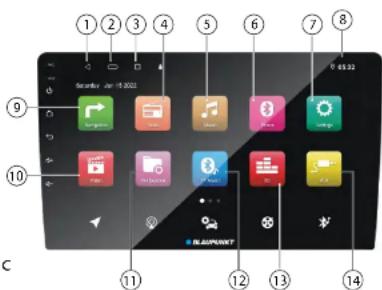
- Swipe left on the screen to see more source icons.
Note: The figures used in these instructions are intended to facilitate the explanations and details may deviate from your device.5
Radio mode
Start radio mode In the main menu, press the [Radio] button. The radio home screen is displayed.
Select memory bank
Different memory banks and wavebands are available. Up to 6 stations can be stored in each memory bank.
- Press the [BAND] button repeatedly until the desired memory bank is displayed. Tune into a station.


Tuning into stations manually
- Briefly press the [<] or [>] button to change the frequency in increments.
- You can select broadcast frequency directly by dragging the red " | " in the frequency display bar.
Starting station seek tuning
- Hold the [<] or [>] button to start station seek tuning. The radio tunes into the next receivable station. Press again to stop seeking.
Note: For reception area Europe: In FM waveband, only traffic information capable stations are tuned into if the priority for traffic information is switched on.
Storing stations manually
- Set the desired station.
- Press one of the memory buttons [P1] - [P6] for approx. 2 seconds to store the current station at the selected location.
- Press the [◀] or [◀] button to switch to previous/next stored station.
Storing stations automatically
You can automatically search for and store the strongest reception in the region in the current memory bank. Any previously stored stations in this memory bank are deleted in the process.
- Select a memory band.
- Press the [ 🔊 ] button.
- The tuner starts the automatic station seek tuning. After the storing process is completed, the radio plays the station at memory location 1 of the previously selected memory band.
Note: For the Europe reception area: If traffic information is switched-on, only traffic information capable stations are stored.
Adjusting the seek tuning sensitivity
The seek tuning sensitivity decides whether the automatic station seek tuning finds only strong stations or also weaker stations that may have some interference.
- Press the [10.] button to adjust the sensitivity of station seek tuning.
If LOC is on, only stations with a strong signal are selected during seek tuning. If DX is on, stations with a strong and weak signal are also selected during seek tuning.
Switching RDS ON/OFF
Many FM stations are RDS (Radio Data System) signal capable and in addition to their programme in the reception area Europe / Asia that allows additional functions, such as the display of the station name and genre type.
- Press the [RDS] button to show RDS options.
Switching the AF (alternate frequency) function ON /OFF
If the AF function is activated, the car sound system automatically tunes into the best receivable frequency for the station that is currently set.
- Press the button [AF] to switch the AF function ON or OFF.
Switching priority for Traffic Announcements ON / OFF
In the Europe reception region, a FM station can identify traffic announcements via RDS signal. If priority for traffic reports is switched on, a traffic report is automatically broadcast, even if the car audio system is currently not in radio mode.
- Press the button [TA] to switch the priority for traffic announcements ON or OFF.
Selecting Program Type and Start Seek Tuning
You can select a programme type with the PTY function to search for a particular genre of station, for example, select stations that broadcast rock music or sport events.
- Press the button [PTY] to display the programme types. Scroll up/down a program with the selected program type, it locks on to it and commences playback
Sound Settings
Equalizer
You can adjust the equalizer for all sources.
- Press [播放] on the main menu or [播放] of the current audio source. The equalizer menu is displayed.
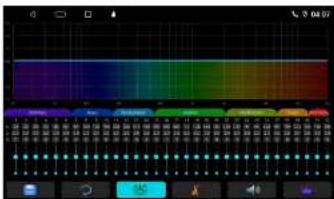
- Drag the blue points on the lower side of the screen or the blue line cross the upper side of the screen to adjust the level of the available frequency bands according to your preference.
- Touch [X] and flip left/right to select a pre-set equalizer via pre-set buttons - Classical / Jazz / Popular / Rock / Standard / Custom.
- Touch the [ ] to save current settings. And you can load a saved setting by using [ ] .
Note: With the [ ] button, you can reset the customised setting again
Time Alignment
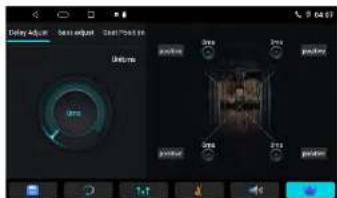
You can set the audio delay for each loudspeaker.
- Press the 📁 ] button in EQ menu. - To adjust the delay required, touch each speaker on the right of the screen, and swipe along the circle on the left side.
Volume distribution (Fader/Balance)
You can adjust the volume distribution in the vehicle for all sources.
- Press the [Seat Position] button besides "Delay Adjust" - Touch the buttons on the screen or drag the cursor on the car figure to adjust the Fader/Balance.

USB
USB media playback
- The car audio system is equipped with USB ports to play MP3 or WMA files on USB data carriers.
- In addition, you can view movies and images from USB data carriers on the display or a connected monitor.
- For safety reasons, the playback of movies and images on the integrated monitor is allowed only while the vehicle is in parked mode and the handbrake is applied. The "PARKING" cable must be connected with the hand brake connection of the vehicle (see Connection diagram at the end of these instructions). The movie playback on an external monitor is possible while driving.
Notes:
Blaupunkt cannot guarantee that all USB pen drives are compatible with this car audio system.
USB data carrier
This device features USB port at the rear of the device.
Connecting a USB data carrier
- Insert the USB data carrier in the USB socket.
The device automatically switches to USB mode. Data is read and playback commences.
Removing the USB data carrier
• Turn off the car sound system.
- Remove the USB data carrier.
Audio playback from USB
The principles of the audio playback (MP3/WMA) from data carriers are identical for all sources.
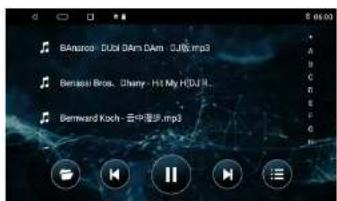
- Select the [Music] source via the main menu.
The device changes to the USB source and the playback starts.

- Progress Bar
- Sound effect
- Repeat/Random play
- Display the folder list (available in music list menu)
- Previous track
- Pause playback and Resume playback
- Next track
- Show music file list
File/Folder list:

USB
Briefly tap on the name of the folder/track. The folder is opened/the track commences.
Touch [ ] to return to the playback menu.
Video playback from USB
- Select [ Video ] source via the main menu.
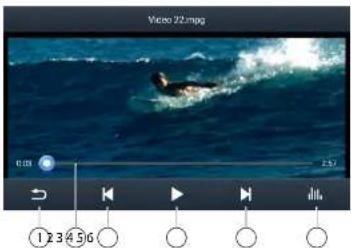
- Display the video file list
- Progress Bar
- Previous chapter
- Pause playback and Resume playback
- Next chapter
- Sound effect
Video file list:

Note: Touch the folder icon on the right of the screen to show folder list.
Image playback from USB
- Select the [QuickPic] via the main menu.

- Touch the thumbnail to view pictures
Bluetooth mode
- The Bluetooth® function allows cell phones and media playback devices to pair with the car sound system via BT
- When a cell phone is paired with the car sound system, you can make phone calls with the built-in hands-free function. You can access the lists of dialled numbers and the phone book of the registered cell phone.
- If the connected Bluetooth device supports the functions A2DP and AVRCP, you can play the music via the car sound system and control playback. During a call, music playback is interrupted and continues again after the call.
- If a cell phone is paired via Bluetooth® and a call is received during playback of another source, the source playback is interrupted and the call menu is displayed.
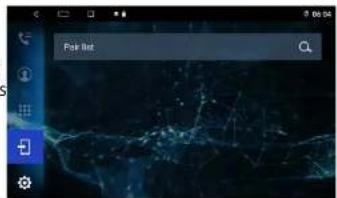
Starting Bluetooth mode
- In the main menu, press on [Phone]. The Bluetooth® menu is displayed. It contains the list of known Bluetooth® devices. Other audio sources are switched off.
Registering Bluetooth devices
If you want to register a device with the car sound system for the first time, proceed as
- Ensure that Bluetooth is activated at the car sound system and at your Bluetooth device.
- Search for new devices/connections on your Bluetooth® device.
- Select the unit's name in the list of Bluetooth devices.
- Establish the connection; you may have to enter the pairing code that was previously entered on the car sound system.
- The connection is being established and the menu for the registered device is displayed.
Note: If a telephone is connected with the car audio system, the phone icon 📊 is lighted at the top of the display in all audio/video sources.
Telephone mode
Once a phone is connected with the car audio system via Bluetooth®, the following menu appears.
- Call up records lists.
- Call up phone book.
- Call up dial keypad menu
- Call up device menu
- Call up BT setting menu
- The dial keypad

Dialing
Enter a phone number on the keypad and press the [ ] button.
- Or -
Select a contact/number via the call list or list of contacts and press the [ ] button.
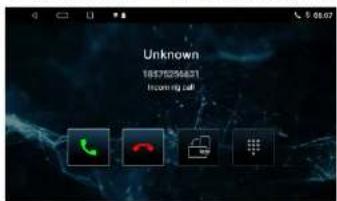
Answer a call
During an incoming call the "Caller" number is displayed.
- Press the Green [icon] button to answer a call.
- Press the Red [ ] button to reject a call.
Audio playback via Bluetooth streaming
If an audio streaming device is connected with the car audio system via Bluetooth ® , you can play back the music via the car audio system and control playback from the car audio system.
- Press the [BT Music] icon to change to playback audio.

[◀] Short press: Title selection.
[▶] Pause playback and Resume playback
[▶] Short press: Title selection
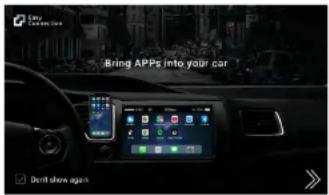
EasyConnection / PhoneLINK
- PhoneLINK function allows the mobile device screen to be displayed on the Car Radio screen.
- With EasyConnection / PhoneLINK you can synchronize the screen from your smart phone to the car multimedia player.
- The function of the EasyConnection / PhoneLINK depends on the configuration Menu and touch [PhoneLINK] to enter.
In some versions of Android, the USB debugging option needs to be accessed. This appears under About Phone [USB debugging]:
Entering connection prompt
Android/iPhone USB
- Open the Bluetooth of your mobile phone and pair the car audio system with the mobile device. Please see for details.
- Connect USB data cable (original). Ensure that the original data cable of the device is used.
- If the phone does not have the EasyConnection App installed, scan the 2D code and install the App to the phone.
- Open the EasyConnection App in your phone, and the screen will transfer to the car device screen.

Android Wi-Fi
- Open the hotspot in the settings menu of your Android phone.
- Open the Bluetooth of your mobile phone and pair the car audio system.
- Turn on the Wi-Fi function on the settings menu of the car audio system. Select the hotspot in the list to connect.
- If the Android phone does not have the EasyConnection App, scan the 2D code and install the App to the phone.
- Open the EasyConnection App in your phone, and the phone screen will display on the car audio system screen.
iPhone Wi-Fi
- Open hotspot in the settings menu of your iPhone. Select "Wi-Fi and Bluetooth" if necessary.
- Open the Bluetooth of your iPhone and pair the car audio system.
- Turn on the Wi-Fi function on the settings menu of the car device. Select the hotspot in the list to connect.
- Slide up on your iPhone to open the Shortcuts control bar, find Airplay and select the car audio system to connect.
Tip:
- For your driving safety, please do not use this function during driving.
- Since mobile phone data cables differ by brand, it is strongly recommended using the original USB data cable to connect so as to ensure connection stability.
- Due to variations in the performance and standard features of mobile phones, the performance of EasyConnection may vary with each individual brand of mobile phone.
• BPIN cannot guarantee the compatibility of all phones with this device
AUX-IN
This device features AUX input for audio / video playback. The AUX-IN RCA inputs are located at the rear of the device.
- Start the AUX-IN mode with the button [AV-IN].
The display shows the audio or video playback of the selected AUX source.
Camera Input
This device features video input for connecting a reverse camera. If a reverse camera is connected, the image is displayed on the screen when the rear gear is engaged.
Steering wheel control (SWC)
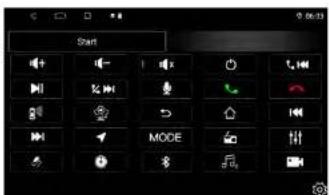
Select [ SW Learning ] in the Settings menu to enter SWC setting menu.
- Touch [Start] on the top of the screen.
- Press a steering wheel button.
- Select a function icon on the screen.
- Repeat step 1 and 2 until all the settings are done.
- Touch [Finish] after all buttons are set.
File Manager
- Select [File Explorer] in the main menu to enter File Manager menu.
-
Select the desired folder to access your files.
-
List the files by classification
- List the files of SD card
- List the files of USB data carrier
- List window
- Operation menu

Settings
Car Settings
In the Car settings menu, you can adjust the basic settings for the different functions of the device to your requirements.
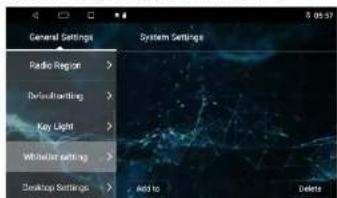
- In the main menu, press the [Car Settings] button. The settings menu is displayed.
- Call up sub menus with the buttons in the right area of the settings menu.
General
- Select an option to access/setup.

Parking – In Parking "On" mode, the screen will display Warning information if you play video. The warning screen will prevent the driver from watching videos while the vehicle is in motion.
Navi software setting
- Select an option to access/setup.

Brightness
- Set the brightness of the screen.

Radio Region
- Select your local Radio Region.

Default setting
- Revert to Default settings.

Key Light
- Set the color of Keys on the front display.

Whitelist setting
- Add or delete apps to Whitelist.
Desktop setting
- Select the Desktop topic.

System Settings
Select [Settings] in main menu, then you can adjust the settings of the unit's system, such as Network, Storage and System time, etc.
Useful information
Warranty
BPIN provide a 2 year manufacturer's warranty for products bought within the India, For devices purchased outside India, the warranty terms issued by our respective responsible domestic agency are valid.
Register ONLINE within 15 days of PURCHASE to activate WARRANTY.
The procedure to activate the warranty is given below;
Service
If your device should need service or to get more information about our local authorised service center, you can email us at Email: support@blaupunktcar.in OR call 1800 209 6820.

Connection diagram
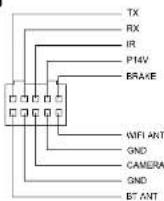
Diagram of power cable and RCA Cable
![Note only work within DC10.5V-16V power FM 87.5-108.0MHz AM 522KHz-1620KHz Speaker prohibit grounding! [2] [1]](/content/2026/05/957581/images/04c997cacb549156ed25ee32578dd44430fa56e322c3798c085068a0f9f7f709.jpg)
Power Cable Diagram

[2] RCA output socket

C

D

B

E
Troubleshooting
Please check the list below before calling a service center.
| Problem | Cause | Corrective action |
| General | ||
| Device does not turn ON | Unit fuse blown | Install new fuse with correct rating |
| Car battery fuse blown | Install new fuse with correct rating | |
| Illegal operation | Reset the unit. | |
| No Audio or Low Audio Output | Improper audio output connection | Check wiring and correct |
| Volume set too low Increase volume level | ||
| Speakers damaged | Replace speakers | |
| L or R channel not working | Adjust balance to center position | |
| Speaker wiring is in contact with metal part of car | Insulate all speaker wiring connections | |
| Poor sound quality or distortion | Speaker power rating does not match output of amplifier in device | Replace speakers |
| Wrong connections | Check wiring and correct | |
| Speaker is shorted | Check wiring and correct | |
| Device resets itself when engine is turned OFF and ON | Incorrect connection between ACC and BATT | Check wiring and correct |
| Warning information is shown at all times | Parking break wiring is not correct | Check wiring and correct |
| Flashing image or interference appears on screen | Video cable damaged | Replace cables |
| Improper video signal connections | Check wiring and correct | |
Appendix
Multimedia Support List
This item incorporates copy protection technology that is protected by U.S. patents and other intellectual property rights of Rovi Corporation. Reverse engineering and disassembly is prohibited.
The Bluetooth ® word mark and logos are registered trademarks owned by Bluetooth SIG, Inc.
| Video Files | |||
| File Format | Supported File Extension | Supported Video Code | Supported Audio Code |
| MPEG | .mpg, .mpeg, .dat, .vob, .m2v, .m1v | MPEG-1, MPEG-2, H.264 | MPEG, PCM, MP3 |
| AVI | .avi, .xvid | MPEG-1, MPEG-2, MPEG-4, H.264, VC-1, MJPEG, H.263, Sorenson | MPEG, MP3, PCM, WMA, AAC, FLAC |
| RM | .rm, rmvb, .ra (audio only) | RV30; RV40 | COOK, AAC |
| FLV | .flv, .hlv | H.264; Sorenson H263 | PCM, MP3, AAC |
| ASF/WMV | .asf, .wmv, .wma (audio only) | MPEG-1, MPEG-2, MPEG-4, H.264, H.263, VC-1 | MP3, PCM, AAC, MPEG, WMA |
| MP4 | .mp4, .mov, .m4v, .3gp, .m4a (audio only) | MPEG-1, MPEG-2, MPEG-4, H.264, H.263, MJPEG | AAC, MPEG, MP3, PCM |
| MKV | .webm, .mkv, .mka (audio only) | MPEG-1, MPEG-2, MPEG-4, H.264, RV, H.263, MJPEG, VC-1, Sorenson H263 | MP3, AAC, PCM, MPEG, FLAC, VORBIS, WMA |
| OGM | .ogm, .ogg (audio only) | MPEG-2, MPEG-4, H.264, RV, H.263, VC-1 | MPEG, MP3, PCM, AAC, COOK, VOBIS, WMA |
| TS | .ts, .m2ts, .m2t, .tp, .trp | MPEG-2, H.264, MPEG-4, VC-1 | MPEG, MP3, AAC, PCM |
| Audio Files | ||
| File Format | Supported File Extension | Supported Audio Code |
| MP3 | .mp1, .mp2, .mp3 | MPEG / MP3 |
| WAV | .wav, .pcm | PCM / Microsoft ADPCM / IMA ADPCM |
| FLAC | .flac | flac |
| APE | .ape | ape |
BPIN Private Limited
47, Atlanta Society, Nariman Point, Mumbai- 400 021. Maharashtra. India. Toll Free No. 1800 209 6820 | Email: info@blaupunktcar.in



- Enjoy it.
- Operating instructions
- Panel Introduction
- Contents
- Safety notes
- Symbols used
- General Warning
- Road safety
- Observe the following notes about road safety:
- Instructions to read this User Manual
- Marks
- Cleaning notes
- Disposal notes
- Scope of delivery
- Placing the device in operation
- Switching ON/OFF with the POWER button
- Volume
- Adjusting the volume
- Muting the car sound system (Mute)
- Main menu (Home)
- Radio mode
- Select memory bank
- Tuning into stations manually
- Starting station seek tuning
- Storing stations manually
- Storing stations automatically
- Adjusting the seek tuning sensitivity
- Switching RDS ON/OFF
- Switching the AF (alternate frequency) function ON /OFF
- Switching priority for Traffic Announcements ON / OFF
- Selecting Program Type and Start Seek Tuning
- Sound Settings
- Equalizer
- Time Alignment
- Volume distribution (Fader/Balance)
- USB
- USB media playback
- Notes:
- USB data carrier
- Connecting a USB data carrier
- Removing the USB data carrier
- Audio playback from USB
- Video playback from USB
- Image playback from USB
- Bluetooth mode
- Starting Bluetooth mode
- Registering Bluetooth devices
- Telephone mode
- Dialing
- Answer a call
- Audio playback via Bluetooth streaming
- EasyConnection / PhoneLINK
- Entering connection prompt
- Android/iPhone USB
- Android Wi-Fi
- iPhone Wi-Fi
- Tip:
- AUX-IN
- Camera Input
- Steering wheel control (SWC)
- File Manager
- Settings
- Car Settings
- General
- Navi software setting
- Brightness
- Radio Region
- Default setting
- Key Light
- Whitelist setting
- Desktop setting
- System Settings
- Useful information
- Warranty
- Service
- Connection diagram
- Troubleshooting
- Appendix
- Multimedia Support List
- BPIN Private Limited
Brand : BLAUPUNKT
Model : Key Largo 980
Category : Car radio