
NAV ONE 5000 - Browser COBRA - Free user manual and instructions
Find the device manual for free NAV ONE 5000 COBRA in PDF.


| Product Type | GPS Navigation System |
| Brand | Cobra |
| Model | NAV ONE 5000 |
| Display | Illuminated touch screen |
| GPS Receiver | Built-in with external antenna connector |
| Bluetooth | Yes, for hands-free calling |
| Traffic Information | Optional with MNA CCFM2 receiver |
| Memory Expansion | SD memory card slot |
| Power Input | 12V DC vehicle power connector |
| Battery | Built-in rechargeable battery |
| Battery Operation | Allows cordless use; recharges automatically when plugged in |
| Audio | Built-in speaker and external speaker connector |
| Microphone | Built-in and external microphone connector |
| USB Port | For data and software updates |
| Mounting | Suction cup bracket and dash mounting disk |
| Software Updates | Via USB from Cobra website |
| Map Updates | Order item MNA UPD 5000 |
| Operating Temperature | -4°F to 158°F (-20°C to 70°C) |
| Warranty | 1 year limited warranty |
| User License | Limited personal use license |
Frequently Asked Questions - NAV ONE 5000 COBRA
User questions about NAV ONE 5000 COBRA
0 question about this device. Answer the ones you know or ask your own.
Ask a new question about this device
Download the instructions for your Browser in PDF format for free! Find your manual NAV ONE 5000 - COBRA and take your electronic device back in hand. On this page are published all the documents necessary for the use of your device. NAV ONE 5000 by COBRA.
USER MANUAL NAV ONE 5000 COBRA
10474 NAVONE 5000 VD_PH1.2.qxd 7/25/07 2:39 PM Page 1
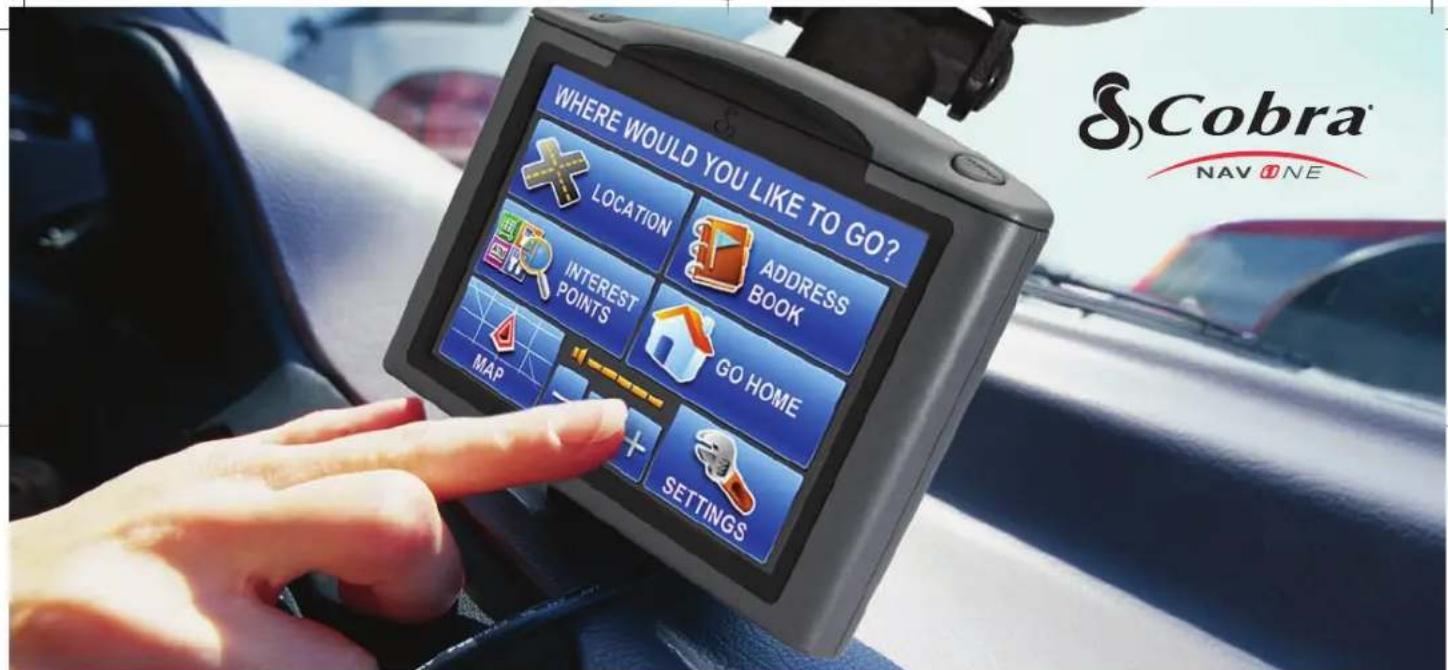
OPERATING INSTRUCTION MANUAL
NAV ONE® 5000
Nothing Comes Close to a Cobra® | English
10474 NAVONE 5000 VD_PH1.2.qxd 7/25/07 2:39 PM Page 2
Controls and Indicators : About the NAV ONE System
2
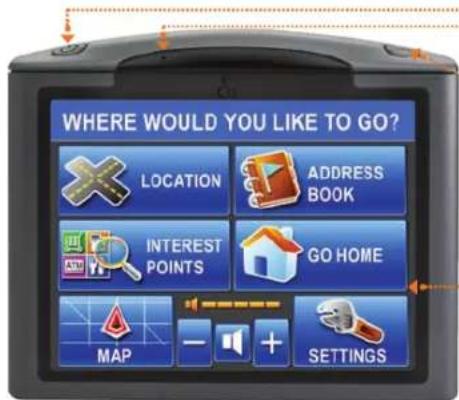
Power Button
Press to turn the unit On. Press and hold to turn it Off.
Hold for ten seconds to reset the unit if necessary.
When unit is On, tap to cycle through four levels of brightness.
SmartPower default is Off. See ↗ NOTE below.
Microphone
Menu Button
Press to go directly to the Main Menu. (While entering data or changing preferences, a confirmation message will appear with the choice to save changes or not before proceeding to the Main Menu).
Illuminated Touch Screen
→ Touch the on-screen buttons and icons to activate unit functions.
Main Menu is shown here.
NOTE
With SmartPower On, the system is shut down when there is a combination of no vehicle motion and no button press for 15 minutes. When SmartPower is Off, the system continues to operate until it is turned Off with the Power button (or ignition).
natural_image
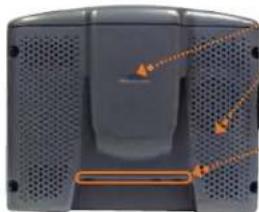
Close-up of a gray electronic device with ventilation grilles and a central speaker (no visible text or symbols)Bracket Mounting Lock
Speaker
SD Memory Card Expansion Slot
External GPS Antenna Connector
USB Connector for Data and Software updates
and for Optional Traffic Data Receiver
12V Power Connector
External Speaker Connector
External Microphone Connector
Connector for Optional Traffic Data Receiver
ABOUT THE NAV ONE SYSTEM
THANK YOU FOR PURCHASING THE NAV ONE 5000 SYSTEM.
The following items should be in the package:
- The NAV ONE system unit.
- A mounting bracket with suction cup.
- Dash mounting disk.
- Foam cushion strips.
- 12V fused power cord.
- A 120V AC auxiliary power supply for use in home or office.
TRY IT OUT
Using the NAV ONE is the most effective way to learn about it. Don't hesitate to explore menus and add entries to see how they work.
There are provisions for entries to be deleted and, if things get really tangled up, the factory defaults can be reset using the sequence:
Main Menu → Settings → User Preferences → Reset Factory Defaults Or, use the Power button reset (see page 2).
- USB cable.
- This Operating Instruction manual.
- A warranty registration card. (Or register online at www.cobra.com)
IMPORTANT NOTE FOR FIRST TIME USER
NAV ONE software provides a Demonstration sequence at unit startup to introduce users to the capabilities of the NAV ONE. The Demo mode is On when the unit is shipped.
Pressing the Menu button while Demo mode is On, will bring up the Demo menu rather than the Main Menu.
Demo mode is turned Off automatically after the unit has been driven for a short distance while turned On, but the demonstration can be recalled at any time with the View Demo button on the initial screen.
Users can also turn Off Demo mode. Use the sequence Main Menu → Settings → User Settings → Demo Mode and change the choice from Automatic to Manual.
CONTENTS
Controls and Indicators 2
About the NAV ONE System 3
Important Safety Information 4
FCC Compliance 5
Installation 6
System Overview 8
Main Menu 9
Lists 10
Menu Choices....11
Interacting with the Map / Route Selection....16
Special Locations / Trail 18
Bluetooth 20
Traffic Data / User Settings 22
Map Settings 24
Battery Operation / Maintenance....25
User License / Warranty 26
Troubleshooting / Product Service 28
Customer Assistance / Trademark Acknowledgement ..... 30
Accessories 31
Controls and Indicators : About the NAV ONE System
Nothing Comes Close to a Cobra®

Important Safety Information
4
IMPORTANT SAFETY INFORMATION
Before installing and using the Cobra NAV ONE system, please read these general warnings and precautions. Without reading this important safety information, the user may be placed in a dangerous situation or may damage the unit before having any practical use from it. Also read pages 6 to 9 in this manual to learn the basics of installing and operating the system. It is strongly recommended to read this entire manual to be familiar with the system's features and to know how to operate it.
WARNING
SYMBOLS AND
STATEMENTS
Please pay
special attention
to the WARNING
symbols and
statements in
this manual.

WARNING
Statements
identify conditions
that could result
in personal injury
or loss of life.

WARNINGS
■ DO NOT mount the unit over airbag panels or within airbag expansion spaces. The force of an expanding airbag can thrust objects in its path toward the driver or passengers with injurious result.
■ DO NOT think this NAV ONE is a substitute for personal judgment. The route suggestions should never supersede any local traffic regulation, personal judgment or knowledge of safe driving practices. Before making any maneuvers suggested by the NAV ONE system (for example, a U-turn or a left turn), verify that the maneuver can be legally and safely completed. Do not follow route suggestions if they suggest an unsafe or illegal maneuver, would place the vehicle in an unsafe situation, or would route the vehicle into an area that could be unsafe.
■ DO NOT program this NAV ONE while driving. Only a passenger should operate controls or program the unit while the vehicle is in motion. The driver should not program the system unless the vehicle is parked in a safe location.
■ ONLY glance at the screen when necessary and safe to do so. Listen to the computer voice guidance. If prolonged viewing is necessary, pull off the road to a safe location.

WARNINGS
■ DO NOT depend on this NAV ONE system to locate emergency services (such as police, fire stations, hospitals and clinics). The database may not include all emergency service providers. Use judgment and ask for directions in these situations.
■ DO NOT position the unit in a location that obstructs the driver's view of the road, instruments or controls to operate the vehicle.
■ DO NOT drive the vehicle unless the unit is securely attached to the windshield with the supplied bracket and suction cup or is fastened by other reliable means to keep it from becoming a projectile hazard inside the vehicle in the event of a violent maneuver or collision.
■ DO NOT disassemble or modify the system; personal injury or damage could result. If a problem occurs, stop using the system immediately and contact Cobra. Changes or modifications to the system may void its compliance with FCC rules and make it illegal to use.
■ DO position the unit so the screen can be viewed with just a quick glance.
■ DO set the volume at a level that will allow the hearing of outside traffic and emergency services.
CAUTION SYMBOLS AND STATEMENTS
Please pay special attention to the CAUTION symbols and statements in this manual.

CAUTION Statements identify conditions that could cause damage to the system or other equipment.

CAUTIONS
■ The user is responsible for operating this product wisely. This NAV ONE unit is intended for use only as a navigational aid and should not be relied upon to the exclusion of other information. Be aware of conditions around the vehicle and compare them to the information provided by the NAV ONE system.
■ The Global Positioning System is provided and operated by the U.S. government, which is solely responsible for its accuracy and maintenance. That system is subject to changes, which could affect the accuracy and performance of this NAV ONE unit.
■ This unit is not waterproof. Do not allow liquids to splash on it nor expose it to rain during operation or transfer from vehicle to vehicle.
■ This unit can be operated in temperatures between -4^ and 158^ ( -20^ and 70^ ).
The NAV ONE's map database provides information on suggested routes without regard to some factors that may affect the user's driving experience. For example, the system does not reflect all road detours, closures or construction, some road characteristics (such as road surface, slope or grade, weight or height restrictions, etc.), weather conditions and similar factors. The NAV ONE, when equipped with the optional traffic receiver, overlays traffic information on the Map. However, this data may be more or less complete, depending on the provider. Use personal judgment or the navigation system's detour function to develop an alternate route if necessary.

CAUTIONS
- Dismount the unit when parked. This will not only minimize the chance of theft but will also reduce the unit's exposure to extreme temperatures and strong sunlight which can shorten the life of the internal components.
FCC COMPLIANCE
This device complies with Part 15 of the FCC interference limits for Class B digital devices for home or office use. These limits are designed to provide more reasonable protection against harmful interference in a residential installation and are more stringent than "outdoor" requirements.
Operation of this device is subject to the following conditions:
- This device may not cause harmful interference, and
- This device must accept any interference received, including interference that may cause undesired operation.
10474 NAVONE 5000 VD_PH1.2.qxd 7/25/07 2:40 PM Page 6
Installation
natural_image
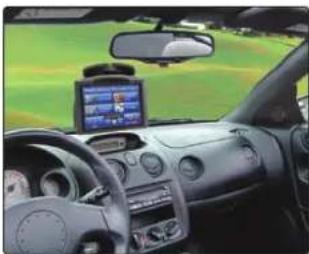
Interior view of a car dashboard with steering wheel, dashboard display, and steering wheel (no visible text or symbols)Put the unit where it is visible at a glance.
natural_image
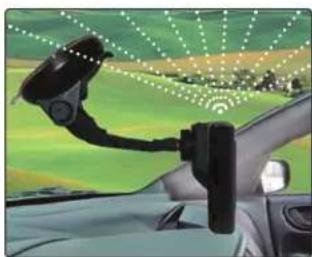
Interior view of a car with a mounted sensor device and green roof, showing no visible text or symbols.Let the NAV ONE "see" the sky.
INSTALLATION
The NAV ONE requires very little installation beyond putting it at a convenient location and securing it in place. The power cord can be connected to the vehicle's 12-volt power connector.
When locating and securing the NAV ONE in the vehicle, keep in mind the warnings and cautions on pages 4 and 5 to allow using the NAV ONE safely while driving the vehicle:
- Put the unit where it can be seen at a glance and the voice instructions can be heard.
- Do not put the unit where it will obstruct the driver's view of the road or interfere with the use of vehicle instruments and controls.
■ Do not put the unit over airbag panels or within airbag expansion spaces.

WARNING
If the unit is not securely attached to the vehicle, it can become a projectile hazard to the vehicle's occupants during a violent maneuver or a collision. The unit can cause serious injury under such conditions.
An important consideration in positioning the NAV ONE is its ability to "see" the sky. Radio signals from the GPS constellation of satellites are weak and cannot penetrate the solid portions of a vehicle's structure. The top of the NAV ONE contains the GPS antenna and needs maximum exposure to the sky through the windshield. This will allow the unit to receive signals from as many satellites as possible in various vehicle headings.
NOTE
Some vehicles have windshields with metallic coatings or integral heating systems that can block GPS satellite signals even though the unit "sees" the sky. In those vehicles, an accessory external antenna will need to be mounted outside the vehicle and connected to the unit. See accessories on page 31 for ordering information.
NOTE
Some states prohibit attachment of any articles to windshields or side or rear windows. Drivers should determine if such restrictions apply to jurisdictions where they drive. If so, they should use the enclosed dash mounting disk.
10474 NAVONE 5000 VD_PH1.2.qxd 7/25/07 2:40 PM Page 7

natural_image
Hand holding a black eyeshadow with a small object, set against a green field background (no text or symbols visible)To secure and connect the NAV ONE:
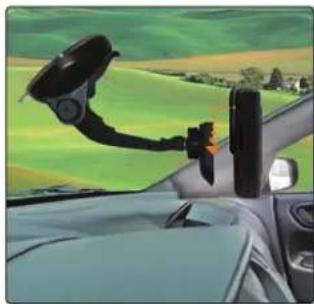
- Select and clean a suitable location where the unit can be mounted.
- Separate the mounting bracket from the unit.
- Press the suction cup against the windshield and pull the lock lever all the way back toward the bracket arm UNTIL IT CLICKS.
-
Continue to press the suction cup firmly against the windshield and rotate the lock lever all the way down to the base.
-
Test suction cup adhesion by pulling on the bracket. It should not wiggle.
- Attach the unit to the bracket. Put the slot on the back of the unit over the bracket arm and slide the unit down.
- Adjust the unit position using the knobs and tighten securely.
- Plug the power cord into the unit and the vehicle's 12-volt power connector.
natural_image
Interior view of a car with a mounted steering wheel and a hand strap, overlooking green hills (no text or symbols visible)NOTE
It is best to temporarily remove the NAV ONE unit when the vehicle is parked to prevent theft or component damage due to temperature extremes. The bracket can be left attached to the windshield for quick reinstallation of the unit.
CHECKING GPS SIGNAL
Once the NAV ONE is installed and the vehicle is in an open area, turn the unit On and observe the GPS signal indicator in the upper right corner of the map screen or view the GPS status screen from Settings on the Main Menu. If the indicator is either yellow or red, the NAV ONE may not be "seeing" the sky and may need to be repositioned.
START-UP TIME
When the NAV ONE is new (or has been idle for more than seven days or has moved more than 500 miles while Off), it can take up to five minutes for the system to lock onto the GPS satellites. After such a start-up, the system can be left turned On for 20 minutes or more to download GPS satellite data. This data will allow much faster satellite acquisition and lock — typically less than a minute — when the system is subsequently turned On.
Installation
Nothing Comes Close to a Cobra

10474 NAVONE 5000 VD_PH1.2.qxd 7/25/07 2:40 PM Page 8
System Overview : Main Menu
SYSTEM OVERVIEW
When the NAV ONE is turned On, an opening message and safety warning are shown (below).
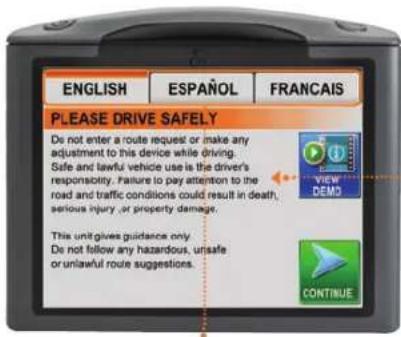
LANGUAGE CHOICES
At this display, the user has the opportunity to change the language from English to Spanish or French.
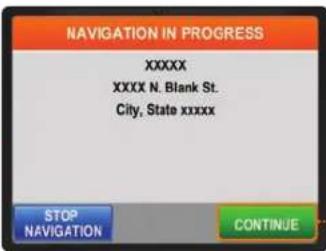
NAVIGATION IN PROGRESS
Continuation from the warning message depends on whether or not a navigation was in progress when the unit was last turned Off.
NAVIGATION WAS NOT IN PROGRESS
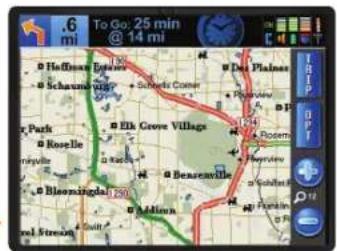
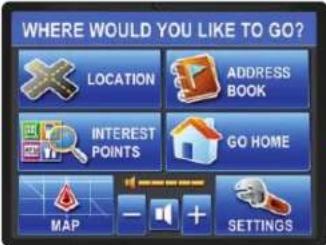
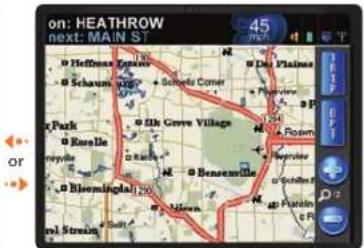
NOTE
The Main Menu or the Map will be displayed depending on which has been set as the Start Screen in the User Preferences.
10474 NAVONE 5000 VD_PH1.2.qxd 7/25/07 2:40 PM Page 9
MAIN MENU
The starting point for all system features.
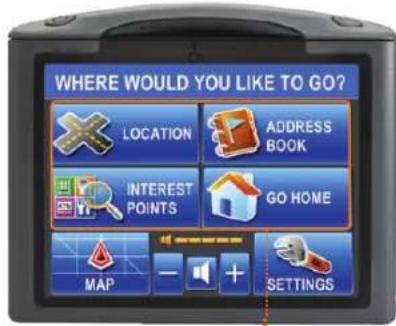
The four upper buttons are the entry points to a trip. Once a destination is selected by completing one of these sequences, Destination Review offers choices of how to get there (see page 16).
Navigation to Destination.

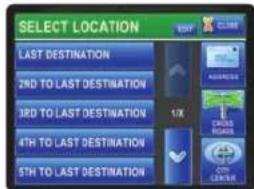
Select from a list of previous destinations or enter a new location.

Get back home from anywhere when home is set in the Address Book.

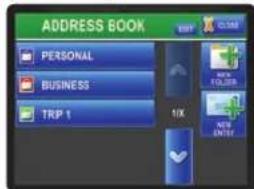
Up to 1,000 entries can be created and organized in up to 20 folders.

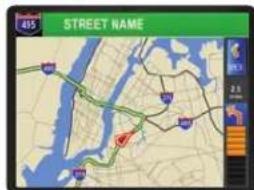
Map Is an easy-to-grasp graphic guide.

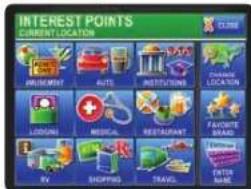
Interest points can be selected near a location or along a route from the millions in the system database.

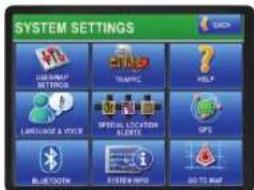
Customize the system.
System Overview : Main Menu
Nothing Comes Close to a Cobra

10474 NAVONE 5000 VD_PH1.2.qxd 7/25/07 2:40 PM Page 10
Lists : Menu Choices

LISTS
Take a moment to become familiar with using lists on the NAV ONE.
Lists present information conveniently and allow choices to be selected by touching the desired item on the screen. Once an item is selected, the system continues automatically to the next step in the process.
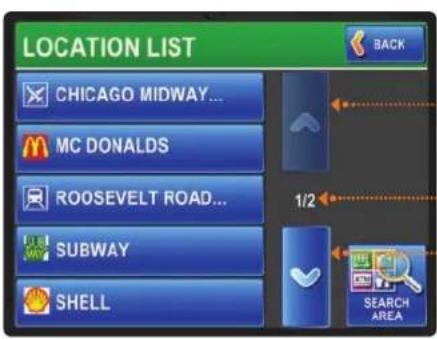
Up Button Press to go back one page. Press and hold for rapid page-by-page advance.
Page Numbers Current page / total pages.
Down Button Press to advance by one page. Press and hold for rapid page-by-page advance.
POINT OF INTEREST LISTLOCATION LIST
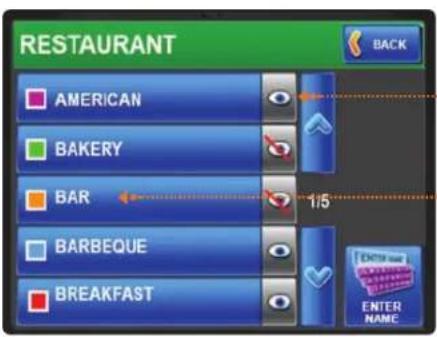
Press to toggle between showing the item icon on the Map or not.
Press to view sub-categories.
The Up button is inactive at the top of the list. The Down button is inactive at the bottom of the list.
Point of interest lists have added features.
10474 NAVONE 5000 VD_PH1.2.qxd 7/25/07 2:40 PM Page 11
MENU CHOICES
This section briefly describes each of the major Menu choices and lists some explanations of the buttons associated with them.

A trip destination can be selected from a list of previously selected destinations or a new destination can be entered as an address, a crossroad intersection or a city center.
Each location entry screen shows the currently selected state and provides a way to change it. The entry screens also allow numeric and text entries by means of keypads on the touch screen. As these entries progress, the system presents only those subsequent characters on the keypads for which entries exist in the database.

Returns to the previous menu.

Allows entry of an address.

Allows entry of an intersection.

Allows entry of a city name. The city's central location will be shown.

Moves the system to the next step for entering the location.

Brings up a list based on the characters already entered. Locations can be selected from the list without further text or numeric entries.

Returns to the previous step.

Brings up the alphabetic keypad.

On the alphabetic keypad, switches to the numeric keypad.

On the numeric keypad, switches to the alphabetic keypad.
Lists : Menu Choices
Nothing Comes Close to a Cobra

10474 NAVONE 5000 VD_PH1.2.qxd 7/25/07 2:40 PM Page 12
Menu Choices
12

ADDRESS BOOK
Stores and organizes up to 1,000 locations and up to 20 folders for later use. The Personal folder is permanent; all other folders can be added or deleted by the user. Locations can exist in more than one folder, but the exact same entry cannot exist more than once in any given folder.


Returns to the previous menu.
Allows creation and naming of folders within the Address Book.

Allows setting a location as the designated home point as the last step of entering it in the Address Book.

Is the means of adding a location to an Address Book folder. From the display of the selected folder, the Add Entry mode allows choices from a specified location, the unit's current location, the list of interest points or an Address Book entry.

INTEREST POINTS
Allows destination selection from a list of public places. Within the twelve general categories of places, there are about seven million listings of Interest Points to which one might want to go.

Returns to the Main Menu.

Allows researching establishments in any place other than the unit's current location or along the current route being navigated.

Allows narrowing establishment selection to those associated with specific brands. For instance, Audi automobile dealers may not include Audi in their names, but this feature would bring them up without having to scroll through all auto dealerships.

Allows entry of an establishment name. For establishments with multiple locations, such as a restaurant chain, the system returns a list of locations near the current or changed location. If "No Results" is shown, press the Search Wider Area button to extend the search area.
10474 NAVONE 5000 VD_PH1.2.qxd 7/25/07 2:41 PM Page 13

Provides immediate routing from any location to the place that has been designated as home.


Returns to the previous menu.
Displays the Map and starts navigation.

Provides the user with the ability to customize system and map preferences, set the time zone and view information about the software and database.


Brings up a list of available settings and explanations of available options.
Allows selection of the local time zone and toggling Daylight Saving Time On or Off.

Allows selection of the language used for screen text and voice prompts.
Brings up a list of available settings for this feature (see page 18).
Camera

Determines whether and how special location alerts will be displayed.

Operational help and tips.

Brings up a list of available settings for this feature.
Traffic Overlay

On and Off buttons determine if traffic information will overlay the Map.

Allows setup for use with a Bluetooth enabled cell phone (see page 20).

Shows the currently installed software version and other system data.
Menu Choices
Nothing Comes Close to a Cobra

10474 NAVONE 5000 VD_PH1.2.qxd 7/25/07 2:41 PM Page 14
Menu Choices

Shows a segment of the entire Map as if through a window that can be moved to display any desired portion. The window can be zoomed in or out to reveal greater detail or a larger area. The system defaults to the Map segment associated with the current activity. When the system is in navigation to a destination, the route is highlighted on the Map and maneuver details are presented as they occur.
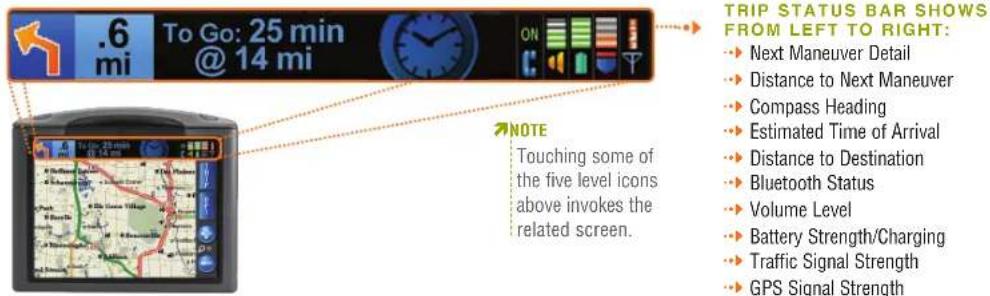
If the vehicle departs from the navigation route, the system will automatically recalculate and show the new route to the selected destination. When not in navigation, the map shows the area around the vehicle and the system displays the name of the street on which the vehicle is traveling.
JUST TWO POWERFUL BUTTONS, AT THE RIGHT OF THE MAP DISPLAY, LEAD TO A WEALTH OF HELPFUL FUNCTIONS.

Brings up text displays to view and customize Trip Data or to access a Turn-by-Turn maneuver list. Touch a list item to see the turn location.

Switches from the Map to an array of options related to your trip, viewing and saving information about the current location, and activating Trail Recorder mode.
10474 NAVONE 5000 VD_PH1.2.qxd 7/25/07 2:41 PM Page 15

THE FOLLOWING ARE THE PRINCIPAL BUTTONS THAT APPEAR IN PAGE AND MORE.

Displays information about the current trip.

Displays a scrolling list of maneuvers from start to end of the trip. Touch any item to view.

Displays a list of traffic events ahead on the current route.

Enables the user to stop navigation.

Allows the user to force the system to recalculate a trip in progress to avoid specific roads.

Allows the user the change route options.

Shows details of the traffic information feed.

Displays address, coordinates and street information for the vehicle's current location.

Shows the current location and satellite signal strengths.

Allows out-of-vehicle trip planning and route simulation to and from any location.

Allows the user to set preferences for how the map and other data are displayed.

Is the final step in changing a route and proceeding to the Map.
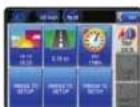
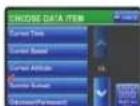
Touch any item to select your choice of data to display.
Menu Choices
Nothing Comes Close to a Cobra

10474 NAVONE 5000 VD_PH1.2.qxd 7/25/07 2:41 PM Page 16
Interacting with the Map : Route Selection
INTERACTING WITH THE MAP
When the Map is displayed, the touch-screen feature of the NAV ONE makes it easy to work with. Touching the screen anywhere on the Map opens Map Browse mode. Once in this mode, touch the Map to show a list of locations at that place. Also the Map can be moved in any of the eight arrow directions. Just touch any arrow to move in that direction.
ACTIVATE MAP BROWSE MODE
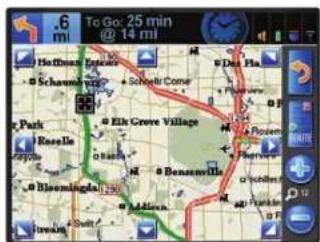
The panning feature is activated whenever the screen is touched.
Touch any arrow and the window will move in that direction.
The Route button zooms the map to show the entire route.
NOTE
Press the Return button at
any time to exit Map Browse mode.
ROUTE SELECTION
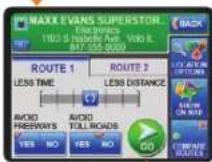
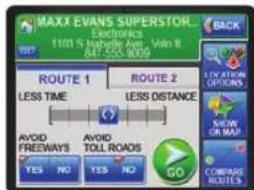
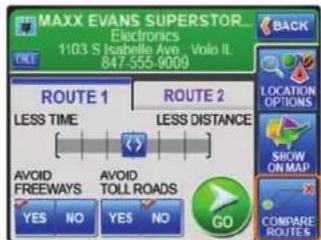
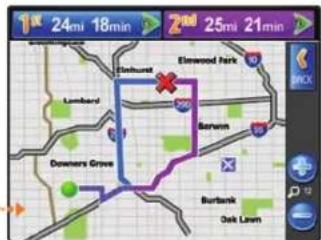
The Destination Review screen provides a choice of two routes for a trip – you can select any routing options for each and compare them. Press the Compare Routes button to see the two routes compared on the Map.
Press one of the Route buttons at the top of the Compare Routes screen to select it and proceed to trip navigation.
DESTINATION REVIEW
COMPARE ROUTES
10474 NAVONE 5000 VD_PH1.2.qxd 7/25/07 2:41 PM Page 17
USING MAP BROWSE
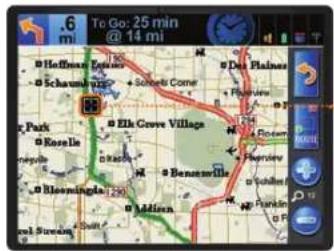
While In Map Browse, touch any spot on the Map to see what destinations are there.
The status bar at the top of the screen will change to show a single location or multiple locations.
SINGLE LOCATION
MULTIPLE LOCATIONS
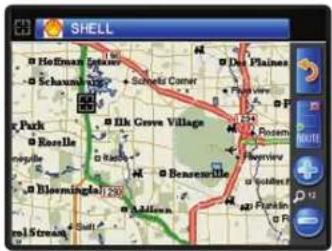
Touch the location in the blue bar to begin navigation to it.
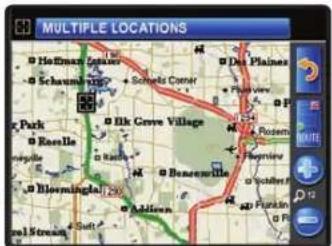
Touch the blue Multiple Locations bar to see a list of all destinations near the point touched on the Map.
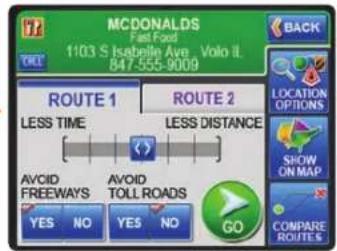
Allows navigation to the location.
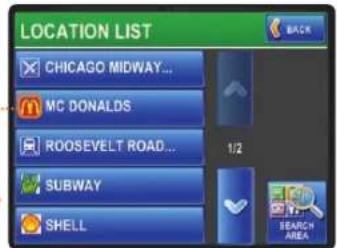
Touch any of the location buttons to begin navigation to it.
Interacting with the Map : Route Selection
Nothing Comes Close to a Cobra

10474 NAVONE 5000 VD_PH1.2.qxd 7/25/07 2:41 PM Page 18
Special Locations : Trail
SPECIAL LOCATIONS
Special locations include fixed speed cameras and red light cameras. The alerts to these locations are intended to remind users to exercise special caution when they are approached.
Alerts will be signaled by an icon on the screen as shown at the lower left corner. You can change the distance for the alert notification.
NOTE
Known locations of fixed speed cameras and red light cameras are set in the unit memory at the time of manufacture. To update this database, go to the Cobra website (www.cobra.com) and follow the directions provided. This online data base is updated regularly and should be visited from time to time.

10474 NAVONE 5000 VD_PH1.2.qxd 7/25/07 2:41 PM Page 19
TRAIL
This feature can be used on or off the road to record vehicle movements.
Instead of guiding the vehicle on a route calculated in advance, it captures the route actually taken. Once a trail is recorded and saved, it can be used to retrace the route or to repeat it in the future.
Enter Trail mode by pressing:
Main Menu → Map → More → Trail
The system will prompt for a new trail to be named, be assigned a color, be shown on the Map, and be saved.
Up to 100 trails can be saved in the system memory and existing trails can be deleted or have their characteristics edited at any time.
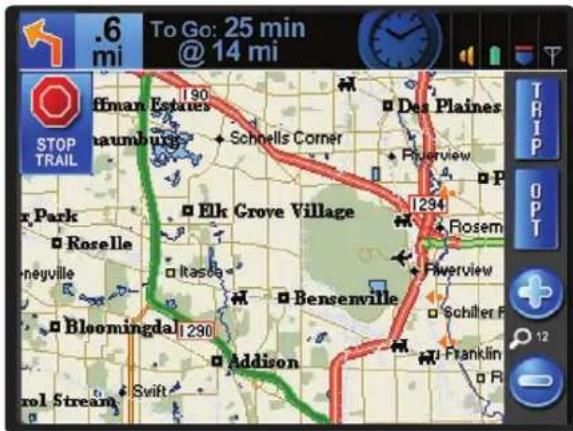
Map screen while a trail is being recorded.
Special Locations : Trail
Nothing Comes Close to a Cobra

10474 NAVONE 5000 VD_PH1.2.qxd 7/25/07 2:42 PM Page 20
Bluetooth
BLUETOOTH
The NAV ONE can function as a speaker phone for many Bluetooth enabled cell phones.
The first step is to set up a cell phone with the NAV ONE.
- On the NAV ONE, go to Bluetooth Setup with the sequence Main Menu → Settings → Bluetooth.
- Press the Yes button to enable the NAV ONE to be discovered by a cell phone.
- Set the cell phone for Bluetooth pairing according to your cell phone instructions.
- Have your phone "discover" the Nav One.
- After the two devices are connected, follow the on-screen instructions and enter the password shown on the Nav One screen into your phone when registered.
The Main Menu will now display a Phone button and the Bluetooth status icon will be added to the status bar at the top of the Map screens.
All future connections will be controlled by the cell phone.
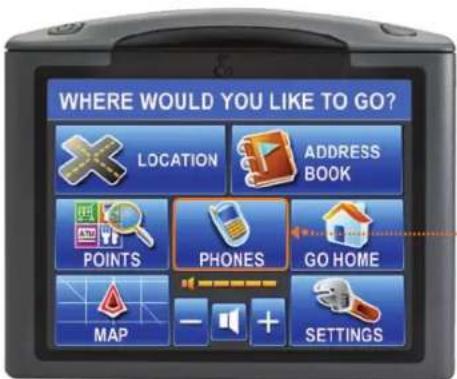
Whenever a device is paired with the NAV ONE, the Main Menu screen changes to that shown here.
20
Calls are easy to initiate:
- Press the Phone button.
- Dial the number using the numeric pad presented on the screen.
- Press the Send button.
NOTE
Some cell phones may have a variety of Bluetooth that is incompatible with that in the NAV ONE. If pairing does not occur, call Cobra customer support for assistance.
10474 NAVONE 5000 VD_PH1.2.qxd 7/25/07 2:42 PM Page 21
BLUETOOTH
The embedded numbers for Points Of Interest recalled from the system's database can be called directly. Press the Call button on the Destination Review screen after choosing a POI location.
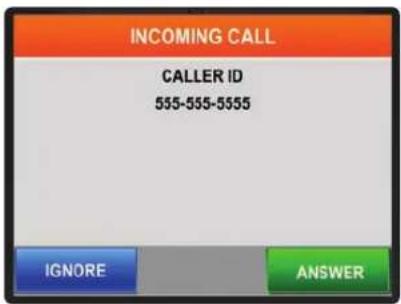
Incoming calls bring up the Answer / Ignore screen with caller ID, if available from the cell phone service provider.
INCOMING CALL FROM ANY SCREEN
Bluetooth
The Map can be accessed from the On Call screen and a blinking icon on the Map will show that the call is in progress. Pressing the Phone icon will return to the On Call screen to end or switch to a waiting call.
MAP SCREEN WITH WITH PHONE BUTTON
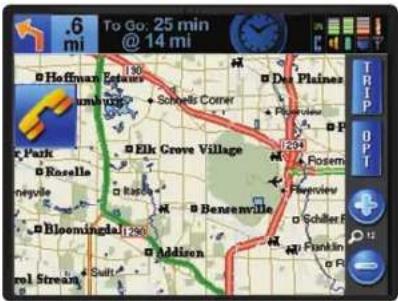
When no call is in progress, the phone icon will appear if Phone Button on Map Screen has been turned On in Map Settings (page 24). Pressing the Icon will bring up the keypad to enable dialing a call.
Nothing Comes Close to a Cobra

10474 NAVONE 5000 VD_PH1.2.qxd 7/25/07 2:42 PM Page 22
Traffic : User Settings
22
When Traffic overlay is turned On (using Main Menu → Settings → Traffic Settings → On/Off), the NAV ONE will indicate traffic conditions and incidents on the Map by colored segments and icons along the route. Changes that occur during navigation will prompt voice alerts.
Touching the screen at any of the incident icons will bring up information about the cause of the incident. Press the options button for re-route possibilities.
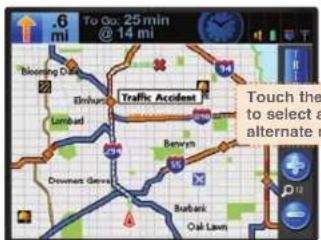
Map in navigation.
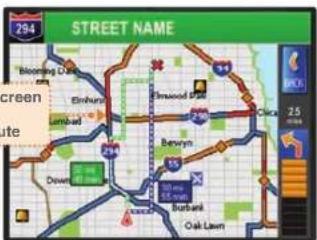
Re-route options.
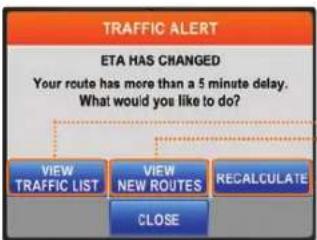
flowchart
graph TD
    A["TRAFFIC ALERT"] --> B["ETA HAS CHANGED"]
    B --> C["Your route has more than a 5 minute delay. What would you like to do?"]
    C --> D["VIEW TRAFFIC LIST"]
    C --> E["VIEW NEW ROUTES"]
    C --> F["REGCALCULATE"]
    D --> G["CLOSE"]
    E --> G
    F --> G
NOTE
VIEW TRAFFIC LIST
Shows a list of all traffic events along the current trip route.
VIEW NEW ROUTES
Shows a comparison of the current trip route and a recalculated one to avoid the traffic event.
RECALCULATE
Recalculates the route from the current location using the previously set route criteria.
NOTE
The NAV ONE displays traffic information only when connected to the optional traffic receiver that can be purchased as an accessory. See the Accessories section at page 31.
NOTE
The traffic receiver continuously monitors any available FM data channel for up-to-the-minute traffic information. Traffic incident information is available only in selected major cities. Check www.cobra.com for the latest city list.
10474 NAVONE 5000 VD_PH1.2.qxd 7/25/07 2:42 PM Page 23
USER SETTINGS
The following settings of user preferences are available. The list can be reached using the sequence: Main Menu → Settings → User/Map Settings
The Help button on the same screen opens a list of detailed explanations of the items. After selecting all desired settings, press the Save button.
USER PREFERENCES SETTINGS (DEFAULTS IN BOLD)
| Audio Help | On | Off | |
| Key Click | Beep | Silent | |
| Demo Mode | Auto | Manual | |
| Adjust Volume with Speed | On | Off | |
| Brightness | Adjust | ||
| Start Screen | Main Menu | Map | |
| Units | US Standard | Metric | |
| Keyboard Layout | ABC | QWERTY | |
| Ask for City in Find Address | Yes | No |
USER PREFERENCES SETTINGS (DEFAULTS IN BOLD)
| Speed Alarm | - | No | + |
| Proximity Alarm | On | Off | |
| Smart Power | On | Off | |
| Battery Save | On | Off | + |
| Time Zone | Change | ||
| Reset Factory Defaults | Reset | ||
| Delete All User Data | Delete | ||
| Clear Recently Found List | Clear | ||
| Clear All Avoided Roads | Clear |
Traffic : User Settings
Nothing Comes Close to a Cobra®

10474 NAVONE 5000 VD_PH1.2.qxd 7/25/07 2:42 PM Page 24
Map Settings : Battery Operation : Maintenance
24
MAP SETTINGS
The following settings of map preferences are available. The list can be reached using the sequence: Main Menu → Settings → User/Map Settings. After selecting all desired settings, press the Save button.
MAP OPTIONS SETTINGS (DEFAULTS IN BOLD)
| Map Direction | North Up | Direction Up | |
| Map View | Traditional | 3D | |
| Map Details | Less | More | |
| Map Theme | Easy View | Standard | |
| Day/Night Colors | Change | ||
| Scale | On | Off | |
| Vehicle Icon | Change | ||
| Destination Time | Arrival Time | Time Remaining | |
| Voice Prompt | More | Less |
MAP OPTIONS SETTINGS (DEFAULTS IN BOLD)
| Auto Zoom | Manual | Next Turn | |
| Auto Map Re-Center | 15 sec. | 30 sec. | Never |
| Phone Button on Map Screen | On | Off | |
| Show Current Street in Status Bar | Yes | No | |
| Status Bar Data Items | Select | ||
| Show Address Book Locations | On | Off | |
| Show Interest Point Icons on Map | On | Off | |
| Average Speed – Local | - | 25 | + |
| Average Speed – Highway | - | 55 | + |
NOTE
The Help button in settings provides detailed explanations of each item.
10474 NAVONE 5000 VD_PH1.2.qxd 7/25/07 2:42 PM Page 25
BATTERY OPERATION
The NAV ONE has a built-in rechargeable battery to allow operation without a power cord attached. The battery automatically goes into Recharge mode whenever a power cord is plugged in to the unit.
When the battery is very cold or very hot, recharging could damage it. Under those conditions, an alert message will be displayed and charging will be deferred until the battery temperature has returned to the charging range. The unit can still be operated using the 12V cord.
MAINTENANCE
Very little maintenance is required to keep this NAV ONE system in good operating condition.
- Keep the unit components clean by wiping with a soft lens cleaning cloth. Do not use solvents or harsh or abrasive cleaners, which could damage the case or scratch the display.
- Protect the unit from moisture and from being dropped or struck by hard objects to prevent damage.
Consult the Cobra website (www.cobra.com) for the latest software and database updates.
Map Settings : Battery Operation : Maintenance
Nothing Comes Close to a Cobra®

User License : Warranty
26
USER LICENSE
This document and the software and data described in it may be subject to one or more copyrights owned by or licensed to or from Cobra Electronics Corporation, Tele Atlas, Tele Atlas Canada, Inc., Statistics Canada, Geomatics Canada, and/or Canada Post Corporation and are furnished under license and may be used or copied only in accordance with such license. Except as permitted by such license, the contents of this document, software and data may not be disclosed to third parties, copied or duplicated in any form, in whole or in part, without the prior written permission of Cobra Electronics Corporation. This document, software and DATA contain proprietary and confidential information of Cobra Electronics Corporation and its licensors.
Cobra grants the purchaser a limited license for use of this document, software and data incorporated in the NAV ONE for personal use, and not for resale, sublicense or commercial use. By using the NAV ONE, the purchaser agrees to be bound by the terms and conditions of this license agreement. The purchaser acknowledges that the content of this document, software and data are the property of Cobra and its licensors and are protected by copyright laws of the USA and international treaties. The purchaser agrees not to modify, decompile, disassemble, reverse engineer or reduce to human readable form the software, DATA or any part thereof, nor to create derivative works based on the contents of the document, software or data, nor remove or obscure any copyright, trademark notice, or restrictive legend.
The purchaser agrees not to export or re-export this document or the NAV ONE to any country in violation of the export control laws of the U.S.A. Purchaser further agrees to use the NAV ONE in compliance with all applicable federal state and local laws, rules and regulations.
The contents of this document, software and data are for informational use only and are subject to change without notice. Cobra and its licensors intend to provide their customers the most complete and accurate navigation information available at a reasonable cost from
government and private data sources. However, all data sources have limitations and some have inaccuracies or are incomplete to some degree. These characteristics carry over to the NAV ONE as well. As such, COBRA AND ITS LICENSORS SHALL NOT BE LIABLE TO THE USER FOR ANY INCIDENTAL, CONSEQUENTIAL, SPECIAL, INDIRECT OR EXEMPLARY DAMAGES ARISING FROM THE USE OF THE NAV ONE PRODUCT.
THE NAV ONE PRODUCT IS PROVIDED ON AN "AS IS" AND "WITH ALL FAULTS BASIS" AND COBRA AND LICENSORS EXPRESSLY DISCLAIM ALL WARRANTIES, EXPRESS OR IMPLIED, INCLUDING BUT NOT LIMITED TO, THE IMPLIED WARRANTIES OF NON-INFRINGEMENT, MERCHANTABILITY, QUALITY, ACCURACY, TITLE AND FITNESS FOR A PARTICULAR PURPOSE. NO ORAL OR WRITTEN ADVICE OR INFORMATION PROVIDED BY COBRA AND/OR ITS LICENSORS OR ANY OF THEIR AGENTS, EMPLOYEES OR THIRD PARTY PROVIDERS SHALL CREATE A WARRANTY; AND USER IS NOT ENTITLED TO RELY ON ANY SUCH ADVICE OR INFORMATION. THIS DISCLAIMER OF WARRANTIES IS AN ESSENTIAL CONDITION OF THE AGREEMENT.
Cobra encourages customers to report any errors found in our electronic maps by contacting technical assistance (available in English and Spanish) at product info@cobra.com (e-mail), by visiting our website: www.cobra.com, or by calling customer assistance (available in English and Spanish) at 773-889-3087 between 8:00 a.m. and 6:00 p.m. Central Time, Monday through Friday (except holidays).
If End User is the United States Government, then use, reproduction or disclosure of this commercial product and accompanying documentation may be subject to DFARS 252.227-7014(a)(1); DFARS 227.7202-1; FAR 52.227-19; DFARS 252.227-7015; FAR 52.227-14 Alternates I, II, and III; and/or FAR 12.211 and FAR 12.212 as applicable and/or similar successor clauses in FAR, or the DOD or NASA FAR Supplement.
10474 NAVONE 5000 VD_PH1.2.qxd 7/25/07 2:42 PM Page 27
WARRANTY
COBRA ELECTRONICS CORPORATION warrants that its Cobra NAV ONE, and the component parts thereof, will be free of defects in workmanship and materials for a term of one year from the date of first consumer purchase. This warranty may be enforced by the first consumer purchaser, provided that the product is used solely within the U.S.A. and Canada.
Cobra will, without charge, repair or replace, at its option, defective NAV ONE products or component parts upon delivery to the Cobra Factory Service Department, if accompanied by proof of the date of first consumer purchase, such as a duplicated copy of a sales receipt. The consumer must pay any initial shipping charges required to ship the product for warranty service. Return shipping will be at Cobra's expense if the product is repaired or replaced under warranty.
This warranty gives the consumer specific rights, and he or she may also have other rights which vary from state to state.
NOTE
COBRA MAKES NO WARRANTY AS TO THE ACCURACY OR
COMPLETENESS OF THE MAP DATA UTILIZED IN THE NAV ONE
PRODUCTS AND DISCLAIMS ALL EXPRESS, IMPLIED OR STATUTORY
WARRANTIES, INCLUDING ANY IMPLIED OR STATUTORY WARRANTIES
OF MERCHANTABILITY OR FITNESS FOR A PARTICULAR PURPOSE.
EXCLUSIONS – THIS LIMITED WARRANTY DOES NOT APPLY:
- To any product damaged by accident;
- In the event of misuse or abuse of the product or as a result of unauthorized alterations or repairs;
- If the serial number has been altered, defaced or removed;
- If the owner of the product resides outside the U.S.A. and Canada.
All implied warranties, including warranties of merchantability and fitness for a particular purpose are limited in duration to the term of this warranty. COBRA SHALL NOT BE LIABLE FOR ANY INCIDENTAL, CONSEQUENTIAL OR OTHER DAMAGES; INCLUDING, WITHOUT LIMITATION, DAMAGES RESULTING FROM LOSS OF USE OR COST OF INSTALLATION. Some states do not allow limitations on the duration of an implied warranty and/or do not allow the exclusion or limitation of incidental or consequential damages. Part or all of the above limitations may not apply to some consumers.
It is the user's responsibility to use this product prudently and responsibly. This product is intended to be used only as a travel aid and must not be used for any purpose requiring precise measurement of direction, distance, location and/or topography.
User License : Warranty
Nothing Comes Close to a Cobra®

10474 NAVONE 5000 VD_PH1.2.qxd 7/25/07 2:42 PM Page 28
Troubleshooting : Product Service
28
TROUBLESHOOTING
PROBLEM POSSIBLE CAUSE(S) SOLUTION(S)
| Power switch is turned Off. | Turn the unit On with the Power button. | |
| Battery is discharged. Plug in 12V power and turn the unit | On. | |
| Display does not power up. | Fuse in 12V power cord is blown. | Check for green LED on 12v power plug. Unscrew the fuse holder, inspect the fuse and replace it if blown. |
| No voltage is present at the vehicle power connector. | Troubleshoot vehicle wiring. NOTE for some power points, ignition key must be at RUN position for the point to be energized. | |
| GPS indicator will not turn green. | GPS antenna cannot “see” the sky. | Move vehicle to open area and make sure the GPS antenna has a clear view of the sky. |
| System does not reflect movement while driving. | GPS is not working properly. | Is GPS signal indicator green? If yes, go to next step. If no, go to “GPS indicator will not turn green” step. |
| Vehicle motion is not evident or the Map is blank. | Geographic area is not fully mapped. | Drive to a main road. If the map shows the road, the system is working properly, but the area is not fully mapped. |
| Map is zoomed in too far. Zoom out. |
10474 NAVONE 5000 VD_PH1.2.qxd 7/25/07 2:42 PM Page 29
PRODUCT SERVICE
For any questions about operating or installing this new Cobra product, or if parts are missing ...PLEASE CALL COBRA FIRST...do not return this product to the store.
If this product should require factory service, please call Cobra first before sending the product. This will ensure the fastest turnaround time on any repair. If Cobra asks that the product be sent to its factory, the following must be furnished to have the product serviced and returned:
- For Warranty Repair include some form of proof-of-purchase, such as a mechanical reproduction or carbon of a sales receipt. Make sure the date of purchase and product model number are clearly readable. If the originals are sent, they cannot be returned;
- Send the entire product;
- Enclose a description of what is happening with the product. Include a typed or clearly printed name and address of where the product is to be returned, with phone number (required for shipment).
-
Pack the product securely to prevent damage in transit. If possible, use the original packing material;
-
Ship prepaid and insured by way of a traceable carrier such as United Parcel Service (UPS) or Priority Mail to avoid loss in transit to:
Cobra Factory Service
Cobra Electronics Corporation
6500 West Cortland Street
Chicago, Illinois 60707 U.S.A.;
- If the product is in warranty, upon receipt of the product, it will either be repaired or exchanged depending on the model. Please allow approximately 3 – 4 weeks before contacting Cobra for status. If the product is out of warranty, a letter will automatically be sent with information as to the repair charge or replacement charge.
For any questions, please call 773-889-3087 for assistance.
Troubleshooting : Product Service
Nothing Comes Close to a Cobra®

Customer Assistance : Trademark Acknowledgement : Accessories
CUSTOMER ASSISTANCE
Should there be any problems with this product, or its many features not be understood, please refer to this owner's manual. For further assistance after reading this manual, Cobra Electronics offers the following customer assistance services:
FOR ASSISTANCE IN THE U.S.A.
Automated Help Desk (English only) 24 hours a day, 7 days a week at 773-889-3087 (phone).
Customer Assistance Operators (English and Spanish) 8:00 a.m. to 6:00 p.m. Central Time, Mon. through Fri. (except holidays) at 773-889-3087 (phone).
Questions (English and Spanish)
Faxes can be received at 773-622-2269 (fax).
- Technical Assistance (English only) www.cobra.com (on-line: Frequently Asked Questions).
- Technical Assistance (English and Spanish) productinfo@cobra.com (e-mail).
FOR ASSISTANCE OUTSIDE THE U.S.A.
Contact the local dealer
TRADEMARK ACKNOWLEDGEMENT
Cobra ^® , Intelligent Accelerated Satellite Acquisition Protocol (iASAP) Technology ^® , NAV ONE ^® . Nothing Comes Close to a Cobra ^® and the snake design are registered trademarks of Cobra Electronics Corporation, USA.
Cobra Electronics Corporation™ and SmartPower™ are trademarks of Cobra Electronics Corporation, USA.
Windows ^® is a registered trademark of Microsoft Corporation.
Tele Atlas ^® is a registered trademark of Tele Atlas, N.V.
Tele Atlas True Time Maps™ is a trademark of Tele Atlas, N.V.
The Bluetooth ^® word mark and logos are registered trademarks owned by Bluetooth SIG, Inc. and any use of such marks by Cobra Electronics Corporation is under license.
Other trademarks and trade names are the property of their respective owners.
10474 NAVONE 5000 VD_PH1.2.qxd 7/25/07 2:42 PM Page 31
ACCESSORIES
These and other accessories are available for the NAV ONE from a local Cobra dealer or directly from Cobra. Alternate mounting brackets are also available. See our website at www.cobra.com for details.
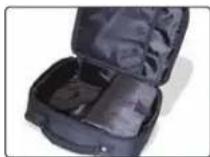
MNA 2300 CS
Deluxe carrying case
organizes the NAV ONE
and its accessories.
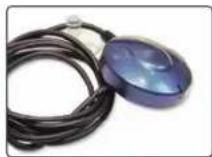
MNA 2300 EXT
External antenna allows GPS signal reception in heavily shielded vehicles and those with heated or metallic coated windshields.
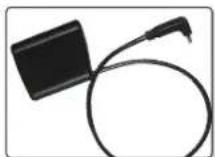
MNA CCFM2
Optional traffic receiver overlays traffic information on map when connected to the NAV ONE.
NOTE
For NAV ONE 5000 Map Update, order Item # MNA UPD 5000.
ACCESSORIES ORDER INFO
Ordering From U.S.A.
Call 773-889-3087 for pricing or visit www.cobra.com.
Make Check or Money Order Payable To
Cobra Electronics, Attn: Accessories Dept., 6500 West Cortland Street, Chicago, IL 60707 U.S.A.
For Credit Card Orders
Call 773-889-3087 [Press one from the main menu] 8:00 a.m. to 6:00 p.m. Central Time, Monday through Friday.
To Order Online
Please visit our website: www.cobra.com
Customer Assistance : Trademark Acknowledgement : Accessories
Nothing Comes Close to a Cobra

10474 NAVONE 5000 VD_PH1.2.qxd 7/25/07 2:42 PM Page 32
THE COBRA LINE OF QUALITY PRODUCTS INCLUDES:
CB Radios
microTALK ^® Radios
Radar/Laser Detectors
Safety Alert® Traffic Warning Systems
Mobile GPS Navigation Systems
HighGear® Accessories
CobraMarine ^® VHF Radios
Marine Chartplotters
Power Inverters
Accessories

For more information or to order any of our products, please visit our website: www.cobra.com
© 2007 Cobra Electronics Corporation 6500 West Corland Street Chicago, Illinois 60707 U.S.A.
Printed in China Part No. 480-391-P Version D
- Controls and Indicators : About the NAV ONE System
- Power Button
- Microphone
- Menu Button
- Illuminated Touch Screen
- NOTE
- ABOUT THE NAV ONE SYSTEM
- THANK YOU FOR PURCHASING THE NAV ONE 5000 SYSTEM.
- TRY IT OUT
- IMPORTANT NOTE FOR FIRST TIME USER
- CONTENTS
- Important Safety Information
- WARNING
- SYMBOLS AND
- STATEMENTS
- WARNINGS
- CAUTION SYMBOLS AND STATEMENTS
- CAUTIONS
- FCC COMPLIANCE
- Installation
- To secure and connect the NAV ONE:
- CHECKING GPS SIGNAL
- START-UP TIME
- System Overview : Main Menu
- SYSTEM OVERVIEW
- LANGUAGE CHOICES
- NAVIGATION IN PROGRESS
- NAVIGATION WAS NOT IN PROGRESS
- MAIN MENU
- Lists : Menu Choices
- LISTS
- MENU CHOICES
- JUST TWO POWERFUL BUTTONS, AT THE RIGHT OF THE MAP DISPLAY, LEAD TO A WEALTH OF HELPFUL FUNCTIONS.
- THE FOLLOWING ARE THE PRINCIPAL BUTTONS THAT APPEAR IN PAGE AND MORE.
- Interacting with the Map : Route Selection
- INTERACTING WITH THE MAP
- ROUTE SELECTION
- Special Locations : Trail
- SPECIAL LOCATIONS
- TRAIL
- Bluetooth
- Calls are easy to initiate:
- Traffic : User Settings
- VIEW TRAFFIC LIST
- VIEW NEW ROUTES
- RECALCULATE
- USER SETTINGS
- Map Settings : Battery Operation : Maintenance
- MAP SETTINGS
- BATTERY OPERATION
- MAINTENANCE
- User License : Warranty
- USER LICENSE
- WARRANTY
- EXCLUSIONS – THIS LIMITED WARRANTY DOES NOT APPLY:
- Troubleshooting : Product Service
- TROUBLESHOOTING
- PRODUCT SERVICE
- Customer Assistance : Trademark Acknowledgement : Accessories
- CUSTOMER ASSISTANCE
- FOR ASSISTANCE IN THE U.S.A.
- FOR ASSISTANCE OUTSIDE THE U.S.A.
- TRADEMARK ACKNOWLEDGEMENT
- ACCESSORIES
- ACCESSORIES ORDER INFO
- THE COBRA LINE OF QUALITY PRODUCTS INCLUDES:
Brand : COBRA
Model : NAV ONE 5000
Category : Browser