
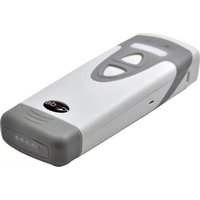
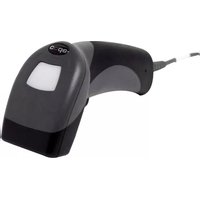
CRD900FD - Barcode scanners Code - Free user manual and instructions
Find the device manual for free CRD900FD Code in PDF.


| Product Type | Handheld barcode scanner |
| Model | CRD900FD |
| Brand | Code |
| Scan Technology | Linear imager / 2D imager |
| Supported Barcodes | 1D (UPC, EAN, Code 39, etc.) and 2D (QR, Data Matrix, PDF417) |
| Connectivity | USB (HID, Virtual COM), optional Bluetooth |
| Dimensions (W x D x H) | Approx. 170 x 70 x 105 mm |
| Weight | Approx. 180 g (6.3 oz) |
| Power Source | USB bus-powered (5V, 500mA) |
| Scan Angle | Horizontal: 40°, Vertical: 30° |
| Depth of Field | Up to 300 mm for 13 mil barcode |
| Indicators | LED (red/green), beeper |
| Operating Temperature | 0°C to 40°C (32°F to 104°F) |
| Storage Temperature | -20°C to 60°C (-4°F to 140°F) |
| Humidity | 5% to 95% non-condensing |
| Drop Resistance | 1.5 m onto concrete |
| Maintenance & Cleaning | Clean scan window with damp cloth; avoid solvents |
| Safety | CE, FCC compliant; laser class 1 (if applicable) |
| Spare Parts | USB cable, stand optional, replacement window available |
| General Information | Designed for retail, warehouse, and logistics |
Frequently Asked Questions - CRD900FD Code
User questions about CRD900FD Code
0 question about this device. Answer the ones you know or ask your own.
Ask a new question about this device
Download the instructions for your Barcode scanners in PDF format for free! Find your manual CRD900FD - Code and take your electronic device back in hand. On this page are published all the documents necessary for the use of your device. CRD900FD by Code.
USER MANUAL CRD900FD Code
Powering on the CR900FD
For USB Cable: plug the USB end of the Affinity® cable into a USB port on the host device. After several seconds, the reader will beep twice and the LED will turn off to indicate the CR900FD is ready for use.
For RS232 Cable: plug the power supply into the AC outlet, plug the power supply cord into the barrel jack of the cable, and connect the RS232 connector to the appropriate serial port on the host device. After several seconds, the reader will beep twice and the LED will turn off to indicate the CR1400 is ready for use.
Using the CR900FD Out of a Universal Stand-

Press and hold the CR900FD trigger, the two blue bars emitting from the reader are used for targeting. Center the blue bars in the middle of a bar code.
The optimal reading distance from reader to bar code is approximately 4.0" (10 cm).
Once the reader is at the optimal distance, the CR900FD will read the bar code (when the trigger is pressed). The CR900FD will beep and flash a green LED to indicate a 'good read' has occurred.
Using the CR900FD in a Universal Stand

natural_image
Black barcode scanner with a hand holding a stack of boxes (no visible text or symbols)The CR900FD has a stand detection feature. By default, when the CR900FD is placed in the stand, the reader will automatically enter into motion detection mode. When in this mode, simply place a bar code in the scan field to activate the reader. The CR900FD will beep and flash a green LED to indicate a 'good read' has occurred.
When the CR900FD is removed from the stand, the reader switches to manual mode and the trigger must be pressed to read a bar code.
CR900FD Default Settings
The CR900FD, out of the box, will read the following 1D bar codes:
UPC/EAN/JAN
Code 128
GS1 DataBar (RSS)
Code 39
Interleaved 2 of 5
Code 93
Codabar
Note: a CR900FD will read Data Matrix configuration codes.
Upgrade Options
The CR900FD can be upgraded to read 2D bar codes with the purchase of a license key. 2D license keys can be purchased individually or as a package. Available licenses:
PDF417
Aztec Code
Data Matrix
All 2D bar codes
QR Code
Visit www.codecorp.com for upgrading/license key information.
Configuration Codes
The CR900FD can be quickly, and easily configured to meet the needs of different use cases. A common configuration is reading bar codes found on cell phone screens. To enable, or disable, cell phone reading mode, scan the appropriate code below.
Enable Cell Phone Reading Mode Disable Cell Phone Reading Mode

M0250 01

M0251 01
For more configuration options refer to the CR900FD Configuration Guide located at www.codecorp.com. For custom configuration options, please contact us at support@codecorp.com.
Universal Stand Assembly (included when ordered as a Kit/Package)

natural_image
Three black-and-white photos showing a desktop scanner with a handle, a close-up of its base, and a red prohibition symbol on the stand (no text or symbols present)Cleaning a CR900FD
The following agents are approved to clean a Code bar code reader:
1) Alcohol Wipes
2) CaviWipes® Disinfecting Towelettes
3) Clorox® Disinfecting Wipes
4) Clorox® Bleach Solution (10% Clorox bleach, 90% tap water)
5) Medical DiAirKem
6) Sani-Cloth® HB, Super Sani-Cloth® Germicidal, Sani-Cloth® Plus Germicidal Disposable Wipes
7) Virex ^® II Disinfectant Cleaner
Warranty
Code's CR900FD carries a five year standard warranty. Universal Stands follow the warranty of the reader, and cables have a 90 day warranty period. For more warranty information, please refer to the www.codecorp.com.

14870 S. Pony Express Rd. #200 Bluffdale, UT 84065
www.codecorp.com (801) 495-2200
Quickstart Guide
Code Reader™ 900FD (CR900FD)

natural_image
Black and white barcode scanner with a standard logo (no visible text or symbols)Included with your CR900FD
Depending on the kit ordered, the following may have been shipped with your reader:

USB Affinity® Cable

RS232 Affinity® Cable w/ Power Supply

Universal Stand
Attaching/Detaching a Cable
To attach a cable, plug the RJ-50 end of the Affinity® cable into bottom of the reader (Figure 1). Firmly push the connector into the reader until a snap can be heard, to indicate the cable is properly attached. To detach a cable, press a paper clip into the hole on the back of the CR900FD (Figure 2), and gently pull the cable from the reader.

natural_image
Close-up of hands inserting a USB into a black device (no text or symbols visible)
natural_image
Close-up of hands using a handheld electric tool to adjust a wire (no visible text or symbols)Figure 2 Figure 1

C007258_02_CR900FD_Quickstart_Guide



- Powering on the CR900FD
- Using the CR900FD Out of a Universal Stand-
- Using the CR900FD in a Universal Stand
- CR900FD Default Settings
- Upgrade Options
- Configuration Codes
- Enable Cell Phone Reading Mode Disable Cell Phone Reading Mode
- Cleaning a CR900FD
- Warranty
- Code Reader™ 900FD (CR900FD)
- Included with your CR900FD
- Attaching/Detaching a Cable
Brand : Code
Model : CRD900FD
Category : Barcode scanners