
Quadravox - Processor EVENTIDE - Free user manual and instructions
Find the device manual for free Quadravox EVENTIDE in PDF.


| Product Type | Harmony/Pitch Shifting Processor |
| Brand | Eventide |
| Model | Quadravox |
| Dimensions | 125 x 95 x 50 mm (approx.) |
| Weight | 0.4 kg (approx.) |
| Power Supply | 9V DC, 200 mA (center negative) |
| Current Consumption | 200 mA |
| Input Impedance | 1 MΩ |
| Output Impedance | 100 Ω |
| Audio Processing | 24-bit, 48 kHz |
| Main Functions | Quad-voice harmony generation, pitch shifting, delay, detune, chord generation, and arpeggiation |
| Presets | 60 factory presets, 60 user presets |
| Controls | Knobs for Mix, Shimmer, Shift, and Harmony; 3 toggle switches for chord type, key, and mode |
| Connections | 1x 1/4" instrument input, 2x 1/4" outputs (L/mono, R), 1x USB-C for firmware updates |
| Maintenance & Cleaning | Wipe with a dry soft cloth; avoid solvents and liquids |
| Safety | Use only specified power supply; do not expose to moisture or extreme temperatures |
| Spare Parts & Repairability | Contact Eventide support or authorized service centers; no user-serviceable parts inside |
| General Information | Designed for guitarists and keyboardists; firmware upgradable via USB |
Frequently Asked Questions - Quadravox EVENTIDE
User questions about Quadravox EVENTIDE
0 question about this device. Answer the ones you know or ask your own.
Ask a new question about this device
Download the instructions for your Processor in PDF format for free! Find your manual Quadravox - EVENTIDE and take your electronic device back in hand. On this page are published all the documents necessary for the use of your device. Quadravox by EVENTIDE.
USER MANUAL Quadravox EVENTIDE
Copyright 2018, Eventide Inc.
P/N: 141265, Rev 5
Eventide is a registered trademark of Eventide Inc.
AAX and Pro Tools are trademarks of Avid Technology. Names and logos are used with permis
Audio Units and macOS are trademarks of Apple, Inc.
VST is a trademark of Steinberg Media Technologies GmbH.
All other trademarks contained herein are the property of their respective owners.
Eventide Inc.
One Alsan Way
Little Ferry, NJ 07643
201-641-1200
www.eventide.com
Contents
1 Welcome 1
1.1 About This Product
2 Eventide Quadravox 2
2.1 I/O Formats . . .
2.2 Using the Controls
2.3 Pitch and Delay Controls
Voice Select
Voice Level
Voice Enable
Voice Pan
Delay Time
Delay Feedback
Pitch Interval
Pitch Cents
2.4 Pitch Setup Controls
Pitch Tracking
Instrument
Low Note
Crossfade
Randomize
Glide Speed
2.5 Levels Section
Input
Output
Mix
2.6 Notation Grid
Tempo Based 8
Key
Scale . . . . . . . . . . . . . . . . . . . . . . . . . . . . . . . .
Master Tune 9
Session Tempo 9
Tempo 9
Meter . . . . . . . . . . . . . . . . . . . . . . . . . . . . . . . . .
Loop Delay . . . . . . . . . . . . . . . . . . . . . . . . . .
Loop Feedback . . . . . . . . . . . . . . . . . . . . . . . .
2.7 Snapshots 10
Loading 10
Renaming . . . . . . . . . . . . . . . . . . . . . . . . . . .
Saving 10
Revert 11
Global vs. Current 11
Proper Snapshot Hygiene 12
Restoring Global Defaults 12
Automating Snapshots . . . . . . . . . . . . . . . . . . .
2.8 Preset Bar
Load/Save
Compare . . . . . . . . . . . . . . . . . . . . . . . . . . . . . . . . . . . .
Info
Live Mode . . . . . . . . . . . . . . . . . . . . . . . . . . . . . . .
Key Lock . . . . . . . . . . . . . . . . . . . . . . . . . . . . . . .
Mix Lock . . . . . . . . . . . . . . . . . . . . . . . . . . . . . . . .
3 Conclusion 15
1.1 About This Product
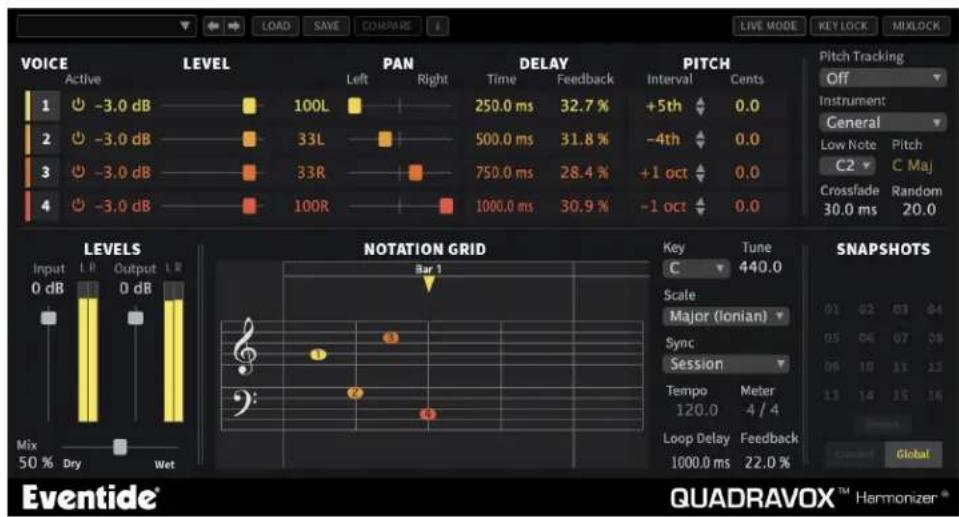
The Eventide Quadravox plug-in is a powerful audio engineering plug-in for Avid Apple Audio Units, and Steinberg VST formats. Quadravox brings you our time-based diatonic harmonizer technology presented in an easy to use and unique interface voices of pitch-shifting and delay are combined in the Notation Grid™ to let you simple harmonies or complex rhythmic sequences. Eventide Quadravox features:
• Four Voices of Diatonic, Time-based Pitch Shifting and Delay
- Notation Grid™ provides a unique and musical way to create harmonies
- Unique Snapshots allow you to quickly store, recall, and automate up to 3
- Integrated mixer for placing voices on the sound stage
- Complete automation support for Snapshots
This chapter details the overall operation of the plug-in as well as what each rameters do. Please take some time to familiarize yourself with what each param does and be sure to read the section on Snapshots. Snapshots are a new and part of the product and may take a little getting used to in order to utilize Quadravox user interface (below) is a compact yet intuitive environment that uses sistent conventions throughout. It should take you no time at all to effortlessly through each part of the plug-in.
2.1 I/O Formats
Quadravox is available for use on either mono or stereo channels, although it is input effect. When using it to process stereo audio sources, it will mono-sum s inputs. The plug-in will always produce a stereo output converting a mono chan a stereo channel.
2.2 Using the Controls
The control set offered by Quadravox consists mainly of faders and number boxes, though the Notation Grid provides a new way of controlling the pitch and timing voices. These controls have been designed to work in the most intuitive way, as you to quickly and easily adjust parameters or type in values. To adjust a parameter simply click on its fader and move it in the direction it is headed. In other fader moves left-to-right, click and drag the mouse left and right. If it's a vertical click and drag up and down. You can also click directly in the number boxes with each parameter and drag the mouse up or down to increase or decrease parameter's value. Most parameters allow you to drag the mouse a convenient distance to cover the parameter's full value range. However, you can hold the Command on the Macintosh keyboard while setting values and gain fine resolution control that parameter values. Every number box also allows you to type values directly immediately set the parameter value. Simply click once in the number box and the mouse button without moving it. The box will become highlighted and read typing. Try to type in values that correspond to the parameter; IE 1.2 Seconds typed as 1200.
2.3 Pitch and Delay Controls
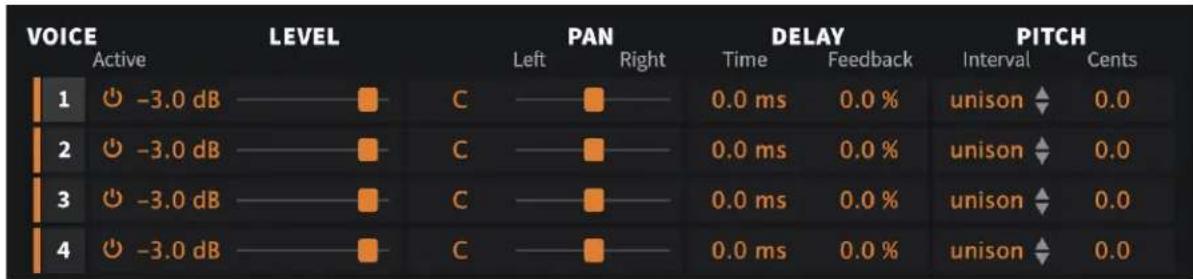
Derived from such flagship effects processors as the Orville™ and Eclipse, Quadr produces high quality harmony effects available from Eventide. An extensive set of full parameters is offered to give you the freedom to create the sound you need. Each of these parameters is detailed below.
other
| VOICE | Active | LEVEL | PAN | DELAY | PITCH | |---|---|---|---|---|---| | 1 | -3.0 dB | C | C | 0.0 ms | unison ↑ 0.0 | | 2 | -3.0 dB | C | C | 0.0 ms | unison ↑ 0.0 | | 3 | -3.0 dB | C | C | 0.0 ms | unison ↑ 0.0 | | 4 | -3.0 dB | C | C | 0.0 ms | unison ↑ 0.0 |Figure 2.1: Screenshot from Octavox plug-in
VOICE SELECT More of tool than a parameter, Voice Select allows you to bring voices forward when manipulating them in the Notation Grid. You may find voices that share similar delay times and pitch end up stacking up on top of each other. Grabbing with the mouse may not pick the one you'd like to edit. Use the \ Select button to bring the desired voice to the top, making easier to grab it and move it with the mouse.
VOICE LEVEL Each voice offers level control from 0dBfs down to -100dBfs.
VOICE ENABLE Each Voice can be quickly turned on or off using this button. When a voice is turned off, its note graphic is removed from Notation Grid.
VOICE PAN Each Voice offers a pan control to place it anywhere in the stereo field.
DELAY TIME This lets you set the amount of time that passes before the voice is heard.
DELAY FEEDBACK Each voice has its own feedback loop that causes its own output to feed back into the input, post pitch-shifter. It works best some amount of delay. Be careful with cumulative feedback-when the four voice feedback amounts add to 100% or gre run away feedback will occur and the audio will mute.
PITCH INTERVAL This parameter sets the interval of diatonic pitch shift that is applied to the individual voice. Up to 2 octaves are available diatonic steps and appropriate intervals are created based on the selected key and scale. If you're trying to create harmor that will always be in key, use these parameters. These pitch can be combined with the Pitch Cents parameter. The two values will be added together to create a final pitch shift am
PITCH CENTS This parameter sets the amount of pitch shifting regardless of key or scale. If you desire a fixed pitch shift amount no n ter what the key or scale, use these parameters. Cents is r widely used when creating micropitch or detune effects and can be used to offset the Pitch Interval for detuned diatonic monies. If you want to create chromatic intervals that ignore the key or scale, use this field. For reference, here's a cent interval conversion chart:
| Cents | Pitch | Interval | Cents | Pitch | Interval |
| 100 | Minor | 2nd | 700 | Perfect | 5th |
| 200 | Major | 2nd | 800 | Minor | 6th |
| 300 | Minor | 3rd | 900 | Major | 6th |
| 400 | Major | 3rd | 1000 | Minor | 7th |
| 500 | Perfect | 4th | 1100 | Major | 7th |
| 600 | Tri-tone (Flat 5) | 1200 | Octave | ||

Add 1200 cents to these numbers for anything beyond the first octave.
2.4 Pitch Setup Controls
These parameters determine the quality and overall performance of the pitch shifting.
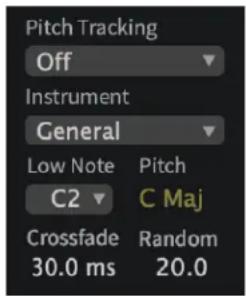
PITCH TRACKING This is used to turn off the pitch detection entirely when using Quadravox on non-pitched or polyphonic instruments. By turning off Pitch Tracking, the plug-in will act as though the in-ing pitch is always the root note of the scale. This allows plug-ins to be used on drum tracks and many other types instruments.
INSTRUMENT This pop-up menu sets the Low Note and Crossfade parameters with preset values making pitch setup more convenient.
LOW NOTE Low Note determines the lowest note that the pitch detector will be listening for. This can be very helpful in filtering out false readings that may be caused by extraneous low frequencies.
CROSSFADE Crossfade sets the window of splicing that occurs during the pitch shift process.
RANDOMIZE Inspired by the H949's Random Pitch algorithm, the Randomize control will randomly apply a random amount of micropitch that any enabled voices. This is a quick way to create the random detuning that can be useful when creating chorused or choir effects.
GLIDE SPEED Glide Speed sets the time it takes for each voice to glide to its new pitch. This will effectively set how quickly voices appear to track the changes in source pitch.
2.5 Levels Section
This section offers the necessary wet/dry balance controls as well as the ability up to 24 dB of gain through the product.
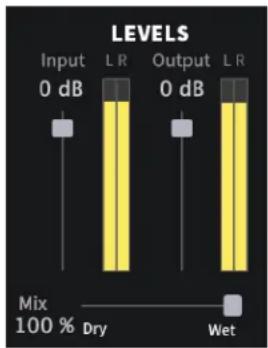
INPUT This parameter allows you to adjust the signal level in to this plug-in. Up to 12 dB of gain is provided to recover low-leq signals.
OUTPUT This parameter sets the final output level of the plug-in. Up to 12 dB of gain is available.
Mix This parameter sets the overall balance of wet (effected) signal to dry (original) signal.
2.6 Notation Grid
The Notation Grid takes a very unique and musical approach to creating pitches of rhythmic sequences. As each voice is enabled, it is represented on the grid by note graphic with a corresponding number. By clicking and dragging on the oval note can be placed anywhere on the grid. The vertical position reflects the voice shift amount, relative to the selected key. The note's horizontal position reflects the lay time for that voice.
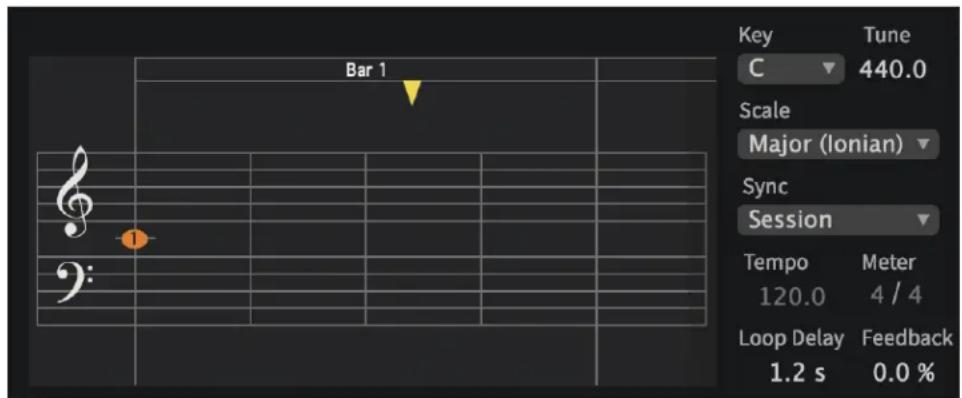
When moving a voice around on the grid, it will automatically snap to quantize and time subdivisions in order to easily create intervals and rhythms. To allow to move freely without being quantized to 16 notes, hold the Command key wging the voice. You may find that the Notation Grid is best for creating harm constructing chords and especially when creating a sequence of notes. However, creating micropitch or fixed-interval effects it may be easier to set up each voice individual parameters. Use the way that works best for you. The rest of the pa that affect how voices are processed are detailed below.
TEMPO BASED Enabling this button will cause the delay times to be calculated based on the Tempo parameter. As the tempo value change the delays will be scaled appropriately to maintain the rhythm When this parameter is off, changes in the Tempo will be nored. Note that you can have tempo-based delays and ignc the plug-in host's Tempo (below).
KEY This parameter sets the Key that will be used as the pitch reference for scales and intervals.
SCALE This determines the progression of whole steps and half step that will be used for the chosen intervals.
MASTER TUNE This sets the overall tuning reference. The tuning is referenced to A4, with a range of 392Hz to 494Hz.
SESSION TEMPO When this is enabled, Quadravox's Tempo and Meter parameters will use and follow the Tempo and Meter changes that cur in the plug-in host. Otherwise, when set to off, changes the plug-in host's Tempo and Meter will be ignored. Note t the Tempo and Meter parameters may still be automated if parameter is set to off.
TEMPO This sets the Tempo of the plug-in.
METER The Meter parameter consists of two values that determine the meter, or time signature, of the Notation Grid. The left num is the numerator which sets the number of beats that are i measure. The right number is the denominator which sets the beat subdivision that is referenced in the measure. For example, a setting of 4 on the left and 4 on the right sets t Grid to 4/4 meter and each measure will reference four qua notes. A seven on the left and an eight on the right crea sures made up of 7 eighth notes.
LOOP DELAY This sets the loop point for the Notation Grid. By turning up the loop feedback, the notes in the grid can be repeated by the length of the Loop Delay. This Loop Delay is preconfig to be the longest possible, but can be changed via the paeter's entry box. This can also be dragged with the mouse clicking on the handle (the little down triangle) that exists at top of the Notation Grid. As you move it, it will snap to be subdivisions, or Command-Click to obtain fine control.
LOOP FEEDBACK This sets the number of repeats heard for the Loop Delay. It can be very useful when you want to create echoes that don't shift on each repeat like the individual voice feedbacks will
2.7 Snapshots
Eventide Quadravox incorporates our unique Snapshots feature that allows you to and easily load, save and even automate up to 32 of your favorite Quadravox They're very much like presets, but you can load them directly from the plug-in This means that you get the live performance functionality offered from our high hardware processors directly in your DAW.
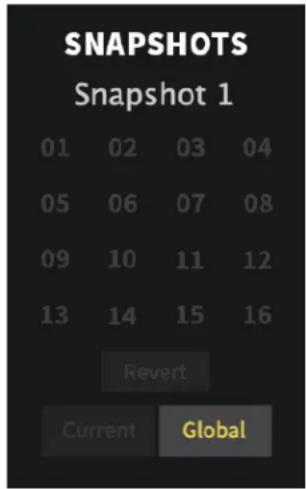
LOADING To load a Snapshot, simply click on any of the numbered buttons at any time. The entire Quadravox plug-in panel will change to reflect the settings stored in the chosen Snapshot. You'll also notice that the name of the currently loaded Snashot is displayed in the text box above the number pad. Also you know what you're loading before you click, move the mouse over any of the 16 numbered buttons to reveal its You can choose from the bank of 16 Current or 16 Global shots by first clicking on the tab at the bottom of the Snash area. These are described in the sections below.
RENAMING Click once on the name in the entry box, and it will be selected for editing. Type up to 16 characters, hit return and the Sr shot has a new name. No need to save it just to rename
SAVING To Save your work and overwrite one of the Snapshots, simply command-click on any of the numbered Snapshot buttons and it's instantly stored. There's no undo, so be very sure before you overwrite a Global Snapshot. Read ahead about the difference between Current and Global to insure your work is repeatable
REVERT Revert gives you the freedom to return to the effect settings you were working on before you loaded one or more Snapshots. It's very much like compare, except that you can load a ga Snapshots, and still get back the same parameter values that you had been editing prior to loading Snapshots. You'll notice that as soon as you click on a Snapshot button, the Revert glows to indicate that you can press it. Click on some othe Snapshots. It's still lit. If you click on Revert, it goes out a you're back to the original edits you'd just been working or You'll also notice that the selected Snapshot button goes out as soon as you change a parameter's value. This is to indicate that you are no longer listening to a Snapshot.
GLOBAL VS. CURRENT There are two kinds of Snapshots, Global and Current, and are grouped in banks of 16. During installation, the Global is created as a preference file on your hard drive. You can write each of these 16 defaults at any time and they will be available for every instance of the Quadravox plug-in, on even DAW session on the hard drive. Use these like your favorite Quadravox effects. You can even copy this file and move it other systems that have Eventide Quadravox installed so you can take your favorites with you. Remember, there's no undo for Global Snapshots, so be very sure before you overwrite Now, the Current bank is a little different. When the plug-in first inserted on a channel, the Global bank is copied into Current bank. At this point, they are the same. The only difference is that the Current Snapshots are saved with the current instance of the Quadravox plug-in. If you save changes to one of the Current Snapshots, you won't be able to load that S shot into another instance of Quadravox. This Current bank is unique to the current plug-in instance. Why are there Global banks and Current banks? The main reason to have two is cause you can automate the loading of Snapshots. This is a powerful feature, however if you only had Global Snapshots, and they had been modified since you last loaded the sessions the Snapshot that gets loaded is likely to sound different. Therefore, we offer you two kinds.
PROPER SNAPSHOT HYGIENE
Snapshots can be very powerful in use, but knowing how the work will help ensure that your Eventide Quadravox Snapshots load and sound right every time. So, if you want to load tomate a Snapshot, load it from the Current bank. If you want to build yourself your favorite 16 and use them everywhere, the Global Snapshots. If you want to copy a cool Current Shot into the Global bank, simply load it from the Current first, then command-click on the desired Snapshot button from the Global tab.
RESTORING GLOBAL DEFAULTS
If you need to restore the factory Global Snapshots at any simply run the plug-in installer again, as it will place the d-Global Snapshots back into the Snapshots folder.
As mentioned earlier, you can use your DAW's automation la to select and load any of the 32 Snapshots. Be sure to re the sections above on using Snapshots for predictable loading every time.
2.8 Preset Bar

Located at the top of the Quadravox Plug-In, the Preset Bar lets you load and sets, along with several other features.
When Quadravox is installed, a library of settings is placed into the
In many DAWs there is an additional generic preset bar that saves DAW-specific to a separate location. We recommend saving your presets using the Eventide p bar to ensure that your presets will be accessible from any DAW. You can also sub-folders inside the preset folders, if you wish.
LOAD/SAVE Use these buttons to load and save your presets in .tide format.
COMPARE Click to toggle between two different settings for the plug-in. This is useful for making A/B comparisons.
INFO Click this button to open this manual.
LIVE MODE Located in the top right corner of the plug-in, Live Mode toggles the latency of the plug-in. When turned off, Quadravox uses 40ms of latency and the benefit of delay compensation your DAW to improve pitch detection, while still sounding in time during playback. If you would like to use Quadravox for a real time application, just turn on Live Mode and the late will return to normal.
KEY LOCK Located at the top right of the plug-in next to the Live Mode and Mix Lock buttons is a button called "Key Lock", which performs similar function to Mix Lock. Pressing this will keep the key scale related parameters the same as you flip between prese meaning that all preset values will be modified to stay in the you currently have selected. This allows you to set instrument and pitch detection parameters for your instrument and click through the presets without hearing out of key notes or back pitch detection.
Mix Lock Located at the top right of the plug-in next to the Live Mode and Key Lock buttons is a button called "Mix Lock". Pressing this enable a global mix value that will be the same on every that is loaded. Meaning that, with Mix Lock on, setting a m value of 50% will load every preset with a mix value at 50
We hope you enjoy the Quadravox plug-in and put it to good use in all of Please be sure to check over Eventide's other Native Plug-In offerings for more and interesting effects.
Brand : EVENTIDE
Model : Quadravox
Category : Processor