
GO bar - Receiver iFi Audio - Free user manual and instructions
Find the device manual for free GO bar iFi Audio in PDF.


| Product Type | Balanced USB DAC/Amp (Receiver) |
| Brand | iFi Audio |
| Model | GO bar |
| Input | USB-C, up to 32-bit/384kHz PCM, DSD256, MQA Full Decoder |
| Headphone Outputs | 3.5mm Single-Ended, 4.4mm Balanced |
| Power Output (Balanced) | 475mW @ 32Ω, 7.2V @ 600Ω |
| Power Output (Single-Ended) | 200mW @ 32Ω, 5.6V @ 600Ω |
| THD+N (Balanced) | <0.012% (0.5mW/2.0V @ 600Ω) |
| THD+N (Single-Ended) | <0.04% (100mW/2.7V @ 16Ω) |
| Frequency Response | 20Hz - 45kHz (-1dB) |
| Dimensions | 65 x 22 x 13.2 mm (2.6" x 0.9" x 0.5") |
| Weight | 28.5 g (1.0 oz) |
| Power Consumption | <4W max |
| Warranty | 12 months |
| Sound Effects | XSpace, XBass+ (individually or together) |
| Digital Filters | Bit-Perfect (Cyan), Standard (Red), Minimum (Yellow), GTO (White) |
| iEMatch | Reduces output level for sensitive IEMs |
| Turbo Mode | +6dB gain (press + and - buttons for 2s) |
| Volume Sync | Syncs with source device (enable via settings button >8s) |
| LED Indicators | White: PCM/DSD sample rate; Blue: XSpace; Orange: XBass+; MQA colors |
| Compatibility | Windows, macOS, iOS, Android (USB-C or OTG) |
| Cleaning | Wipe with a soft, dry cloth |
| Safety | High output can damage hearing; use with caution, especially with sensitive headphones |
| Repairability | No user-serviceable parts; contact iFi Audio support for issues |
Frequently Asked Questions - GO bar iFi Audio
User questions about GO bar iFi Audio
0 question about this device. Answer the ones you know or ask your own.
Ask a new question about this device
Download the instructions for your Receiver in PDF format for free! Find your manual GO bar - iFi Audio and take your electronic device back in hand. On this page are published all the documents necessary for the use of your device. GO bar by iFi Audio.
USER MANUAL GO bar iFi Audio
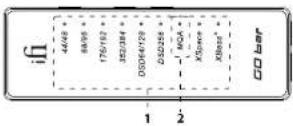
Thank you for purchasing the bar from the GO series. The bar is a balanced USB audio DAC amplifier.
- Audio format, frequency and sound effects LED The LED colour scheme indicates the current sampling frequency and audio format received by the CO bar from the music source. Sound effect modes are also indicated.
LED Mode
White 44.1/48kHz
White 98.2/96kHz
White 176.4/192kHz
White 352.8/384kHz
White DSD 64/128
White DSD 256
Sound effects
LED Status
Blue XSpace
Orange XBass
Ipp. Sankley-Shelting ESP in K201 used for Altes-sinc 2-space systems. They use the highly-qualified double-components and operate rapidly in the analysis domain, hence all the purity and resolution of the original muscle retained
2. MQA and Digital filter LED
MQA:
Green MDA
Blue MOA Studio
Magenta. Original Sample Rate ^4
MOH
Digital Filter for PCM Playback:
LED Mode
Суар. ВР
White GTD
Pard STD
Yellow MIN
Off DSD playback
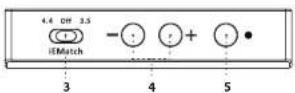
3. iEMatch switch
iEMatch reduces the output level, so that even the most
sensitive In-Ear-Monitors (IEMs) can be matched to the GO bar.
8.5mm headphones
[Unreadable]
m. 2007 he###
The 50% long-term market price is just below the \$10 trillion market.
adjusts/usually, but the adamsate text is correct!
4. Volume control and gain
To increase volume, press the - button, and to decrease it, press the - button. Volume level is briefly displayed on the GO bar while pressing one of the volume buttons, shown by the number of white LEDs on at a time - from none to 6.
The increase or decrease of volume can be synchronised with the volume of the mobile phone/computer. The connected device will indicate a change of volume on its display if synchronisation is on, and the device's volume controls can additionally be used to adjust volume. The GO bar's volume buttons are still operational.
By default, the synchronisation feature is off. To switch this on or off, press the settings button (5) for > 8s. On is indicated by the 6 white LEDs switching on in sequence from LED 1 and 6 to the centre. Off is indicated by the 6 white LEDs switching off in the opposite direction.
Turbo Mode increases the gain by 6dB. To switch this on or off, press the + and - volume buttons together for ≥ 2s. Turbo Mode on is indicated by 2 white LEDs increasing to 6 lighting up at the same time for 2s. Normal gain is indicated by 6 white LEDs diminishing to 2 lighting up for 2s.
For the exercise of breathing and excessive, I know from Madeoff, or let me receive breathlessness. It may be appropriate to read from Madeoff on
5. Settings and Digital filter mode
This button cycles between:
Off > XSpace > XBass+ > XSpace and XBass+ (short click). Please refer to item 1 for sound effects LED indications.
Digital filter setting mode (Icomp press >2s). Please see below.
Digital filter
To enter digital filter setting mode, press and hold the button for a 3s. The MOA LED will flash with the currently set digital filter colour (as shown in item 2). Press the + or - buttons (4) to change the filter selection. A short press on the settings button (5) will select and exit the filter setting mode.
The following 4 digital filters are available:
"BP" (Cyan) Bit-Perfect: no digital filtering, no pre or post
ringina
'STD' (Red) Standard, modest filtering, modest pre and
post ringing
'MIN' (Yellow) Minimum phase, slow roll-off, minimum pre
and post ringing
'GTO' (White) Gibbs Transient-Optimised: upsampled to
352/364kHz, minimum filtering, no pre
ringing, minimum post ringing
Date: Cite GTO. The following: the only active unit makes a purchase, will be 25.820% at the time of the purchase of the stock
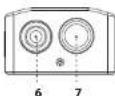
6. S-Balanced 3.5mm headphone output
For connecting 3.5mm headphones. This is a single-ended output.
7. Balanced 4.4mm headphone output
For connecting balanced 4.4mm headphones. This is a fully balanced output.
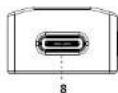
8. USB-C input
The USB-C socket plays up to 32-bit 304kHz, has full MQA
decoding, and native DSD up to DSD256.
I.e. Because the carbon is a high-performance gauze and the iPhone power supply or conservative, we recommend using on iPhone 5 or higher for reliable connectivity, and the battery should be charged to 70% or higher.
Warning: If the CD or its custom government is important, and the more secure. It also in Windows, please ensure that the Digital setting of Forced Volume Book. With the function, there are no more common possible and the scheme will be of weakness. The possible potential to damage the constructed headphone and/or your hearing.
Specifications
input:
Forma
PCM 304kHz
D50 256
LXD 3446Hz
MAYAIIHOSO
DAC:
Headphone Outputs:
Balanced: 1.4mm
14821
Power Output:
Balance: 475mWg320:7.29g6000
CREAL 200MW321:5.86e601
Output impedance:
B015n:502 515
LPRPL 2.12
SPIN:
Bilifi:3; (5208)
DNR
Balance 2015-04
Lufal:
THD + N:
Balance: c0.012% (0.5mW/2.0V g 600Ω)
L=HAL: c0.04% [100mW 27V x 16Ω]
Frequency Response: 710-45kV (-100)
Power Consumption: <40% max
Dimensions: 65 x 22 x 13.2 mm (2.6" x 0.9" x 0.5")
Net weight: 28.5g (1.0 oz)
Limited Warranty: 12 months ^**
403.5(19) recapat = 160
12 months typically is possible to be a good value.
- 2017年1月1日
lfi-audio.com


Brand : iFi Audio
Model : GO bar
Category : Receiver