
COVR-R2203 - Network D-LINK - Free user manual and instructions
Find the device manual for free COVR-R2203 D-LINK in PDF.


| Product Type | Whole Home Wi-Fi System (Mesh Router) |
| Model Number | COVR-R2203 |
| Brand | D-Link |
| Wi-Fi Standard | 802.11ac Wave 2 |
| Frequency Bands | Dual-band (2.4 GHz and 5 GHz) |
| Maximum Speed | AC1300 (867 Mbps on 5 GHz + 400 Mbps on 2.4 GHz) |
| Number of Units | 2 (1 Covr Point A + 1 Extension Covr Point) |
| Dimensions (each) | 4.5 x 4.5 x 2.5 inches (approximate) |
| Weight (each) | 0.5 lb (approximate) |
| Power Supply | 12V DC, 1A (external power adapter) |
| Power Consumption | 10W (typical) |
| Ethernet Ports | 1 Gigabit Ethernet WAN port on Covr Point A |
| Setup Options | D-Link Wi-Fi App (iOS/Android) or Web Browser |
| LED Indicators | Solid white (working), flashing orange (no internet/weak signal), solid red (booting), flashing red (error) |
| Security | WPA2-PSK, WPA3-ready (future update) |
| Firmware Update | Automatic update via D-Link Wi-Fi App or web interface |
| Placement Tips | Place Covr Points within range for strong signal; use LED indicator for optimal placement |
| Maintenance | Clean with dry, soft cloth; avoid liquids |
| Repairability | Not user-serviceable; contact D-Link support for issues |
| Package Contents | 2 Covr Points, 1 Ethernet cable, 2 power adapters, quick start guide |
Frequently Asked Questions - COVR-R2203 D-LINK
User questions about COVR-R2203 D-LINK
0 question about this device. Answer the ones you know or ask your own.
Ask a new question about this device
Download the instructions for your Network in PDF format for free! Find your manual COVR-R2203 - D-LINK and take your electronic device back in hand. On this page are published all the documents necessary for the use of your device. COVR-R2203 by D-LINK.
USER MANUAL COVR-R2203 D-LINK
For proper installation, start with
"Covr Point A". Only plug in and power up the extension Covr Point when directed to during setup.
There are two easy ways to set up your Covr Wi-Fi System, choose one of the following:
Option 1) D-Link Wi-Fi App Setup
Option 2) Web Browser Setup
Package Contents


× 2

× 1
LED Behaviour

Solid White
This means everything is connected and working properly.

Flashing Orange - Covr Point A
No internet connection - Try powering off your modem for 30 seconds (removing any backup battery if applicable) and powering it back on.

Flashing White - Extension Covr Point
Weak Signal - Try moving it closer to Covr Point A.

Flashing Orange - Extension Covr Point
Not In Range/No Connection - Try moving it closer to Covr Point A.

Solid Red - Any Covr Point
Your Covr Points will be solid red during boot up (powered on). Boot up can take anywhere from 2-3 minutes.

Flashing Red - Any Covr Point
Flashing Red indicates that there is a problem with the device. If flashing red, please contact our support team.
Option 1:
D-Link Wi-Fi App Setup
(iOS and Android Devices)

Download the D-Link Wi-Fi app from the App Store or Google Play. Run the app and tap "Install New Device" (COVR-R2203) to get started.


NOTE: To keep your Covr System running at peak performance and take advantage of new features, it is recommended that you keep your firmware up to date.
We highly recommend that you enable the AUTO FIRMWARE UPDATE feature. This will ensure that your Covr System is always running the latest firmware.
See other side for
Option 2 (Web Browser Setup) and Placement Tips


IMPORTANT:
For proper installation, start with
"Covr Point A". Only plug in and power up the extension Covr Point when directed to during setup.
Option 2: (Only required if you did not install using Option 1 - D-Link Wi-Fi App Setup)
Web Browser Setup
(PC/Mac/Mobile device)

Power off your Internet modem and connect one end of the Ethernet cable to port 1 on Covr Point A, and connect the other end to your Internet-connected modem.
NOTE: If your DSL or cable modem uses a battery backup, please remove the backup battery and ensure all lights are off on the modem. Refer to the modem's user manual if required.


Power your Internet modem back on and plug in Covr Point A. Wait for the Covr LED to turn from red to flashing orange before moving on to the next step. This may take up to 3 minutes.


On a PC/Mac or mobile device, connect to the Wi-Fi name (SSID) printed on the bottom of Covr Point A, or on the included Wi-Fi Configuration Card.
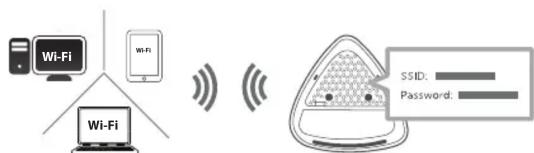
flowchart
graph LR
    A["Wi-Fi"] --> B["Wi-Fi"]
    C["Wi-Fi"] --> D["Wi-Fi"]
    E["Wi-Fi"] --> F["Wi-Fi"]
    G["SSID:"] --> H["Password:"]

Open a web browser and type http://covr.local./into a web browser and follow the instructions to complete the setup.
NOTE: Ethernet Setup is not supported.

Covr Point Placement Tips
Place your Covr Points around your home to extend your whole home Wi-Fi. For best performance, place the Covr Points close enough to each other to maintain a strong signal. Use the LED Signal Indicator to help find a location. (See LED behaviour on previous page.)

natural_image
Diagram of a staircase with circular wave patterns around it, no text or symbols present


- LED Behaviour
- Solid White
- Flashing Orange - Covr Point A
- Flashing White - Extension Covr Point
- Flashing Orange - Extension Covr Point
- Solid Red - Any Covr Point
- Flashing Red - Any Covr Point
- Option 1:
- D-Link Wi-Fi App Setup
- IMPORTANT:
- Option 2: (Only required if you did not install using Option 1 - D-Link Wi-Fi App Setup)
- Web Browser Setup
- Covr Point Placement Tips
Brand : D-LINK
Model : COVR-R2203
Category : Network