
iDL48 - Pregnant IHOME - Free user manual and instructions
Find the device manual for free iDL48 IHOME in PDF.


| Brand | iHome |
| Model | iDL48 |
| Product Type | Dual Charging Portable Rechargeable Speaker System |
| Dock Compatibility | Lightning connector for iPhone 5, iPad mini, iPad 4th gen, iPod touch 5th gen, iPod nano 7th gen |
| USB Port | Play and charge older iOS devices (e.g., iPhone 4) via sync cable |
| Auxiliary Input | 3.5mm aux-in for external audio devices |
| Power Source | AC adapter (included) or internal rechargeable lithium-ion battery |
| Battery Type | Internal rechargeable lithium-ion (non-removable) |
| Battery Charging Time | Approximately 6 hours for first full charge |
| Battery Indicators | 4 blue LED lights indicate charge level |
| Audio Modes | Lightning dock (blue LED), USB mode (green LED), Aux-in mode (red LED) |
| Volume Control | Dedicated volume buttons on unit |
| Stand | Retractable stand with metal bar support for docked device |
| Auto On/Off | Unit turns on when device is docked/connected; turns off when disconnected |
| Reset Function | Reset port on bottom for system reset |
| Cleaning | Soft cloth moistened with mild soap and water only |
| Safety Certifications | FCC Part 15, Canadian ICES-003 |
| Warranty | Limited 1 year warranty |
| Support | www.ihome.com or 1-877-446-6301 |
Frequently Asked Questions - iDL48 IHOME
User questions about iDL48 IHOME
0 question about this device. Answer the ones you know or ask your own.
Ask a new question about this device
Download the instructions for your Pregnant in PDF format for free! Find your manual iDL48 - IHOME and take your electronic device back in hand. On this page are published all the documents necessary for the use of your device. iDL48 by IHOME.
USER MANUAL iDL48 IHOME
Dual Charging Portable
Rechargeable
Speaker System
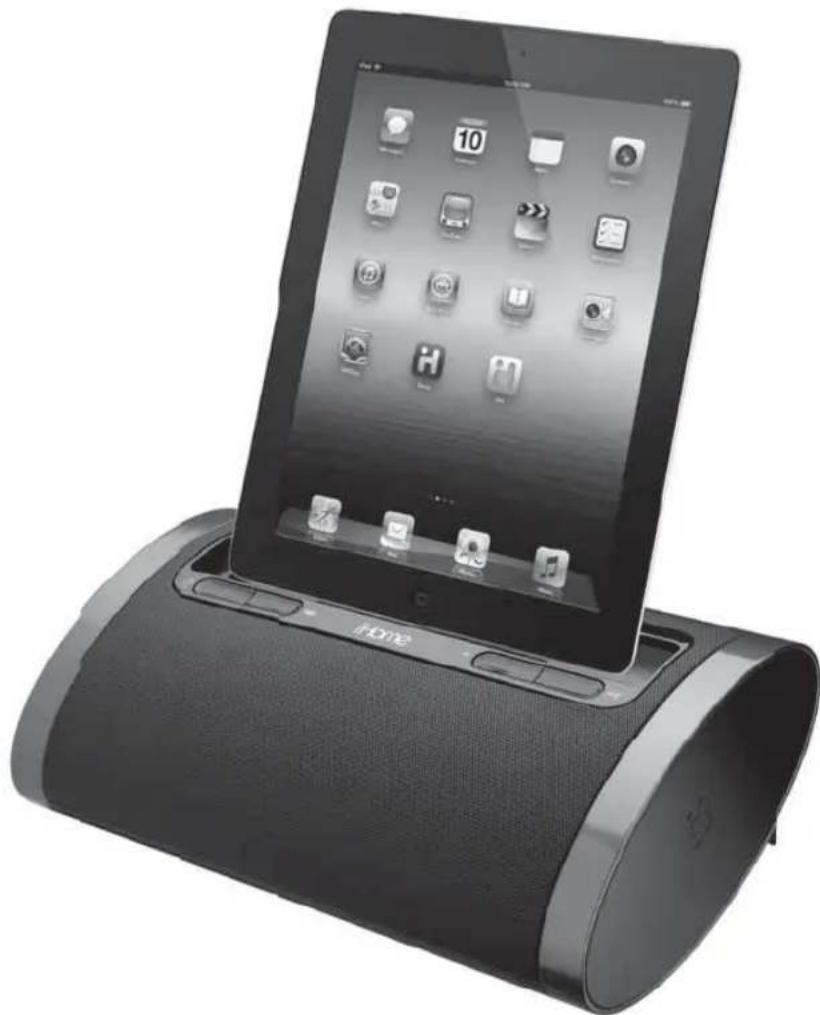
natural_image
Black and white photo of a mobile device with a CD-ROM stand, displaying its screen with app icons (no readable text or symbols on the device body)
Questions? For latest instructions, visit www.ihome.com/support
Table of Contents
Controls and Indicators ...... 1
Quick Start....2
Using the Unit....3
Playing Devices Using Aux-in Jack 4
A Consumer Guide to Product Safety 5
Trouble Shooting 6
Warranty Information 7
FCC Information
This device complies with Part 15 of the FCC Rules, operation is subject to the following two conditions: (1) This device may not cause harmful interference, and (2) this device must accept any interference received, including interference that may cause undesired operation.
- Warning: Changes or modifications to this unit not expressly approved by the party responsible for compliance could void the user's authority to operate the equipment.
- NOTE: This equipment has been tested and found to comply with the limits for a Class B digital device, pursuant to Part 15 of the FCC Rules.
These limits are designed to provide reasonable protection against harmful interference in a residential installation. This equipment generates, uses and can radiate radio frequency energy and, if not installed and used in accordance with the instructions, may cause harmful interference to radio communications.
However, there is no guarantee that interference will not occur in a particular installation. If this equipment does cause harmful interference to radio or television reception, which can be determined by turning the equipment off and on, the user is encouraged to try to correct the interference by one or more of the following measures:
- Reorient or relocate the receiving antenna.
- Increase the separation between the equipment and receiver.
- Connect the equipment into an outlet on a circuit different from that to which the receiver is connected.
- Consult the dealer or an experienced radio/TV technician for help.
This Class B digital apparatus complies with Canadian ICES-003.
- Place the unit on a level surface away from sources of direct sunlight or excessive heat.
- Protect your furniture when placing your unit on a natural wood and lacquered finish. A cloth or other protective material should be placed between it and the furniture.
- Clean your unit with a soft cloth moistened only with mild soap and water. Stronger cleaning agents, such as Benzene, thinner or similar materials can damage the surface of the unit.
Internal Rechargeable Lithium-ion Battery
This device uses an internal rechargeable lithium-ion battery that should last the lifetime of the device. If you suspect your battery may be dead, try charging it several times. If the battery does not recharge, please contact us for repair information.
WARNING/DISPOSAL OF UNIT
Please do NOT attempt to change the battery yourself. If the battery has died and you do not want us to replace your battery, you should follow the disposal instructions below:
- Never dispose of used batteries/electronics with ordinary solid wastes, since they contain toxic substances.
- Always dispose of used batteries/electronics in accordance with the prevailing community regulations that apply to the disposal of batteries/electronics. If there are no local regulations concerning battery/electronics disposal, please dispose of the device in a waste bin for electronic devices.
- Many electronics retailers now recycle batteries and other electronic components at no charge. Check to see which ones in your area do so.
CAUTION
- Never use or charge the battery if it appears to be leaking, discolored, deformed, or in any way abnormal.
- Never disassemble the unit or attempt to remove battery as that could cause leakage of alkaline solution or other electrolytic substance.
- Always confirm that the temperature is 5^ - 35^ (41° - 95° Fahrenheit) before you charge the battery. Leakage or deterioration of the battery may occur if this warning is not heeded.
- Never expose the battery to any liquid.
- Never expose the battery to excessive heat such as direct sunlight or fire. Never use the battery pack in an unventilated vehicle where excessive internal temperatures may be encountered.
• Always keep the battery out of the reach of infants and small children.
Controls and Indicators
Top Panel
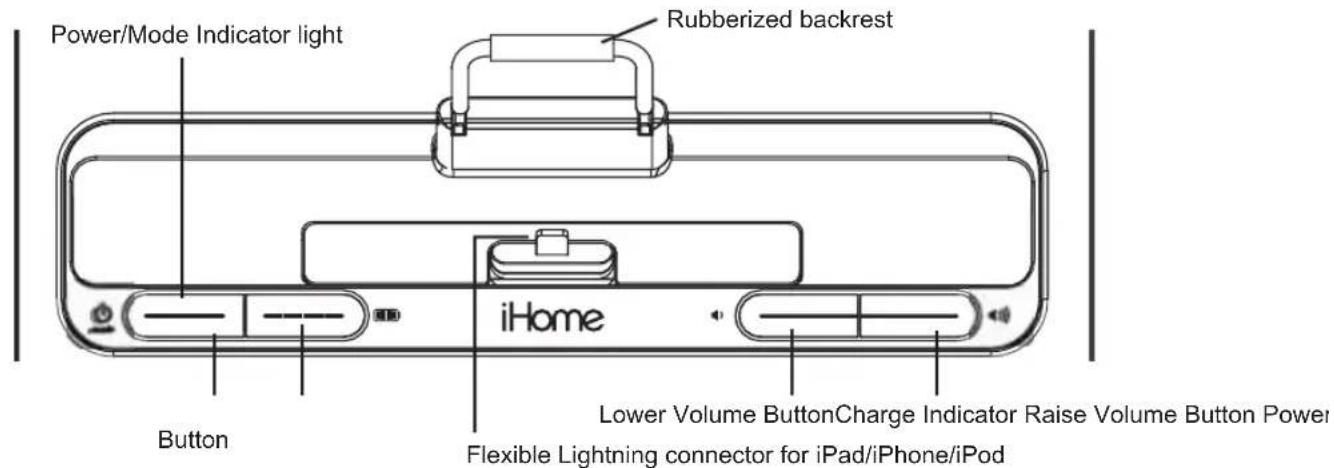
Back Panel

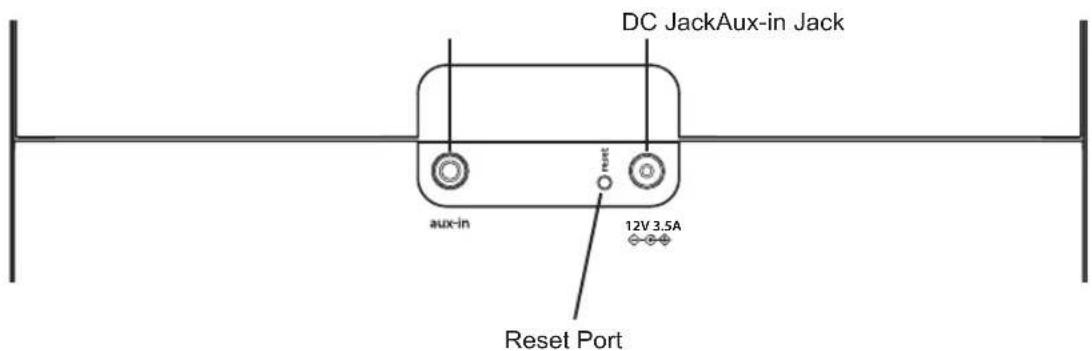
Bottom Panel
Quick Start
1: stand
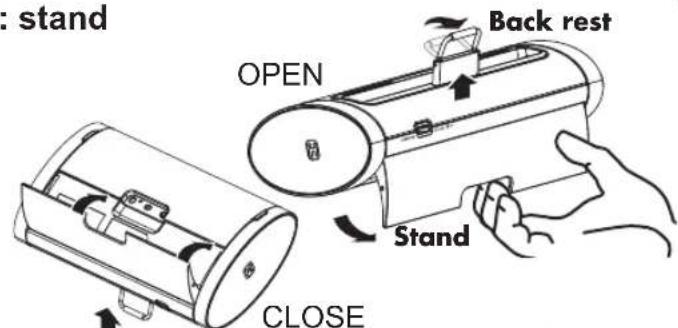
Gently pull backwards on the indent of the stand located on the rear of the unit and pull it into place for support mode.
The retractable backrest will pop up to support a docked device. Pull up the metal bar. To close the stand, simply press back into place. Don't forget to fold down the metal bar.
2: power
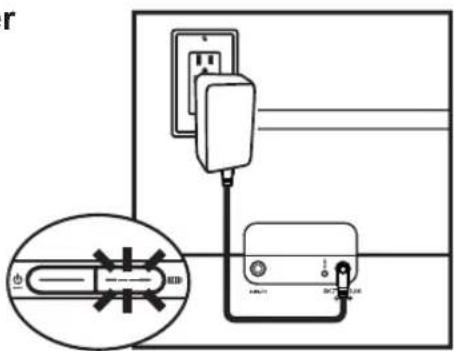
Attach AC adaptor cable to DC jack on bottom of the unit and plug the other end into a wall socket. A row of 4 blue LED indicators will light up indicating the unit has power and has begun charging the internal battery.
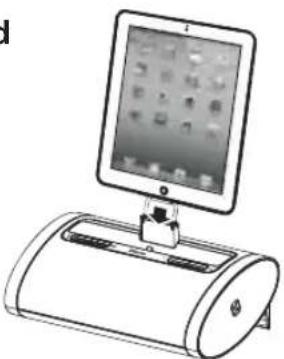
3: docking your iPad/iPhone/iPod in the Lightning connector dock
natural_image
Illustration of a tablet device mounted on a cylindrical base, with no visible text or symbols.Gently dock your Lightning compatible iPad, iPhone or iPod onto the Lightning dock on top of the unit. The iPad, iPhone or iPod will charge while docked. Use the controls on your device to play your iPad, iPhone or iPod. The Lightning dock is NOT compatible with iPhone 4 and older iPod models. To play and charge these devices, connect them to the USB port using the cable that came with the device.
DO NOT dock an iPad, iPhone or iPod without first opening the stand and popping up the backrest, doing so could damage the unit and/or your device.
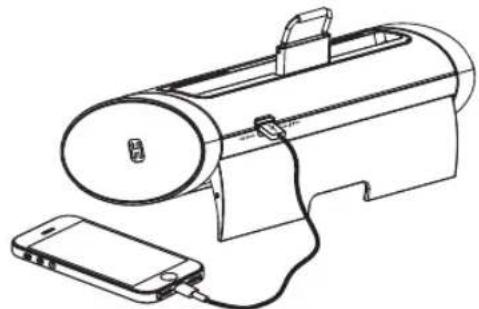
4: connecting devices to the USB port
natural_image
Line drawing of a portable device with a smartphone connected to its side panel (no text or symbols)To play and charge iPhone 4 and other iOS devices, connect them to the USB port on back of the unit using the cable that came with the device. Use the controls on your device to navigate and play your iPad, iPhone or iPod.
Using the Unit
Connecting the Unit to Power Source
Connect the AC adaptor cable plug into the DC jack on the back of the system, then plug the AC adaptor into the wall outlet.
Charging the Internal Battery
The iDL48 has an internal rechargeable Lithium-ion battery which should last the life of the unit. Charge the battery fully for first time use. Please allow at least 6 hours to fully charge the unit for first time use.
- Make sure the AC adaptor is properly connected to the unit and plugged into a working power source.
- The internal battery will charge. While the battery is charging, the blue LED battery indicator lights will cycle to the right.
- When the battery is fully charged, all 4 battery indicators will remain lit while the unit is powered on. As the battery runs down, the lights will go out (see below).
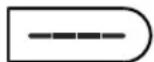
Fully charged

75-50% charge

50-25% charge

25-5% charge
When there is no battery indicator light, the battery is dead and needs to be charged. NOTE: Even if the battery is dead, the unit will still operate while connected to AC power.
Charging your iPad, iPhone or iPod
-
The unit must be connected to an AC power source to charge your iPad, iPhone or iPod, whether docked in the Lightning connector or connected to the USB port on the back of the unit. The unit will not charge these devices when operating on the internal battery.
-
Open the stand and gently dock your iPhone 5, iPad mini, iPad 4th generation and iPod touch 5th generation. Note that older devices cannot dock to the unit, but must be connected to the USB port using the sync cable that came with it.
Your device will begin charging and while docked or connected via USB will continue until fully charged.
Turning the Unit ON or OFF and Selecting Modes
Press and release the ⏻ Power/Mode Button on the unit at any time as needed to turn the unit ON and to cycle through the three play modes.
A. Lightning dock mode: the Power/Mode indicator light is BLUE and the device docked in the Lightning dock will play.
B. USB mode: the Power/Mode indicator light is GREEN and the device connected to the USB port will play.
C. Aux-in mode: the Power/Mode indicator light is RED and the aux-in mode is activated (press play on the device to play it).
Note that a docked iPad, iPhone or iPod (or one connected to the USB port) will continue to charge when the unit is turned off as long as the AC adaptor is plugged in.
Press and hold the ⏻ Power/Mode Button to turn the unit off.
TIP: You can also turn the unit ON automatically by docking a playing device or connecting one to the USB port, and turn the unit OFF by disconnecting a playing device from the dock OR USB port.
Using the Unit
Playing Devices Using the Lightning Dock
Lightning devices such as iPhone 5, iPad mini, iPad 4th generation, 5th generation iPod touch and 7th generation iPod nano will dock in the Lightning dock. Use the USB port to charge and play older iOS devices.
- Dock an already playing Lightning-compatible iPad, iPhone or iPod. The unit will turn on and the audio will play from your device. You can also turn on the unit by pressing and releasing the Power/Mode Button until the Power/Mode indicator glows BLUE.
- Use the controls on your iPad, iPhone or iPod to pause and play audio and to navigate tracks and menus.
- Press the ◀ or ◀◀◀◀◀◀◀◀◀◀◀◀◀◀◀◀◀◀◀◀◀◀◀◀◀◀◀◀◀◀◀◀◀◀◀◀◀◀◀◀◀◀◀◀◀◀◀◀◀◀◀◀◀◀◀◀◀◀◀◀◀◀◀◀◀◀◀◀◀◀◀◀◀◀◀◀◀◀◀◀◀◀◀◀◀◀◀◀◀◀◀◀◀◀◀◀◀◀◀◀◀▶
- Press and hold the ⏻ Power/Mode Button to turn the unit off.
Playing Devices Using the USB Port
- Connect an already playing iPad, iPhone or iPod to the USB port on the back of the unit using the cable that came with the device. The unit will turn on and the audio will play from your device. You can also turn on the unit by pressing and releasing the ⏻ Power/Mode Button until the Power/Mode indicator glows GREEN.
- Use the controls on your iPad, iPhone or iPod to pause and play audio and to navigate tracks and menus.
- Press the 🔔 or 🔵 Button to adjust the volume level on the unit.
- Press and hold the ⏻ Power/Mode Button to turn the unit off.
Playing Devices Using the Aux-in Jack
- Connect a 3.5mm audio cable to the headphone jack or aux-out jack on your audio device and connect the other end to the aux-in jack located on the bottom of the unit.
- Press and release the ⏻ Power/Mode Button until the Power/Mode indicator glows RED.
- Use the controls on your device to pause and play audio and to navigate tracks and menus.
- Press the ◀ or ◀◀◀◀◀◀◀◀◀◀◀◀◀◀◀◀◀◀◀◀◀◀◀◀◀◀◀◀◀◀◀◀◀◀◀◀◀◀◀◀◀◀◀◀◀◀◀◀◀◀◀◀◀◀◀◀◀◀◀◀◀◀◀◀◀◀◀◀◀◀◀◀◀◀◀◀◀◀◀◀◀◀◀◀◀◀◀◀◀◀◀◀◀◀◀◀◀◀◀◀◀▶
- Press and hold the ⏻ Power/Mode Button to turn the unit off. Remember to turn off your aux device, too.
Using Unit with iHome+Apps
- Apps will not work while unit is operating on battery
- Alarm app will wake to last connection (USB or Lightning connector) a device was PLAYED through, not the last connection docked to.
Resetting the unit
If the unit does not respond properly or appears to be "frozen", you may wish to try resetting it. To do so, press point of a pin or paperclip firmly into the Reset Port on the bottom of the unit to reset the unit.
A Consumer Guide to Product Safety
IMPORTANT SAFETY INSTRUCTIONS
When used in the directed manner, this unit has been designed and manufactured to ensure your personal safety. However, improper use can result in potential electrical shock or fire hazards. Please read all safety and operating instructions carefully before installation and use, and keep these instructions handy for future reference. Take special note of all warnings listed in these instructions and on the unit.
- Water and Moisture – The unit should not be used near water. For example: near a bathtub, washbowl, kitchen sink, laundry tub, swimming pool or in a wet basement.
- Ventilation – The unit should be situated so that its location or position does not interfere with its proper ventilation. For example, it should not be situated on a bed, sofa, rug or similar surface that may block ventilation openings. Also, it should not be placed in a built-in installation, such as a bookcase or cabinet, which may impede the flow of air through the ventilation openings.
- Heat – The unit should be situated away from heat sources such as radiators, heat registers, stoves or other appliances (including amplifiers) that produce heat.
- Power Sources – The unit should be connected to a power supply only of the type described in the operating instructions or as marked on the appliance.
- Power-Cable Protection – Power supply cables should be routed so that they are not likely to be walked on or pinched by items placed upon or against them. It is always best to have a clear area from where the cable exits the unit to where it is plugged into an AC socket.
- Cleaning – The unit should be cleaned only as recommended. See the Maintenance section of this manual for cleaning instructions.
- Objects and Liquid Entry – Care should be taken so that objects do not fall and liquids are not spilled into any openings or vents located on the product.
- Attachments – Do not use attachments not recommended by the product manufacturer.
- Lightning and Power Surge Protection – Unplug the unit from the wall socket and disconnect the antenna or cable system during a lightning storm or when it is left unattended and unused for long periods of time. This will prevent damage to the product due to lightning and power-line surges.
- Overloading – Do not overload wall sockets, extension cords, or integral convenience receptacles as this can result in a risk of fire or electric shock.
- Damage Requiring Service – The unit should be serviced by qualified service personnel when:
A. the power supply cable or plug has been damaged.
B. objects have fallen into or liquid has been spilled into the enclosure.
C. the unit has been exposed to rain.
D. the unit has been dropped or the enclosure damaged.
E. the unit exhibits a marked change in performance or does not operate normally.
-
Antenna - Do not connect an external antenna to the unit (other than that provided).
-
Periods of Nonuse – If the unit is to be left unused for an extended period of time, such as a month or longer, the power cable should be unplugged from the unit to prevent damage or corrosion.
- Servicing – The user should not attempt to service the unit beyond those methods described in the user's operating instructions. Service methods not covered in the operating instructions should be referred to qualified service personnel.
Questions? Visit www.ihome.com
or call 1-877-446-6301 Toll Free
Troubleshooting
| SolutionSymptom Possible Prod | ||
| Unit does not turn on AC | adaptor isn't plugged into a working wall socket or not plugged into the DC jack on back of the unit | Plug the AC adaptor into a working wall socket and plug the connector into the DC jack on the unit |
| Internal battery is run down/ needs charging If the | Internal battery is run down/ needs charging, connect unit to AC outlet to recharge battery | |
| Unit doesn't respond | Unit requires a reset | If unit is plugged in and doesn't respond, try resetting the unit by inserting the end of a paper clip or similar object into the Reset Port located on the back of the unit and holding briefly. |
| iPad/iPhone/iPod is not docked or connected properly | Remove your iPad/iPhone/iPod from the dock OR USB port and check for obstruction in the dock or USB port and on your iPad/iPhone/iPod. Replace in dock OR USB port. Check that USB cables are connected. | |
| iPad/iPhone/iPod does not respond to the unit, iPad/iPhone/iPod is playing but no sound comes out | iPad/iPhone/iPod is not docked or connected properly | Remove your iPad/iPhone/iPod from the dock OR USB port and check for obstruction in the dock or USB port and on your iPad/iPhone/iPod. Replace in dock OR USB port. Check that USB cables are connected. |
| Your iPad/iPhone/iPod software is too old | Upgrade software on your iPad/iPhone/iPod via iTunes on your computer | |
| iPad/iPhone/iPod is locked up/plays but no sound comes out | Check the volume setting. Make sure your iPad/iPhone/iPod is working properly before docking into the unit. Please refer to your iPad/iPhone/iPod manual for details. See above for software upgrade information. You may need to reset your iPad/iPhone/iPod. Refer to your iPad, iPhone or iPod user guide for details on how to perform a reset. | |
| Unit/iPad/iPhone/iPod performance is erratic | The unit is reacting to external interference | Move unit away from potential sources of external interference such as computers, modems, wireless devices (routers) or fluorescent light. |
| No sound from unit Volume | is set too low on unit Make sure volume is turned up | |
| iPad/iPhone/iPod didn't charge up | iPad/iPhone/iPod is not docked or connected properly | Remove your iPad/iPhone/iPod from the dock OR USB port and check for obstruction in the dock or USB port and on your iPad/iPhone/iPod. Replace in dock OR USB port. Check that USB cables are connected. |
| iPad is connected via USB | The USB port will not charge iPad models that require 2.1 amps | |
| iPad/iPhone/iPod is locked up/ frozen | Please make sure your iPad/iPhone/iPod is working properly before docking into the unit. Please refer to your iPad/iPhone/iPod manual for details. | |
| iPad/iPhone/iPod battery has problem | ||
| Unit is operating on internal battery | Make sure unit is connected to AC power to charge connected devices. Unit will not charge devices while operating on the internal battery. | |
Limited 1 Year Warranty Information
iHome Products, a division of SDI Technologies Inc. (hereafter referred to as SDI), warrants this product to be free from defects in workmanship and materials, under normal use and conditions, for a period of one (1) year from the date of original purchase.
Should this product fail to function in a satisfactory manner, it is best to first return it to the store where it was originally purchased. Should this fail to resolve the matter and service still be required by reason of any defect or malfunction during the warranty period, SDI will repair or, at its discretion, replace this product without charge. This decision is subject to verification of the defect or malfunction upon delivery of this product to the Factory Service Center authorized by SDI Customer Service. The product must include proof of purchase, including date of purchase. An out-of-warranty fee for service will be charged for units that are received without proof of purchase.
Before returning this product for service, please first replace the batteries (if applicable) with fresh ones, as exhausted or defective batteries are the most common cause of problems encountered.
If service is still required:
- Call SDI Customer Service at 1-877-446-6301 for Return Authorization and for the address of the Factory Service Center.
- Remove the batteries (if applicable) and pack the unit in a well padded, heavy corrugated box. SDI is not responsible for damage that occurs during shipping to the Factory Service Center.
- Enclose a photocopy of your sales receipt, credit card statement, or other proof of the date of purchase, if within the warranty period.
Also include your name and address information, a brief description for why the unit is being returned, and the return authorization number.
No unit can be processed without a return authorization number. - Write the return authorization number on the side of the shipping package and send the unit prepaid and insured to the Factory Service Center address authorized by SDI Customer Service.
Disclaimer of Warranty
NOTE: This warranty is valid only if the product is used for the purpose for which it was designed. It does not cover (i) products which have been damaged by negligence or willful actions, misuse or accident, or which have been modified or repaired by unauthorized persons; (ii) cracked or broken cabinets, or units damaged by excessive heat; (iii) damage to digital media players, CD's or tape cassettes (if applicable); (iv) the cost of shipping this product to the Factory Service Center and its return to the owner.
This warranty is valid only in the United States of America and does not extend to owners of the product other than to the original purchaser.
In no event will SDI or any of its affiliates, contractors, resellers, their officers, directors,
shareholders, members or agents be liable to you or any third party for any consequential or incidental damages, any lost profits, actual, exemplary or punitive damages. (Some states do not allow limitations on implied warranties or exclusion of consequential damages, so these restrictions may not apply to you.) This warranty gives you specific legal rights, and you may also have other rights which vary from state to state.
Your acknowledgement and agreement to fully and completely abide by the above mentioned disclaimer of warranty is contractually binding to you upon your transfer of currency (money order, cashier's check, or credit card) for purchase of your SDI product.
© 2013 SDI Technologies, Inc. All rights reserved
Questions? Visit www.ihome.com
or call 1-877-446-6301 Toll Free


- Dual Charging Portable
- Rechargeable
- Speaker System
- Table of Contents
- FCC Information
- Internal Rechargeable Lithium-ion Battery
- WARNING/DISPOSAL OF UNIT
- CAUTION
- Controls and Indicators
- Quick Start
- Using the Unit
- Connecting the Unit to Power Source
- Charging the Internal Battery
- Charging your iPad, iPhone or iPod
- Turning the Unit ON or OFF and Selecting Modes
- Playing Devices Using the Lightning Dock
- Playing Devices Using the USB Port
- Playing Devices Using the Aux-in Jack
- Using Unit with iHome+Apps
- Resetting the unit
- A Consumer Guide to Product Safety
- IMPORTANT SAFETY INSTRUCTIONS
- Limited 1 Year Warranty Information
- Disclaimer of Warranty
Brand : IHOME
Model : iDL48
Category : Pregnant