
BV6654B - DVD player BOSS - Free user manual and instructions
Find the device manual for free BV6654B BOSS in PDF.


| Product Type | DVD/MP3/CD AM/FM Receiver with Bluetooth |
| Brand | BOSS Audio Systems |
| Model | BV6654B |
| Power Supply | DC 12V (10.8-16V) |
| Maximum Current | 15A |
| Weight | 3.86 lbs (approx. 1.75 kg) |
| Disc Compatibility | DVD, DVD-R/RW, VCD, SVCD, CD-RW, MP3, WMA, JPG |
| Radio Bands | FM (87.5-108 MHz) and AM (530-1710 kHz USA / 522-1620 kHz Europe) |
| Preset Stations | 30 (18 FM, 12 AM) |
| Bluetooth | Yes, for hands-free calling and music streaming |
| USB Playback | Yes, supports MP3/MP4 |
| SD Card Slot | Yes, for MP3 playback |
| AUX Input | Dual (front and rear) 3.5mm |
| Video Outputs | 2 RCA composite |
| Audio Outputs | RCA (front/rear) and speaker wires |
| Remote Control | Included, with full function |
| Detachable Face | Yes, with release button |
| RDS Function | Yes (AF, TA, PTY) |
| Equalizer Presets | Pop, Jazz, Classic, Rock, Off |
| Safety | Replace fuse with same specification; disconnect battery before wiring |
| Maintenance | Clean with soft cloth; avoid solvents |
Frequently Asked Questions - BV6654B BOSS
User questions about BV6654B BOSS
0 question about this device. Answer the ones you know or ask your own.
Ask a new question about this device
Download the instructions for your DVD player in PDF format for free! Find your manual BV6654B - BOSS and take your electronic device back in hand. On this page are published all the documents necessary for the use of your device. BV6654B by BOSS.
USER MANUAL BV6654B BOSS
tech support: www.bosssaudio.com/support


0415
BOSS Audio Systems is not affiliated with Apple, Inc.
USER'S MANUAL
BV6654B
BLUETOOTH*-ENABLED
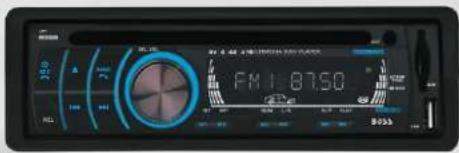
DVD/MP3/CD AM/FM RECEIVER


BOSS®
AUDIO SYSTEMS
For Your Safety
- You must connect wiring according to the installation instructions. Any error in wiring may result in the failure in or damage to the electric system for the vehicle.
- The lead for the horn (-) must be connected to the terminal of the speaker (-). Never connect it to the car or to other speakers.
3.Switch on the unit after you make sure that all connection is correct. - While changing the burnt fuse, please change the fuse of the same specification.
FEATURES
- COMPATIBLE WITH MP4 (AVI / DIVX / 5.X), DVD(DVD-R/DVD-RW), VCD, SVCD, CD-RW, WMA, MP3, JPG
2、2 Video Outputs - PAUSE, PLAY, UP/DOWN, STOP, ZOOM, REPEAT, SCAN, RANDOM, PBC FUNCTION
- FM/AM RADIO TUNER
30 RADIO STATION (18 FM, 12 AM)
MANUAL TUNING, AUTO TUNING, PRESET MEMORY STATION
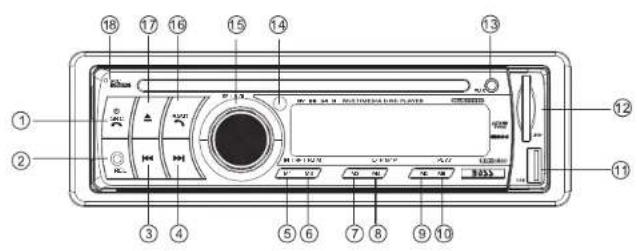
FRONT PANEL
BASIC FUNCTION
- SRC (Power button / Audio mode switching/Hang up the phone button) short press to turn on the unit, under the boot state, short press again to switch mode, RADIO/DISC/USB/SD/AUX IN1/AUX IN2/PHONE long press for more than 3 seconds to turn off the unit. In BT phone mode, short press to hang up the phone.
2. REL(Panel release button)
Press this button to release the panel.
3.
Radio: short press to downward scan station search and play, long press to step up the search function. Playing DVD discs: short press to select a former song playing, long press to rewind function. Playing BT music: short press to select a former song playing.
4.
Radio: short press to upward scan radio station and play, long press to downward step search function.
Playing DVD discs: short press to select the next song playing, long press to fast forward function.
Playing BT music: short press to select the next song playing.
5. M1/INT(Number button M1/Scanning & Playing at disc playing state)
Under radio: short press to choose stored station playing, long press to store the current radio station frequency.
Under playing mode: short press to scan play function.
6. M2/RPT(Number button M2/Repeat playing button)
Under radio: short press to choose stored station playing, long press to store the current radio station frequency.
Under playing mode: short press to repeat playing function.
7.M3/RDM(Number button M3/Random playing button)
Under radio: short press to choose stored station playing, long press to store the current radio station frequency.
Under playing mode: short press to random play function.
8. M4/L/R(Number button M4/channel play function)
Under radio: short press to choose stored station playing, long press to store the current radio station frequency.
Under playing mode: short press to channel play function.
9. M5/N/P(Number button M5/Video system switching)
Under radio: short press to choose stored station playing, long press to store the current radio station frequency.
Under playing DVD, short press to switch NTSC/PAL images.
10. M6/Play(Number button M6/Playing button)
Under radio: short press to choose stored station playing, long press to store the current radio station frequency.
Under playing mode: short press to play/pause.
Under BT music, short press to play/pause.
11. USB
Use the high speed degree delivers to connect eloquent, can read big capacity Mp3 / Mp4 formats.
12. SD
Connect the SD memory card to this socket, and the unit can play Mp3 music.
13. Dual (front and rear) AUX
To input external audio.
Warning: You can only AUX either front or rear AUX at a time. Never connect both front and rear AUX at the same time.
14. IR (Infrared remote control receiver)
It can receive the infrared signal from the remote control.
15. Volume adjusting, pattern translation
The left-right rotating VOL to adjust the volume.
Short press SEL: to choose BAS /TRE /BAL /FAD/LOUD /EQ /DX/STEREO /ARER USA (EUR) mode.
Note: after choosing a mode, math with the VOL regulator can change the current mode.
16.. BAND/BND (Band selection/Answer the phone)
Under radio, short press for band switching, FM1/FM2/FM3/AM1/AM2 cycle. Long press for automatic scanning and storage station. Strong signals station will be stored from low to high on 1-6 digital keys, after storage will browse stations, every station for 5 seconds, then returns to the low-end station playing. In the BT phone call, screen will display the caller number. Short press to answer the phone. During a call, short press again to switch to phone conversation.
17. Disc eject button
Short press the disc key to withdraw disc from the cabin. If 10 seconds without withdrawing the disc, disc will go into the slot automatically.
18.MIC
BT MIC
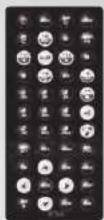
REMOTE CONTROL FUNCTION
Press once to switch on, press again to switch off.
2.MUTE button
Press once to turn off audio output, press again to resume volume level.
3. DSP
Press this button to show the time. press 3 seconds later and coordinate VOL to carry on the time to establish. In the BT phone call, short press the button to hang up the phone.
4.SOURCE button
Press this button to choose audio sources.
5. EO/ S button
Press this button to choose POP, JAZZ, CLASSIC, ROCK/EQ OFF.
In the BT phone call, short press the key to answer the phone, short press again during the call to phone talk.
6. SEEK+ (▶) /SEEK- (◀) button
Press this button to manual tuning, speed or quick back, previous song and next song.
7. VOL + (▶) /VOL - (◀)
Press this button to increase or decrease volume level.
8. SELECT button
Press this button to choose sound feature.
9. AF button
Press short to start AF, press longer for REG ON / OFF.
10. TA Button
Press "TA" button short to start TA function. When TA is on, it broadcasts traffic announcement.
11. PTY (Programme type)
Press this PTY button short, there will be PTY MUSIC-PTY SPEECH-PTY OFF.
Note: AF, TA, PTY For more details, pls refer to system setup.
If the unit does not have RDS function, it has no AF/TA/PTY function.
12.STOP button
Press this button to stop playing. In BT dial up, one by one to delete the input digital.
13.PLAY/PAUSE button
Press this button to switch between play and pause. In stop mode, press this button to play.
14.ST/PROG button
In radio mode, press this button to choose stereo or mono station. In audio Mode, it can help STOP button to programmed play.
15.0-9 button
Press this button to choose desired song, section, preset stations.
16.AMS/RPT button
In radio mode, press this button to browse stored stations. In audio mode, press this button to play repeatedly.
17. TITLE button
In DVD mode, press this button to play back to the top menu of disk.
18. AUDIO button
In DVD mode, press this button to switch language of dialogue. In VCD mode, press this button to choose left track, right track, and stereo.
19.GOTO (broadcast time setting) under the playback condition, coordinates the numeric keyboard according to this bottom Houke and left and right, the ENTER button carries on selects a song or elects tim broadcasts.
20. SUB TITLE Button
In DVD mode, press this button to switch language of subtitle.
21. PBC button
In VCD mode, press this button to display all song menu, work with number button to choose songsthe DVD small dish may return to the menu function.
22. UP, DOWN, LEFT, RIGHT, ENTER
button
In DVD mode, press this button to move cursor up, down, left, right to choose item in menu. Press enter button to confirm choice.
23.SLOW button
In audio mode, press this button to slow backward and slow forward.
24.ANGLE button
In DVD mode, press this button to change play angle.
25.SETUP button
In audio mode, press this button to choose different set items.
26.OSD display
Press this button to display the title chapter and the left time.
27. ZOOM button
In DVD/VCD mode, press this button to ZOOM in.
28.BAND /P/N button
In radio mode, press this button to choose band. AT disc playing state, press this button to choose AUTO, PAL or NTSC system.
29. RDM button
At disc playing state, press this key to randomly play.
BATTERY CHANGE
When control distance of remote control become shorter or no function, please change battery. Please confirm polarity before change.
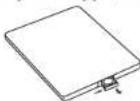
One hand press stopper, then pull out battery.
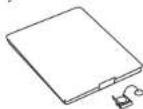
Put battery into controller.
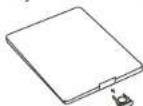
Insert battery holder into controller.
DVD BASIC OPERATION
Slot in DVD disk, unit will play it automatically. If disk is in slot, press SOURCE button to play.
SPEED FORWARD/BACKWARD
While playing, long press SEEK+ or SEEK- button to activate the fast forward or fast rewind function. When the mode is activated, make selection in the following levels and orders:

NOTE:Long press SEEK + ↗/SEEK -← button on the host to execute the same function.
PREVIOUS SONG/NEXT SONG
In DVD mode, press the SEEK+→/SEEK-← to play previous song or next song. NOTE:SEEK+→/SEEK-← button on the host to execute the same function.
SYSTEM SWITCH
In DVD mode, press P/N button on the remote control to select the preset PAL、AUTO、NTSC system.
Note: Press M5 (N/P) button on the host to execute the same function.
SLOW PLAY
Press SLOW button on remote control to play slowly. The level of slow playing is as follows. Sequence is :

Note: It just can be worked by the remote control.
STOP PLAY
In VCD mode, press ▶ button on remote control once to enter pause mode. Press again to back to normal play. Press ▶ button twice to stop playing. Here, press ▶ button, unit will play from the first song.
ZOOM IN/ZOOM OUT
Press ZOOM button on remote control to zoom in /zoom out the picture. The levels

Note:
-
This function can only be worked by the remote control.
-
Image which is zoomed in can be moved by up/down/left/right cursor to move.
-
Image which is zoomed out cannot be moved.
OSD
In dvd mode, press the 1 number button on the unit to display all the infomations of the disc.
Note: It just can be worked by the(OSD)button on unit.
REPEATEDLY PLAY
Press the RPT button on the remote control to startup the follow repeat functions.
$$ \text { REPEAT(CHAPTER) } \longrightarrow \text { REPEAT(TITLE) } \longrightarrow \text { REP ALL } $$
Note: Press number 2 button on the unit is the same.
ANGLE SWITCH
If the DVD disc is recorded with multi- angles, you can press the ANGLE button to switch the angle during playing. The sequence is as follow:
ANGEL 1 → ANGEL 2 → ANGEL 3
-
It just can be worked by the remote control.
-
It is only for the DVD disc which has multi-angle.
-
If there is a ☐ sign on the cover of the DVD disc. The number in the sign ☐ means how many angles the disc has.
-
You can not switch the angle when slow playing.
MULTI-AUDIO
There are different languages of dialogue and audio systems in DVD disc. If the DVD disc is recorded with multi-audio, you can switch the language of dialogue and the audio systems when playing.
Press the AUDIO button repeatedly to change the language of dialogue.
Note:
-
Press "M4" number button (L/R) on the host to execute the same function.
-
It is only for the DVD disc which is recorded with multi-language.
-
If there is a Ⓞ sign on the cover of the DVD disc, Ⓞ means that it was recorded by multi-language/audio system.
-
In VCD mode, press the AUDIO button to select the L/R or STEREO track.
MULTI- SUBTITLE
If the DVD disc is recorded with multi-subtitle, you can switch the languages of subtitle.
Press the sub-t button repeatedly to change the language.
Note:
-
It just can be worked by the remote control.
-
It only for the DVD disc which is recorded with multi-subtitle.
-
If there is a 2 sign on the cover of the DVD disc, 2 means that it has several subtitle.
TITLE SELECT
In DVD mode, press TITLE button to back to the title menu. Display shows all the titles of the disc. You can select the chapter you want by the cursor, press play button to play the chapter.
Note: It just can be worked by the remote control.
MENU SELECT
In the DVD state, press PBC button to return to the disc music menu, and then you can select music by using the cursor button. If you want to stop playing PBC, you can press PBC button to cancel PBC playing and start playing from the very beginning. After you select the favorite music and then press PLAY button/OK key for playing.
PROGRAM PLAY
In DVD mode, you can set the sequence of playing by the program function, the operation is as follow:
| PROGRAM | ||||
| T | CT | CT | CT | C |
| 1 0.1 | 0.3 | 5____:____ | 9____:____ | 13____:____ |
| 2 0.1 | 0.6 | 6____:____ | 10____:____ | 14____:____ |
| 3____:____ | 7____:____ | 11____:____ | 15____:____ | |
| 4____:____ | 8____:____ | 12____:____ | 16____:____ | |
| PLAY | CLEAR | |||
When DVD is playing, press st/prog button, then the display shows:
For example, program the first song, input 01, press ▶ button move the cursor to the second lattice, input desired song, for example, the third song. Program the second song, press ▼ button , move the cursor to 2□_ input 01, press ▶ button move the cursor to the second lattice, input desired song, for example, the 6th song( press 6). Press■button to program play.
Back to the normal mode, press the ST/PROG button, then press ▶ button. Note: this function can only be worked by the remote control.
SD CARD OPERATION
In radio or audio mode, insert SD card, unit will read SD card and play automatically. If there is a card in the slot, please press SOURCE button to play.(Note: In power off mode, insert SD card, power will be turn on and read the card.)
REPEATEDLY PLAY
When playing SD card, press AMS/RPT button on remote control, unit will play repeatedly the current song, press it again to cancel the repeated play function. Note: Press 2(RPT) button on the unit is the same.
SPEED FORWARD/BACKWARD
Press longer the SEEK+→ or SEEK-→ button on remote control to speed forward or backword play.
Note: Press longer the SEEK+→ or SEEK-← button on the unit is the same.
SELECT SONG TO PLAY DIRECTLY
Press the number button on remote control to select the song to play directly.
PREVIOUS SONG/NEXT SONG
When playing SD card, press SEEK↔ or SEEK-↔ button on remote control to play Previous song or next song.
Note: press button on unit is the same.
RANDOMLY PLAY
When playing the SD card, press LOC/RDM button on remote control, unit will play the current song randomly, press LOC/RDM button again to stop the function.
Note: Press 4(RDM) button on the unit is the same.
STOP PLAY
When playing SD card ,press ▶ button on the remote control once to enter pause mode.Press ▶ again to back to normal play. Press ▶ button twice to stop playing. Here, press ▶ button ,unit will play from the first song.
Note: Press 6 number button (PLAY) on the unit is the same.
PAUSE PLAY
When playing SD card, press the ▶button on remote control, PAUSE will appear on LCD. Press▶again to back to normal play.
Note: Press 6 number button (PLAY) on the unit is the same.
USB PLAY OPERATION
In radio or audio mode, insert SD card or USB, the unit will read USB and play automatically.
Note:
1) In any mode, insert USB, unit will play USB preferentially.
2) In power off mode, insert the USB, unit will be turn on and read USB.
*SD card is same as above.
Slot in CD/MP3 disk, unit will play it automatically. If disk is in slot, press SOURCE button to play.
REPEAT PLAY
Press the AMS/RPT button on remote control to startup the single song repeat function, press again to cancel that function.
Note: Press 2 number button (RPT) on unit is the same. Default is disk repeat.
SPEED FORWARD/BACKWARD
While playing, long press SEEK+→ or SEEK-← button to activate the fast forward or fast rewind function. When the mode is activated, make selection in the following levels and orders:

flowchart
graph LR
    A["FORWARD X2"] --> B["FORWARD X4"] --> C["FORWARD X8"]
    D["PLAY"] --> E["FORWARD X20"]
    F["BACKWARD X2"] --> G["BACKWARD X8"]
    H["PLAY"] --> I["BACKWARD X0"]
    J["NOTE: Long press SEEK + 📋/SEEK - 🖼️ button on the host to execute the same function."]
PREVIOUS/NEXT SONG
In CD/MP3 mode, press SEEK↔ or SEEK← button on remote control to play the previous or next song.
Note: press SEEK+→/SEEK-← button on the unit is the same.
RANDOMLY PLAY
In CD/MP3 mode, press LOC/RDM button on remote control, RDM will appear on LCD, unit will randomly play any song in disk. Press again to back to normal play.
Note: Press 3 number button (RDM) on the unit is the same.
STOP PLAY
In CD/MP3 mode, press button on remote control to enter the pause mode, at that time press button to play. Press button twice to enter the stop mode, here, press button, unit will play from the first song.
PAUSE PLAY
In CD/MP3 mode, press the ▶ button on remote control, PAUSE will appear on LCD. Press again to back to normal play.
Note: Press "6" number button (PLAY) on the unit is the same.
INSTANTLY PLAY
In CD mode, press the "1" (INT) button to instantly play each song for 10 seconds. The number of the song will be twinkled, press the "1" (INT) button again to back to the normal playing.
CD PROGRAM PLAY
In CD mode, you can set the sequence of playing by the program function, the operation is as follow:
When CD is playing, press st/prog button, then the display shows:
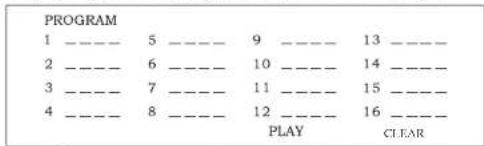
Input the No. of the song you want to program by the remote control. program the first song, input your desired song, for example, the sixth song, and press number button 6 on the remote control. Program the second song, press ▼ button move the cursor to 2[ _ ]. input your desired song, for example, the ninth song, press number button 9 on the remote control. Press ▶ button to program play.
Back to the normal mode, press the ST/PROG button, then press▶ button.
Note: this function can only be worked by the remote control.
MP3 PROGRAM PLAY
In MP3 mode, you can set the sequence of playing by the program function, the operation is as follow:
When MP3 playing, press ST/PORG button, then the display shows:
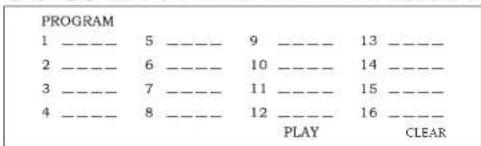
Then, input desired song by remote control.
For example:
program the first song, input 01, press ▲ button move the cursor to the second lattice, input desired song, for example, the third song. Program the second song, press ▼ button ,work with ▶/▶ b utton, move the cursor to 2_ : _ input 01, press ▶ button move the cursor to the second lattice, input desired song, for example, the third song( press 6). Press ▶ button to program play.
Back to the normal mode, press the ST/PROG button, then press ▶ button.
Note: this function can only be worked by the remote control.
VCD BASIC OPERATION
Slot in VCD disk, unit will play it automatically. If disk is in slot, press SOURCE button to play.
SWITCH SYSTEM
In the VCD mode, press the BAND/P/N button on the remote control to select the preset PAL, AUTO, NTSC systems.
Note: Press M5 (N/P) button on the host to execute the same function.
PREVIOUS/NEXT SONG
In VCD mode, press SEEK+▶ or SEEK-◀ to choose previous/next song.
Noted: Press SEEK+→/SEEK-← button on the unit is the same.
SPEED FORWARD/BACKWARD
While playing, long press SEEK+→ or SEEK-← button to activate the fast forward or fast rewind function. When the mode is activated, make selection in the following levels and orders:

NOTE:Long press SEEK + >>/SEEK -<button on the host to execute the same function.
SLOW PLAY
In VCD mode, press SLOW button to slow play. The level of slow playing is as follows. Sequence is :

Note: this function can only be worked by the remote control.
ZOOM IN/ZOOM OUT
Press ZOOM button on remote control to zoom in /zoom out the picture. The levels are as follows:

Note:
-
This function can only be worked by the remote control.
-
Image which is zoomed in can be moved by up/down/left/right cursor to move.
-
Image which is zoomed out cannot be moved.
OSD
In the VCD state, press "APS" button (OSD) on the host to display the location and playing time of the current music being played.
NUMBER BUTTON
In VCD mode, press any number button to input song. For example, you want to choose 16 ^th song, press 10+ button, and then press 6 button once to play 16 ^th song.
Note: this function can only be worked by the remote control.
REPEATEDLY PLAY
Press the AMS/RPT button on remote control to startup the single song repeat function, press again to cancel that function.
Note: Press "2" number button (RPT) on unit is the same. Default is disk repeat.
INSTANTLY PLAY
In VCD mode, press "1" number button(INT) on the unit to instantly play each song for 15 seconds. The song will twinkling on the display. Press again to back to the normal play.
RANDOMLY PLAY
In VCD mode, press LOC/RDM button on remote control, RDM will appear on display. Unit will randomly play any song in disk. Press again to back to normal play.
Note: Press "3" number button (RDM) on the unit is the same.
PAUSE PLAY
In VCD mode, press the ▶ button on the remote control, PAUSE will appear on LCD. Press ▶ again to back to normal play.
Note: Press "6" number button (PLAY) on the unit is the same.
STOP PLAY
In VCD mode, press ▶ button on remote control once to enter pause mode. Press ▶ again to back to normal play. Press ▶ button twice to stop playing. Here, press ▶ button , unit will play from the first song.
SWITCH TRACK
In VCD mode, press AUDIO button repeatedly to switch track as following sequence:
$$ \mathrm{MONOL} \longrightarrow \mathrm{MONOR} \longrightarrow \mathrm{MIXMONO} \longrightarrow \mathrm{STEREO} $$
Note: Press "4" number button (L/R) on the host to execute the same function.
PBC (MENU) play
In VCD mode, press this button then play the PBC and display will show whole menu in disk, work with number button to choose song..when you are playing either song of the PBC,and you want to stop to select another song,press the button to turn off.
Note:
- this function can be worked by the remote control.
2.PBC is suitable for the SVCD and VCD2.0 disc. - In PBC mode, you can not press number button only to choose song.
VCD program playing
In VCD mode, you can set playing sequence of songs by program play function. The program playing operation steps are as follows: In VCD mode, press ST/PROG button, display will show:
| PROGRAM | |||||
| 1 | ______ | 5 | ______ | 9 | ______ 13 |
| 2 | ______ | 6 | ______ | 10 | ______ 14 |
| 3 | ______ | 7 | ______ | 11 | ______ 15 |
| 4 | ______ | 8 | ______ | 12 | ______ 16 |
| PLAY | CLERA | ||||
Input the songs which you want to programmed by the number buttons on remote control.
For example: program the first song, input your desired song, for example, the fourth song, and press number button 4 on the remote control. Program the second song, press ▼ button move the cursor to 2____. input your desired song, For example, the eighth song, press number button 8 on the remote control. Press ▶ button to program play.
Back to the normal mode, press the ST/PROG button, then press▶ button. Note: this function can only be worked by the remote control.
Operation of RDS function
Operation of AF
In AF mode, press the number button "AF" on remote control once, the unit will scan to search the RDS radio station automatically, and the "AF" on the LCD display twinkling all the time.
When the unit searched one RDS radio station, the LCD display will show "TP" on it. Press the number button "AF" again, the "AF" on the LCD display will disappear. The unit will in normal radio mode.
* The default of the system is "AF OFF".
Operation of TA
In TA mode, press the number button "TA" on remote control once, the TA mode is switch on, and LCD display will show "TA" on it. Then the unit will transfer the traffic radio station information, it makes the EON system scan and search the traffic radio station, the LCD display will show "TP" when searched the radio station. Press the number button "AF" again to switch off the TA mode, and the "TA" on the LCD display disappear at the same time.
* In any mode, the traffic radio station is in priority any any other radio stations.
Operation of PTY
When searched the PTY programs, press the button PTY all the time, and at the same time to use VOL +/- buttons to choose the program. The different kinds PTY programs are as following:
| NEWS | AFFAIRS | INFO |
| SPORT | EDUCATEE | DRAMA |
| CULTURE | SCIENCE | VARIED |
| POP M | ROCK M | EASY M |
| LIGHT M | CLASSICS | OTHER M |
| WEATHER | FINANCE | CHILDREN |
| SOCIAL | RELIGION | PHONE IN |
| TRAVEL | LEISURE | JAZZ |
| COUNTRY | NATION M | OLDIES |
| FOLK M | DOCUMENT | TEST ALARM |
This function is optional, please refer to the actual unit for standard.
BT Function Operation
pair the phone with car unit.
1、Enable the phone's B'T, searching device, the B'T equipment name is "BOSS AUDIO".
2、Click the name, choose to connect.
3、After successfully paired,, the screen will show and light “ ” icon, when not paired, the icon “ ” will not be lit.
BT phone call hang up/off
1、During an incoming call, the display will show the number, Press the "BAND" button to answer the call. Press the "src" button END/Reject the call.
2、When using the phone to call, car unit in any mode will be switched to a BT phone call mode, screen will show talk time information.
3、Under BT model, after making a call, double press “BAND” key can re-dial the last call.
BT music
1、Press Mode key to switch to BT mode (screen will show "PHONE"), press
“ M6 ” to go into BT music playing.
2、Press / key can play the former/next song.
3、Press "M6" can switch pause/play.
4、BT music playing control button and mobile phone control key have two-way mutual control.
TROUBLE SHOOTING
The following table is helpful in solving the problems possibly meet when using the unit. If problem cannot be solved, pls contact Boss Tech Support. Do not repair the unit by yourself. That is danger.
Solution
antenna might be connected "Auto Antenna" amplified wire to power antenna
Does not read discs
Disc is scratched Clean disk Disc is dirty Insert another disk that is Format is not compatible compatible
WIRING DIAGRAM
This player is equipped with ISO standard connector.
- Red - ACC ON (+12V)
● Yellow - 12 V Constant - Black - Ground wire
● Blue - Power Antenna/Remote Amp Turn On
● Grey/Grey black - Right front speaker (+/-)
● White/White black - Left front speaker (+-)
● Purple/Purple black - Right rear speaker (+/-)
■ Green/Green black - Left rear speaker (+/-)
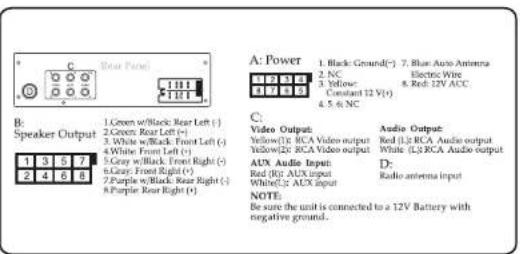
SPECIFICATIONS:
UNIT
Operating Power DC12V
Operating Power range 10.8-16V DC
Maximum operating current 15A
Weight 3.86lbs
Ground System...... Negative Type
AM TUNER
European frequency range 522-1620KHz
USA frequency range 530-1710KHz
Noise limit sensitivity (S/N—20dB) 32dB
Middle frequency 450KHz
FM TUNER
European frequency range 87.5-108MHz
USA frequency range 87.5-107.9MHz
Signal/Noise Ratio 50dB
Stereo separation.... (1KHz) 30dB
Frequency Response +-30db 40Hz-10.000Hz
Antenna Impedance 70
DVD PLAYER
Track 2
Frequency response 5Hz-20,000Hz
- USER'S MANUAL
- For Your Safety
- FEATURES
- BASIC FUNCTION
- REL(Panel release button)
- 3.
- 4.
- M1/INT(Number button M1/Scanning & Playing at disc playing state)
- M2/RPT(Number button M2/Repeat playing button)
- 7.M3/RDM(Number button M3/Random playing button)
- M4/L/R(Number button M4/channel play function)
- M5/N/P(Number button M5/Video system switching)
- M6/Play(Number button M6/Playing button)
- USB
- SD
- Dual (front and rear) AUX
- IR (Infrared remote control receiver)
- Volume adjusting, pattern translation
- 16.. BAND/BND (Band selection/Answer the phone)
- Disc eject button
- 18.MIC
- 2.MUTE button
- DSP
- 4.SOURCE button
- EO/ S button
- SEEK+ (▶) /SEEK- (◀) button
- VOL + (▶) /VOL - (◀)
- SELECT button
- AF button
- TA Button
- PTY (Programme type)
- 12.STOP button
- 13.PLAY/PAUSE button
- 14.ST/PROG button
- 15.0-9 button
- 16.AMS/RPT button
- TITLE button
- AUDIO button
- SUB TITLE Button
- PBC button
- UP, DOWN, LEFT, RIGHT, ENTER
- button
- 23.SLOW button
- 24.ANGLE button
- 25.SETUP button
- 26.OSD display
- ZOOM button
- 28.BAND /P/N button
- RDM button
- BATTERY CHANGE
- DVD BASIC OPERATION
- SPEED FORWARD/BACKWARD
- PREVIOUS SONG/NEXT SONG
- SYSTEM SWITCH
- SLOW PLAY
- STOP PLAY
- ZOOM IN/ZOOM OUT
- OSD
- REPEATEDLY PLAY
- ANGLE SWITCH
- MULTI-AUDIO
- MULTI- SUBTITLE
- TITLE SELECT
- MENU SELECT
- PROGRAM PLAY
- SD CARD OPERATION
- SELECT SONG TO PLAY DIRECTLY
- RANDOMLY PLAY
- PAUSE PLAY
- USB PLAY OPERATION
- REPEAT PLAY
- PREVIOUS/NEXT SONG
- INSTANTLY PLAY
- CD PROGRAM PLAY
- MP3 PROGRAM PLAY
- VCD BASIC OPERATION
- SWITCH SYSTEM
- Note:
- NUMBER BUTTON
- SWITCH TRACK
- PBC (MENU) play
- VCD program playing
- Operation of RDS function
- Operation of AF
- Operation of TA
- Operation of PTY
- BT Function Operation
- pair the phone with car unit.
- BT phone call hang up/off
- BT music
- TROUBLE SHOOTING
- WIRING DIAGRAM
- SPECIFICATIONS:
- UNIT
- AM TUNER
- FM TUNER
- DVD PLAYER
Brand : BOSS
Model : BV6654B
Category : DVD player