
Ultra 4800R - Media player ROKU - Free user manual and instructions
Find the device manual for free Ultra 4800R ROKU in PDF.


| Product Type | Streaming Media Player |
| Brand | Roku |
| Model | Ultra 4800R |
| Video Resolution | Up to 4K UHD (requires HDCP 2.2 compatible HDMI port) |
| HDR Support | Yes |
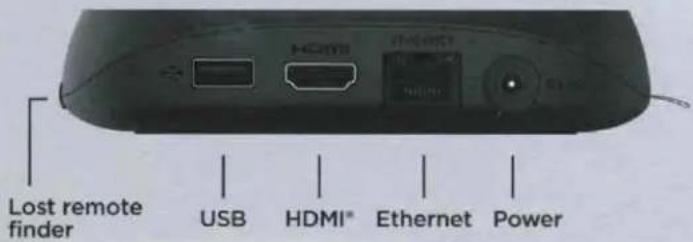
| Connectivity | HDMI, USB, Ethernet, Wi-Fi (2.4/5 GHz) |
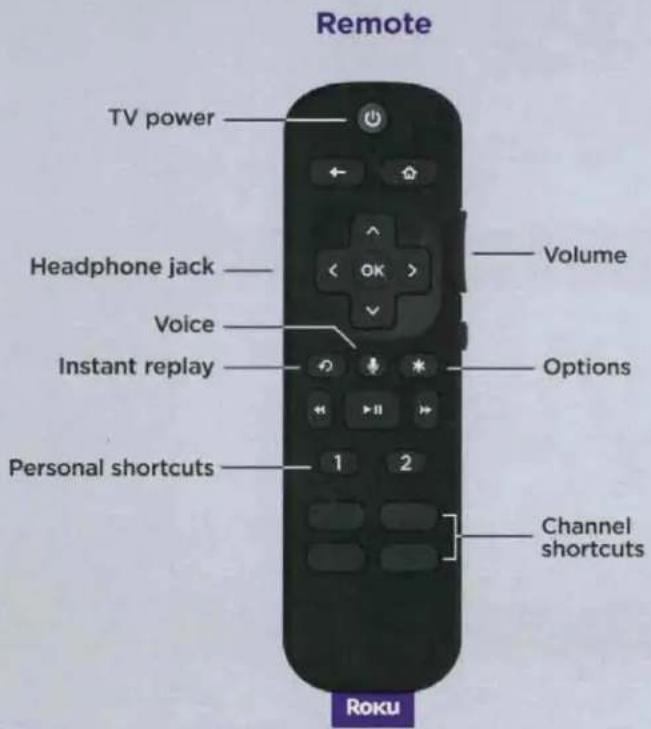
| Remote Control | Voice remote with TV power, volume, mute, and personal shortcut buttons |
| Private Listening | Yes, via headphone jack on remote (headphones included) |
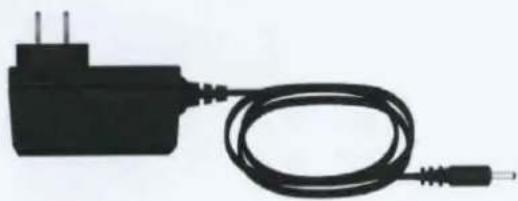
| Power Adapter | Included AC power adaptor (100-240V) |
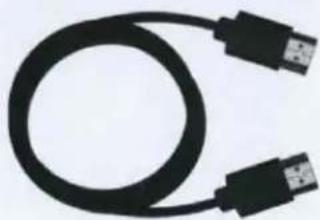
| HDMI Cable | Premium High Speed HDMI Cable included |
| Battery Requirements | 2 AA batteries (included) for remote |
| Wireless Network | Requires wireless network for setup and streaming |
| Account Required | Roku account needed for activation and streaming |
| Software Updates | Automatic via internet |
| Safety Features | Overheat protection, FCC compliant |
| Included Accessories | Roku Ultra player, remote, headphones, power adaptor, HDMI cable, 2 AA batteries |
Frequently Asked Questions - Ultra 4800R ROKU
User questions about Ultra 4800R ROKU
0 question about this device. Answer the ones you know or ask your own.
Ask a new question about this device
Download the instructions for your Media player in PDF format for free! Find your manual Ultra 4800R - ROKU and take your electronic device back in hand. On this page are published all the documents necessary for the use of your device. Ultra 4800R by ROKU.
USER MANUAL Ultra 4800R ROKU
To use private listening, simply plug headphones into your remote. Your TV will mute automatically.


TV controls
Use these buttons to power up your TV, adjust the volume, mute, and control your streaming with one remote.
1
2
Personal shortcuts
To set: Give a command using the voice button. Then, press and hold a personal shortcut button until you hear a tone.
To use: Press the personal shortcut button once.
What's included
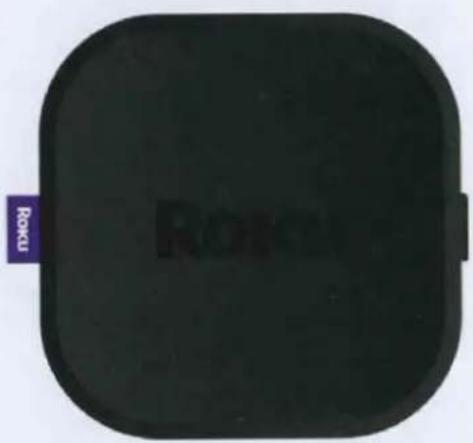
natural_image
Black rounded square device with a purple label reading 'Rokku' on the side (no other text or symbols visible)Roku Ultra
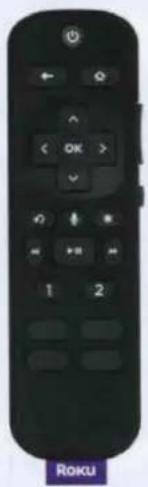
natural_image
Black remote control with standard buttons and a purple 'Roku' button at the bottom (no readable text or symbols beyond branding)Remote
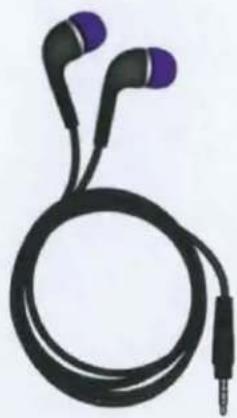
natural_image
Black and purple earbuds with a metallic connector (no text or symbols visible)Headphones for private listening
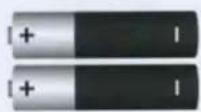
Two AA Duracell ^* batteries
natural_image
Coiled black cable with two connectors (no text or symbols visible)Premium High Speed HDMI® Cable
natural_image
Black electric plug connected to a coiled cable (no text or symbols visible)Power adaptor
Details
Back
Let's get started
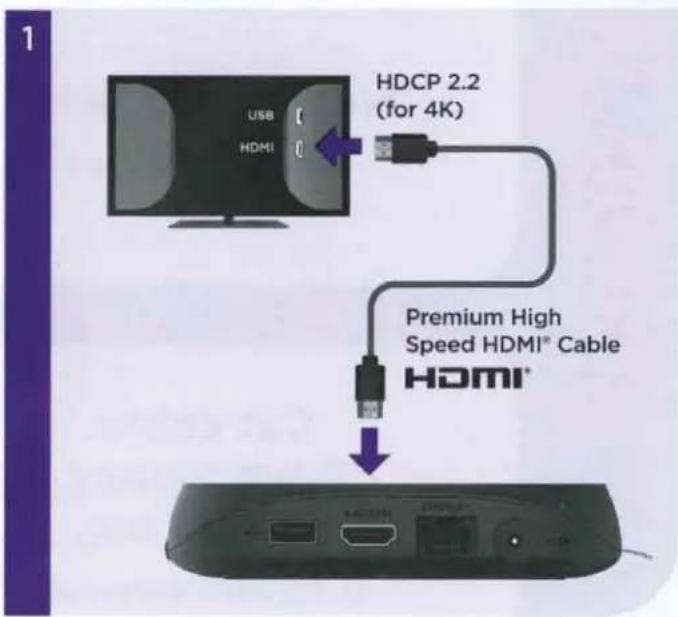
STEP 1: Connect to TV
Connect your streaming player to an HDMI port on the back of your TV with the included cable. For 4K streaming, you'll need to use an HDMI port that supports HDCP 2.2.
TIP:
For help setting up your device, visit go.roku.com/ultra
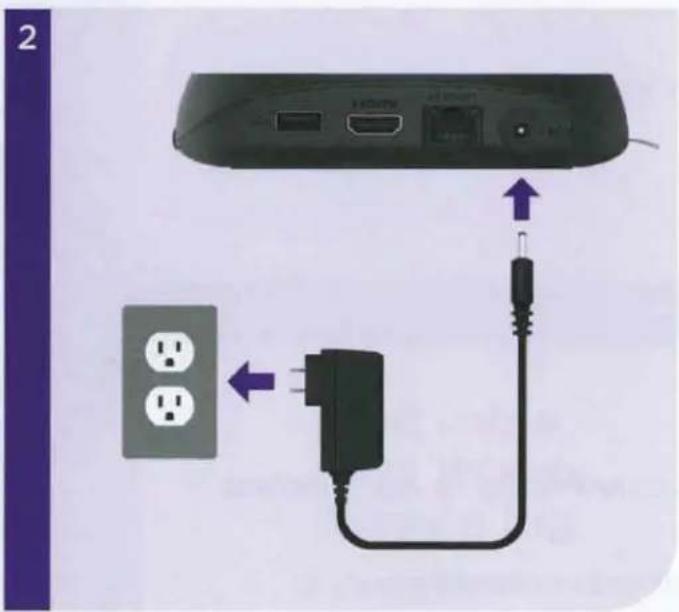
STEP 2: Connect to power
Use the included power adaptor to connect your streaming player to a wall outlet.
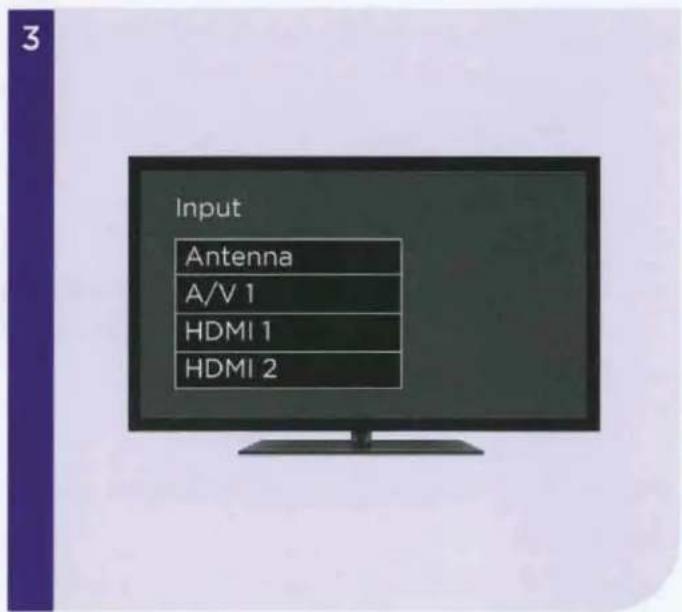
STEP 3: Select input
Use your TV remote to power on your TV and select the input (source) you used to connect your streaming player.
4
POWERED BY DURACELL
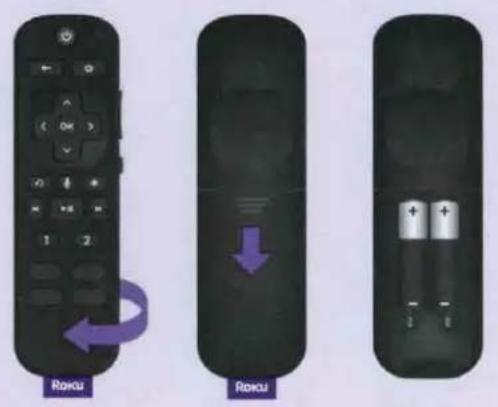
STEP 4: Insert batteries
Slide open the cover on the back of your remote and insert the included Duracell® batteries. Your remote will pair automatically.
5
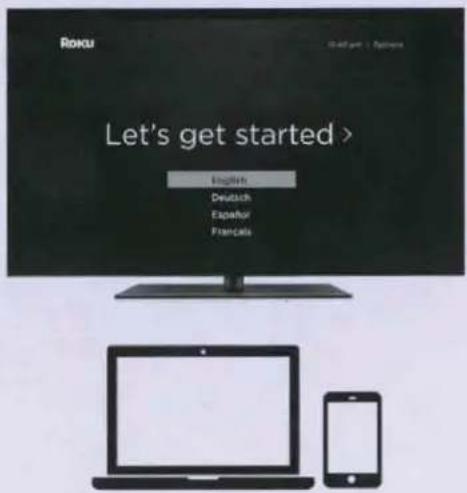
STEP 5: Follow the on-screen setup
Follow the instructions on your TV screen. Activate your streaming player by using your computer or smartphone to link a Roku account.
IMPORTANT:
Roku does not charge for activation support - beware of scams.
Common questions
Why do I need to create a Roku account?
You'll need a Roku account to stream, add channels, easily manage subscriptions, rent movies, and more.
Why should I enter a credit card?
Saving a payment method makes it easy to rent or buy movies, subscribe to popular channels, and start free trials in just a click. No charges will be made without your authorization.
What should I do if my streaming player is not connecting to my wireless network?
Double check the network you selected and that you entered your password correctly. If you have other devices connected to this network, your streaming player should connect.
What type of voice commands can I use with this remote?
"Play classic rock on Pandora"
"Turn captions on"
"Launch The Roku Channel"
"Skip 30 seconds"
"Show me action movies"
Visit go.roku.com/ultra for more information
Need more help?
support.roku.com
Video tutorials
Wireless help
Cut cable. Save money. Stream big.
streamandsave.com

Free TV
Live TV
See what's streaming for free, tips, and more
Visit blog.roku.com
Follow us


Roku
© 2020 Roku, Inc. All rights reserved. ROKU and the ROKU logo are the registered trademarks of Roku, Inc. HDMI, the HDMI logo, and High-Definition Multimedia Interface are the trademarks or registered trademarks of HDMI Licensing, LLC. All other logos and trademarks herein not owned by Roku, Inc. are the property of their respective owners.
Roku® Streaming Player Important Product Information
Introduction
The Roku streaming player which accompanies this Important Product Information ("Player") allows you to stream online entertainment to your TV. A Roku account is required to activate your Player. When you sign up for a Roku account, you will be asked to provide your contact information and a payment method so that you can easily rent movies or sign-up for additional services. Your authorization is required for any such charges. There are no equipment rental fees for owning a Player. However, a paid subscription or other form of payment may be required to access some channels or content. Channel availability is subject to change and varies by country. Check with each channel provider for specific bandwidth requirements to stream SD, 720p, 1080p HD, 4K, and HDR content.
Safety Precautions
The Player has been designed with the highest concern for safety. However, any electrical device, if used improperly, has the potential for causing fire, electrical shock, property damage or personal injury. To help ensure accident-free operation, follow these guidelines:
- Observe all warnings, precautions and instructions.
- Regularly inspect the AC power adaptor for damage. Stop using if damaged.
- Stop use, unplug the AC power adaptor from the electrical outlet and disconnect any other cables immediately, if the Player has been damaged, cracked or punctured, or if the Player functions in an abnormal manner, produces unusual sounds or smells or becomes too hot to touch.
- For more information on product safety and troubleshooting, please go to www.roku.com/support.
Use and Handling
- Do not operate the remote using any vigorous or forceful motions or gestures.
- Keep the remote, headphones, and cables out of reach of children. They are not toys.
- The product packaging may include plastic bags, cable ties and fasteners. Dispose of these properly and keep them out of reach of children, as they could present a choking hazard.
- Do not touch the Player or connected cables during an electrical storm.
- Do not allow liquid, small particles or other foreign objects to get into the Player, remote, or accessories.
- Do not expose the Player, remote or accessories to liquid, smoke or steam.
-
Do not expose the Player, remote, or accessories to high temperatures, high humidity, direct sunlight, or excessive low or freezing temperatures.
-
Do not place the Player, remote, or AC adaptor on the floor or in a place where they may cause someone to trip or stumble.
• Permanent hearing loss may occur if the Player or headphones are used at high volume. To prevent possible hearing loss, limit the amount of time you use the Player or any headphones at high volume. - Do place your Player within range of your wireless network.
- Do not place your Player in an enclosed cabinet or non well-ventilated area; it may interfere with the wireless signal or cause it to overheat.
- Do not place anything on top of your Player; it may cause the Player to overheat.
- Do not drop, crush, puncture, incinerate, or disassemble the Player.
- Do not use damaged cables or chargers.
- Do not attempt to repair your Player or remote yourself. Disassembling or improper repair of the Player may cause overheating, damage not covered by the warranty, or injury to you.
Important Tips About Battery Handling
Inserting batteries: Be sure to insert each battery negative (-) side first, pushing it into the coil and then into the compartment. Never insert batteries positive (+) side first.
Replacing batteries: Always replace dead batteries with two brand-new batteries from the same manufacturer. Never use damaged batteries.
Disposal of batteries: Always dispose of batteries following federal guidelines or local ordinances. Do not dispose of used batteries in an open fire. The battery must be recycled or disposed of separately from household waste.
Warning Signs: If your remote gets warm/hot during use, discontinue use and contact Roku Customer Support immediately at www.roku.com/support. There is a risk of explosion if a battery is, damaged, exposed to excessive temperatures, or attempted to be or is disassembled.
Voice Services
For players and geographies which support voice search, please see the End User License Agreement and Privacy Policy for further information located at www.roku.com/legal.
The License Agreement
The applicable software license terms for the Player is at www.roku.com/legal. Use of the Player constitutes your agreement to those license terms and the limited warranty set forth below for your country. If you disagree and you are within the allowable time period for returns under Roku's return policy (if purchased from Roku) or the applicable return policy of the authorized distributor (if purchased from such distributor), you may return the Player to the place where you obtained it for a refund, subject to the terms of the applicable return policy.
Limited Warranty & Warranty Service Process
Limited Warranty
For any Player purchased and delivered to end users in the US, go to www.roku.com/support for the warranty terms and conditions. You may also request a copy of such terms by mail by contacting Roku, Inc; at 1155 Coleman Ave, San Jose, CA 95110.
Automatic Software Updates
Roku reserves the right to automatically update the software on the Player from time to time in its sole discretion, including adding, changing or removing channels, functionalities and features (including but not limited to, changing the user interface or the manner in which you are able to access content via the Player). For further information please see www.roku.com/support.
Additional Legal Notices
Federal Communication Commission Interference Statement
This equipment has been tested and found to comply with the limits for a Class B digital device, pursuant to Part 15 of the FCC Rules. These limits are designed to provide reasonable protection against harmful interference in a residential installation. This equipment generates, uses and can radiate radio frequency energy and, if not installed and used in accordance with the instructions, may cause harmful interference to radio communications. However, there is no guarantee that interference will not occur in a particular installation. If this equipment does cause harmful interference to radio or television reception, which can be determined by turning the equipment off and on, the user is encouraged to try to correct the interference by one of the following measures:
• Reorient or relocate the receiving antenna.
- Increase the separation between the equipment and receiver.
- Connect the equipment into an outlet on a circuit different from that to which the receiver is connected.
- Consult the dealer or an experienced radio/TV technician for help.
This device complies with Part 15 of the FCC Rules. Operation is subject to the following two conditions: (1) This device may not cause harmful interference, and (2) this device must accept any interference received, including interference that may cause undesired operation.
FCC Caution: Any changes or modifications not expressly approved by the party responsible for compliance could void the user's authority to operate this equipment.
Operation in the 2.4GHz band in the US is firmware-limited to Channels 1 through 11.
IMPORTANT NOTE:
FCC Radiation Exposure Statement:
This equipment complies with FCC radiation exposure limits set forth for an uncontrolled environment. This equipment should be installed and operated with a minimum distance of 20 cm between the radiator and your body. This transmitter must not be co-located or operating in conjunction with any other antenna or transmitter. The availability of some specific channels and/or operational frequency bands are country dependent and are firmware programmed at the factory to match the intended destination. The firmware setting is not accessible by the end user.
Copyright © 2020 Roku, Inc. All rights reserved. Roku and the Roku logo are registered trademarks of Roku, Inc.

- TV controls
- Personal shortcuts
- What's included
- Details
- Let's get started
- STEP 1: Connect to TV
- TIP:
- STEP 2: Connect to power
- STEP 3: Select input
- STEP 4: Insert batteries
- STEP 5: Follow the on-screen setup
- IMPORTANT:
- Common questions
- Roku
- Roku® Streaming Player Important Product Information
- Introduction
- Safety Precautions
- Use and Handling
- Important Tips About Battery Handling
- Voice Services
- The License Agreement
- Limited Warranty & Warranty Service Process
- Automatic Software Updates
- Additional Legal Notices
- IMPORTANT NOTE:
Brand : ROKU
Model : Ultra 4800R
Category : Media player