
Ultra 4802R - Media player ROKU - Free user manual and instructions
Find the device manual for free Ultra 4802R ROKU in PDF.


| Product Type | Streaming Media Player |
| Brand | Roku |
| Model | Ultra 4802R |
| Dimensions (H x W x D) | 0.9 x 5.1 x 5.1 inches (22 x 130 x 130 mm) |
| Weight | 4.8 oz (136 g) |
| Power Supply | 5V/1A via micro USB (adapter included) |
| Video Output | HDMI 2.0 with 4K HDR, Dolby Vision, HDR10+ |
| Audio Output | HDMI eARC, Dolby Atmos, DTS Digital Surround |
| Connectivity | Wi-Fi 5 (802.11ac), Ethernet 10/100, Bluetooth 4.2 |
| Storage | 4 GB internal, expandable via USB drive |
| Remote Control | Voice remote with TV controls and headphone jack |
| Private Listening | Via remote headphone jack or Roku mobile app |
| Supported Services | Netflix, Amazon Prime, Hulu, Disney+, YouTube, Apple TV+, and more |
| Operating System | Roku OS (with automatic updates) |
| Ports | 1x HDMI 2.0, 1x micro USB, 1x USB 2.0, 1x Ethernet, 1x microSD slot |
| Cleaning Instructions | Unplug device, wipe with a soft, dry cloth. Do not use liquids or abrasive cleaners. |
| Safety Warnings | Do not expose to water or moisture. Keep adequate ventilation. Use only included power adapter. |
| Spare Parts | Remote (RC-AL9), power adapter, HDMI cable available from Roku store |
Frequently Asked Questions - Ultra 4802R ROKU
User questions about Ultra 4802R ROKU
0 question about this device. Answer the ones you know or ask your own.
Ask a new question about this device
Download the instructions for your Media player in PDF format for free! Find your manual Ultra 4802R - ROKU and take your electronic device back in hand. On this page are published all the documents necessary for the use of your device. Ultra 4802R by ROKU.
USER MANUAL Ultra 4802R ROKU
natural_image
Line drawing of a ROKU remote control box on purple background (no text or symbols beyond branding)Quick Start Guide
What's included
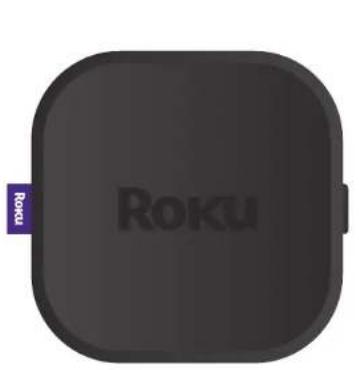
natural_image
Roku gaming controller device (no visible text or symbols on body)Roku Ultra streaming player
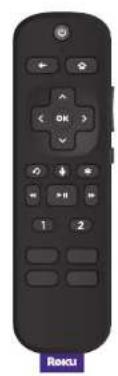
natural_image
Black remote control with navigation buttons and a purple 'Roku' button at the bottom (no text or symbols on the device itself)Remote
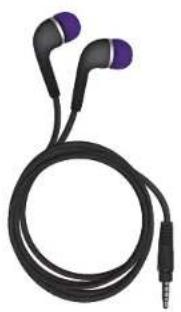
natural_image
Black and purple earbuds with a black cord and connector (no text or symbols visible)Headphones for private listening
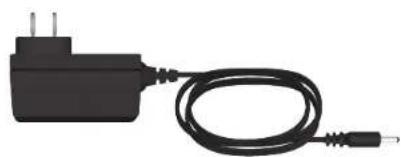
natural_image
Black electric plug connected to a black cable with a terminal connector (no text or symbols visible)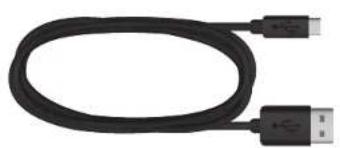
natural_image
Black USB cable with two connectors (no text or symbols visible)Power adaptor Premium High Spac charging cable
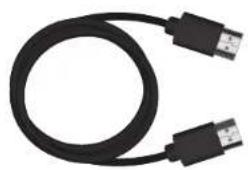
natural_image
Coiled black USB cable with two connectors (no text or symbols visible)HDMI® Cable
Details
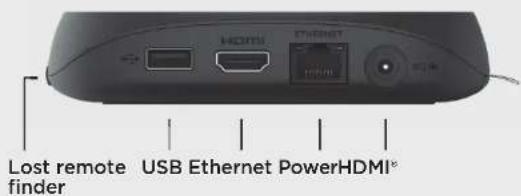
Let's get started
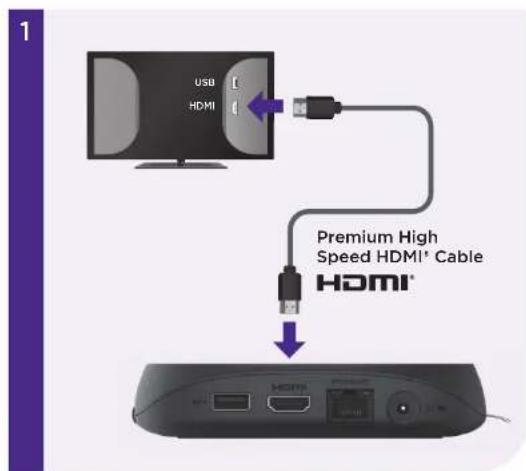
STEP 1: Connect to TV
Connect your streaming player to an HDMI port on the back of your TV with the included cable.
TIP:
For help setting up your device, visit go.roku.com/ultra
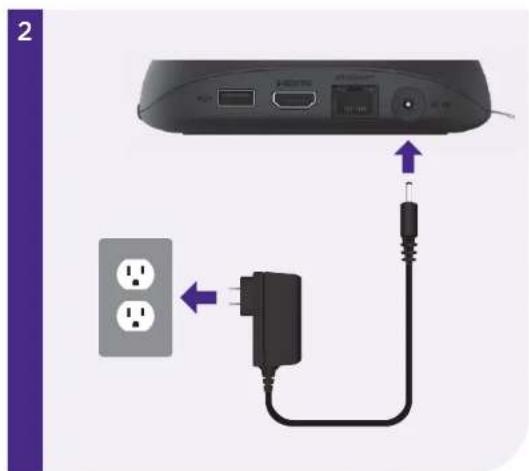
STEP 2: Connect to power
Use the included power adaptor to connect your streaming player to a wall outlet.
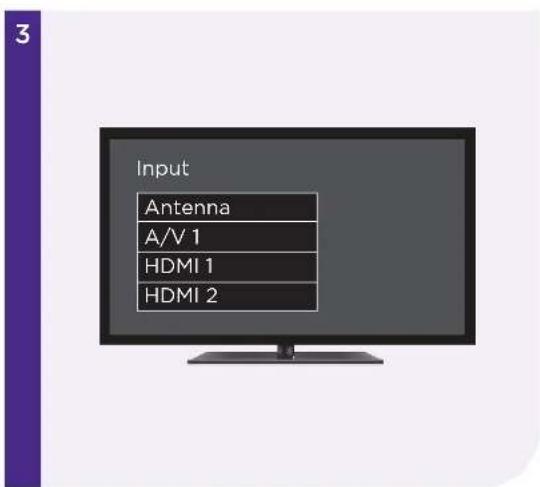
STEP 3: Select input
Use your TV remote to power on your TV and select the input (source) you used to connect your streaming player.
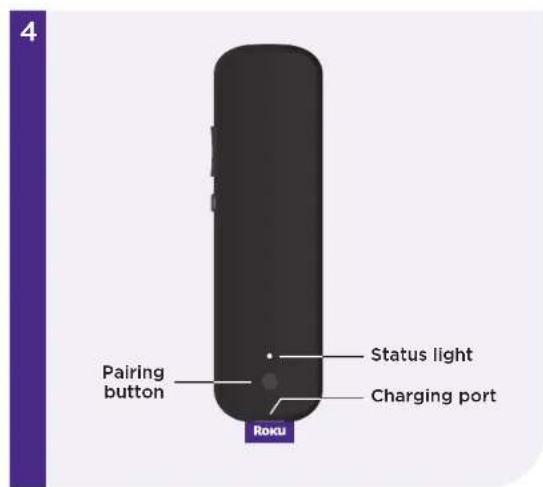
STEP 4: Pair your remote
Press and hold the pairing button on your remote for 5 seconds until the status light turns green and starts blinking.
Your remote will pair automatically.
5
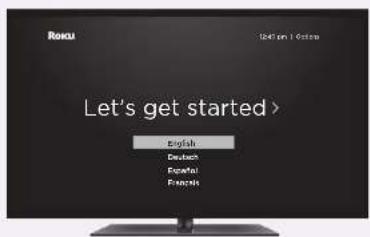
STEP 5: Follow the on-screen setup
Follow the instructions on your TV screen. Activate your streaming player by using your computer or smartphone to link a Roku account.
IMPORTANT:
Roku never charges for activation support.
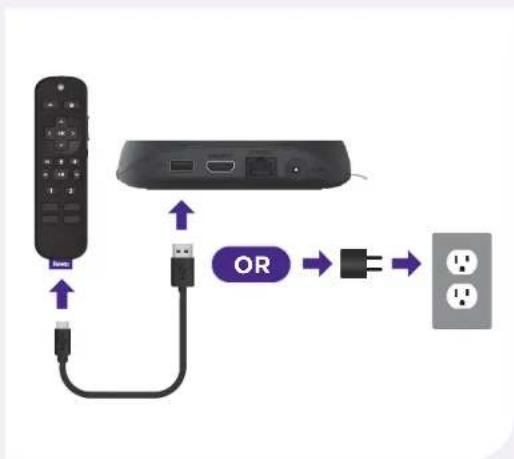
Charging your remote
flowchart
graph TD
    A["Remote Control Panel"] -->|USB cable| B["USB Cable"]
    B --> C["Power Outlet"]
    D["OR"] --> E["Output"]
Connect your remote to the USB charging cable and either:
• the USB port on the back of your player
• a wall outlet using a standard USB adaptor (like your phone charger)
The status light will stop blinking once your remote is finished charging.
You'll see a message on your TV when it's time to charge again.
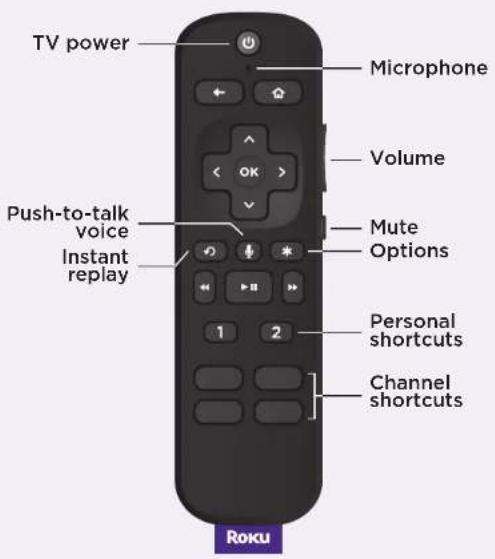
Remote features
Private listening
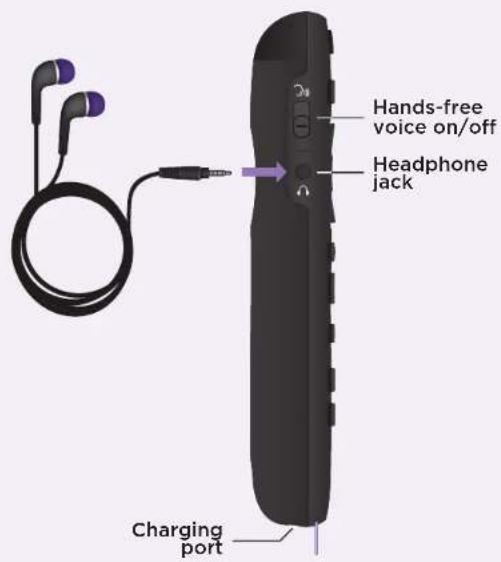
Plug headphones into your remote to use private listening. Your TV will mute automatically.
Lost remote finder
Say "Hey Roku, where's my remote?" or press the button on your streaming player to locate it.
Personal shortcuts
Quickly launch a channel, play your favorite playlist, and more in a tap.
To set: Press a personal shortcut button for on-screen instructions.
Just talk to it. It's that easy.

Play entertainment
"Hey Roku, launch The Roku Channel"
"Hey Roku, play classic rock"

Control your streaming
"Hey Roku, pause"
"Hey Roku, turn captions on"
Control your TV
"Hey Roku, turn my TV off"
"Hey Roku, turn it up"

Find more to watch
"Hey Roku, show me the news"
"Hey Roku, search for comedies"
Common questions
Why do I need to create a Roku account?
You'll need a Roku account to stream, add channels, easily manage subscriptions, rent movies, and more.
Why should I enter a credit card?
Saving a payment method makes it easy to rent or buy movies, subscribe to popular channels, and start free trials in just a click. No charges will be made without your authorization.
Can I still give voice commands if I turn off hands-free voice?
Yes you can! Just press and hold the voice button to give a command instead. You don't need to say "Hey Roku" when using push-to-talk voice.
Visit go.roku.com/ultra for more information
TIP:
For the best experience, keep the remote near you and speak towards it when giving a command.
Need more help?
support.roku.com

Video tutorials
Wi-Fi® help
Cut cable. Save money. Stream big.
streamandsave.com

Free TV
Live TV
See what's streaming for free, tips, and more
Visit roku.com/blog
Follow us


ROKU
© 2022 Roku, Inc. All rights reserved. Roku and the Roku logo are the registered trademarks of Roku, Inc. All other logos and trademarks herein not owned by Roku, Inc. are the property of their respective owners.

- Let's get started
- STEP 1: Connect to TV
- TIP:
- STEP 2: Connect to power
- STEP 3: Select input
- STEP 4: Pair your remote
- STEP 5: Follow the on-screen setup
- IMPORTANT:
- Charging your remote
- Remote features
- Private listening
- Lost remote finder
- Personal shortcuts
- Just talk to it. It's that easy.
- Play entertainment
- Control your streaming
- Control your TV
- Find more to watch
- Common questions
- Why do I need to create a Roku account?
- Why should I enter a credit card?
- Can I still give voice commands if I turn off hands-free voice?
Brand : ROKU
Model : Ultra 4802R
Category : Media player