
GWHDKIT11 - AV Extender IOGEAR - Free user manual and instructions
Find the device manual for free GWHDKIT11 IOGEAR in PDF.


| Product Type | Wireless HDMI Extender Kit |
| Brand | IOGEAR |
| Model | GWHDKIT11 |
| Connectivity | HDMI Input and Output |
| Wireless Technology | 60 GHz (WHDI) |
| Maximum Resolution | 1080p Full HD |
| Maximum Range | Up to 100 feet (30 meters) line-of-sight |
| Number of Transmitters | 1 |
| Number of Receivers | 1 |
| Power Input | 5V DC, 2A (via included power adapters) |
| Transmitter Dimensions | 3.5 x 2.5 x 1.2 inches (89 x 64 x 30 mm) |
| Receiver Dimensions | 3.5 x 2.5 x 1.2 inches (89 x 64 x 30 mm) |
| Transmitter Weight | 0.4 lbs (180 g) |
| Receiver Weight | 0.4 lbs (180 g) |
| Operating Temperature | 0°C to 40°C |
| Storage Temperature | -20°C to 60°C |
| LED Indicators | Power and Link |
| Maintenance | Clean with dry cloth; avoid liquids |
| Safety | Keep away from water; use only provided power adapters |
| Spare Parts / Repairability | Contact IOGEAR support for spare parts; not user-serviceable |
| Certifications | FCC, CE |
| Compatibility | HDMI-equipped sources (e.g., Blu-ray, game console) and displays (HDTV, projector) |
| Audio Support | Stereo and up to 5.1 surround sound |
| Latency | Less than 1 millisecond |
Frequently Asked Questions - GWHDKIT11 IOGEAR
User questions about GWHDKIT11 IOGEAR
0 question about this device. Answer the ones you know or ask your own.
Ask a new question about this device
Download the instructions for your AV Extender in PDF format for free! Find your manual GWHDKIT11 - IOGEAR and take your electronic device back in hand. On this page are published all the documents necessary for the use of your device. GWHDKIT11 by IOGEAR.
USER MANUAL GWHDKIT11 IOGEAR
Wireless Video Kit, 150 Feet Range, One to One HDMI, up to 1080P
GWHDKIT11
PART NO. Q1492
Package Contents
1 x HDMI Extender Transmitter
1 x HDMI Extender Receiver
1 x IR Blaster Extension Cable
1 x IR Receiver Extension Cable
2 x Antennas
2 x 5 VDC/2A Wall Mount Switching Power Supply
1 x Quick Start Guide
System Requirements
1 HDMI source device (DVD, PS3, Set top box, PC etc.)
1 HDMI display device (SDTV, HDTV, projector with HDMI port, etc.)
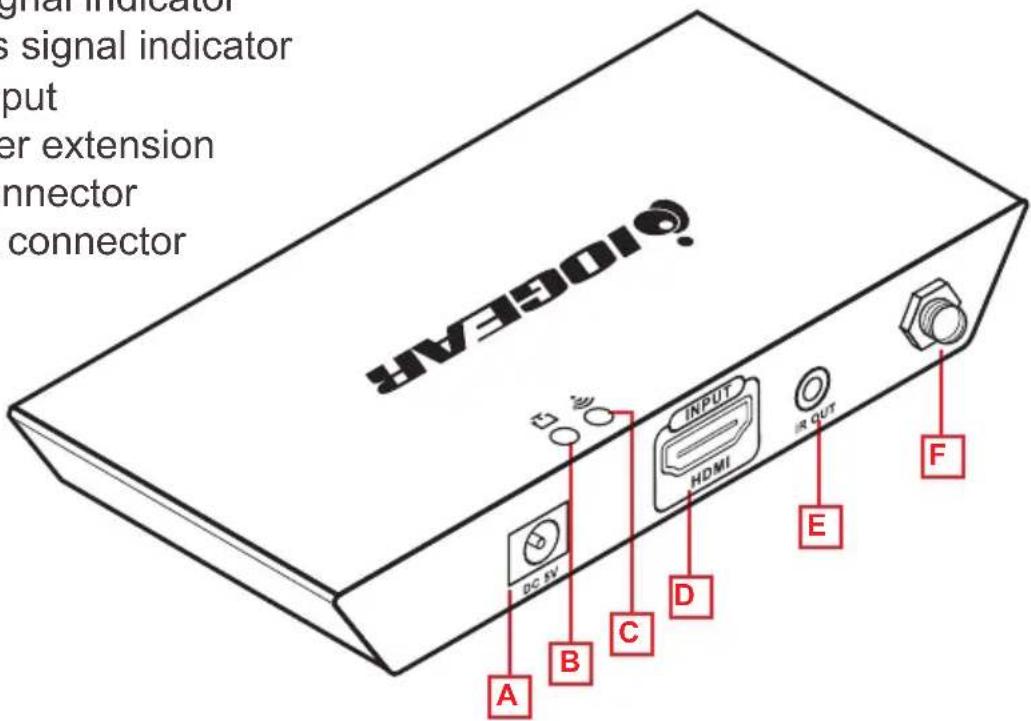
Transmitter
A. Power input
B. HDMI signal indicator
C. Wireless signal indicator
D. HDMI input
E. IR Blaster extension cable connector
F. Antenna connector
Receiver
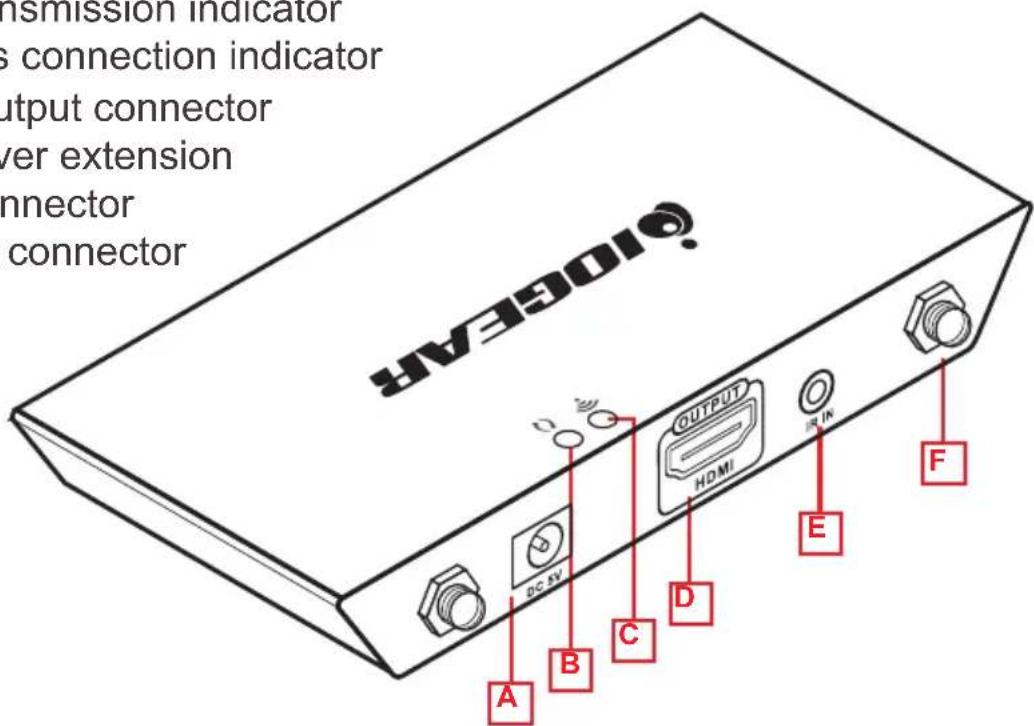
A. Power input
B. Data transmission indicator
C. Wireless connection indicator
D. HDMI output connector
E. IR receiver extension
cable connector
F. Antenna connector
Hardware Installation
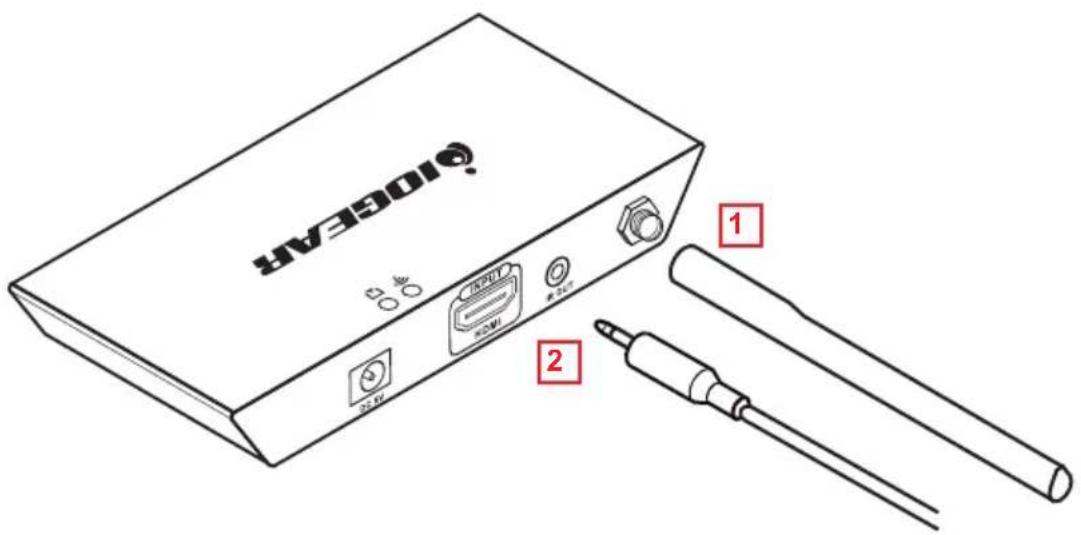
STEP 1
Install the antenna to the transmitter (F)
STEP 2
Connect the IR blaster cable to the connector (D)
STEP 3
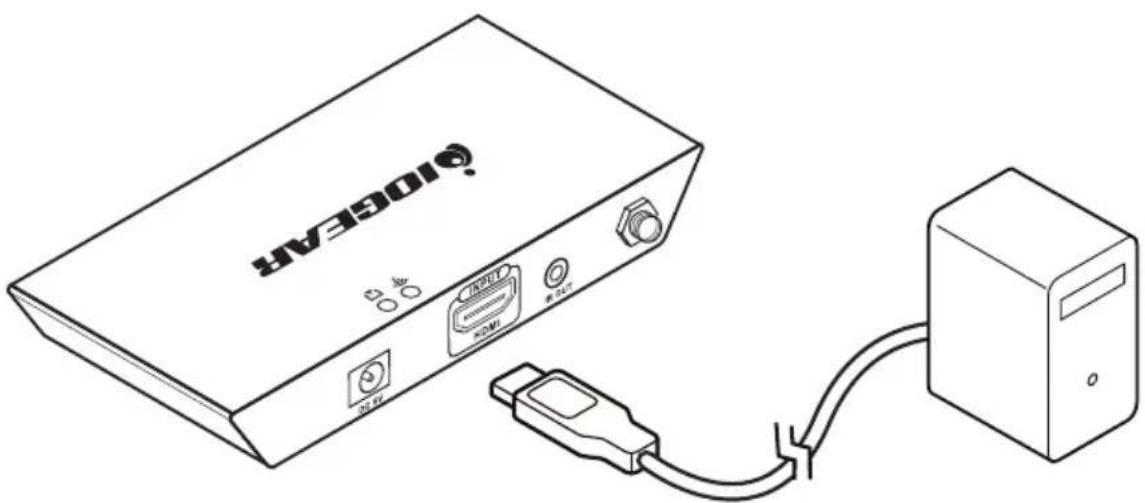
Connect one side of the HDMI cable to the transmitter (D) and the other side to your video source
natural_image
Line drawing of a 106E4K device connected to a server via cable (no text or symbols on main components)STEP 4
Install the antenna to the receiver (F)
STEP 5
Connect the extension cable to the connector (E)
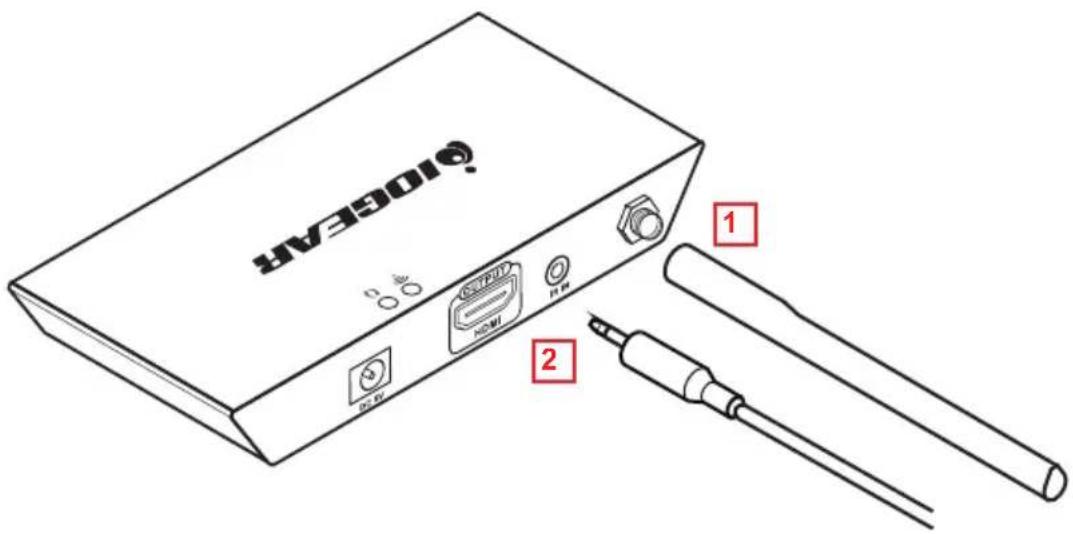
STEP 6
Connect one side of the HDMI cable to the receiver (D) and the other side to your video source
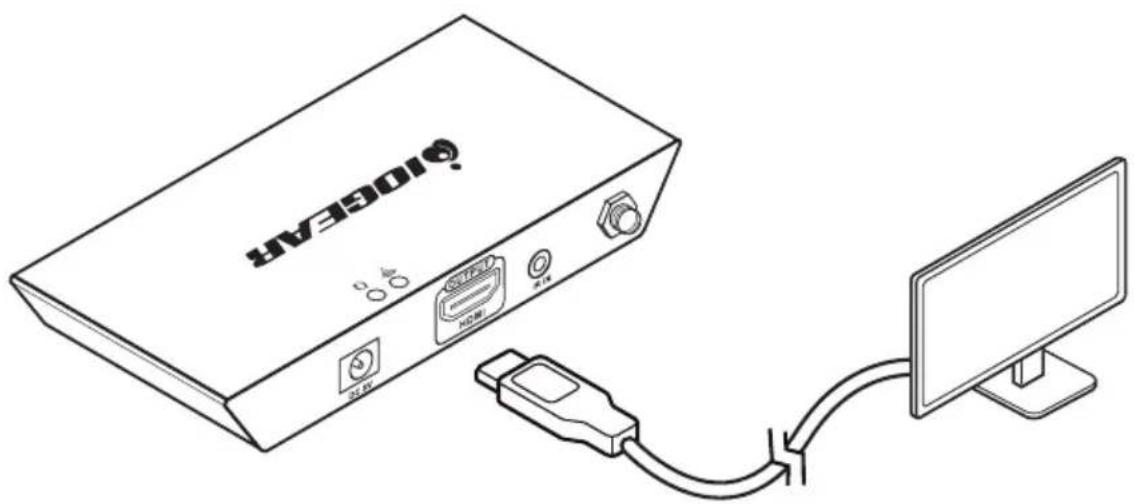
natural_image
Line drawing of a device connected to a monitor, showing ports and cable (no text or symbols)STEP 7
Connect 5VDC/2A power supply to the Transmitter power input port (A), the HDMI signal indicator (B) will light up when connection to the source is established
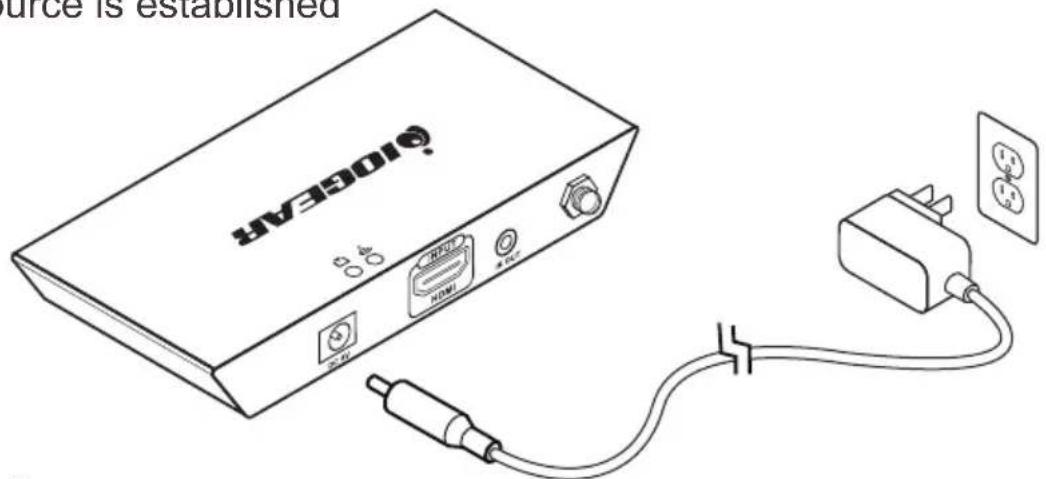
STEP 8
Connect 5VDC/2A power supply to the Receiver power input port (A)
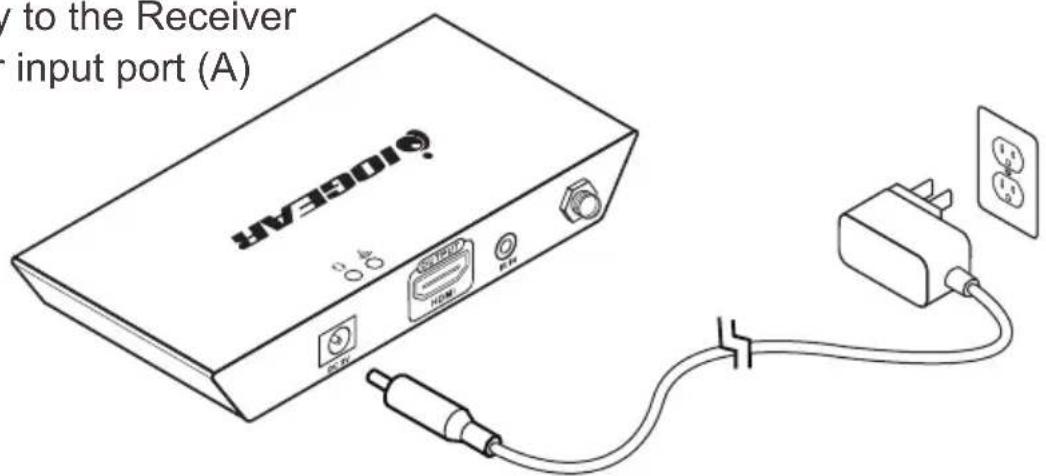
STEP 9 Wireless connection indicator of the transmitter and receiver will light up when the transmitter and receiver connection is established wirelessly
If your video source and your display is on, you should be able to see the content of the source on your display
NOTE: *Distances may vary depending on environment. Solid and non-porous materials such as steel, concrete, brick and glass (varies depending on coating and thickness) may cause shorter viewing distances or loss of signal.
FAQ
Q Transmitter and receiver cannot be connected wirelessly
A 1. Please check if the wireless connection light is on and blinking
2. Restart both transmitter and receiver
3. Reconnect HDMI cables
Q The wireless indicator is on but no signal to the display
A Please check and see if the video source is working correctly by connecting the HDMI cable directly to the display and see if the operation is now normal
Q Video is flickering or not stable
A 1. Change the position of the transmitter and receiver and make sure that they are within the specified operating distance
2. Restart the transmitter and receiver
3. Reconnect the HDMI cables
4. Check for any obstacles that may block the wireless signal from the transmitter to the receiver
Compliance Information
FCC Statement
This equipment has been tested and found to comply with the limits for a Class B digital device, pursuant to Part 15 of the FCC Rules. These limits are designed to provide reasonable protection against harmful interference in a residential setting. This product generates, uses, and can radiate radio frequency energy and, if not installed and used as directed, it may cause harmful interference to radio communications. Although this product complies with the limits for a Class B digital device, there is no guarantee that interference will not occur in a particular installation.
CE Statement
This device has been tested and found to comply with the following European Union directives: Electromagnetic Capability (2004/108/EC), Low Voltage (2006/95/EC) and R&TTED (1999/5/EC).
Limited Warranty
This product carries a 1 Year Limited Warranty. For the terms and conditions of this warranty, please go to http://www.iogear.com/support/warranty
Register online at http://www.iogear.com/register
Important Product Information
Product Model ____
Serial Number ____
Contact
WE'RE HERE TO HELP YOU!
NEED ASSISTANCE SETTING UP THIS PRODUCT?
Make sure you:
- Visit www.iogear.com for more product information
- Visit www.iogear.com/support for live help and product support
IOGEAR
iogear.custhelp.com
support@iogear.com
www.iogear.com
Brand : IOGEAR
Model : GWHDKIT11
Category : AV Extender