
GWSSKIT - AV Extender IOGEAR - Free user manual and instructions
Find the device manual for free GWSSKIT IOGEAR in PDF.


| Product Type | Wireless AV Extender Kit |
| Model | GWSSKIT |
| Brand | IOGEAR |
| Video Resolution | Up to 1080p Full HD |
| Wireless Range | Up to 100 feet (30 meters) line of sight |
| Wireless Technology | 5 GHz RF |
| Video Input/Output | HDMI |
| Audio Support | Stereo audio via HDMI or separate audio jacks |
| Number of Transmitters | 1 |
| Number of Receivers | 1 |
| Power Supply | 5V DC, 2A via USB power adapter (included) |
| Dimensions (Transmitter) | Approx. 3.5 x 2.2 x 0.8 inches |
| Dimensions (Receiver) | Approx. 3.5 x 2.2 x 0.8 inches |
| Weight (each unit) | About 2.5 oz (70 g) |
| Operating Temperature | 32°F to 104°F (0°C to 40°C) |
| Mounting Option | Desktop or wall-mountable with optional bracket |
| Included Accessories | Transmitter, receiver, power adapters, HDMI cables, user manual |
| Warranty | 1 year limited |
Frequently Asked Questions - GWSSKIT IOGEAR
User questions about GWSSKIT IOGEAR
0 question about this device. Answer the ones you know or ask your own.
Ask a new question about this device
Download the instructions for your AV Extender in PDF format for free! Find your manual GWSSKIT - IOGEAR and take your electronic device back in hand. On this page are published all the documents necessary for the use of your device. GWSSKIT by IOGEAR.
USER MANUAL GWSSKIT IOGEAR
Duplicast Wireless Screen Sharing
GWSSKIT
PART NO. Q1442-b
© 2018 IOGEAR® Part No. Q1442-b
IOGEAR, the IOGEAR logo, are trademarks or registered trademarks of IOGEAR. Microsoft and Windows are registered trademarks of Microsoft Corporation. All other brand and product names are trademarks or registered trademarks of their respective holders. IOGEAR makes no warranty of any kind with regards to the information presented in this document. All information furnished here is for informational purposes only and is subject to change without notice. IOGEAR assumes no responsibility for any inaccuracies or errors that may appear in this document.
Table of Contents
Introduction 4
Features 4
Package Contents 5
System Requirements 5
Overview 6
Hardware Installation 7
Android 9
Windows® 10 12
Windows 7 ^® Software Installation 17
Compliance Information 22
Limited Warranty 23
Contact 23
Introduction
IOGEAR's Duplicast Wireless Screen Sharing kit allows you to enjoy all of your personal and online content wirelessly on your big screen HDTV. Using your smartphone, tablet or Windows® based computer, you can sit back and experience your favorite movies, videos, photos, online shows and more in Full HD on your HDTV with great image, clarity and sound.
Note: For a list of known Miracast-certified devices, please visit: http://www.wi-fi.org/discover-wi-fi/wi-fi-certified-miracast
Features
- Wirelessly send your favorite apps, games, videos, photos, music and Internet content from your Smart Phone, Tablet or Laptop to your HDTV, HD Projector or HD Display
- Creates its own dedicated wireless connection for better performance
- Send video and audio wirelessly up to 50ft (15m) – Line of sight
• Full HD 1080p video resolution playback support - Works with Intel ^ WiDi and Miracast ^TM certified devices
• Supports AES, TKIP, WEP, WPA & WPA2 encryptions for secure data transmission - Ideal solution for sharing PC content wirelessly at Home, at the Office and in the Classroom
Package Contents
1 x Duplicast Wireless A/V Receiver
1 x Wireless USB Transmitter
1 x Power Adapter
1 x Micro USB Power Cable
1 x HDMI Cable
1 x Quick Start Guide
1 x Warranty Card
System Requirements
PC (Minimum Requirements)
- Intel Core i5 4^th Gen or AMD Phenom II X4 equivalent or newer
- 6GB or more of system memory (RAM)
• Available USB Port
Operating Systems
- Windows® 7, 8.1 and Windows® 10
Smartphones and Tablets
• Wi-Fi Miracast™ certified
- Android 4.2 or later
- Windows® 10 or later
Display
• HDTV or Projector with HDMI port
Note: This product will not work with Apple IOS or OSX
Overview
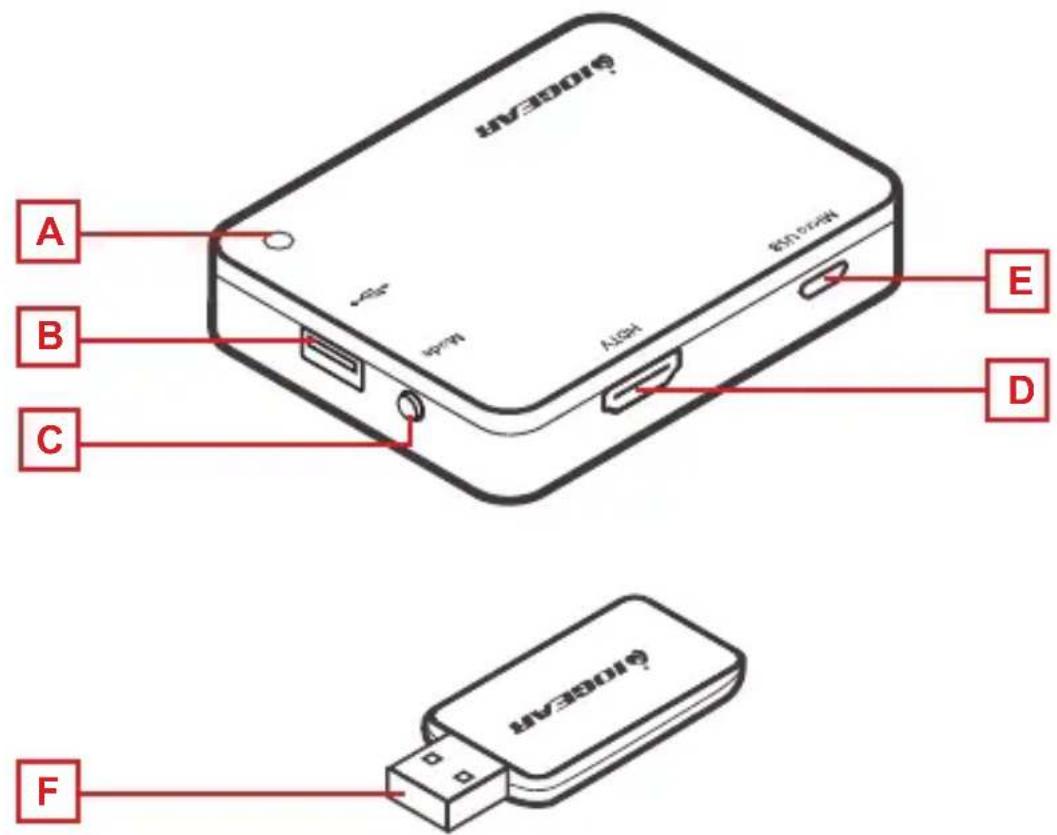
Receiver:
A. Power LED
LED lights solid blue when connected to the power adapter
B. USB Port
This port is reserved for service and future updates
C. Upgrade button
D. HDMI Out
Connect to the display with the HDMI cable
E. USB Micro-B Power Port
Connect the power adapter or laptop USB power to this port to supply power to the device
Wireless USB Transmitter:
F. USB Type-A Connector
Hardware Installation
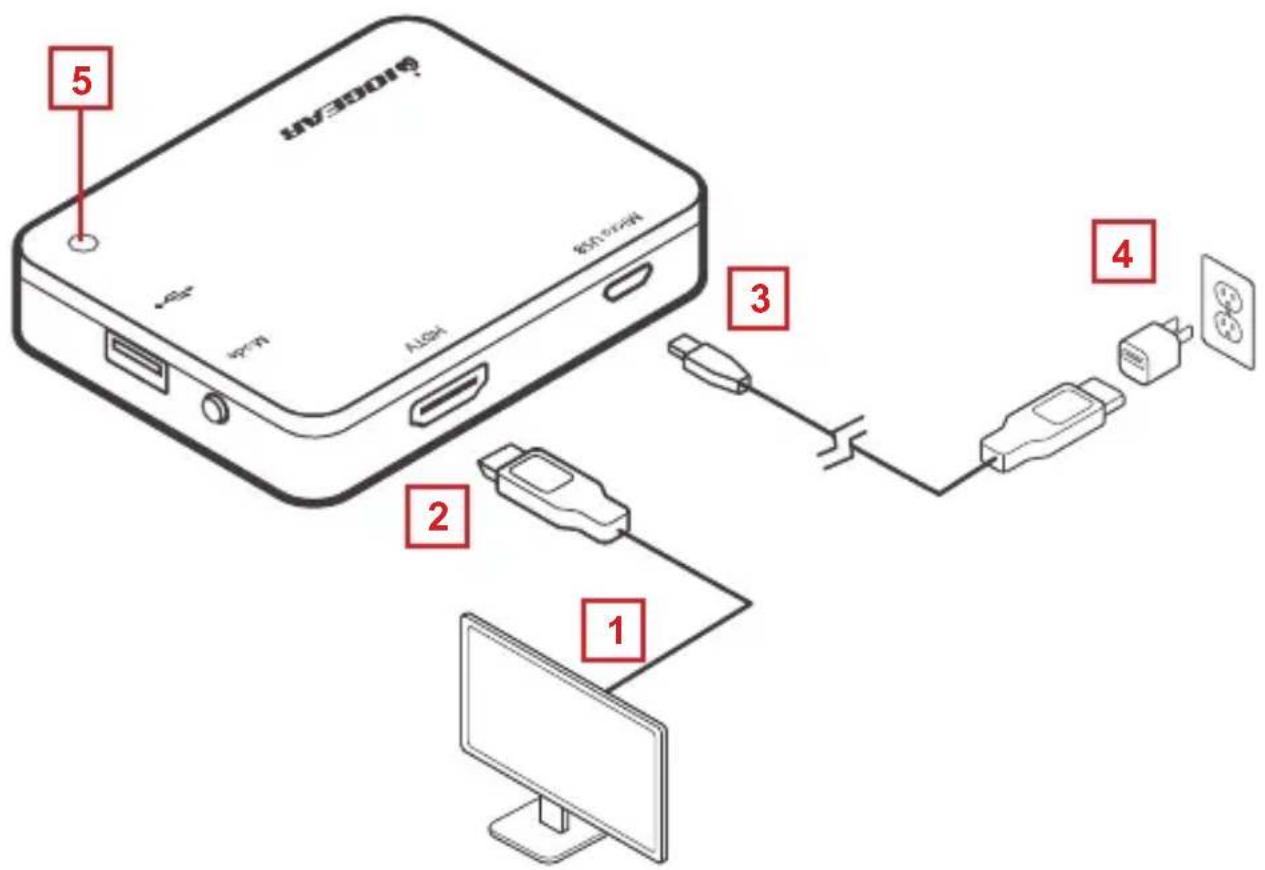
Set up the Duplicast Wireless A/V Receiver
-
Connect one end of the included HDMI Cable into an available HDMI input on your HDTV or HD Projector.
-
Connect the other end of the HDMI cable to the HDMI port on the Duplicast Wireless A/V Receiver.
-
Plug the Micro USB end of the Power Cable into the USB-Micro B power port on the Duplicast Wireless A/V Receiver.
-
Plug the other end of the USB Power Cable into the USB Power Adapter included in the package. Then plug the USB Power Adapter into an available power outlet.
-
The Power LED will light solid blue.
If you have Windows 7 ^® or 8, please skip to page 18
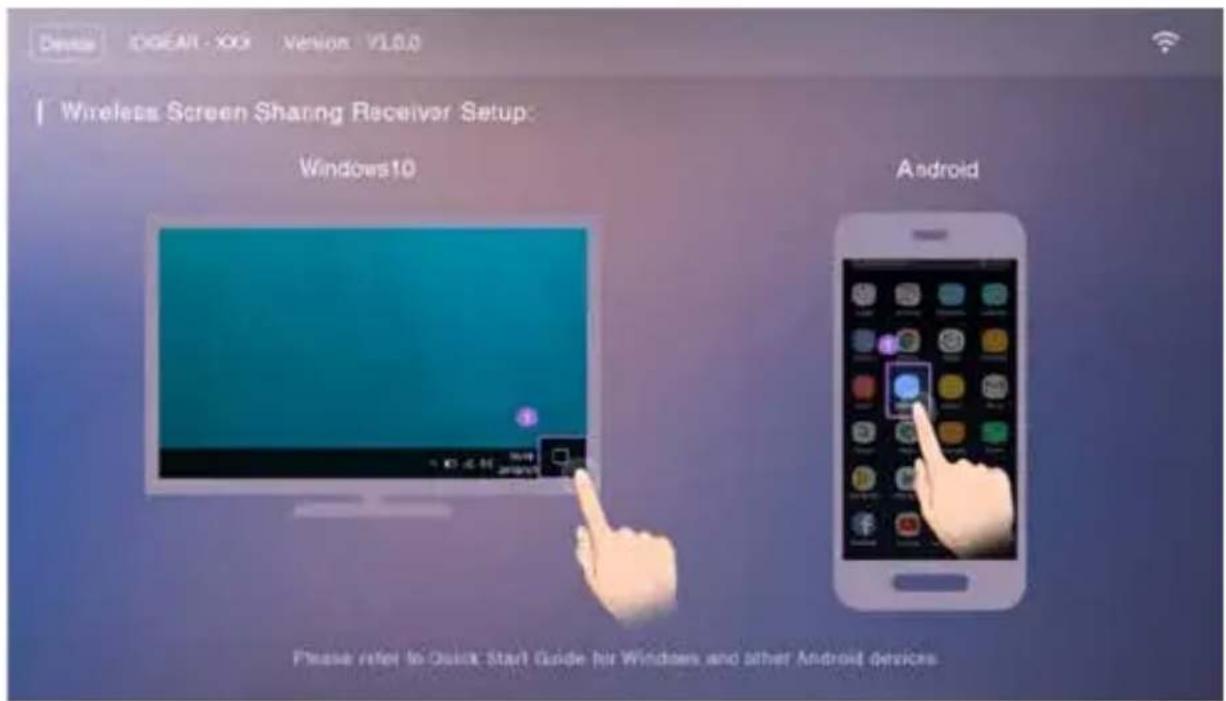
- Turn on your TV or projector, and make sure you select the correct video source. The IOGEAR Duplicast flash screen will come up on the display and on the top left of the screen will be the device name IOGEAR-xxx.
Android
Determine if you're connecting via Wi-Fi Direct or connecting via USB Wi-Fi adapter
After the receiver is powered on, choose from one of two ways to cast the content from your device to the big screen TV: Wi-Fi Direct or via the USB Wi-Fi adapter. This is determined by the mobile device you are using (i.e. smartphone, tablet, laptop, PC, etc.). If you're using Windows® 7, then you would need the USB WIFI adapter.
Android devices
- On your Home screen. Using two fingers, swipe down from the top of the screen and "Options" menu will appear. From the Options menu choose "Smart View" (some older version may label it "Screen Mirroring")
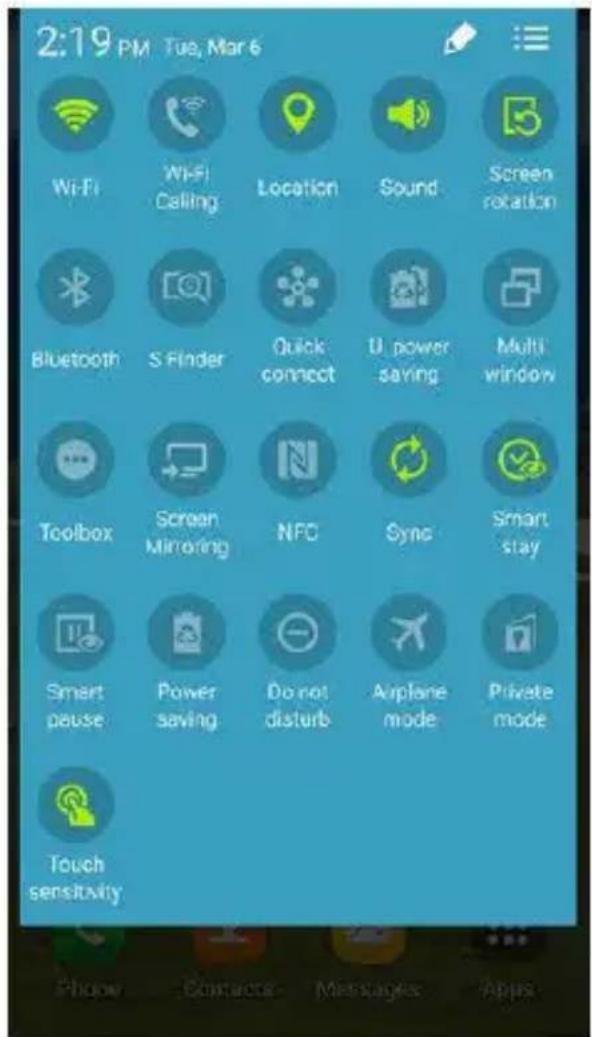
- Your device will start searching for the Duplicast Wireless A/V Receiver. Once the receiver appears, tap on it to connect.
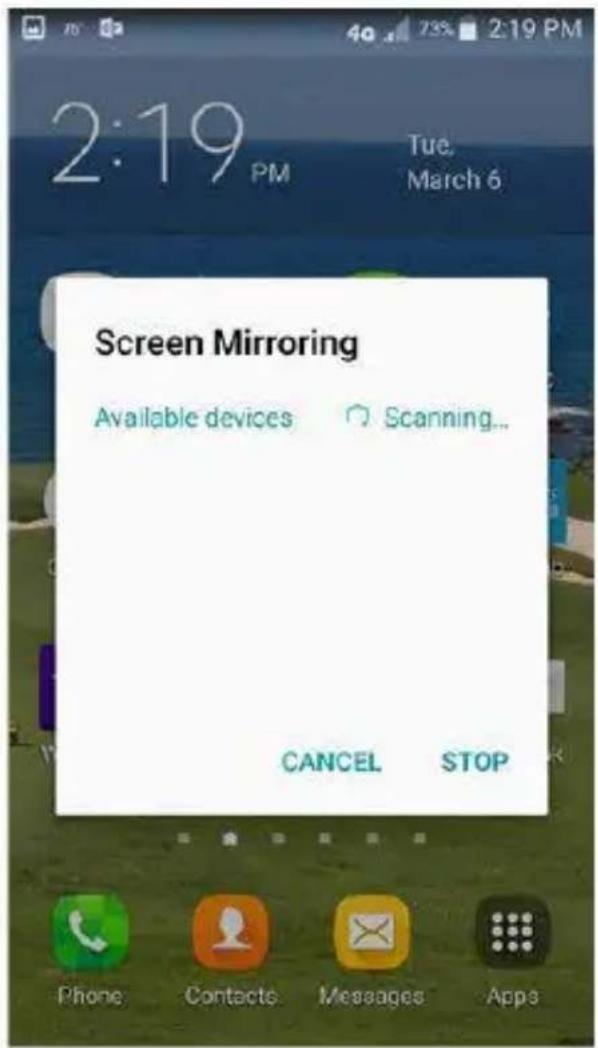
- After you initiate the connection, wait a few seconds for your device to establish the connection with the wireless receiver.
When a black screen displays on both the TV and your device, the connection has been established. The technical term for this is “sync”, and the two devices have now synced with each other.
After a connection is established you should be able to see a mirror image of your device on the big screen TV; whatever you do on your mobile device will be duplicated on the big screen from this point on.
To disconnect from the TV, you can either turn off your device or disconnect from the Display options screen.
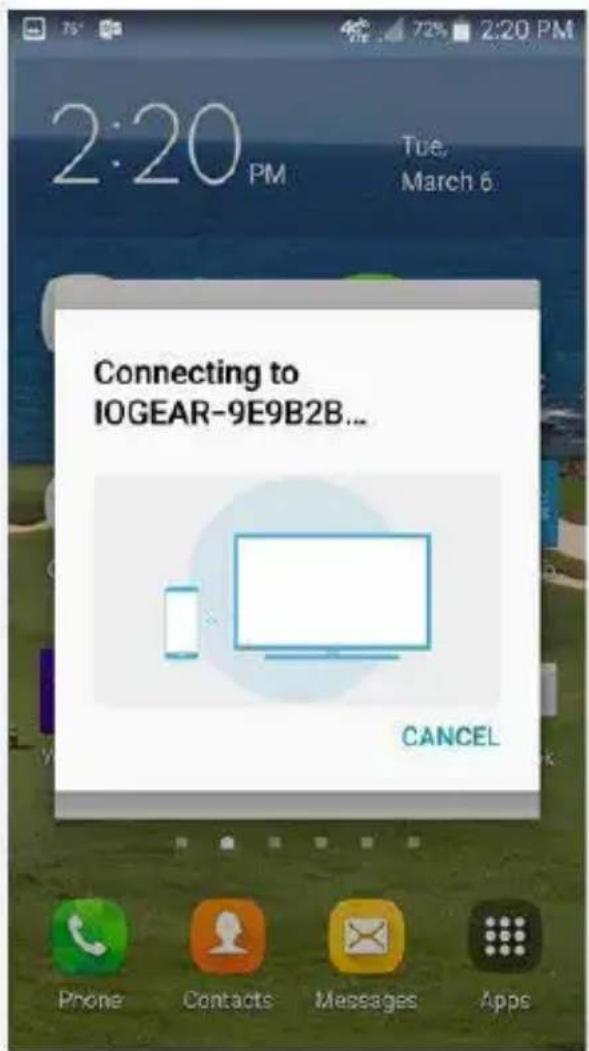
Windows® 10
If you have a computer with Windows® 10 you can click on Windows key + p or go to “Setting” and choose “Display”. If you see an option for “Connect to a wireless display”, your computer is Wi-Fi Direct ready.
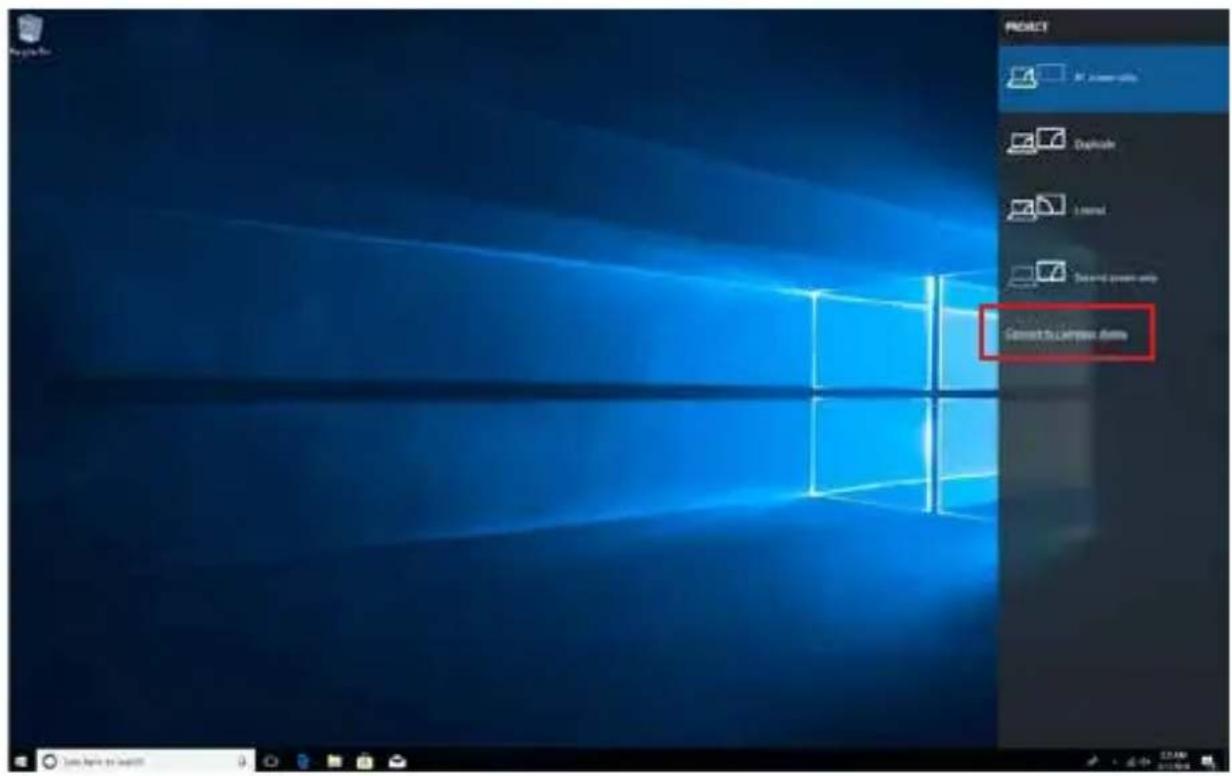
If you don't see any of the aforementioned options, then you need to use the wireless USB adapter to establish a connection. (Go to page 18 to see detailed steps). If you see the above screen, click on "Connect to a wireless display". Windows® will now search for the GWSSKIT, the name will be IOGEAR-xxxx.
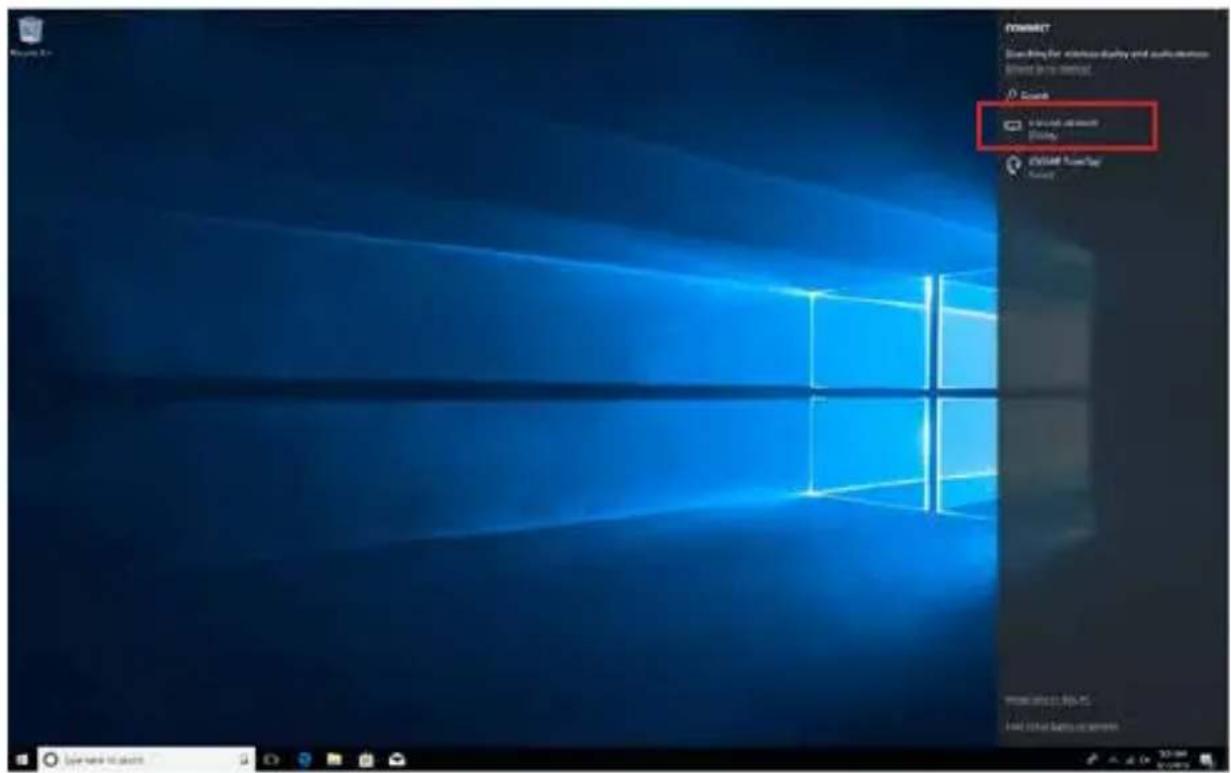
Click on the name IOGEAR-xxxx and connection will initiate.
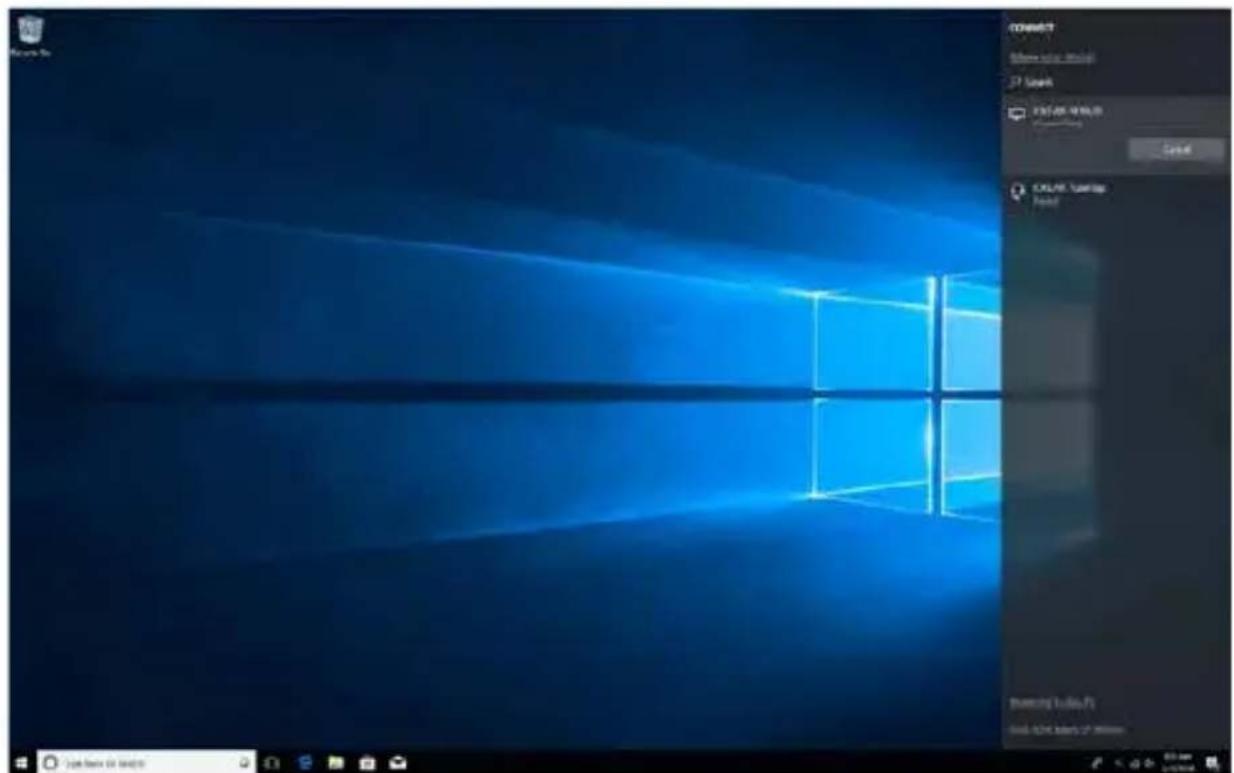
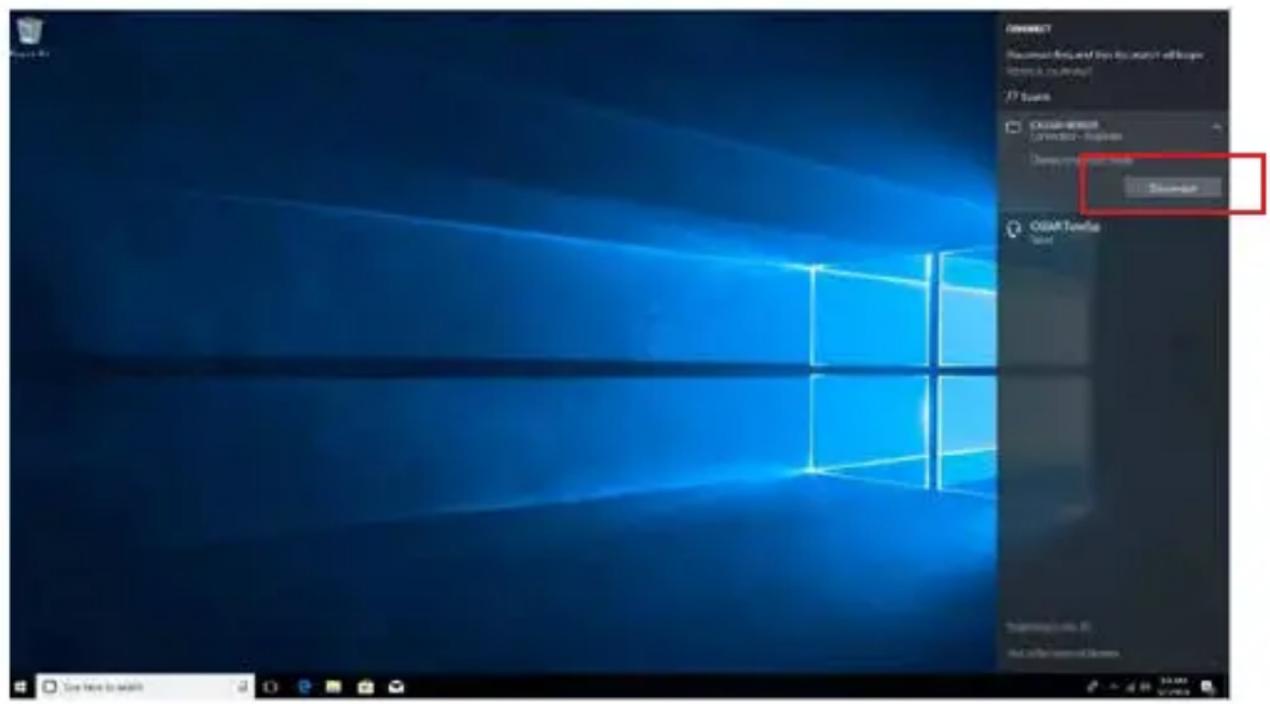
Once you have established connection Windows® will cast your content to the big screen. This screen will indicate that the connection is now established and you can click on “Disconnect” when you no longer want to cast to your TV.
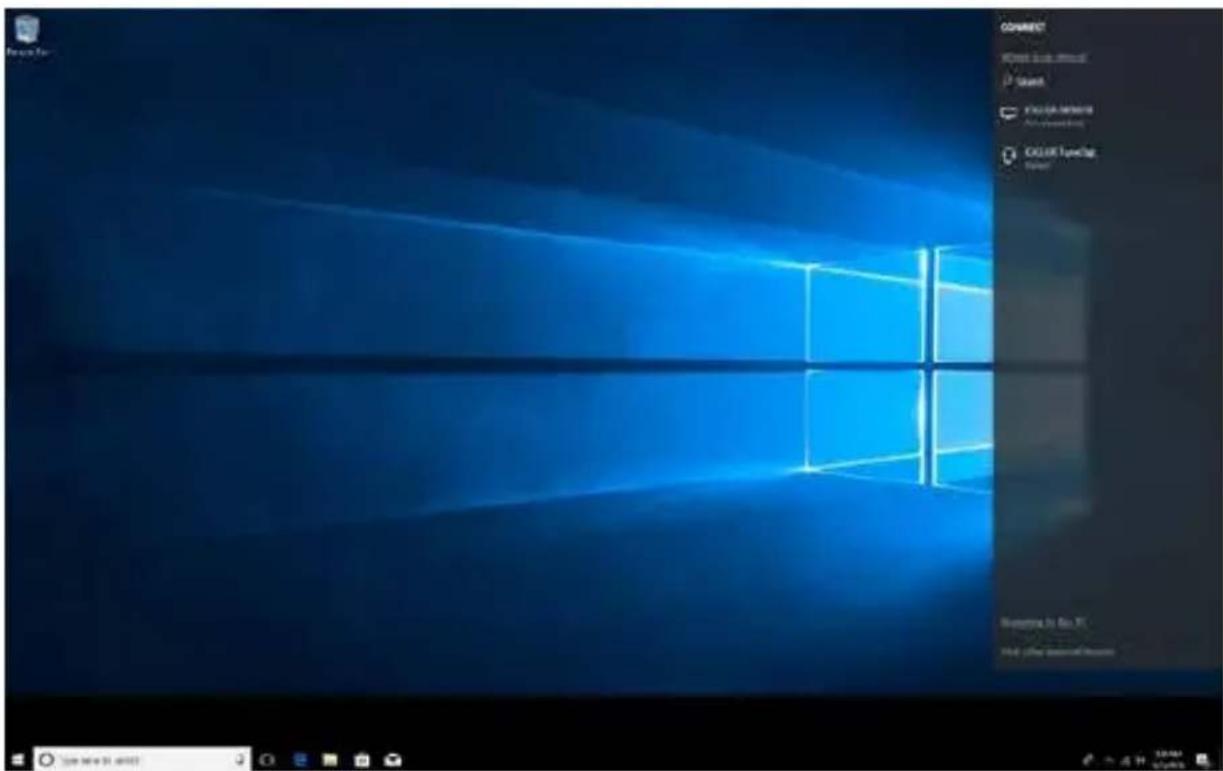
To disconnect, simply click on “Disconnect and Windows® will terminate the connection.
Connect with the included software
If your device does not support Wi-Fi-Direct, then use the included software from the installation CD to create its own dedicated Wi-Fi connection to send the video from your small screen to the big screen. Please check the system requirements first to make sure your device meets the minimum requirements.
Windows 7 ^® Software Installation
Windows® 7, 8
- Close all other applications
- Download IOGEAR software and driver from our website at: https://www.iogear.com/support/dm/driver/GWSSKIT.
- Open File Explorer from the PC taskbar.

natural_image
Four computer and desktop icons: Windows, macOS, Expedia, and a printer (no text or symbols)- Click on Downloads and the file you just downloaded
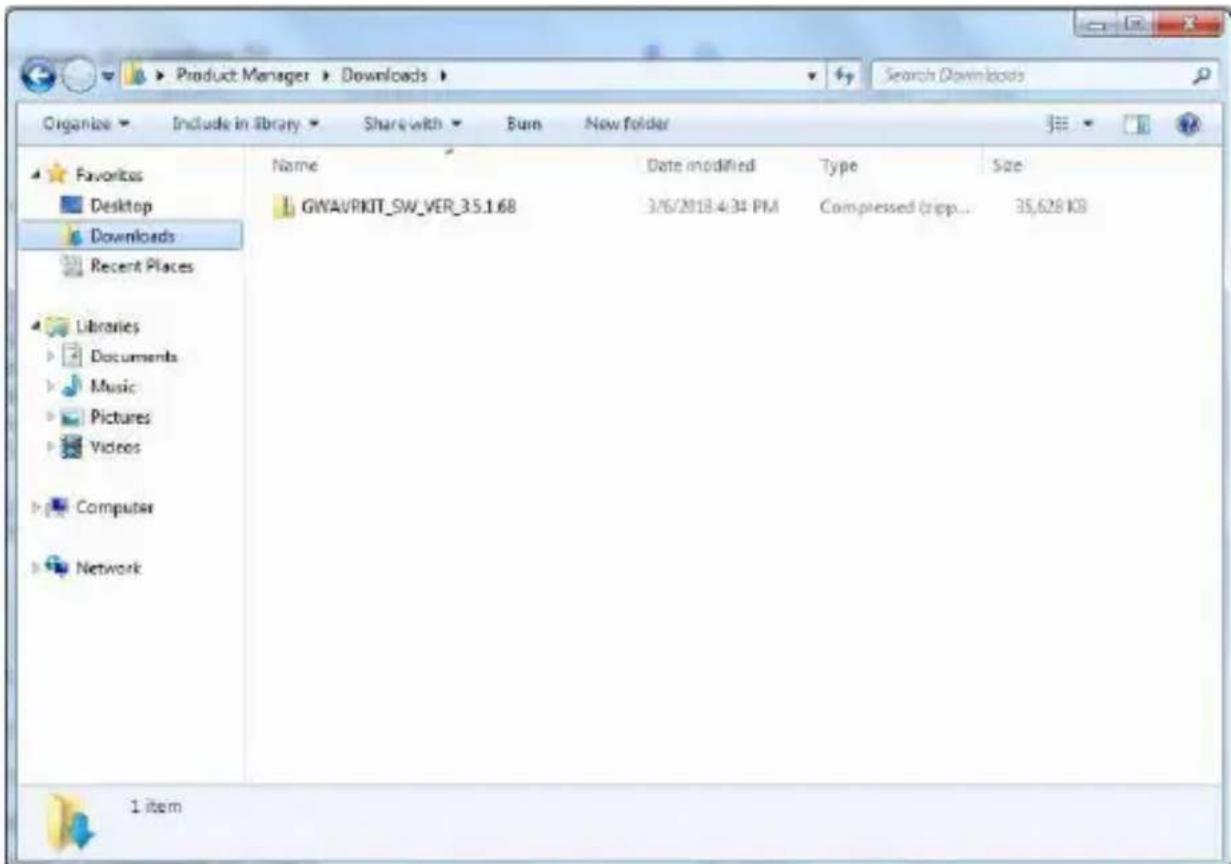
- Right click on the file and extract the zipped file.
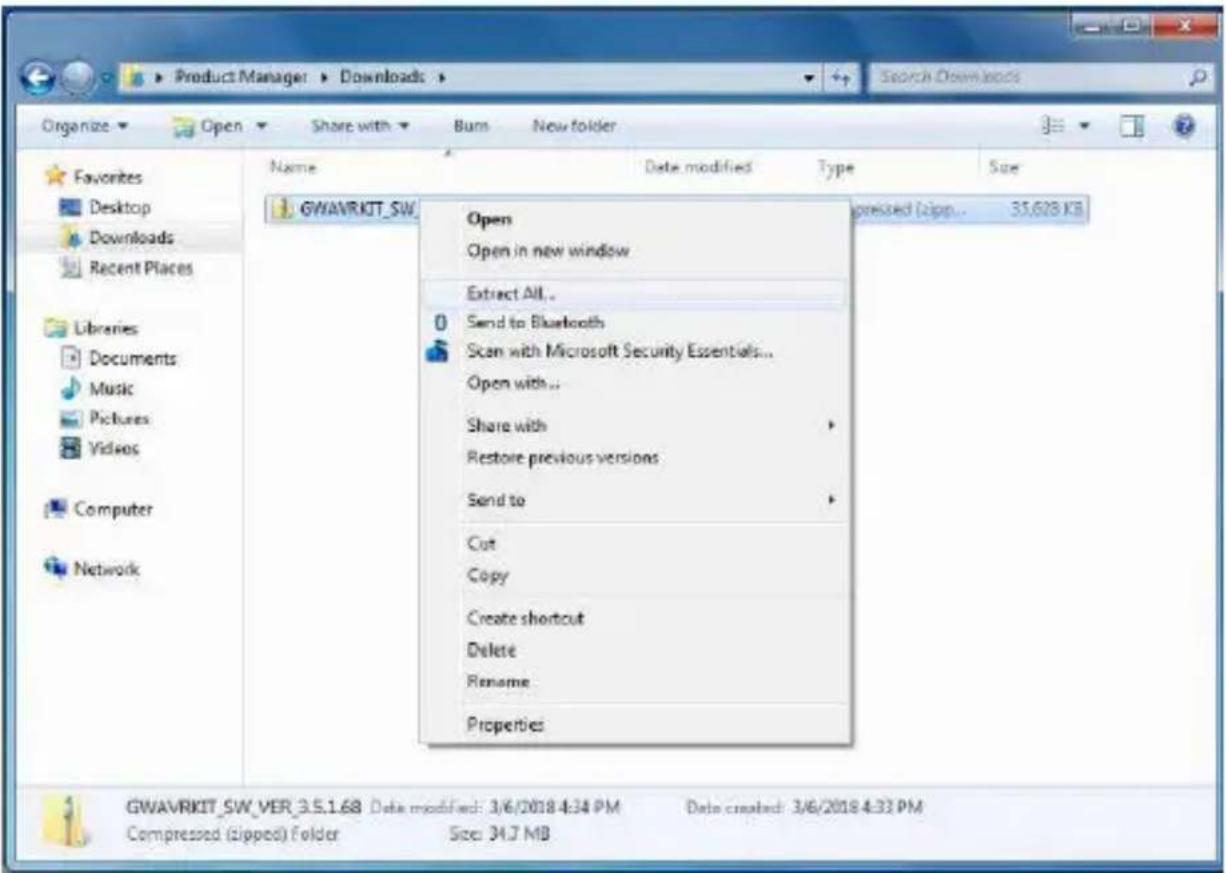
- Windows ^® will now start to extract all the files
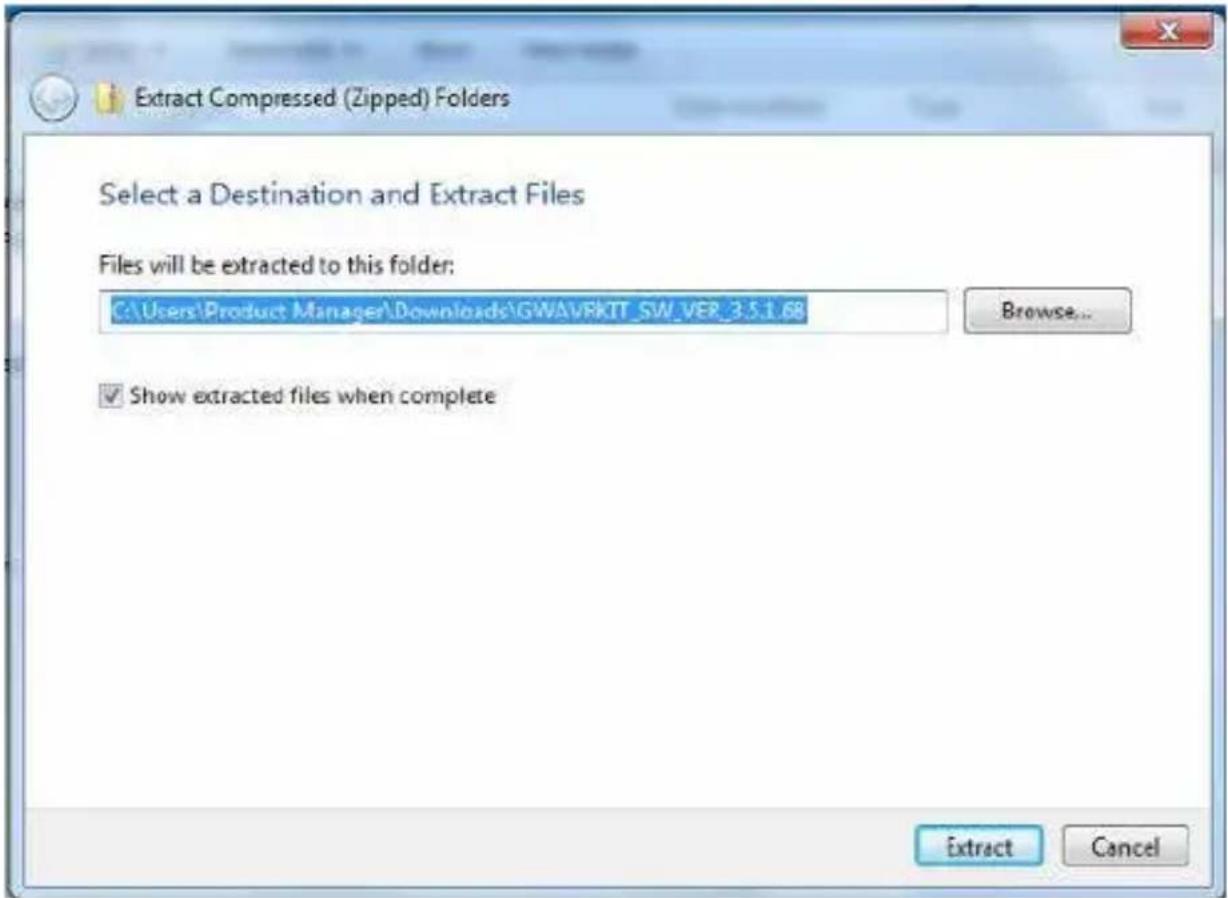
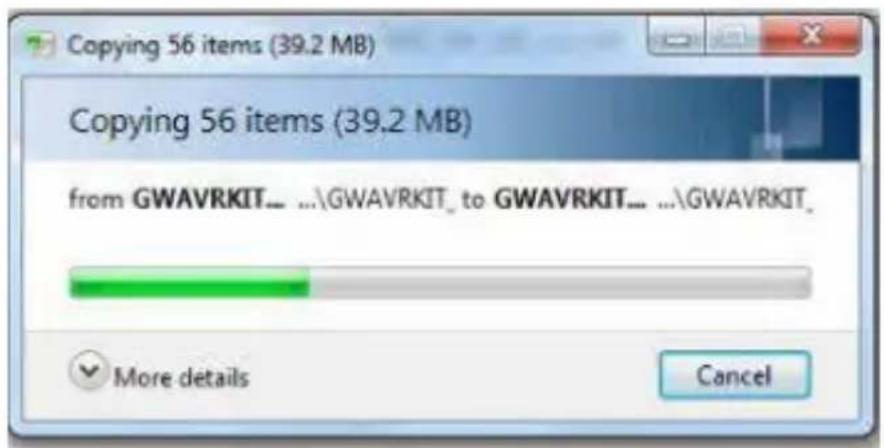
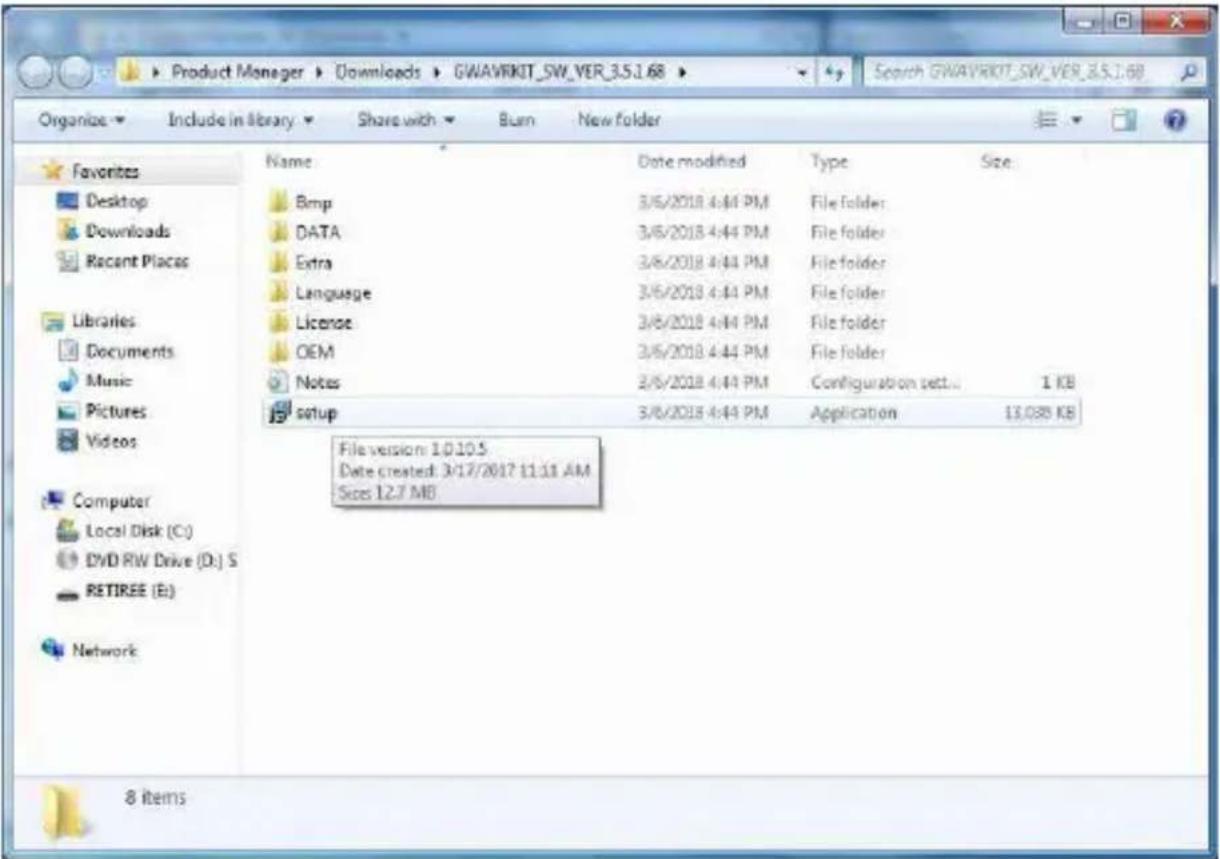
- These files will be copied to the same folder location as the zipped file that was previously downloaded.
8. Click on "setup"
9. Click on "Run"
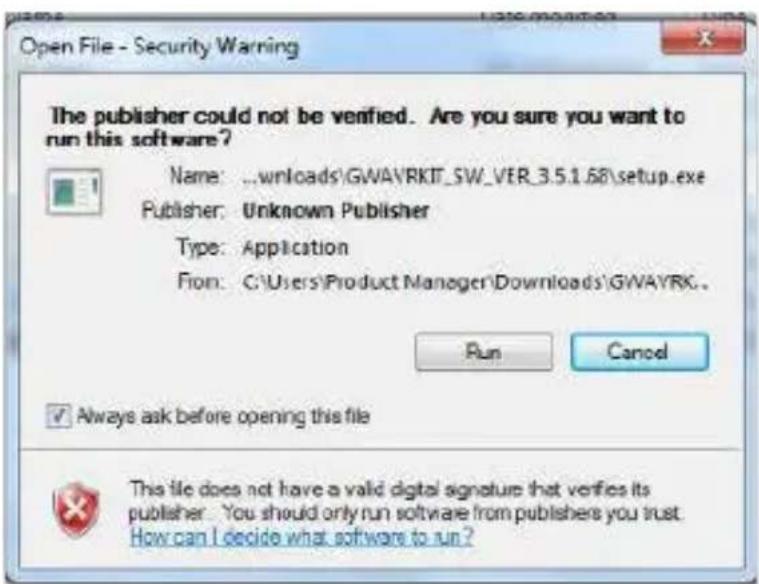
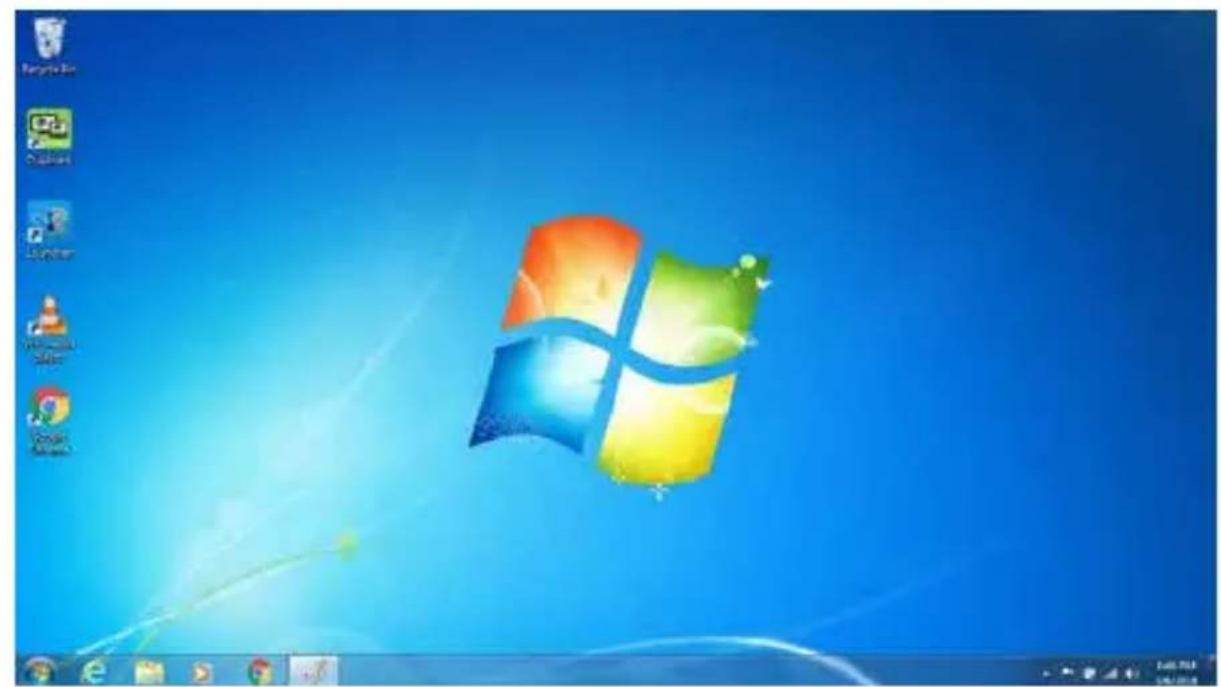
- When the installation is finished, plug in the transmitter to an available USB port on your Windows ^® 7 laptop or desktop, the driver will automatically install. Once that is finished, go to your Desktop and you will see a “Duplicast” icon, click on it to launch the application.
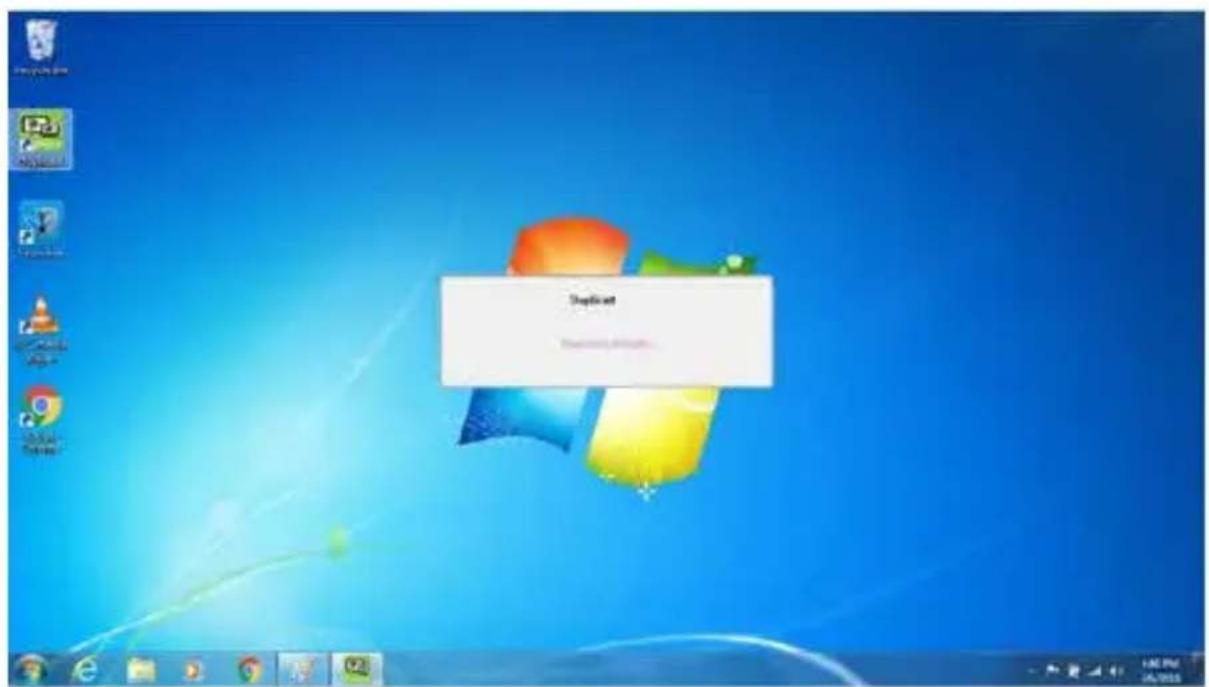
Duplicast will now search for the Duplicast devices connected, once found, click on the device and your screen will now be casted onto your TV.
Compliance Information
WARNING: This product may expose you to chemicals including styrene which is known to the State of California to cause cancer, birth defects or other reproductive harm. For more information, go to www.P65Warnings.ca.gov
FCC Statement
This equipment has been tested and found to comply with the limits for a Class B digital device, pursuant to Part 15 of the FCC Rules. These limits are designed to provide reasonable protection against harmful interference in a residential setting. This product generates, uses, and can radiate radio frequency energy and, if not installed and used as directed, it may cause harmful interference to radio communications. Although this product complies with the limits for a Class B digital device, there is no guarantee that interference will not occur in a particular installation.
Limited Warranty
This product carries a 1 Year Limited Warranty. For the terms and conditions of this warranty, please go to http://www.iogear.com/support/warranty
Register online at http://www.iogear.com/register
Important Product Information
Product Model ____
Serial Number ____
Contact
WE'RE HERE TO HELP YOU! NEED ASSISTANCE SETTING UP THIS PRODUCT?
Make sure you:
- Visit www.iogear.com for more product information
- Visit www.iogear.com/support for live help and product support
www.iogear.com | iogear.custhelp.com | support@iogear.com

- Duplicast Wireless Screen Sharing
- © 2018 IOGEAR® Part No. Q1442-b
- Table of Contents
- Introduction
- Features
- Package Contents
- System Requirements
- PC (Minimum Requirements)
- Operating Systems
- Smartphones and Tablets
- Display
- Overview
- Receiver:
- Wireless USB Transmitter:
- Hardware Installation
- Set up the Duplicast Wireless A/V Receiver
- If you have Windows 7 ® or 8, please skip to page 18
- Android
- Determine if you're connecting via Wi-Fi Direct or connecting via USB Wi-Fi adapter
- Android devices
- Windows® 10
- Connect with the included software
- Windows 7 ® Software Installation
- Windows® 7, 8
- Click on "setup"
- Click on "Run"
- Compliance Information
- FCC Statement
- Limited Warranty
- Contact
- WE'RE HERE TO HELP YOU! NEED ASSISTANCE SETTING UP THIS PRODUCT?
Brand : IOGEAR
Model : GWSSKIT
Category : AV Extender