SmartCode 912 - Lock Kwikset - Free user manual and instructions
Find the device manual for free SmartCode 912 Kwikset in PDF.


| Product Type | Electronic Deadbolt Lock |
| Model | SmartCode 912 |
| Brand | Kwikset |
| Connectivity | Z-Wave, Zigbee (smart home compatible) |
| Power Source | 4 AA alkaline batteries (included) |
| Battery Life | Over 1 year (based on 10 operations/day) |
| Keypad Type | Touchscreen with numerical keys |
| Number of User Codes | Up to 30 (typical for SmartCode series) |
| Master Code | Optional, 4-8 digits, for managing user codes |
| Lock Type | Deadbolt |
| Backset | Adjustable: 2-3/8" or 2-3/4" |
| Door Thickness Range | 1-3/8" to 1-3/4" |
| Weight | Approx. 3.5 lbs (complete assembly) |
| Dimensions (interior) | Approx. 5.5" x 3" x 2.5" |
| Material | Zinc alloy, steel |
| Security Features | Keypad lockout after 3 wrong attempts, anti-tamper alarm |
| Maintenance | Replace batteries when low; check door alignment for smooth operation |
| Repairability | Replaceable battery pack, contact support for other parts |
| Warranty | Limited lifetime warranty (mechanical), 1 year electronics |
| Compliance | ANSI/BHMA Grade 2 (typical) |
Frequently Asked Questions - SmartCode 912 Kwikset
User questions about SmartCode 912 Kwikset
0 question about this device. Answer the ones you know or ask your own.
Ask a new question about this device
Download the instructions for your Lock in PDF format for free! Find your manual SmartCode 912 - Kwikset and take your electronic device back in hand. On this page are published all the documents necessary for the use of your device. SmartCode 912 by Kwikset.
USER MANUAL SmartCode 912 Kwikset
Programming and Troubleshooting Guide
1 Mastercode
2
2 Troubleshooting: Locked Turnbutton 6
3 Troubleshooting: Keypad 7
4 Troubleshooting: Smart Home Systems 8
5 Troubleshooting: Battery 10
6 Battery FAQ 11
1 Mastercode
A About the Mastercode
Using a Mastercode is an optional, added-security measure. It is not enabled by default. A Mastercode is used to add and delete user codes, but it cannot unlock the door (unless the same code is programmed as a user code, though this is not recommended). The Mastercode must be 4-8 digits.
B Enabling and Setting the Mastercode
Programming timeout: If no button is pressed for fi ve seconds, the system will time out and you will need to restart the procedure.
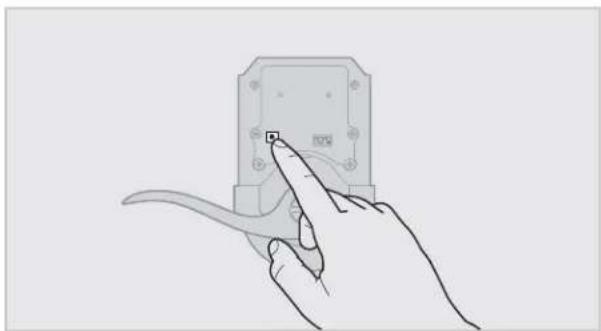
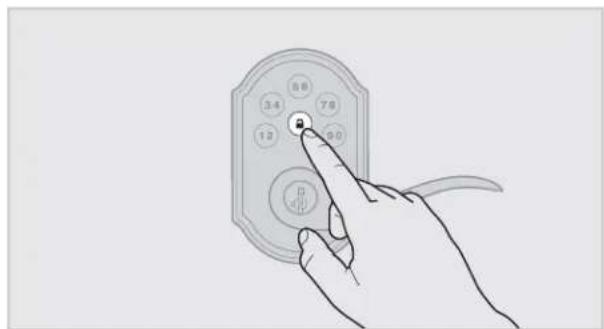
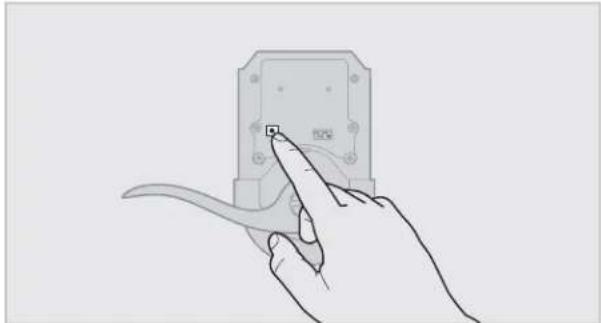
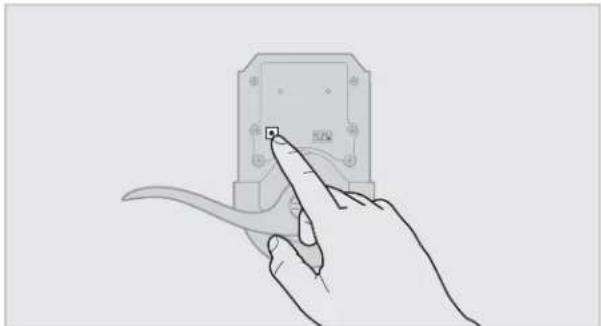
- Keep door open. Press and HOLD the Program button until the keypad fl ashes green (about 5 seconds).
natural_image
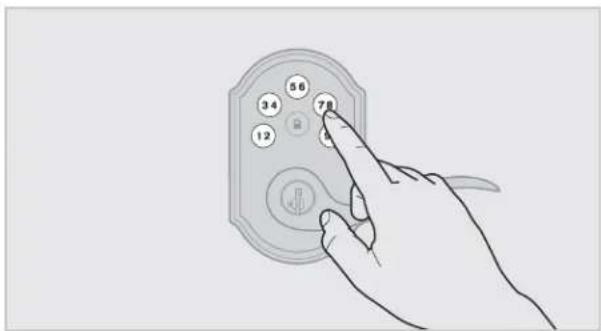
Line drawing of a hand holding a small electronic device with a scroll wheel (no text or symbols)- Enter new Mastercode.
- Press Lock button once.
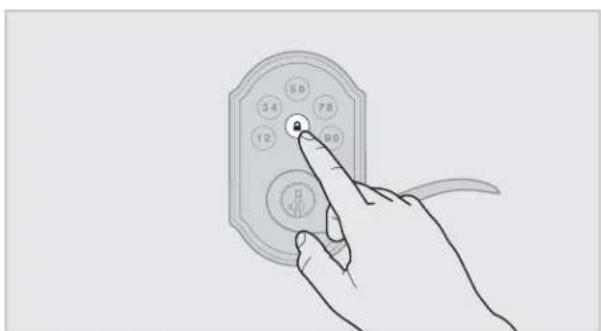
- Re-enter Mastercode.
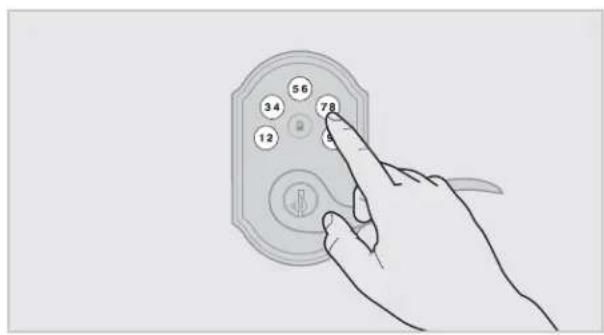
- Press Lock button once.
natural_image
Line drawing of a hand pressing a button on an electronic device (no text or symbols visible)If programming is successful, the keypad will flash green once with one beep.
If programming is unsuccessful, the keypad will flash red three times with three beeps. Make sure the Mastercode has not already been programmed. Attempt the procedure again, making sure to enter the same new Mastercode in step 2 and 4.
- Make sure switch #3 is on, and press the Program button once. If you hear three beeps and see the keypad flash green three times, the Mastercode is enabled.
Note: The lock will time out after five seconds.

Adding User Codes with the Mastercode Enabled
The procedure for adding user codes is different when the Mastercode is enabled. For instructions on how to add user codes when the Mastercode is disabled, see the Installation and User Guide that came with your lock.
- Keep door open. Press the Program button once. The keypad will flash green and you will hear three beeps.
natural_image
Hand holding a small electronic device with a scroll wheel, no visible text or symbols- Enter Mastercode.
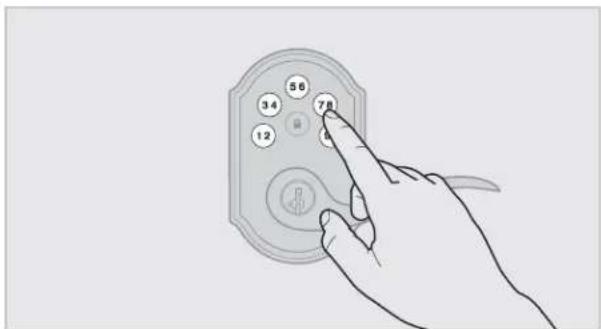
- Press Lock button once.
natural_image
Line drawing of a hand pressing a button on a device (no text or symbols visible)- Press the Program button the number of times that corresponds to the user code position being programmed.
Example: If programming the third code, press the button three times.
natural_image
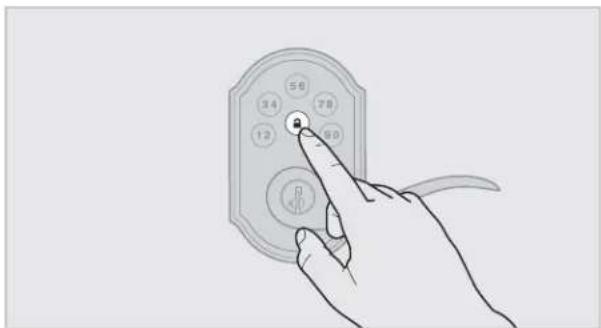
Line drawing of a hand holding a small electronic device with a scroll wheel (no text or symbols)- Enter new user code.
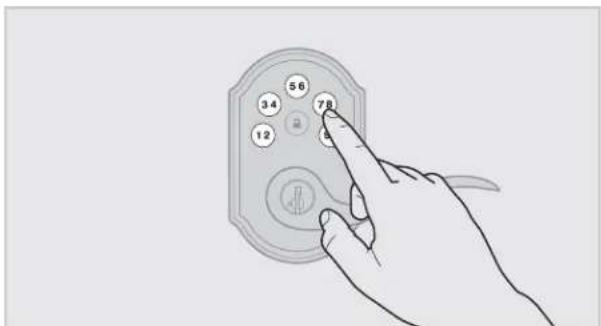
- Press Lock button once.
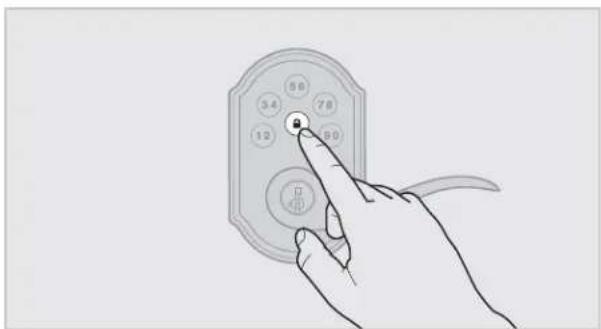
natural_image
Hand holding a handheld device with circular buttons and a pointer (no text or symbols visible)Procedure continued on next page
If programming is successful, the keypad will flash green once with one beep.
If programming is unsuccessful, the keypad will flash red three times with three beeps. Make sure the user code is not a duplicate and that it is between 4 and 8 digits during your next attempt. Make sure to enter a valid Mastercode in step 2.
- While the door is open and locked, test the user code to make sure it unlocks the door.
D Disabling and Deleting the Mastercode
-
Keep door open. Press and HOLD the Program button until the keypad fl ashes green (about 5 seconds).
-
Press Lock button once.
-
Press Lock button once.
-
Re-enter Mastercode.
-
Enter Mastercode.
-
Press Lock button once.
If programming is successful, the keypad will flash green once with one beep.
If programming is unsuccessful, the keypad will fl ash red three times with three beeps. Make sure the Mastercode has been enabled before trying to disable it. Attempt the procedure again, making sure to enter the same Mastercode in steps 3 and 5.
- Make sure switch #3 is on, and press the Program button once. If you don't immediately hear three beeps and see the keypad fl ash green three times, the Mastercode is disabled.
Note: The lock will time out after five seconds.
2 Troubleshooting: Locked Turnbutton
62813/01
A The turnbutton cannot rotate.
B The lock beeps, the keypad fl ashes red, and the door cannot lock or unlock.
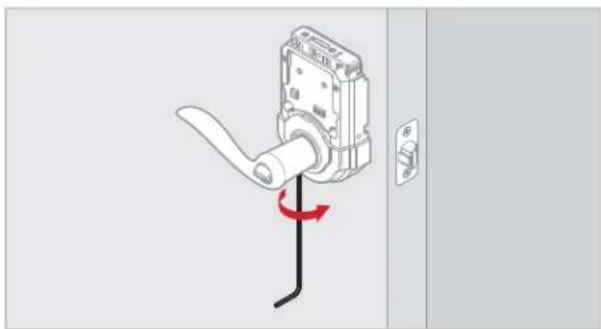
The set screw in the lever was not fully tightened.
Fully tighten the pre-installed set screw at the bottom of the interior lever.
natural_image
Diagram of a door handle with a lever and curved cable, showing a red rotation arrow (no text or symbols)3 Troubleshooting: Keypad
A The keypad is unresponsive.
Keypad error test
Install a fresh set of batteries and turn switch #3 to the ON position. Test each button on the keypad (one at a time) and listen for a beep on each button press. If beeping is not heard on all buttons, contact Technical Support for further troubleshooting.
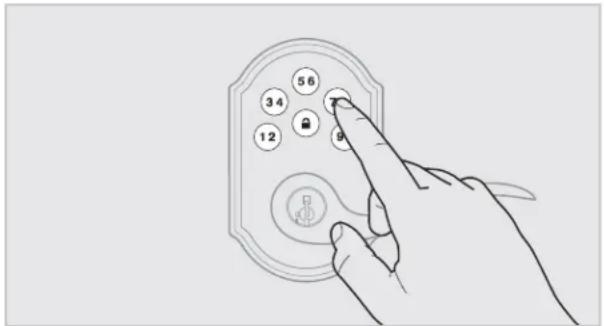
Keypad lockout
If three incorrect codes were entered within one minute, the keypad will lock for 60 seconds.
B The Lock button does not lock the door.
No user codes are programmed.
If there are no codes in the lock, the lock button will not lock the door. This is indicated by the keypad flashing red three times with three beeps. Program at least one user code and test the Lock button again.
The battery is too low to lock the door.
This is indicated by the keypad flashing red three times with three beeps. Remove the batteries and replace with a fresh set.
The set screw in the lever was not fully tightened.
Fully tighten the pre-installed set screw at the bottom of the interior lever.
4 Troubleshooting: Smart Home Systems

The lock fails to pair with a smart home system.
The lock was not removed completely from another network before being paired with the new network.
Follow your smart home system's instructions to remove (exclude/unpair) the device from any other network. Then, attempt to pair (add/include) the lock again.
The lock is not close enough to the controller.
Some Z-wave systems require that the lock be within 12" of the controller during the pairing process. If the lock has already been installed on the door, remove the interior assembly from the mounting plate. Make sure the batteries are installed, and bring the interior assembly next to the controller. Follow your smart home system's instructions to begin pairing at the controller. The lock may need to remain stationary for 60 seconds during pairing.
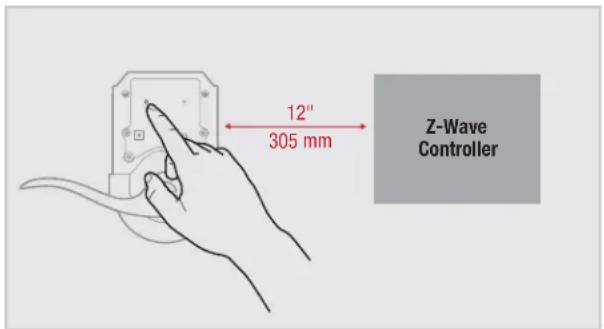
Note: Some locks have an anti-tamper alarm that will sound if the interior is disconnect from the exterior. If this alarm is heard, perform the following:
a. Remove the battery pack from the interior.
b. Remove the exterior assembly from the door.
c. Connect the cable from the exterior assembly to the interior assembly.
d. Reinstall the battery pack.
e. Perform the pairing process while the interior and exterior are connected.
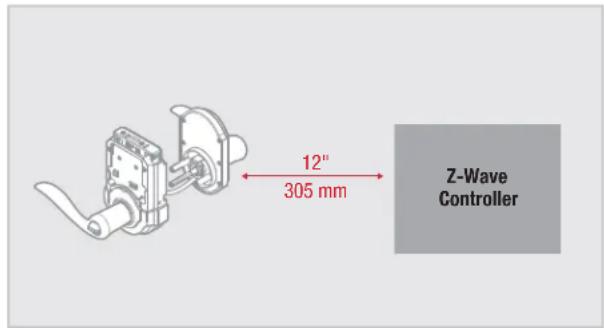
B I can see the lock in my controller, but I can't control it from the controller.
The system needs a repeater or router to reach the lock.
Adding repeaters to your system may help communication between your lock and the controller, especially if they are far away from each other.
The network configuration changed.
If any repeaters or routers in the system were moved since adding the lock to the system, perform the "rediscover" process in your system's user interface.
The lock is in sleep mode.
If the lock has been unable to communicate with the system after multiple attempts, it will go into sleep mode. Lock and unlock the door
with a key so that the lock status transmits to the system. If it still does not communicate, remove (exclude/unpair) the lock from your system. Then, pair (add/include) the lock with your system again. If the problem persists, add a repeater or router between the controller and lock if none presently exist in the system.
The light module or switch is not beaming capable.
Z-Wave locks: Ensure the light module or switch located between the controller and lock is beaming capable.
ZigBee locks: Ensure the router is reachable by both controller and lock.
5 Troubleshooting: Battery
A The batteries drain within one day.
The lock must be replaced. Contact Technical Support.
B The batteries drain within one week.
Keypad error.
See "Keypad error test" on page 7.
© The batteries drain within a few weeks.
The smart home system's user interface falsely reports a low battery.
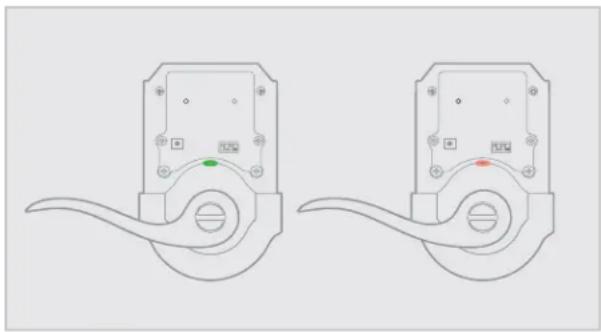
If you receive an alert from your smart home system indicating that the battery is low, confi rm this is true at the lock. Turn on switch #1 so that the status LED fl ashes every six seconds. If the LEDs turn amber or green, followed by a red fl ash, the battery is low. If the red fl ash is not seen, the battery is not low. This is an error on the smart home system side that will often be fi xed when the lock is manually locked or unlocked.
natural_image
Two identical electrical contactor diagrams with no text or symbols, shown in side and top views (no readable labels or symbols)The Wireless Card LEDs are staying on.
Remove the battery pack, press and hold the program button for five seconds. Replace the battery pack. If the Wireless Card LEDs continue to stay on, contact Technical Support.
The smart home system controller's communication with the lock is draining the battery.
Remove the lock from your system. Put a new set of batteries in the lock. Operate the lock in stand-alone mode for a week. If the batteries drain within the week, the problem resides in the lock. If the batteries do not drain, the problem may be the smart home controller. Call Technical Support.
The smart home system controller's ping frequency is too high.
Decrease the ping frequency from the controller to the lock to the lowest possible setting.
6
Battery FAQ
How long will the lock operate on a set of batteries?
Based on 10 operations per day, a single, new set of Alkaline batteries will operate the lock for over a year.
What type of batteries do you recommend?
For best results, use new non-rechargeable Alkaline batteries only.
I am planning to be away for several months. Will my lock operate when I get back?
When the system is idling, it consumes minimum power (very close to battery shelf life.) With alkaline batteries, the lock should be operable after years of idle.
I replaced my batteries less than a year ago and need to replace them again.
Check your door alignment. If the deadbolt makes several unsuccessful attempts to lock or unlock the door, it may mean that the door is warped and the latch does not line up correctly with the strike. Operating the lock excessively reduces battery life. Avoid turning on the keypad light unnecessarily.
What settings should I use to get the maximum battery life out of my lock?
Set switches #1, #2, and #3 to the OFF position.
- Programming and Troubleshooting Guide
- Mastercode
- A About the Mastercode
- B Enabling and Setting the Mastercode
- Adding User Codes with the Mastercode Enabled
- D Disabling and Deleting the Mastercode
- Troubleshooting: Locked Turnbutton
- Troubleshooting: Keypad
- A The keypad is unresponsive.
- Keypad error test
- Keypad lockout
- B The Lock button does not lock the door.
- Troubleshooting: Smart Home Systems
- The lock fails to pair with a smart home system.
- B I can see the lock in my controller, but I can't control it from the controller.
- Troubleshooting: Battery
- A The batteries drain within one day.
- B The batteries drain within one week.
- © The batteries drain within a few weeks.
- 6
- Battery FAQ
Brand : Kwikset
Model : SmartCode 912
Category : Lock