SmartCode 911 - Lock Kwikset - Free user manual and instructions
Find the device manual for free SmartCode 911 Kwikset in PDF.


| Product Type | Electronic Deadbolt Lock |
| Brand | Kwikset |
| Model | SmartCode 911 |
| Keypad Type | Touchscreen with numbered buttons |
| User Code Capacity | Up to 30 user codes (4-8 digits each) |
| Mastercode | Optional, 4-8 digits; used for adding/deleting user codes |
| Power Source | 4 AA alkaline batteries (non-rechargeable) |
| Battery Life | Over 1 year (10 operations/day) |
| Low Battery Warning | Keypad flashes red 3 times with 3 beeps |
| Keypad Lockout | 60 seconds after 3 incorrect codes within 1 minute |
| Programming Timeout | 5 seconds of inactivity |
| Success Indication | Keypad flashes green once with one beep |
| Failure Indication | Keypad flashes red three times with three beeps |
| Lever Type | Interior lever with set screw |
| Door Thickness | Standard (1-3/8" to 1-3/4") |
| Installation | Requires deadbolt latch and strike plate (included) |
| Operating Temperature | Typical indoor range: 32°F to 120°F (0°C to 49°C) |
| Material | Zinc alloy (typical) |
| Dimensions (approx.) | 5.5" x 3" x 2" (exterior trim) |
| Weight (approx.) | 2.5 lbs (1.13 kg) |
| Warranty | Limited lifetime warranty (contact manufacturer) |
| Maintenance | Replace batteries yearly; clean with damp cloth |
| Repair | Contact Kwikset Technical Support for issues |
Frequently Asked Questions - SmartCode 911 Kwikset
User questions about SmartCode 911 Kwikset
0 question about this device. Answer the ones you know or ask your own.
Ask a new question about this device
Download the instructions for your Lock in PDF format for free! Find your manual SmartCode 911 - Kwikset and take your electronic device back in hand. On this page are published all the documents necessary for the use of your device. SmartCode 911 by Kwikset.
USER MANUAL SmartCode 911 Kwikset
Programming and Troubleshooting Guide
1 Mastercode
2
2 Troubleshooting: Locked Turnbutton 6
3 Troubleshooting: Keypad 7
4 Troubleshooting: Battery 8
5 Battery FAQ 9
1 Mastercode
A About the Mastercode
Using a Mastercode is an optional, added-security measure. It is not enabled by default. A Mastercode is used to add and delete user codes, but it cannot unlock the door (unless the same code is programmed as a user code, though this is not recommended). The Mastercode must be 4-8 digits.
B Enabling and Setting the Mastercode
Programming timeout: If no button is pressed for fi ve seconds, the system will time out and you will need to restart the procedure.
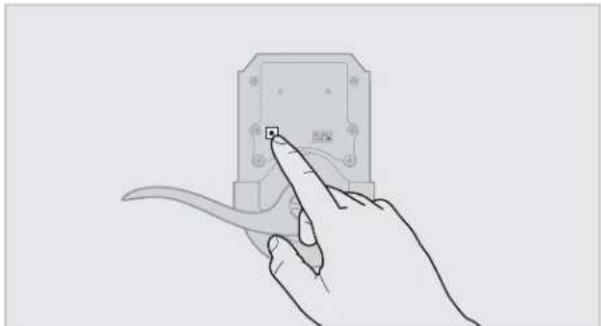
- Keep door open. Press and HOLD the Program button until the keypad fl ashes green (about 5 seconds).
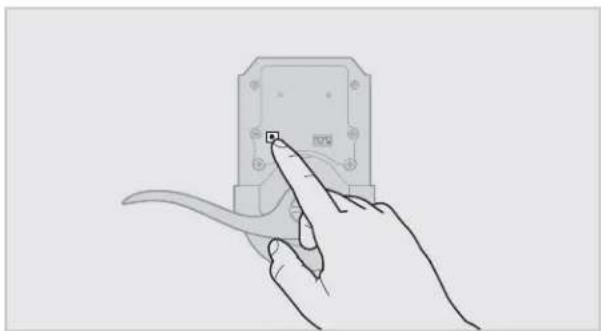
natural_image
Line drawing of a hand holding a small electronic device with a scroll wheel (no text or symbols)- Enter new Mastercode.
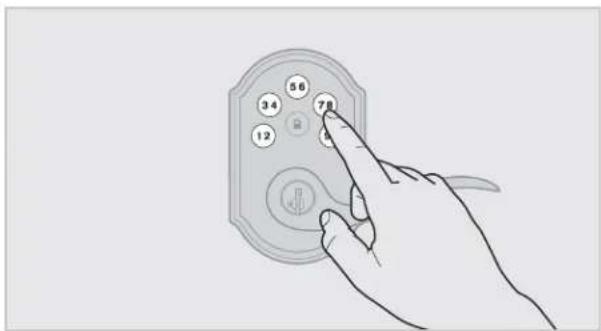
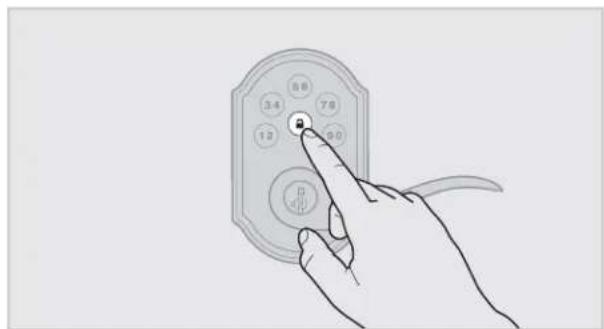
- Press Lock button once.
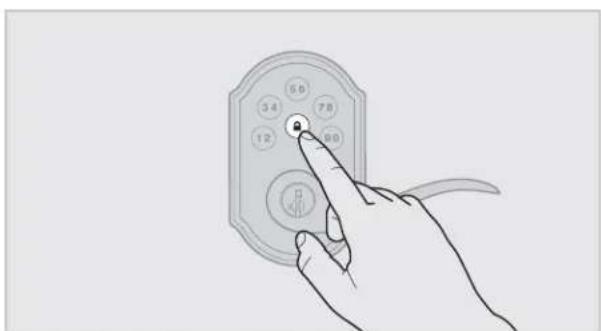
- Re-enter Mastercode.
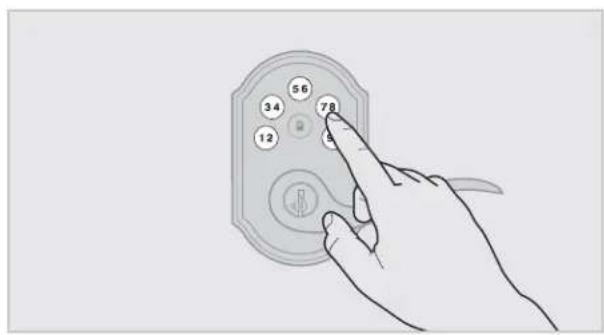
- Press Lock button once.
natural_image
Line drawing of a hand pressing a button on an electronic device (no text or symbols visible)If programming is successful, the keypad will flash green once with one beep.
If programming is unsuccessful, the keypad will flash red three times with three beeps. Make sure the Mastercode has not already been programmed. Attempt the procedure again, making sure to enter the same new Mastercode in step 2 and 4.
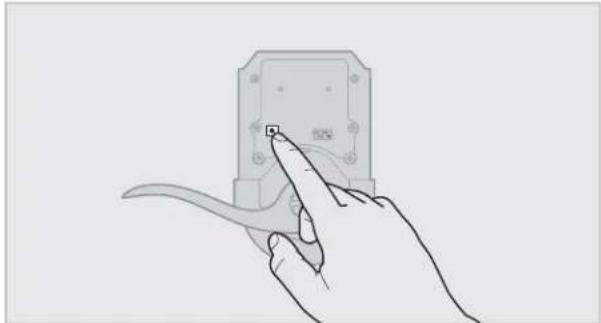
- Make sure switch #3 is on, and press the Program button once. If you hear three beeps and see the keypad flash green three times, the Mastercode is enabled.
Note: The lock will time out after five seconds.

Adding User Codes with the Mastercode Enabled
The procedure for adding user codes is different when the Mastercode is enabled. For instructions on how to add user codes when the Mastercode is disabled, see the Installation and User Guide that came with your lock.
- Keep door open. Press the Program button once. The keypad will flash green and you will hear three beeps.
natural_image
Hand holding a small electronic device with a scroll wheel, no visible text or symbols- Enter Mastercode.
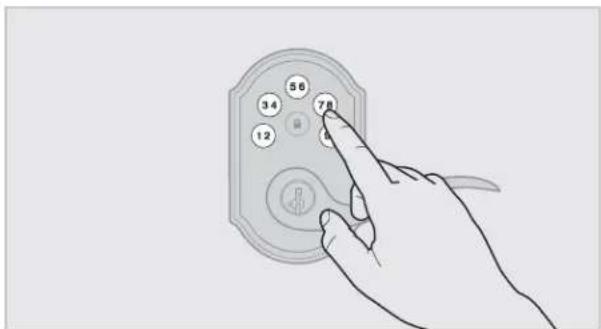
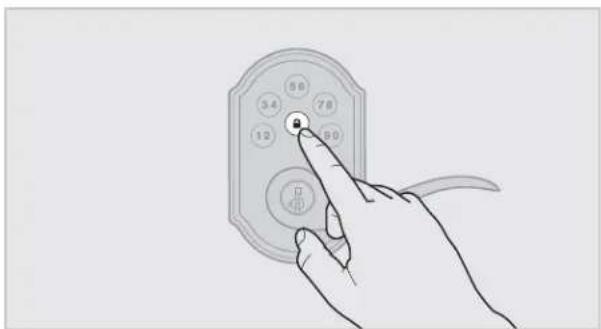
- Press Lock button once.
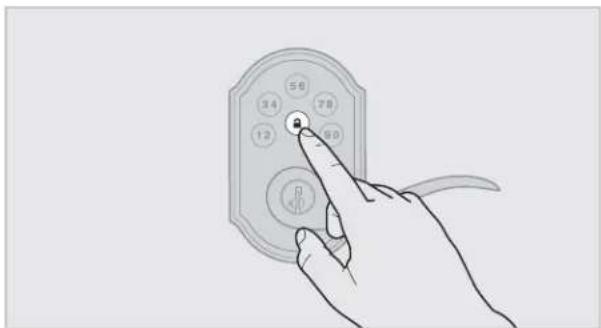
natural_image
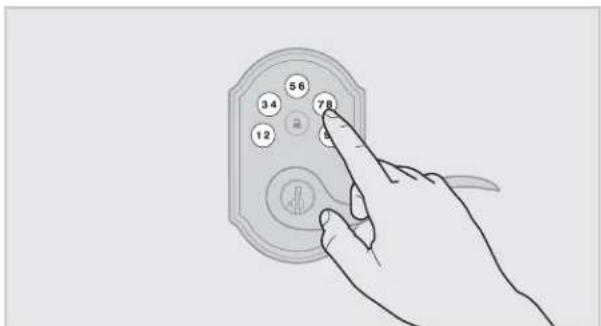
Line drawing of a hand pressing a button on an electronic device (no text or symbols visible)- Press the Program button the number of times that corresponds to the user code position being programmed.
Example: If programming the third code, press the button three times.
natural_image
Line drawing of a hand holding a small electronic device with a knob (no text or symbols)- Enter new user code.
- Press Lock button once.
natural_image
Hand holding a handheld device with circular buttons and a pointer (no text or symbols visible)Procedure continued on next page
If programming is successful, the keypad will flash green once with one beep.
If programming is unsuccessful, the keypad will flash red three times with three beeps. Make sure the user code is not a duplicate and that it is between 4 and 8 digits during your next attempt. Make sure to enter a valid Mastercode in step 2.
- While the door is open and locked, test the user code to make sure it unlocks the door.

Disabling and Deleting the Mastercode
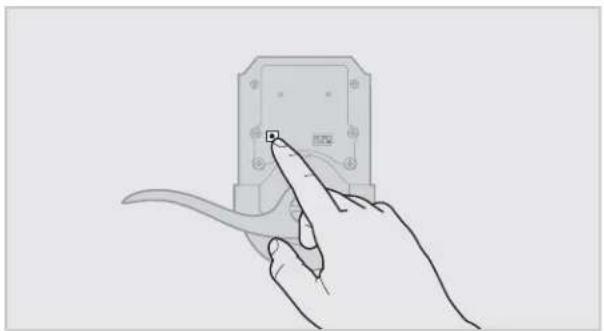
- Keep door open. Press and HOLD the Program button until the keypad fl ashes green (about 5 seconds).
natural_image
Line drawing of a hand holding a small electronic device with a scroll wheel (no text or symbols)- Press Lock button once.
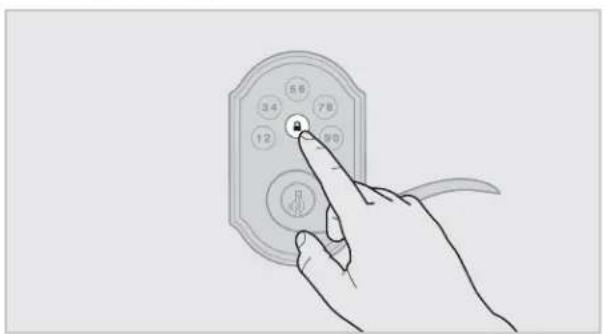
- Enter Mastercode.
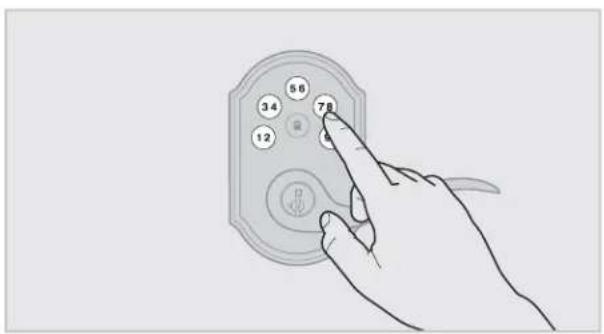
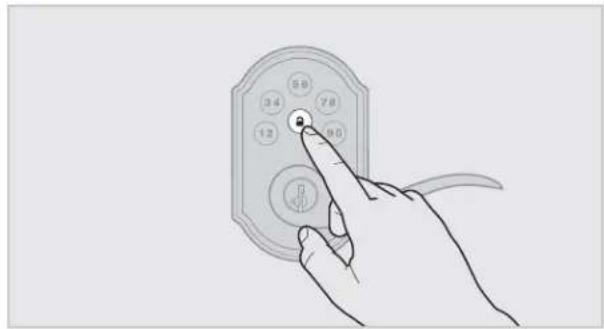
- Press Lock button once.
natural_image
Line drawing of a hand pressing a button on an electronic device (no text or symbols visible)- Re-enter Mastercode.
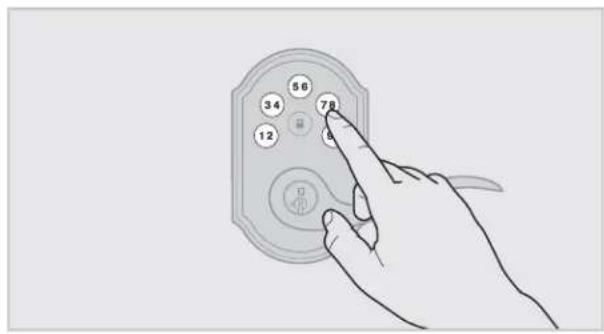
- Press Lock button once.
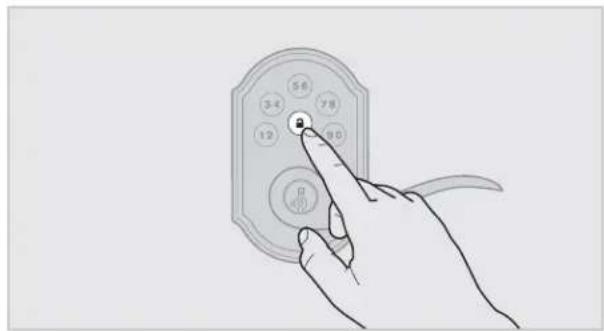
If programming is successful, the keypad will flash green once with one beep.
If programming is unsuccessful, the keypad will flash red three times with three beeps. Make sure the Mastercode has been enabled before trying to disable it. Attempt the procedure again, making sure to enter the same Mastercode in steps 3 and 5.
- Make sure switch #3 is on, and press the Program button once. If you don't immediately hear three beeps and see the keypad flash green three times, the Mastercode is disabled.
Note: The lock will time out after five seconds.
2 Troubleshooting: Locked Turnbutton
62815 / 01
A The turnbutton cannot rotate.
B The lock beeps, the keypad fl ashes red, and the door cannot lock or unlock.
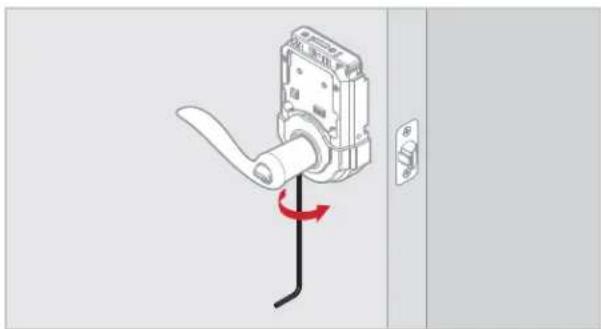
The set screw in the lever was not fully tightened.
Fully tighten the pre-installed set screw at the bottom of the interior lever.
natural_image
Diagram of a door handle with a lever and curved cable, showing a red rotation arrow (no text or symbols)3 Troubleshooting: Keypad
A The keypad is unresponsive.
Keypad error test
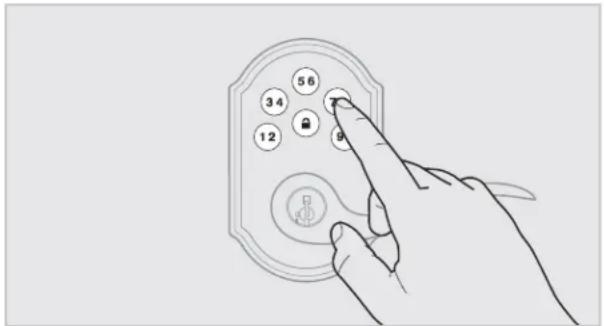
Install a fresh set of batteries and turn switch #3 to the ON position. Test each button on the keypad (one at a time) and listen for a beep on each button press. If beeping is not heard on all buttons, contact Technical Support for further troubleshooting.
Keypad lockout
If three incorrect codes were entered within one minute, the keypad will lock for 60 seconds.
B The Lock button does not lock the door.
No user codes are programmed.
If there are no codes in the lock, the lock button will not lock the door. This is indicated by the keypad flashing red three times with three beeps. Program at least one user code and test the Lock button again.
The battery is too low to lock the door.
This is indicated by the keypad flashing red three times with three beeps. Remove the batteries and replace with a fresh set.
The set screw in the lever was not fully tightened.
Fully tighten the pre-installed set screw at the bottom of the interior lever.
5 Troubleshooting: Battery
62815 / 01
A The batteries drain within one day.
The lock must be replaced. Contact Technical Support.
B The batteries drain within one week.
Keypad error.
See "Keypad error test" on page 7.
6
Battery FAQ
How long will the lock operate on a set of batteries?
Based on 10 operations per day, a single, new set of Alkaline batteries will operate the lock for over a year.
What type of batteries do you recommend?
For best results, use new non-rechargeable Alkaline batteries only.
I am planning to be away for several months. Will my lock operate when I get back?
When the system is idling, it consumes minimum power (very close to battery shelf life.) With alkaline batteries, the lock should be operable after years of idle.
I replaced my batteries less than a year ago and need to replace them again.
Check your door alignment. If the deadbolt makes several unsuccessful attempts to lock or unlock the door, it may mean that the door is warped and the latch does not line up correctly with the strike. Operating the lock excessively reduces battery life. Avoid turning on the keypad light unnecessarily.
What settings should I use to get the maximum battery life out of my lock?
Set switches #1, #2, and #3 to the OFF position.
- Programming and Troubleshooting Guide
- Mastercode
- A About the Mastercode
- B Enabling and Setting the Mastercode
- Adding User Codes with the Mastercode Enabled
- Disabling and Deleting the Mastercode
- Troubleshooting: Locked Turnbutton
- Troubleshooting: Keypad
- A The keypad is unresponsive.
- Keypad error test
- Keypad lockout
- B The Lock button does not lock the door.
- Troubleshooting: Battery
- A The batteries drain within one day.
- B The batteries drain within one week.
- 6
- Battery FAQ
Brand : Kwikset
Model : SmartCode 911
Category : Lock