
SD1-U0250 - External hard drive DELL - Free user manual and instructions
Find the device manual for free SD1-U0250 DELL in PDF.


| Type | External Solid State Drive (SSD) |
| Model | SD1-U0250 |
| Capacity | 250 GB |
| Interface | USB 3.1 Type-C (supports USB-C and USB-A via included cables) |
| Input Rating | 5 V 1 A (USB powered) |
| Dimensions (L x W x H) | 100 mm × 31.6 mm × 8.7 mm |
| Weight (without packaging and cables) | 30 g |
| Included Cables | USB 3.1 Type-C to Type-C (457 mm), USB 3.1 Type-C to Type-A (457 mm) |
| Operating Temperature | 0 °C to 70 °C |
| Storage Temperature | -40 °C to 85 °C |
| Operating Humidity | < 95% relative humidity (non-condensing) |
| Warranty | 3-year limited hardware warranty |
| Key Features | Portable, plug-and-play, bus-powered, high-speed data transfer, compatible with USB-C and USB-A devices |
| LED Indicator | Status light: blinks white during activity, solid when ready |
| Safety Precautions | Safely eject before disconnecting to prevent data loss; handle with care |
| Compatibility | Windows, macOS, Linux; requires USB port |
Frequently Asked Questions - SD1-U0250 DELL
User questions about SD1-U0250 DELL
0 question about this device. Answer the ones you know or ask your own.
Ask a new question about this device
Download the instructions for your External hard drive in PDF format for free! Find your manual SD1-U0250 - DELL and take your electronic device back in hand. On this page are published all the documents necessary for the use of your device. SD1-U0250 by DELL.
USER MANUAL SD1-U0250 DELL
Dell Portable Solid State Drive USB-C
250 GB
SD1-U0250
User's Guide
Notes, cautions, and warnings

NOTE: A NOTE indicates important information that helps you make better use of your computer.

CAUTION: A CAUTION indicates potential damage to hardware or loss of data if instructions are not followed.

WARNING: A WARNING indicates a potential for property damage, personal injury, or death.
Copyright©2018 Dell Inc. All rights reserved.
This product is protected by U.S. and international copy right and intellectual property laws. Dell™ and the DELL logo are trademarks of Dell Inc. in the United States and/or other jurisdictions. All other marks and names mentioned herein may be trademarks of their respective companies.
Contents
What's in the box 4
Features....5
Before using your device....6
Using your portable solid state drive 7
Disconnecting your portable solid state drive....8
Partitioning and formatting your portable solid state drive ....10
Troubleshooting 11
Common symptoms....11
Specifications....12
Statutory information....13
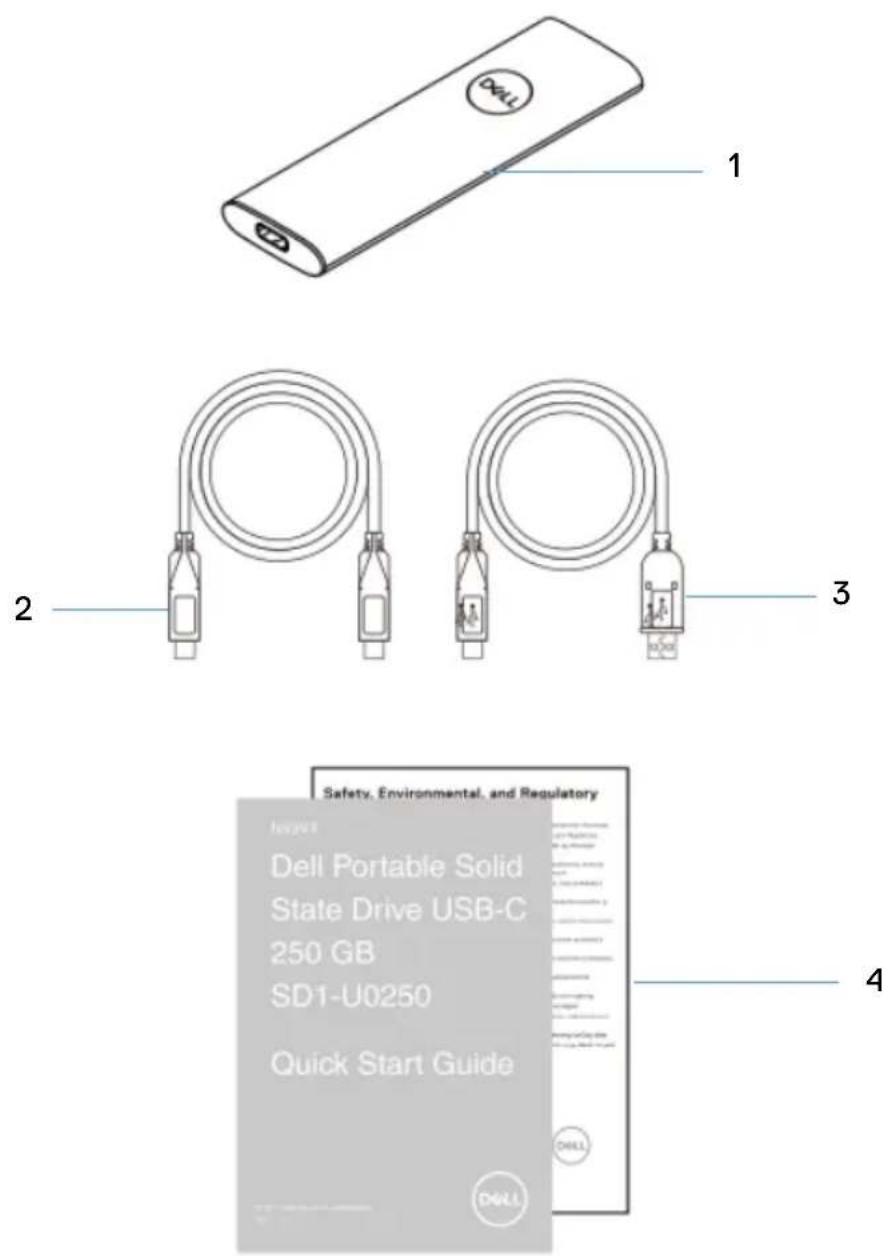
1 Dell portable Solid State Drive
3 USB 3.1 Type-C to Type-A Cable
2 USB 3.1 Type-C to Type-C Cable
4 Documents
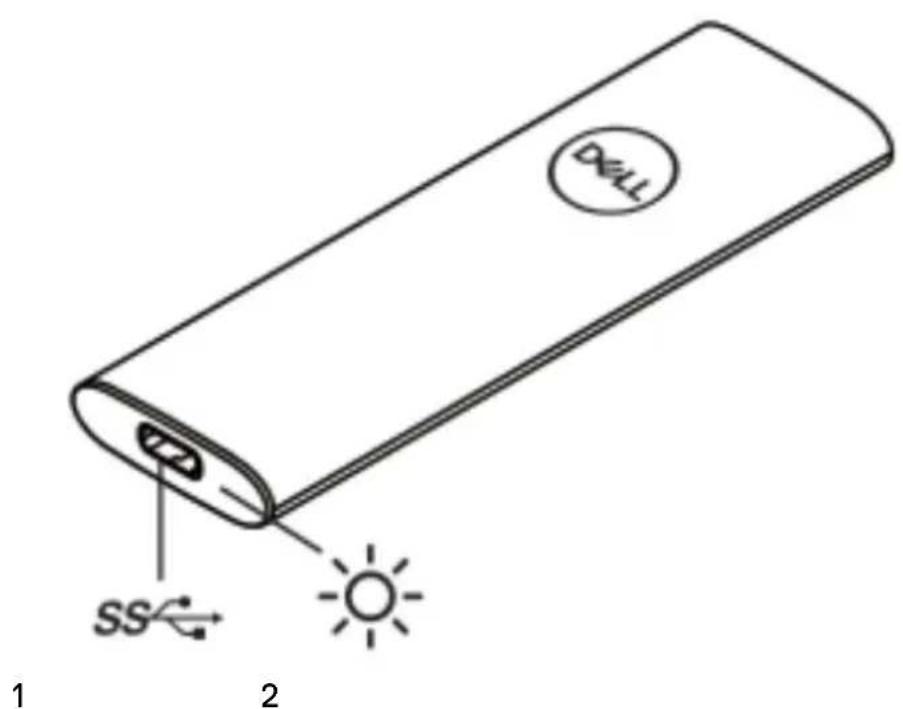
1 USB charging port
2 Status light
Before using your device

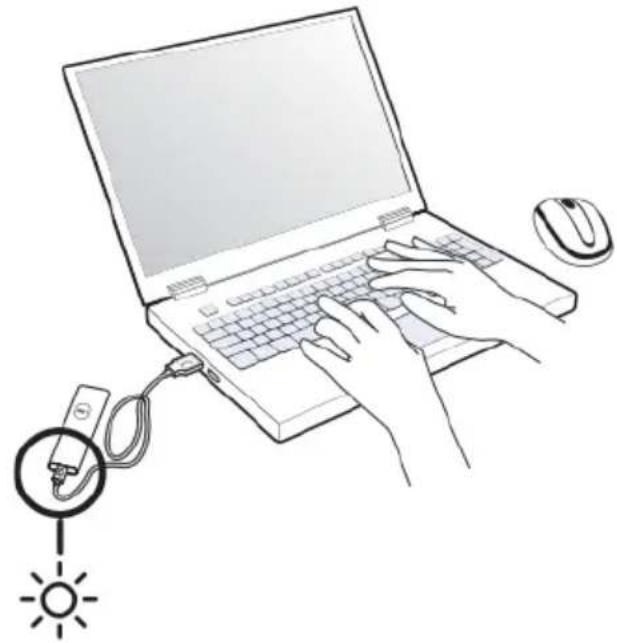
CAUTION: Disconnecting the solid state drive from your computer when the status light is blinking white, may cause data loss or damage the device. To avoid data loss or damage, safely eject the solid state drive through the operating system. For more information, see “Disconnecting your portable solid state drive”.
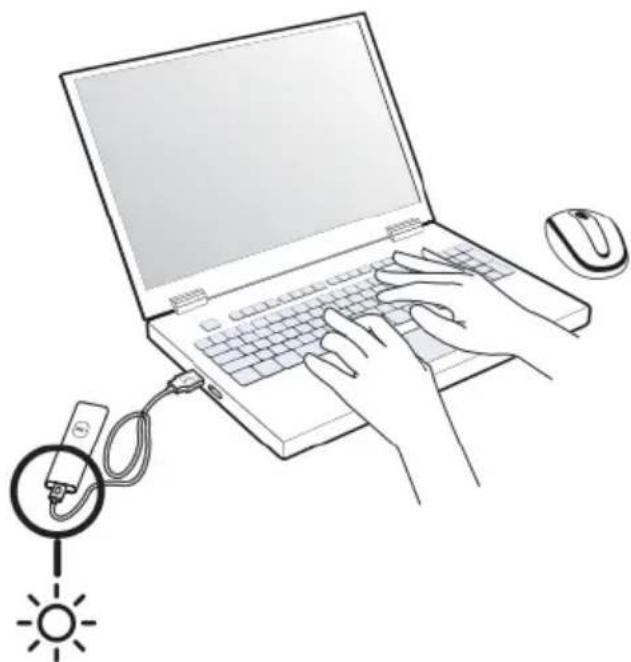
natural_image
Line drawing of a person using a laptop with a computer mouse, connected to a sun icon (no text or symbols)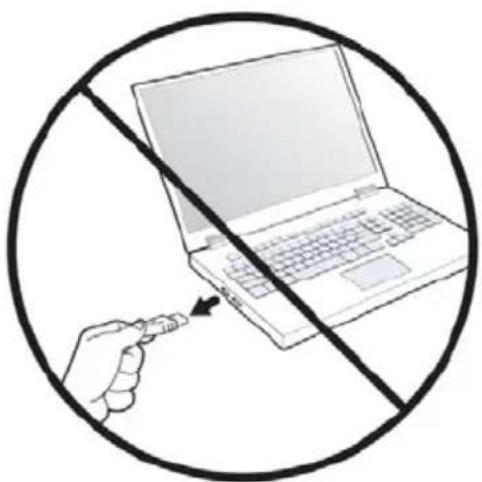
natural_image
Illustration of a hand holding a pen next to a laptop, crossed out by a diagonal line (no text or symbols)Using your portable solid state drive
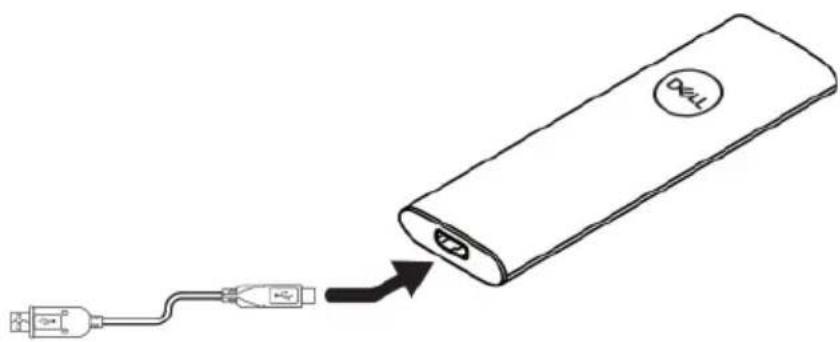
Your portable solid state drive comes with two cables. Select the one you need based on the port on your computer.
If your computer has a USB Type-C port, use the USB Type-C cable. If your computer has a USB Type-A port, use the USB Type-A cable.
1 Connect the cable to the port on the portable solid state drive.
natural_image
Diagram showing a USB cable connected to a rectangular device with a logo, no text or symbols present2 Connect the other end of the cable to the USB port on your laptop or desktop computer.
natural_image
Line drawing of hands typing on a laptop with a computer mouse, connected to a sun icon (no text or symbols)Disconnecting your portable solid state drive
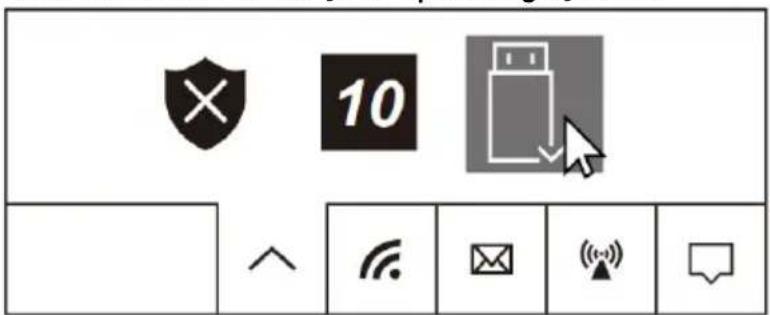
1 Double click the USB icon on your operating system.
2 Click Eject External USB 3.0.
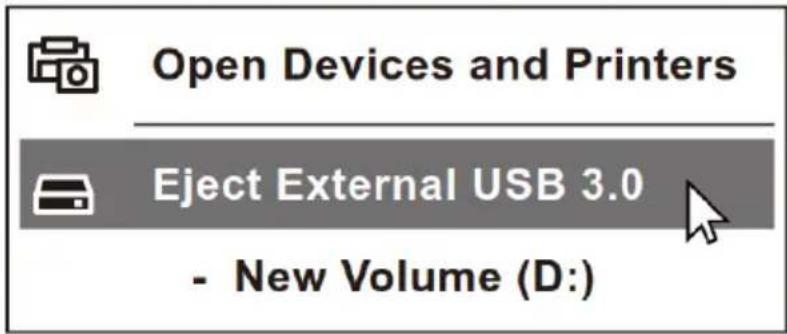
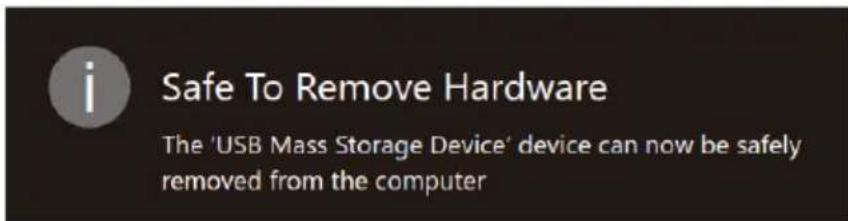
3 A pop-up message "Safe to Remove Hardware" appears indicating that the device can be removed.
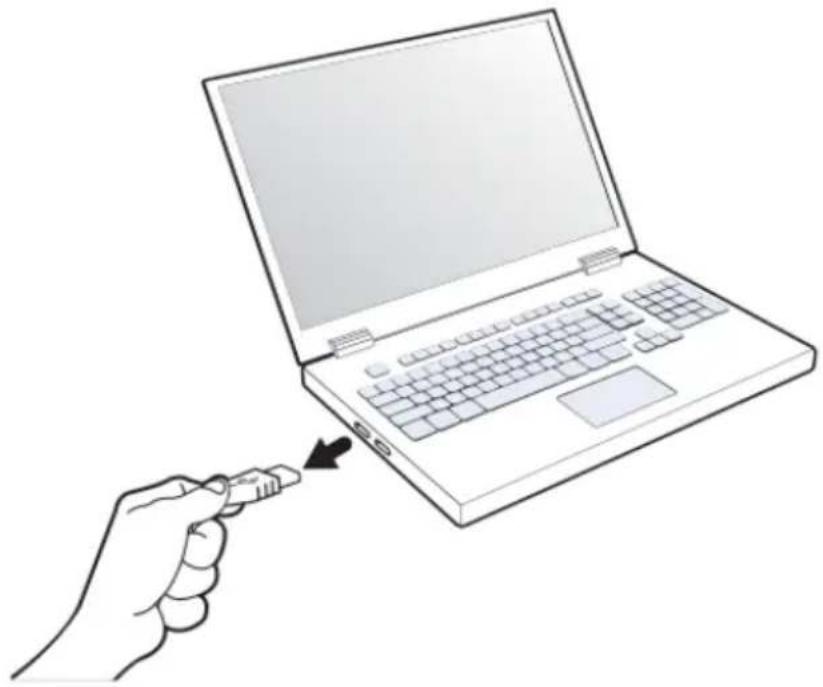
4 Unplug the solid state drive from your computer.
natural_image
Line drawing of a hand holding a remote computer next to a laptop (no text or symbols)Partitioning and formatting your portable solid state drive
In case of a corrupted drive, the portable solid state drive needs to be re-initialized, partitioned, and formatted through the Operating System before it can be detected by the computer.
If the operating system cannot automatically identify the portable solid state drive, please check the following items:
Is the USB driver installed?
Is the initialization, partitioning and formatting for the portable solid state drive complete?
Common symptoms
The following table contains information about common symptoms you might encounter and the possible solutions.
| Problems | Possible causes | Possible solutions |
| External solid state drive is not working | No drive found due to corrupted drive. | Drive needs to be re-initialized, partitioned and formatted by Operating System before being displayed on the system. |
| Computer cannot detect the external solid state drive | Cable is looseExternal solid state drive is faulty | Ensure that the computer is powered on.Ensure the cable is plugged in securely to the device and the computer.Test the external solid state drive in another computer |
Specifications
General
Model number
SD1-U0250
Rating
Input (USB)
5 V 1A
Physical characteristics
Weight
Dimension
Length
Width
Height
Cable length
30g without packaging and cables
Portable Solid State Drive
100 mm
31.6 mm
8.7 mm
- USB 3.1 Type C to A Cable 457±20 mm
- USB 3.1 Type C to C Cable 457±20 mm
Environmental
Operating temperature
Operating humidity
Storage temperature
0^ to +70^
< 95% relative humidity (non-
condensing)
-40°C to +85°C
Warranty
Limited warranty and return policies
Dell Portable SSD, USB-C 250GB, carry a 3-years limited hardware warranty. If purchased together with a Dell system, it will follow the system warranty.
For U.S. customers:
This purchase and your use of this product are subject to Dell's end user agreement, which you can find at Dell.com/terms. This document contains abiding arbitration clause.
For European, Middle Eastern and African customers:
Dell-branded products that are sold and used are subject to applicable national consumer legal rights, the terms of any retailer sale agreement that you have entered into (which will apply between you and the retailer) and Dell's end user contract terms. Dell may also provide an additional hard ware warranty–full details of the Del lend user contract and warranty terms can be found by going to Dell.com, selecting your country from the list at the bottom of the "home" Page and then clicking the" terms and conditions" link for the end user terms or the" support" link for the warranty terms.
For non-U.S. customers:
Dell-branded products that are sold and used are subject to applicable national consumer legal rights, the terms of any retailer sale agreement that you have entered into (which will apply between you and the retailer) and Dell's warranty terms. Dell may also provide an additional hardware warranty – full details of Dell's warranty terms can be found by going to Dell.com, Selecting your country from the list at the bottom of the "home" page and then clicking the "terms and conditions" link or the "support" link for the warranty terms.
- Dell Portable Solid State Drive USB-C
- Notes, cautions, and warnings
- Contents
- Before using your device
- Using your portable solid state drive
- Disconnecting your portable solid state drive
- Partitioning and formatting your portable solid state drive
- Common symptoms
- Specifications
- General
- Rating
- Physical characteristics
- Environmental
- Warranty
Brand : DELL
Model : SD1-U0250
Category : External hard drive