SU750XL - Inverter Tripp Lite - Free user manual and instructions
Find the device manual for free SU750XL Tripp Lite in PDF.


User questions about SU750XL Tripp Lite
0 question about this device. Answer the ones you know or ask your own.
Ask a new question about this device
Download the instructions for your Inverter in PDF format for free! Find your manual SU750XL - Tripp Lite and take your electronic device back in hand. On this page are published all the documents necessary for the use of your device. SU750XL by Tripp Lite.
USER MANUAL SU750XL Tripp Lite
True On-Line Tower UPS Systems


Not suitable for mobile applications.
Important Safety Instructions 2
Installation 3
Basic Operation 5
Troubleshooting 9
Battery Replacement
Storage and Service 11
Warranty Registration 12
Español 13
Français 25

text_image
TRIPP·LITE POWER PROTECTION1111 W. 35th Street, Chicago, IL 60609 USA
773.869.1234 (USA) • 773.869.1212 (International)
www.tripplite.com
SAVE THESE INSTRUCTIONS
This manual contains instructions and warnings that should be followed due to installation, operation and storage of all Tripp Lite UPS Systems. Failure to heed these warnings will void your warranty.
UPS Location Warnings
• Install your UPS indoors, away from excess moisture or heat, conductive contaminants, dust or direct sunlight.
- For best performance, keep the indoor temperature between 32^ and 104^ ( 0^ and 40^ ).
- Leave adequate space around all sides of the UPS for proper ventilation.
- Do not mount unit with its front or rear panel facing down (at any angle). Mounting in this manner will seriously inhibit the unit's internal cooling, eventually causing product damage not covered under warranty.
UPS Connection Warnings
- Connect your UPS directly to a properly grounded AC power outlet. Do not plug the UPS into itself; this will damage the UPS.
- Do not modify the UPS's plug, and do not use an adapter that would eliminate the UPS's ground connection.
- Do not use extension cords to connect the UPS to an AC outlet. Your warranty will be voided if anything other than Tripp Lite surge suppressors are used to connect your UPS to an outlet.
- If the UPS receives power from a motor-powered AC generator, the generator must provide clean, filtered, computer-grade output.
Equipment Connection Warnings
- Use of this equipment in life support applications where failure of this equipment can reasonably be expected to cause the failure of the life support equipment or to significantly affect its safety or effectiveness is not recommended. Do not use this equipment in the presence of a flammable anesthetic mixture with air, oxygen or nitrous oxide.
- Do not connect surge suppressors or extension cords to the output of your UPS. This might damage the UPS and will void the surge suppressor and UPS warranties.
Battery Warnings
Batteries can present a risk of electrical shock and burn from high short-circuit current. Observe proper precautions. Do not dispose of the batteries in a fire. Do not open the UPS or batteries. Do not short or bridge the battery terminals with any object. Unplug and turn off the UPS before performing battery replacement. Use tools with insulated handles. There are no user-serviceable parts inside the UPS. Battery replacement should be performed only by authorized service personnel using the same number and type of batteries (Sealed Lead-Acid). The batteries are recyclable. Refer to your local codes for disposal requirements or in the USA only call 1-800-SAV-LEAD or 1-800-8-BATTERY (1-800-822-8837) or visit www.rbrc.com for recycling information. Tripp Lite offers a complete line of UPS System Replacement Battery Cartridges (R.B.C.). Visit Tripp Lite on the Web at www.tripplite.com/support/battery/index.cfm to locate the specific replacement battery for your UPS.
Installation
Connection and Start-Up
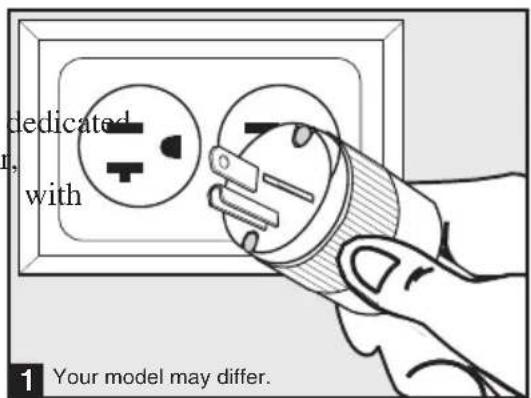
1 Plug your UPS's line cord into an electrical outlet.
Your UPS must be connected to a circuit of sufficient amperage. Note, however, that the select models may be fitted different plug types. Refer to the “OP Rating/Plug Rating” chart printed on the top of your UPS.
Once your UPS is plugged in, the fan and all Indicator Lights will turn ON. The “LINE” and “LOAD ACTIVE METER” LEDs will illuminate and the UPS will emit a beep to indicate normal operation. However, power is not supplied to your UPS’s AC outlets until the UPS on.
2 Plug your equipment into your UPS.
Your UPS is designed to support equipment only. You will overload your UPS if you connect household appliances or printers to the UPS's outlets.
3 Turn your UPS ON:
- Press the "ON/TEST" Button
- Hold it for several seconds until you hear a beep
- Release it
Your UPS will begin providing AC power to its outlets. The "ON LINE" LED will illuminate.
Optional Connections
Your UPS will function properly without these connections.
1 Phone Line or Phone/Network Line Surge Suppression
Your UPS has jacks which protect age surges on a phone or network line.* appropriate network cords connect your jack to the UPS jack marked "IN." your equipment to the UPS jack mark "OUT." Make sure the equipment you connect to the UPS's jacks is also protected surges on the AC line.
text_image
dedicated with 1 Your model may differ.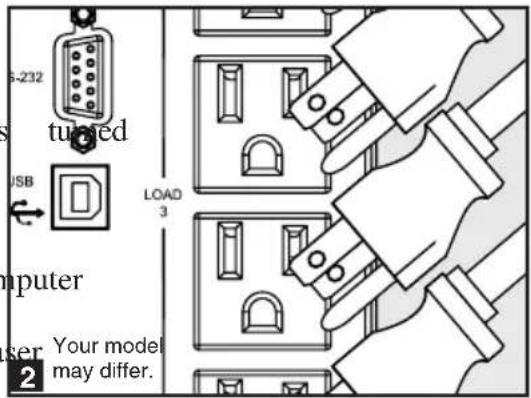
text_image
S-232 tuned USB CPU user Your model may differ. LOAD 3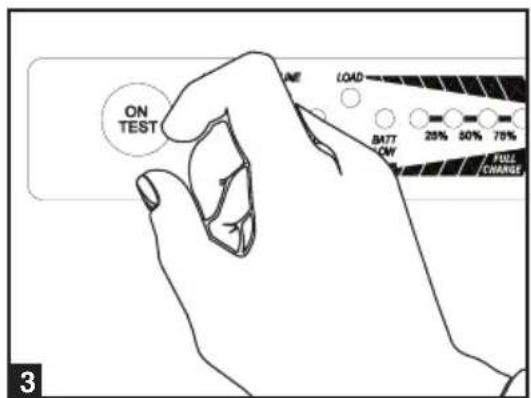
text_image
ON TEST LINE LOAD BATT ONY 20% 50% 70% FULL CHANGE 3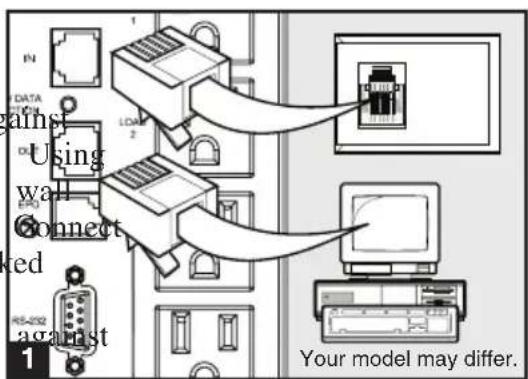
text_image
Data wain Using wall Connect ed RS-232 against 1 LOAD 2 Your model may differ.* Not compatible with PoE (Power Over Ethernet) applications.
Optional Connections (continued)
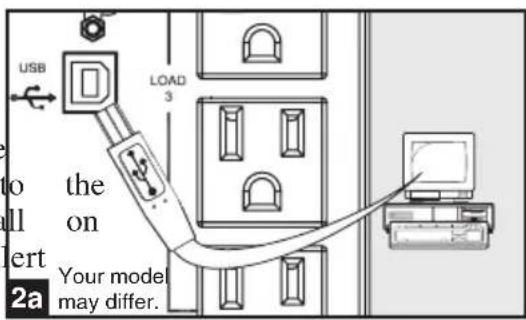
2 USB and RS-232 Serial Communications
Use the included USB cable (see 2a) and/or DB9 serial cable (2b) to connect the communication port of your computer to communication port of your UPS. Insta your computer the Tripp Lite PowerA Software appropriate to your computer's operating system.
3 EPO Port Connection
When the UPS is connected to this circuit, it enables emergency shutdown of the UP inverter. Using the cable provided, connect the EPO port of your UP3a) (see a user supplied normally closed or normally o switch according to the circuit diagram
3b). The EPO port is not a phone line surge suppressor; do not connect a phone line to this port.
4 External Battery Connection
Check to ensure that the external batteries you are connecting match the voltage listed on your UPS's battery connector. Adding external batteries will increase recharge time as well as runtime. See the battery pack owner's manual for complete installation instructions. Measure cables are fully inserted into the connectors. Small sparks may result during battery connection; this is normal. Do connect or disconnect battery packs when the UPS is running on battery power.
text_image
USB LOAD 3 to the on vert Your model may differ. 2a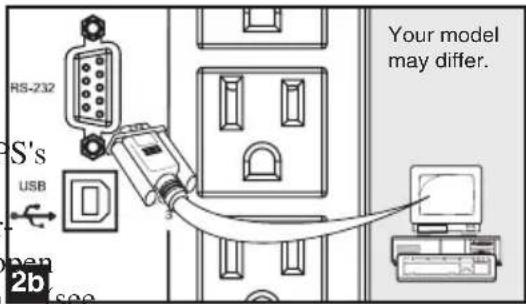
text_image
RS-232 S's USB D Your model may differ. pen 2b see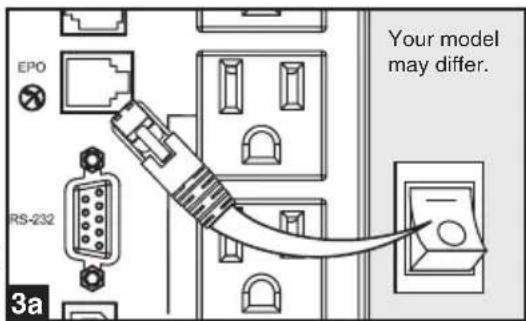
text_image
EPO RS-232 3a Your model may differ.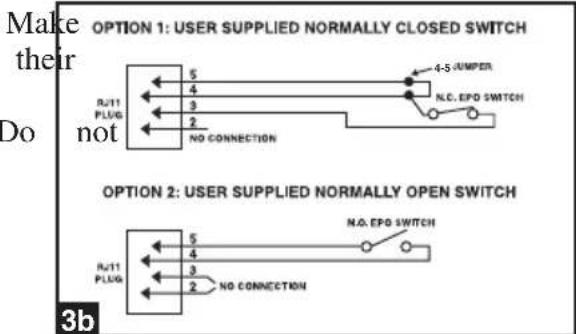
text_image
Make their Do not OPTION 1: USER SUPPLIED NORMALLY CLOSED SWITCH 4-5/UMPER N.C. EPD SWITCH NO CONNECTION OPTION 2: USER SUPPLIED NORMALLY OPEN SWITCH N.A. EPD SWITCH NO CONNECTION 3b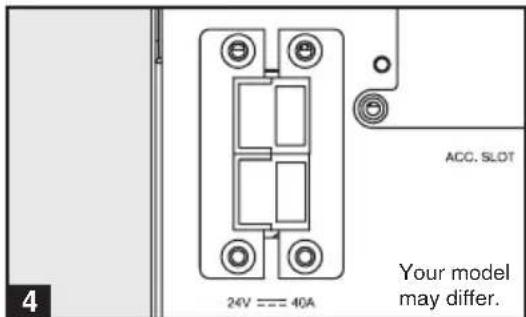
text_image
24V === 40A ACC. SLOT Your model may differ.Basic Operation
Front Panel Switches

text_image
ON TEST“ON/TEST” Button: This switch controls four separate U functions:
UPS Power ON
To turn the UPS on, press this button, hold it for several seconds until you hear a beep, then release it. The “ON LINE” illuminate.
UPS Self-Test
During normal on-line operation, press this button and hold it until you hear a beep. This initiates a 10-second self-test of the battery. The UPS will shift to battery power (all LEDs will illuminate) for seconds.
Alarm Silence
To silence the UPS “on-battery” alarm, press this button and hold it until you hear a beep.
UPS Cold Start
To use your UPS as a stand-alone power source when AC power is unavailable (i.e. during a blackout), press this button and hold it until you hear a beep. The UPS will then provide battery outlets.*
* The “ON BATT” Indicator Light will be illuminated since your UPS will be operating from battery power.
text_image
OFF“OFF” Button: This button turns power OFF at the UPS receptacles. Press this switch, hold it until you hear a beep, then release it. The UPS will continue charging and the fan will continue to cool internal components even after you turn the UPS receptacles off. To turn the UPS OFF completely, including the charger, disconnect the UPS’s power cord after pressing the “OFF” switch.
Front Panel Indicator Lights
text_image
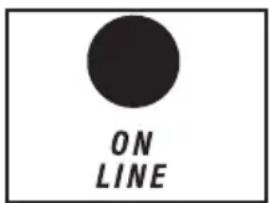
ON LINE“ON LINE” LED: This green light will illuminate constantly to indicate the UPS is performing normal on-line operation (filtering resynthesizing incoming AC line voltage to provide pure sine wave output). When this light is illuminated, you can monitor the load level of your UPS on the “LOAD ACTIVE METER” LEDs.
text_image
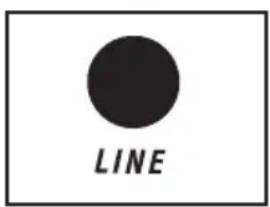
LINE“LINE” LED: This green light will illuminate constantly to indicate the utility supplied AC line voltage at your wall outlet is nominal. It will flash if the line voltage is outside the nominal range (either too low or two high). No action is required on your part when the LED flashes; the UPS continuously and automatically filters A power to provide your equipment with pure sine wave regardless of brownout or overvoltage conditions. If this light is off, then AC line voltage is not present (blackout) or is at an extremely high voltage, and the UPS will provide connected equipn power from battery.
Basic Operation (continued)
Front Panel Indicator Lights continued

text_image
BYPASS“BYPASS” LED: This yellow light will flash to indicate that the DC/AC inverter is deactivated and the UPS is in the “By During normal operation this LED will light briefly when the unit is plugged in, but if an internal fault or overload occurs this light will flash constantly and the fault LED will illuminate to sh connected equipment will receive filtered AC mains power, but will not receive battery power during a blackout. In this case, contact Tripp Lite for service. If the UPS has been placed into Eco (available on select UPS systems), it configures an online function as a switching UPS. When the UPS system is in Economy Mode, it operates at increased efficiency while AC utility power is available (within +/- 10% nominal) and switches to battery power if AC utility power is interrupted. The yellow “BYPASS” I remain on when the UPS system is in Economy Mode. information on how to access the Economy Mode, please refer to the PowerAlert software User’s Manual.)

text_image
FAULT“FAULT” LED (select models only): This red light will flash when your UPS detects an internal fault (overheating, overvoltages, etc.) or when it detects a wiring fault in your wall outlet (reversed pha missing ground, etc.) The UPS will only detect wiring faults when it is plugged into a utility outlet but not turned ON. If the light persists after restarting the UPS, contact an electrician to check the AC line. Your UPS will identify the presence of most (but not faults.
text_image
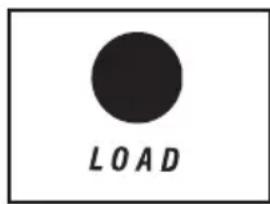
LOAD"LOAD ACTIVE METER" LED: This green light will illuminate when your UPS is receiving AC power to indicate that the set of four dual-function LEDs is displaying the load level of your UPS.

text_image
BATT“BATT ACTIVE METER” LED: This green light will illuminate when your UPS is operating from battery power to indicate that the set of four dual-function LEDs is displaying the battery charge level of your UPS. Note: the “ON BATT” LED will also be illuminated.
text_image
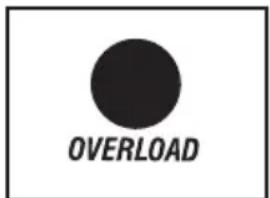
OVERLOAD“OVERLOAD” LED: This red light will illuminate constantly to indicate that your UPS’s capacity has been exceeded while it is in on-line operation. The UPS alarm will beep continuously. Immediately remove overload until light and alarm goes off. If you do not immediately remove the overload, the UPS will transfer from on-line to bypass operation.

text_image
BATT LOW“BATT LOW” LED: This yellow light will illuminate when your UPS’s battery charge level is low. The UPS alarm will beep until either the battery charge is depleted or the batteries are adequately recharged.
Basic Operation (continued)
Front Panel Indicator Lights continued
text_image
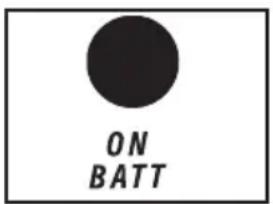
ON BATT“ON BATT” LED: This green light will illuminate c indicate that AC line voltage is not present and your UPS is providing your equipment with battery power. The UPS will also beep every two seconds, unless silenced by the “ON/TEST” Button. When this light is illuminated, you can monitor the battery charge level of your UPS on the “BATT ACTIVE METER” LEDs.
text_image
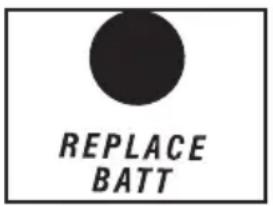
REPLACE BATT“REPLACE BATT” LED: This red light will illuminate constantly and the UPS alarm will beep every 2 seconds if y microprocessor detects a battery fault or if your UPS automatic self-test (after you turn your UPS ON) and the UPS battery is less than fully charged. Let the UPS system charge for at least 12 hours and perform a self test using the “ON/TEST Button”. If the light continues to stay on, contact Tripp Lite for service.
Rear Panel
natural_image
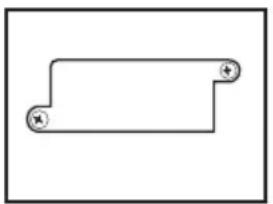
Simple line drawing of a rectangular frame with two circular ends and a plus symbol at the end (no text or labels)Accessory Slot: Remove the small cover panel from this slot to use optional accessories to remotely monitor and control you Contact Tripp Lite Customer Support at (773) 869-1234 information, including a list of available SNMP, network management and connectivity products.
natural_image
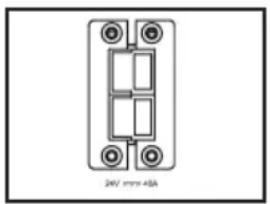
Pure electrical component diagram without any text, numbers, or symbolsExternal Battery Pack Connector (configuration varies by model): Use to connect optional Tripp Lite Battery Packs for runtime. Contact Tripp Lite Customer Support at (773) 869-1234 for the appropriate Tripp Lite battery pack to connect. Refer to instructions available with the Battery Pack for complete connection information and safety warnings.
natural_image
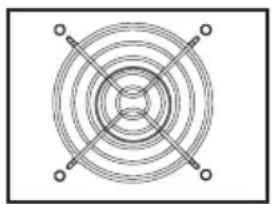
Pure geometric diagram of concentric circles with crosshairs, no text or symbols presentFan: The fan cools the UPS's internal components. It is always on when line power is present.
text_image
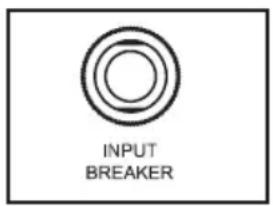
INPUT BREAKERInput Circuit Breaker Switch: This resettable breaker prevents high input current from damaging the UPS or the attached load. breaker trips, make sure your UPS is connected to AC power of the proper voltage before resetting the circuit breaker by I breaker switch in.
text_image
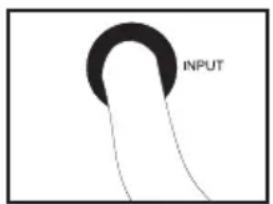
INPUTInput Cord: This permanently attached power cord connects your UPS to a power outlet.
Basic Operation (continued)
Rear Panel continued
natural_image
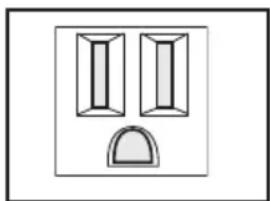
Simple line drawing of two vertical rectangular shapes above a curved arch (no text or symbols)NEMA 5-15R
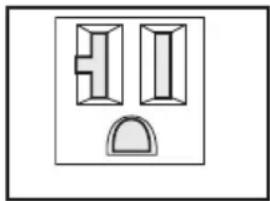
natural_image
Simple line drawing of two window-like shapes with a semicircular base (no text or symbols)NEMA 5-15/20R
Other outlet types not shown
AC Receptacles (Varied by Model): These 15-, 20- and receptacles provide your connected equipment with pure sine-wave AC output from the AC line during normal operation and from battery power during blackouts and severe brownouts. Power provides these outlets is filtered to protect connected equipment aged damaging surges and line noise. The receptacles are divided numbered load banks, as labelled on the unit. Using PC software and cabling, load banks one and two may be individually turned off and on from a remote location, allowing users to reset or reboot connected equipment.
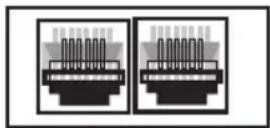
Telephone/Network Protection Jacks: These jacks protect your equipment against surges over a telephone/network data line. Connecting your equipment to these jacks is optional. Your UPS will work properly without this connection. Not compatible with PoE (Power Over Ethernet) applications.
Communications
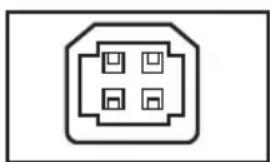
natural_image
Pure electrical connector symbol without any text or labels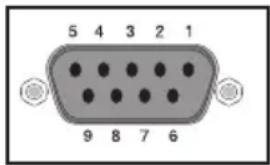
text_image
5 4 3 2 1 9 8 7 6Communications Ports (USB or RS-232): These ports connect your UPS to any workstation or server. Use with Tripp Lite's PowerAlert Software and included cables to enable your computer to automatically save open files and shut down equipment during a blackout. Also use PowerAlert Software to monitor a wide variety of AC line power and UPS operating conditions. Consult your PowerAlert Software manual or contact Tripp Lite Customer Support for more informa "USB and RS-232 Serial Communications" in the "Option Connections" section for installation instructions.
Dry contact communications are simple, but some knowledge electronics is necessary to configure them. The DB9 port assignments are shown in the diagram. If the UPS battery is low, the UPS sends a signal by bridging pins 1 and 5. If utility power fails, the UPS sends a signal by bridging pins 8 and 5. To shut the UPS down remotely, short pin 3\~pin 9 for at least 3.8 seconds.
text_image
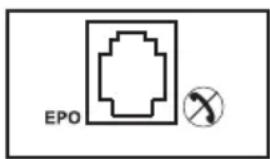
EPOEPO (Emergency Power Off) Port: Your UPS features a EPO port that may be used to connect the UPS to a contact closure switch to enable emergency inverter shutdown. See Optional Installation.
Troubleshooting
The UPS's control panel lights will turn on in the sequences below to signal that the UPS is having operational difficulties.
Lights (On/Flashing) and Condition Solution
| On: REPLACE BATT Let the UPS system charge for at leastCondition: Replace Battery 12 hours and perform a self test usingthe "ON/Test Switch". If the lightcontinues to stay on, contact Tripp Litefor service. | |
| On: BATT LOW, ON BATT Prepare for imminent UPS shutdown.Condition: Battery Low | |
| On: BYPASS, LINE, LOAD, OVERLOAD Reduce the load the UPS supports.Condition: On Bypass due to Overload | |
| Flashing: OVERLOAD Remove the cause of the short circuitCondition: Short Circuit from the UPS output. | |
| On: FAULT Check the utility line for wiring problemsCondition: Wiring Fault such as reversed line and neutral or a missing ground. | |
| On: FAULT, 100%Condition: Battery Voltage too High | Restart the UPS. If the problem persists,contact Tripp Lite for repairs. |
| On: FAULT, BYPASS, LINE, 50%Condition: On Bypass due toHigh Output Voltage | Restart the UPS. If the problem persists,contact Tripp Lite for repairs. |
| On: FAULT, BYPASS, LINEFlashing: 50%Condition: On Bypass due toLow Output Voltage | Restart the UPS. If the problem persists,contact Tripp Lite for repairs. |
| On: FAULT, BYPASS, LINE, 25%Condition: On Bypass due to HighBus Voltage | Restart the UPS. If the problem persists,contact Tripp Lite for repairs. |
| On: FAULT, BYPASS, LINEFlashing: 25%Condition: On Bypass due to LowBus Voltage | Restart the UPS. If the problem persists,contact Tripp Lite for repairs. |
Lights (On/Flashing) and Condition Solution
| On: BYPASS, LINE Check the UPS to be sure that there is Flashing: FAULT adequate space for air to circulate near Condition: On Bypass due to High the vents and that the fan is working Internal Temperature properly. Restart the UPS. | |
| Flashing: LINE This indicates that utility power is too high Condition: Input Abnormal or low for the UPS to operate in BYPASS mode, so if an inverter failure occurs, the UPS will deliver no output. | |
| On: FAULT, 50% Restart the UPS. If the problem persists, Flashing: LINE contact Tripp Lite for repairs. Condition: No Output due to High Output Voltage and Abnormal Input | |
| On: FAULT Restart the UPS. If the problem persists, Flashing: LINE, 50% contact Tripp Lite for repairs. Condition: No Output due to Low Output Voltage and Abnormal Input | |
| On: FAULT, 25% Restart the UPS. If the problem persists, Flashing: LINE contact Tripp Lite for repairs. Condition: No Output due to High Bus Voltage and Abnormal Input | |
| On: FAULT Restart the UPS. If the problem persists, Flashing: LINE, 25% condition: No Output due to Low Bus Voltage and Abnormal Input | |
| Flashing: LINE, FAULT Condition: No Output due to High Internal Temperature and Abnormal Input persists, contact Tripp Lite for repairs. | Check the UPS to be sure that there is adequate space for air to circulate near the vents and that the fan is working properly. Restart the UPS. If the problem |
Battery Replacement
natural_image
Illustration of a refrigerator with a side panel and a smaller cabinet (no text or symbols visible)Your model may differ.
natural_image
Technical line drawing of a mechanical device with a box and housing (no text or symbols)Your model may differ.
natural_image
Diagram of a refrigerator with an open drawer and a closed door, showing internal components (no text or symbols)Your model may differ.
Battery Replacement Door: Under normal conditions, the or battery in your UPS will last several years. Battery replacement should be performed only by qualified service personnel. Refer to “Battery Warnings” in the Safety section. Should your UPS require battery replacement, visit Tripp Lite on the Web at www.tripplite.com/support/battery/index.cfm to locate the specific replacement battery for your UPS.
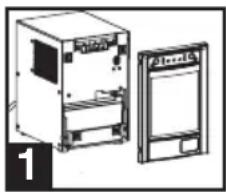
1 Carefully pull the front panel away from the UPS.
Place front panel on top of the unit. Remove the battery support bar.
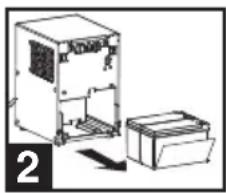
2 Remove old batteries.
Carefully pull the batteries from the UPS and disconnect them.
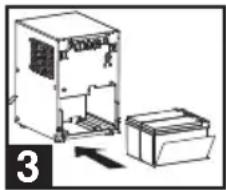
3 Connect new batteries.
Connect the new batteries in exactly the same manner as the old ones: positive (red) connectors together and negative (I) connectors together. Carefully push batteries back into the UPS.
4 Reassemble UPS.
Reinstall the battery support bar and replace the front panel.
Storage and Service
Storage
First turn your UPS OFF: press the “OFF” switch to turn power off at the UPS outlets, then disconnect the power cord from the wall outlet. Next, disconnect all equipment to avoid battery drain. If you plan on storing your UPS for an extended period of time, fully recharge the UPS batteries once every three months by plugging the UPS into a live AC outlet and letting the UPS charge for 4-6 hours. If you leave your UPS batteries discharged for an extended period of time, they may suffer permanent loss of capacity.
Service
Before returning your UPS for service, follow these steps: 1. Review the operation instructions in this manual to ensure that the service problem does not originate from a misreading of the instructions. 2. If the problem continues, do not contact or return the UPS to the dealer. Instead, call Tripp Lite at (773) 869-1233. A service technician will ask for the UPS's model number, serial number and purchase date and will attempt to correct the problem over the phone. 3. If the problem requires service, the technician will issue you a Returned Material Authorization (RMA) number, which is required for service. If you require packaging, the technician can arrange to send you proper packaging. Securely pack the U damage during shipping. Do not use Styrofoam beads for packaging. Any damages (dir indirect, special, incidental or consequential) to the UPS incurred during shipment to Tripp Lite or an authorized Tripp Lite service center is not covered under warranty. UPS Systems shipped to Tripp Lite or an authorized Tripp Lite service center must have tran prepaid. Mark the RMA number on the outside of the package. If the UPS System is within the 2-year warranty period, enclose a copy of your sales receipt. Return the UPS for service using an insured carrier to the address given to you by the Tripp Lite service technician.
Warranty Registration
Visit www.triplite.com/warranty today to register the warranty for your new Tripp Lite product. You'll be automatically entered into a drawing for a chance to win a FREE Tripp Lite product!* * No purchase necessary. Void where prohibited. Some restrictions apply. See website for details.
Regulatory Compliance Identification Numbers: For the purpose of regulatory compliance certifications and identification, your Tripp Lite product has been assigned a unique series number. The series number can be found on the product nameplate label, along with all required approval markings and information. When requesting compliance information for this product, always refer to the series number. The series number should not be confused with the marking name or model number of the product.
FCC Specifications for Models with FCC Approval: This device complies with part 15 of the FCC Rules. Operation is subject to the following two conditions: (1) This device may not cause harmful interference, and (2) this device must accept any interference received, including interference that may cause undesired operation.
Models compliant with limits for Class A digital device: This equipment has been tested and found to comply with the limits for a Class A digital device, pursuant to part 15 of the FCC Rules. These limits are designed to provide reasonable protection against harmful interference when the equipment is operated in a commercial environment. This equipment generates, uses, and can radiate radio frequency energy and, if not installed and used in accordance with the instruction manual, may cause harmful interference to radio communications. Operation of this equipment in a residential area is likely to cause harmful interference in which case the user will be required to correct the interference at his own expense. The user must use shielded cables and connectors with this product. Any changes or modifications to this product not expressly approved by the party responsible for compliance could void the user's authority to operate the equipment.
Models compliant with limits for Class B digital device: This equipment has been tested and found to comply with the limits for a Class B digital device, pursuant to Part 15 of the FCC Rules. These limits are designed to provide reasonable protection against harmful interference in a residential installation. This equipment generates, uses and can radiate radio frequency energy, and if not installed and used in accordance with the instruction manual, may cause interference to radio communications. However, there is no guarantee that interference will not occur in a particular installation. If this equipment does cause harmful interference to radio or television reception, which can be determined by turning the equipment off and on, the user is encouraged to try to correct the interference using one or more of the following measures: reorient or relocate the receiving antenna; increase the separation between the equipment and the receiver; connect the equipment into an outlet on a circuit different from that which the receiver is connected; consult the dealer or an experienced radio/television technician for help. The user must use shielded cables and connectors with this product. Any changes or modifications to this product not expressly approved by the party responsible for compliance could void the user's authority to operate the equipment.
FCC Part 68 Notice (United States Only): If your Modem/Fax Protection causes harm to the telephone network, the telephone company may temporarily discontinue your service. If possible, they will notify you in advance. If advance notice isn't practical, you will be notified as soon as possible. You will be advised of your right to file a complaint with the FCC. Your telephone company may make changes in its facilities, equipment, operations or procedures that could affect the proper operation of your equipment. If it does, you will be given advance notice to give you an opportunity to maintain uninterrupted service. If you experience trouble with this equipment's Modem/Fax Protection, please call Tripp Lite Technical Support at (773) 869-1234 for repair/warranty information. The telephone company may ask you to disconnect this equipment from the network until the problem has been corrected or you are sure the equipment is not malfunctioning. There are no repairs that can be made by the customer to the Modem/Fax Protection. This equipment may not be used on coin service provided by the telephone company. Connection to party lines is subject to state tariffs. (Contact your state public utility commission or corporation commission for information.)
Tripp Lite follows a policy of continuous improvement. Product specifications are subject to change without notice.
Made in China.

text_image
TRIPP·LITE POWER PROTECTION1111 W. 35th Street, Chicago, IL 60609 USA 773.869.1234 (USA) • 773.869.1212 (International) www.tripplite.com