
NBW-100U - Wireless presenter Vantec - Free user manual and instructions
Find the device manual for free NBW-100U Vantec in PDF.


| Type | Wireless Presenter |
| Brand | Vantec |
| Model | NBW-100U |
| Connectivity | 2.4 GHz RF via USB receiver |
| Wireless Range | Up to 30 meters (98 feet) |
| Laser Pointer | Class II red laser, <5mW output |
| Presentation Controls | Previous/Next slide, Start/Exit slideshow, Black screen, Laser button |
| Power Source | 1 x AAA battery (included) |
| Battery Life | Up to 15 hours continuous use |
| Dimensions (L x W x H) | 118 x 33 x 21 mm |
| Weight (including battery) | 48 g |
| Operating System Compatibility | Windows, macOS, Linux (plug and play) |
| Color | Black with silver accents |
| Storage | USB receiver stored inside the presenter |
| Security | Not recommended for use with persons with epilepsy; avoid direct eye exposure to laser |
| Maintenance | Clean with a dry, soft cloth; do not use solvents |
Frequently Asked Questions - NBW-100U Vantec
User questions about NBW-100U Vantec
0 question about this device. Answer the ones you know or ask your own.
Ask a new question about this device
Download the instructions for your Wireless presenter in PDF format for free! Find your manual NBW-100U - Vantec and take your electronic device back in hand. On this page are published all the documents necessary for the use of your device. NBW-100U by Vantec.
USER MANUAL NBW-100U Vantec
2.4GHz Wireless Presenter
User's Manual
Safety Instructions
Always read the safety instructions carefully
■ Any attempt to disassemble, adjust or repair the presenter may result in exposure to laser light or other safety hazards.
- Never point the presenter's laser light at people, especially their eyes, or look directly into the laser light to avoid possible eye damage.
- Avoid pointing the presenter's laser beam at a mirror or other highly reflective surface.
- Keep this User's Manual for future reference
- Keep this equipment away from humidity
■ If any of the following situation arises, get the equipment checked by a service technician:
- The equipment has been exposed to moisture.
- The equipment has been dropped and damaged.
- The equipment has obvious sign of breakage.
- The equipment is not working properly or you cannot get it work according to User's Manual.
Copyright Statement
No part of this publication may be reproduced in any form by any means without the prior written permission. Other trademarks or brand names mentioned herein are trademarks or registered trademarks of their respective companies.
Disclaimer
Information in this document is subject to change without notice. The manufacturer does not make any representations or warranties (implied or otherwise) regarding the accuracy and completeness of this document and shall in no event be liable for any loss of profit or any commercial damage, including but not limited to special, incidental, consequential, or other damage.
Table of Contents
1. Introduction ...... 3
Features....3
Package Contents....3
System Requirements....3
2. Installation ....4
Installing the Batteries ....4
Installing the Receiver .... 4
Windows XP/2000/ME....4
Windows 98SE ....4
Verify the Device Installation....7
3. Using the Presenter ....8
Using the Keys....9
Activate / De-Activate Laser Point Function....9
Establishing a Communication Link....8
Sleeping Mode 10
Changing Mode....10
4. Troubleshooting....11
5. Warranty / Contact ....13
6. Specifications....13
7. Regulatory Compliance....14
FCC Conditions 14
CE 14
WEEE Information 14
1. Introduction
The Vantec NBW-100U wireless presenter is an ideal presentation tool to make your presentations more efficient and effective. Using RF technology, it allows you to wirelessly control your computer from a distance of up to 15 meters. The integrated laser pointer helps highlight your key points and the mini stick gives full cursor control. Moreover, it provides function keys in two modes: PowerPoint and Windows Media Player mode. The keys can emulate page up/down, volume up/down, play, pause keys, etc. Wirelessly take control of your computer with the Vantec NBW-100U
Features
■ An ideal assistant tool for presentation
■ Remotely control your slides from a distance of up to 15 meters
■ Switch between PowerPoint and Windows Media modes.
■ Laser pointer to easily highlight emphasis
■ 2.4GHz Radio Frequency (worldwide license free radio frequency)
■ USB 1.1 interface on receiver, easy to connect with your computer
■ Supports Plug-and-Play; hot swappable
■ Built-in sleeping mode when not operated for more than 10 minutes
■ Mini Stick controller to control cursor movement (optional)
Package Contents
Before installation, please check the items in the package.
■ Wireless Presenter X 1
■ Receiver X 1
■ 1.5V AAA Battery X 2
■ User's Manual X 1
System Requirements
Intel Pentium compatible computer with USB port.
■ Windows XP/2000/Server 2003/ME/98SE
2. Installation
Installing the Batteries
Slide off the battery cover on the back of the presenter to open it and insert the supplied batteries in the correct orientation. Slide the cover back into position.
Caution: Do not mix new and used batteries in the device.
Installing the Receiver
Connect the receiver to a free USB port on your computer.
Windows XP/2000/ME
Upon detection, Windows will automatically install the appropriate drivers. You will not need to supply any drivers.
Windows 98SE
Follow these steps to install the receiver:
- When Windows detects the USB Human Interface Device, click the Next.

- Select Search for the best driver for you device (Recommended) and click Next.
![Add New Hardware Wizard What do you want Windows to do? • Search for the best driver for your device. [Recommended]. • Display a list of all the drivers in a specific location, so you can select the driver you want. < Back Next > Cancel](/content/2026/05/944763/images/477e2ec2d7a3a66575ffaf42fa848a82be1a821f04035bd33c9bf47b715abe1b.jpg)
- Select only Specify a location and click Browse to specify the location of C:\Windows. Then click Next.

- When Windows finds the driver, click Next.
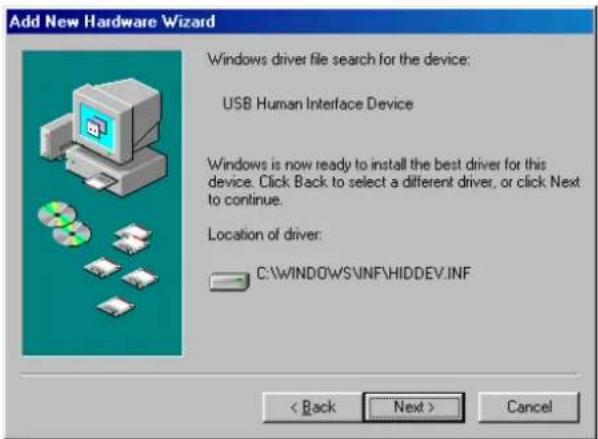
- If the screen below appears, click OK.

Insert your Windows 98 SE CD-ROM and then click Browse to specify the directory to the Windows 98 SE CD. Click OK.
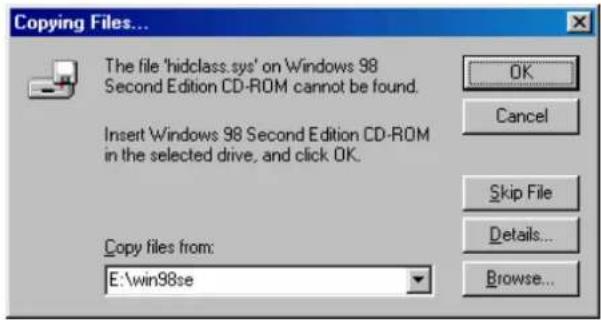
- Click Finish to complete the installation.

Windows will detect another USB Human Interface device. Repeat the steps above to finish the installation.
Verify the Device Installation
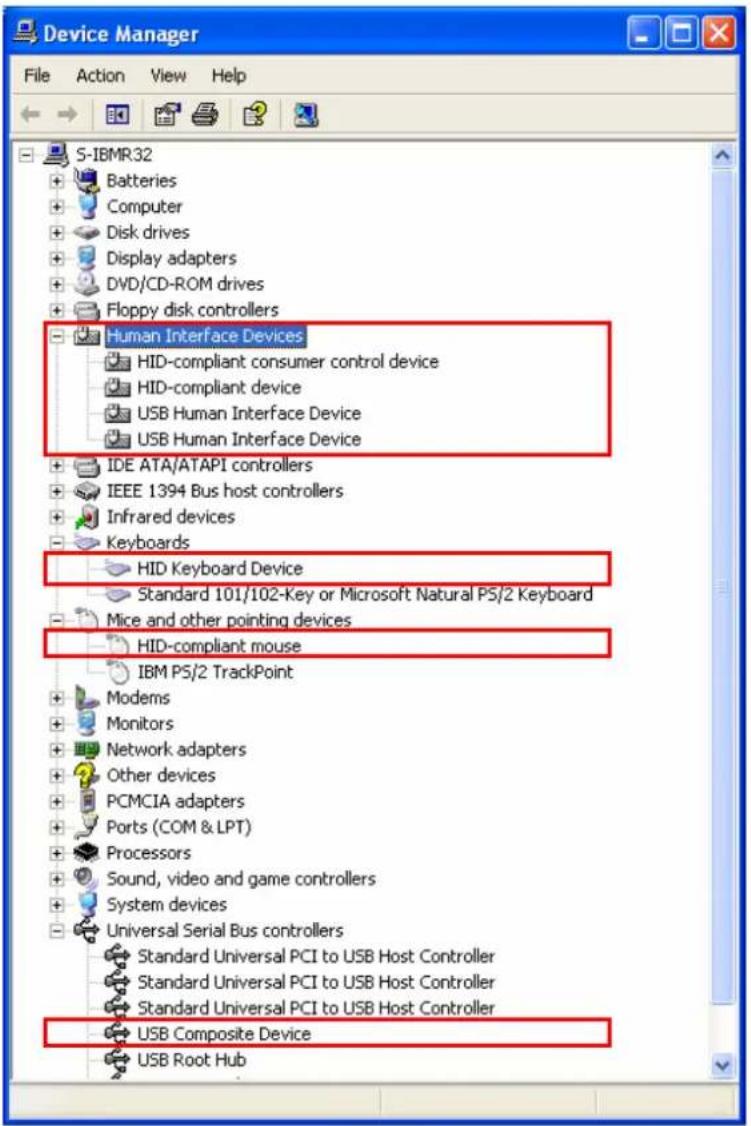
To verify your receiver installation, select Control Panel > System > (Hardware) > Device Manager. Your device list should be similar to the screen shot displayed blow.
If there is a question or exclamation mark next to any of the items, then the driver is not properly installed. Please delete the item and repeat the installation steps.
3. Using the Presenter
Using the Keys
The mouse emulation keys (i.e., right, left and navigation keys) and Laser key function in the same way in both modes. The remaining keys offer different function according to the current operation mode. See the table below for details:
| Key PowerPoint | Mode Windows Media Player Mode | |
| Cursor Control | Controls cursor movement. Click center for mouse left button. | |
 | Press and hold: Shoots the laser light.Release: Turns off the laser light. | |
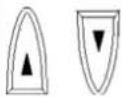 | Page Up, Page Down Volume +, Volume - | |
 | Press twice:Start / exit slide show | Press twice:Play / pause playing media. |
| Press and hold for about 1 sec:Turn the presentation screen to all black / Restore to normal state. | Press and hold for about 1 sec:Mute on / off | |
 | Mouse left button, Mouse right button | |
 | Press and hold for about 1.5 seconds until the LED flashes:Switch between PowerPoint and Windows Media Player modes. | |
Activate / De-Activate Laser Point Function
The laser pointer function is de-activated by default. To activate this function, press and hold the Laser key & Mode key simultaneously for about 3 seconds until the LED flashes red to confirm activation. To de-activate the laser point, just repeat these steps.

When laser point is activated, you can press and hold the Laser Light key to shoot the laser light and release the key to turn it off.
Note: If the batteries inside the presenter are replaced, you will need to re-activate the laser point function before you can use it.
Establishing a Communication Link
If your presenter is not working or RF interference with other remote device occurs, then you need to reset the ID shared by the presenter and the receiver so that they can establish a communication link. To reset the ID, make sure the receiver is plugged to a computer and take the steps below:
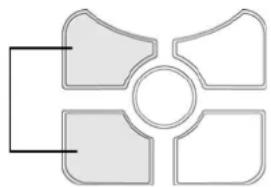
- Press the Mode key in conjunction with the Mouse Left key for about 3 seconds until the LED flashes in green. Then release the keys.
Press simultaneously until the LED flashes.
natural_image
Pure diagram of four symmetrical shapes with a central circle, no text or symbols present- Insert a pin or bent paperclip into the small hole on the receiver. Press it lightly and then release.
- The reset is complete and now the presenter is ready to use. You can verify the link just using the mini stick to see if it controls the cursor.
Note: As the laser point function is independent from the receiver, it cannot be used to verify the link.
Sleeping Mode
When the presenter is not operated for more than 10 minutes, the presenter goes into sleeping mode and de-activates the laser pointer function in order to save battery life. To wake up the presenter, just press any key on the device. To use the laser light function, you need to activate it again by following the steps above.
Changing Mode
The presenter has two operation modes: PowerPoint mode and Windows Media Player mode. To switch between these two modes, press the Mode key for about 1.5 seconds until the LED flashes green to confirm the change.
4. Troubleshooting
Q1. Why does my presenter doesn't work?
A1. Check that the receiver is firmly attached to the USB port on your computer and Windows built-in drivers are properly installed.
Make sure you have established a communication link between the presenter and its receiver. Refer to “Using the Keys” section for instructions.
Q2. I have re-established the link between the presenter and its receiver. But some of the keys still do not work.
A2. The keys' functions depend on the operation mode. For example, if you find the Page Up / Page Down keys don't work, it may because that the presenter is in the Windows media player mode.
Q3. Is there any method that I can identify the presenter's current operation mode?
A3. No. If you find the keys don't work as expected, use the Mode key to switch the operation mode.
Q4. Why does the laser point function doesn't work?
A4. The laser point function is not activated by default. You should activate it before you can use it. Refer to the “Activate / De-Activate Laser Point Function” section for details.
Also, if the presenter is not operated for more than 10 minutes, the presenter goes into sleeping mode and de-activates the laser point function. To wake up the presenter, just press any key on the device. To use the laser light function, you need to activate it again.
Q5. While in the multimedia mode, can I use the presenter to control playback software other than Windows Media Player?
A5. The presenter in media mode might work with playback software from other vendors; however, we do not guarantee the compatibility with software other than Windows Media Player.
5. Warranty / Contact
Warranty
The NBW-100U Wireless Presenter comes with a 1 year limited warranty (90 day parts). If your unit should become defective within that time frame, please go to http://www.vantecusa.com for information on how to receive warranty exchange or repair. Cosmetic defects and missing parts are not covered under this warranty. Please check the contents of the unit to make sure you received all parts. Also, check for any cosmetic flaws. If any parts are missing or if there are cosmetic defects, please contact the retailer from which you purchased the unit immediately and ask for a replacement.
Contact
Vantec Thermal Technologies
43951 Boscell Rd.
Fremont, CA 94538
tel: 510-668-0368
fax: 510-668-0367
website: www.vantecusa.com
6. Specifications
| Items | Description | |
| Presenter | RF Frequency | 2.4GHz frequency ISM band for worldwide |
| Power Source AAA battery X 2 | ||
| Power Consumption | 3V 1.2mA3V 27mA while Laser Pointer is on | |
| Laser Pointer | Laser wavelength at peak emission | 650nm+-20nm (Red Light) |
| Indicator Max to 15 meters | ||
| Power consumption 1mW | ||
| Receiver | Interface | USB 1.1 |
| Power consumption 5V 30mA | ||
| Operation Distance 15 meters, from presenter to receiver | to receiver | |
* Specification is subject to change without further notice.
7. Regulatory Compliance
FCC Conditions
This equipment has been tested and found to comply with Part 15 of the FCC Rules. Operation is subject to the following two conditions:
(1) This device may not cause harmful interference, and
(2) This device must accept any interference received. Including interference that may cause undesired operation.
CE
This equipment is in compliance with the requirements of the following regulations: EN 55 022: CLASS B
WEEE Information
For EU (European Union) member users:
According to the WEEE (Waste electrical and electronic equipment) Directive, do not dispose of this product as household waste or commercial waste. Waste electrical and electronic equipment should be appropriately collected and recycled as required by practices established for your country. For information on recycling of this product, please contact your local authorities, your household waste disposal service or the shop where you purchased the product.




- 2.4GHz Wireless Presenter
- Safety Instructions
- Copyright Statement
- Disclaimer
- Table of Contents
- Introduction ...... 3
- Installation ....4
- Using the Presenter ....8
- Troubleshooting....11
- Warranty / Contact ....13
- Specifications....13
- Regulatory Compliance....14
- Introduction
- Features
- Package Contents
- System Requirements
- Installation
- Installing the Batteries
- Installing the Receiver
- Windows XP/2000/ME
- Windows 98SE
- Verify the Device Installation
- Using the Presenter
- Using the Keys
- Activate / De-Activate Laser Point Function
- Establishing a Communication Link
- Sleeping Mode
- Changing Mode
- Troubleshooting
- Warranty / Contact
- Warranty
- Contact
- Specifications
- Regulatory Compliance
- FCC Conditions
- CE
- WEEE Information
Brand : Vantec
Model : NBW-100U
Category : Wireless presenter