GR-RS780WI-PMY06 - Fridge TOSHIBA - Free user manual and instructions
Find the device manual for free GR-RS780WI-PMY06 TOSHIBA in PDF.


User questions about GR-RS780WI-PMY06 TOSHIBA
0 question about this device. Answer the ones you know or ask your own.
Ask a new question about this device
Download the instructions for your Fridge in PDF format for free! Find your manual GR-RS780WI-PMY06 - TOSHIBA and take your electronic device back in hand. On this page are published all the documents necessary for the use of your device. GR-RS780WI-PMY06 by TOSHIBA.
USER MANUAL GR-RS780WI-PMY06 TOSHIBA
natural_image
Modern kitchen interior with white tiled walls and a black refrigerator on a wooden counter (no visible text or symbols)

REMOTE CONTROL
AFTER-SALES
- Contact Number
- Common FAQ
HOME AWAY MODE
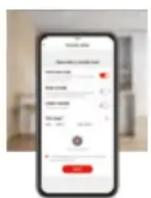
- Set reminder if the fridge is opened accidentally.
FAMILY CARE
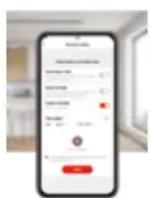
- Check the fridge's opened record by family members.
- Send reminder if the fridge has not been opened during setting time.
OPEN-DOOR ALARM
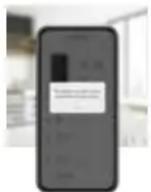
- Set reminder when the fridge is not closed properly.
QUICK START GUIDE
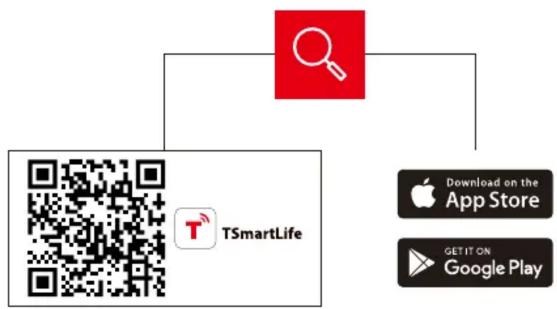
1 DOWNLOAD THE TSmartLife APP
Scan QR code or find us on your app store
flowchart
graph TD
    A["Download on the App Store"] --> B["TSmartLife"]
    C["Google Play"] --> B
2 REGISTER AND LOG IN
Log in for existing users or sign up for new users
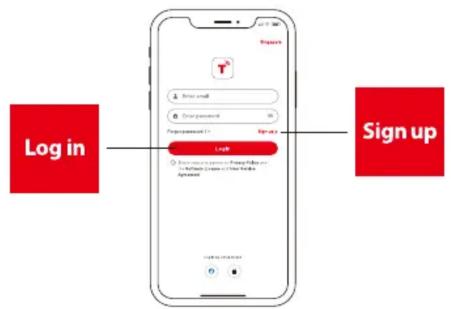
flowchart
graph LR
    A["Log in"] --> B["Login"]
    B --> C["Sign up"]
3 CONNECT YOUR DEVICES TO TSmartLife
A. Connect to wireless network and enable Bluetooth
B. Open the TSmartLife app. Power on selected device
C. Add your device using one of the following methods:
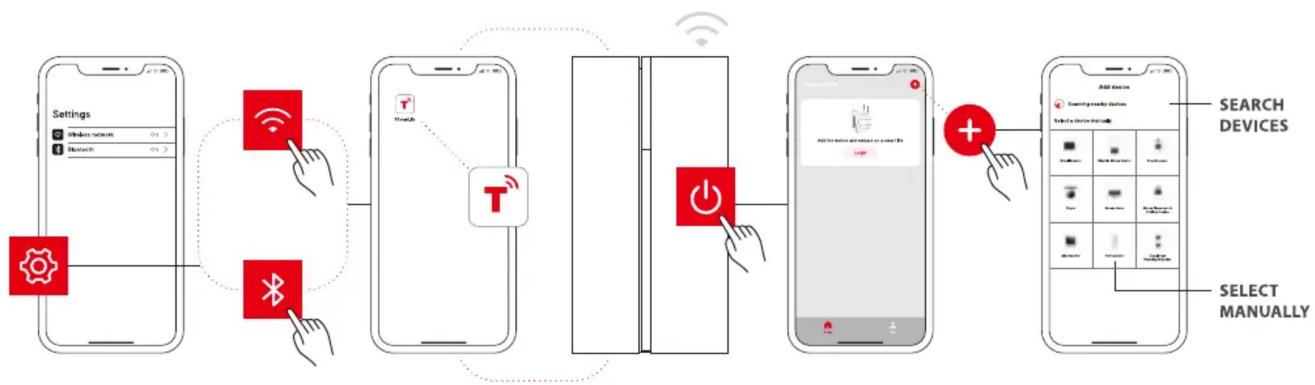
flowchart
graph LR
    A["Settings"] --> B["Wireless network"]
    B --> C["Bluetooth"]
    C --> D["Bluetooth"]
    D --> E["T"]
    E --> F["Switch"]
    F --> G["Power Icon"]
    G --> H["Mobile Device"]
    H --> I["Add Device"]
    I --> J["Search Devices"]
    J --> K["Select Manually"]
QUICK TIPS
- Make sure your devices are powered on.
- Keep your mobile phone close to your device during connection.
- Connect your mobile phone to the wireless network at home.
- Enable the 2.4GHz frequency on your wireless network router. Contact the manufacturer if unsure whether the router supports 2.4GHz.
- The device is unable to connect to wireless network that requires authentication and also appears in public areas such as hotels and restaurants.
- It is recommended to use a wireless network name that only contains letters and numbers. If your wireless network name contains special characters, modify it in the router. Disable WLAN+ (Android) or WLAN Assistant (iOS) when connecting your devices to the network.
- To reconnect a device to the wireless network, click "+" on the app home screen and add the device again by the category and model according to the app prompts.
www.toshiba-lifestyle.com