Laudberg M1 - Loudspeaker Manta - Free user manual and instructions
Find the device manual for free Laudberg M1 Manta in PDF.


| Product Type | Bookshelf Speaker System (Active + Passive) |
| Model | Laudberg M1 |
| Power Output | 60W + 60W (L/R) |
| Frequency Response | 40Hz - 20kHz |
| Bass Driver | 6.5 inch |
| Tweeter Driver | 3.5 inch |
| Signal-to-Noise Ratio | ≥85dB (A) |
| Input Sensitivity (LINE IN) | 650±50mV |
| Input Sensitivity (ARC/OPT) | 500±50mV |
| Input Sensitivity (Bluetooth) | 700±50mFFS |
| Connectivity | Bluetooth, USB, Optical, ARC, RCA (Line), Subwoofer Output |
| Bluetooth Range | Up to 10 meters (30 feet) |
| Power Supply | DC 13-24V via included power adapter |
| Power Consumption | 80W + 60W (estimated total 140W) |
| Controls | Volume/Treble/Bass dials, Source select, Previous/Next track on rear panel; Remote control included |
| Sound Modes | Music, Dialogue, Movie |
| Remote Control | Yes (power, mute, volume, source, playback, modes) |
| Box Contents | Active speaker, Passive speaker, Remote control, Stereo RCA to 3.5mm cable, Digital Optical cable, Audio cable, Power adapter, Quick Start guide |
| Safety | Read all instructions before use; use only supplied adapter; keep away from moisture |
| Maintenance | Clean with dry cloth; do not use liquid cleaners |
Frequently Asked Questions - Laudberg M1 Manta
User questions about Laudberg M1 Manta
0 question about this device. Answer the ones you know or ask your own.
Ask a new question about this device
Download the instructions for your Loudspeaker in PDF format for free! Find your manual Laudberg M1 - Manta and take your electronic device back in hand. On this page are published all the documents necessary for the use of your device. Laudberg M1 by Manta.
USER MANUAL Laudberg M1 Manta
natural_image
Abstract geometric logo design with two curved shapes forming a stylized 'L' (no text or symbols)LAUDBERG
Quick Start
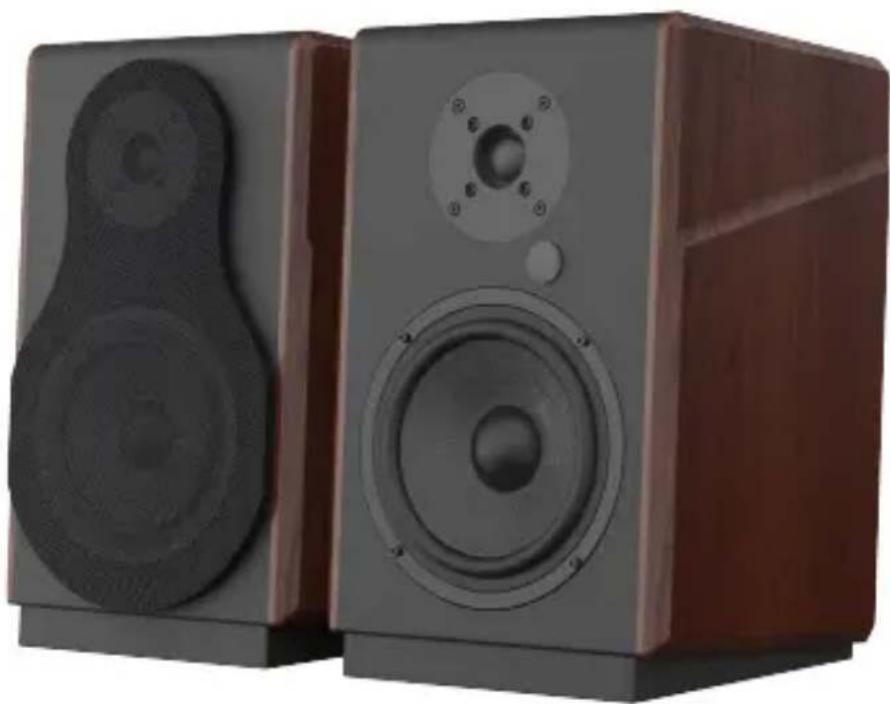
natural_image
Two wooden audio speakers with speaker holes, no visible text or symbols(Laudberg M1)
Please read all instructions before use for the best performance of this product. Save these instructions for future reference.
Box Contents

natural_image
Line drawing of a two-tiered speaker with sound waves and a speaker grille (no text or symbols)Bookshelf Speaker
Remote Control

Quick Start

Stereo RCA to 3.5mm audio cable

Digital Optical cable
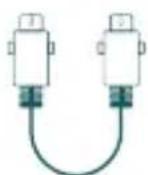
Audio cable

natural_image
Simple line drawing of a plug connected to a cable (no text or symbols)Power Adapter
LED Indicators and Button Introduction

Standby

Bluetooth

USB

ARC RCA Optical


Infrared receiver LED Indicators
Active Speaker

natural_image
Line drawing of a speaker with a circular head and speaker grille (no text or symbols)
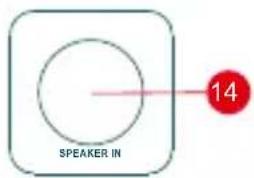
- Volume control / Sound effects
Press in to navigate between audio sources: Music -> Dialogue -> Movie - Treble control
- Bass control
- Power switch / Input selection
- Previous track
- Next track
- ARC input port
- USB input port
- Optical input port
- SUB output port
- RCA Input port
- Left speaker audio output
- Power port
- Left speaker audio in
Passive Speaker
Know Your Remote

 | Power button | MUTE | Mute/Unmute |
 | Volume up | VOL+ | Volume down |
 | Previous track | Next track | |
 | Play/pause | OPT | Optical mode |
 | ARC mode | BT | Bluetooth mode |
 | USB /DAC mode | RCA | Line mode |
 | Move mode | MUSIC | Music mode |
 | Dialogue mode | ||
Connection Diagram

flowchart
graph TD
    TV["TV"] --> USB["USB"]
    USB --> ActiveSpeaker["Active Speaker"]
    ActiveSpeaker --> PassiveSpeaker["Passive Speaker"]
    PassiveSpeaker --> ActiveSpeaker
    ActiveSpeaker --> WirelessDevice["Wireless device"]
    ActiveSpeaker --> ActiveSubwoofer["Active subwoofer"]
    ActiveSpeaker --> WirelessDevice
    ActiveSpeaker --> ActiveSubwoofer
    ActiveSpeaker --> WirelessDevice
    ActiveSpeaker --> WirelessDevice
    ActiveSpeaker --> WirelessDevice
    ActiveSpeaker --> WirelessDevice
    ActiveSpeaker --> WirelessDevice
    ActiveSpeaker --> WirelessDevice
    ActiveSpeaker --> WirelessDevice
    ActiveSpeaker --> WirelessDevice
    ActiveSpeaker --> WirelessDevice
    ActiveSpeaker --> WirelessDevice
    ActiveSpeaker --> WirelessDevice
    ActiveSpeaker --> WirelessDevice
    ActiveSpeaker --> WirelessDevice
    ActiveSpeaker --> WirelessDevice
    ActiveSpeaker --> WirelessDevice

    subgraph Wireless Device
        direction TB
        a["a"] --> BluetoothSignal["Bluetooth signal up to 30 feet"]
        b["b"] --> BluetoothSignal
        c["c"] --> BluetoothSignal
        d["d"] --> BluetoothSignal
        e["e"] --> BluetoothSignal
        f["f"] --> BluetoothSignal
        g["g"] --> BluetoothSignal
        h["h"] --> BluetoothSignal
    end
a Bluetooth
e RCA - RCA (not supplied)
b USB (not supplied)
f RCA to 3.5mm audio cable (supplied)
C ARC (not supplied)
g Audio cable (supplied)
d Digital Optical cable (supplied)
H Power Adapter (supplied)
Connecting with a TV
Active Speaker

A Method 1. Connecting using an Optical cable. Select Optical mode and set the TV's audio output to "PCM". (More information on PCM page)
B Method 2. Connecting using a RCA to 3.5mm cable. Select RCA mode and set the TV's audio output to "PCM". (More information on PCM page)
Method 3. Connecting using an ARC cable. Select ARC mode and set the TV's audio output to "PCM". (More information on PCM page)
Setting "PCM" on your TV
When all cables are connected properly, and LED indicator lights properly, if there is no sound from tv or Soundbar, please setting your tv as below:
- Press "Menu" on the TV's remote control.
- Press the arrow keys on the remote to scroll to "Audio Settings."
- Press "OK" on the remote control.
- Scroll to "Advanced Audio" and press "OK". Some televisions may not have an "Advanced Audio" menu and may list various audio settings instead.
- Scroll to "Audio Output Mode" or "Digital Audio Output Mode" and press "OK".
- Scroll until "PCM" is displayed as the current audio output.
- Press "OK" to save the settings.
Connecting a Bluetooth Device

flowchart
graph LR
    A["BT"] --> B["P/Mor"]
    B --> C["Bluetooth signal up to 30 feet"]
    C --> D["Mobile Device"]
    C --> E["Laptop"]
    C --> F["Music Note"]
a. Press the "BT" button on the remote or press the "P/M" button on back panel of the active speaker, the LED indicator blinks blue.
b. Turn on Bluetooth on the Bluetooth device.
c. Select "Laudberg M1" and connect it. When your Bluetooth device is connected, the LED indicator blinks blue slowly.
d. Play music files from the device, connected via Bluetooth, through the bookshelf speaker.
Specifications
| Power output: | L/R: 60W + 60W |
| Signal to noise ratio dB(A): | L/R: ≥85dB (A) |
| Input sensitivity: | LINE IN: R/L: 650±50mV |
| ARC: R/L: 500±50mV | |
| OPT: R/L: 500±50mFFS | |
| Bluetooth: R/L: 700±50mFFS | |
| Frequency response: | 40HZ-20KHZ |
| Bass unit: | 6.5 inch |
| Tweeter unit: | 3.5 inch |
Troubleshooting
No sound
- Check if the power indicator light is ON.
- Try to turn up the volume using either the master volume control or remote control.
- Ensure the audio cables are firmly connected and the input is set correctly on the speakers.
- Check if there is signal output from the audio source.
Cannot connect via Bluetooth
- Make sure the speaker is switched to Bluetooth input, in other audio input mode Bluetooth can not be paired or connected. Disconnect from any Bluetooth device by press and hold the volume dial in Bluetooth mode, then try again.
- Effective Bluetooth transmission range is 10 meters, please make sure operation is within the range.
- Try another Bluetooth device for connection.
The Bookshelf Speaker does not turn on
- Check if mains power is connected. or if the wall outlet is switched on.
Thanks for reading!
Brand : Manta
Model : Laudberg M1
Category : Loudspeaker