SportsCaster - Uncategorized Henry Engineering - Free user manual and instructions
Find the device manual for free SportsCaster Henry Engineering in PDF.


| Product Type | Sports Broadcast Audio Control System |
| Brand | Henry Engineering |
| Model | SportsCaster |
| Dimensions | 1-RU (1.75" height), 6" depth |
| Weight | 5 lbs (2.27 kg) |
| Power Input | 115 VAC, 50-60 Hz, 12 watts (user-selectable to 230 VAC) |
| Inputs | 3 Sports Pod mics (balanced, 0 dBu, 20kΩ); Field (balanced, line/mic selectable); Aux-1 (balanced, line/mic); Aux-2 (balanced, line); Local (balanced, line); Return (balanced, line) |
| Outputs | Program XLR (balanced, +4 dBu); Program 3.5mm (unbalanced, -10 dBu); Field (balanced, line/mic); Camera (balanced, line/mic); Cue 3.5mm (unbalanced, -10 dBu); Link I/O (to Sports Pods) |
| Headphone Output | For Producer, Field Reporter, Camera operators; supports 24Ω or higher stereo headphones |
| Functions | Integrated talent mic mixing, headphone distribution, talkback/intercom, cue bus, cross-comm, and program output |
| Calibration | Set Sports Pod mic gain for 0-VU peaks; adjust talkback master level; typical level controls at 1-2 o'clock |
| User Options | AutoCue (jumpers for Aux-1, Aux-2); Intercom mix to Return; Cue to Camera output; 230V operation (requires jumper change by qualified technician) |
| Approvals | CE / ROHS / City of Los Angeles Electrical Test Lab |
| Maintenance | Clean with a soft, dry cloth; avoid liquids and abrasive cleaners |
| Safety | Use only supplied power cord; internal voltage change must be performed by a qualified technician; fuse rating 0.125A / 250V for 230V operation |
Frequently Asked Questions - SportsCaster Henry Engineering
User questions about SportsCaster Henry Engineering
0 question about this device. Answer the ones you know or ask your own.
Ask a new question about this device
Download the instructions for your Uncategorized in PDF format for free! Find your manual SportsCaster - Henry Engineering and take your electronic device back in hand. On this page are published all the documents necessary for the use of your device. SportsCaster by Henry Engineering.
USER MANUAL SportsCaster Henry Engineering
The SportsCaster is a comprehensive audio control system for managing the audio portion of a sporting event video broadcast. When used with Henry Engineering's Sports Pods, the SportsCaster provides integrated management of these audio functions:
- Talent mic audio mixing
- Talent headphone audio distribution
• Talkback/Intercom Mic facility for Producer - Duplex intercom between Producer and Talent
• Producer headphone audio mixing
• Headphone mix for Field Reporter and Camera operators
• Field Reporter Headphone output - Duplex intercom between Producer and Field reporter
- Party-line intercom between Producer/Talent/Field reporter
• Camera operators Headphones Output
• Talkback from Producer to Camera operators - Inputs for crowd mic, PA announcer, etc.
- Cue bus to audition auxiliary sources
- Main Program output to air or streaming
All of these functions are provided by SportsCaster, using intuitive controls that are easy to understand and use. By integrating all audio functions in one unit, SportsCaster eliminates the need for multiple mixers, headphone amplifiers, DAs, power supplies, and complicated wiring. SportsCaster can be installed in minutes using standard cabling. SportsCaster is a 1-RU unit that mounts in any standard 19" rack enclosure.
2.0 SYSTEM OVERVIEW
Once you become familiar with SportsCaster's basic design, using the system is intuitive and efficient. Here is an overview of how the system operates. We'll assume that there are two announcers (Talent), a Field reporter (FR), TV camera operators (CAMs), and a Producer. The Producer directs the broadcast with off-air communications (comms).
The Talent use Sports Pods to “call the game” on the air. The Producer mixes all the Talent mics for air. This is called the Program mix. The Producer can also mix other audio sources such as the Field Reporter, crowd mic and PA announcer.
The Producer uses his Talkback Mic to give cues to the Talent, off-air. The Talent responds by using the Talkback button on his Sports Pod. Off-air comms between Producer and Talent are called Intercom. The announcers can also use the Intercom to talk to each other and to other Sports Pods users, such as a statistician or spotter.
The Producer can add a Field Reporter's commentary to the on-air Program mix. The Field Reporter uses headphones to hear what's on the air. The Producer gives cues to the Field Reporter via the FR's headphones. When the FR needs to respond, the Producer mixes the FR to the Cue bus, which the Producer hears in his headphones. When the FR is ready with his commentary, the Producer mixes the FR to Program; the FR is now on the air with his report.
The Producer<>Talent Intercom comms are usually separate from Producer<>Field Reporter comms. Sometimes it's necessary for them to hear each other. This is done using SportsCaster's Cross-Comm feature: it lets Talent comm with the FR, so they can cue and coordinate with each other.
The TV camera operators also have headphones and can hear everything that's on the air. The Producer will "call the shots", giving them direction using his Talkback mic which is also mixed into their headphones.
SportsCaster accomplishes all of these functions using just a few controls which are easy to understand and use.
Page 2
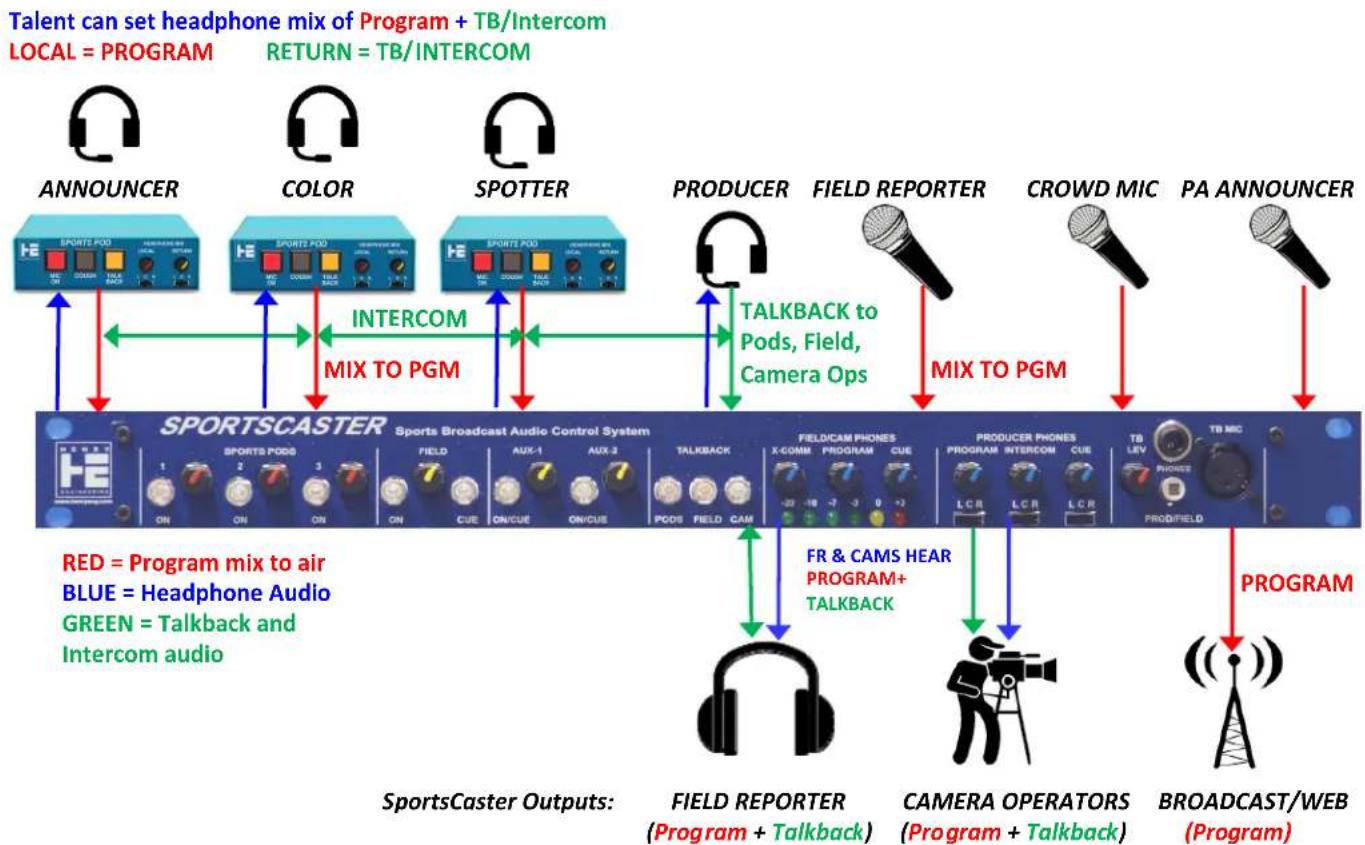
Unlike simple "mic mixers", SportsCaster has multiple audio paths. This is necessary to provide integrated control of the Program (air) mix, plus separate headphone feeds for announcers, the Field Reporter, Camera Operators, and Producer, plus the intercom system. It is very important to understand "who hears what" before installing and using the system! SportsCaster's outputs and audio paths are summarized below. Note: A "level pot" = a volume control.
OUTPUT NAME GOES TO HAS THIS AUDIO WHICH IS CONTROLLED BY
| Program (PGM) | On-Air or streaming | PGM mix, everything that's on-air | Mic and Aux Input level pots |
| Field | Field Reporters headphones | PGM + Producer's Talkback mic* | FIELD/CAM PHONES level pots, FIELD TB button |
| Camera | Camera Ops headphones | PGM + Producer Talkback mic | FIELD/CAM PHONES level pots, CAM TB button |
| Sports Pods-Local | Announcers 'phones/Local | PGM mix, everything that's on-air | Mic and Aux Input level pots |
| Sports Pods-Return | Announcers 'phones/Return | Prod. TB mic, announcer Intercom* | PODS TB button, TB buttons on Sports Pods |
| Producer Headphones | Producers headphones | PGM + Sports Pods Intercom + CUE | PRODUCER PHONES level pots |
| Talkback | Pods, Field, Cam 'phones | Producer's Talkback mic | PODS, FIELD, CAM Talkback buttons |
| Cue | Producers headphones | Field (+ Aux-1, Aux-2, if in AutoCue mode) | Field CUE button |
(Note: Cue bus lets Producer hear Field Reporter, off air, as the return path of Producer<>Field intercom.)
*In addition to the above, when the “Cross-Comm” (X-COMM) function is used, the Field Reporter will also hear the Sports Pods announcers Intercom, and the announcers will hear the Field Reporter via the Cue bus. This is used when the announcers need to communicate with the Field Reporter, off air, using the intercom system.
SportsCaster Audio Paths Diagram
flowchart
graph TD
    A["ANNOUNCER"] -->|Talent can set headphone mix of Program + TB/Intercom| B["SPORTSCASTER"]
    C["COLOR"] -->|INTERNATIONAL| D["SPORTS POD"]
    E["SPOTTER"] -->|INTERNATIONAL| F["SPORTS POD"]
    G["PRODUCER"] -->|TALKBACK to Pods, Field, Camera Ops| H["FIELDCAM PHONES"]
    I["FIELD REPORTER"] -->|MIX TO PGM| J["PROGRAM"]
    K["CROWD MIC"] -->|TALKBACK to Pods, Field, Camera Ops| L["PROGRAM"]
    M["PA ANNOUNCER"] -->|INTERNATIONAL| N["TB MIC"]
    O["RED = Program mix to air"] --> P["SportsCaster Outputs: FIELD REPORTER (Program + Talkback)"]
    Q["CAMERA OPERATORS (Program + Talkback)"] --> R["BROADCAST/WEB (Program)"]
    S["PROGRAM"] --> T["PROGRAM"]
    U["INTERNATIONAL MIX TO PGM"] --> V["MIX TO PGM"]
    W["INTERNATIONAL MIX TO PGM"] --> X["TALKBACK to Pods, Field, Camera Ops"]
    Y["INTERNATIONAL MIX TO PGM"] --> Z["FIELDCAM PHONES"]
    AA["INTERNATIONAL MIX TO PGM"] --> AB["PROGRAM"]
Talent (using Sports Pods) will hear Program on the Local headphone channel and Talkback/Intercom on the Return headphone channel. They can adjust the mix using their Local and Return volume controls. The FR and CAMs will hear a mix of Program and Talkback audio, mixed by the Producer using the SportsCaster FIELD/CAM PHONES volume controls.
3.0 INSTALLATION Note: All inputs are female XLRs; all outputs are male XLRs.
3.1 SPORTS POD Inputs:
The SportsCaster is designed to be used with Sports Pod talent stations. Each Sports Pod should be connected to the SportsCaster as follows:
- Use a mic cable to connect the MIC OUTPUT of the Sports Pod to the MIC INPUT of the SportsCaster. Important note: All Sports Pods should have their Mic Outputs set for LINE LEVEL (the default setting).
- Connect a standard "cat5" cable from the LINK I/O jack on the SportsCaster to the first Sports Pod. Other Sports Pods can be "daisy-chained" from the first unit.
- Connect a "stereo mini-plug" patch cable between the MIC REMOTE jack on each Sports Pod and the corresponding jack on the SportsCaster. Make sure this cable and plugs are 3-circuit: tip-ring-sleeve.
- Connect the talent headphones and mic to the Sports Pod as usual. Do not use the Talkback, Local, Return jacks or 12V jacks. Make sure the small white button on the back of the Sports Pod is OUT.
- Confirm that JP7 is set ON in the Sports Pod. (The factory setting is ON for Sports Pods shipped after 5/2018.) Refer to the User Programming section in the Sports Pod Manual for details.
Important note: If a mic processor will be used with each talent mic, connect the mic to the processor's Mic input, then connect a cable from the processor's output to the Mic Input of the Sports Pod. Make sure the processor's output level is set to "mic" level. If the processor output is "line" level only, set the Sports Pod MIC GAIN trimpot to minimum (ccw), and reduce the processor's output level as necessary. See the text in the Calibration section of this manual.
3.2 FIELD, AUX-2, AUX-2 Inputs:
The SportsCaster has inputs for three other monaural sources that can be mixed for broadcast:
The FIELD input is for a field reporter, who usually uses a wireless mic. Connect the output of the wireless mic receiver to the Field input. The small white button near the XLR connector sets the input sensitivity for this input. If the wireless receiver provides LINE level, this button should be OUT. For MIC level, push the button in.
The AUX-1 input is for either a microphone or line level source. The small white button near the XLR connector sets the input sensitivity for this input. If the source is LINE level, this button should be OUT. For MIC level, push the button in.
The AUX-2 input is for a line level source.
3.3 HEADPHONE Audio Inputs:
The SportsCaster has inputs for two external line level monaural audio sources that can be heard in users' headphones.
LOCAL (Program) is normally the full mix of everything that's on the air, heard by all SportsCaster users via their headphones. In most cases, the SportsCaster's main Program output will be used. There is a small white button near the LOCAL input jack. If this button is OUT, the SportsCaster's main Program output will automatically feed the Local input, and no external audio source is needed. To feed an external Local audio source, push the button IN, and connect to the LOCAL input jack. Note: If the SportsCaster Program output is being fed to a compressor or limiter, and you want to hear the output of the compressor, connect the compressor's output to the Local input jack and push the PGM/EXT button IN.
RETURN is a secondary audio input which can be heard by Talent and Producer. In most video broadcasts, this input is not used. (Radio broadcasts often use RETURN for IFB audio that's sent from the main studio to talent for cueing.)
3.4 FIELD Reporter and CAMERA Headphone Outputs:
There are two isolated outputs to feed headphone audio to the Field Reporter and Camera operators. Each output has a small white button to set the output level: OUT=LINE level; IN=MIC level. Set each as necessary.
Connect the FIELD output to the input of whatever device will be used to send headphone audio to the Field reporter. This is usually a wireless audio link.
Connect the CAMERA output to whatever device or cable will be used to send headphone audio to the Camera operators. This output is transformer-isolated, and is suitable for long cable runs.
3.5 PROGRAM Output:
The Program output is the main output of the SportsCaster. It is used to feed audio to "air" or to a streaming device. The XLR output is at professional line level. "0-VU" equals +4 dBu level at the Program XLR output.
There is also a 3.5mm jack that is a "dual output": Program and Cue are both on this jack. It can be used to feed audio to a consumer device. This jack can also be used to feed Cue bus audio to an external (amplified) "cue speaker" if desired. Important note! This jack is "stereo"; you MUST use a stereo plug! The TIP connection will be Program audio; the RING connection will be CUE audio. (If using a stereo cable, Left=Program; Right=Cue.)
4.0 CALIBRATION, SETUP
Important Note: The SportsCaster will operate best only if audio levels are properly set! Be sure to follow these guidelines. With correct calibration, most level controls should be between 1 and 2 o'clock.
4.1 Sports Pod Mic Gain:

For proper operation of the SportsCaster, correct mic levels are essential. Each Sports Pod should have its mic preamp gain set using the MIC GAIN trimpot on the back of the unit. Important note: if a mic processor is being used, adjust the mic processor first, then set the Mic Gain on the Sports Pod. Set the Sports Pod Mic Gain as follows:
- After connecting the Sports Pods to the SportsCaster, set the MIC level pots on the SportsCaster to 2 o'clock.
- Turn the SportsCaster Mic channel ON, and have the talent speak into his mic as usual.
- Adjust the Sports Pod MIC GAIN trimpot so that the VU meter on the SportsCaster indicates peaks at 0-VU.
4.2 Talkback Master Level:
- Plug Producer's headphones and Talkback mic into the SportsCaster.
- Set all Field/Cam Headphone mix level controls (X-COMM, PGM, CUE) to OFF (full ccw).
- Hold the PROD/FIELD and the TALKBACK-FIELD buttons in, and speak into the Talkback mic.
- Adjust the Talkback Mic LEVEL control so that the VU meter indicates peaks at about 0-VU.
This will properly set the TB mic level. In actual use, you may want to slightly reduce the Program and/or Cue levels that feed the Field and Camera outputs, so the TB mic is louder than Program and Cue audio. (It's better to set the Program and Cue levels lower, rather than turning up the TB mic level.)
5.0 OPERATION
Each announcer has a Sports Pod to control his mic and headphones. The announcer can turn his Mic on/off, and control what he hears in his headphones. The LOCAL headphone audio will be the Program mix of everything that's on the air. The RETURN will be the Intercom audio from the other announcer(s) and the Producer. Pushing the TALKBACK button will let the announcer talk to the other announcer(s) and the Producer, while temporarily muting his mic from air. It is not necessary to turn the mic off when using Talkback – this happens automatically.
The Producer controls the on-air Program mix of all audio sources. The producer can talk to the announcers, the Field Reporter (FR), and camera operators (CAMs), all via their headphones. Although the producer will probably leave his Talkback mic "live" to the CAMs (CAM Talkback button pushed in), he can still talk to PODS and/or the FR. Comms to PODS and FR will not be heard by the CAMs; when the Producer uses either the PODS or FIELD Talkback button, the Talkback audio to the Cameras is muted even if the CAMS Talkback button is in. Comments to CAMs will not be heard by PODS or FR. The Producer can simultaneously talk to PODS and FR by holding both of these buttons in.
The producer sets what is heard by the Field reporter and Cameras. The FR can hear Program + Talkback + Cue audio. When the Producer needs to talk to the FR off-air, the he mixes the FR to the Cue bus, so the Producer can hear the FR in his headphones. The X-COMM feature lets the announcers and FR hear each other when necessary.
The CAMs hear a mix of Program and the Producers Talkback mic. (There is no return path from CAM to Producer.)
The Producer can set his headphone audio mix to any combination of Program, Intercom (Sports Pods), and Cue audio.
Page 5
5.1 Announcer (Sports Pod) mics:
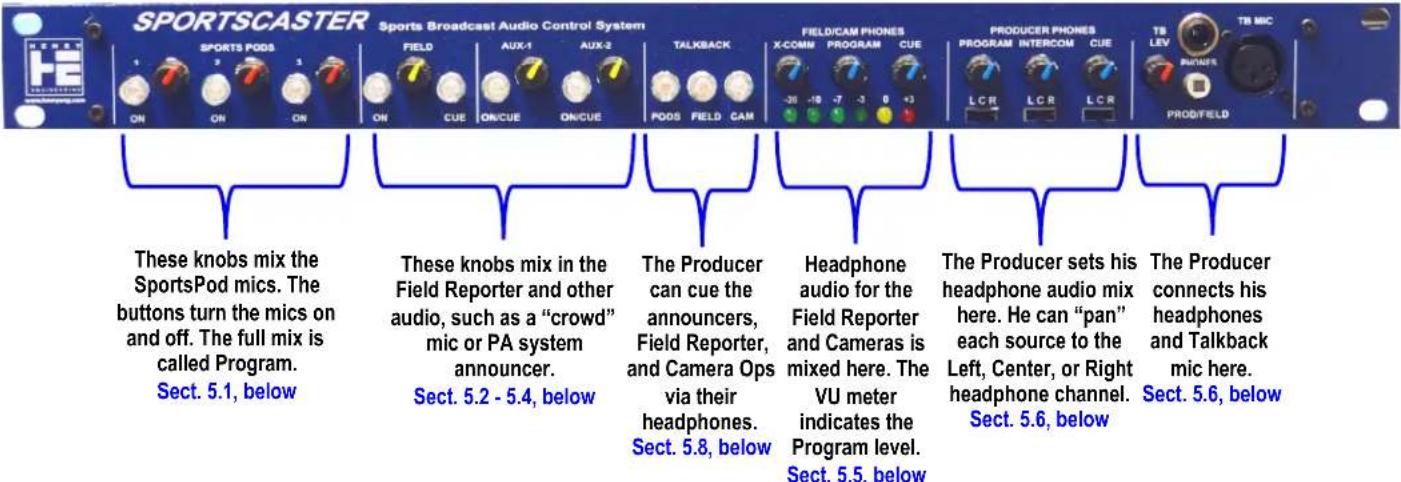
To put an announcer on the air, push the ON button for the Mic channel. The mic will be on whenever the red LED is lit. (The talent can also turn the mic on using the MIC button on the Sports Pod.) Adjust the MIC LEVEL pot so that the VU meter indicates peaks at about 0-VU. If Sports Pod mic gain is correct, the MIC LEVEL pot should be at about 2 o'clock.
The Producer can cue the announcer by using the PODS Talkback button. All Sports Pods users will hear the Producer via their RETURN headphone audio channel. The announcer can respond by using the Sports Pod's TALKBACK button.
5.2 Field mic:
To put the Field Reporter's mic on the air, push the ON button for the Field channel, and adjust the LEVEL. The Field mic can also be sent to the Cue bus by pressing the CUE button, which will override the ON function, and take the FR off the air. The Producer can talk to the Field reporter by pressing the FIELD Talkback button. The Producer's mic will be heard in the FR's headphones. If the FR needs to respond, off-air, push the FR channel's CUE button; he will be heard in the Producer's headphones on the Cue bus. (The FR will also hear himself, in Cue, to confirm that the Producer hears him.) To return the FR to the on-air Program mix, release the CUE button and he'll be back on the air.
5.3 Aux-1 input:
To put the Aux-1 input on the air, push the ON button for the Aux-1 channel, and adjust the LEVEL pot as above. If the Aux-1 input has been programmed for AutoCue, the channel will be mixed to the Cue bus if it's not on the air.
5.4 Aux-2 input:
To put the Aux-2 input on the air, push the ON button for the Aux-2 channel, and adjust the LEVEL pot as above. If the Aux-2 input has been programmed for AutoCue, the channel will be mixed to the Cue bus if it's not on the air.
5.5 Field and Camera Phones levels:
The Field Reporter and Camera* operators can hear a mix of Program and Cue bus audio. The mix is set using the PROGRAM and CUE level controls in the FIELD/CAM PHONES section. These controls should be set to about 1 o'clock. If you want the Producer's Talkback mic to be louder than Program and/or Cue, set the Program and Cue levels slightly lower. (This is preferable to turning the Talkback Mic level up.) *The Camera operators will normally hear Program only, unless CUE-TO-CAM has been enabled. See Section 6.3.
5.6 Producer Headphones levels:
The Producer can hear a mix of Program, Intercom, and Cue bus audio. The mix and volume is set with the PROGRAM, INTERCOM, and CUE controls in the Producers Phones section. Below each pot is a L-C-R Pan switch. This allows the producer to pan each audio source to the Left, Center, or Right channel of his headphones. INTERCOM is announcer Talkback audio from Sports Pods. CUE is the Cue bus audio, used for off-air comms from the Field Reporter. Aux-1 and Aux-2 sources will be mixed to Cue only if AutoCue has been enabled for these sources. See section 6.1.
The PROD/FIELD button allows the Producer to listen to the Producer audio (as set above), OR the Field headphone mix. When the button is OUT, the Producer mix will be heard. If the button is held IN, the Field mix will be heard in the left channel only. (The Producer mix will be heard in the right.) This button is used to initially set the Talkback Mic level and set the Field Reporter's headphone mix.
5.7 X-COMM: Talent-Field Cross-Comm:
Producer<>Announcer Intercom comms and Producer<>Field Reporter comms are usually kept separate. However, it is sometimes necessary for the Announcers to communicate directly with the Field Reporter. Turning this knob up will allow them to hear each other. Set to about 1 o'clock for correct levels.
5.8 Producer Talkback/Intercom System: (Note: The Producer will not hear his Talkback mic in his headphones.)
PODS: Push the PODS button to talk into the announcers' headphones. It will be heard by all Sports Pod users on their RETURN headphone audio channel. The announcer can respond by pushing the Talkback button on his Sports Pod. The Producer will hear the response via the Producer Headphones – Intercom channel. (Other Sports Pods will also hear it.)
FIELD: Push the FIELD button to talk to the Field Reporter via his headphones. If the FR needs to respond, put the FR channel in Cue. This takes the FR off the air (even if the FR channel is ON). The Producer will hear the FR, off-air, via the Producer Headphones – via the Cue channel. When the FR is ready to go back on the air, release the CUE button and he'll be back on the air.
CAM: Push this button to talk to the Camera operators. This button is latching, and can be left ON most of the time. Note: Even when the CAM button is ON, Talkback comms to Talent and Field will NOT be heard by CAMs.
6.0 USER OPTIONS
6.1 AutoCue:
The Aux-1, and Aux-2 inputs may be mixed to the CUE bus when the channel is OFF. This allows hearing these sources when they're not on the air. This feature can be enabled for each source as needed. To enable, open the SportsCaster chassis, and locate JP1 (for Aux-1) and JP2 (for Aux-2). Set the jumper(s) to ON to enable the AutoCue feature.
When the AutoCue is enabled, the ON/CUE switches will select either ON (LED on = source is mixed to Program) or CUE (LED off = source is mixed to internal Cue bus). To turn the source OFF, set the level control fully CCW.
Note: As shipped, the Aux-1 and Aux-2 AutoCue jumpers are set OFF.
Note: The Cue audio is intentionally made to sound "thin", with reduced bass. This is done so that users can audibly differentiate Cue audio from Program audio, which has full fidelity.
6.2 Intercom Mix to Return:
As shipped, SportsCaster will automatically mix the Sports Pod's Talkback audio into the Sports Pod Return headphone channel. This allows announcers to use the Talkback feature as an intercom to other Sports Pod users. If this is not desired, set JP3 OFF. (If JP3 is off, a Sports Pod announcer will not hear himself when using Talkback.)
6.3 Cue to Camera Output:
As shipped, SportsCaster's CAMERA output will be a mix of Program audio and Producer Talkback mic only. If you want the Cameras to also hear Cue audio (same as Field output), set JP4 ON.
6.4 230 Volt Operation:
As shipped, SportsCaster is set to operate on 115 volt AC power. To operate the unit on 230 volt power, change the Input Voltage Jumpers as follows: REMOVE the jumper between E7 and E8. REMOVE the jumper between E6 and E9. Install ONE jumper between E6 and E7. These jumpers should be changed by a qualified technician only. After changing the Input Voltage Jumpers, replace the FUSE with a fuse rated for .125A / 250V.
7.0 SPECIFICATIONS
Inputs:
| Sports Pod mics, 3x Balanced, 0 dBu, 20K | |||||
| Field | Balanced, | 0 | dBu | (line) or -50 dBu (mic), 20K | |
| Aux-1 | Balanced, 0 dBu (line) or -50 dBu (mic), 20K | ||||
| Aux-2 | Balanced, 0 dBu, 20K | ||||
| Local | Balanced, 0 dBu, 20K | ||||
| Return | Balanced, | 0 | dBu, | 20K | |

Outputs:
Program (XLR) Balanced, +4 dBu, Io-Z
Program (3.5mm-Tip) Unbalanced, -10 dBu, 5K
Field Balanced, +4 dBu (line) or -50 dBu (mic), lo-Z
Camera Balanced, +4 dBu (line) or -50 dBu (mic), lo-Z
Cue (3.5mm-Ring) Unbalanced, -10 dBu, 5K
Link I/O Headphone audio and power to Sports Pods
Headphones 24 ohms or higher, stereo
Control: On/Off control of Sports Pods mics
Power Input: 115 VAC, 50-60 Hz, 12 watts. Can be user set for 230V operation.
Physical: 1-RU, 6" depth, 5 lbs.
Approvals: CE / ROHS / City of Los Angeles Electrical Test Lab


- SYSTEM OVERVIEW
- Page 2
- INSTALLATION Note: All inputs are female XLRs; all outputs are male XLRs.
- SPORTS POD Inputs:
- FIELD, AUX-2, AUX-2 Inputs:
- HEADPHONE Audio Inputs:
- FIELD Reporter and CAMERA Headphone Outputs:
- PROGRAM Output:
- CALIBRATION, SETUP
- Sports Pod Mic Gain:
- Talkback Master Level:
- OPERATION
- Announcer (Sports Pod) mics:
- Field mic:
- Aux-1 input:
- Aux-2 input:
- Field and Camera Phones levels:
- Producer Headphones levels:
- X-COMM: Talent-Field Cross-Comm:
- Producer Talkback/Intercom System: (Note: The Producer will not hear his Talkback mic in his headphones.)
- USER OPTIONS
- AutoCue:
- Note: As shipped, the Aux-1 and Aux-2 AutoCue jumpers are set OFF.
- Intercom Mix to Return:
- Cue to Camera Output:
- 230 Volt Operation:
- SPECIFICATIONS
Brand : Henry Engineering
Model : SportsCaster
Category : Uncategorized