
DES4100 - Network router AOPEN - Free user manual and instructions
Find the device manual for free DES4100 AOPEN in PDF.


| Product Type | Personal Computer (Mini PC) |
| Brand | AOpen |
| Model | DES4100 |
| CPU | AMD embedded G series SOC Quad Core APU (GX-415GA) |
| Chipset | N/A |
| Memory | SO-DIMM DDR3L x2, up to 16GB (1333/1600 MHz) |
| Graphics | AMD RADEON 8330E |
| Audio | Realtek ALC269Q HD Audio CODEC |
| LAN | Realtek 8111DP GbE LAN controller |
| Expansion Slots | Full Size mini Card x1, Half Size mini Card x1 |
| Front Panel Indicators | Power (Blue), HDD (Blue) |
| Rear Panel Ports | DC 19V Jack, 2x HDMI, RJ45 LAN, 2x USB 3.0, 2x USB 2.0, RS232 Serial, Power Button, Speaker out, Mic in, Extend power switch, IR receiver jack |
| Power Adapter | 65W (19V, 3.42A) |
| Input Voltage | AC 100~240V |
| Operating Temperature | 0 to 40°C |
| Ventilation Clearance | At least 2 inches (5 cm) |
| Cleaning | Disconnect power, use damp cloth; do not use liquid or spray |
| Safety | Do not open device; avoid liquids; use recommended battery |
| Disposal | Recycle as WEEE; do not dispose in municipal trash |
| Laser Safety | Class 1 laser product (DVD/CD drive) |
| FCC Compliance | Class B digital device |
| Package Contents | DES4100 system, User Guide, Driver CD, 65W Adapter & Power Cord, L type Holder with screws, power holder |
Frequently Asked Questions - DES4100 AOPEN
User questions about DES4100 AOPEN
0 question about this device. Answer the ones you know or ask your own.
Ask a new question about this device
Download the instructions for your Network router in PDF format for free! Find your manual DES4100 - AOPEN and take your electronic device back in hand. On this page are published all the documents necessary for the use of your device. DES4100 by AOPEN.
USER MANUAL DES4100 AOPEN
Personal Computer User Guide for DES4100 Series
natural_image
Black rectangular electronic device with two small buttons at the bottom (no visible text or symbols)Disposal Instruction (US)
For better protection of our earth, please don't throw this electronic device into municipal trash bin when discarding. To minimize pollution and ensure utmost protection of the global environment, please recycle the product. For more information about the collection and recycling of Waste Electrical and Electronic Equipment (WEEE), you are invited to visit our homepage at www.aopen.com under “Green Products”
廃棄上の指示
Instruction de Disposition (French)
Copyright of this publication belongs to AOpen Inc. AOpen reserves the right to change the content of this publication without obligation to notify any party of such changes or revisions. No part of this publication may be reproduced, transcribed, transmitted, translated into any language, stored in a retrieval system in any form or by any means electronically, mechanically, optically without the prior written permission of this company.
Disclaimer
AOpen makes no warranties or representations, either expressed or implied, with respect to the content herein and specifically disclaims any warranties, merchantability of fitness for any particular purpose.
AOpen and AOpen logos used herein are registered trademarks of AOpen Inc. All other brand names and trademarks are owned by their respective owners.
Copyright © 2014 by AOpen Inc. All rights reserved.
Safety Instructions
- Please read these safety instructions carefully.
- Please keep this User's Manual for later reference.
- Please disconnect this equipment from connector before cleaning. Don't use liquid or prayed detergent for cleaning. Use moisture sheet or cloth for cleaning.
- Make sure the equipment is connected to the power source with the correct voltage, frequency, and ampere.
- All cautions and warnings on the equipment should be noted.
- Never pour any liquid into opening; this could cause fire or electrical shock.
- Never open the equipment. For safety reason, the equipment should only be opened by qualified service personnel.
- If one of the following situations arises, get the equipment checked by a service personnel :
a. Liquid has penetrated into the equipment.
b. The equipment has been exposed to moisture.
c. The equipment has not work well or you can not get it work according to user's manual.
d. The equipment has dropped and damaged.
e. If the equipment has obvious sign of breakage.
-
Caution on use of battery: Use the battery recommended by the manufacturer or the same type of battery installed by the manufacturer. If incorrect battery is used, it may cause explosion or fire hazard. Recycle or discard used batteries according to the manufacturer's instruction or your local authority.
-
Safety caution concerning laser products:
DVD-ROM/CD-RW combo drive is “Class I Laser Product” This equipment, built with DVD and/or CD disc drives using laser beam to read or write data on optical discs, is classified as “Class 1 laser product”. While the laser optical drive is reading data from or writing data to an optical disc, do not force open the disc drive door. Press the Eject button to retrieve the optical disc only after the in-use indicator goes off.
- Ambient operation temperature: 0 \~ 40 degrees C.

Risk of overheating!
Do not install DES4100 in a closed space.
Be sure the ventilation holes in the Digital Engine side for at least 2 inches or 5 cm of space for ventilation.
To ensure that other objects do not cover the ventilation holes on DES4100.

FCC notice
This device has been tested and found to comply with the limits for a Class B digital device pursuant to Part 15 of the FCC Rules. These limits are designed to provide reasonable protection against harmful interference in a residential installation. This device generates, uses, and can radiate radio frequency energy and, if not installed and used in accordance with the instructions, may cause harmful interference to radio communications.
However, there is no guarantee that interference will not occur in a particular installation. If this device does cause harmful interference to radio or television reception, which can be determined by turning the device off and on, the user is encouraged to try to correct the interference by one or more of the following measures:
■ □Reorient or relocate the receiving antenna.
■ □ Increase the separation between the device and receiver.
■ □Connect the device into an outlet on a circuit different from that to which the receiver is connected.
- Consult the dealer or an experienced radio/television technician for help
Notice: Shielded cables
All connections to other computing devices must be made using shielded cables to maintain compliance with FCC regulations.
Notice: Peripheral devices
Only peripherals (input/output devices, terminals, printers, etc.) certified to comply with Class B limits may be attached to this equipment. Operation with non-certified peripherals is likely to result in interference to radio and TV reception.
Caution
Changes or modifications not expressly approved by the manufacturer could void the user's authority, which is granted by the Federal Communications Commission, to operate this computer.
Operation conditions
This device complies with Part 15 of the FCC Rules. Operation is subject to the following two conditions: (1) this device may not cause harmful interference, and (2) this device must accept any interference received, including interference that may cause undesired operation.
Notice: Canadian users
This Class B digital apparatus complies with Canadian ICES-003
Index
- Outlook ......2
- Product Specification....4
- Internal Connectors ....5
- Function introduction......6
- Packing List....9
- Chassis and Holder Dimension ....10
1. Outlook
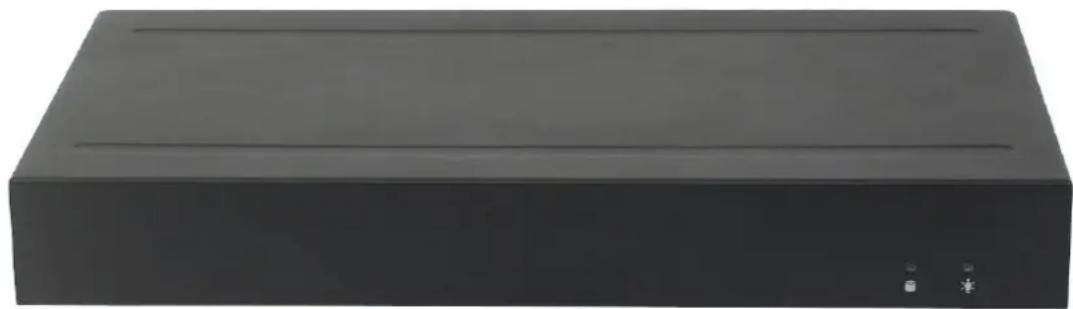
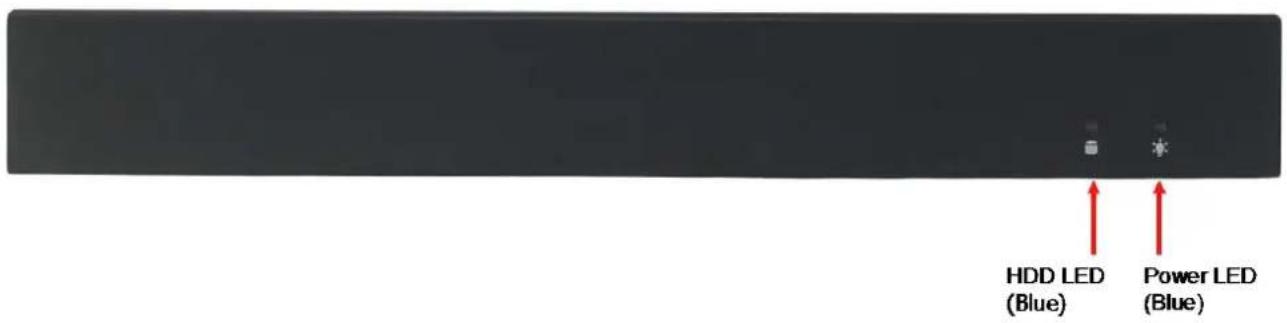
Front IO
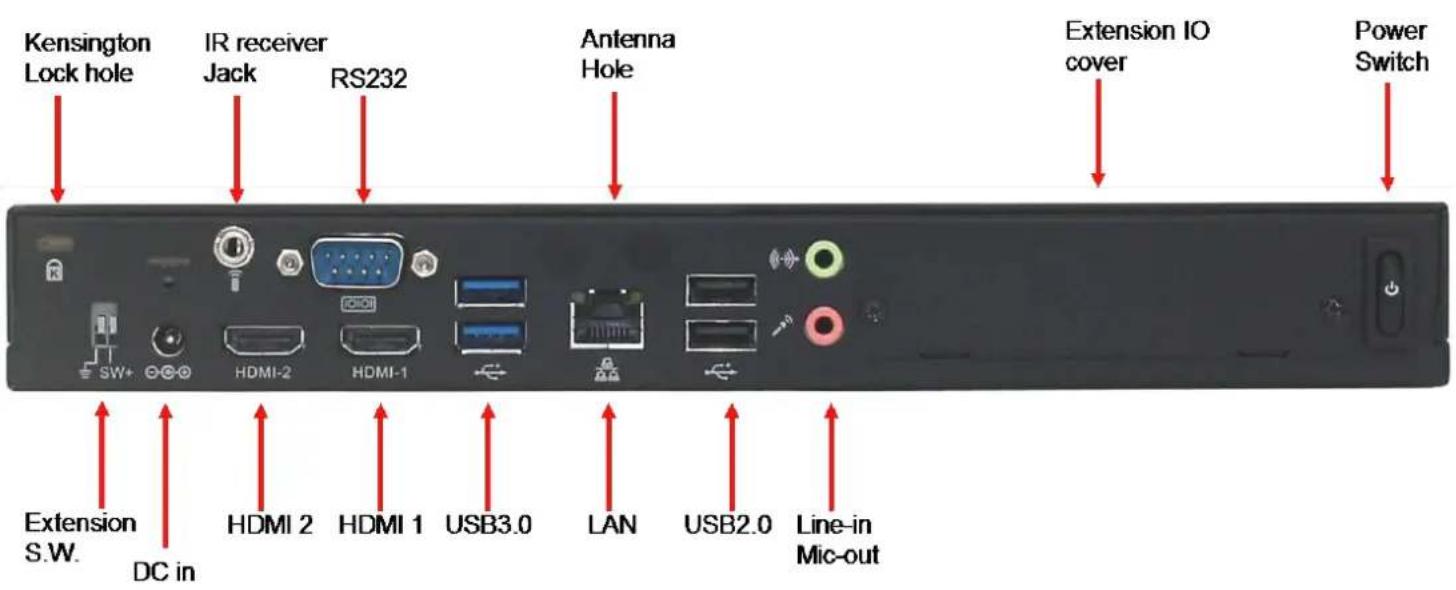
Rear IO
2. Product Specification
| CPU | AMD embedded G series SOC Quad Core APU |
| Chipset | N/A |
| Memory | Single Channel Mode, SO-DIMM DDR3L x 2, 1600/1333 MHz, Max memory size : 16GB |
| Graphics | AMD RADEON 8330E Graphic for GX-415GA |
| Expansion | Full Size mini Card x 1 |
| Slot | Half Size Mini Card x 1 |
| Audio | Realtek ALC269Q HD Audio CODEC on-Board. |
| LAN | Realtek 8111DP GbE LAN controller |
| Front Panel IO | Power indicator (Blue) x 1, HDD indicator (Blue) x 1 |
| Rear Panel IO | DC 19V Jack x 1, HDMI Port x 2, RJ45 LAN Jack x 1, USB 3.0 Port x 2, USB2.0 port x 2, RS232 Serial Port x 1, Power Button x 1, HD Audio ports speaker out x 1, Mic in x 1, Extend power switch x 1, IR receiver jack x 1 |
| Adapter | 65W (19V, 3.42 A) AC Power Adapter |
| Input Voltage | AC 100 ~ 240V |
3. Internal Connectors

4. Function Introduction
4.1 IR Remote Control for option
• DES4100 can support a extend IR receiver cable and a remote controller as the below
- The remote controller can support Power On/Off, Enter to BIOS setting screen by press a certain function key, and you can set up BIOS by , Esc, Enter

4.2 Extend power switch
Extend power switch at rear IO of DES4100 can allow customer to extend the power switch by their demand, and customer can decide their own switch specification and cable length just follow the wire gauge and strip length.

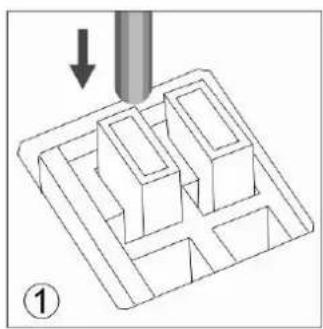
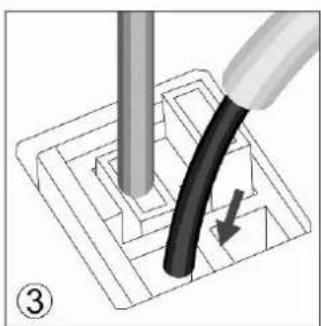
This is a screwless type spring clamp pluggable terminal block, you can insert a wire by press the button on the terminal, please refer to the procedure below
Step 1 please prepare a pin or rod that hard enough for pushing the button on the terminal block
Step 2 push the button in the end and hold it
Step 3 insert the wire into the hole and make sure the stripped portion is fully inserted
Step 4 release the pin or rod then the wire will clamp by the terminal block
step1
natural_image
Isometric diagram of a mechanical component with a downward arrow and numbered label (no text or symbols)step2

natural_image
3D diagram of a mechanical component with a tool inserted, showing internal structure and an arrow indicating direction (no text or symbols)step3
natural_image
Diagram showing a black curved object being inserted into a 3D grid structure with a tool, no text or symbols present.step4

natural_image
Diagram of a mechanical component with an upward arrow and numbered label (4), no readable text or symbols present.5. Packing List
1 x DES4100 system
1 x User Guide
1 x Driver CD
1 x 65W Adapter and Power Cord
1 x L type Holder with 4 pcs of M3 screw
4 x M3 – stepping screws for HDD
1 x power holder
6. Chassis and Holder Dimension
A. Dimension of DES4100 (unit: mm[inch])

B. LH02 L type Holder (Include 2 piece holder and 4 FPH M3 screws) Dimension of L type Holder. (unit: mm[inch])

P/N : 49.DES01.0010
- Personal Computer User Guide for DES4100 Series
- Disposal Instruction (US)
- 廃棄上の指示
- Instruction de Disposition (French)
- Disclaimer
- Safety Instructions
- Risk of overheating!
- FCC notice
- Notice: Shielded cables
- Notice: Peripheral devices
- Caution
- Operation conditions
- Notice: Canadian users
- Index
- Outlook
- Product Specification
- Internal Connectors
- Function Introduction
- IR Remote Control for option
- Extend power switch
- Packing List
- Chassis and Holder Dimension
Brand : AOPEN
Model : DES4100
Category : Network router