
Bluetooth VR Headset with Earphones - Toy Sharper Image - Free user manual and instructions
Find the device manual for free Bluetooth VR Headset with Earphones Sharper Image in PDF.


| Product Type | Bluetooth VR Headset with Earphones |
| Bluetooth Version | V4.1 |
| Field of View | 120° |
| Objective Lens | 1.65 inches (42mm) |
| Interpupillary Adjustment Range | 2.28 to 2.68 inches |
| Battery Charging Time | Up to 2 hours |
| Power Source | Built-in rechargeable battery via Micro USB |
| Smartphone Compatibility | iPhone 6/6 Plus/7/7 Plus/8/8 Plus/X/XR/XS/11/11 Pro/12/12 Pro/13/13 Pro; Android devices including Galaxy S22/S21/S10e/S10/S9+/S8+, LG K30/G8/K22+/Stylo 5+/K40/Stylo 4, HTC U Ultra, Xperia1 III, Xperia PRO-1, Xperia5 III, Xperia10 II, Xperia XA, Xperia5, XS Max, 11 Pro Max, 12 Pro Max, 13 Pro Max, HUAWEI P20 Pro, Mate 40E, P40 Pro, P50 Pro, P50E, Nova 9. Max phone size 6.7" height. |
| Controls | Multi-function button, Next/Previous track, Volume dial, Interactive gaming button, Adjustable focal point dial, Lens distance knobs |
| Safety Warnings | Do not wear without smartphone; never look at sun; not for children under 13; take frequent breaks; consult doctor if prone to seizures. |
| Maintenance | Keep away from heat, humidity, abrasive cleaners, sharp objects, fire; do not drop or disassemble. |
| Warranty | 1-year limited replacement warranty from SharperImage.com |
| Customer Service | 1 (877) 210-3449, Mon-Fri 9am-6pm ET |
Frequently Asked Questions - Bluetooth VR Headset with Earphones Sharper Image
User questions about Bluetooth VR Headset with Earphones Sharper Image
0 question about this device. Answer the ones you know or ask your own.
Ask a new question about this device
Download the instructions for your Toy in PDF format for free! Find your manual Bluetooth VR Headset with Earphones - Sharper Image and take your electronic device back in hand. On this page are published all the documents necessary for the use of your device. Bluetooth VR Headset with Earphones by Sharper Image.
USER MANUAL Bluetooth VR Headset with Earphones Sharper Image
natural_image
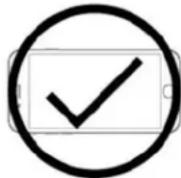
Black-and-white photo of a VR headset with smartphone displaying a screen, mounted on a reflective surface (no text or symbols visible)Thank you for purchasing the Sharper Image Bluetooth VR Headset with Earphones. Please read this guide carefully and store for future reference.
FEATURES
• Built-in Bluetooth wireless headphones
- Fully adjustable
- Compatible with iPhone 6/6 Plus/7/7 Plus/8/8 Plus/X/XR/XS/11/11 Pro/12/12 Pro/13 and 13 Pro
- Compatible with the following Android devices: Galaxy S22/S21/S10e/S10,/S9+/S8+, LG K30/G8/K22+/Stylo 5+/K40/Stylo 4, HTC U Ultra, Xperia1 III, Xperia PRO-1, Xperia5 III, Xperia10 II, Xperia XA and Xperia5, XS Max, 11 Pro Max, 12 Pro Max, 13 Pro Max. HUAWEI P20 Pro, Mate 40E, P40 Pro, P50 Pro, P50E, Nova 9.
- NOTE: Please remove phone case before use. Maximum phone size is 6.7" in height.
HEADSET DIAGRAM
A. Adjustable Velcro and Nylon head strap
B. Built-in wireless headphones
C. Head cushion
D. Memory foam cushion
E. Adjustable focal point dial
F. Adjustable lens distance knob
G. Next track button
H. Previous track button
- Multi-function button
J. Enclosure release button
K. Smartphone enclosure
L. Adjustable volume dial
M. Interactive gaming button
N. Micro USB charge port
- LED indicator light
Bottom View Top View

CHARGING THE HEADSET
The Bluetooth VR Headset with Earphones comes with a built-in rechargeable battery. Before using this device for the first time, we recommend you charge the battery fully. Only use the supplied USB cable to charge the device.
- Connect the USB side to a computer USB port and the Micro USB side to the charging jack of the headset. The red LED will illuminate while the device is charging. When the battery is fully charged, the LED will turn OFF
A full charge may take up to 2 hours
- When the battery is fully charged, disconnect the charging cable. The device is now ready for use
NOTE: When the battery is LOW, the red LED will flash and you will hear 3 tones every 20 seconds.
When this occurs, please charge the headset. When using an iPhone, the top right corner will display the battery life.
POWER ON / OFF
- Turn the power on by pressing and holding the multi-function button for 5 seconds, until the red and blue LED flash alternately
- To turn the power off, hold the multi-function button for 3 seconds, until the red and blue LEDs stop flashing
PAIRING THE DEVICE
- Start with the device powered OFF
- Press and hold the multi-function button for 5 seconds, until the red and blue LEDs flash alternately. This indicates you are in pairing mode
- Place the headset and your smartphone in close proximity [about 3 ft. or less].
- Make sure Bluetooth is enabled on your smartphone [see manufacturer's instructions if necessary]
- Once you have activated Bluetooth on your device, select the headset "SI Virtual" from the list of available Bluetooth devices
- If you are asked for a PIN code, enter 0000 and confirm the entry
NOTE: If pairing is unsuccessful, turn off the headset first and re-try the steps above. Once you have paired the headset with a mobile device, the headset will remember the device and pair automatically when the mobile device's Bluetooth is activated and in range. You do not need to re-pair any previously connected devices.
TIP: If you do not wish to use Bluetooth you can plug in the built-in 3.5mm auxiliary line-in cable instead. Simply press the volume button to switch between Bluetooth mode and auxiliary line-in mode.
VIEWING VR APPS AND MOVIES
- Download a virtual reality [VR] app from the Apple iTunes App Store or Google Play. You can search using the keyword "VR"
- Install the app[s] on your smartphone. Be sure to read any instructions in the app before use
NOTE: Some apps may request you scan a QR code to set the profile of your headset. If asked, use one of these QR codes:

Android Phone

Cardboard Qrcode
- Launch the app you wish to use
- Press the enclosure release button and insert your smartphone. You will need to adjust the device grips to fit your phone. Simply slide each grip to the left or right until your phone sits securely in them

- Close the enclosure once you have adjusted the device grips to fit. The enclosure will make a "click" sound when fully closed
VIEWING YOUR PHOTOS AND VIDEOS IN 3-D
- To view your own personal photos and videos in three dimensions [3D], you must first download a VR viewing app such as "VR Viewer"
-
Load your photo/video into the VR viewing app using these instructions:
-
Launch the VR viewing app and tap the goggle icon on the bottom of the screen.
- Tap the "switch" button and pair your headset using the provided QR code in this manual.
- Return to the VR viewing app home screen and tap the folder icon on the top of the screen. This will bring up a source menu where you can select the location of your photos/videos.
- Select the "photo and video gallery" to choose a photo or video from your camera roll.
- Tap on the photo or video that you would like to view in 3D. Then tap the "choose" button. Your selected photo or video will then be loaded into the app. Wait until the upload is complete.
- Tap the goggle icon. This will create your photo/video in a split screen format.
- Insert your smartphone into the headset as described above and enjoy seeing your personal photos and videos in 3D!
NOTE: For videos, you must tap the screen to play your video before placing it into the headset. Photos and videos should be in landscape format before using this app.

ADJUSTING THE VIEW
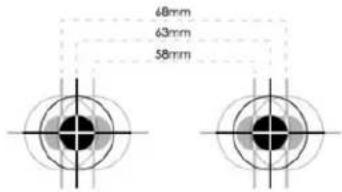
To fully experience VR apps or movies, you will need to ensure the image is focused. Each wearer of this headset may need to adjust the focal point and lens distance to accommodate his or her eyesight. Lens Distance Adjustment Focal Point Adjustment Lens Distance Adjustment

- To adjust the lens distance, simultaneously rotate the lens distance knobs forward and backward while you are using the headset. Continue to adjust the focal point until the image comes into focus

- To adjust the focal pint, rotate the small focal point dial left and right while you are using the headset. Continue to adjust the focal point until the image comes into focus
VOLUME CONTROL
- Move the volume dial to the LEFT to INCREASE volume
- Move the volume dial to the RIGHT to DECREASE volume
NOTE: Press the volume button to switch between Bluetooth mode and auxiliary line in mode
ANSWERING/REJECTING/ENDING A PHONE CALL
- If your smartphone rings while you are using the headset, press the multifunction button once to answer the incoming call
- To reject an incoming call, press and hold the multifunction button for 2 seconds
• To end a phone call, press the multifunction button once to hang up and end a phone call
CALL WAITING
If there is an incoming call while a call is in progress, press the multifunction button quickly to accept the waiting call and end the current call.
LISTENING TO MUSIC
- Once the headset is paired with your smartphone, you can use it to stream music
- Select the music track and place your smartphone into the headset
- Press the next track button to skip to the next song
- Press the previous track button to go back to the previous track
WARNING!
- Do not wear this device without a smartphone inside it. The powerful lenses may damage your eyes if you look at the sun or another bright light
- NEVER LOOK AT THE SUN WHILE WEARING ANY VR HEADSET
INTERACTIVE GAMING BUTTON
The Bluetooth VR Headset with Earphones has a new and improved interactive gaming button on the bottom of the headset, opposite the volume button. This button is used for apps that require a button press while your headset is on. Simply press the button once to execute an action in certain apps.
NOTE: This button was recently improved for better performance with iPhone touchscreens, however we recommend you remove any screen cover / screen sticker from your iPhone.
WATCHING 3-D VIDEOS
- Videos must be in split screen format to be compatible with the VR headset
- Select and launch a VR app with split screen video capability
CARE AND MAINTENANCE
- Do not expose this unit to excessive heat or humidity
- Do not use abrasive cleaning solvent to clean the unit
- Do not expose this unit to fire, excessively high temperatures or low excessively temperatures
- Do not expose unit to sharp objects that could scratch or puncture the unit
- Do not drop the unit
- Do not attempt to disassemble the unit. There are no user-serviceable parts
SPECIFICATIONS
| Bluetooth version V4.1 | |
| Operating System iOS® & Android® | |
| Field of view 120° | |
| Objective lens 1.65 inches [42mm] | |
| Minimum interpupillary adjustment 2.28 inches | |
| Maximum interpupillary adjustment 2.68 inches |
CAUTION
- Do not use this device for anything other than its intended purpose
- This device is not a toy. Keep out of the reach of children
- Do not use the headset at excessive levels, as this may damage hearing
- Do not wear this device without a smartphone inside it. The powerful lenses may damage your eyes if you look at the sun or another bright light
- NEVER LOOK AT THE SUN WHILE WEARING ANY VR HEADSET
- Be sure to take frequent breaks from virtual reality. If you experience nausea, dizziness or discomfort, discontinue use immediately
- Do not use if you are pregnant, have high blood pressure or a fear of heights or crowds
- If you have had seizures or are prone to seizures, consult your doctor before using this device
- Not for use by children under 13
- Sharper Image and SharperImage.com are not responsible for any damages or personal injuries that result from improper use of this device
FCC STATEMENT
This device complies with part 15 of the FCC Rules. Operation is subject to the following two conditions: [1] This device may not cause harmful interference, and [2] this device must accept any interference received, including interference that may cause undesired operation.
FCC INSTRUCTIONS FOR A CLASS B DIGITAL DEVICE OR PERIPHERAL
Note: This equipment has been tested and found to comply with the limits for a Class B digital device, pursuant to part 15 of the FCC Rules. These limits are designed to provide reasonable protection against harmful interference in a residential installation. This equipment generates, uses and can radiate radio frequency energy, and, if not installed and used in accordance with the instructions, may cause harmful interference to radio communications. However, there is no guarantee that interference will not occur in a particular installation. If this equipment does cause harmful interference to radio or television reception, which can be determined by turning the equipment off and on, the user is encouraged to try to correct the interference by one or more of the following measures:
- Reorient or relocate the receiving antenna
- Increase the separation between the equipment and receiver
- Connect the equipment into an outlet or on a circuit different from that to which the receiver is connected
- Consult the dealer or an experienced radio/TV technician for help
WARRANTY/CUSTOMER SERVICE
Sharper Image branded items purchased from SharperImage.com include a 1-year limited replacement warranty. If you have any questions not covered in this guide, please call our Customer Service department at 1 (877) 210-3449. Customer Service agents are available Monday through Friday, 9:00 a.m. to 6:00 p.m. ET.

- FEATURES
- HEADSET DIAGRAM
- CHARGING THE HEADSET
- POWER ON / OFF
- PAIRING THE DEVICE
- VIEWING VR APPS AND MOVIES
- VIEWING YOUR PHOTOS AND VIDEOS IN 3-D
- ADJUSTING THE VIEW
- VOLUME CONTROL
- ANSWERING/REJECTING/ENDING A PHONE CALL
- CALL WAITING
- LISTENING TO MUSIC
- WARNING!
- INTERACTIVE GAMING BUTTON
- WATCHING 3-D VIDEOS
- CARE AND MAINTENANCE
- CAUTION
- FCC STATEMENT
- FCC INSTRUCTIONS FOR A CLASS B DIGITAL DEVICE OR PERIPHERAL
- WARRANTY/CUSTOMER SERVICE
Brand : Sharper Image
Model : Bluetooth VR Headset with Earphones
Category : Toy