
ABGSS-1223 - Loudspeaker Bauhn - Free user manual and instructions
Find the device manual for free ABGSS-1223 Bauhn in PDF.


User questions about ABGSS-1223 Bauhn
0 question about this device. Answer the ones you know or ask your own.
Ask a new question about this device
Download the instructions for your Loudspeaker in PDF format for free! Find your manual ABGSS-1223 - Bauhn and take your electronic device back in hand. On this page are published all the documents necessary for the use of your device. ABGSS-1223 by Bauhn.
USER MANUAL ABGSS-1223 Bauhn
1 Have you got everything?

A. Bluetooth® Gimbal Selfie Stick
B. Remote Control
C. USB-C Cable
D. Use Guide
E. Warranty Certificate
F. General Safety Warning
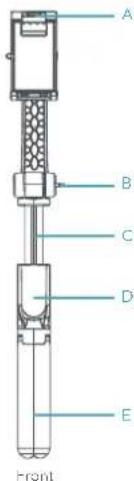
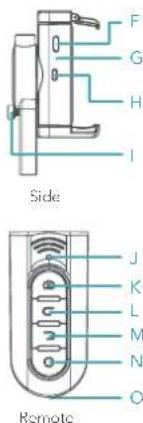
Product Overview
A Phone mount lever
B. larking knob
C. Extendable sole
D. Remote holder
E. Handle/tripoc legs
F. USB-C charging port
C. Gimoel LED indicator light
H. Power cullor
1. Rotation ring lock
J. Remote LED indicator light
K. button
L. Button (clockwise rotation)
M. Button (anti-clockwise
rotation)
N. Cutton (horizonta / vertical rotation)
O. Micro USB charging port
2
3 Operation
Connect To The Remote
- Slice the extendable pole out and push the remote out from the remote holder.
- Press and hold the 📄 button on the remote until the remote LED indicator starts flashing green.
- Turn on your smart phones Bluetooth and select 'A3GSS-1223' from the list of found devices. Once connected, the LED indicator will turn off. (The remote will automatically turn off after 10 minutes if not paired).
- Press and hold the button to turn the remote off. The LED indicator will flash green then turn off.
Mounting Your Smart Phone
- Open the phone mount ever and extend the phone mount until your smart phone can fit in as illustrated
- Slice your smart phone and the phone mount will automatically tighten.
Gimbal Function
- Release the rotation ring lock.
- Once your smart chone is mounted onto the product, press and hold the power button to turn the gimbal function on. The gimbal LED indicator light will flash green.
- Once gimbal function is turned on, it will automatically enter stable mode; where your smart phone will maintain a constant orientation even when you move the product to a different angle.
- Slice the extendable pole out to the desired length (up to 640mm).
- The gimonal stabiliser and the remote will automatically connect with each other when powered on.
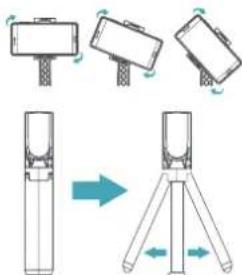
- Press the ○ button on the remote or the power button on the gimbal to switch between horizontal and vertical mode
- Press the button on the remote or the power button twice on the gimbal to slowly rotate your smart phone in a clockwise direct on.
- Press the Eton on the remote or the power button three times on the gimbal to slowly rotate your smart phone in a counterclockwise direction.
- Press any button on the remote or the power button on the gimbal again to reset back to the original position.
- Once finished, press and hold the power button on the gimbal or the Button on the remote to turn the gimbal function off. Lock the rotation ring lock securely before packing away.
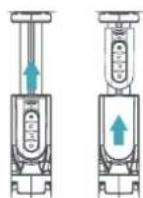

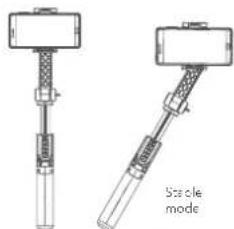

Taking Pictures/Videos Through The Remote
- Press the 📷 button on the remote to take a photo or video. The LED indicator will flash green once.
- To set up for use as a tripod, push out the 3 Tripod legs on the bottom of the handle.
- Once finished, ensure to power off the remote by pressing and holding the button, the LED indicator will have green then turn off.
- Note: for android devices, go to your camera settings and set your volume key as the capture function.
Charging (Gimbal)
- Connect the supplied USB-C cable to the USB-C charging port on the product and the other end to a power supply. The gimbal LED indicator light will get up red during charging. Once fully charged, the indicator light will turn off. When the battery is low, the gimbal LED indicator light will flash-red. Please charge before use.
Charging (Remote)
- Connect a Micro USB cable (not included) to the Micro USB charging port or the remote. The remote LED indicator light will light up red during charging. Once fully charged, the indicator light will turn off.
- Note, the remote has a small power consumption. It is recommended to not charge the remote frequently.
Gimbal Stabiliser Calibration
- When your smart phone is not perfectly horizontal or vertical with the product, the gimbal requires calibration.
- Pace the gimbal selfie stick on a horizontal surface, with the power button on the gimbal fading up.
- Turn on the gimbal function, and press the power button 6 times to enter calibration mode. The gimba will freely rotate. Press the power button again to start calibration, the gimbal LED indicator will flash green rapidly. Do not move the gimbal set the stick during calibration. After approximately 5 seconds, it will auto exit calibration mode.
- The gimbal stabiliser calibration is now completed.
Troubleshooting
Remote is not working
- Check that the smart phone is paired with the remote,
- For Android devices, go to your camera settings and set your volume key as the capture function.
- The remote control will automatically power off after 10 minutes of inactivity. Press and hold the button to turn the remote on again.
- The gimbal stabiliser and remote will automatically connect with each other when powered on. Ensure both the gimbal stabiliser and the remote are within close proximity of each other.
Gimbal function not working
- Ensure the rotation ring lock is released.
- Your smart phone may be too heavy for rotating function.
- When motor is jammed, the gimbal will generate noise and sulo switch off to protect the motor.
Gimbal stabiliser calibration
- When your smart phone is not perfectly horizontal or vertical with the gimbal selfie stick, the gimbal requires calibration.

Specifications
Battery
I-ion 3.7V, 400mAh (gimba) I-ion 3.7V, 70mAh (remote)
Charging Input 5VDC, 0.5A
Bluetooth V4.0
Tripod weight 60cm
Connection distance <10m
Dimensions 185 x 68 x 43mm (when folded)
Weight 208g
The Bluetooth word mark and logos are registered trademarks owned by Bluetooth SIG, Inc., and any use of such marks by Iands (1) to doings Pty Ltd is under license. Other trademarks and trade rames are those of their respective owners.
Give us a call
What? You mean this User Guide didn't have ALL the answers? Speak to us. We'd love to help you get up and running as quickly as possible. Call our After Sales Support on 1300 002 534.
Operating hours: Monday-Friday, 8:30am-6pm; Saturday, 9am-6pm AEST


Brand : Bauhn
Model : ABGSS-1223
Category : Loudspeaker