KATB2P1064WPA - Tablet Kogan - Free user manual and instructions
Find the device manual for free KATB2P1064WPA Kogan in PDF.


| Product Type | Tablet |
| Brand | Kogan |
| Model | KATB2P1064WPA |
| Also Known As | Explore Tab 2 Pro 10.4" QHD Android Tablet (128GB, Wi-Fi) |
| Operating System | Android 13 |
| Display Size | 10.36 inches |
| Display Resolution | 1200 x 2000 pixels (QHD) |
| Processor | MediaTek MT8788, 2.0 GHz |
| GPU | ARM Mali-G72 MP3 |
| RAM | 4 GB |
| Storage | 128 GB eMMC |
| Expandable Storage | MicroSD card up to 128 GB |
| Battery Capacity | 6000 mAh |
| Battery Type | Lithium-ion polymer (non-user replaceable) |
| Charging | 5V/2A via USB-C, use provided adapter |
| Connectivity | Wi-Fi 802.11b/g/n/ac, Bluetooth 5.0 |
| Ports | USB-C, 3.5mm headphone jack, MicroSD slot |
| Cameras | Front and rear cameras |
| Speakers | Dual speakers |
| Dimensions | 247.4 x 157.2 x 9.2 mm |
| Weight | 450 g |
| Safety | Use only supplied charger; avoid water, extreme temperatures, and impacts |
| Maintenance | Clean with dry cloth; avoid chemical cleaners |
| Repairability | Professional service recommended; battery not user-replaceable |
| Included Accessories | Power adapter, USB-C to USB-A cable, User guide |
Frequently Asked Questions - KATB2P1064WPA Kogan
User questions about KATB2P1064WPA Kogan
0 question about this device. Answer the ones you know or ask your own.
Ask a new question about this device
Download the instructions for your Tablet in PDF format for free! Find your manual KATB2P1064WPA - Kogan and take your electronic device back in hand. On this page are published all the documents necessary for the use of your device. KATB2P1064WPA by Kogan.
USER MANUAL KATB2P1064WPA Kogan
Explore Tab 2 Pro 10.4" QHD Android Tablet (128GB, Wi-Fi)
KATB2P1064WPA
Safety & Warnings
- Read all instructions in this guide before first use. Keep this guide for future reference.
- This tablet is designed for optimal performance in moderate climates and altitudes below 2,000 meters.
- Use only the supplied power adapter, which requires 5V/2A, to charge the tablet. Avoid using third-party adapters.
- Handle the tablet with care to prevent drops or impacts.
- Avoid placing heavy objects on the tablet or subjecting it to forceful impacts.
- When charging, ensure the surrounding temperature does not exceed 25°C.
- During operation, the ambient temperature should not exceed 45^ .
- Keep the tablet out of direct sunlight and avoid using it in areas with strong magnetic or static fields.
- Do not expose the tablet to water or other liquids. If the tablet gets wet, immediately stop using it, disconnect the power adapter, and wait until it is completely dry before resuming use.
- Do not attempt to disassemble or modify the tablet.
- Regularly back up data on the tablet to avoid accidental data loss.
- To prevent damage, clean the tablet with a dry cloth and avoid using chemical cleaners or other liquids.
Components
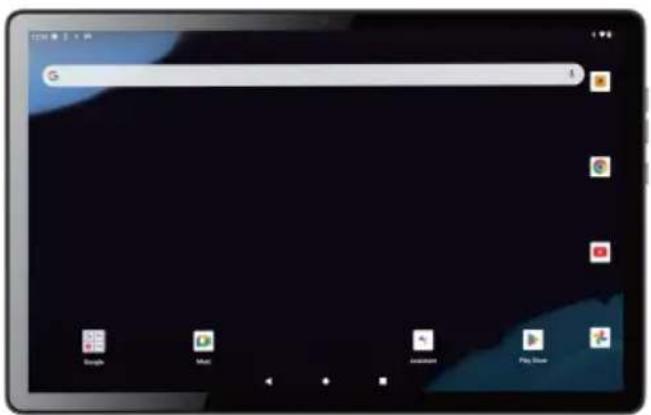
Tablet
Power Adapter
natural_image
Illustration of a USB cable with two port pins (no text or symbols)USB-C to USB-A Cable
User Guide
Overview
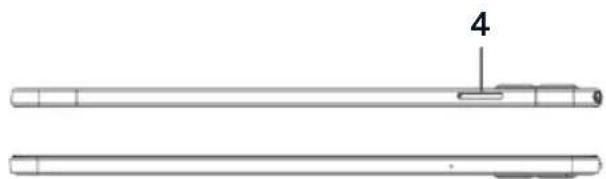
natural_image
Technical line drawing of a cylindrical mechanical component with labeled part '4' (no text or symbols beyond label)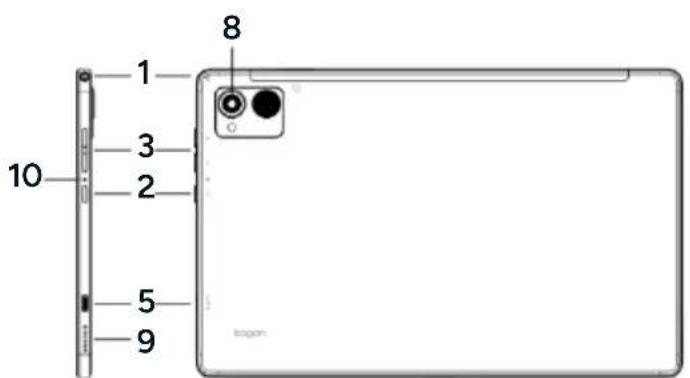
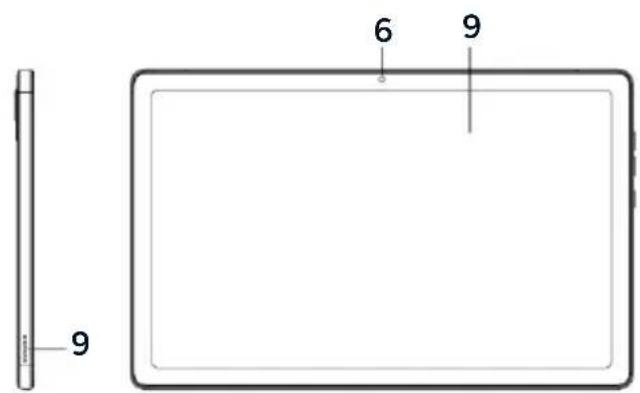
1 Headphone Port
2 Power Button
3 Volume Button
4 SD Card
5 USB-C Port
6 Front Camera
7 Display
8 Rear Camera
9 Speakers
10 Reset Hole
Home Screen
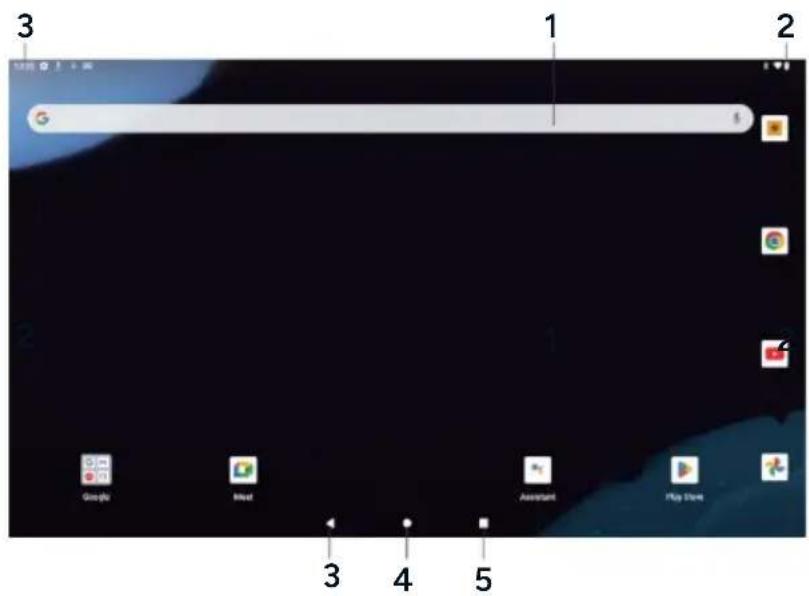
| 1 | GoogleTM Search | Tap to search using the Google browser. |
| 2 Notification Bar | Notifications such as time, battery level and network strength are displayed here. | |
| 3 | Back | Return to the previous screen. |
| 4 | Home | Return to the home screen. |
| 5 | Recent Apps | Touch to display a list of the apps you have recently used. |
Operation
Charging the Tablet
Connect the USB-C end of the provided power cord to the USB-C port on the tablet and the USB-A end to the provided power adapter. Then, connect the adapter to an electrical outlet.
Turn the Tablet On
Press and hold the 'Power' button until the display lights up. Wait for the home screen to appear; the tablet is now ready for use.
Turn the Tablet Off
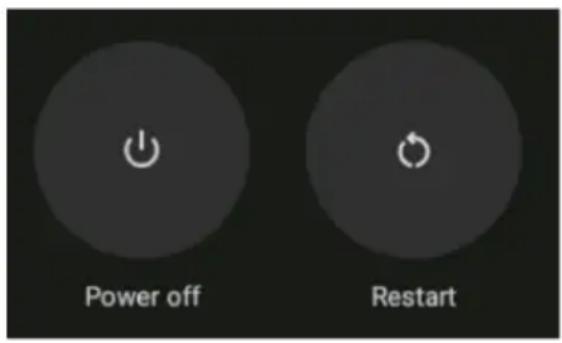
- Press and hold the 'Power' button until a confirmation pop-up appears.
- Tap 'Power off' to turn off the tablet.
Turning Off the Display (Standby)
To conserve battery power when the tablet is on, you can turn the display off. Press the 'Power' button to turn the display on/off.
Screen Timeout
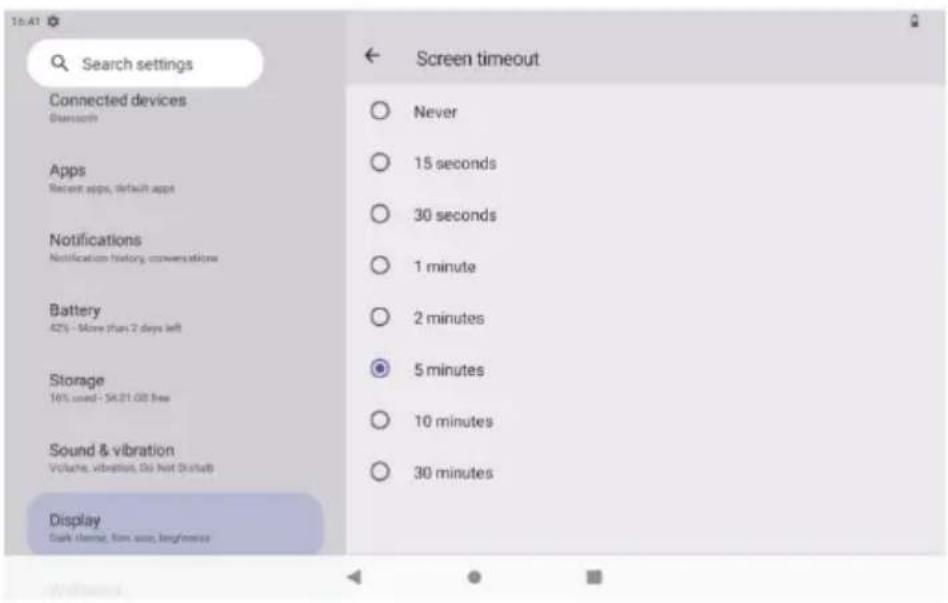
- To further conserve battery power, you can set the screen to automatically turn off when the tablet is idle.
- Choose a timeout interval between 15 seconds and 30 minutes.
- This option is available in the 'Display' settings menu.
Unlocking the Screen
WARNING: It is highly recommended to write down your password/pin pattern. Misplacing or forgetting your password will lock you out of the tablet. Factory resetting the device to regain access will result in all data and programs being deleted.
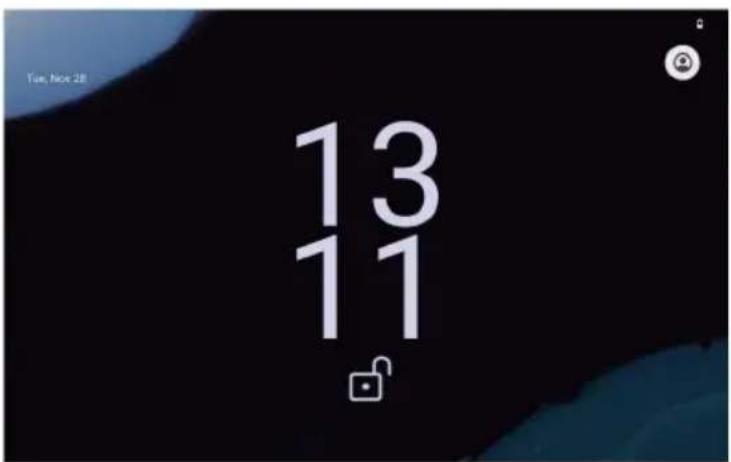
- When the screen turns off, you will need to unlock it when turning it back on.
• To unlock, slide your finger upward on the screen to access the home screen. - If a password is set, enter it to complete unlocking. You can set or update the screen unlock password in the 'Security & Location' settings menu.
Applications
- To open an application, touch the application icon on the home screen or in the app launcher.
- The following apps are pre-installed on your tablet for your convenience.
 | Chrome internet browser. |  | View and manage the files stored on your tablet. |
 | Use the Google calendar to manage events and appointments. |  | • View photos and videos stored on your tablet.• Edit your photos. |
 | Perform mathematical operations. |  | Watch online videos. |
 | Take photos and record videos using the tablet's cameras. |  | Access the tablet settings menu. |
 | View the current time or set an alarm. |  | Listen to FM radio. |
| Gmail | Send and receive emails with your Gmail account. |
Specifications
Display
Screen size 10.36"
Screen resolution 1200 x 2000
Performance
CPU
MediaTek MT8788
CPU speed 2.0GHz
GPU Arm Mail-G72 MP3
Operation system Android 13
System memory (RAM) 4GB
Power
Battery capacity 6000mAh
Battery type
Lithium-ion polymer
Storage
Capacity 128GB
Type eMMC
Ports
3.5mm headphone jack Yes
MicroSD card slot Up to 128GB
Connectivity
Bluetooth
V5.0
Wi-Fi
Yes
Wi-Fi protocols
802.11b/g/n/ac
Other
Dimensions
247.4 × 157.2 × 9.2mm
Weight
450g
Built-in webcam
Yes
Notes
Need more information?
We hope that this user guide has given you the assistance needed for a simple set-up.
For the most up-to-date guide for your product, as well as any additional assistance you may require, head online to help.Kogan.com.
kogan.com
- Explore Tab 2 Pro 10.4" QHD Android Tablet (128GB, Wi-Fi)
- Safety & Warnings
- Components
- Overview
- Home Screen
- Operation
- Charging the Tablet
- Turn the Tablet On
- Turn the Tablet Off
- Turning Off the Display (Standby)
- Screen Timeout
- Unlocking the Screen
- Applications
- Specifications
- Display
- Performance
- Power
- Storage
- Ports
- Connectivity
- Other
- Notes
- Need more information?
Brand : Kogan
Model : KATB2P1064WPA
Category : Tablet