KAKT10164SA - Tablet Kogan - Free user manual and instructions
Find the device manual for free KAKT10164SA Kogan in PDF.


| Product Type | Tablet |
| Brand | Kogan |
| Model | KAKT10164SA |
| Display Size | 10.1 inches |
| Resolution | 1280 x 800 pixels |
| Processor | Quad-core 1.5 GHz |
| RAM | 2 GB |
| Internal Storage | 32 GB |
| Expandable Storage | microSD up to 128 GB |
| Operating System | Android |
| Battery Capacity | 5000 mAh |
| Charging Port | Micro USB |
| Wireless Connectivity | Wi-Fi 802.11 b/g/n, Bluetooth 4.0 |
| Cameras | Rear: 5 MP, Front: 2 MP |
| Weight | 520 g |
| Dimensions | 240 x 170 x 9 mm |
| Maintenance | Clean with soft dry cloth; avoid liquids |
| Safety | Do not expose to extreme temperatures; use only included charger |
| Spare Parts & Repairability | Contact Kogan support for battery or screen replacement |
| General Info | Includes microUSB cable, charger, user manual |
Frequently Asked Questions - KAKT10164SA Kogan
User questions about KAKT10164SA Kogan
0 question about this device. Answer the ones you know or ask your own.
Ask a new question about this device
Download the instructions for your Tablet in PDF format for free! Find your manual KAKT10164SA - Kogan and take your electronic device back in hand. On this page are published all the documents necessary for the use of your device. KAKT10164SA by Kogan.
USER MANUAL KAKT10164SA Kogan
natural_image
Front view of a tablet device with blank screen (no text or symbols visible)- Keep the device dry at all times. Avoid exposing the device, battery, or charger to water or moisture, and do not handle them with wet hands. Exposure to water can cause a short circuit, corrosion, or electric shock.
- Avoid subjecting the device, battery, or charger to physical shock or impact. Damage resulting from such actions may lead to failure of the device, battery, or charger.
- Do not expose the device, battery, or charger to extreme temperatures, whether high or low. Doing so may result in device failure.
- Handle the tablet with care. Do not hit, throw, or pierce the tablet, and avoid dropping, squeezing, or bending it.
- Do not disassemble the device or its accessories without authorization. Unauthorized disassembly will void the warranty.
- Always supervise young children while they are using the tablet. Prolonged or unsupervised use can lead to eye strain or other health issues.
- Ensure that the content and apps accessed on the device are age-appropriate.
- Limit screen time according to age-appropriate guidelines to prevent issues like digital eye strain or disruptions to sleep patterns.
- If the tablet is used with headphones, monitor the volume levels to prevent hearing damage. Use volume-limiting headphones designed for children.
- Do not allow children to charge the device without adult supervision. Ensure that the charging cable and battery are in good condition to avoid risks of overheating or fire.
- Encourage proper posture while using the tablet to prevent discomfort or strain on the neck, shoulders, and wrists.
- Avoid using the tablet in bright sunlight or near strong light sources, as this can cause glare and make the screen difficult to see, potentially leading to eye strain.
- Ensure that children do not sleep with the tablet or keep it close to their body for extended periods to minimize exposure to electromagnetic radiation.
COMPONENTS
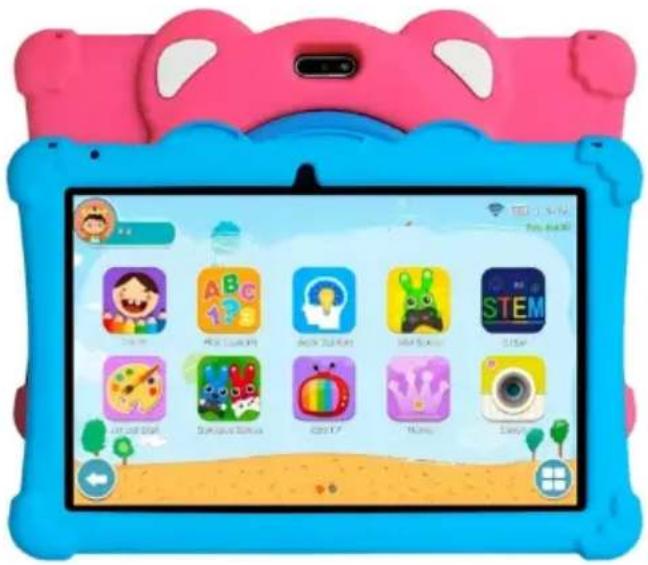
10.1" Tablet with Protective Case
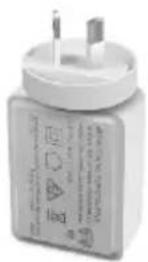
natural_image
Coiled white cable with two connectors (no text or symbols visible)USB Charging Cable
User Guide
OVERVIEW
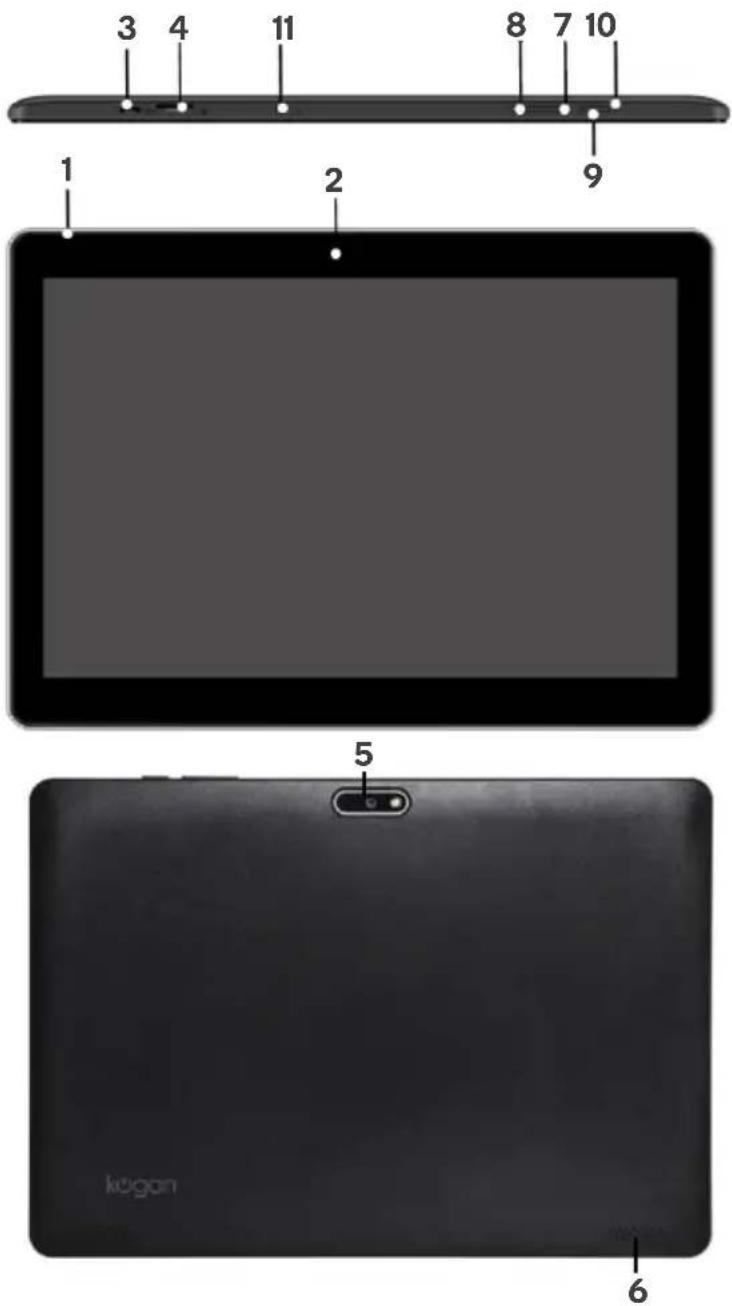
1 Mic 7 Volume -
2 Front camera
8 Volume +
3 USB-C port
9 Power button
4 Micro SD
10 Reset
5 Rear camera
11 3.5mm audio out
6 Speaker
OPERATION
Charging the Battery
- Before first use, fully charge the tablet's battery. Connect the charging cable to the USB-C port and plug it into the supplied USB power adapter.
- Plug the power adapter into an electrical outlet.
Note: It's recommended to charge the battery to 100% initially, discharge it completely, and then charge it again to 100% for optimal battery life.
- When the battery is completely drained, connect the tablet to the charger and wait a few minutes until it has enough power to boot up. Avoid using the tablet while it is charging as this may extend the charging time.
Powering On and Off
- To power on the tablet, press and hold the POWER button for approximately 2 seconds until the startup screen appears. Once the system has booted up, the screen will be locked. Swipe to unlock and access the main interface.
- To power off the tablet, press and hold the POWER button until the shutdown menu appears. Select "Shutdown" to turn off the device.
Volume Control
To adjust the volume, use the VOL+ button to increase and the VOL- button to decrease the volume.
Button function:
| Power | To turn the tablet on/off, press and hold the POWER button.Short press of the POWER button will activate the sleep/wake function, allowing you to quickly put the tablet to sleep or wake it up. |
| VOL+(up) Increase | the volume |
| VOL-(down) Reduce | the volume |
USB Connection and File Transfer
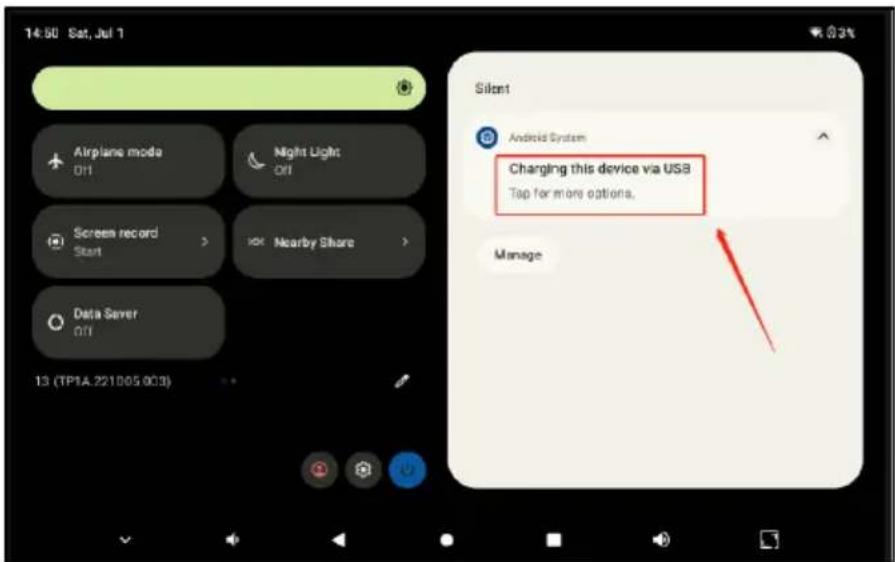
- To transfer files, connect the tablet to your computer using the provided USB cable. Once connected, a notification will appear in the notification bar.
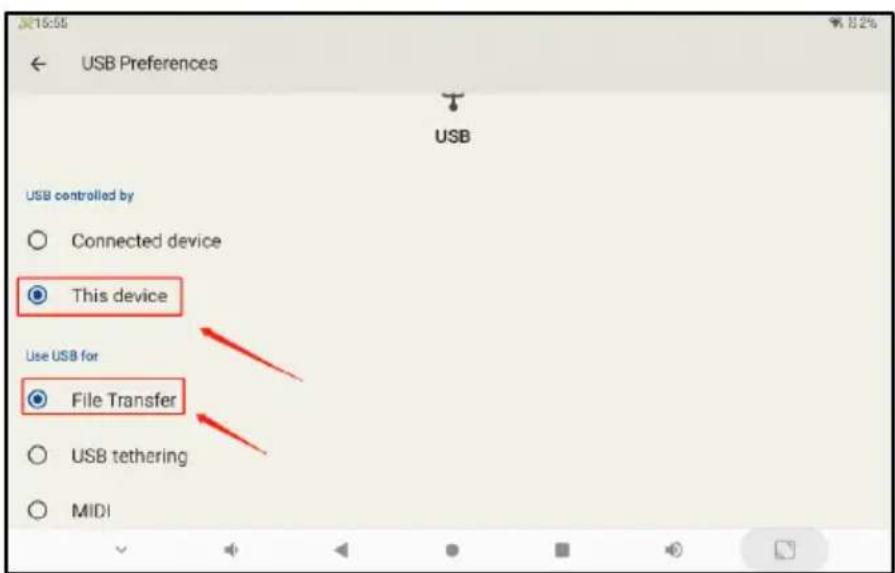
- Swipe down to open the notification panel, then tap on "USB Connected" and select "USB Storage Device."
- On your computer, open "My Computer" or "This PC," and you will see the tablet listed as a removable disk. You can now transfer files between your computer and the tablet.
Text Input
The on-screen keyboard will appear automatically when you select a text field. The default keyboard is the Android keyboard, which allows for easy text and number entry.
Wi-Fi Connection
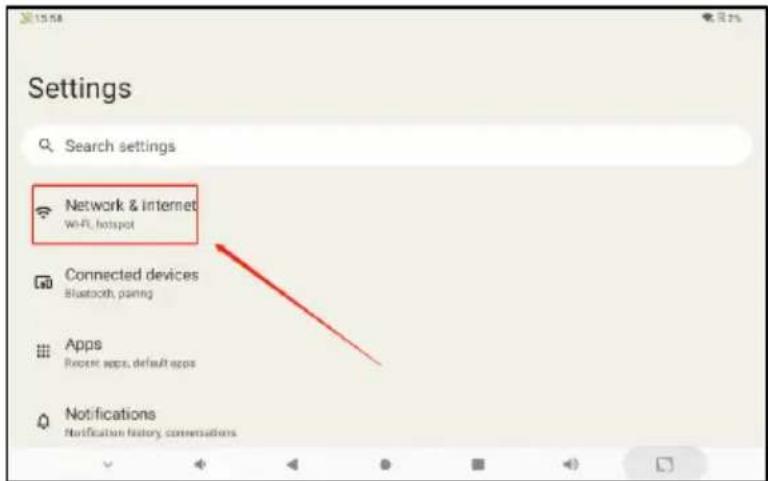
- To connect to Wi-Fi, go to the main menu and select "Settings." Tap "WLAN" to turn on Wi-Fi. The tablet will automatically scan for available networks.
- Select the desired Wi-Fi network. If the network is secured, you will be prompted to enter the password.
Date and Time Settings
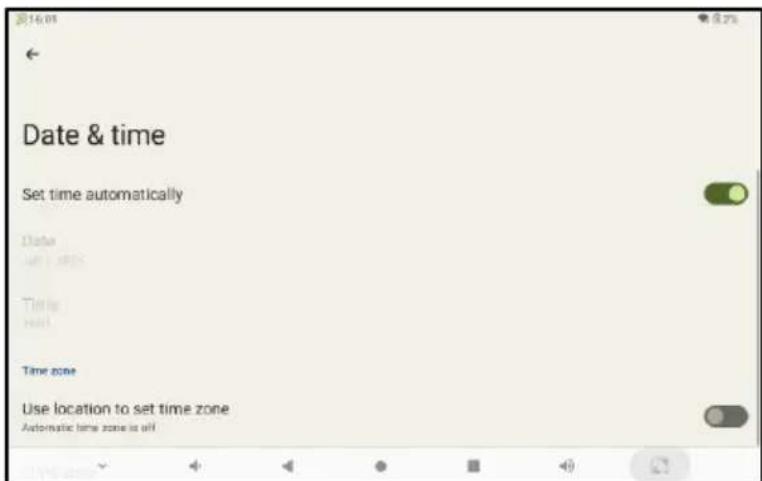
- To manually adjust the date and time, go to "Settings → System" then scroll down and select "Date & Time."
- Turn off "Automatic date & time" and "Automatic time zone" if they are enabled. You can then manually set the date, time, and time zone.
Note:
If you automatically use the time provided by the network, you cannot set the date, time and time zone yourself.
Language and Input Settings
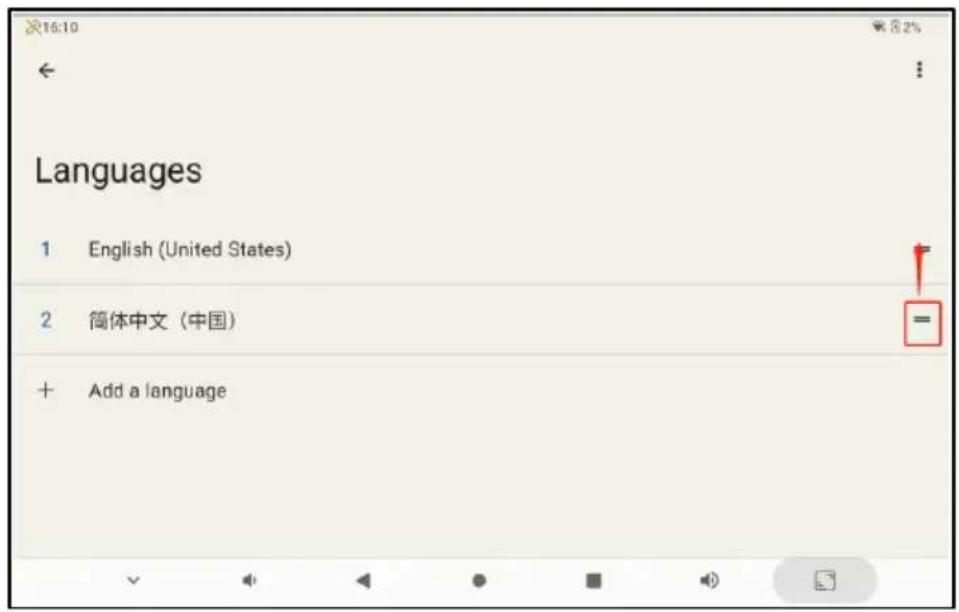
To change the language, go to "Settings → System" then select "Language & Input." Choose the preferred language from the list provided.
Using Parental Controls
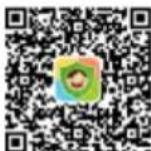
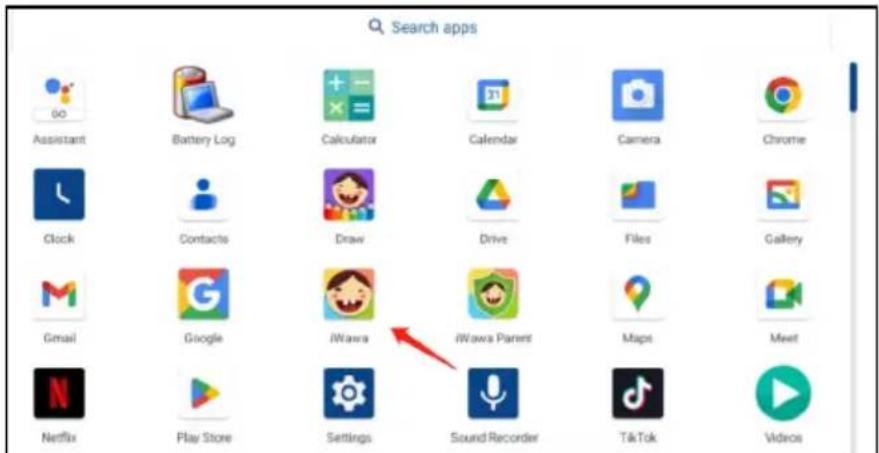
- To access parental controls, download iWawa app by scanning the QR code.
- This app will allow you to manage and monitor your child's activity on the tablet.
Exiting the Parental Control App:
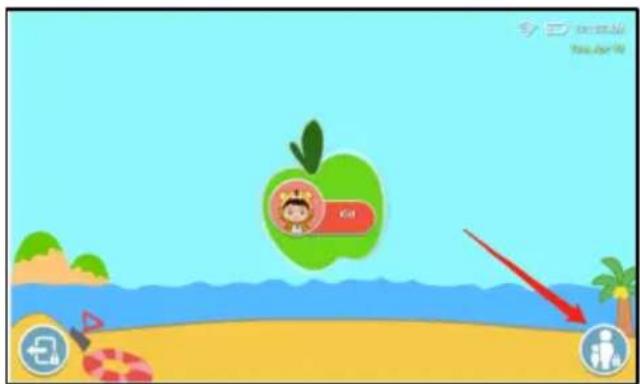
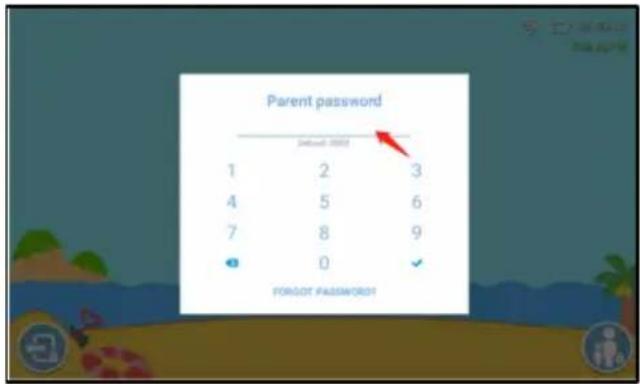
To exit the parental control app, tap the lower left corner of the screen to return to the initial interface. Then, click the exit button located in the lower left corner. The default exit password is set to "0000."
Locking Apps in iWawa:
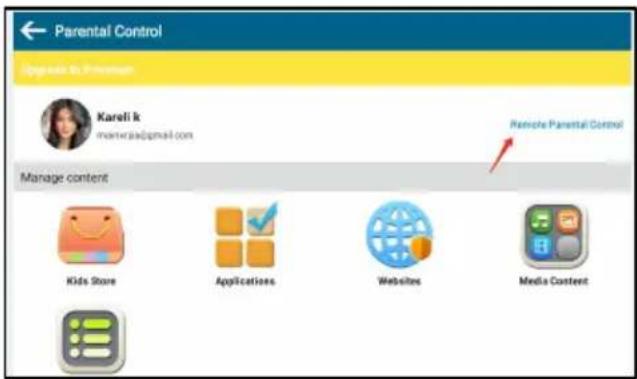
- Open the iWawa app and tap on "Parental Controls."
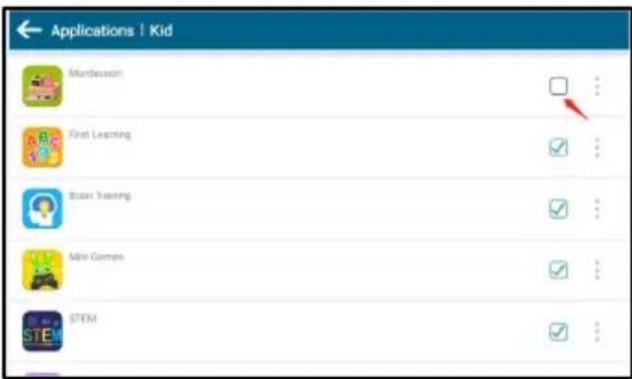
- Select "Applications" to lock specific apps, restricting access as needed.
TROUBLESHOOTING
The tablet starts slowly for the first time:
After upgrading the tablet, it may take 2-3 minutes to install the pre-installed applications during the first startup. This is normal, and the startup time will be faster afterward.
The tablet doesn't connect to Wi-Fi:
Ensure that the Wi-Fi network is 2.4G, as this tablet does not support 5G networks. Verify that the wireless router is functioning correctly and that the tablet is within range without obstructions like walls. Double-check that the correct username and password are entered.
The tablet feels hot:
It is normal for the tablet to feel warm, especially when running multiple apps simultaneously or when the screen brightness is set to maximum while charging.
The system fails to run properly:
If the system malfunctions after installing third-party applications, you can reset it by pressing the reset key located next to the power port.
Unable to open a web page:
Ensure that the tablet is within the effective range of the router. If the issue persists, restart the Wi-Fi connection and try again.
The tablet sometimes runs slowly:
Occasional slowdowns are normal. To improve performance, use advanced task management to close unnecessary applications and uninstall any third-party apps that are no longer needed to free up system resources.
Tablet won't turn on or charge:
- Locate the small hole near the power button, press it with a small needle for one second, then press and hold the power button for ten seconds.
- Charge the tablet for at least 30 minutes, then attempt to power it on.
Forgotten iWawa password:
If you forget your iWawa password, you can reset it using the default reset password: '257518'. After resetting, you can set a new password.
Computer can't find the disk for file transfer:
If the tablet is not recognized by the computer during file transfer, unplug and re-insert the USB cable, then reconfigure the transfer settings on the tablet. The disk should then appear on your computer.
Need more information?
We hope that this user guide has given you the assistance needed for a simple set-up.
For the most up-to-date guide for your product, as well as any additional assistance you may require, head online to help.kogan.com
kogan.com
- COMPONENTS
- OVERVIEW
- OPERATION
- Charging the Battery
- Powering On and Off
- Volume Control
- Button function:
- USB Connection and File Transfer
- Text Input
- Wi-Fi Connection
- Date and Time Settings
- Note:
- Language and Input Settings
- Using Parental Controls
- Exiting the Parental Control App:
- Locking Apps in iWawa:
- TROUBLESHOOTING
- The tablet starts slowly for the first time:
- The tablet doesn't connect to Wi-Fi:
- The tablet feels hot:
- The system fails to run properly:
- Unable to open a web page:
- The tablet sometimes runs slowly:
- Tablet won't turn on or charge:
- Forgotten iWawa password:
- Computer can't find the disk for file transfer:
- Need more information?
Brand : Kogan
Model : KAKT10164SA
Category : Tablet